Import Leads from TikTok Instant Forms
The TikTok Instant Form source connects your TikTok advertising account to CustomerLabs 1PD Ops. Once connected, you choose the Instant Forms (lead-generation forms) you are running on TikTok, and every lead submitted on those forms is delivered to CustomerLabs the moment it arrives — no CSV exports and no manual downloads. From there, you can unify the leads with your existing customer data and send them to any of your connected destinations.
Prerequisites
Section titled “Prerequisites”- A TikTok account that manages at least one ad account with at least one published Instant Form.
- Admin access on the ad account you want to connect. Ad accounts where you are not an Admin are still listed, but flagged — connecting forms requires Admin access.
- Your TikTok login. You sign in to TikTok during the connection and approve access. CustomerLabs never sees or stores your TikTok password.
- An active CustomerLabs 1PD Ops account.
Connecting your TikTok Ad Account
Section titled “Connecting your TikTok Ad Account”-
Log in to CustomerLabs 1PD Ops and navigate to Sources from the left menu.
-
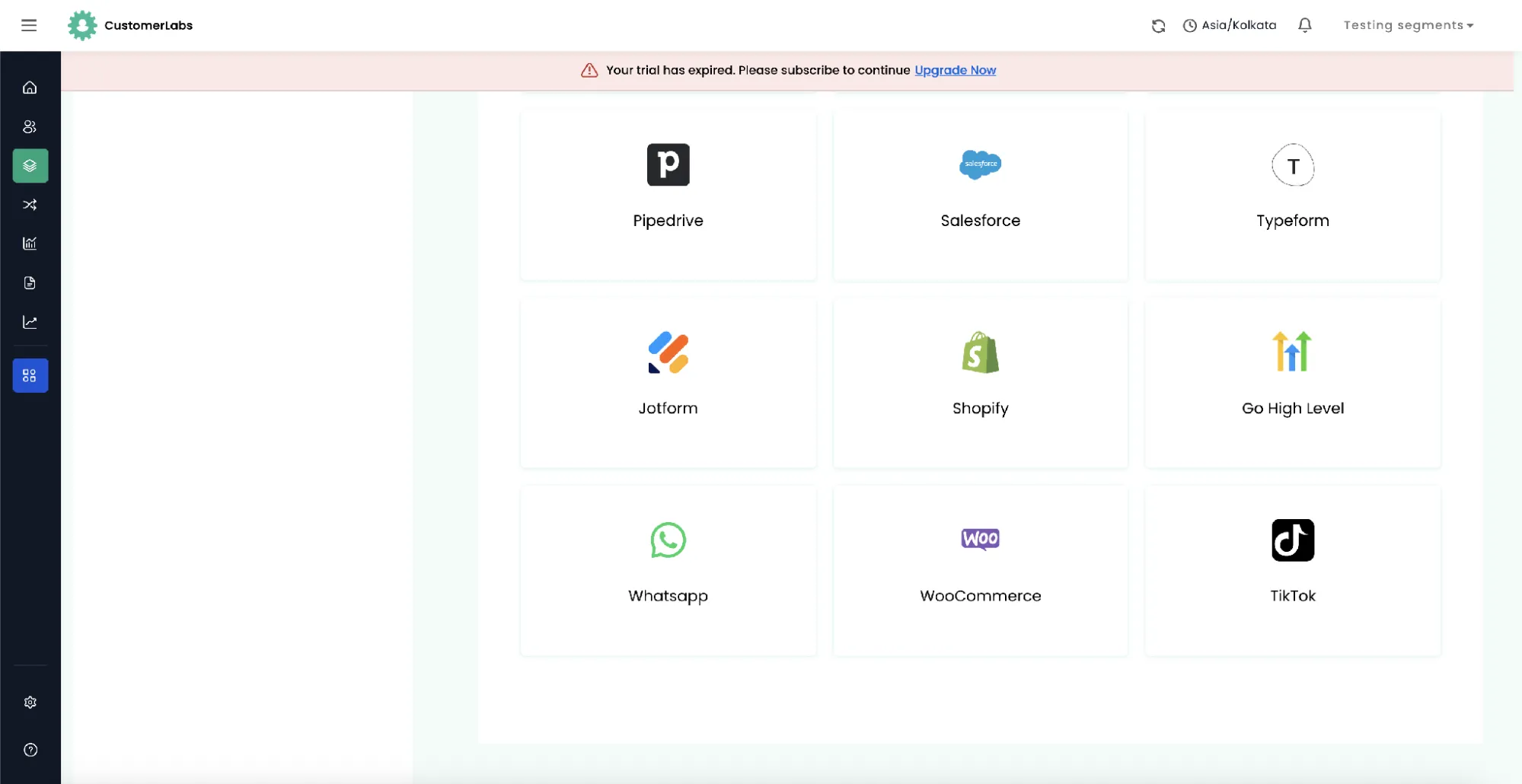
Click Add source and select TikTok from the list of sources.
-
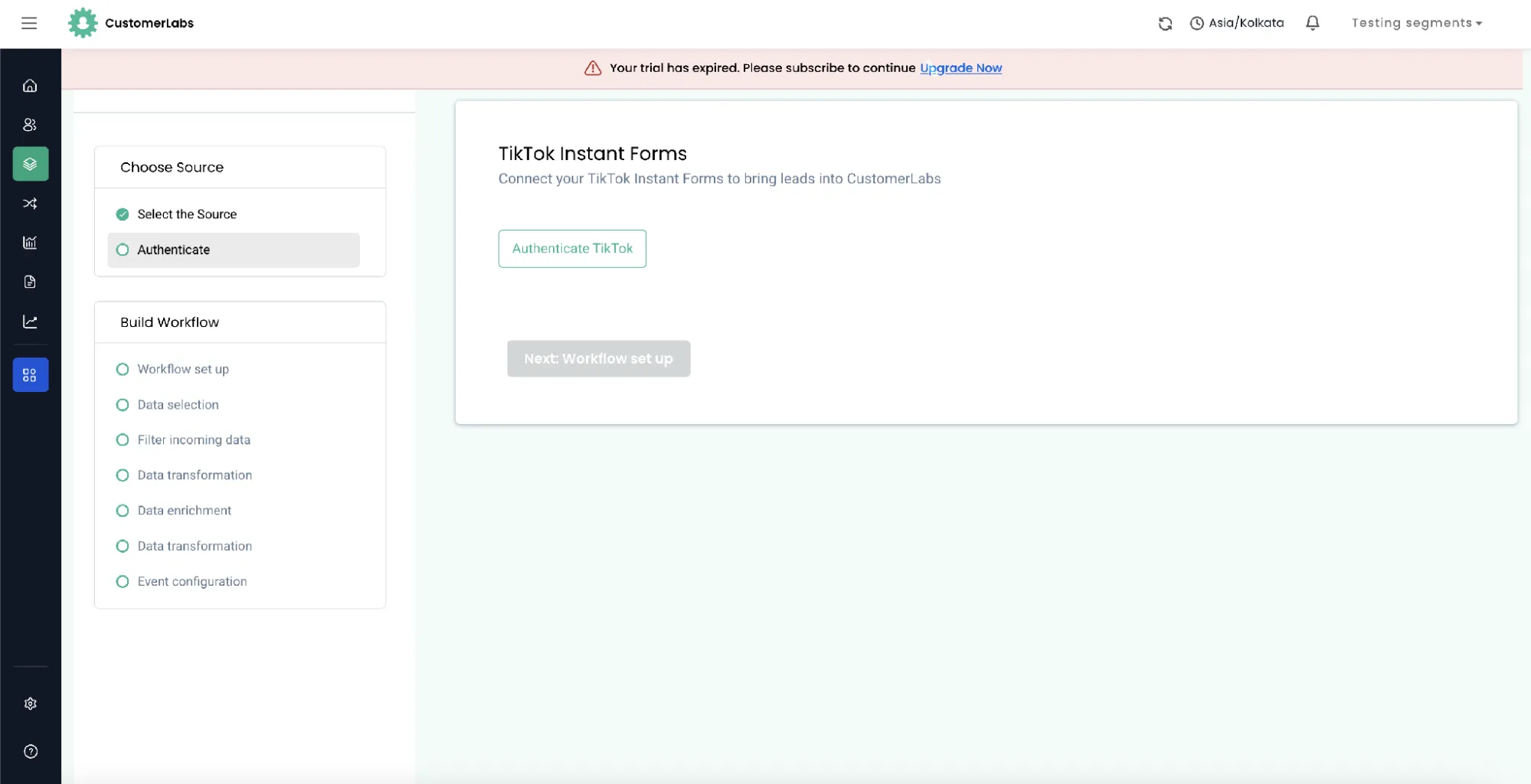
On the TikTok Instant Forms screen, click Authenticate TikTok. You are redirected to TikTok’s login page.
-
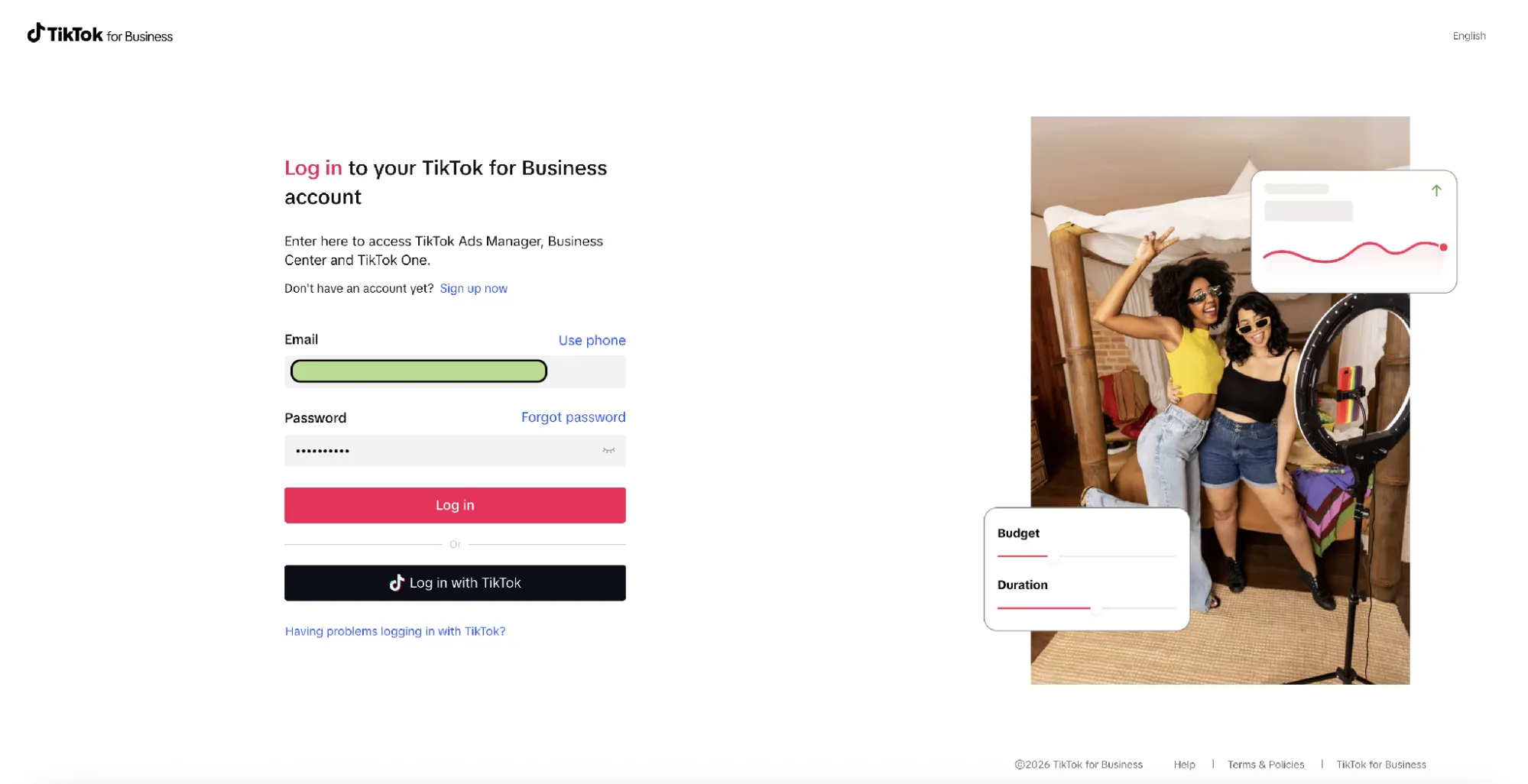
Sign in to your TikTok for Business account.
-
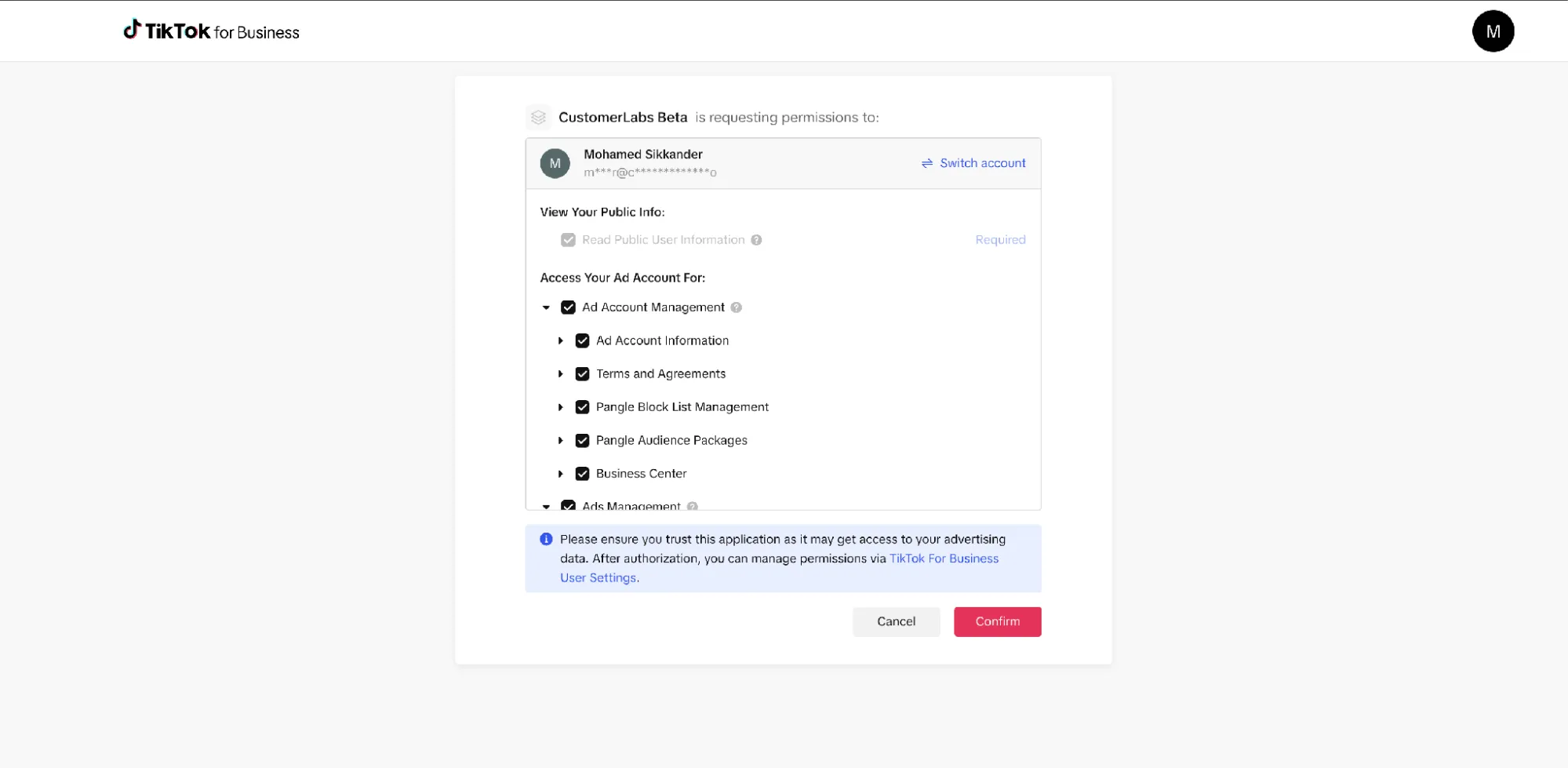
Review the permissions CustomerLabs is requesting and click Confirm. TikTok shows exactly what access is being asked for.
-
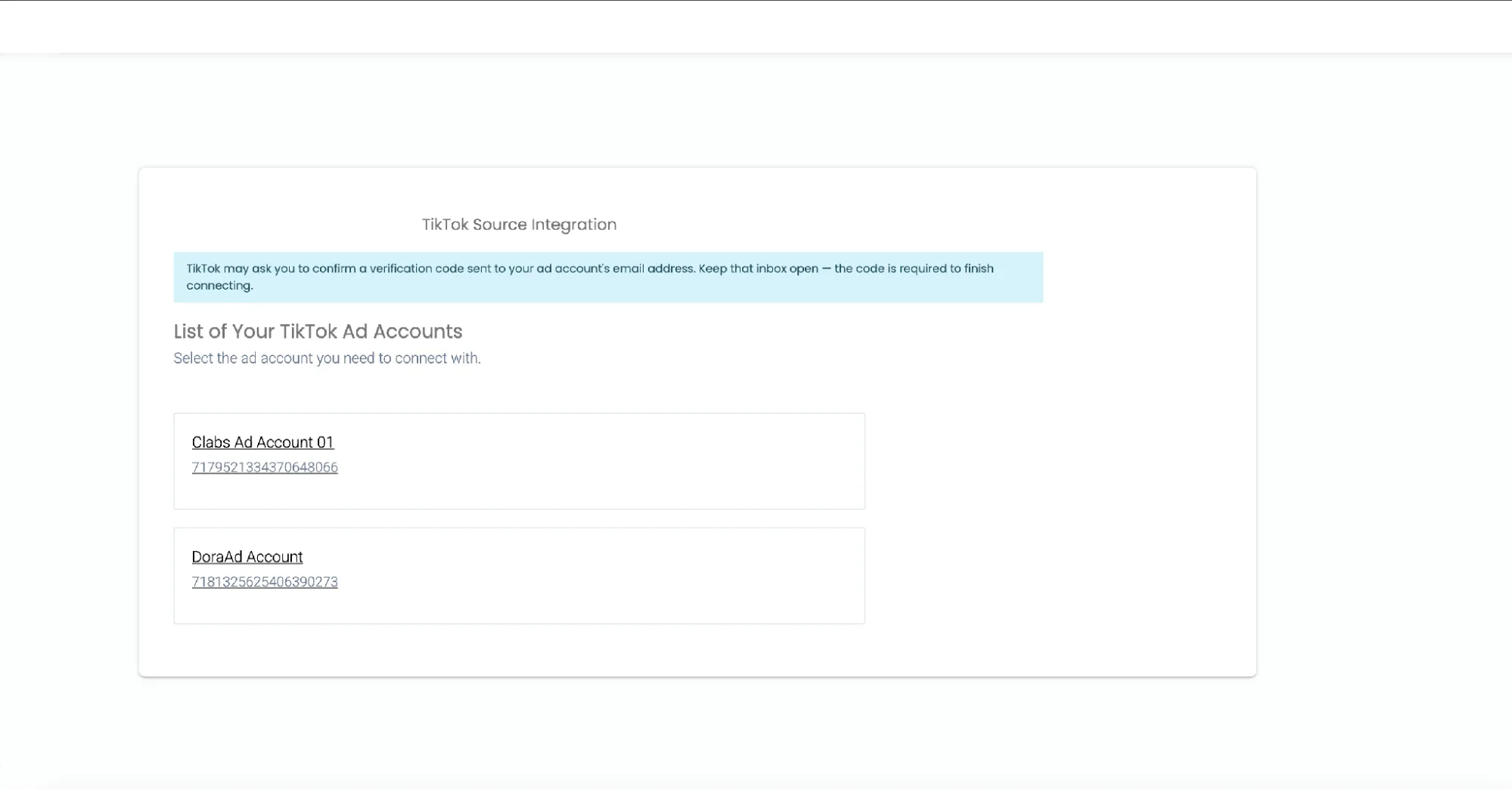
If your login manages more than one ad account, select the ad account you want to connect. Accounts where you are not an Admin are flagged.
-
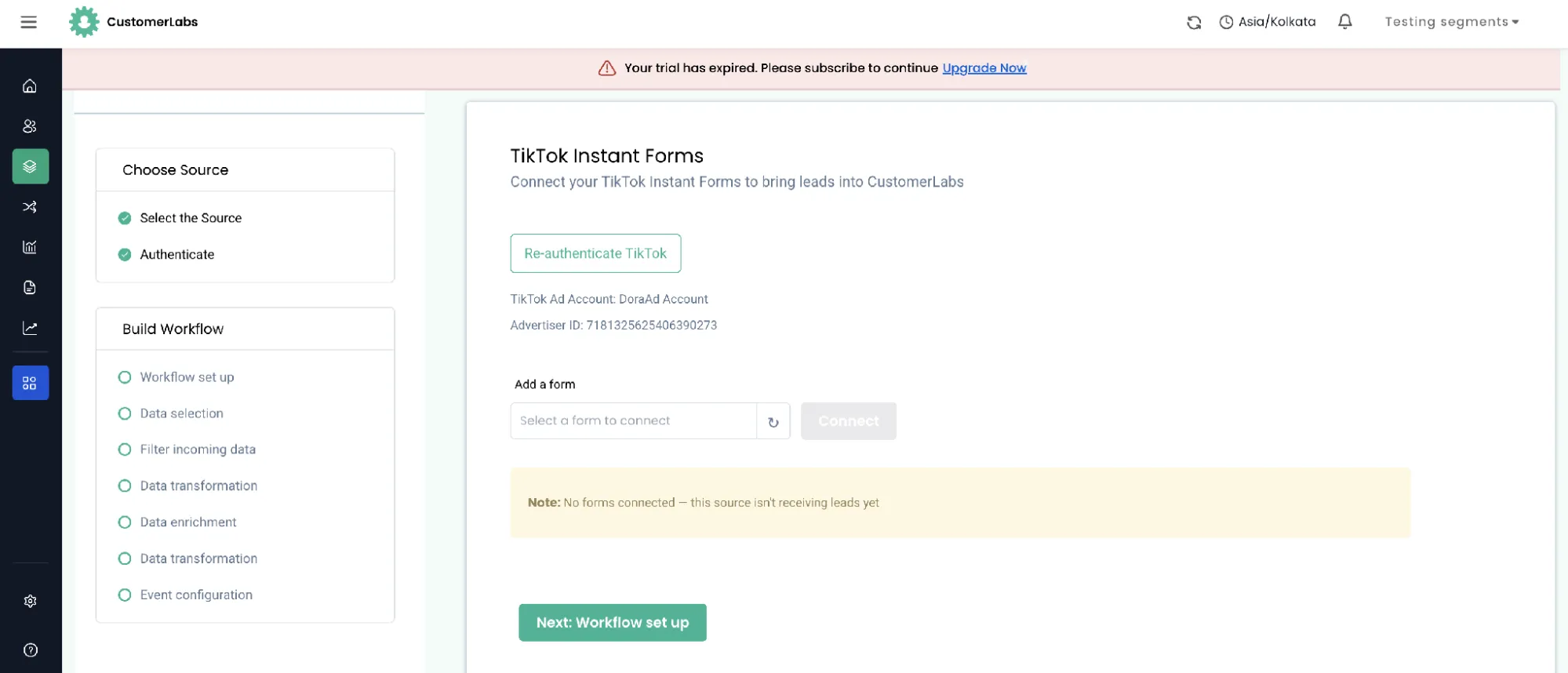
CustomerLabs creates your TikTok source and takes you to its forms screen. The connected ad account and Advertiser ID are shown at the top.
Choosing Instant Forms to Sync
Section titled “Choosing Instant Forms to Sync”Once your ad account is connected, select which Instant Forms CustomerLabs should bring in.
-
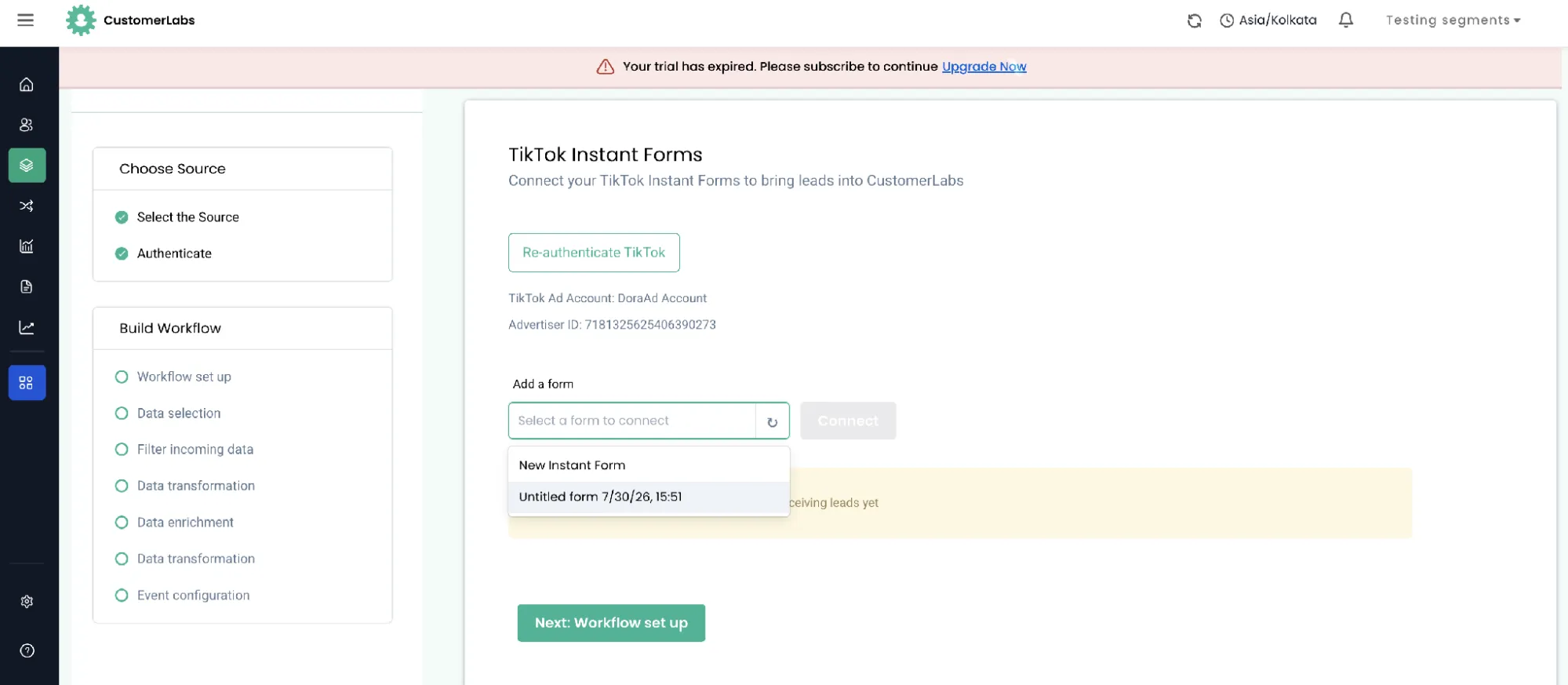
The forms screen lists the Instant Forms on your connected ad account. Click the refresh icon at any time to pull the latest list — for example, after creating a new form in TikTok.
-
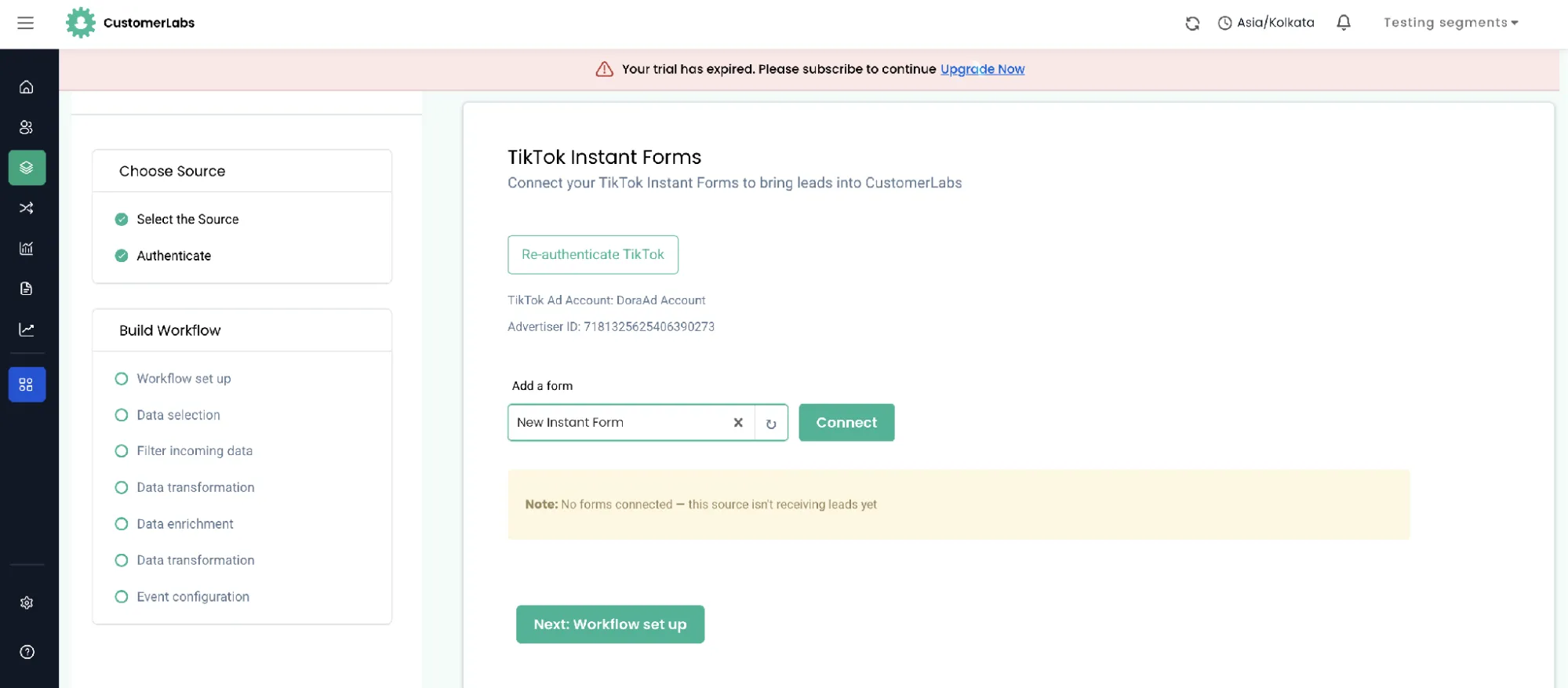
Select the form you want and click Connect. New submissions on that form start flowing into CustomerLabs.
-
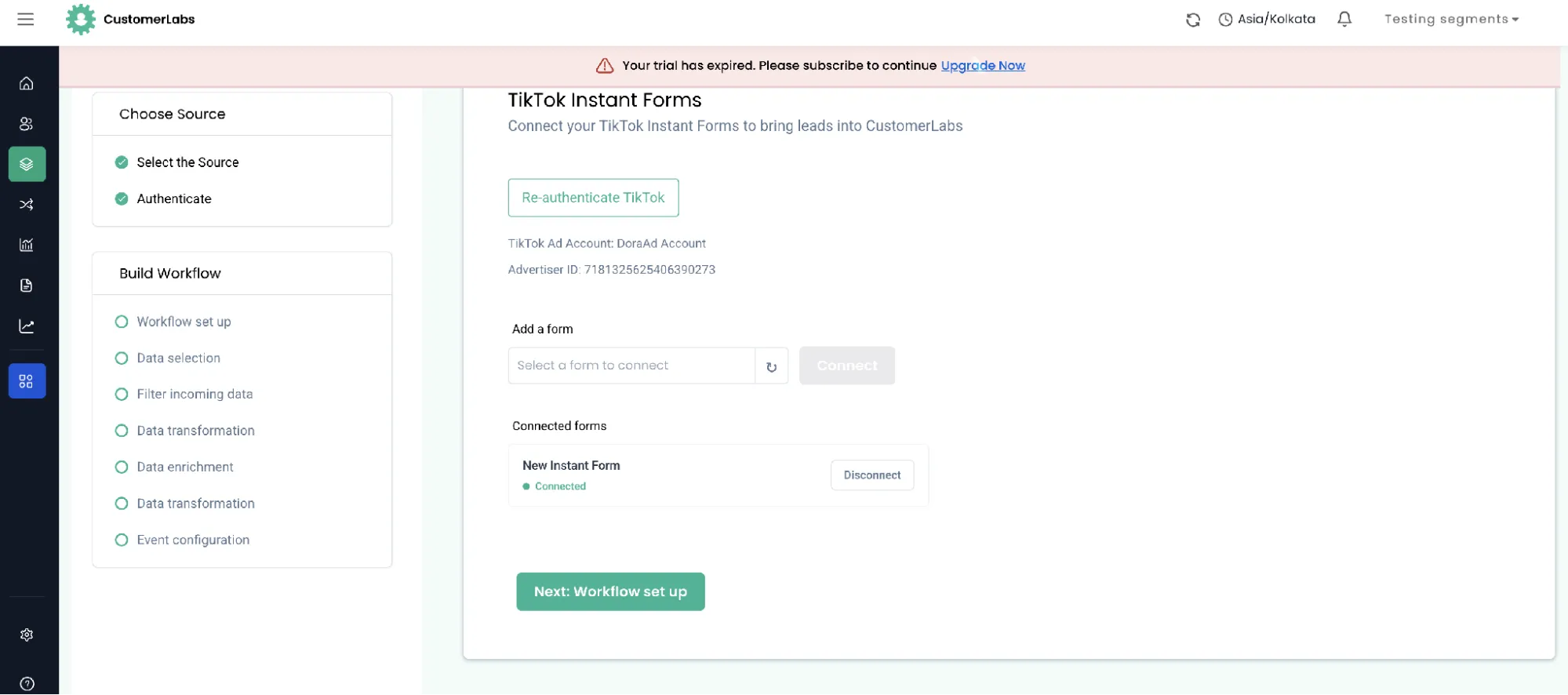
Each connected form is listed under Connected forms with a Disconnect option. Connect as many forms as you need.
Source Statuses
Section titled “Source Statuses”| Status | What it means | What to do |
|---|---|---|
| Connected | Your ad account is connected and at least one form is syncing — leads arrive in real time. | — |
| No forms connected | The ad account is connected, but no forms have been chosen, so no leads are coming in. | Open the forms screen and connect at least one form. |
| Reconnect required | Your TikTok authorization expired or was removed, so syncing is paused. | Click Reconnect and sign in to TikTok again (see Reconnecting). |
Reconnecting
Section titled “Reconnecting”TikTok access occasionally needs to be renewed — for example, if the authorization expires or someone removes CustomerLabs’ access inside TikTok. When that happens, a Reconnect required banner appears on the source.
- Click Reconnect on the source.
- Sign in to TikTok and approve access again, using the same ad account you connected originally.
- Your connected forms are kept and re-subscribed automatically. You do not need to choose your forms again.
Managing Connected Forms
Section titled “Managing Connected Forms”You can change which forms you sync at any time without redoing the connection.
- Add a form — open the forms screen, refresh the list if needed, select the form, and click Connect.
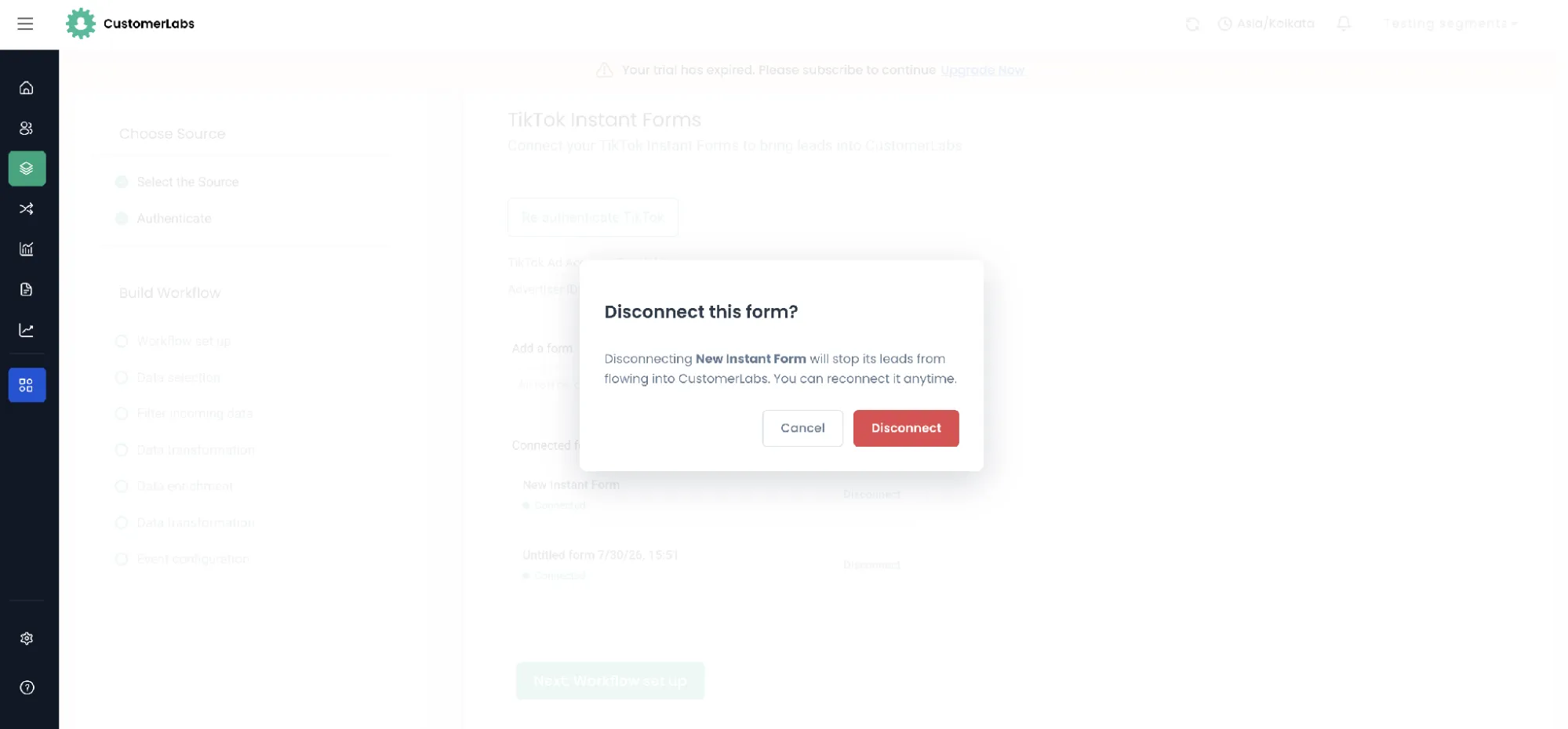
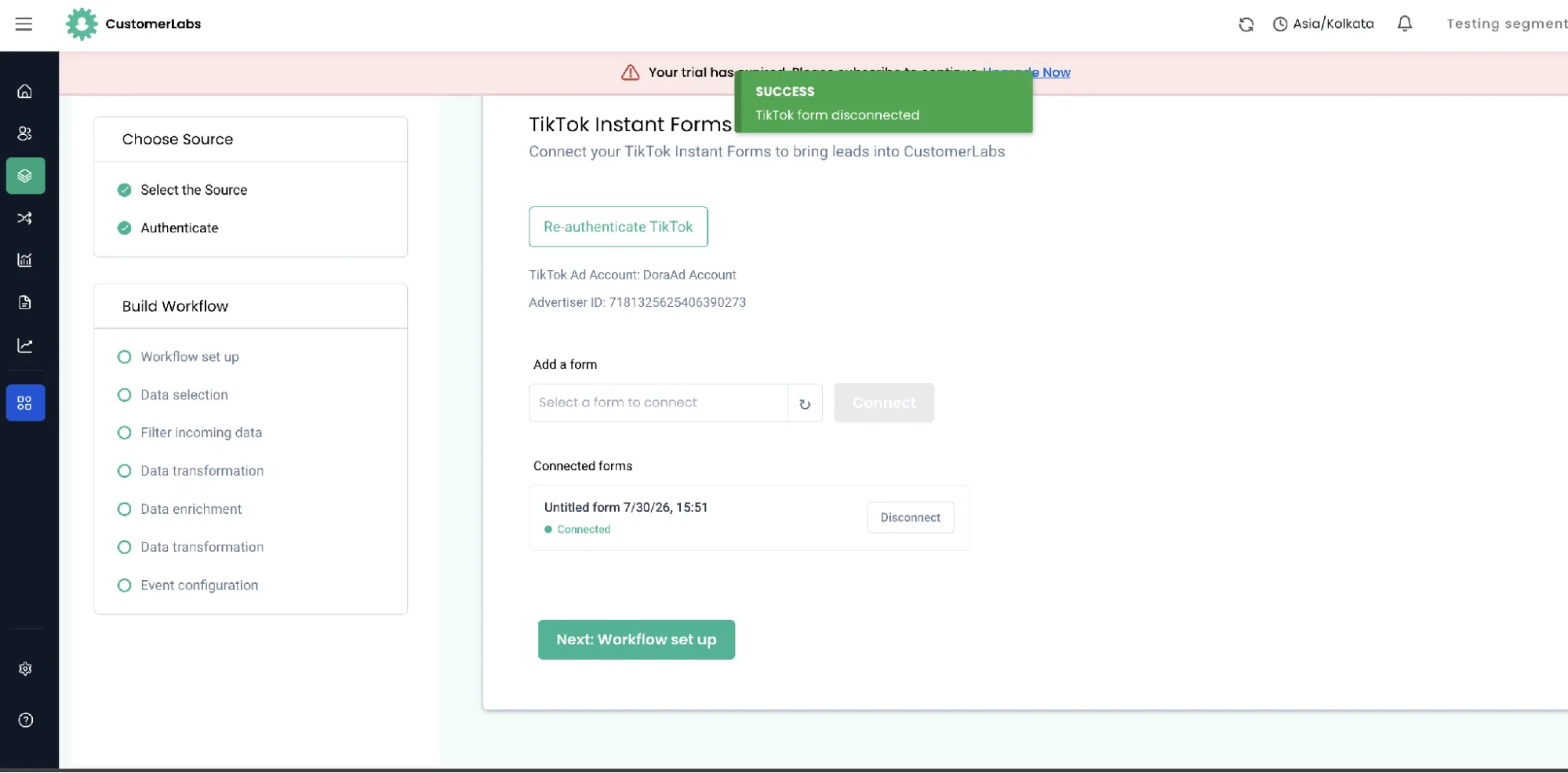
- Remove a form — click Disconnect next to it in the connected list and confirm. That form stops sending new leads immediately; your other forms are unaffected.
- See the latest forms — click the refresh icon to re-pull your live TikTok forms, for example after adding or renaming a form in TikTok.
Viewing Source Details
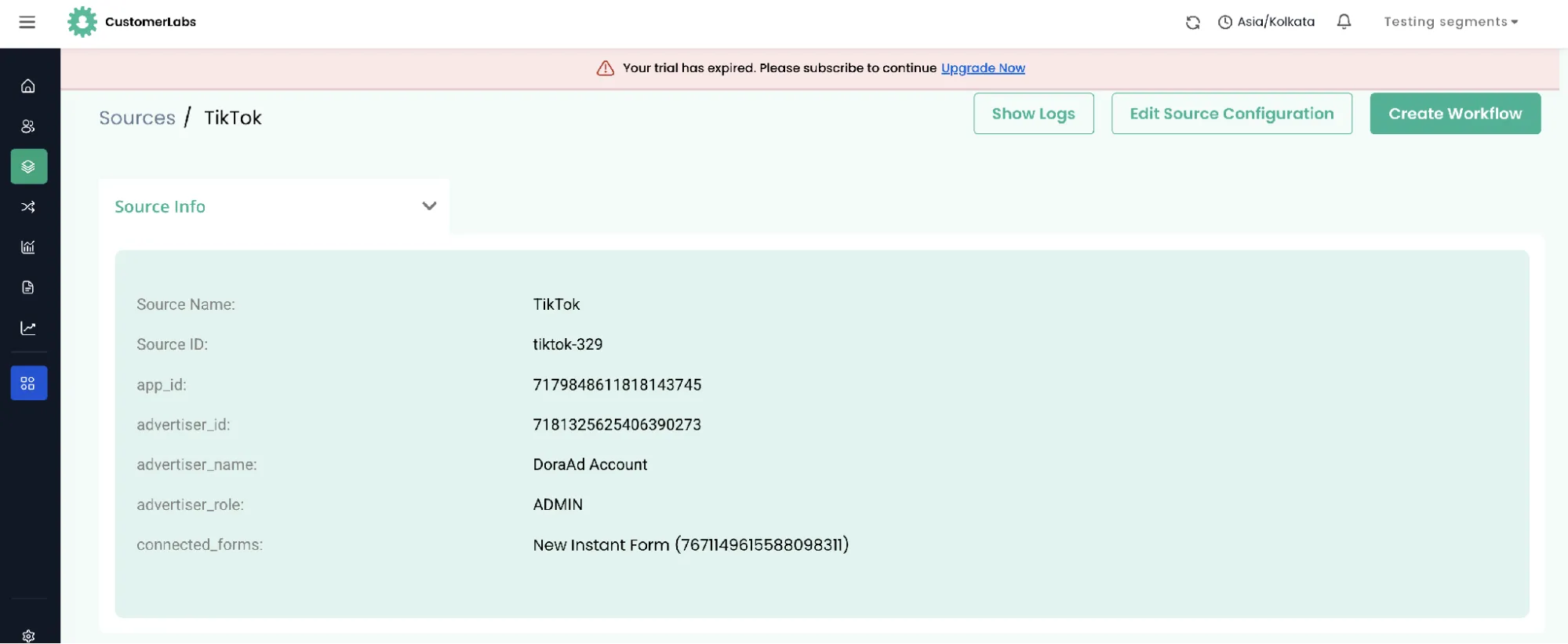
Section titled “Viewing Source Details”Open your TikTok source from the Sources list to see the connected ad account, the ad account name and role, and the forms currently connected.
Building a Workflow to Receive Lead Data
Section titled “Building a Workflow to Receive Lead Data”Once at least one form is connected, click Next: Workflow set up to configure how incoming leads are mapped to events and user identities in CustomerLabs.