Import Leads from Snapchat Instant Forms
Snapchat Instant Forms (Lead Generation forms) collect leads directly inside the Snapchat app. The Snapchat Instant Forms source connects your Snapchat ad account to CustomerLabs 1PD Ops: you connect the ad account once, choose the forms you want, and every lead submitted afterwards arrives in CustomerLabs within about two minutes — ready to be mapped and sent to your CRM and ad destinations like any other source.
Prerequisites
Section titled “Prerequisites”- You must be an Organization Admin on the Snapchat ad account you want to connect. This is Snapchat’s own requirement for creating lead webhooks — a regular member or a read-only user cannot complete the connection.
- At least one Snapchat ad account with Instant Forms already created in Snap Ads Manager. If your Snapchat login has no ad accounts, the connection screen tells you and links you to Ads Manager.
- Access to add a source in your CustomerLabs account.
- Recommended: set up and save the workflow (field mapping) for the source before you enable it, so leads are mapped correctly from the first submission. See Building the Workflow below.
Connecting your Snapchat Ad Account
Section titled “Connecting your Snapchat Ad Account”-
Log in to CustomerLabs 1PD Ops and navigate to Sources from the left menu.
-
Click Add source and select Snapchat Instant Forms. You land on the source’s configuration screen.
-
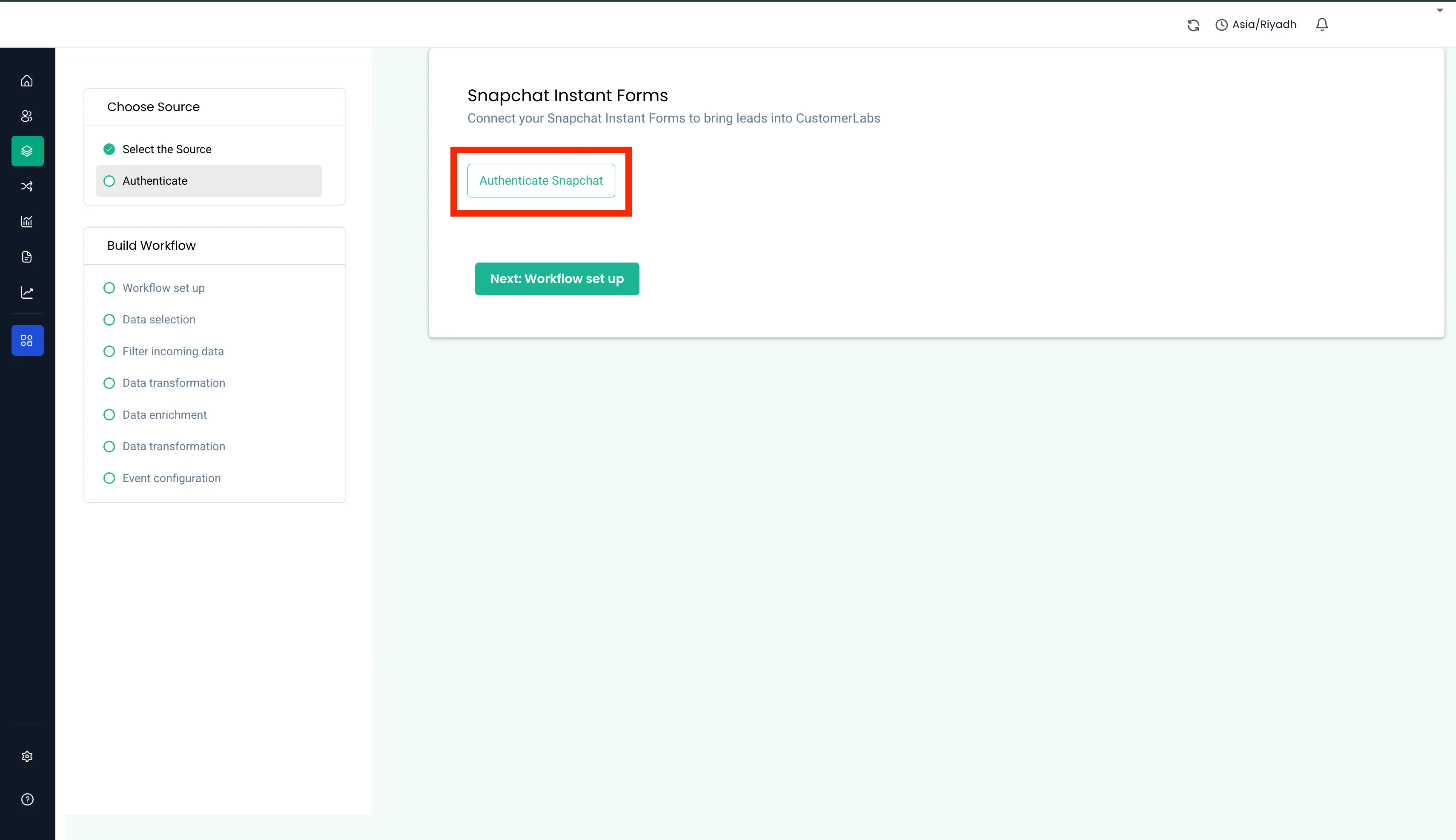
Click Authenticate Snapchat. You are redirected to Snapchat’s login page. Sign in with a user who is an Organization Admin on the ad account you want to connect.
-
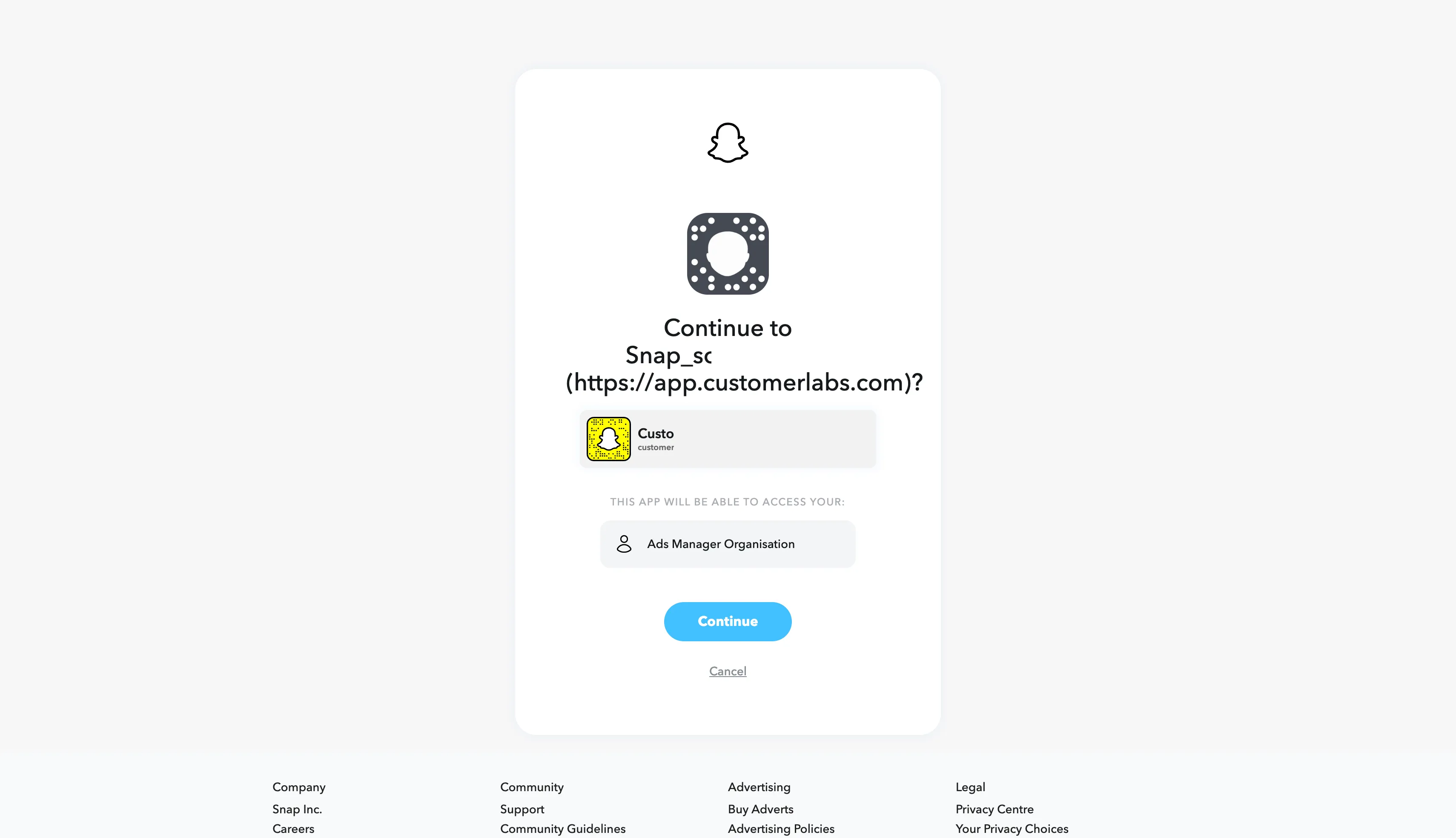
Snapchat shows the access CustomerLabs is requesting. Click Continue to approve.
-
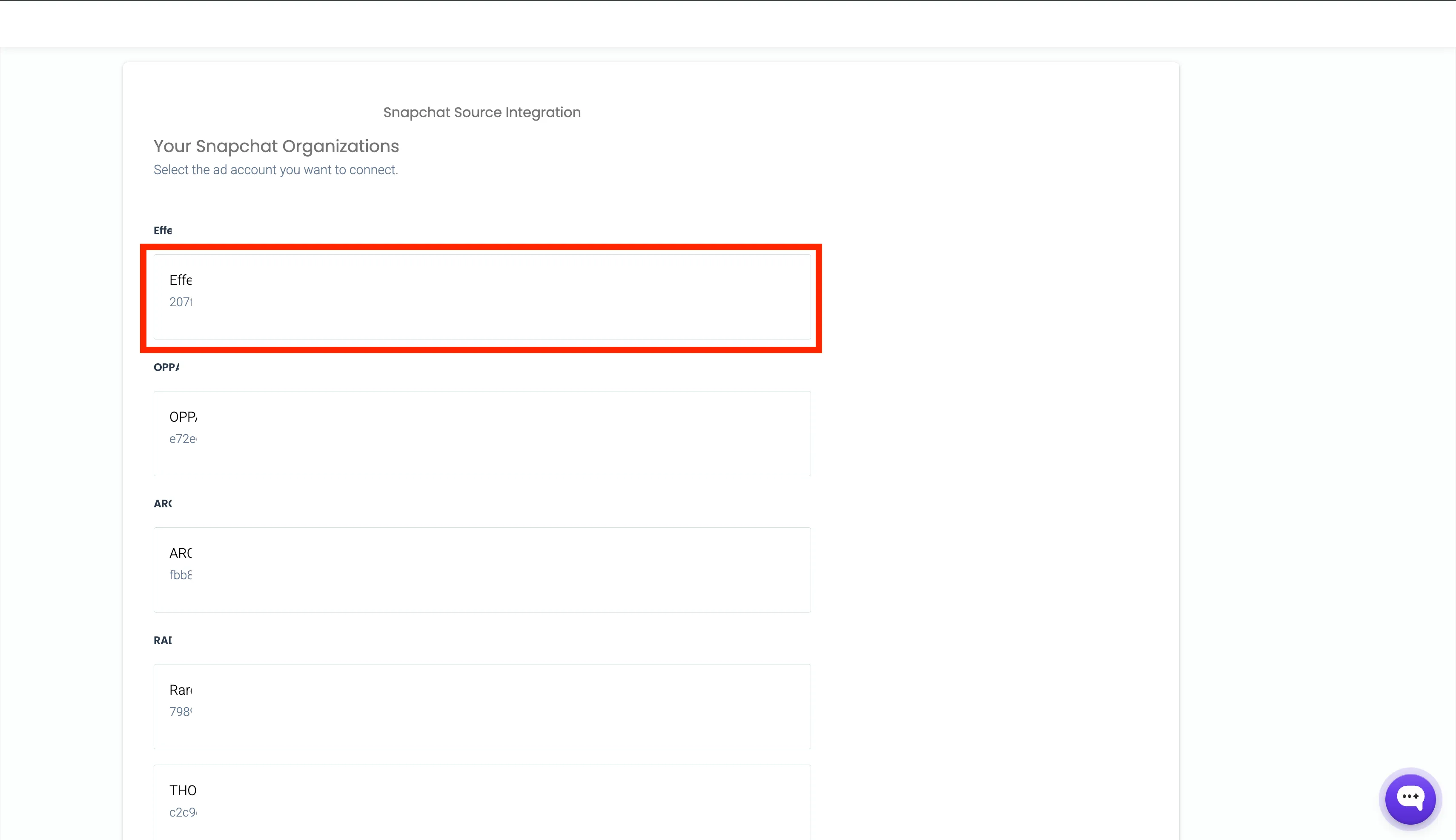
CustomerLabs lists every Snapchat organization you belong to and the ad accounts inside them. Select the ad account whose Instant Form leads you want to receive, and confirm. The confirmation reminds you that this ad account’s Instant Form leads will be received on this source.
-
You are returned to the source configuration screen with Authentication success. The screen now shows the connected Ad Account, Organization, and Ad Account ID.
Connecting your Instant Forms
Section titled “Connecting your Instant Forms”Connecting the ad account alone does not bring in leads — you also connect the individual forms you want, one at a time.
-
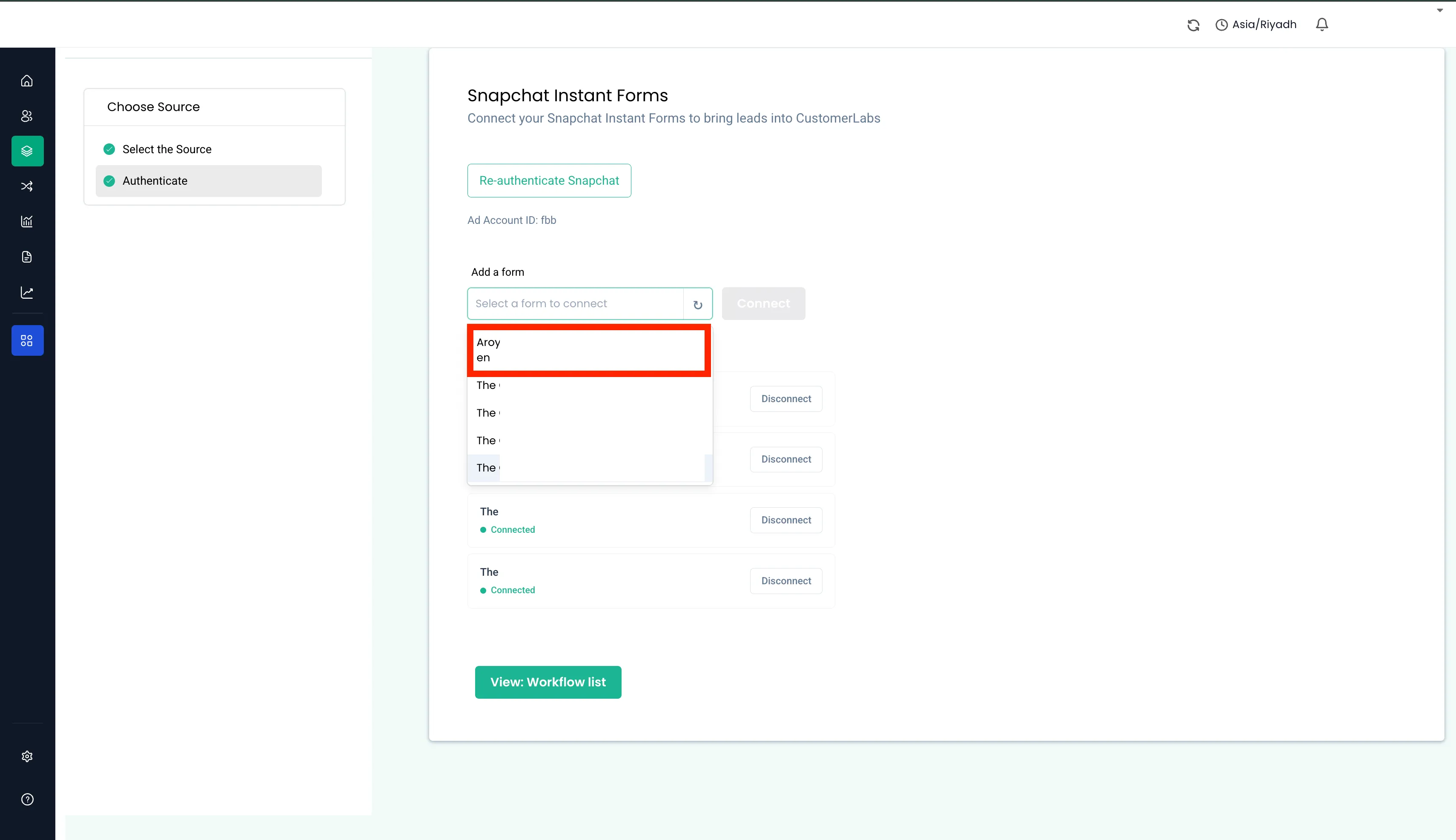
In the Add a form section, open the drop-down and select a form. The list shows every live Instant Form on the ad account that is not already connected.
-
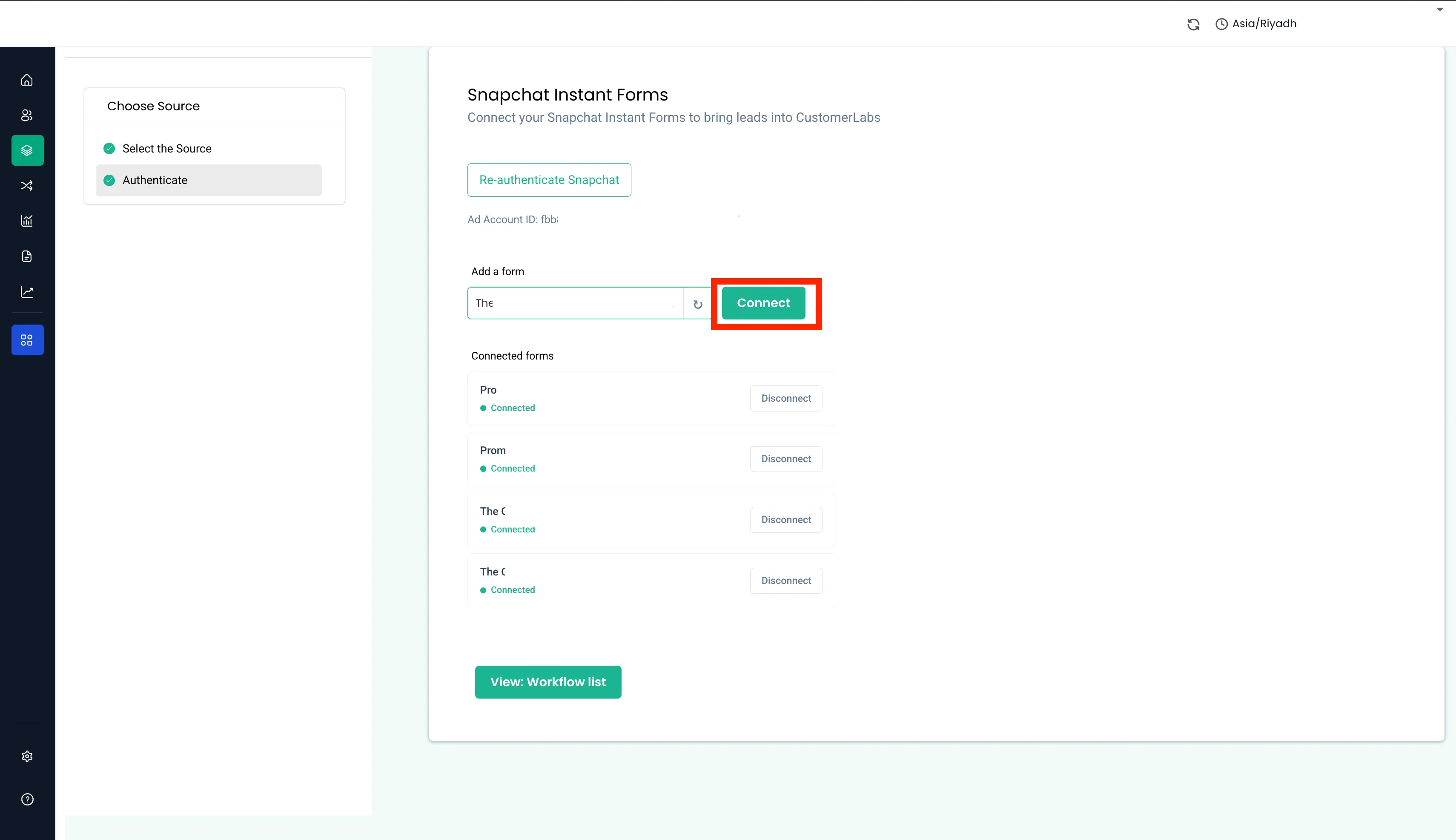
Click Connect. The form moves into the Connected forms list and the drop-down refreshes.
-
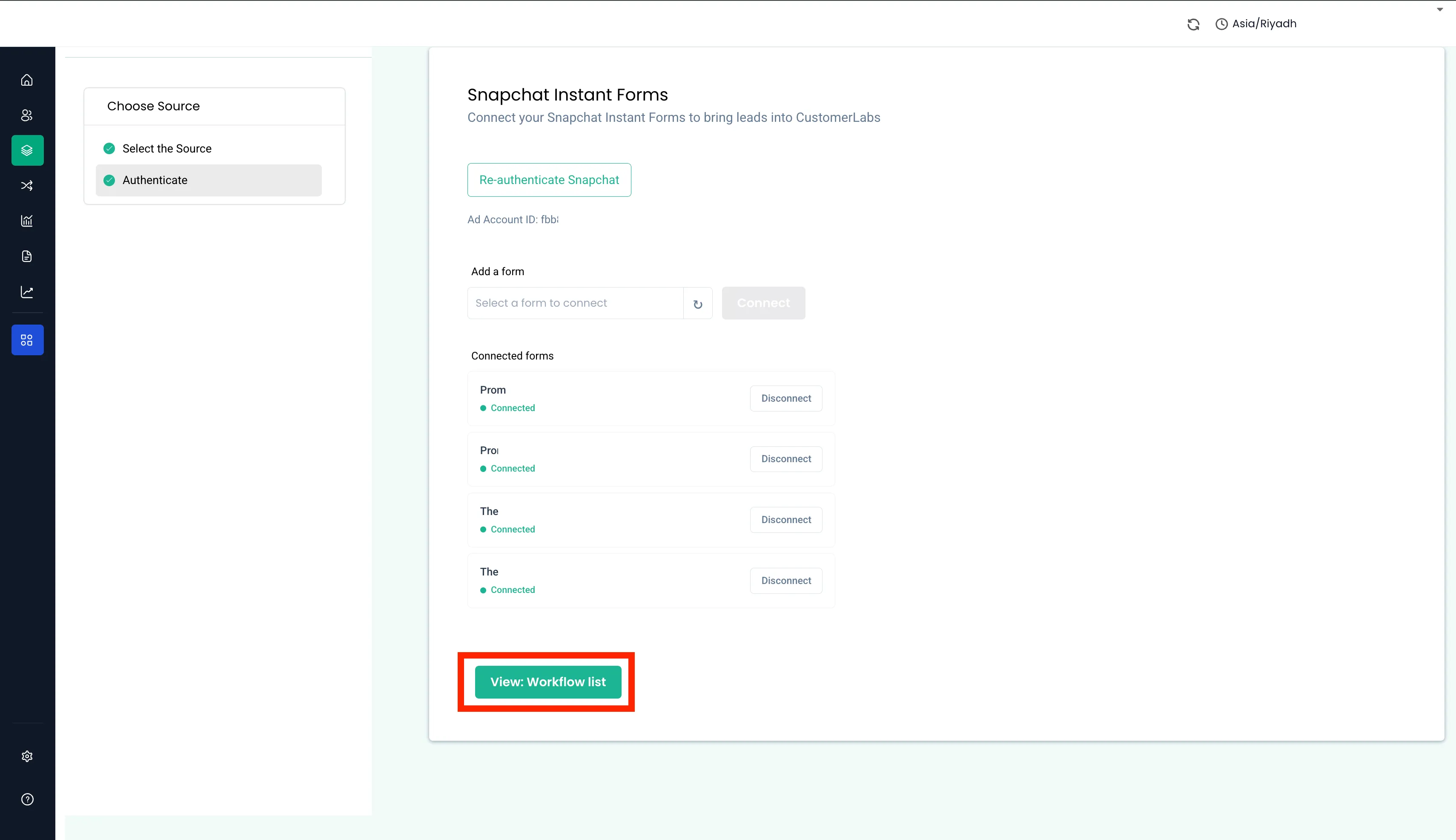
Repeat for each form you want on this source.
If the drop-down is empty: it shows All forms connected when every live form is already on this source, and No forms yet when the ad account has no Instant Forms — create one in Snap Ads Manager, then click ↻.
If the form is already connected somewhere else, a confirmation appears before anything changes:
This form is already connected to another webhook — possibly another tool or CustomerLabs account. Connecting it here will disconnect the existing webhook, and leads will stop flowing there. Replace and connect to this source?
Choosing Replace & connect takes over that form — leads stop flowing to whatever tool or account had it before. Choose Cancel if you are not sure. Snapchat allows only one webhook per form, which is why this is a replacement, not an addition.
Once your forms are connected, click Next: Workflow set up to map the incoming lead fields, then enable the source.
Building the Workflow
Section titled “Building the Workflow”-
Workflow set up: name the workflow (for example
snapchat_lead) and set a workflow delay if you run multiple workflows on this source. Click Next: Choose sample data and continue through the data selection and filter steps.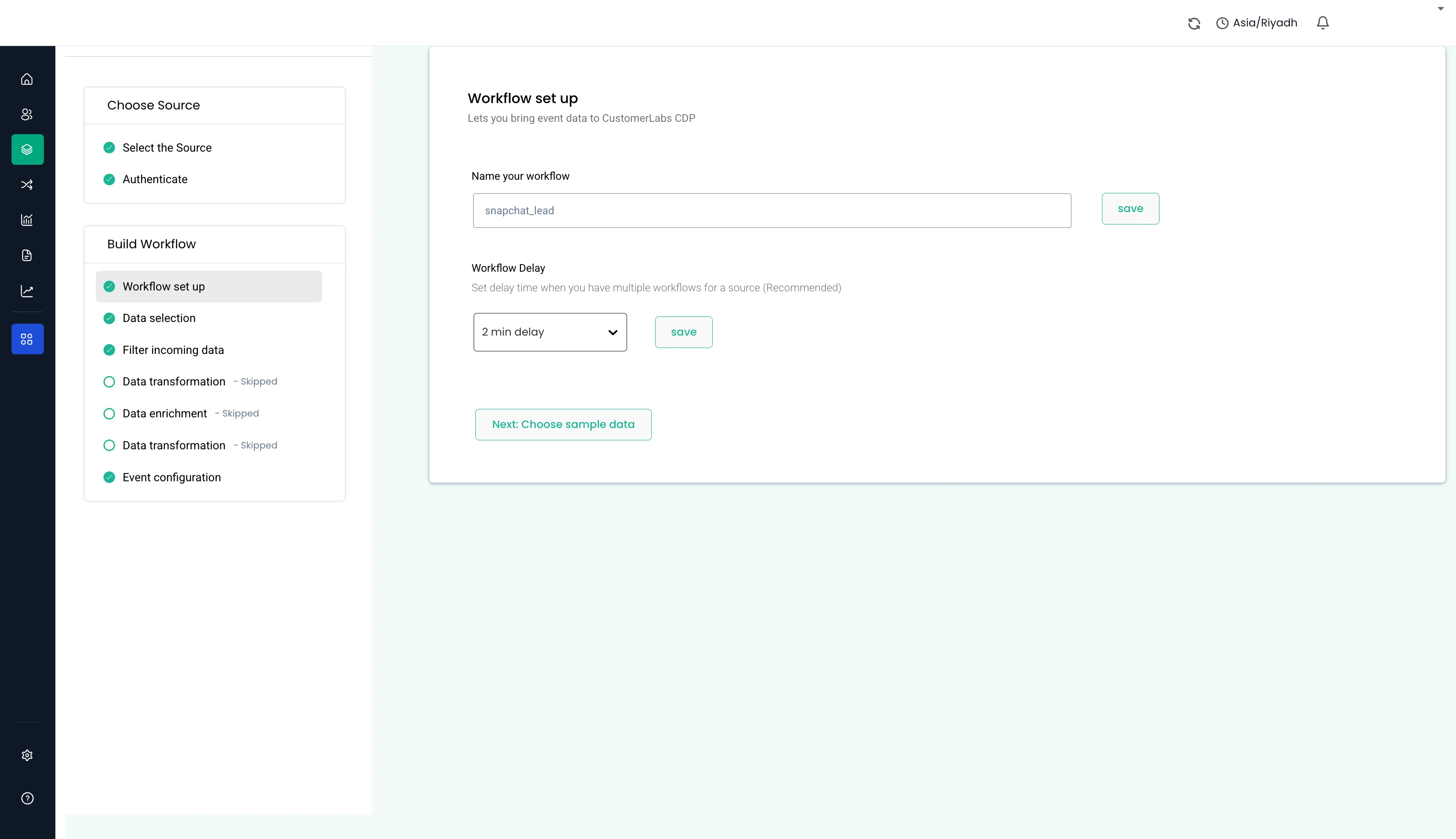
-
Event configuration: choose the event name from the drop-down. For example, choose
custom eventand name itcl_snap_lead. -
User identity mapping: select the identifier CustomerLabs should use to unify the lead — for example,
identify_by_emailmapped to the incomingemailfield. -
Add a second identity row as a custom field named
snapchat_lead_idand map it to the incominglead_id. This stores Snapchat’s unique lead identifier on the user profile, so each lead can be traced back to its Snapchat submission and matched accurately when synced to ad platforms.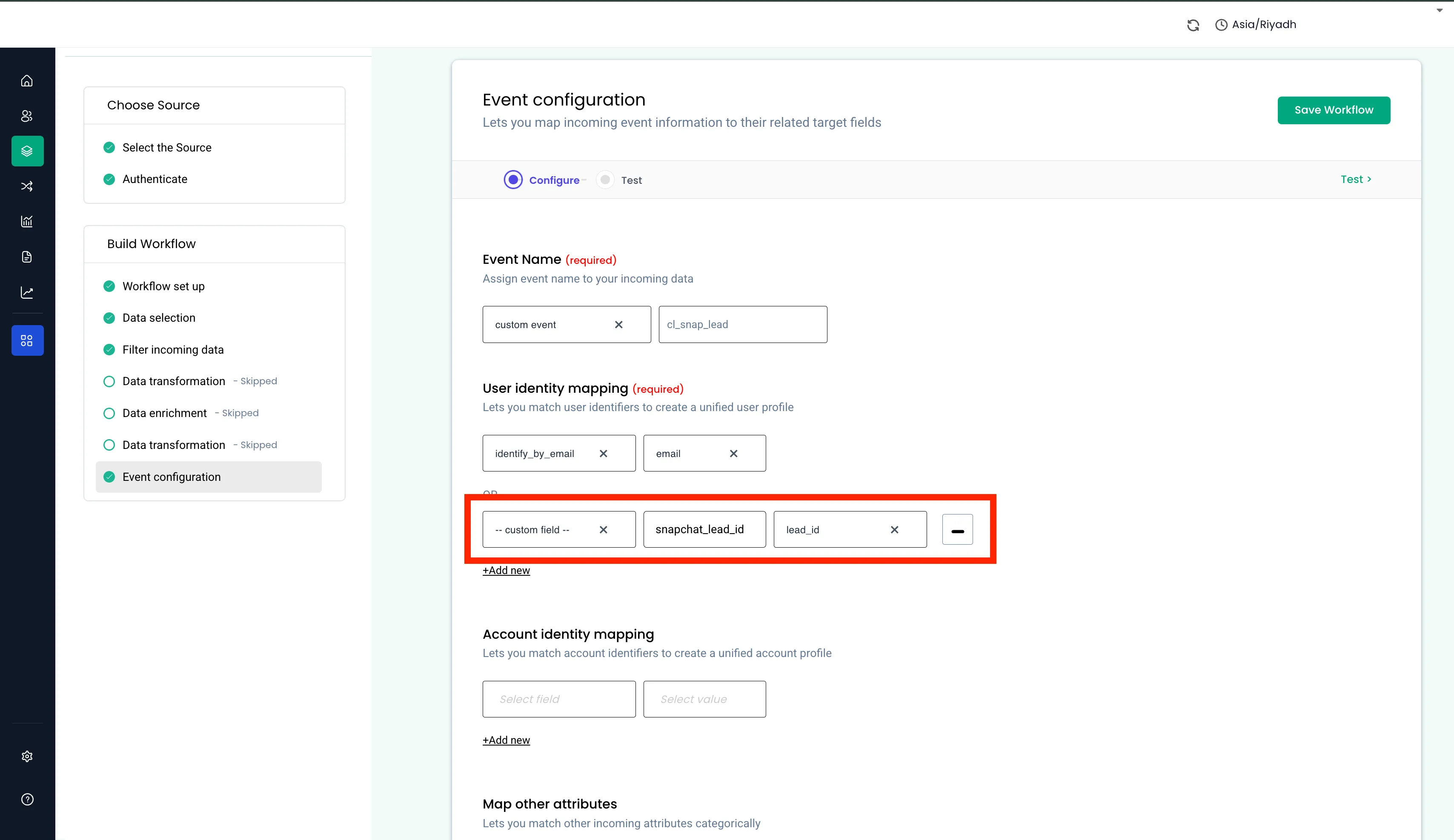
-
Map the remaining lead attributes under User traits as needed, then click Save Workflow and enable the source.
Checking that Leads are Arriving
Section titled “Checking that Leads are Arriving”- Submit a test lead on the form. Snapchat’s own form-preview / test-lead tooling works for this.
- Open Data In for the source. The lead appears there, enriched and mapped through your saved workflow, normally within about 2 minutes.
- From there it flows to your connected destinations like any other CustomerLabs event.
CustomerLabs verifies that each lead genuinely came from Snapchat before processing it. This is automatic — there is nothing to configure, copy, or paste.
Managing Connected Forms
Section titled “Managing Connected Forms”The Connected forms list shows what this source is currently receiving.
| State | What it means | What to do |
|---|---|---|
| Connected | The form is registered with Snapchat and its leads are flowing in. | — |
| Deleted on Snapchat | The form was deleted in Snap Ads Manager while still connected here. | The row stays for visibility; disconnect it to tidy up. |
| No forms connected (warning) | The source has no forms — no leads can arrive. | Connect at least one form (see Connecting your Instant Forms). |
To stop leads from a single form, click Disconnect on its row and confirm. The webhook is removed on Snapchat’s side, so the form becomes available to connect again later — here or in another tool. You can reconnect it at any time; leads submitted while it was disconnected are not recovered.
Reconnecting
Section titled “Reconnecting”If the Snapchat authorization is revoked or expires — someone removed the connected user, changed their permissions, or revoked the app in Snapchat — the source shows a reconnect banner and leads stop arriving:
Reconnect required: Snapchat access for this source has expired or was revoked, so leads have stopped flowing. Reconnect to resume.
Click Reconnect Snapchat and sign in again. Reconnect never asks you to pick an organization or ad account — the source is permanently bound to its original ad account, so it re-binds automatically and re-registers your connected forms’ webhooks. Your connected forms and your workflow mapping are preserved.
Sign in as a user who has Organization Admin on that same ad account. If you sign in with a user who cannot reach it, you see:
This source is connected to ad account [name]; reconnect with a user who has Organization Admin on it, or create a new source.
Nothing on the source changes in that case — reconnect with the right login.
Deleting the Source
Section titled “Deleting the Source”Deleting a Snapchat source removes every connected form’s webhook on Snapchat first, and then deletes the source. Nothing stays registered on Snapchat afterwards, so an old setup cannot continue sending data. The forms are released and can be connected elsewhere immediately.
Common Messages
Section titled “Common Messages”| What you see | Why it appears | How to fix it |
|---|---|---|
| You need Organization Admin access to connect this ad account. Ask your Snapchat Organization Admin to grant you admin access, then reconnect. | Your Snapchat user is not an Organization Admin on that ad account — Snapchat requires it to create lead webhooks. | Ask your Snapchat Organization Admin to grant admin access, then reconnect — or have them do the connection. |
| This Snapchat ad account is already connected as source [source id]. Try a different ad account. | That ad account already backs another Snapchat source in your CustomerLabs account. | Use the existing source instead, or pick a different ad account. |
| You don’t have any Snapchat ad account to choose. Create one in Snapchat Ads Manager to use this feature. | The Snapchat login you used has no ad accounts. | Create an ad account in Snap Ads Manager, or sign in with the right Snapchat user. |
| Your session expired. Please reconnect. | The connection flow was left open too long before finishing. | Start the connection again from the source screen. |
| Snapchat is unavailable, please retry | A temporary Snapchat API problem. | Retry in a moment — nothing is lost. |
Frequently Asked Questions
Section titled “Frequently Asked Questions”Can I get the leads that came in before I connected the form?
No. Snapchat has no API to read past leads, so only submissions made after the form is connected can be captured. Connect your forms before you start the campaign.
Do new forms connect automatically?
No — connecting is always your choice. A newly created form appears in the drop-down after you click ↻ refresh, and you connect it when you are ready.
Can I point this source at a different ad account later?
No. A source is permanently bound to the ad account it was created with. To use a different ad account, create a new Snapchat source.
Can two CustomerLabs sources use the same ad account?
No — one ad account maps to exactly one source. You are told which source already has it.
Can the same form feed two tools at once?
No. Snapchat supports one webhook per form, so connecting a form here replaces any existing connection. You are always asked to confirm first.
My leads aren’t showing up. What should I check?
In order: at least one form is connected (no zero-forms warning), the source is enabled, a workflow mapping is saved, and there is no reconnect banner. Then remember that only leads submitted after connecting are captured.