
CustomerLabs + LinkedIn Ads Integration
Integrating CustomerLabs with LinkedIn allows you to target potential connections and personalize content through retargeting ads, without requiring developer assistance. You can sync conversions via the LinkedIn Insight Tag (client-side) and LinkedIn Conversions API (server-side).
Authentication
Section titled “Authentication”Follow these steps to connect your LinkedIn account with CustomerLabs:
-
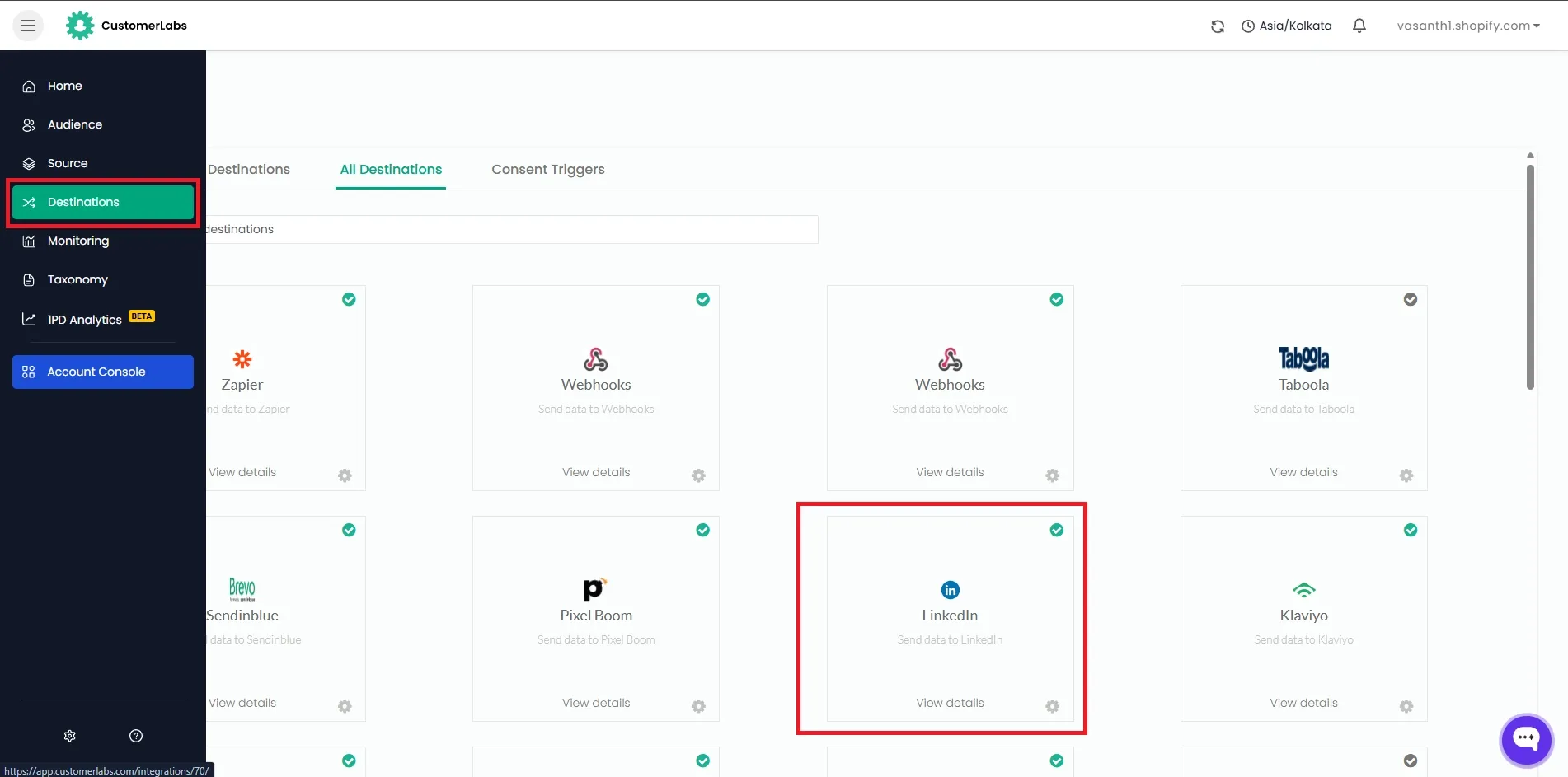
Log in to your CustomerLabs account and navigate to Destinations.
-
Search for LinkedIn in the list of destinations and select it.
-
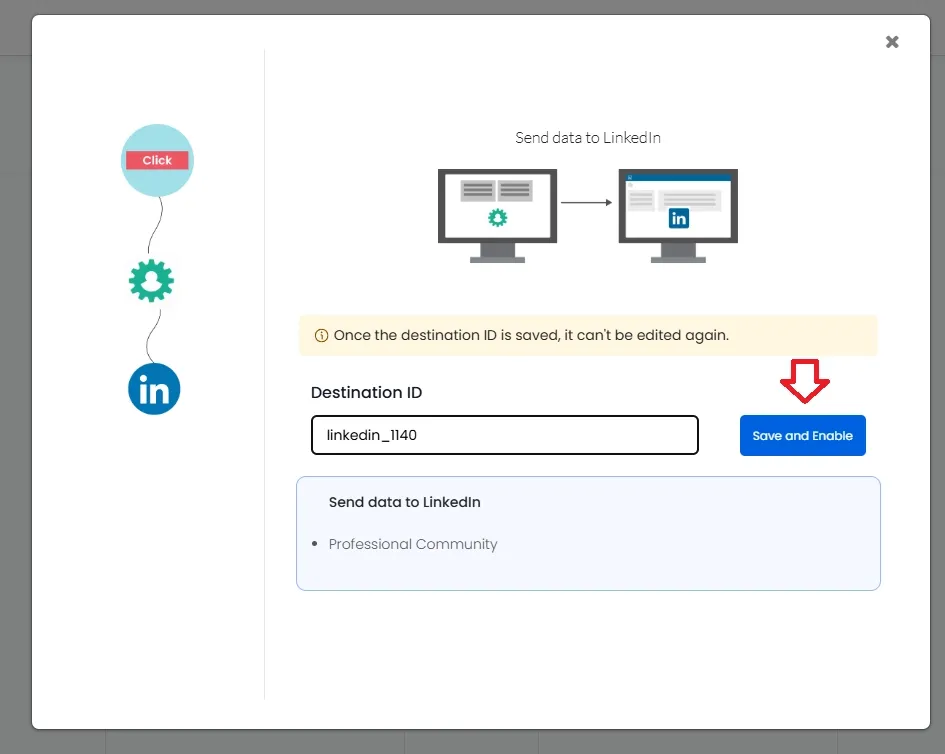
Provide a Destination ID and click Save and Enable.
-
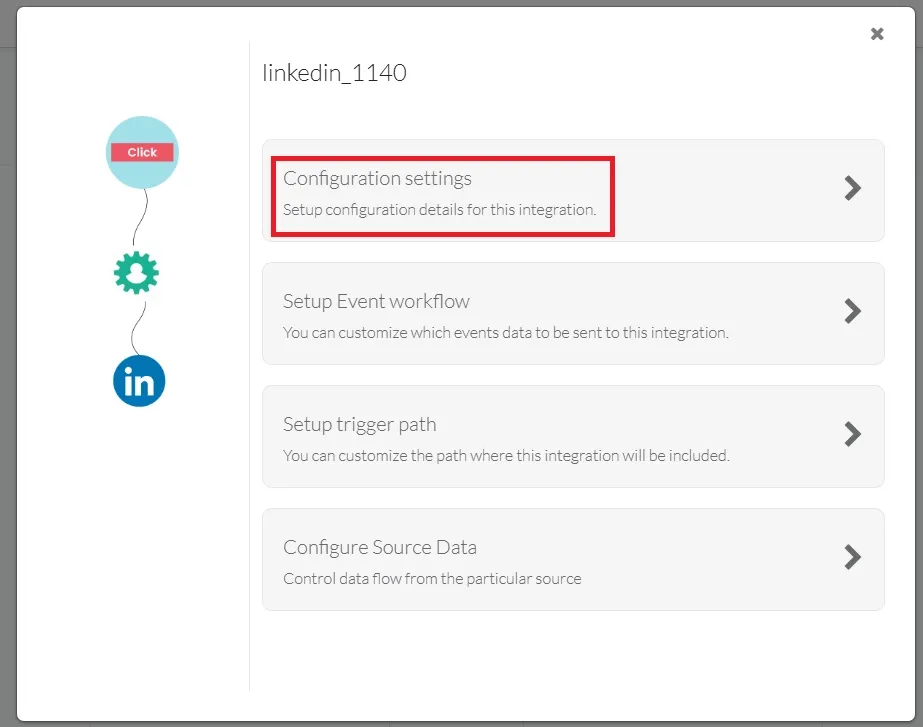
Click on Configuration settings.
-
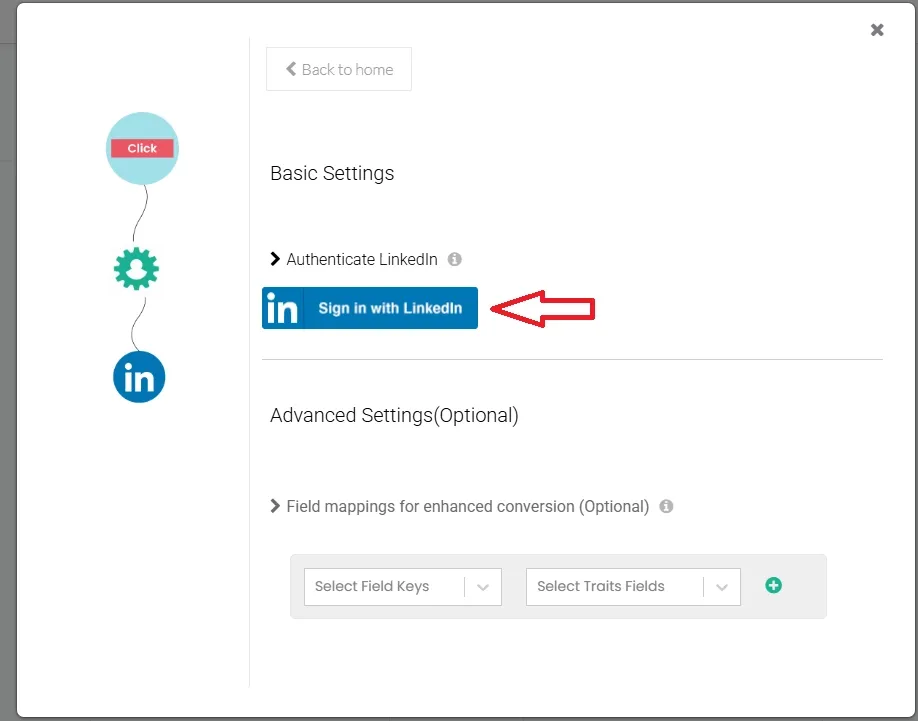
In the Basic Settings section, click Sign in with LinkedIn.
-
Enter your LinkedIn credentials and authorize CustomerLabs to access your account.
Map and Send Conversions to LinkedIn
Section titled “Map and Send Conversions to LinkedIn”Configure event mapping to send conversion data to LinkedIn via both client-side (Insight Tag) and server-side (Conversions API) methods.
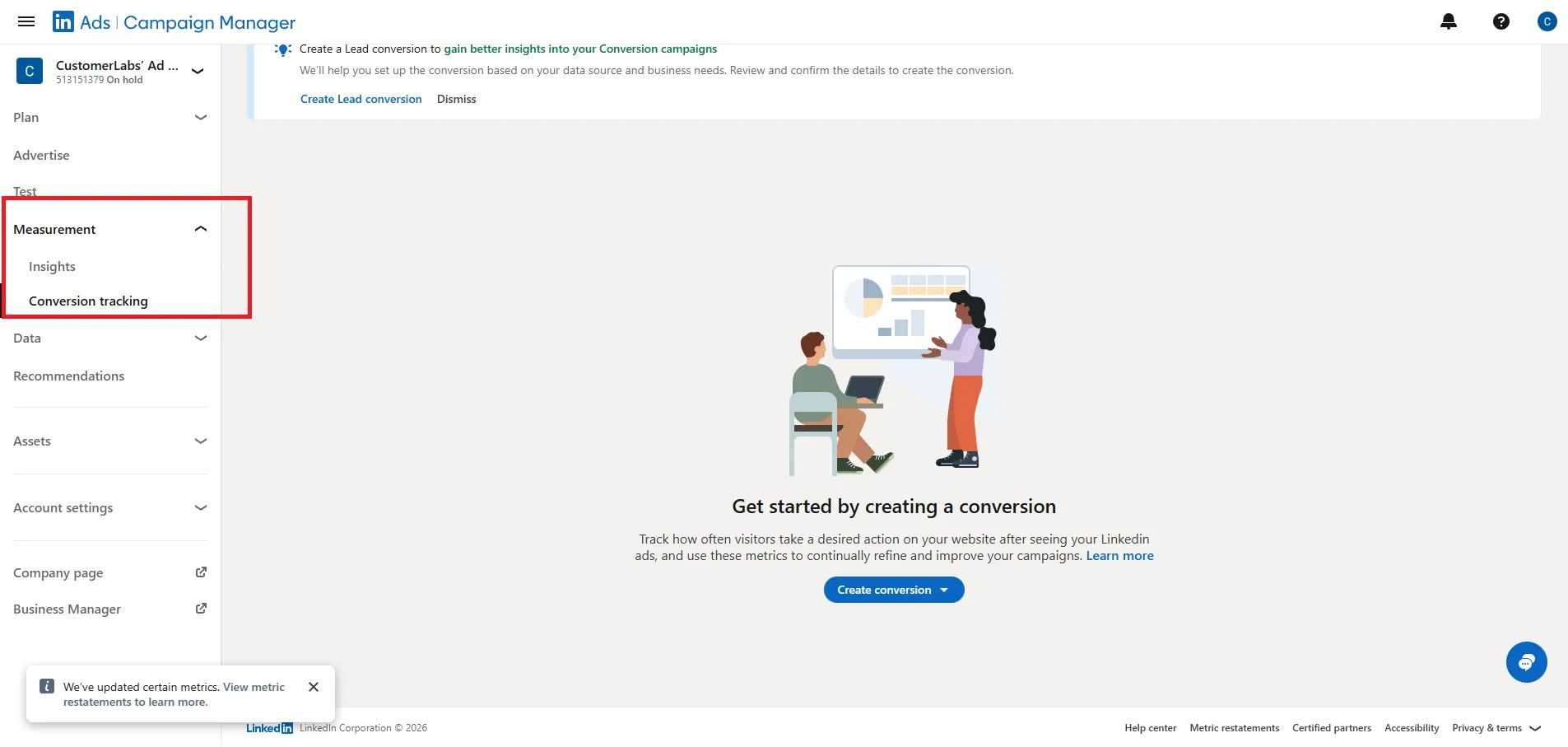
- Create conversions action in LinkedIn ads. Login to LinkedIn Campaign Manager and navigate to Measurement → Conversion tracking.
- Click Create Conversion Action and create a new actions.
- In the “Choose the events you want to map with the conversion” section:
- Select the CustomerLabs event from the left dropdown menu.
- Select the corresponding LinkedIn conversion action from the right dropdown menu.
- Click the ”+” icon to add the conversion mapping.
Mapping Rules
Section titled “Mapping Rules”The compatibility of events depends on the conversion type:
| Event Type | Conversions API | Insight Tag |
|---|---|---|
| Client-side events | Supported | Supported |
| Server-side events | Supported | Not Supported |
Advanced Field Mapping
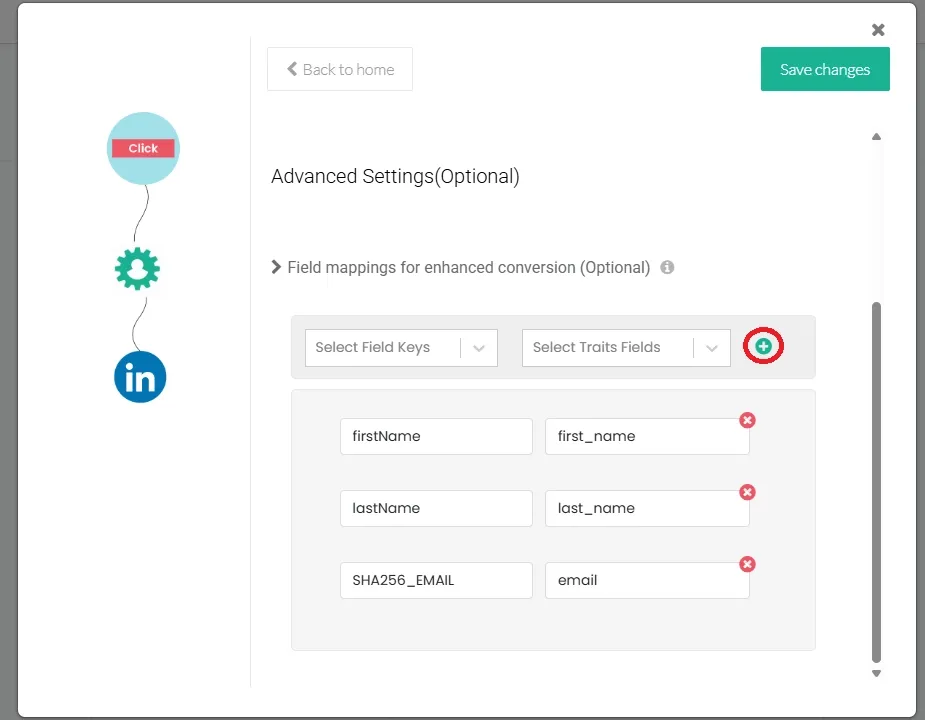
Section titled “Advanced Field Mapping”To improve match rates for enhanced conversions, you can map additional user traits to LinkedIn advanced matching parameters.
-
Navigate to the Advanced Settings (Optional) section.
-
Under Field mappings for enhanced conversion, select the LinkedIn parameter (left) and the corresponding CustomerLabs trait (right).
-
After completing the mappings, click Save Changes.
Setup Event Workflow
Section titled “Setup Event Workflow”Configure which events should be triggered for the LinkedIn integration.
- Return to the LinkedIn Customization screen and click Setup Event Workflow.
- Toggle ON the events you have mapped for conversions.
Callback Logic
Section titled “Callback Logic”CustomerLabs automatically manages callback logic based on your mapping configuration:
| Mapping Scenario | Client-side Callbacks | Server-side Callbacks |
|---|---|---|
| Client-side events mapped with Insight Tag | ON | OFF |
| Client-side events mapped with Conversions API | ON | ON |
| Server-side events mapped with Conversions API | OFF | ON |
Verify Integration
Section titled “Verify Integration”To ensure LinkedIn is receiving conversion data successfully:
- Log in to your LinkedIn Campaign Manager.
- Navigate to Measurement → Conversion tracking.
- Check the status of your conversion actions to ensure they are receiving signals.