
Sync CustomerLabs Audience with Google Analytics (GA4)
Audiences created in CustomerLabs can be sent to Google Analytics (GA4) as an event by creating a custom audience. The users in this audience are continuously refreshed based on the interval setup so they can be readily used for powerful behavior analysis and marketing campaigns via Google Ads.
Prerequisites
Section titled “Prerequisites”Before syncing audiences, ensure you have:
- Integrated Google Analytics (GA4) with CustomerLabs by configuring the settings in Destinations → Google Analytics gtag → Configuration Settings.
- Audience should be created and active.
Event Sync
Section titled “Event Sync”By syncing the segment created in CustomerLabs with GA4 through the event sync option, a new custom audience is created, and data is sent to GA4 via regular sync events.
Steps to sync an audience via Event Sync:
Section titled “Steps to sync an audience via Event Sync:”-
Navigate to the segment created in CustomerLabs that you want to sync.
-
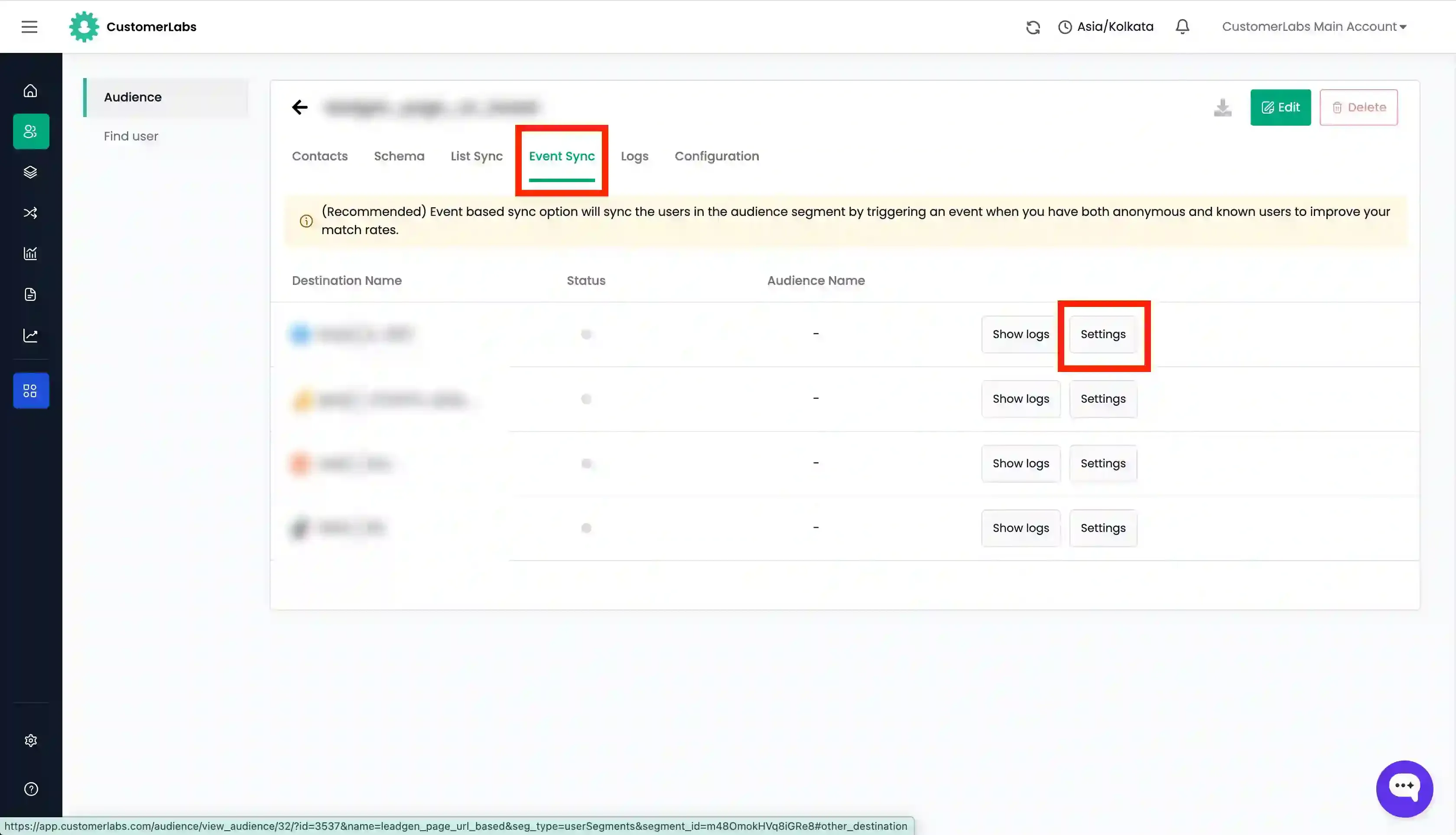
Go to the Event Sync tab. (Note: You will have to wait for 30-40 minutes after creating the segment to let it populate before you can enable the sync).
-
Click on Settings under Google Analytics gtag.
-
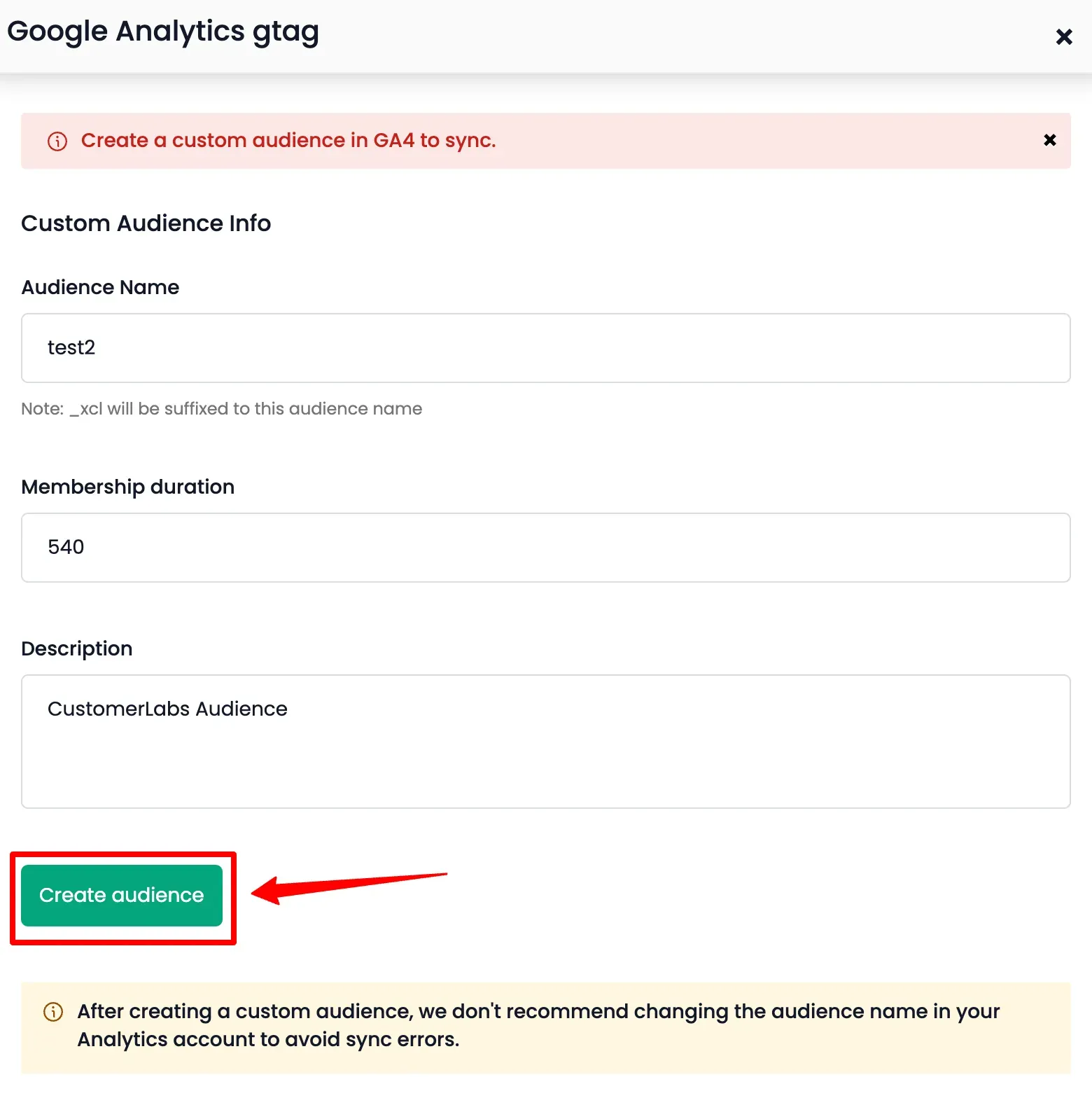
You have to create a custom audience by entering a name. Give a name to the custom audience and specify the Membership duration as needed.
-
Click Create audience.
-
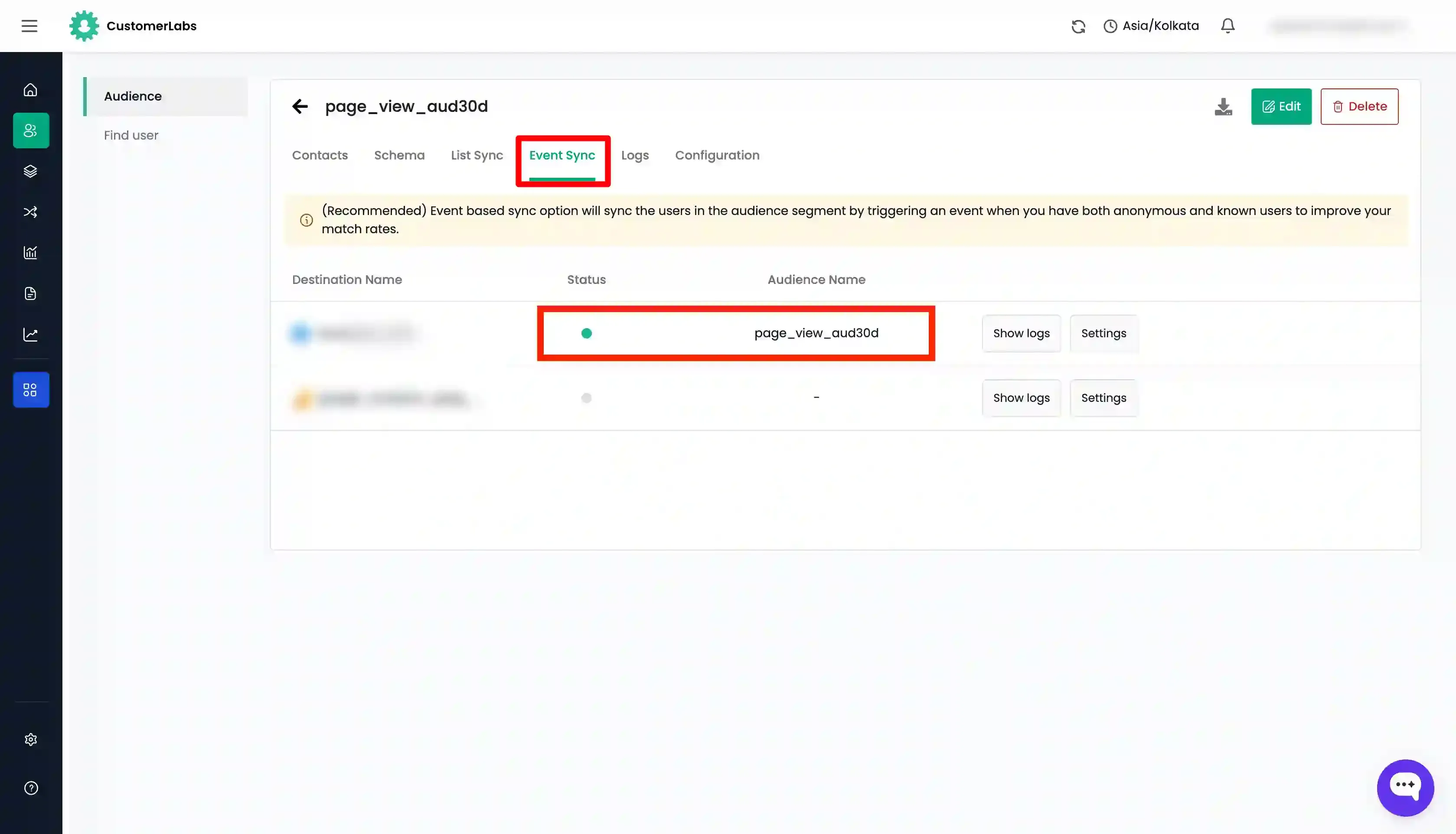
Verify the sync status by looking for the green toggle under the Status column as confirmation for the sync.
-
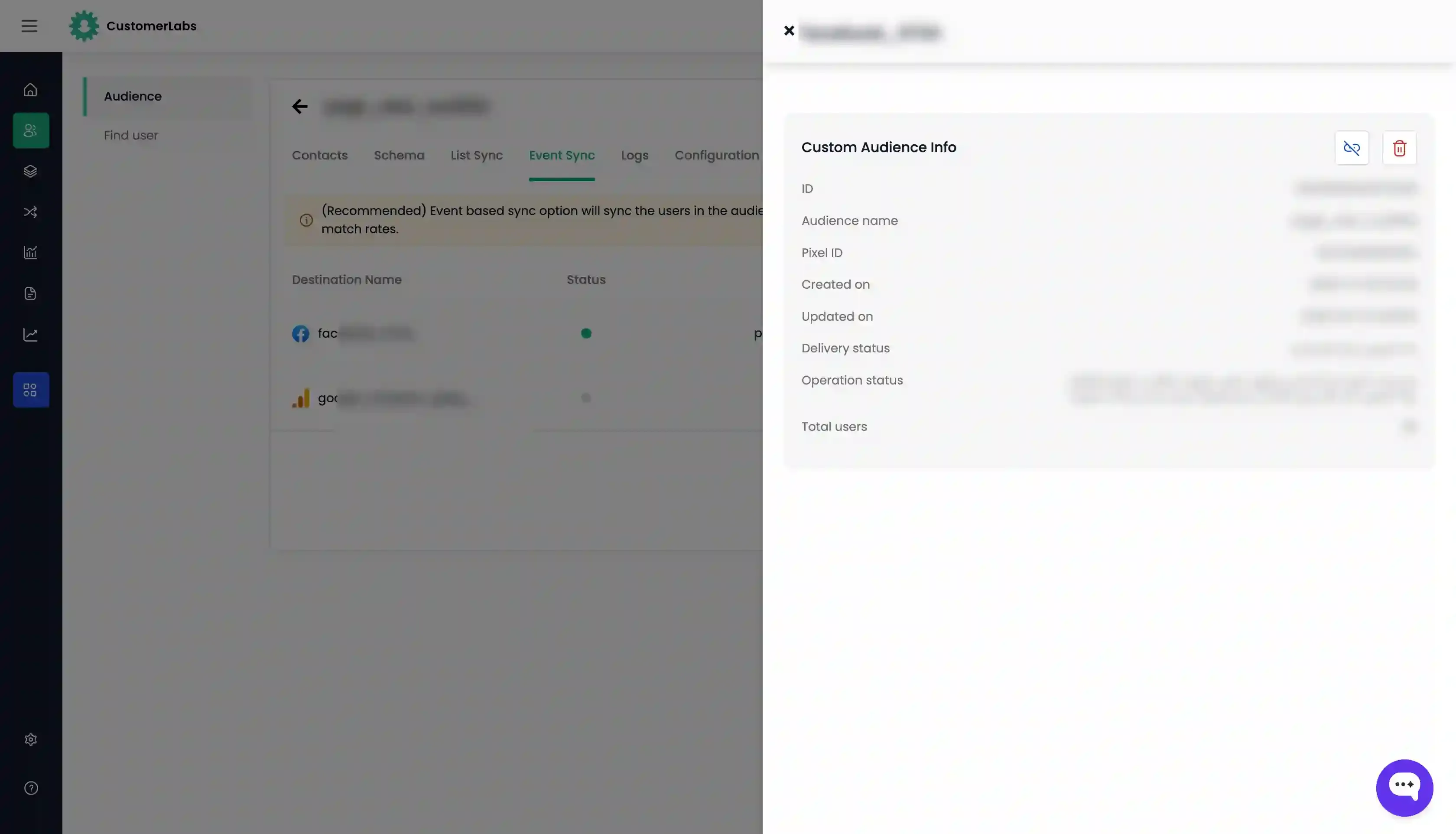
You can check the logs for audience creation & deletion for Google Analytics by going to Event Sync tab → Google Analytics gtag → Show Logs.
Check if the audience has been created/synced
Section titled “Check if the audience has been created/synced”You can check whether the custom audience has been created directly inside Google Analytics 4.
- Go to Google Analytics (GA4) → Admin → Audiences.
- Check if the audience has been created under the same name as given in CustomerLabs. If you want to refine the custom audience further, you can edit it directly inside GA4.
The users are regularly refreshed based on the refresh interval set for the segment. This audience, powered by CustomerLabs, can be used for deep journey analysis or imported directly to Google Ads for extremely high match-quality campaigns.
Unlinking or Deleting an Audience
Section titled “Unlinking or Deleting an Audience”You can manage your synced audiences directly from the interface.
Unlink an Audience
Section titled “Unlink an Audience”Unlinking stops the regular refresh from CustomerLabs but keeps the audience on GA4.
-
Go to the Events Sync tab → Click Settings button across from the Google Analytics gtag destination.
-
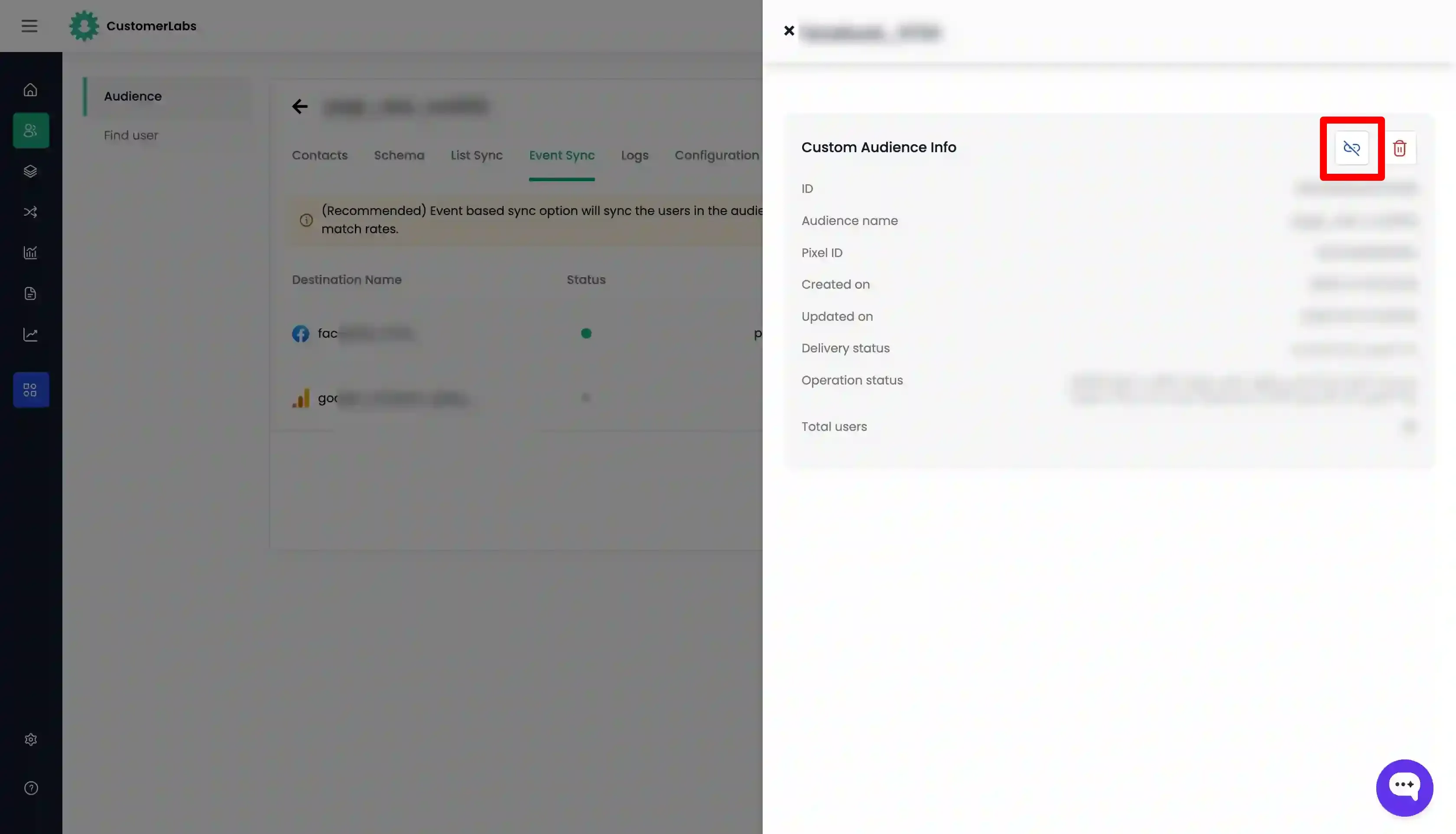
Click the Unlink icon in the top right corner of the custom audience.
-
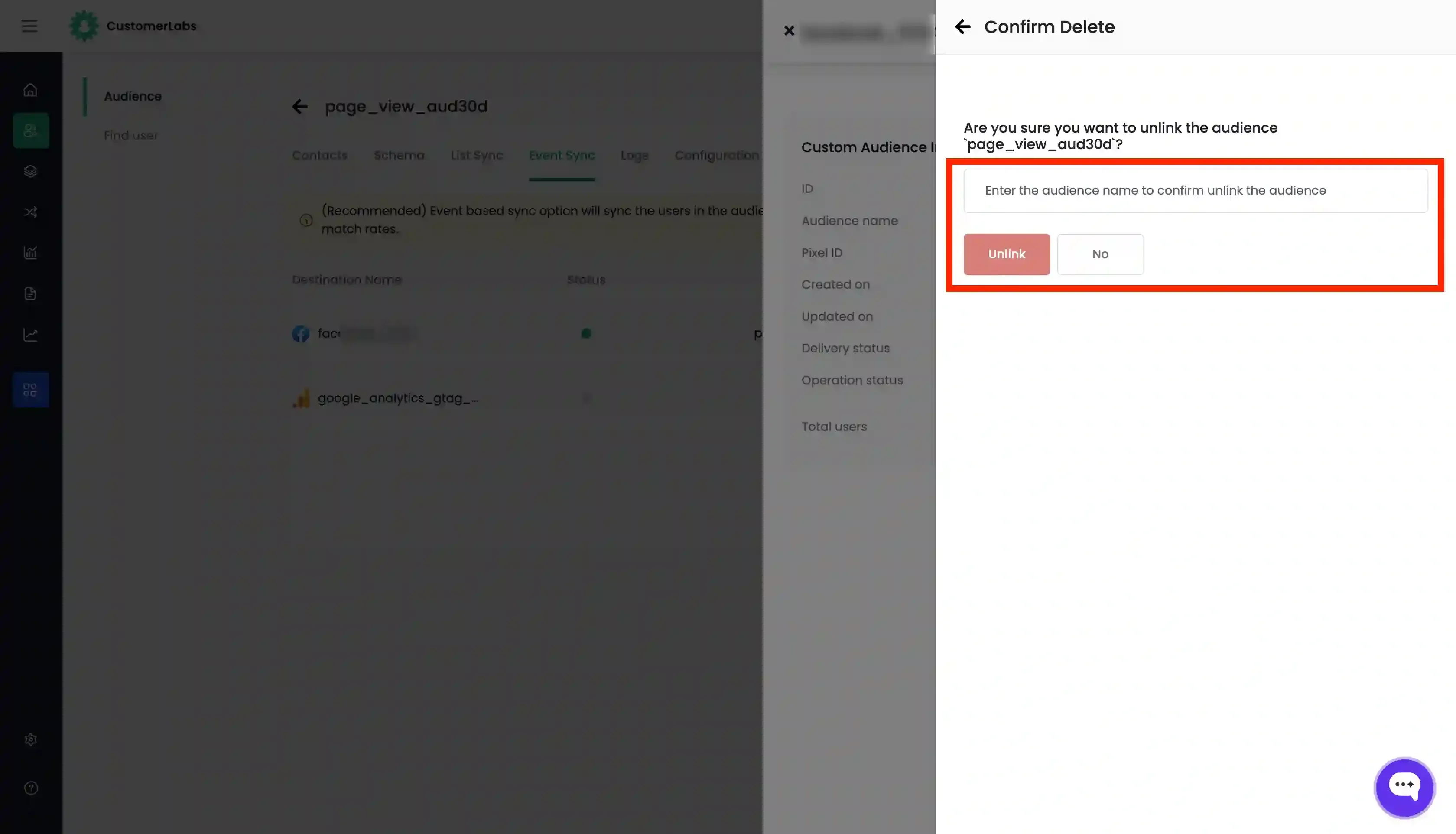
You will be prompted to enter the name of the custom audience for confirmation. Enter the audience name and click Unlink.
Delete an Audience
Section titled “Delete an Audience”Deleting removes the custom audience from Google Analytics (GA4) entirely.
- Click the Delete icon in the top right corner of the custom audience under Settings.
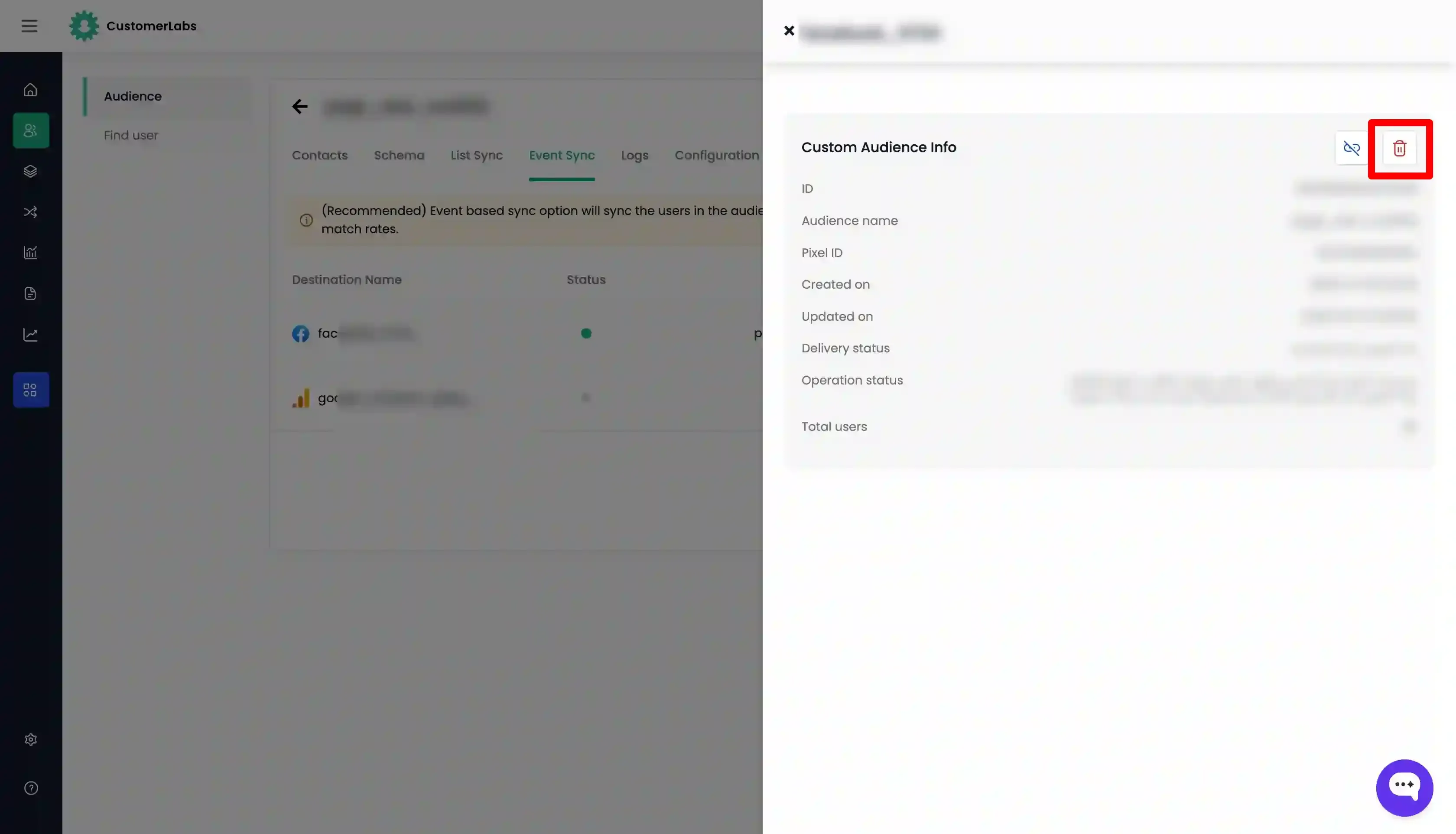
- Enter the name of the custom audience to confirm and Click “Confirm” (or “Delete”).