
CustomerLabs + Pipedrive Integration
Pipedrive is a sales management tool that provides visual pipeline management and forecasting capabilities. Integrating Pipedrive with CustomerLabs enables contact, organization, and deal event data to be ingested into CustomerLabs, where it is used to build unified customer profiles and enrich downstream marketing destinations.
The connection is established via Pipedrive’s native webhook mechanism using a CustomerLabs-generated endpoint URL.
Prerequisites
Section titled “Prerequisites”- An active CustomerLabs account
- An active Pipedrive account with access to Tools & Integrations
Part 1 — Connecting Pipedrive to CustomerLabs
Section titled “Part 1 — Connecting Pipedrive to CustomerLabs”Create the Pipedrive Source
Section titled “Create the Pipedrive Source”-
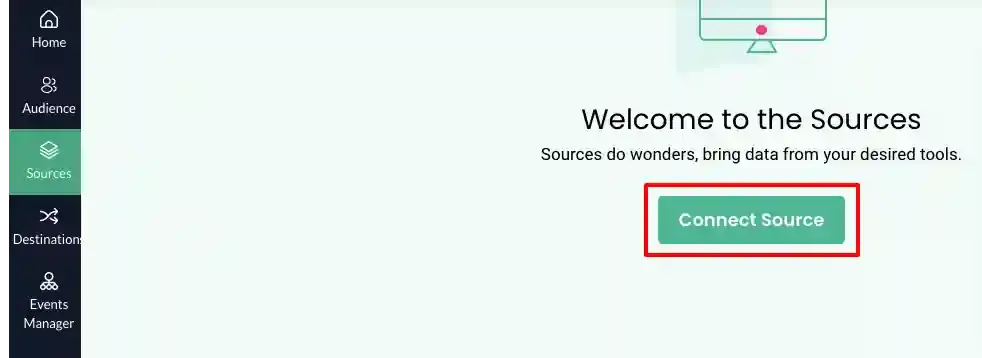
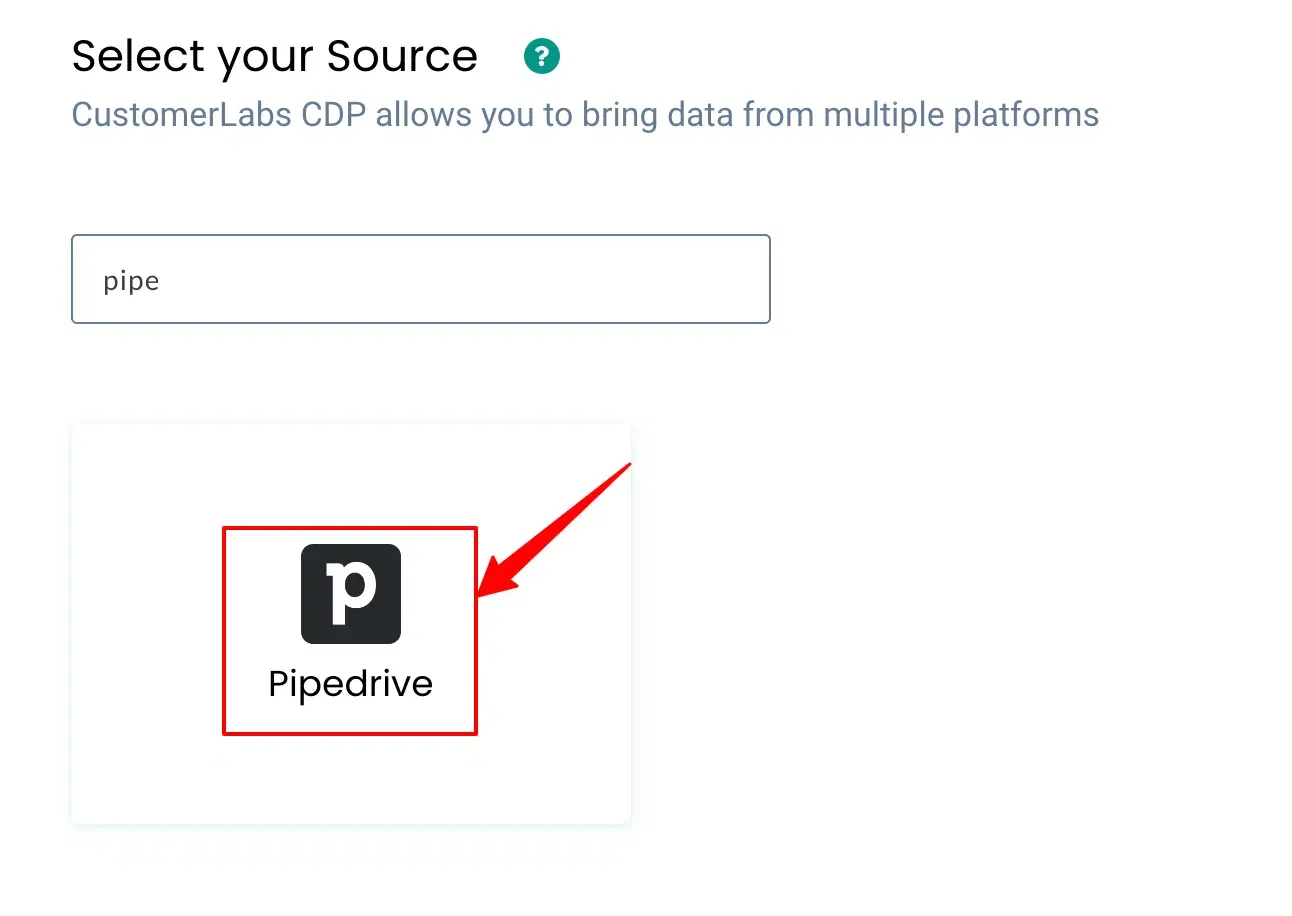
In CustomerLabs, navigate to Sources and select Pipedrive from the list of available sources.
-
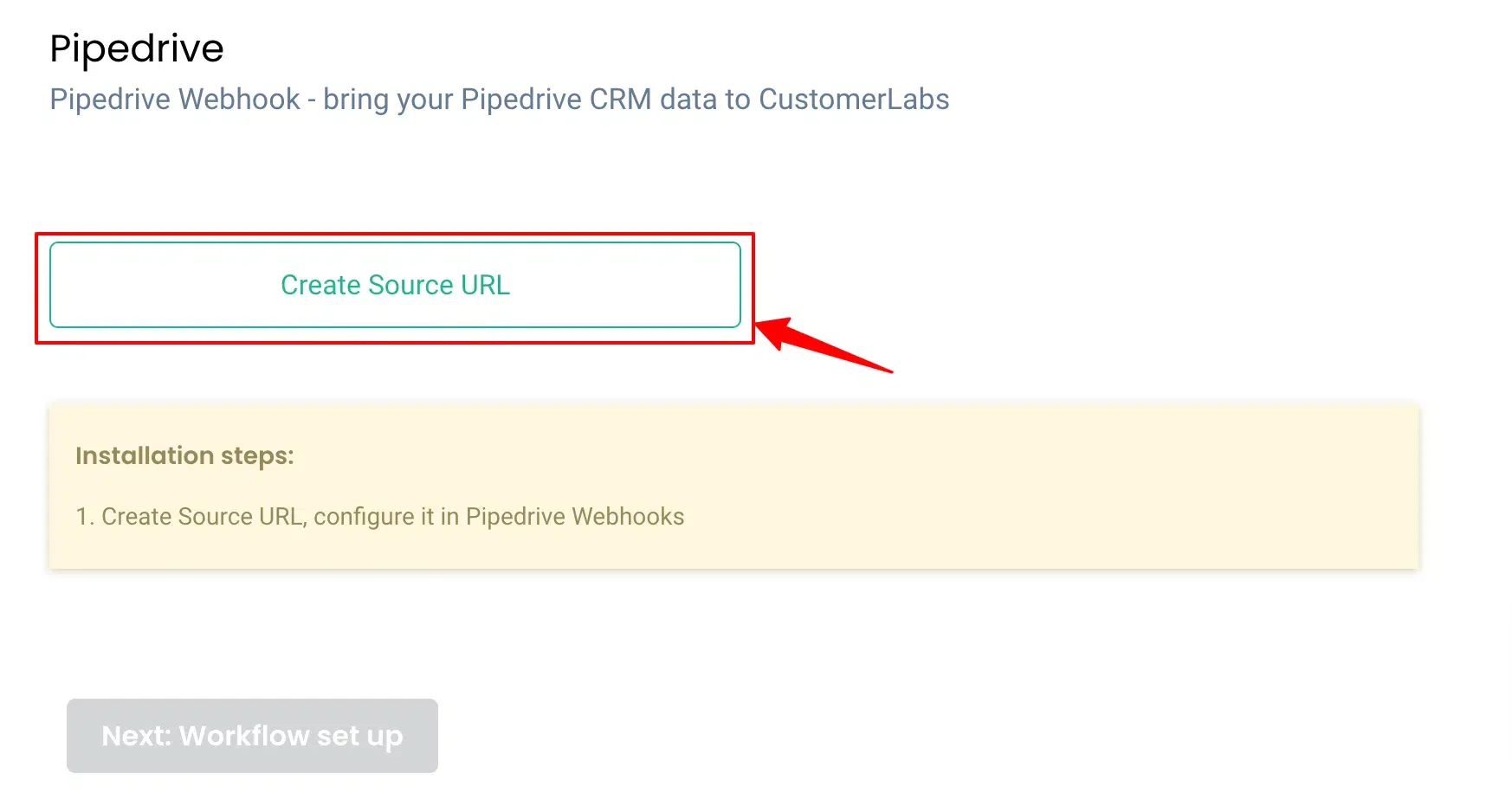
Enter a name for the source and click Create Source to generate the webhook endpoint URL.
Copy the Workflow URL
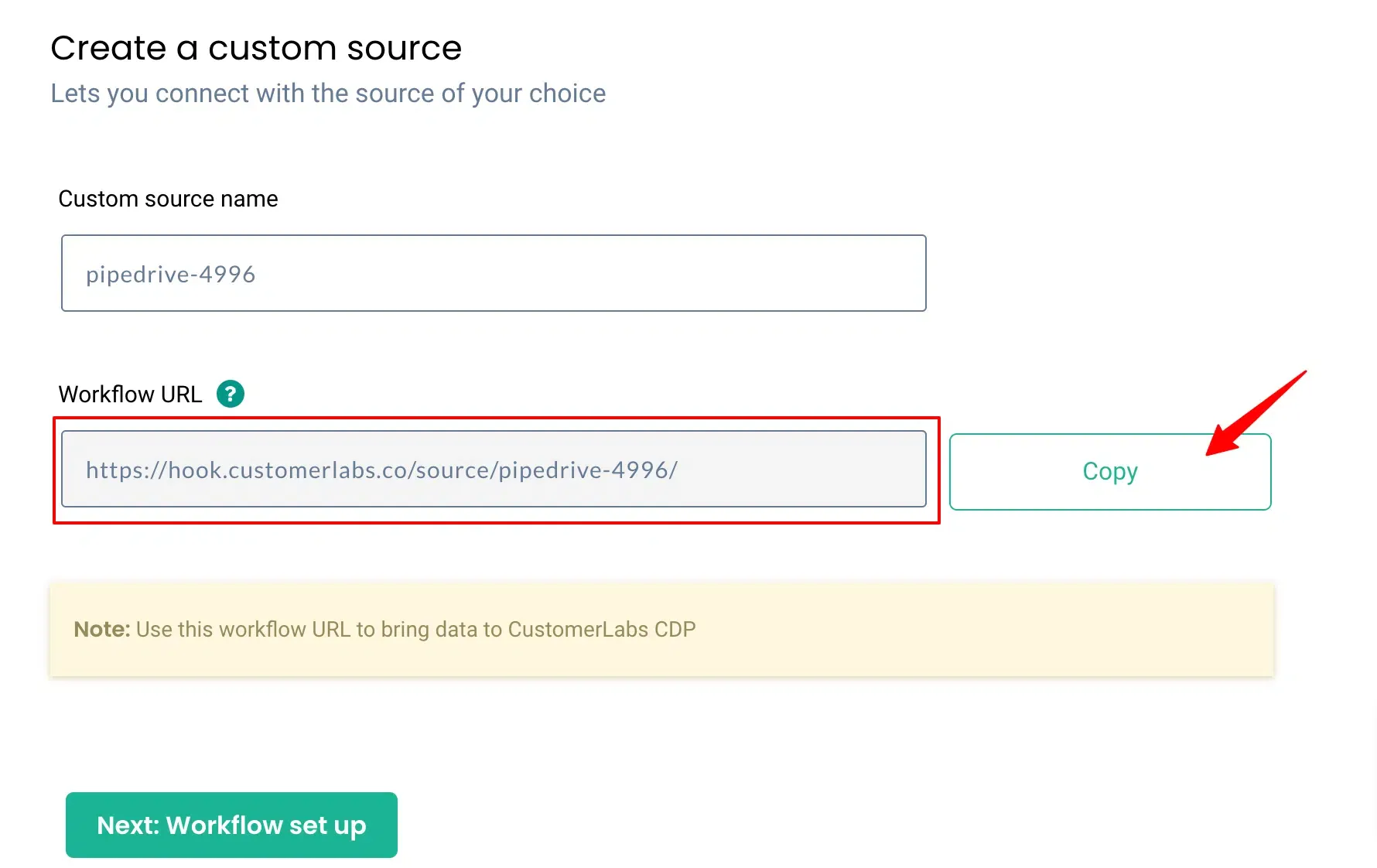
Section titled “Copy the Workflow URL”Once the source is created, copy the Workflow URL — this is the endpoint Pipedrive will use to send event data to CustomerLabs.
Configure Webhooks in Pipedrive
Section titled “Configure Webhooks in Pipedrive”-
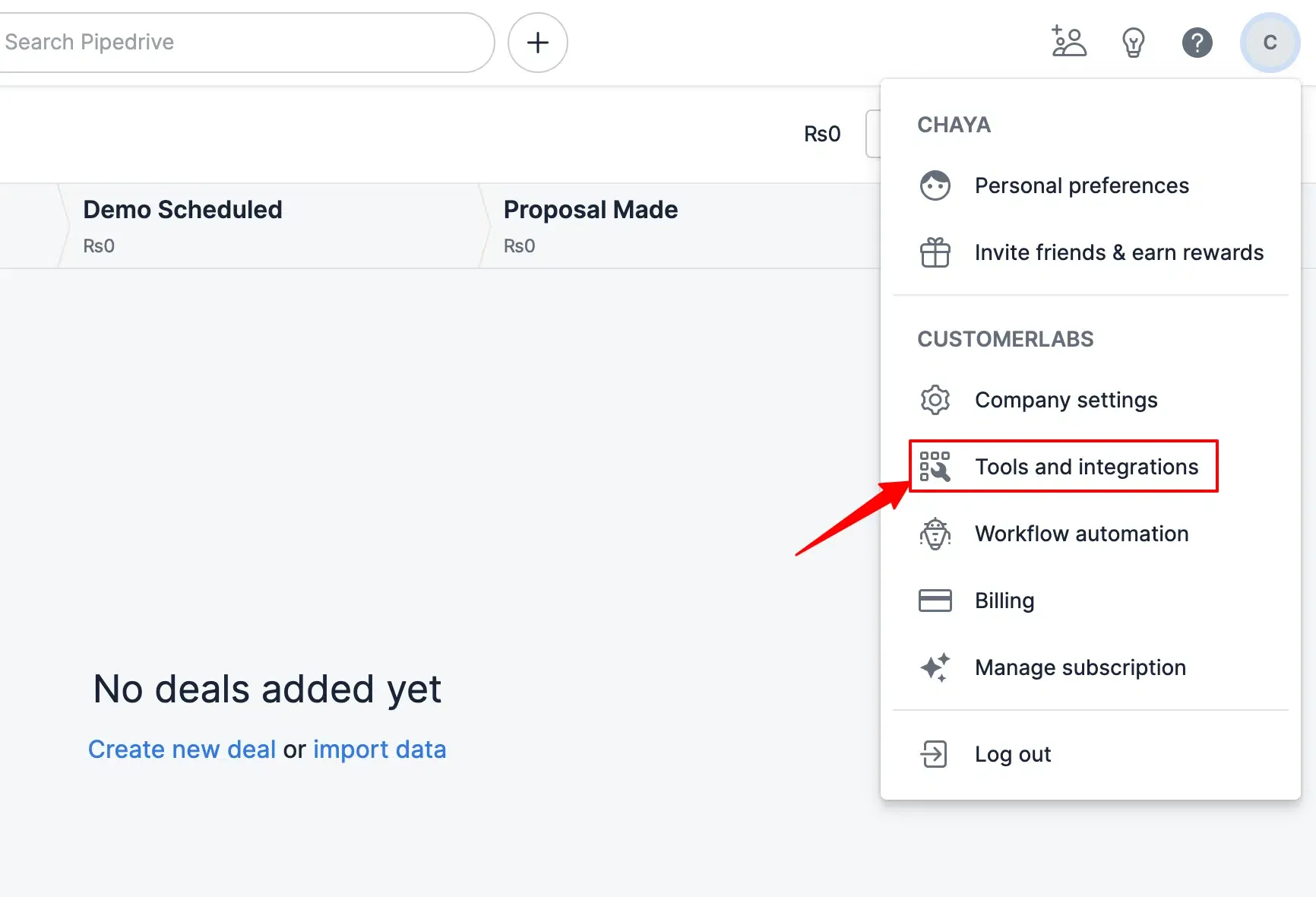
In your Pipedrive account, navigate to Tools & Integrations.
-
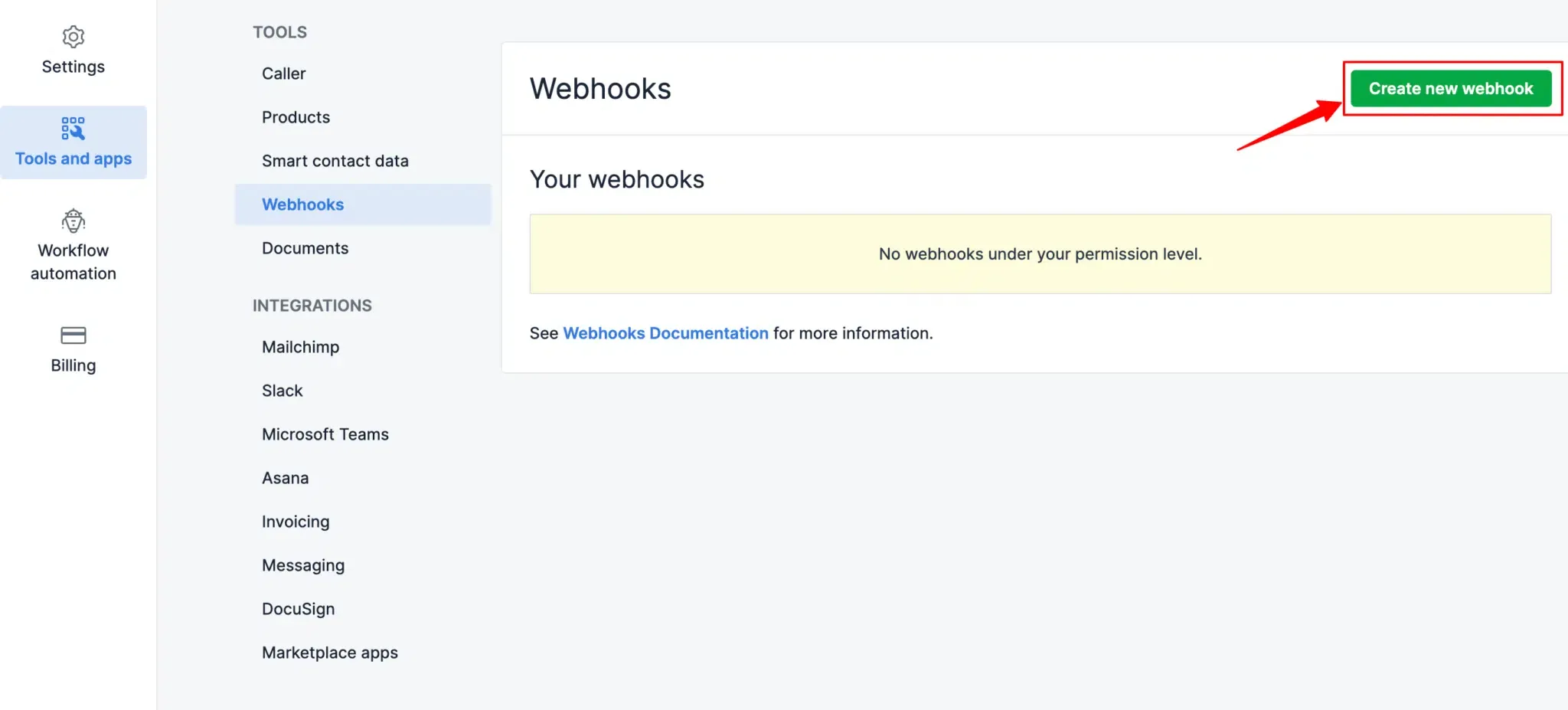
Select Webhooks from the integrations list.
-
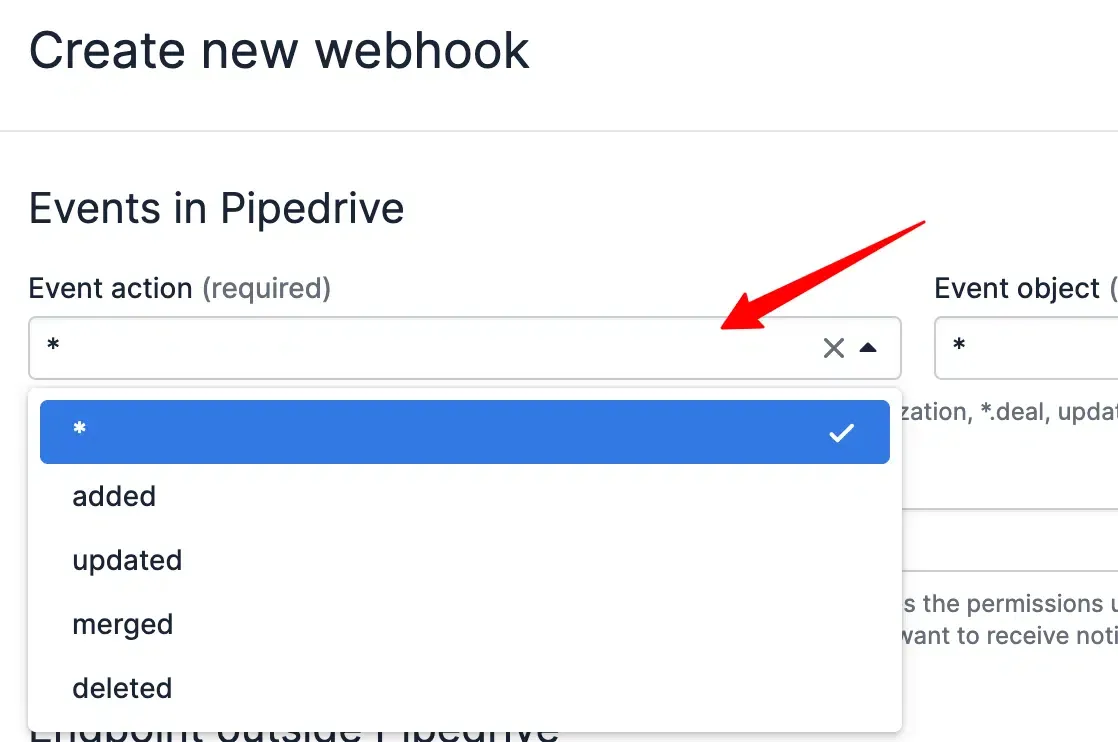
Click Create new webhook.
Configure the Webhook
Section titled “Configure the Webhook”-
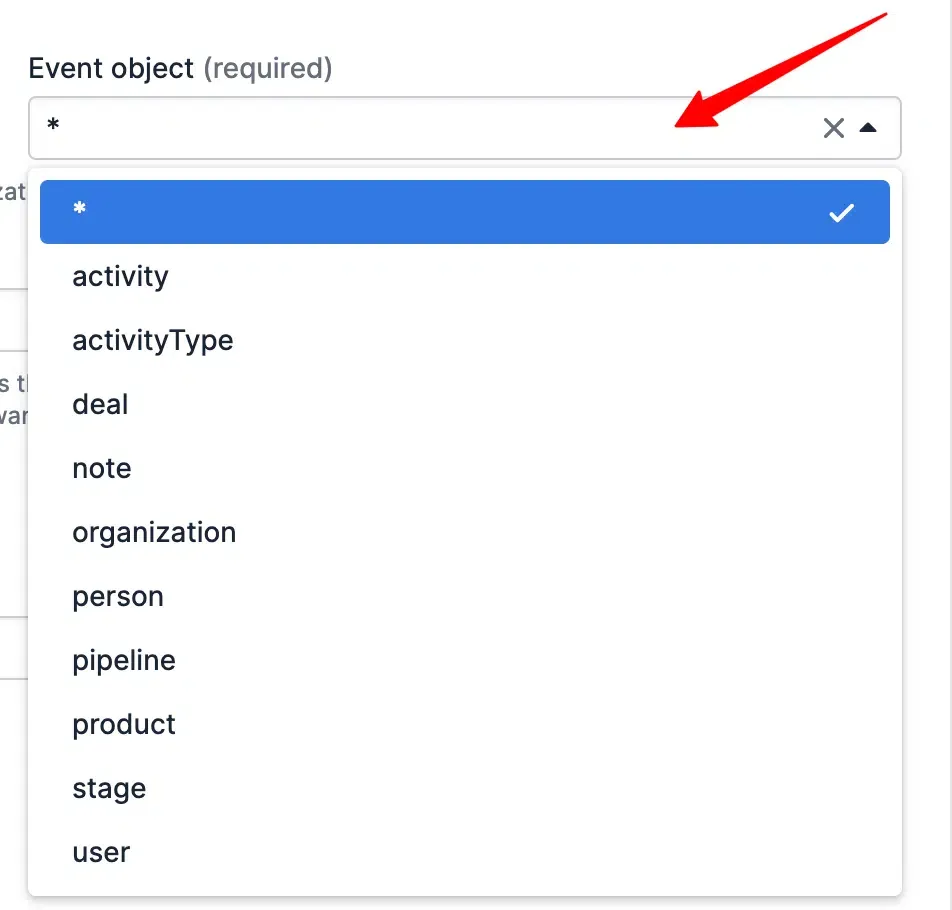
Select the Event action (e.g., added, updated, deleted).
-
Select the Event object (e.g., Person, Organization, Deal).
-
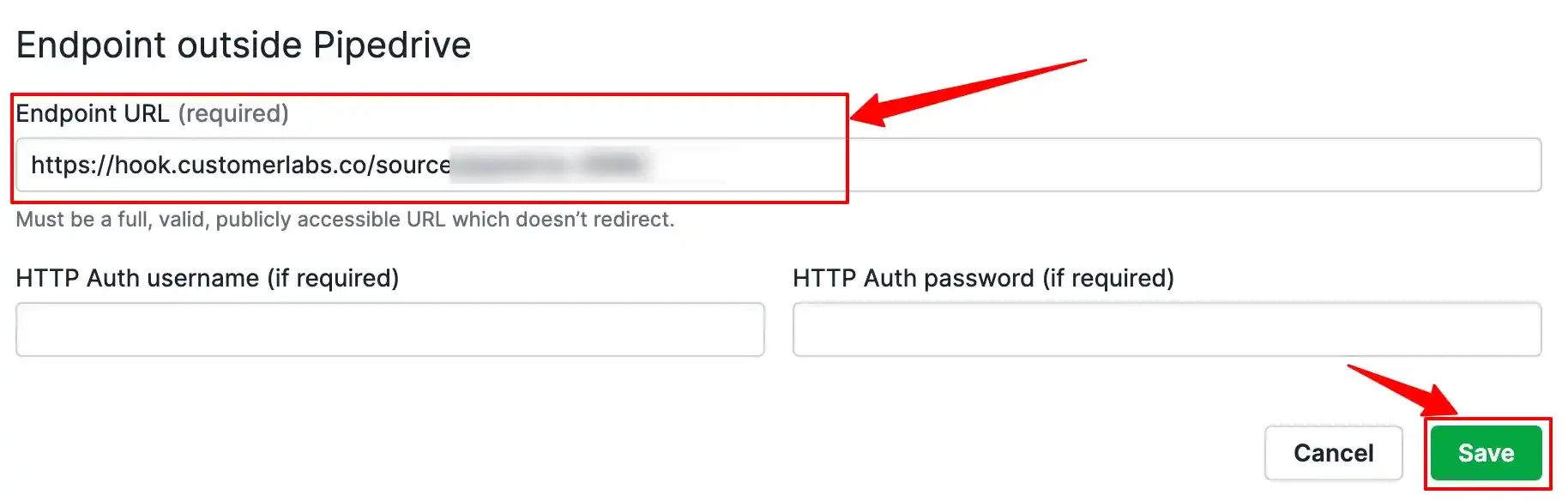
Paste the Workflow URL copied from CustomerLabs into the Endpoint URL field and save.
-
The webhook is now active. Pipedrive will begin forwarding events to CustomerLabs.
Part 2 — Workflow Configuration
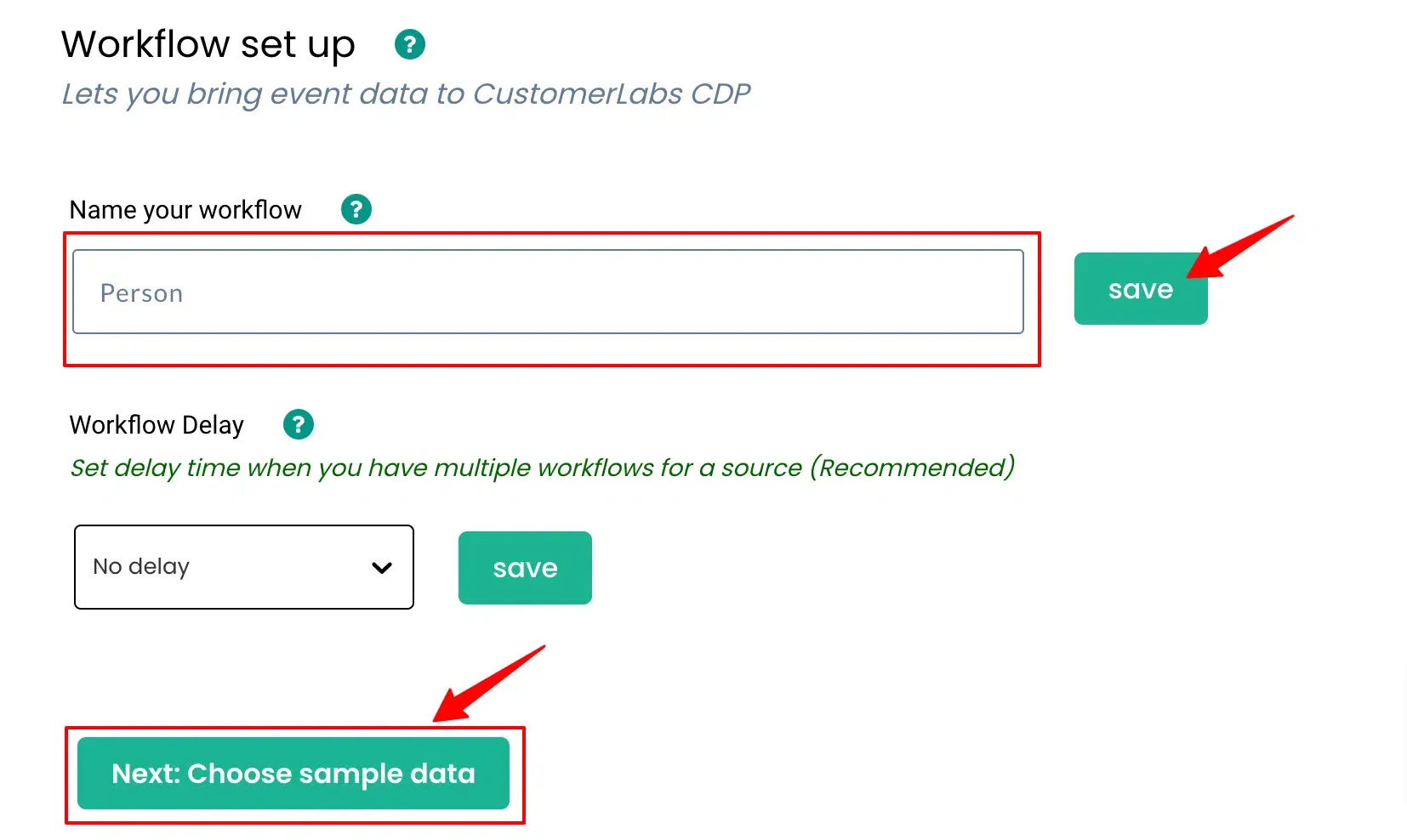
Section titled “Part 2 — Workflow Configuration”Each Pipedrive event object requires a separate workflow in CustomerLabs to define how incoming data is mapped to user identities and event properties.
Workflow 1 — New Person (Contact) Event
Section titled “Workflow 1 — New Person (Contact) Event”Fetch Sample Data
Section titled “Fetch Sample Data”-
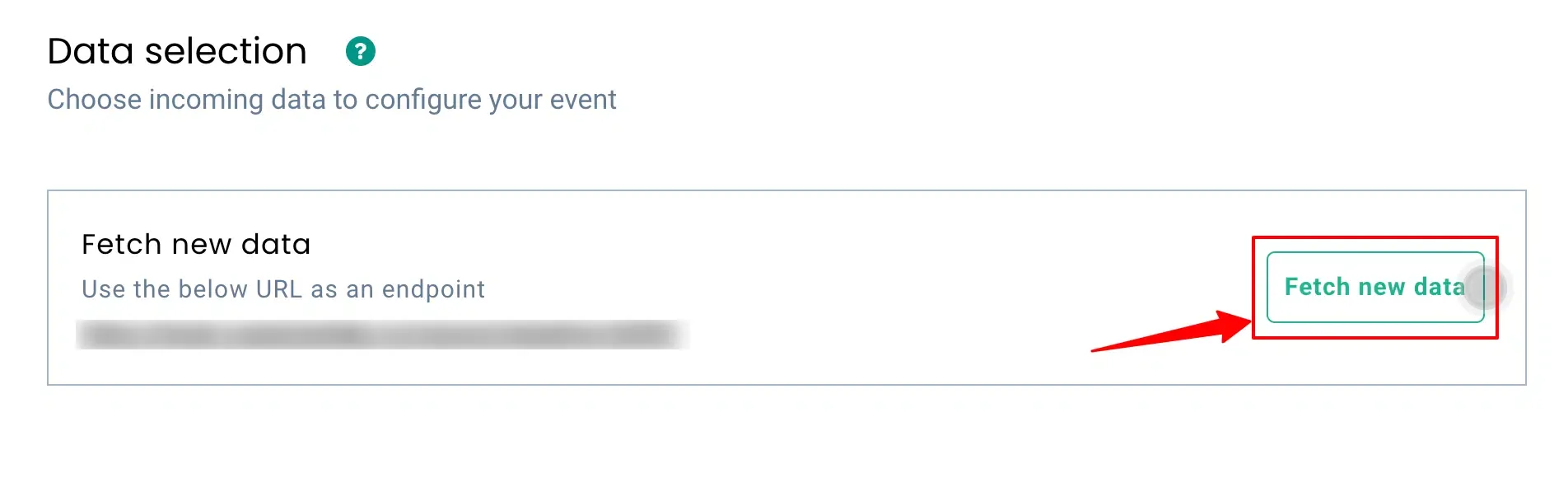
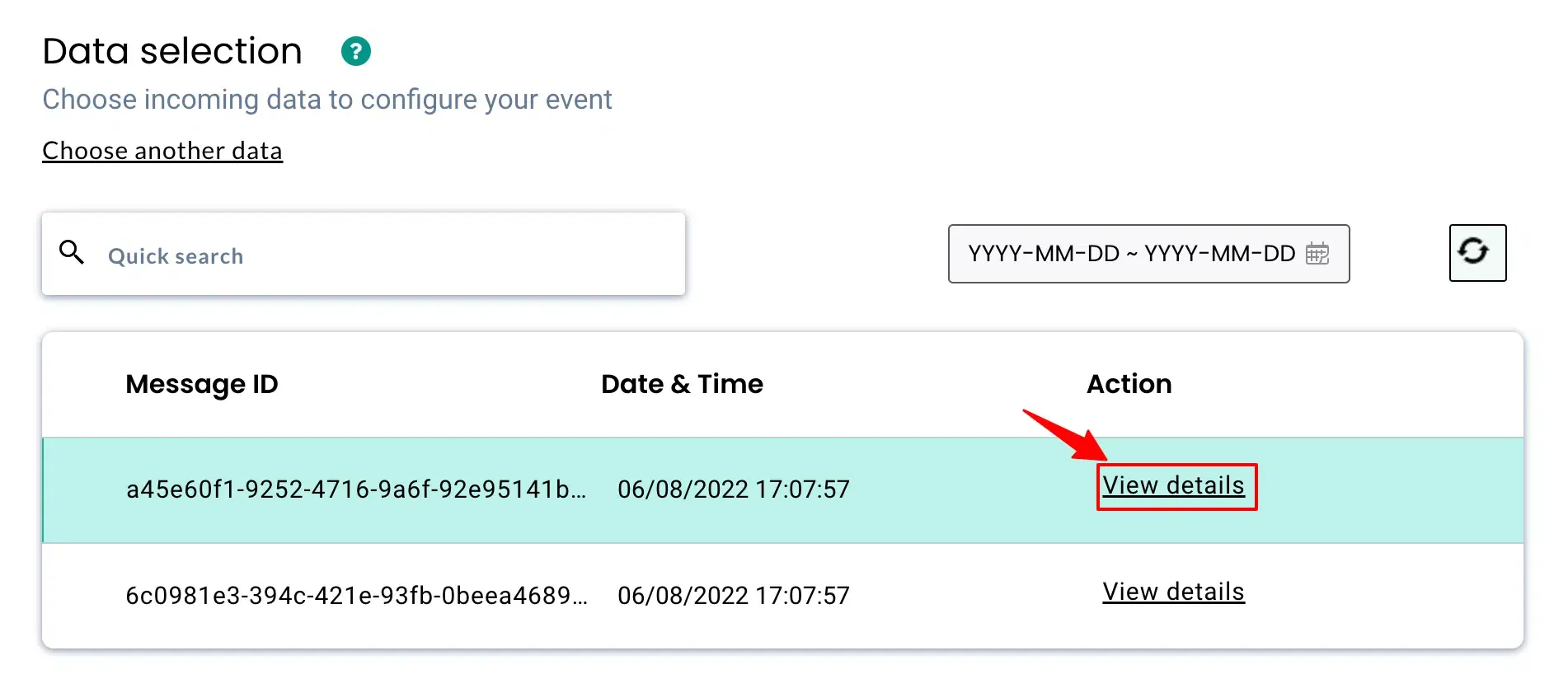
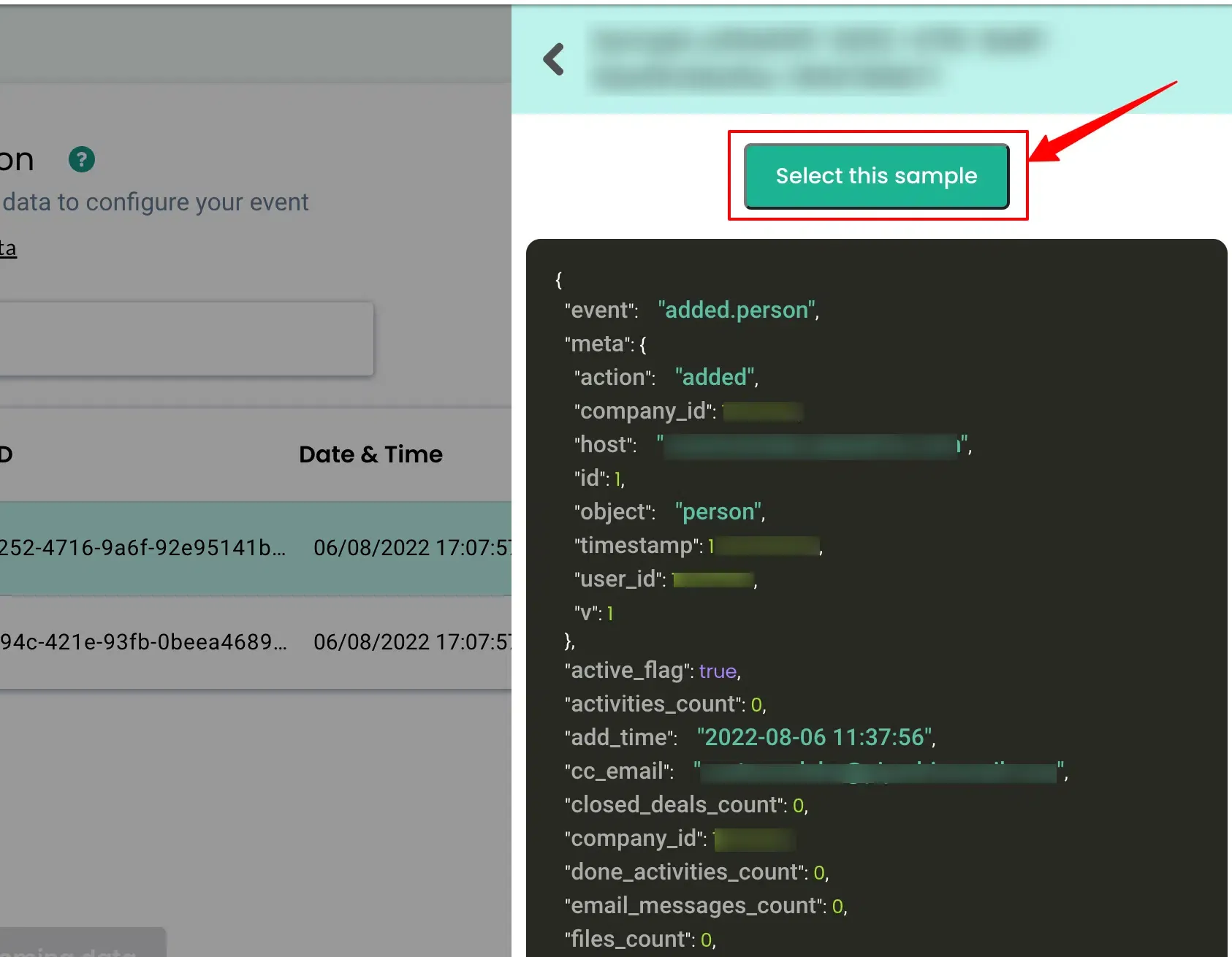
Trigger a test event in Pipedrive by creating a new Person record. Then, in the CustomerLabs workflow editor, click Fetch Sample Data to retrieve the incoming payload.
-
Select the sample data to use for configuration.
Apply Filters (Optional)
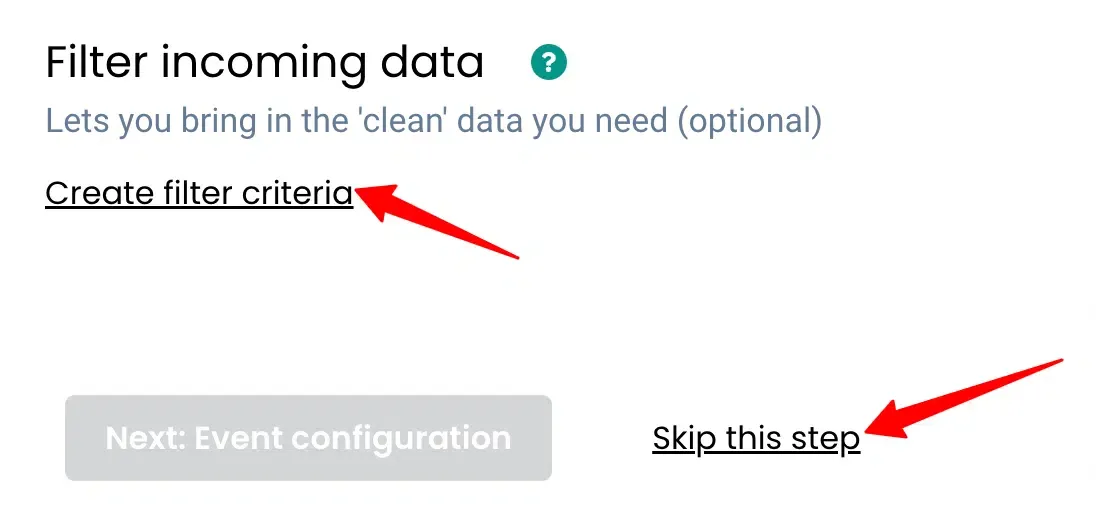
Section titled “Apply Filters (Optional)”Configure filters to process only specific events or field values.
Configure the Event Name
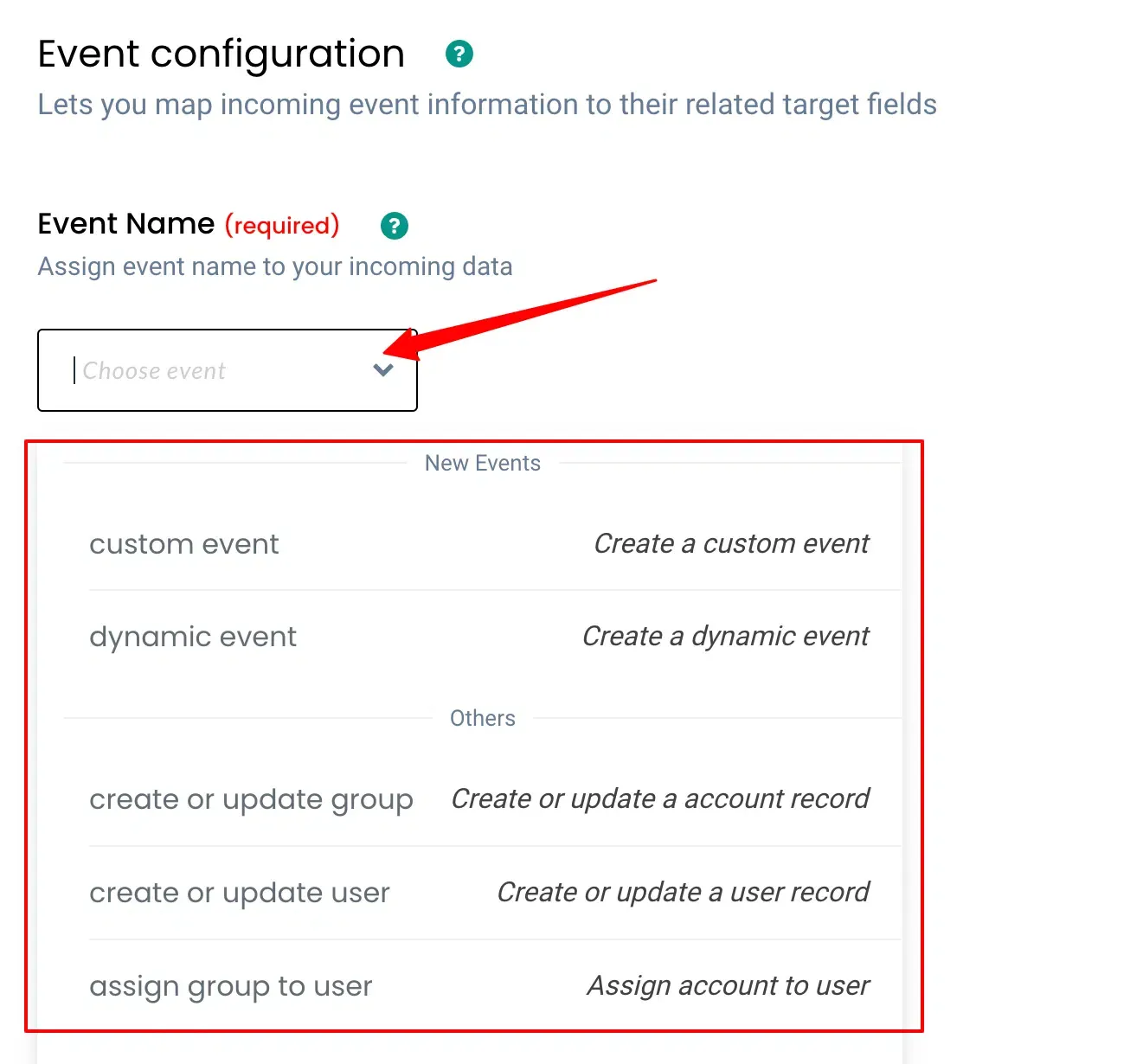
Section titled “Configure the Event Name”In the Event Configuration section, enter a name for the incoming event (e.g., pipedrive_person_added).
Map User Identity
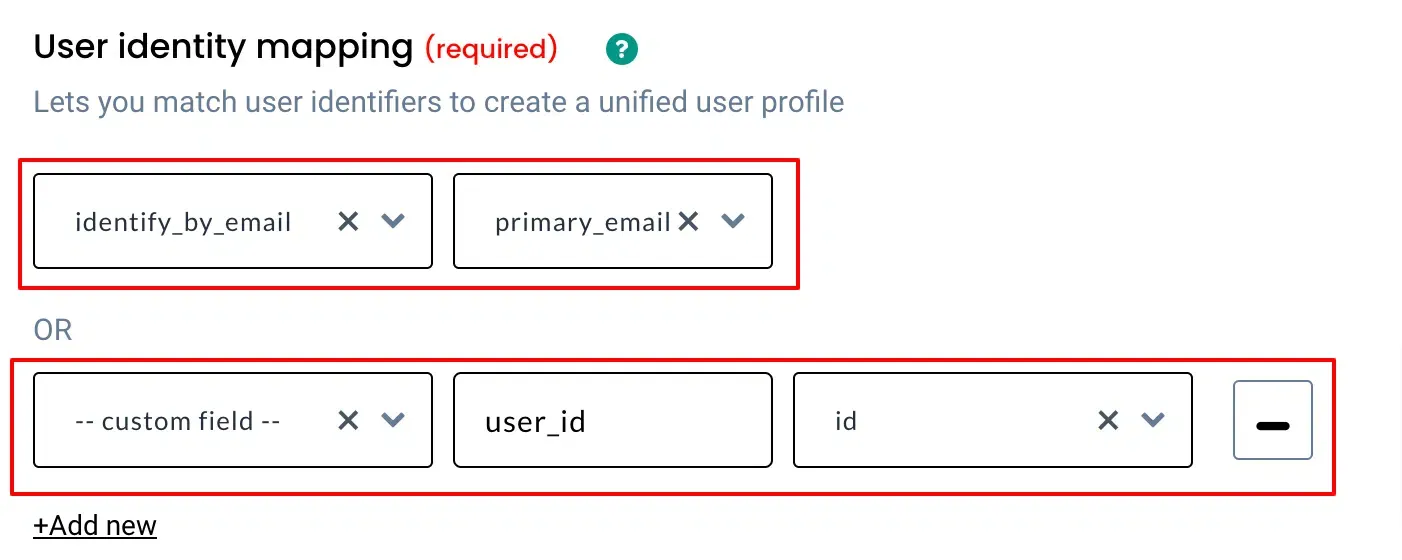
Section titled “Map User Identity”Map the fields that identify the user in CustomerLabs:
-
Email — map to the Pipedrive person’s email field.
-
User ID — map to the Pipedrive person’s unique identifier.
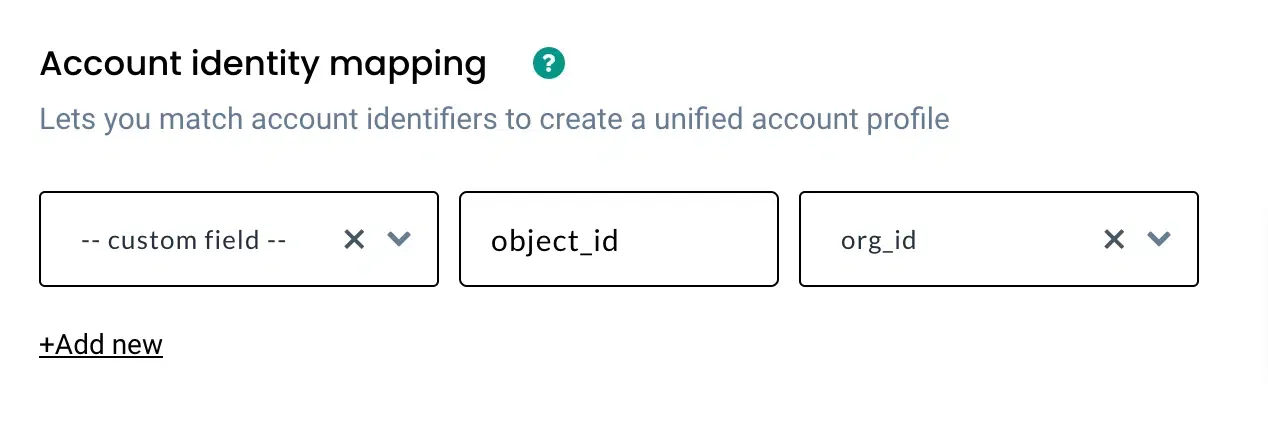
Map Account Identity
Section titled “Map Account Identity”Map account-level identifiers to associate the contact with an organization in CustomerLabs.
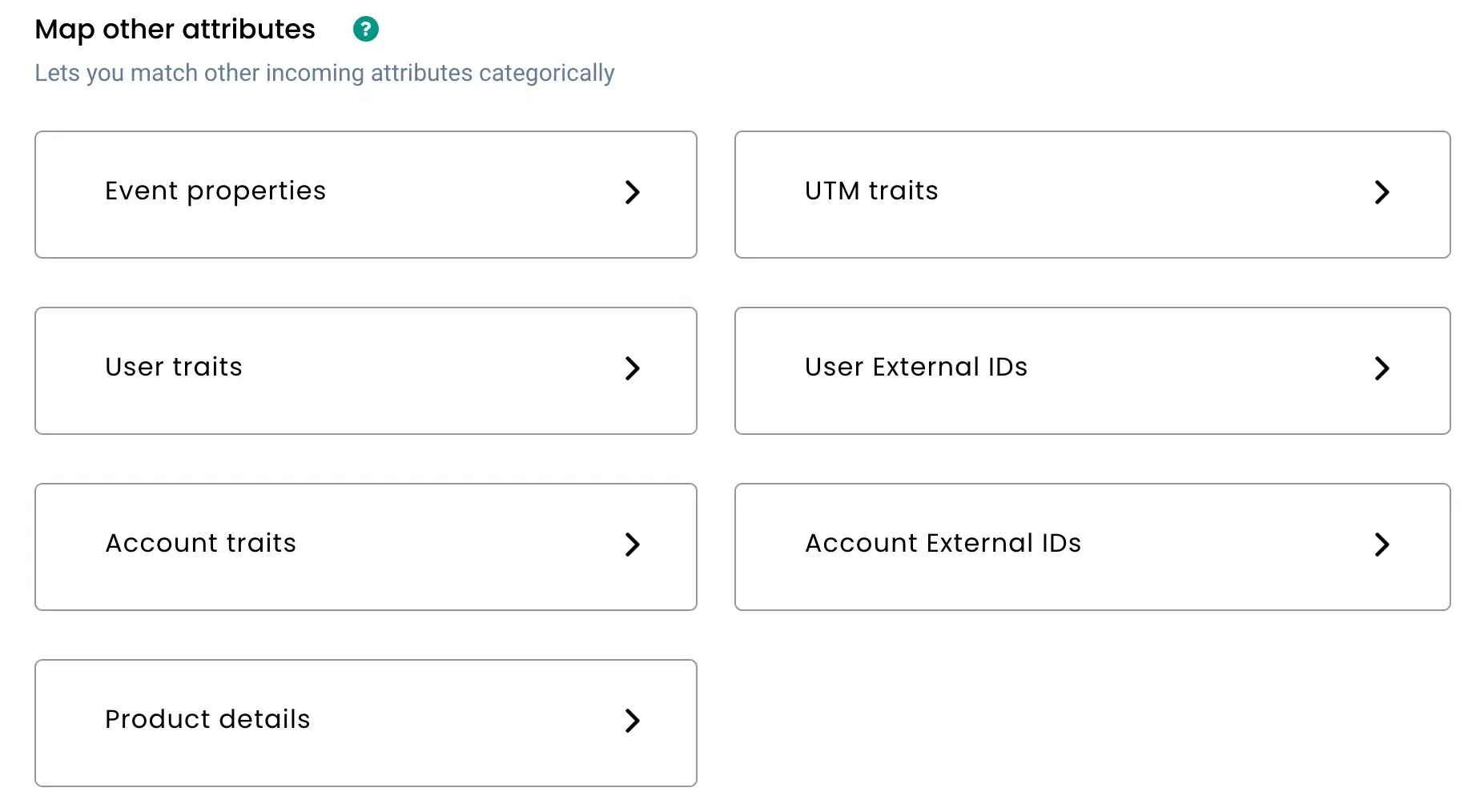
Map Additional Properties
Section titled “Map Additional Properties”Map remaining Pipedrive fields to CustomerLabs event or user properties as required.
Workflow 2 — New Organization Event
Section titled “Workflow 2 — New Organization Event”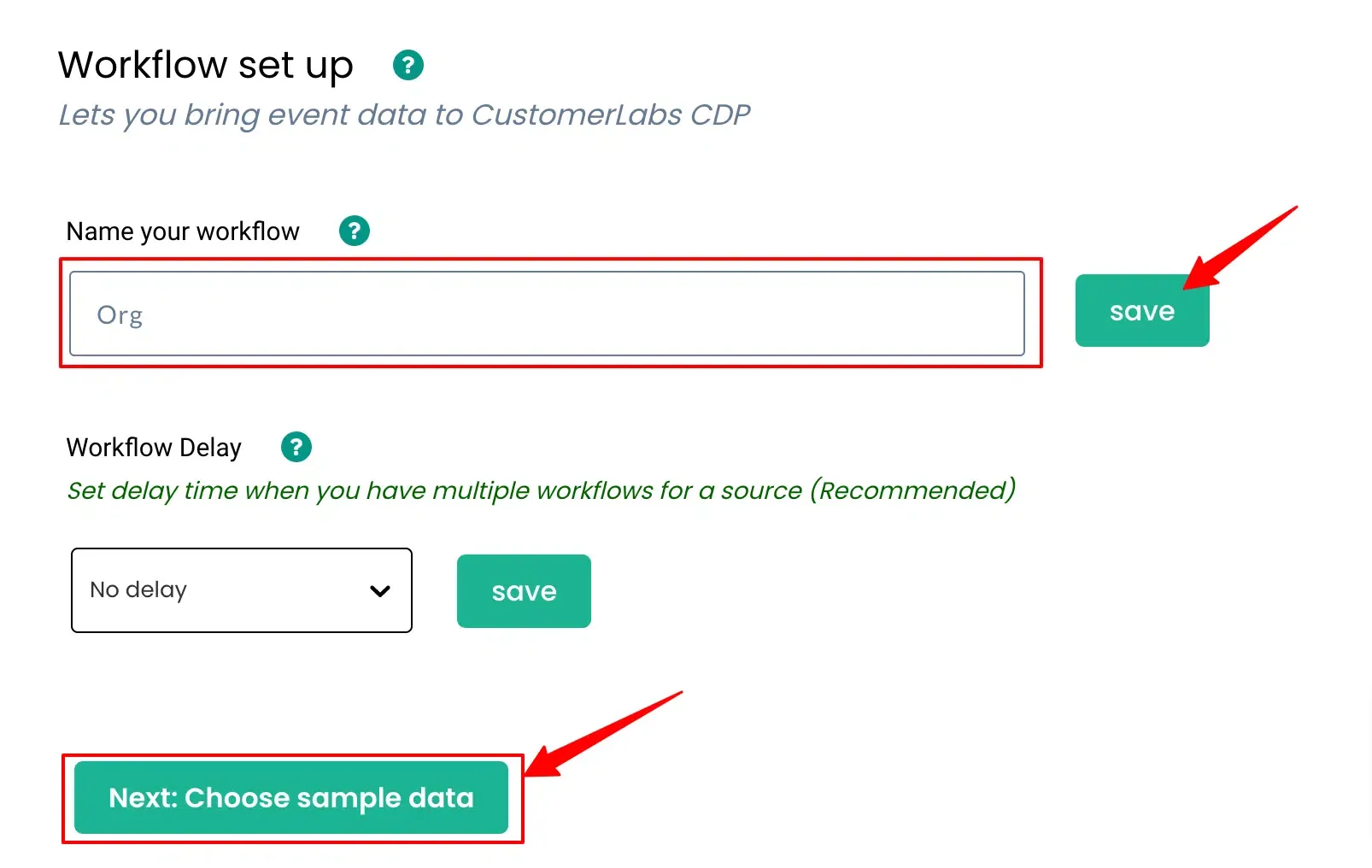
Fetch Sample Data
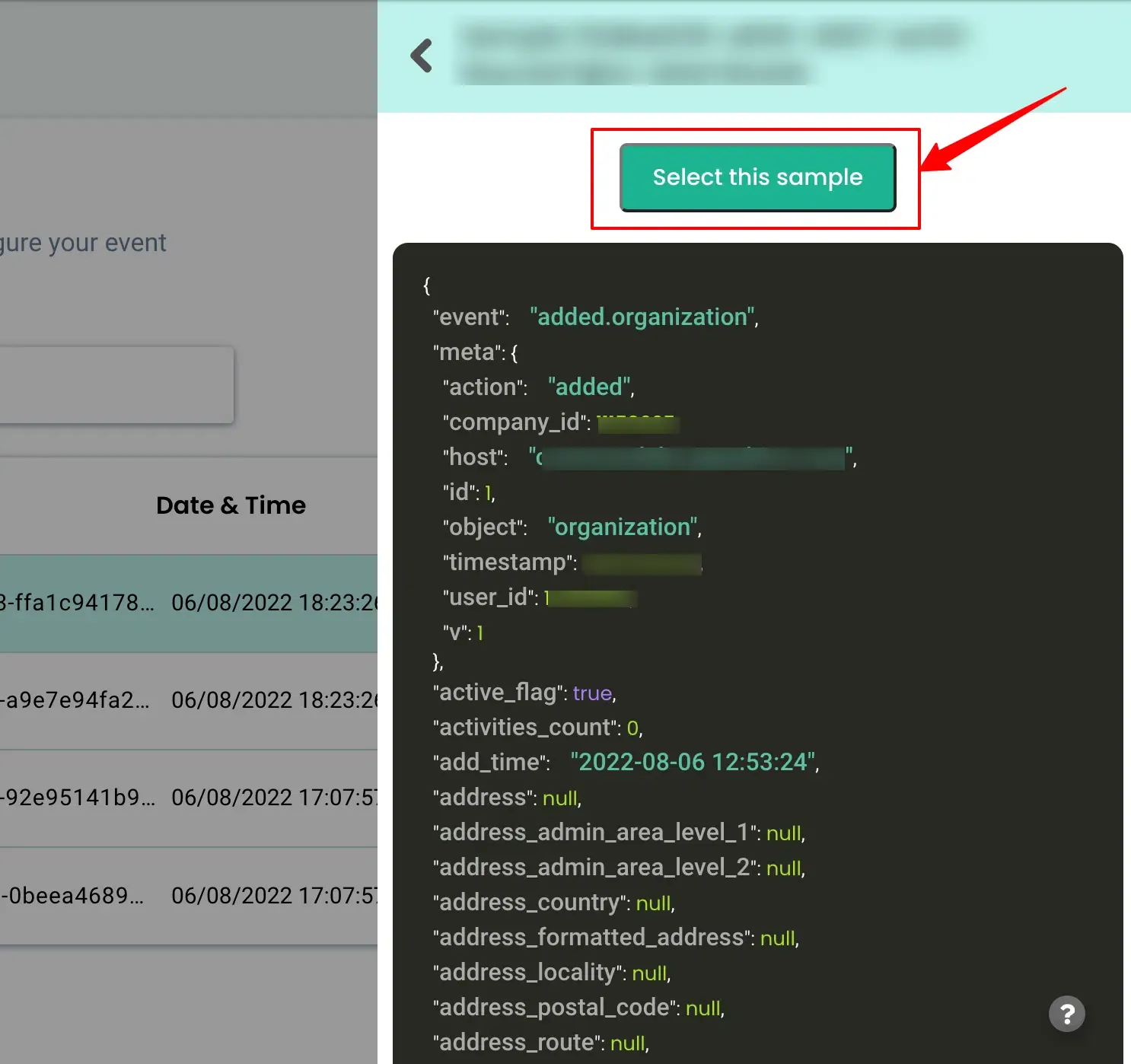
Section titled “Fetch Sample Data”Create a test Organization record in Pipedrive, then click Fetch Sample Data in the workflow editor to retrieve the payload.
Select the sample to use for configuration.
Apply Filters (Optional)
Section titled “Apply Filters (Optional)”Configure filters to process only specific events or field values.
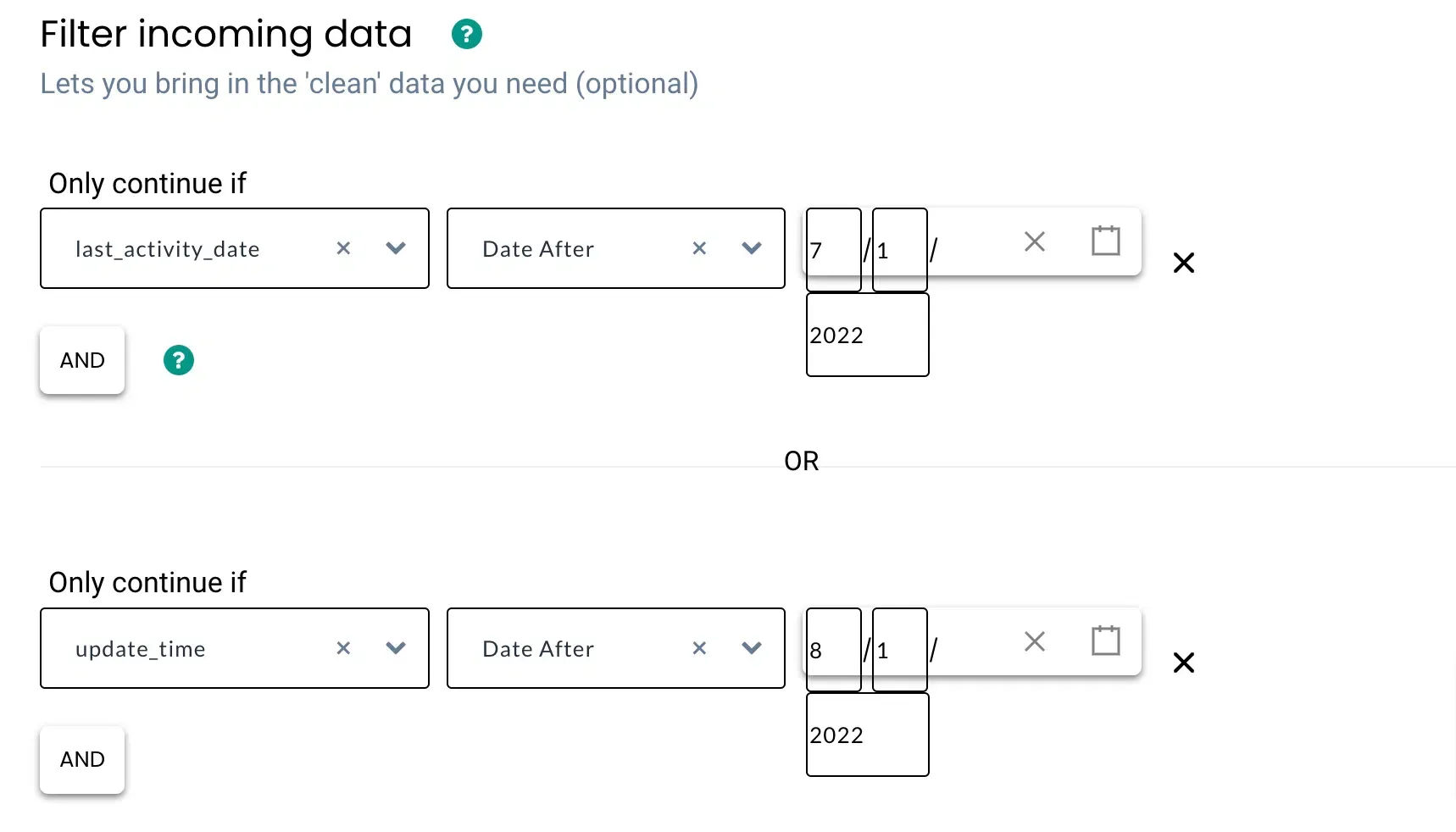
Configure the Event Name
Section titled “Configure the Event Name”Enter an event name for the incoming organization event (e.g., pipedrive_organization_added).
Map Account Identity
Section titled “Map Account Identity”Map the account identity using the Pipedrive Object ID to associate the organization record with CustomerLabs account profiles.
Map Additional Properties
Section titled “Map Additional Properties”Map remaining organization fields to CustomerLabs properties as required.
Workflow 3 — New Deal Event
Section titled “Workflow 3 — New Deal Event”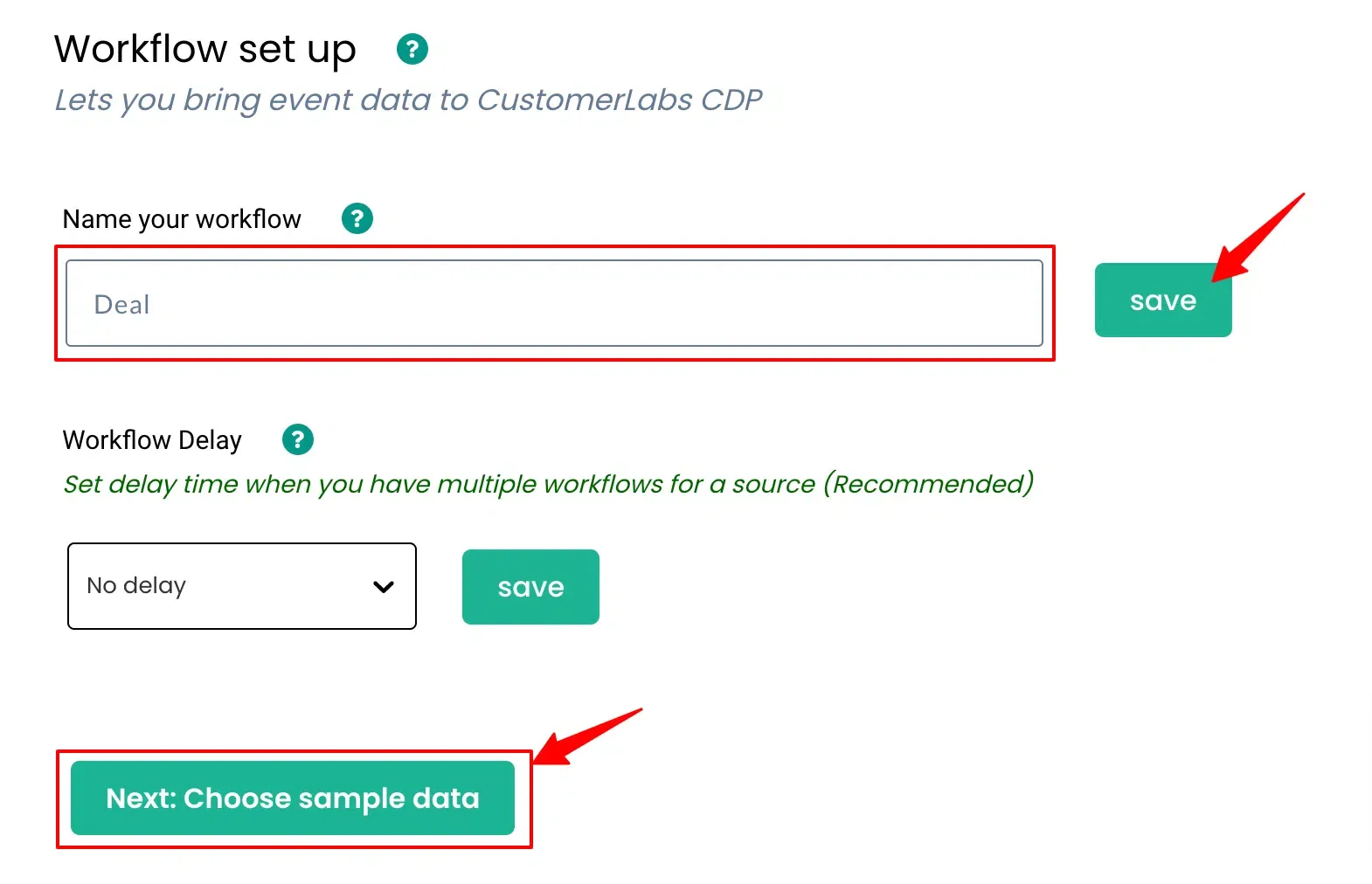
Fetch Sample Data
Section titled “Fetch Sample Data”Create a test Deal in Pipedrive, then click Fetch Sample Data in the workflow editor to retrieve the payload.
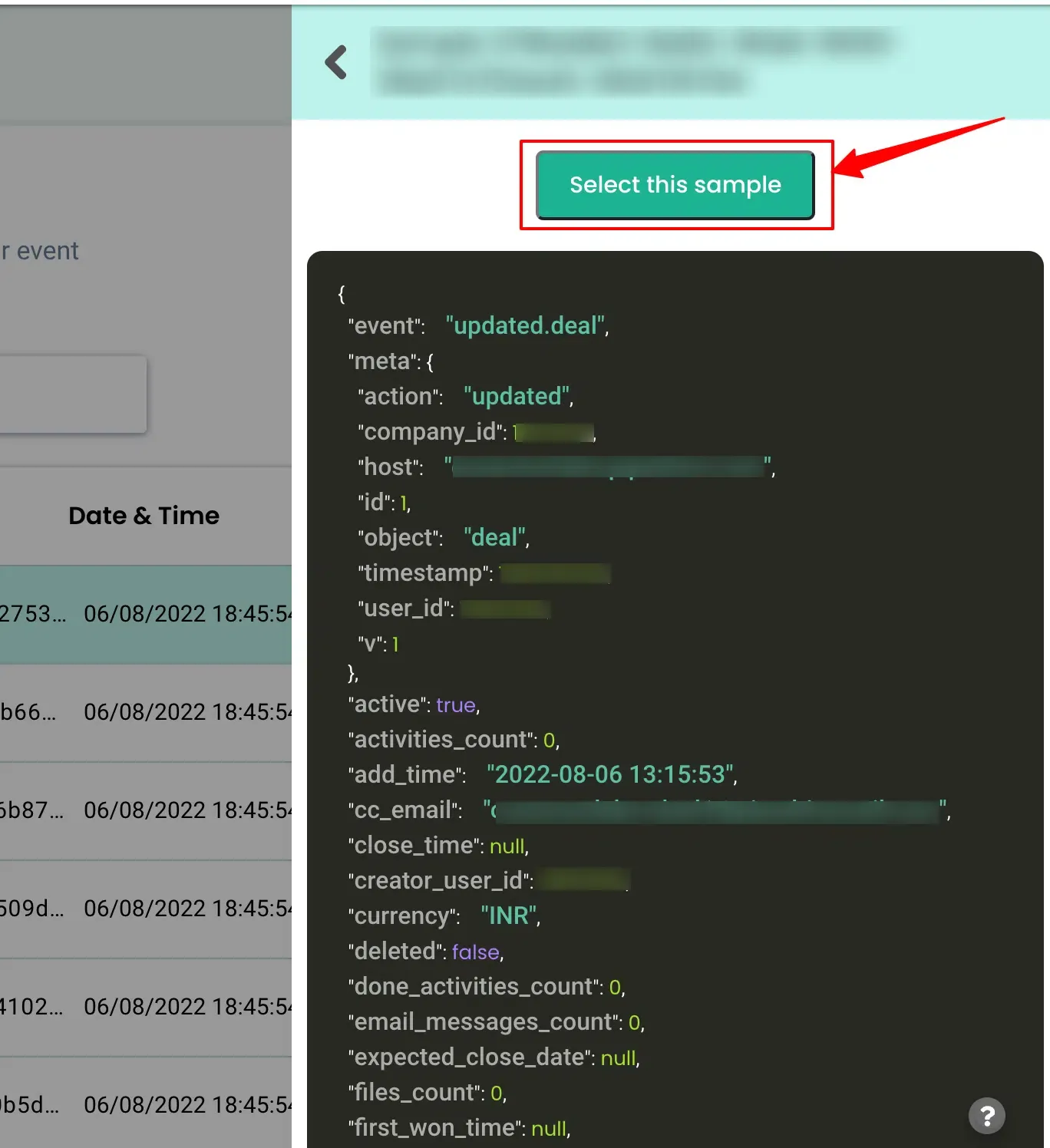
Select the sample to use for configuration.
Apply Filters (Optional)
Section titled “Apply Filters (Optional)”Configure filters to process only specific events or field values.
Configure the Event Name
Section titled “Configure the Event Name”Enter an event name for the incoming deal event (e.g., pipedrive_deal_added).
Map User Identity
Section titled “Map User Identity”Map the user identity fields — email and user ID — to associate the deal with a contact in CustomerLabs.
Map Account Identity
Section titled “Map Account Identity”Map the account identity using the Pipedrive Object ID to associate the deal with an organization in CustomerLabs.
Map Additional Properties
Section titled “Map Additional Properties”Map remaining deal fields to CustomerLabs properties as required.
The Pipedrive source is now active. CustomerLabs will ingest Person, Organization, and Deal events from Pipedrive and use them to build unified customer profiles available for segmentation and forwarding to downstream destinations.
Quick Reference
Section titled “Quick Reference”| Setting | Value |
|---|---|
| Connection Method | Pipedrive Webhook → CustomerLabs Endpoint URL |
| Webhook Location | Pipedrive → Tools & Integrations → Webhooks |
| Endpoint URL | CustomerLabs → Sources → Pipedrive → Workflow URL |
| Supported Objects | Person, Organization, Deal |
| Multiple Objects | Create one webhook per object using the same Endpoint URL |