Vivenu CRM Integration with CustomerLabs 1PD Ops
Vivenu is a flexible ticketing platform that enables event organizers to manage ticketing, CRM, and marketing operations efficiently. By integrating Vivenu with CustomerLabs 1PD Ops, you can unify customer, ticketing, and transaction data to build enriched customer profiles.
Getting Started
Section titled “Getting Started”Follow the steps below to seamlessly connect your Vivenu CRM account with CustomerLabs—no coding required.
Step-by-Step Guide to Configuring Events
Section titled “Step-by-Step Guide to Configuring Events”Step 1: Log in to CustomerLabs
Section titled “Step 1: Log in to CustomerLabs”Sign in to your CustomerLabs account.
Step 2: Create a Custom Source
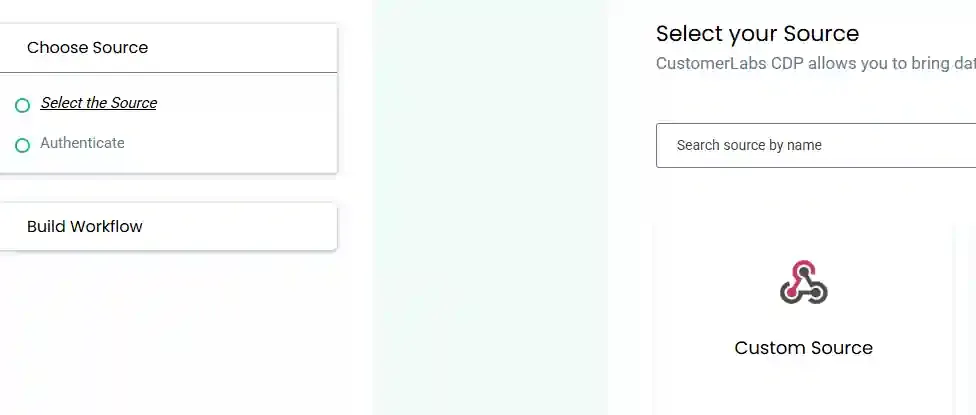
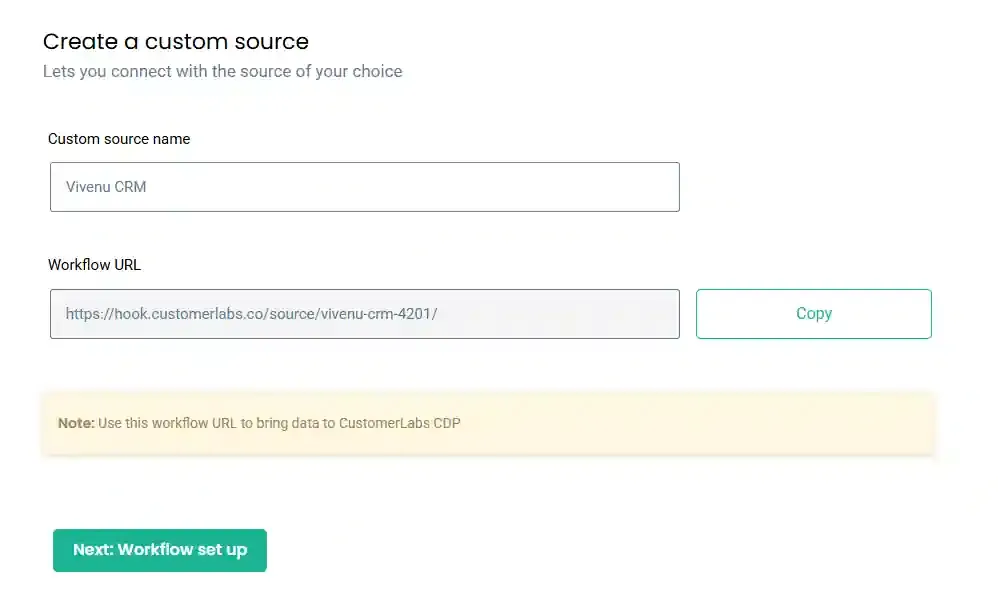
Section titled “Step 2: Create a Custom Source”- Navigate to Sources.
- Select Custom Source.
- Name it Vivenu CRM.
- Copy the generated Webhook URL.
Step 3: Log in to Vivenu CRM
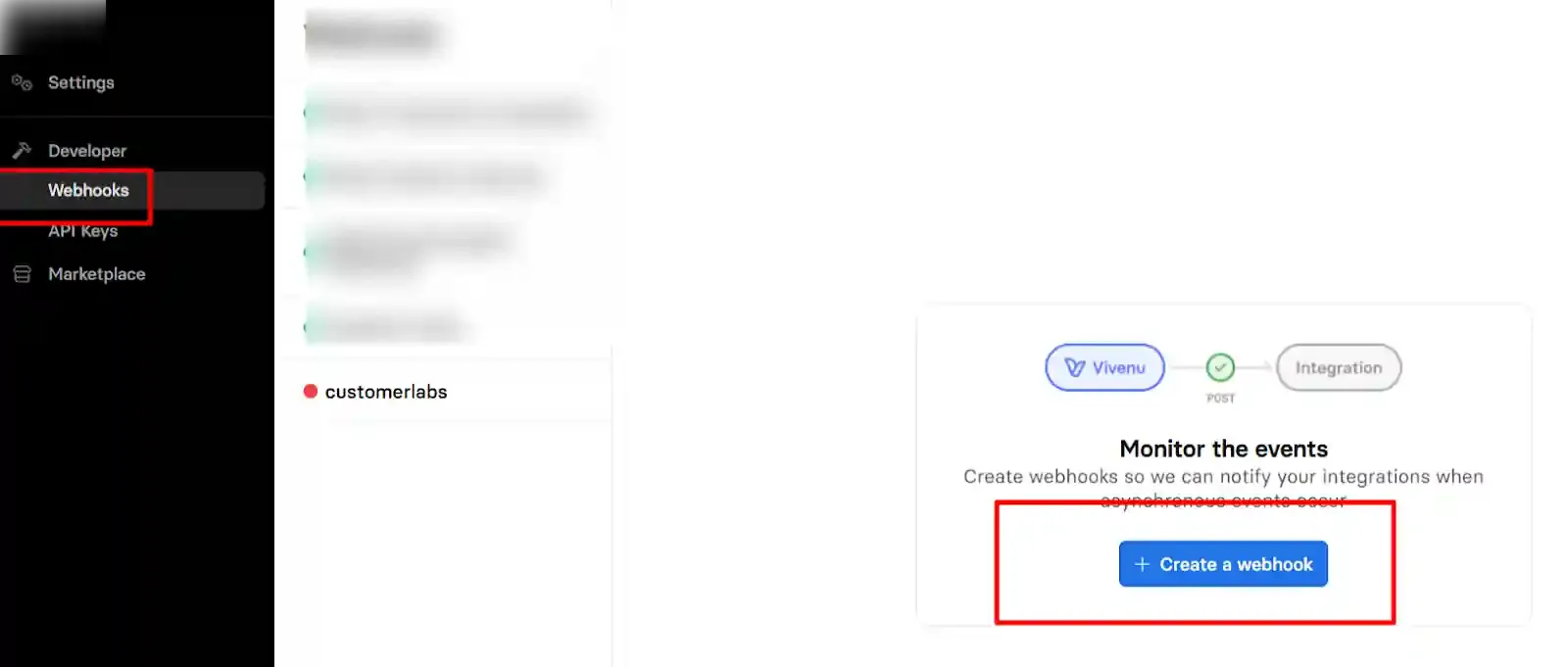
Section titled “Step 3: Log in to Vivenu CRM”- Sign in to your Vivenu account.
- Navigate to the Webhooks section.
- Create a new webhook.
Step 4: Configure the Webhook
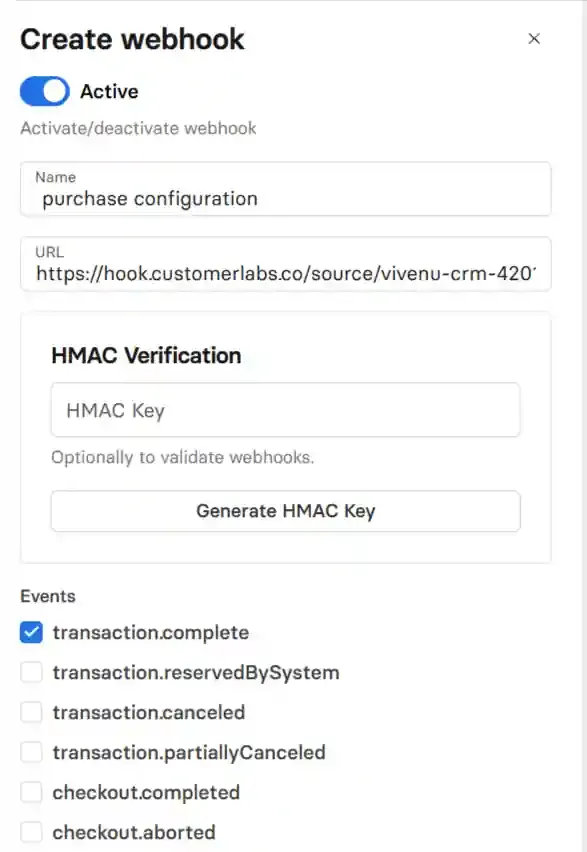
Section titled “Step 4: Configure the Webhook”- Name the webhook (e.g., Purchase Configuration).
- Select the event
transaction.complete(represents a purchase event). - Enable additional events as needed.
- Save the configuration.
Step 5: Test the Webhook
Section titled “Step 5: Test the Webhook”- Perform a test purchase.
- Verify if events are received in CustomerLabs under Sources → Vivenu CRM.
Workflow Setup in CustomerLabs
Section titled “Workflow Setup in CustomerLabs”What is a Workflow?
Section titled “What is a Workflow?”A workflow transforms raw incoming data into structured event data using filters and mappings. It continuously processes and updates customer profiles in real time.
Step 6: Create a Workflow
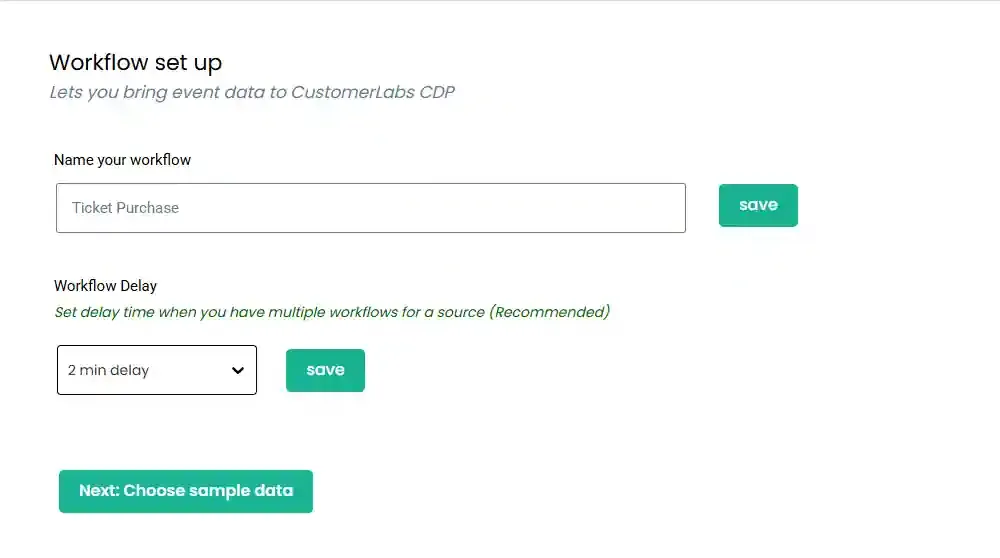
Section titled “Step 6: Create a Workflow”- Provide a workflow name (e.g.,
purchase_eventorlead_created). - Set a workflow delay (recommended if multiple workflows exist to avoid duplicate user IDs).
Step 7: Choose Sample Data
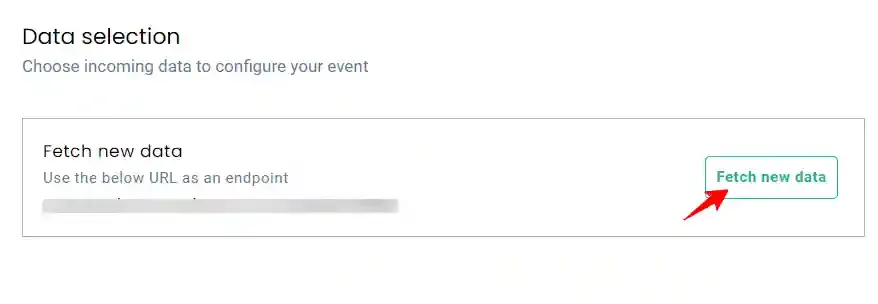
Section titled “Step 7: Choose Sample Data”- Trigger an event (e.g., test transaction in Vivenu).
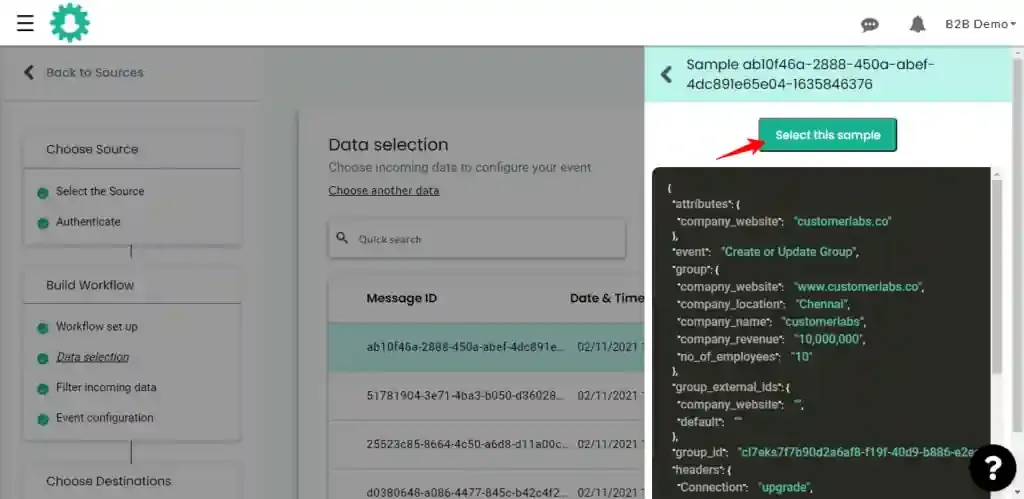
- Fetch sample data in CustomerLabs.
- Select a valid sample (ensure no null values in required fields).
Step 8: Event Configuration
Section titled “Step 8: Event Configuration”8.1 Event Name
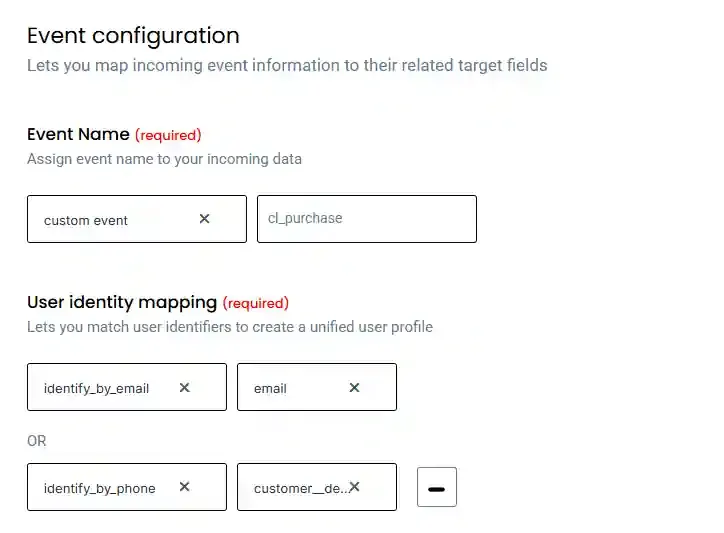
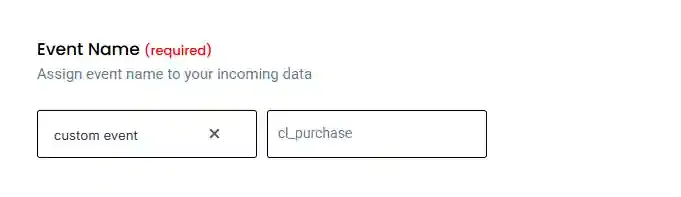
Section titled “8.1 Event Name”- Choose Custom Event.
- Name the event (e.g.,
cl_purchaseor as per your requirement).
Event Types:
- Custom Event – Define your own event name.
- Dynamic Event – Useful for lead stages (e.g.,
new deal closed). - Create/Update User or Group – For CRM updates (Default events by CustomerLabs).
8.2 User Identity Mapping
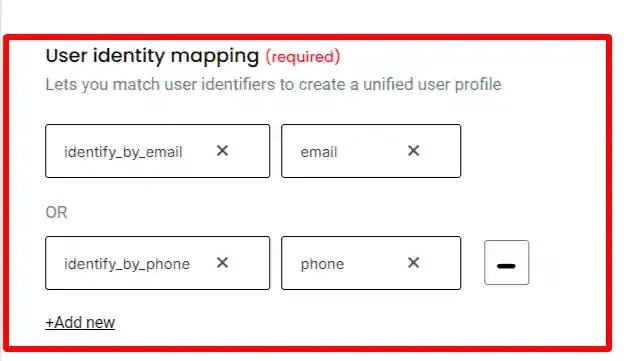
Section titled “8.2 User Identity Mapping”Map identifiers to unify user data:
- Phone number
- Google Analytics Client ID
- Facebook FBP / FBC
This ensures accurate user tracking and improves audience matching.
8.3 Product Details
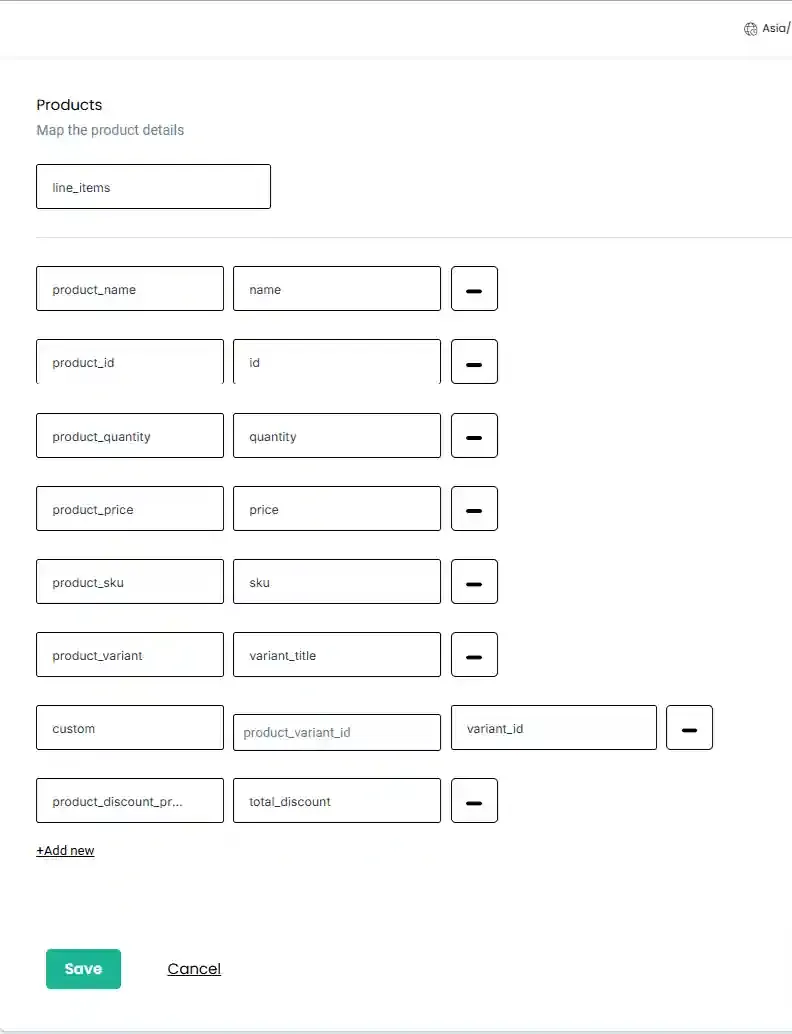
Section titled “8.3 Product Details”For eCommerce-related events:
- Add attributes like product ID, SKU, variant, size.
- Use line_items mapping.
8.4 Event Properties
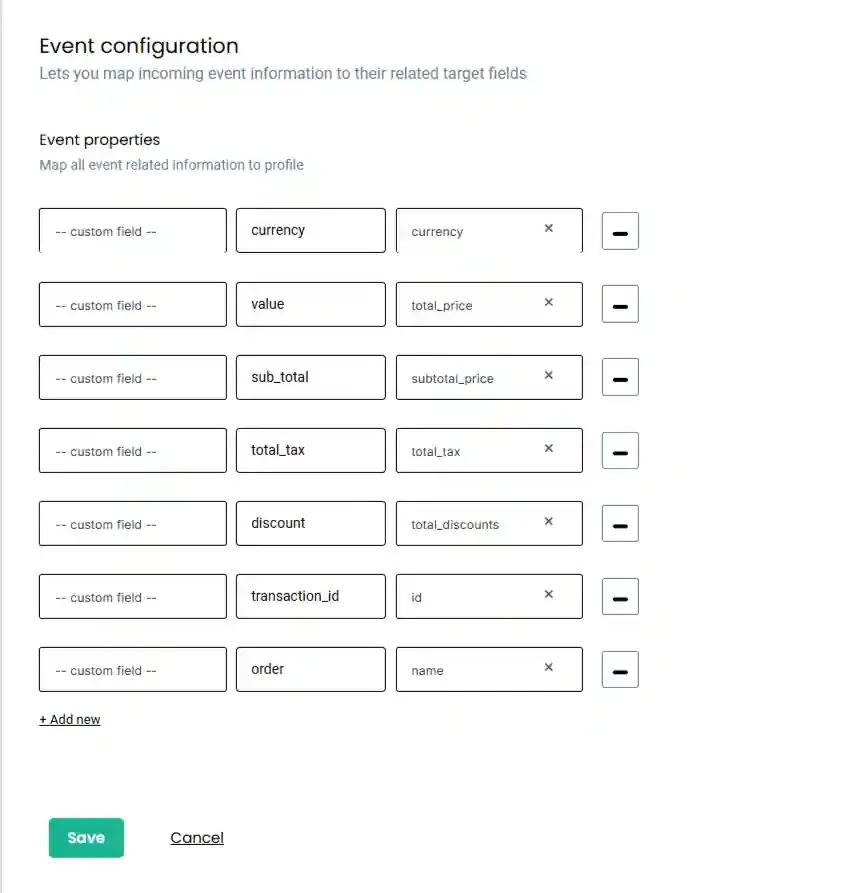
Section titled “8.4 Event Properties”Include key fields such as:
- Value
- Currency
- Transaction ID
- Order ID
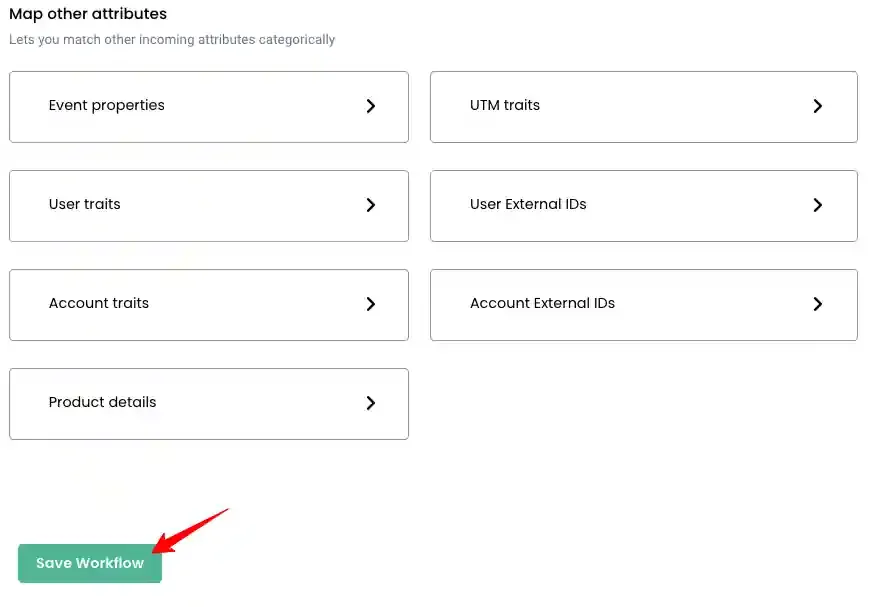
Step 9: Save Workflow
Section titled “Step 9: Save Workflow”Save the workflow after completing all configurations.
User Traits Mapping
Section titled “User Traits Mapping”Map user attributes like:
- Name
- Phone
- Address
- Lifecycle stage
This enables data activation in downstream tools like email platforms.
Logs & Debugging
Section titled “Logs & Debugging”Source Logs
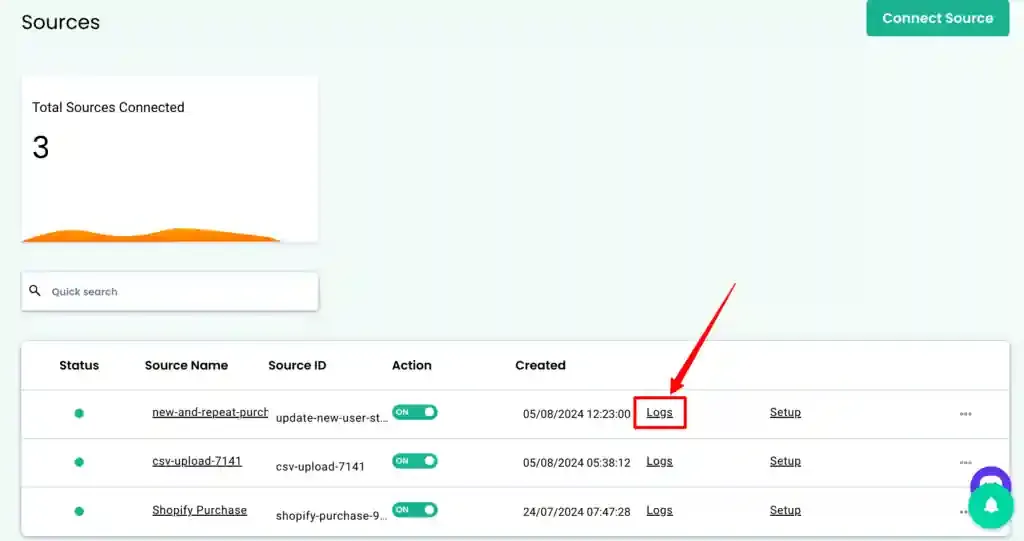
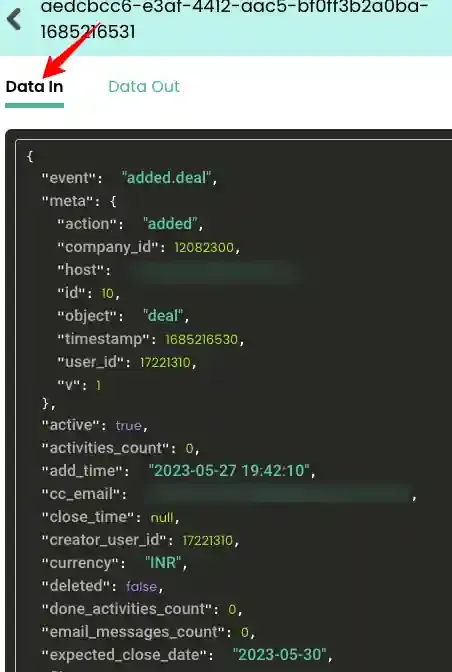
Section titled “Source Logs”- View all incoming events before processing.
- Includes raw JSON data.
Workflow Logs
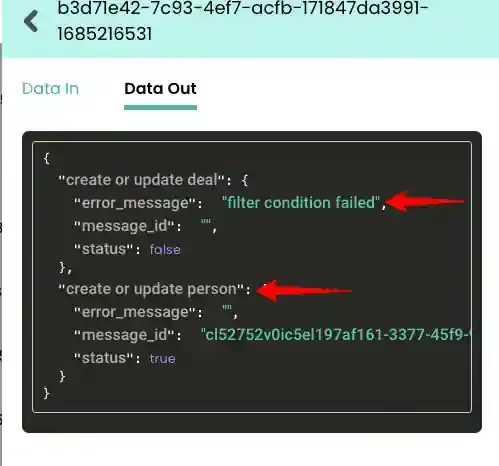
Section titled “Workflow Logs”- Shows how data is transformed and processed.
- Tracks errors and event flow.