
Deleting Audience in CustomerLabs
Step-by-step guide to delete an audience
Section titled “Step-by-step guide to delete an audience”-
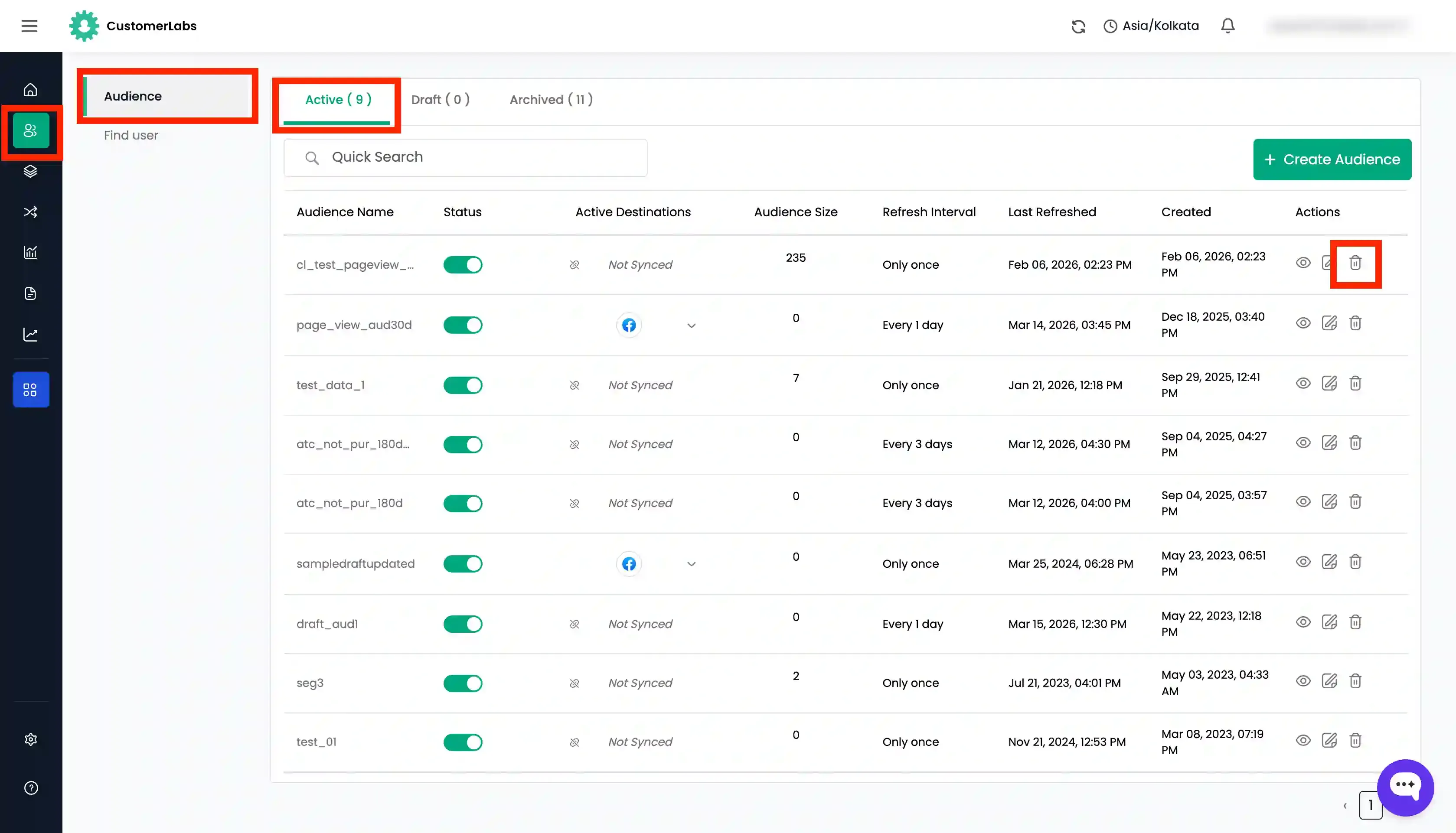
Go to the Audience Dashboard by clicking on the “Audience” tab in the left sidebar.
-
Click on the delete icon across the audience name you wish to delete.
-
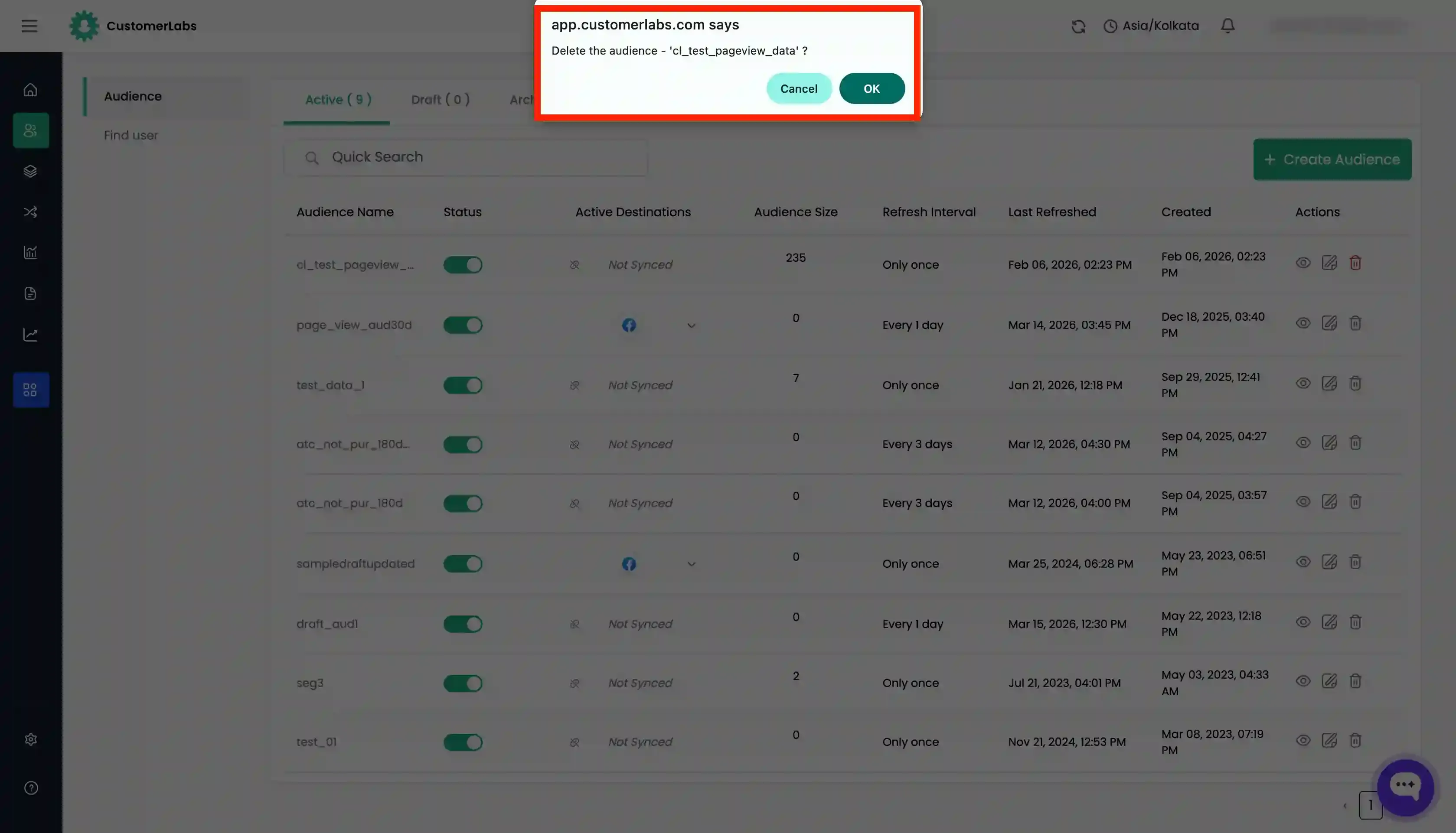
A confirmation modal will appear with audience name. Click on “OK” to confirm the deletion.
-
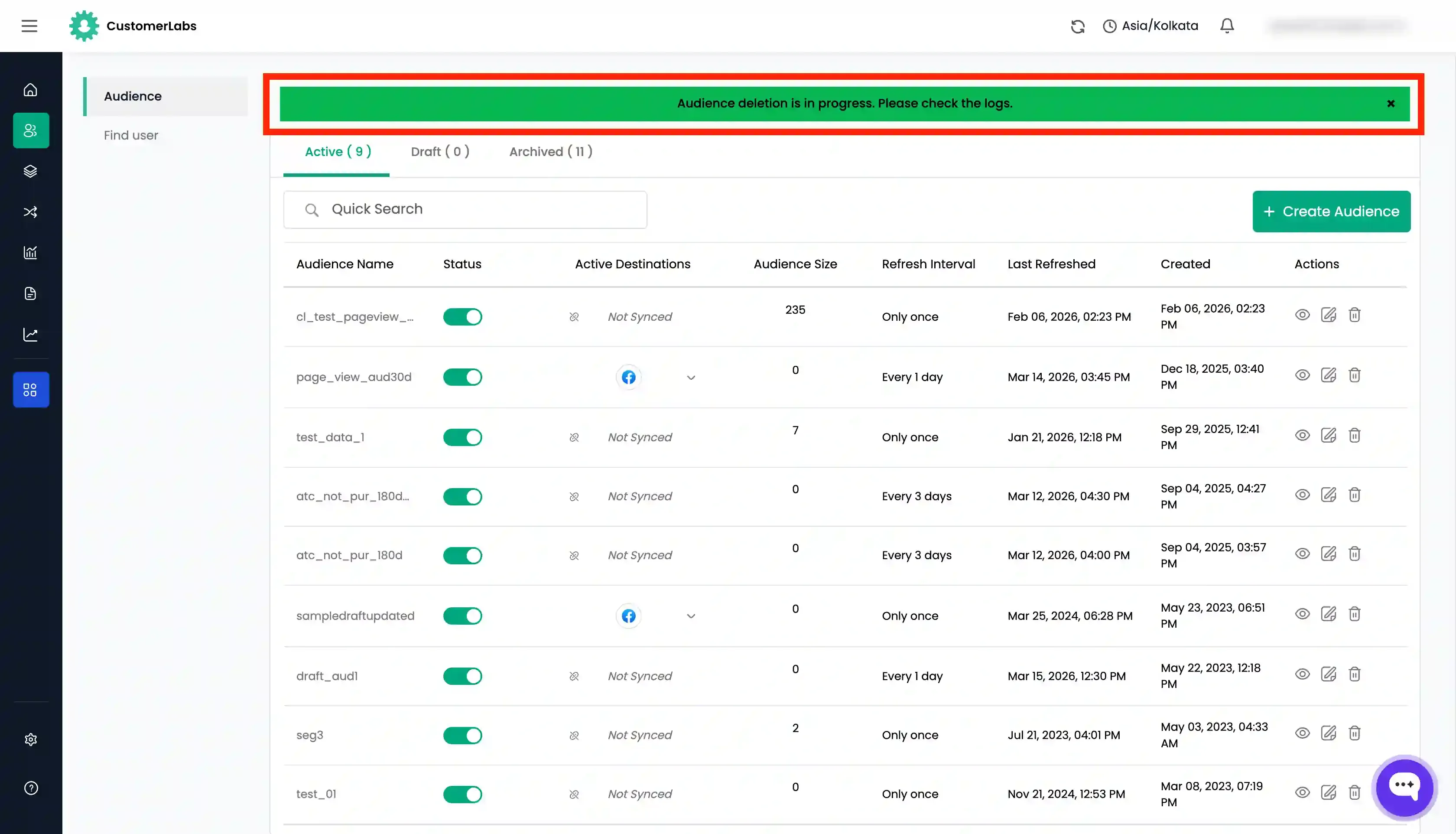
Upon confirmation, you will be able to see the “Deletion in progress” in the dashboard.
-
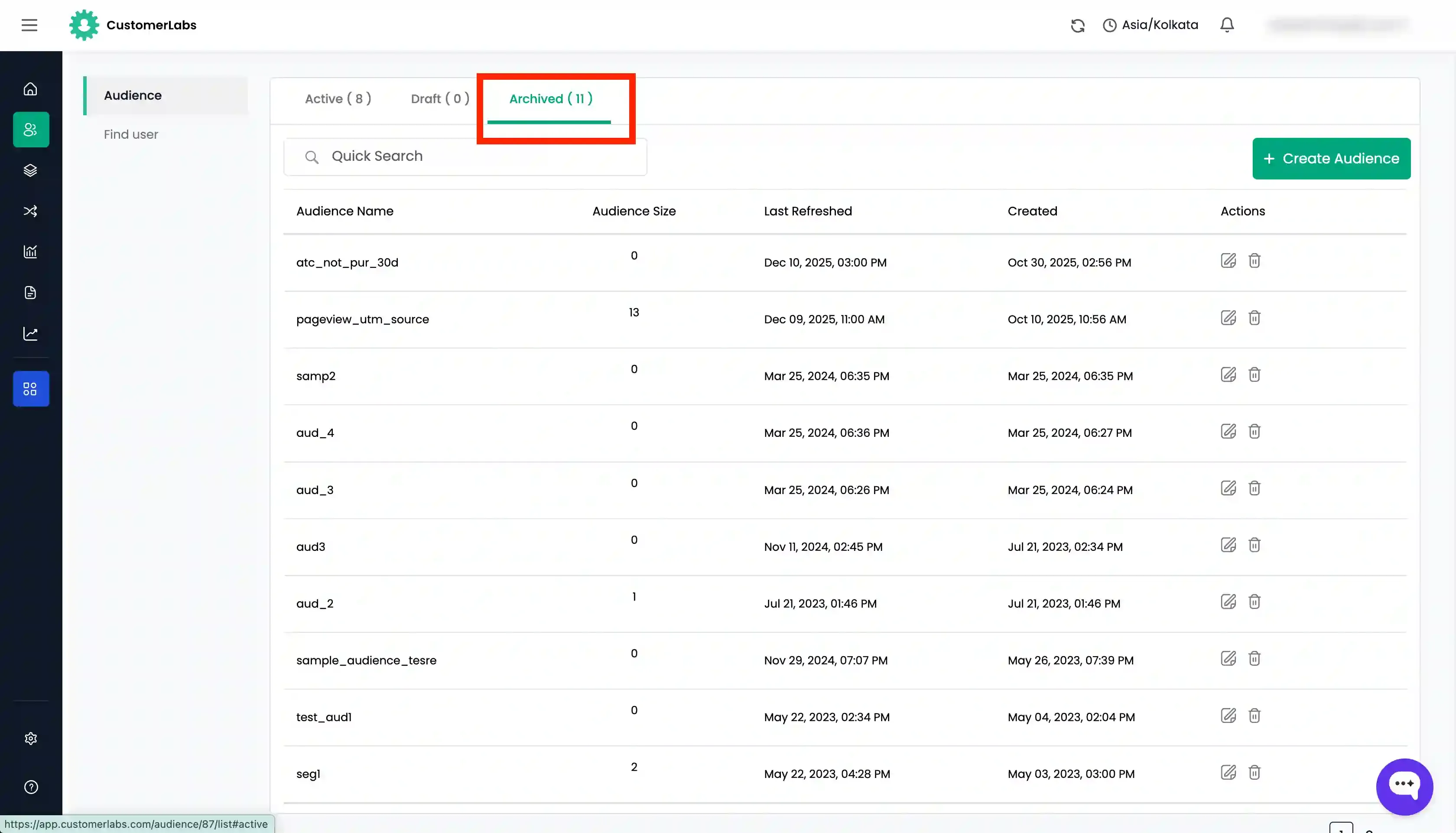
After the deletion is completed, you can view the audience under the “Archived” tab.
Restoring a deleted audience
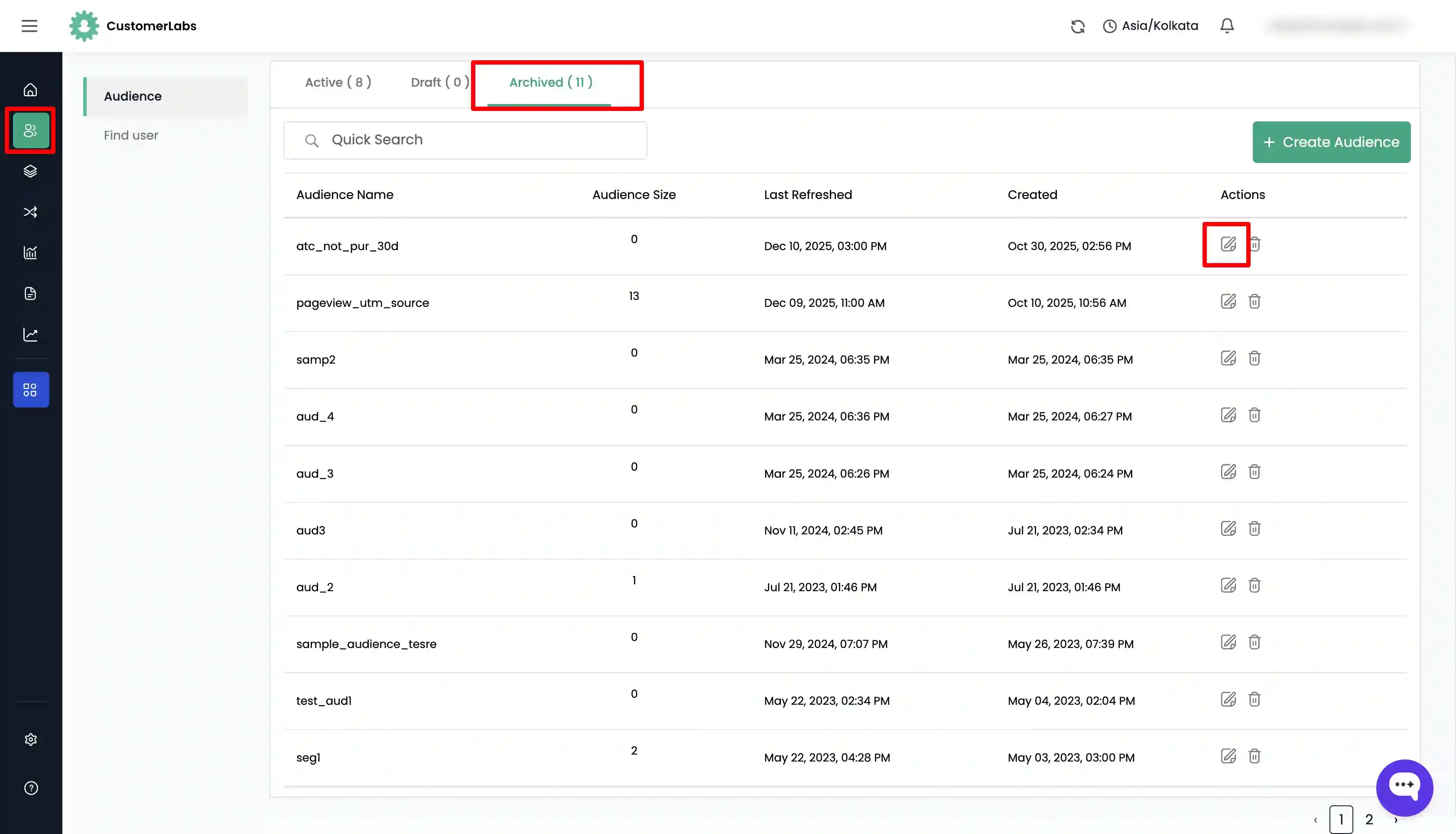
Section titled “Restoring a deleted audience”- Go to the Audience Dashboard by clicking on the “Audience” tab in the left sidebar.
- Click on the “Archived” tab to view the deleted audiences.
- Click on the “Edit” icon (pencil icon) across the audience name you wish to restore.
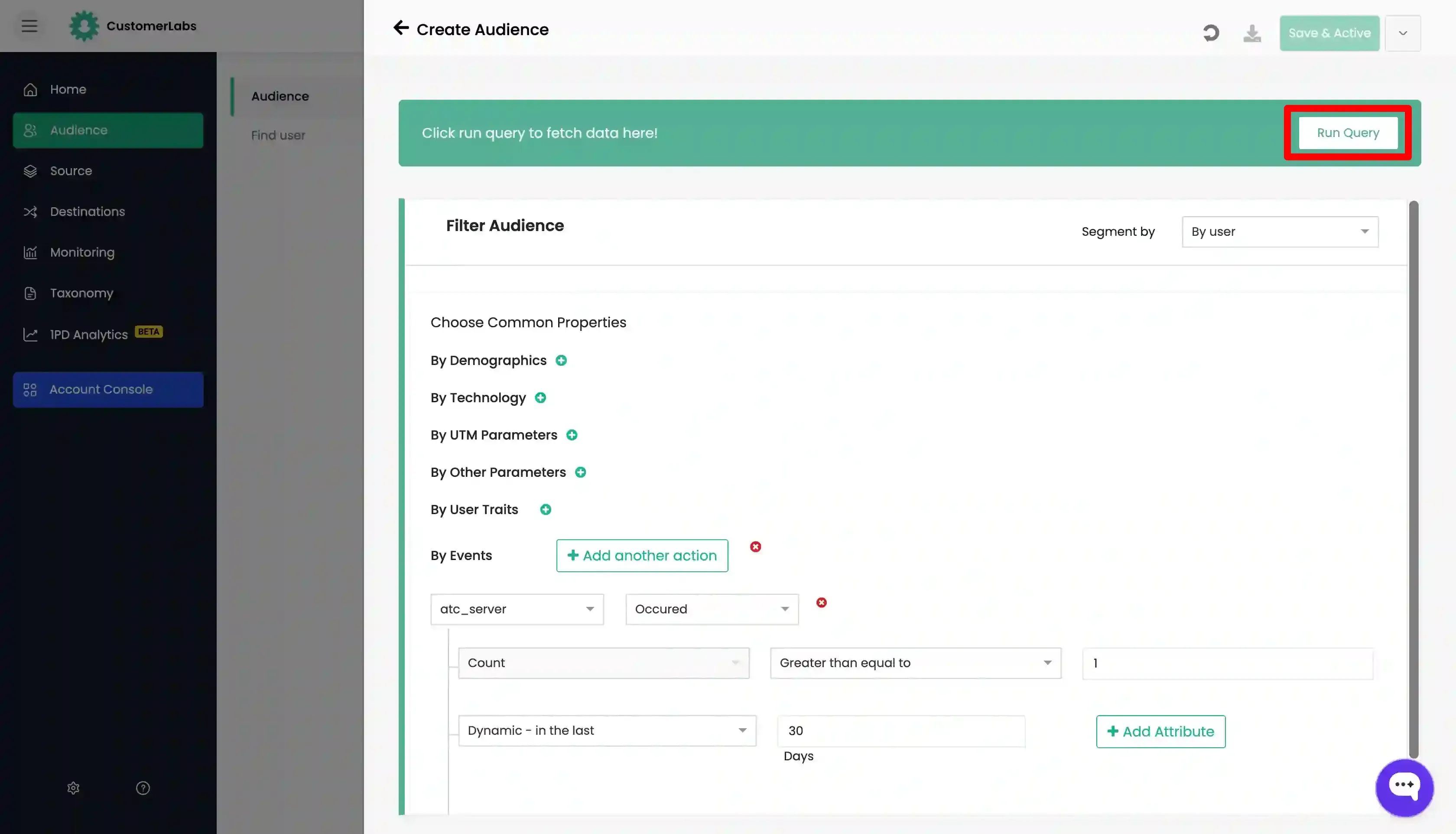
- This will open the audience segmentation details. After verifying the details, click on “Run Query” button.
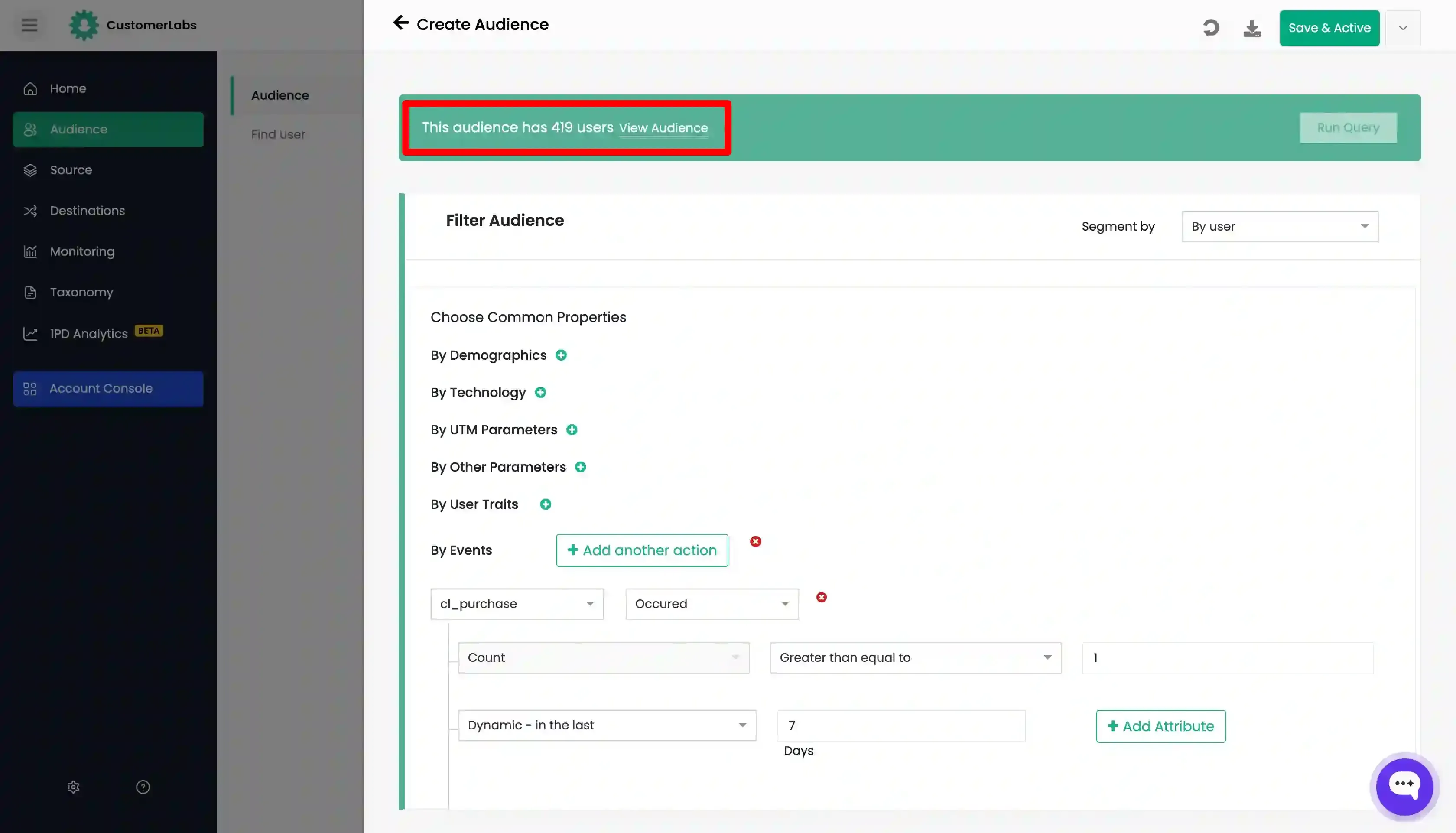
- Click “Save & Active” button Enter the “Name” and “Refresh Interval” for the audience.
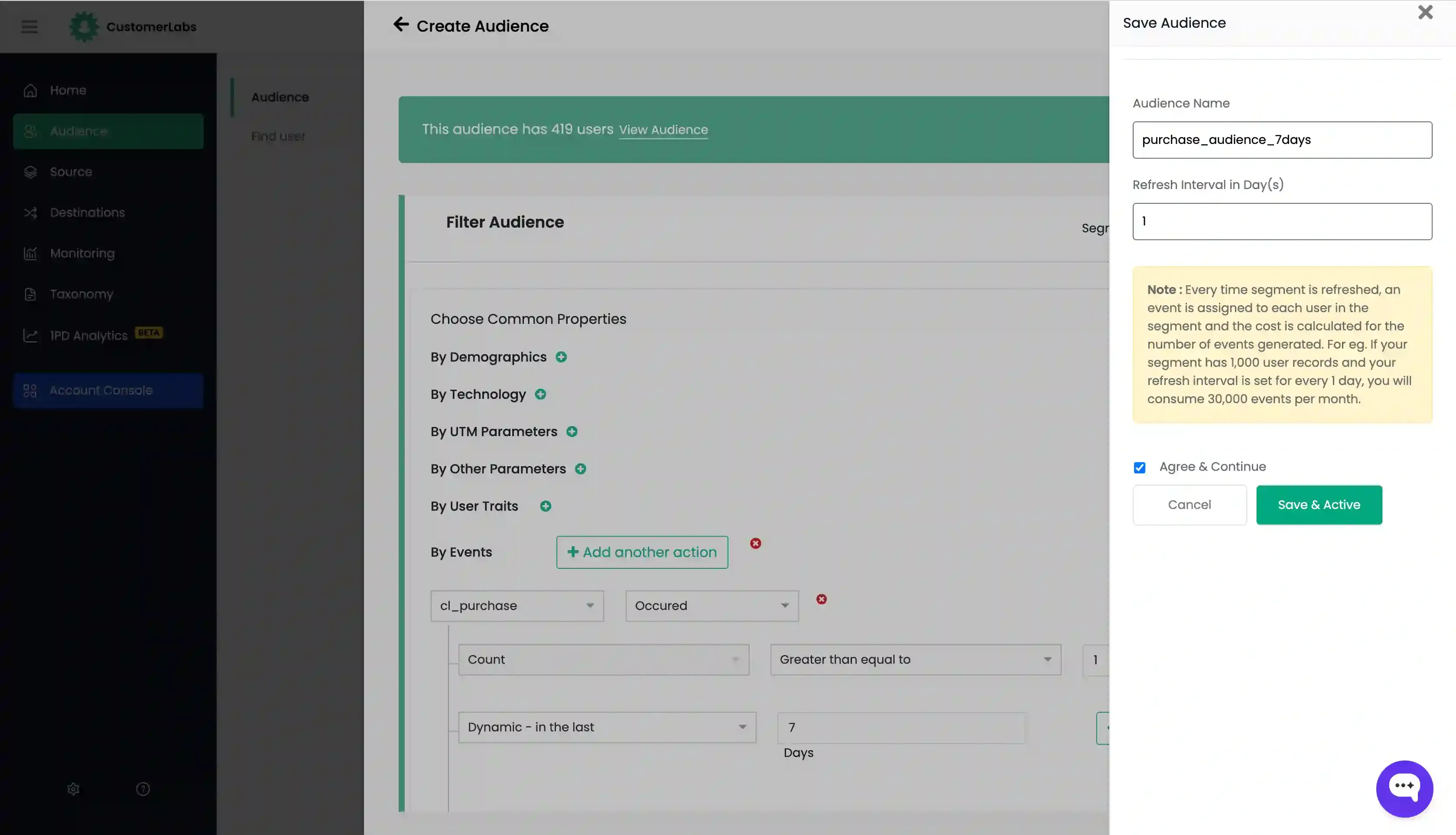
- Click “Save & Active” button to restore the audience.