
Audience Sync
After creating the first-party audience segments, you can sync them with the connected destinations such as Meta ads, Google Ads, Klaviyo, etc. to power your marketing campaigns.
There are 2 ways audience can be synced with ad platforms:
- List Sync: Syncs the audience as a customer list to the destination. Useful for syncing known users.
- Event Sync: Syncs the audience as an event to the destination. Useful for syncing both known and anonymous users.
Pre-requisites for audience sync
Section titled “Pre-requisites for audience sync”- Audience should be created and active
- Destination should be connected and active
- Refresh interval should be set for dynamic audiences
Sync audience as a List
Section titled “Sync audience as a List”You can create an audience in CustomerLabs and sync it with the destinations as a customer list by mapping the identifiers with the destination schema. This makes it easier for you to run ads without having to manually update the list of users.
Here’s how you can sync the audience with the destination:
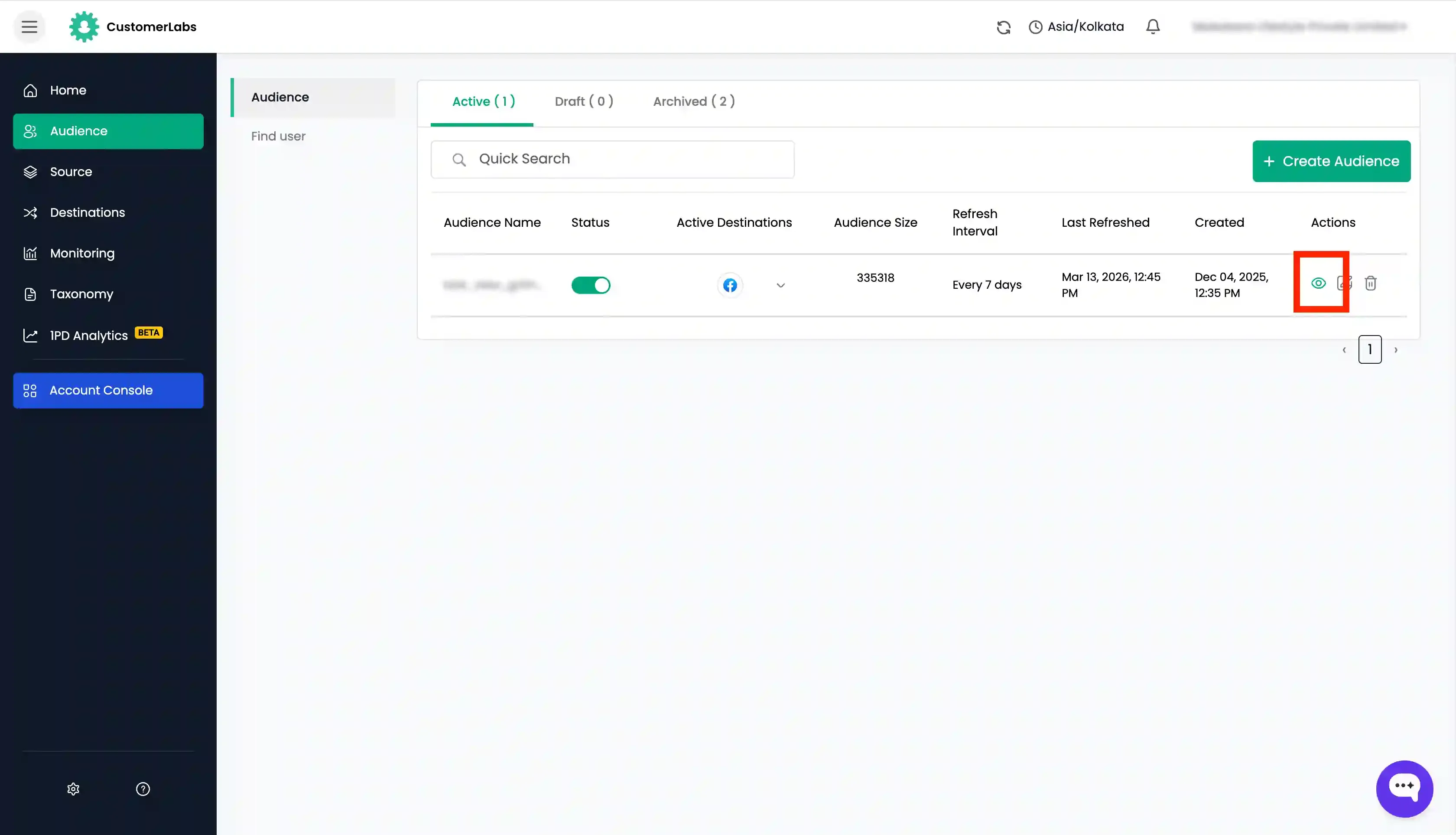
- Create an audience as required and after creating, “view” the audience to set up the sync with the destination.
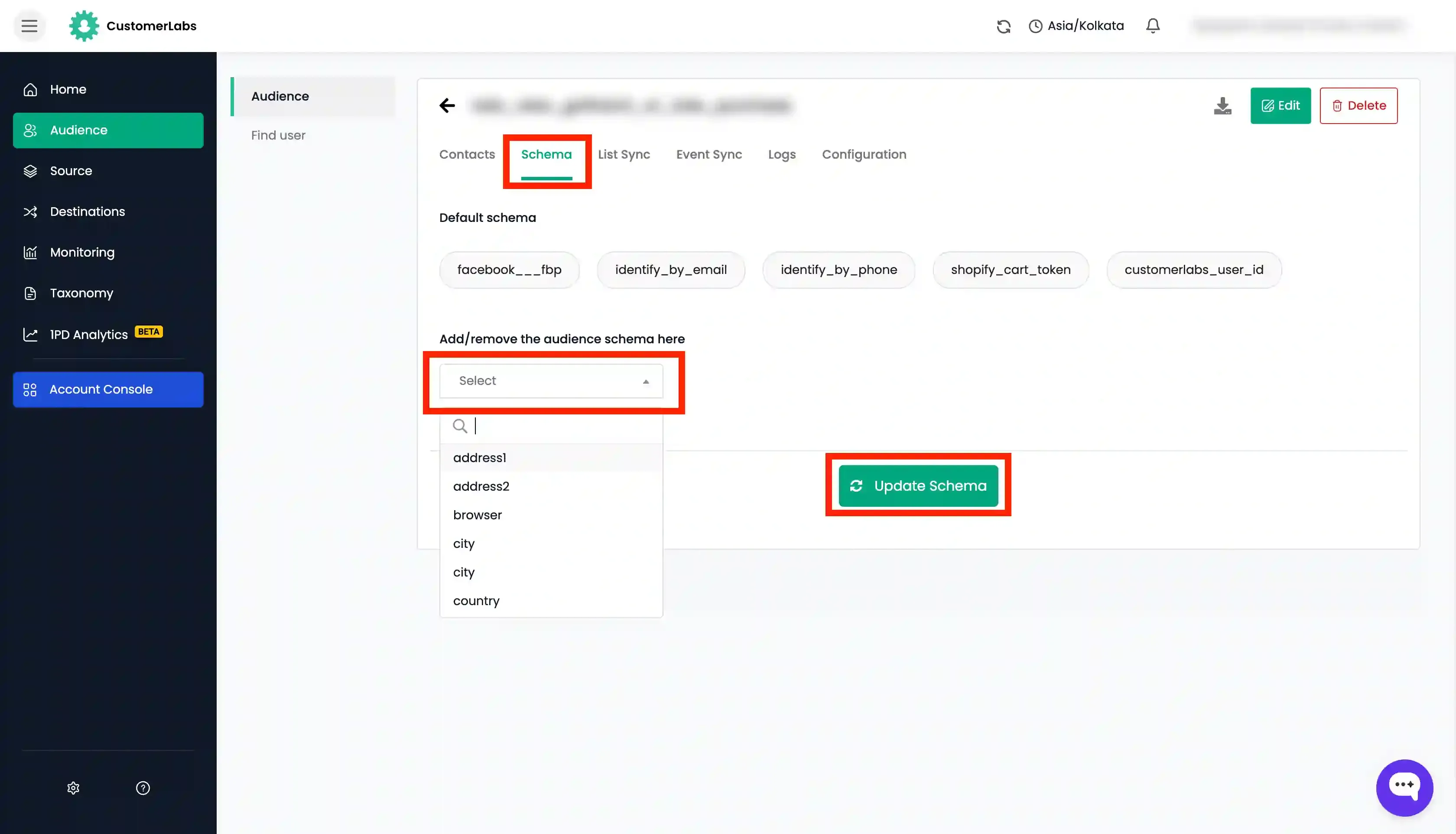
- Go to “Schema” tab and add the necessary schema based on the list sync requirement for the destination like
email,first name,last name,customerlabs_user_id, etc. which you want to send to the destinations one by one by choosing it from the dropdown and click “Update Schema”.
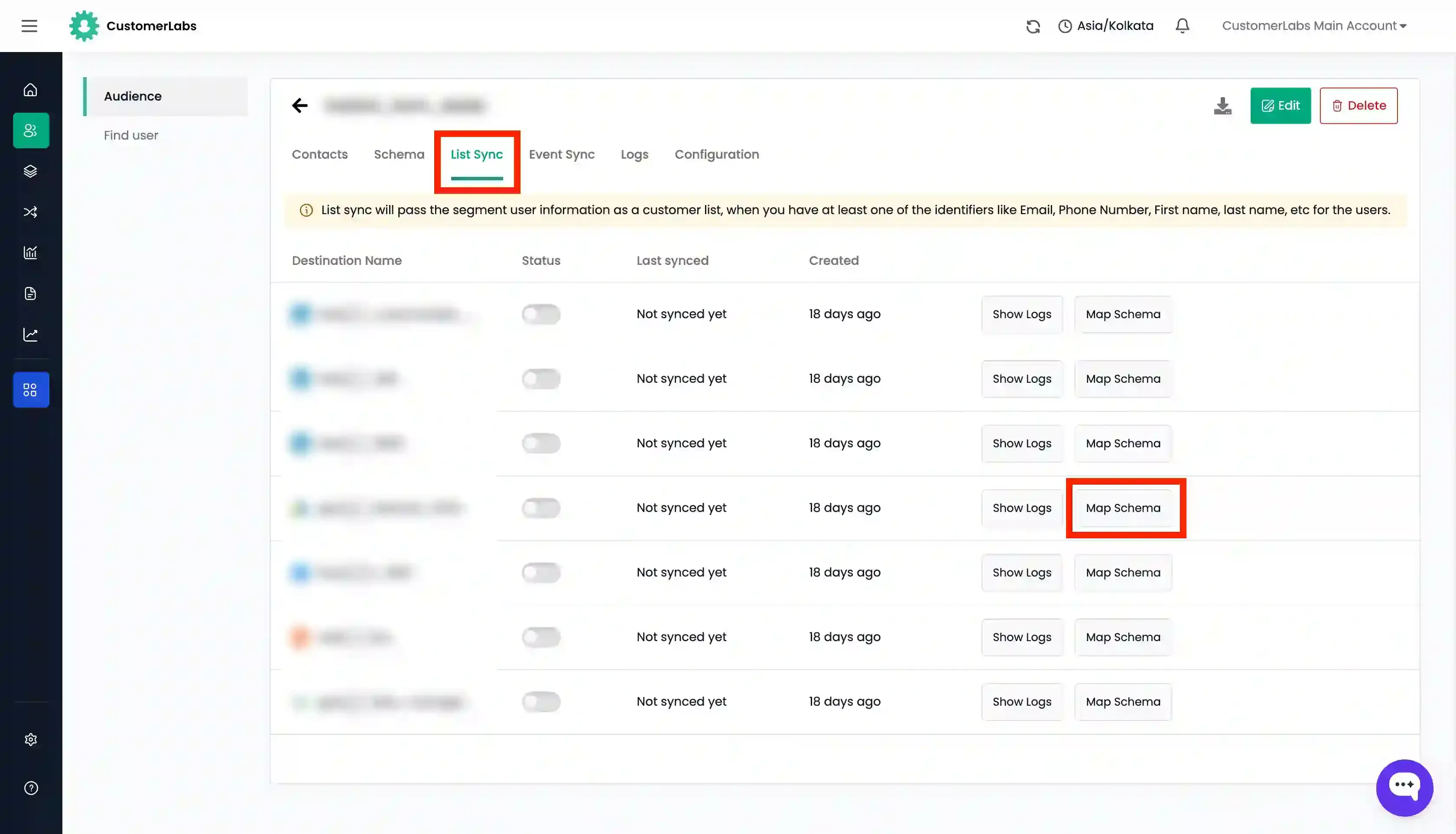
- Now go to “List Sync” tab and click on “Map Schema” for the destination that you want to sync the list.
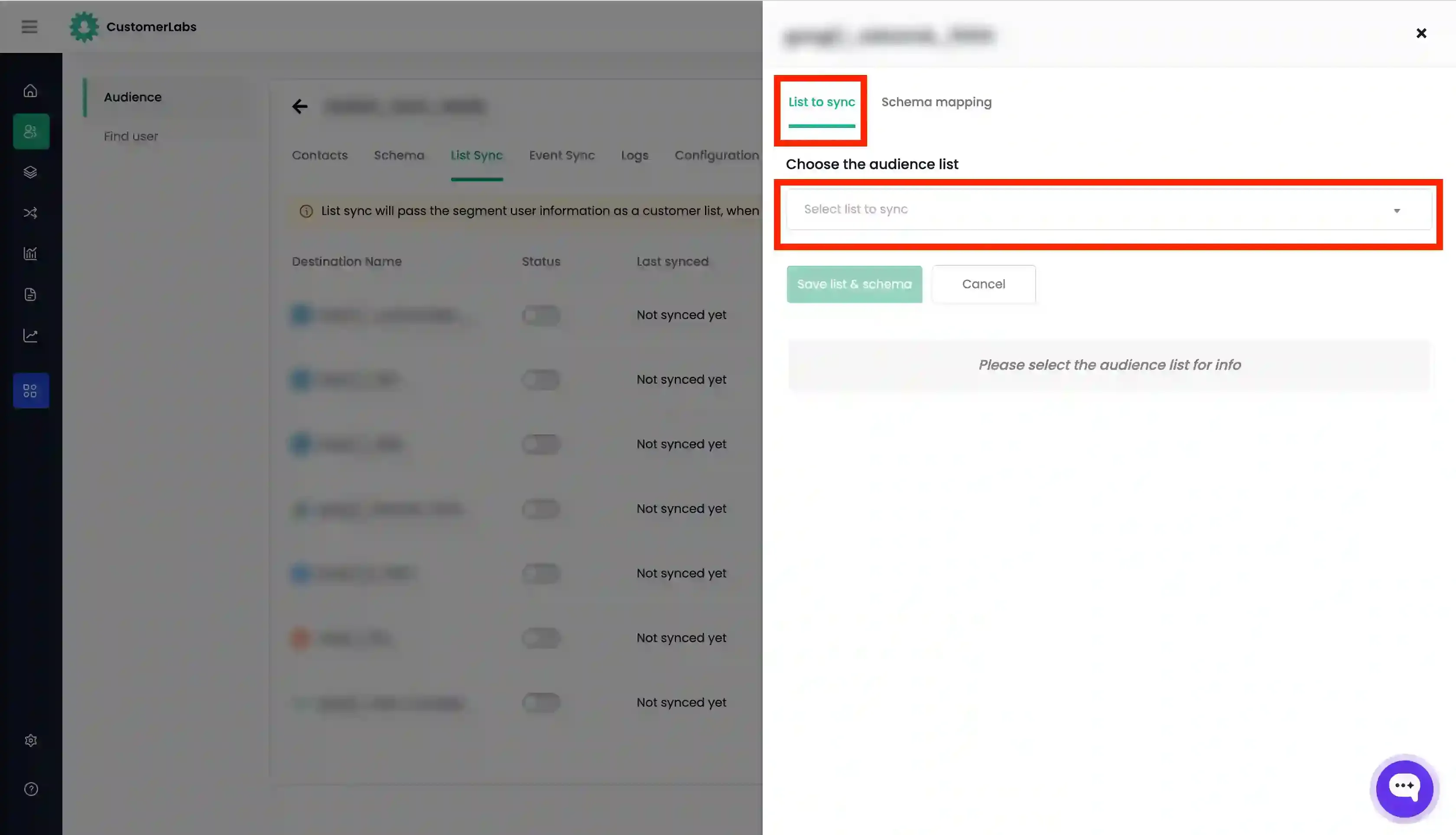
- In the “List to sync” tab, click the dropdown under “Choose the audience list”. Here you can either:
- Select the audience list from the lists that are already created in the destination (OR)
- Choose “Create New List” and enter the name for the new audience list.
- Once the audience list is selected or created, “Custom audience Info” will be displayed.
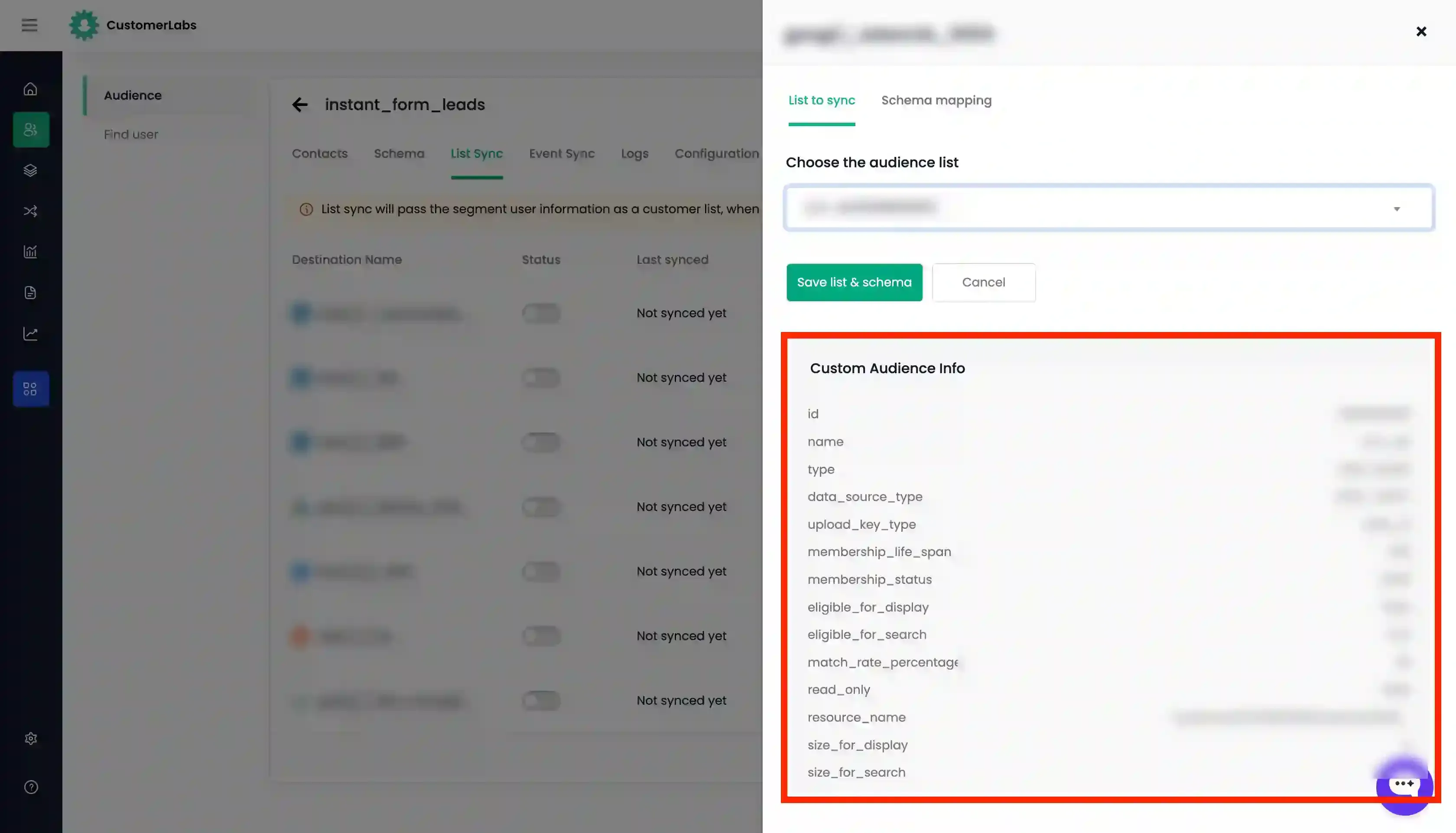
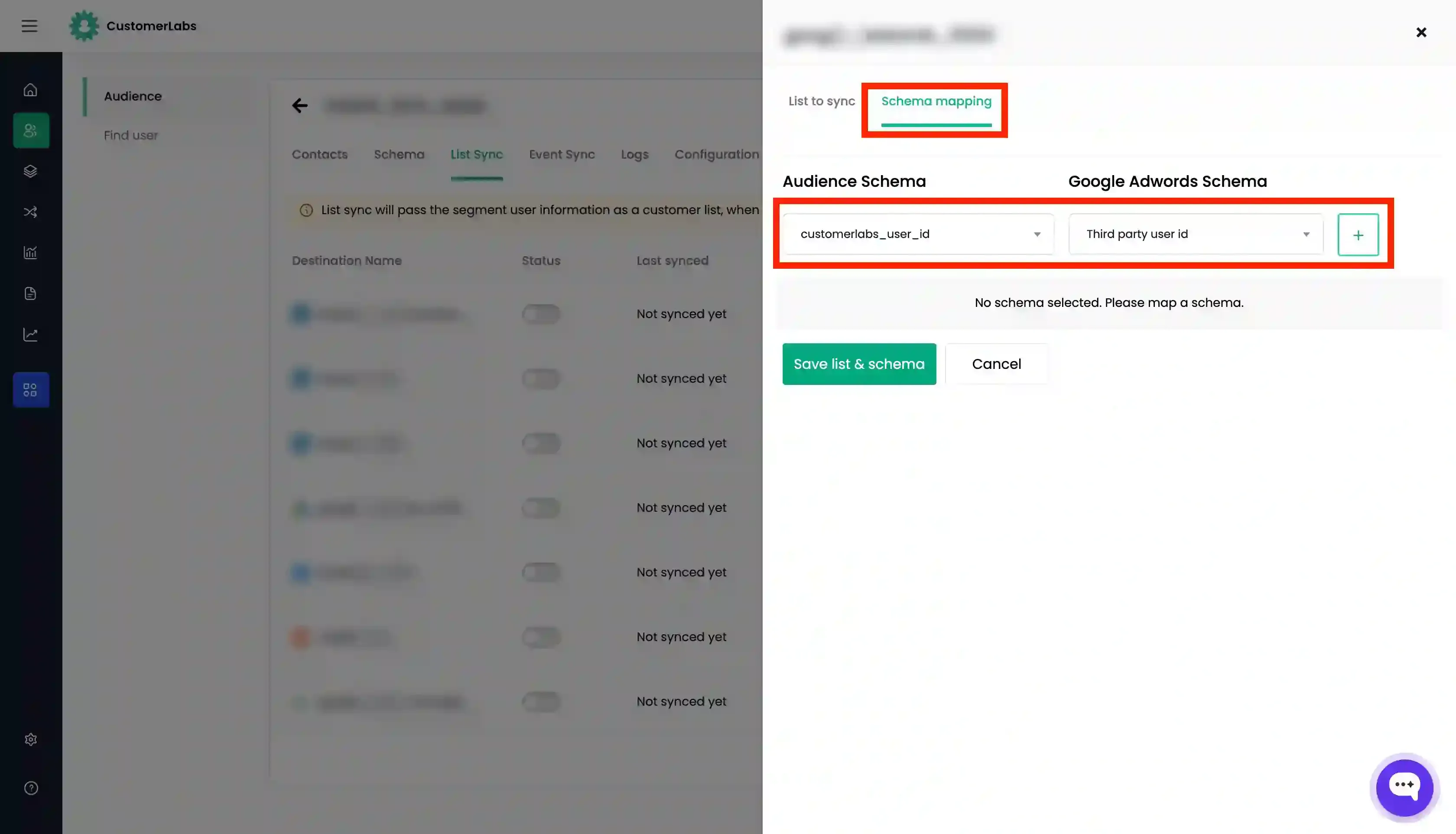
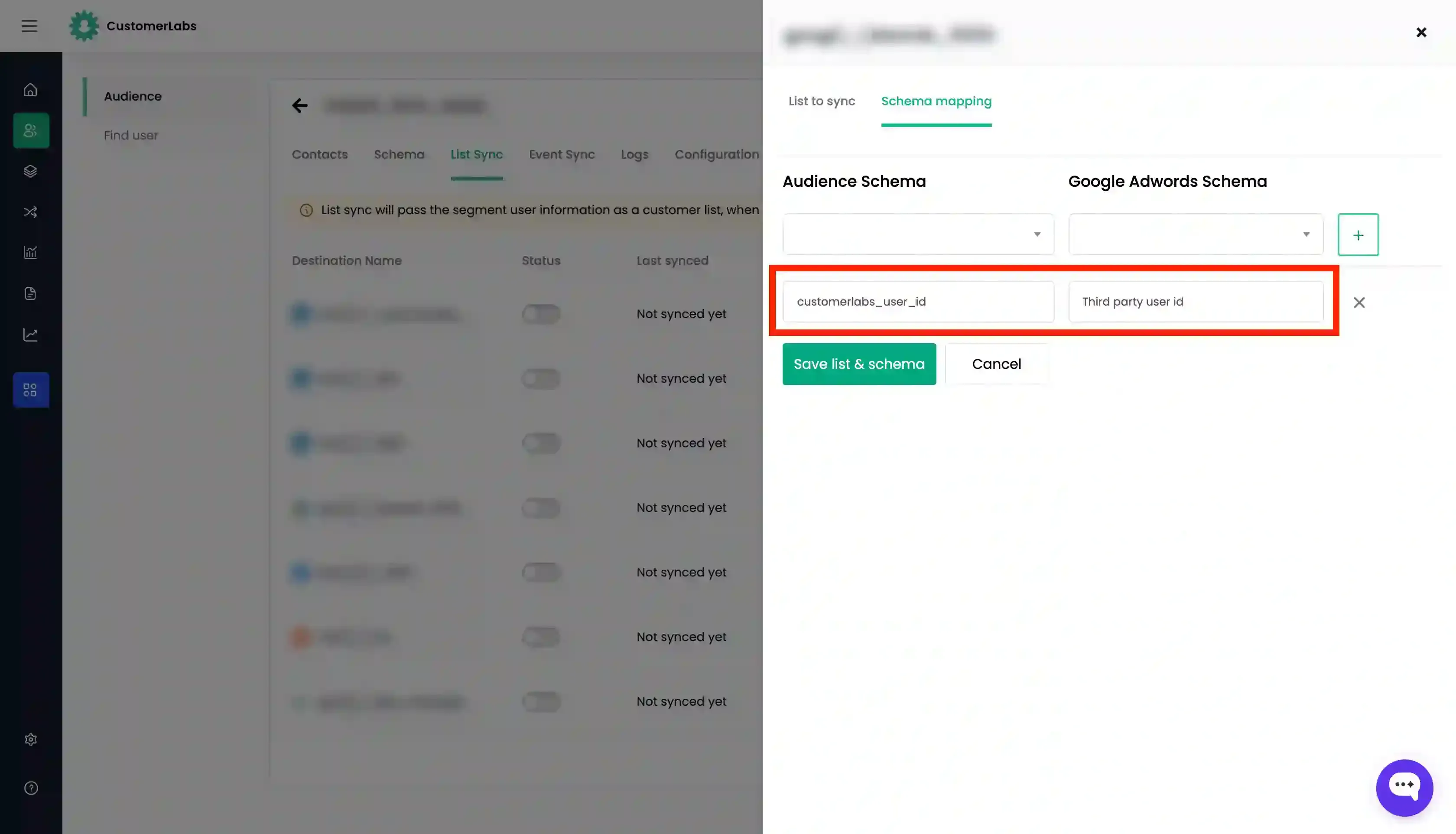
- Go to the “Schema Mapping” tab and map the audience schema with the destination schema for the identifiers that you have given in Step 2 by adding each schema using “+” button.
- Once this is done, click “Save List and Schema”.
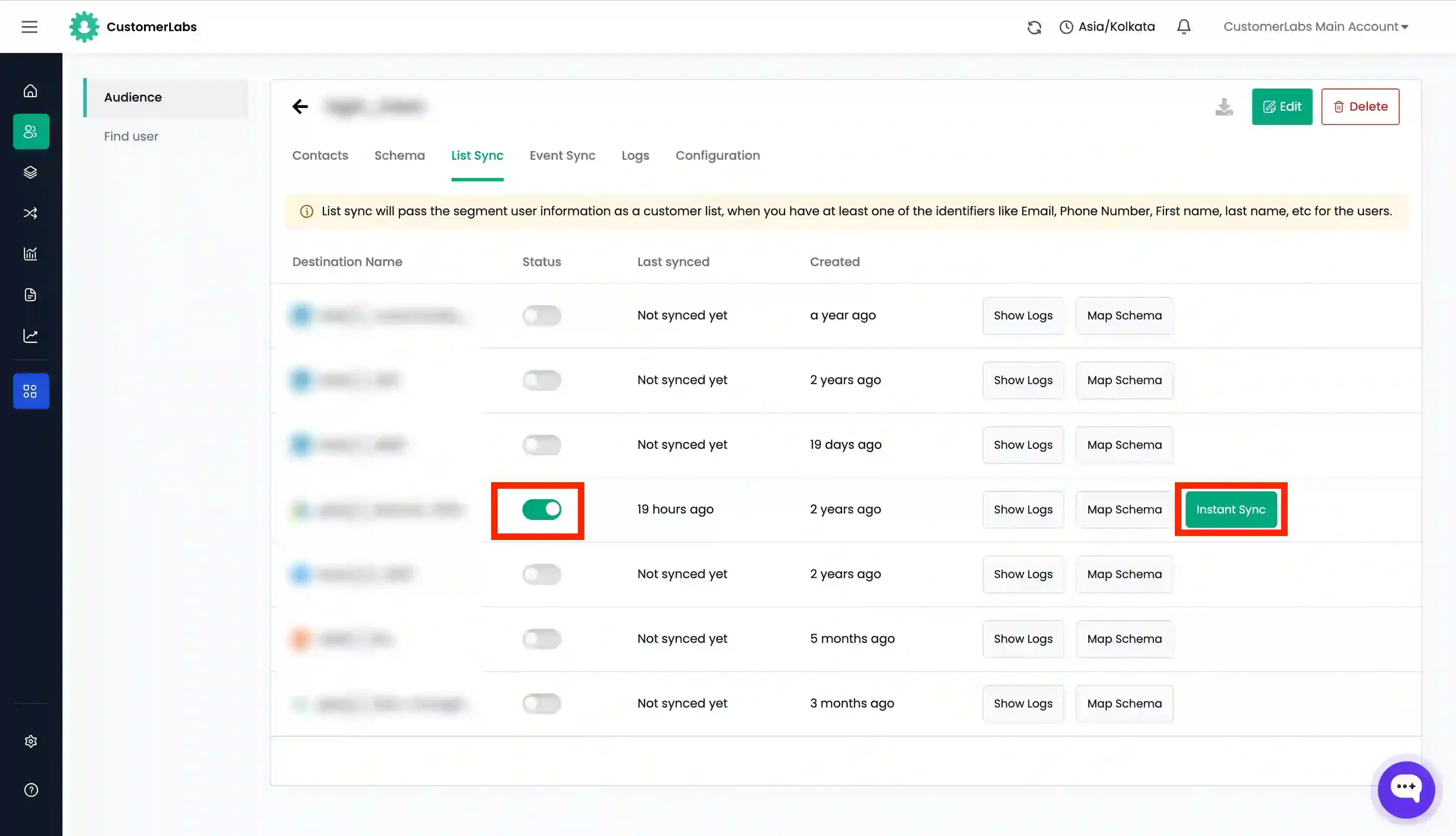
- Now enable the toggle under “Status” for the destination you want to sync.
- Click “Instant Sync” to sync the list now.
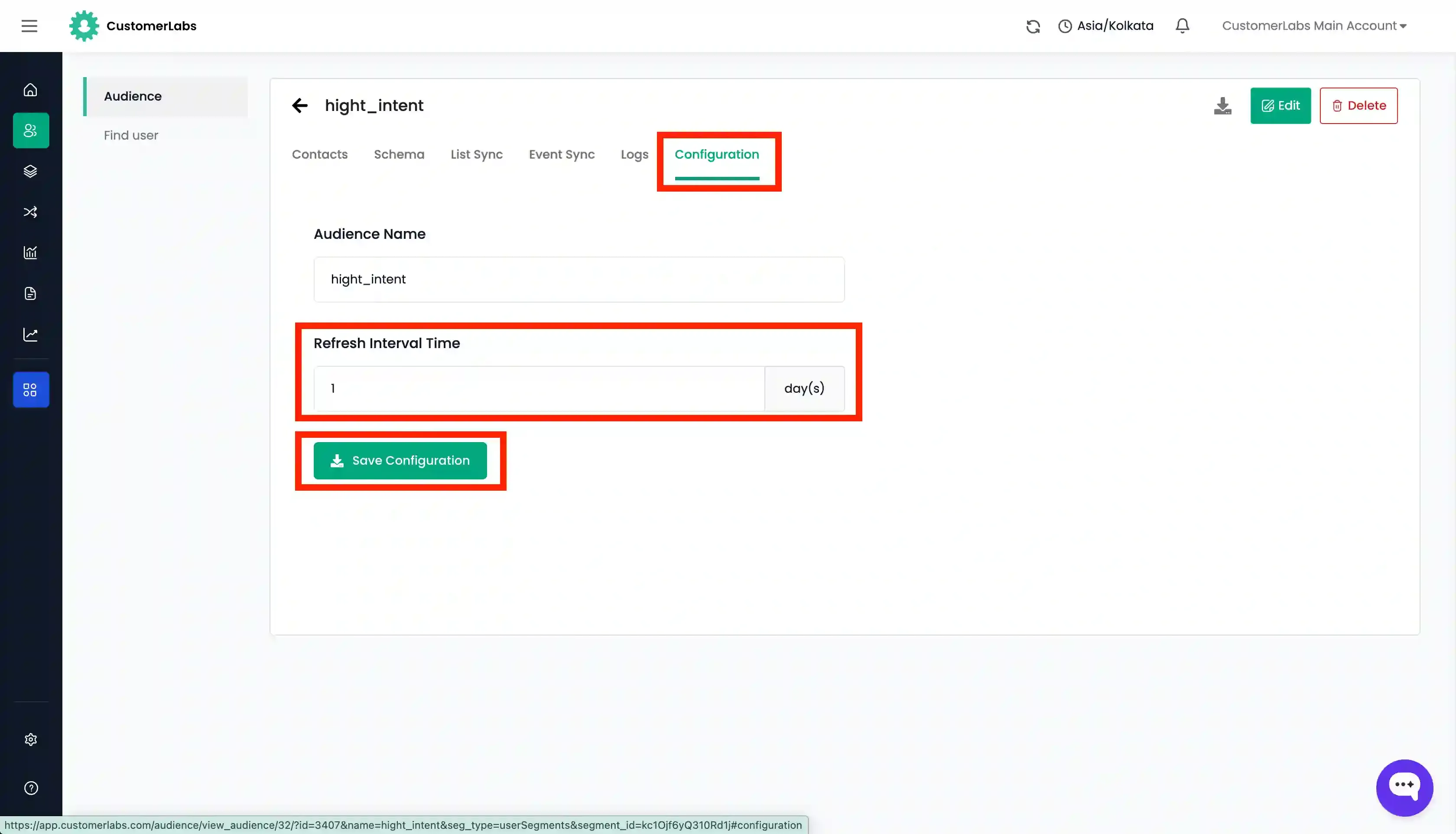
- Go to “Configuration” tab and set the “Refresh interval” as required.
- You can check the log for the audience from the “Logs” tab and also the log for each destination by going to “List sync” tab → “Show Logs” for the destination that you want.
- You can check whether the list has been synced with the destination in the destination platform after 10 minutes if you have enabled “Instant Sync” or after the refresh interval days set for the audience.
For detailed documentation on syncing the audience as a customer list in Facebook Ads, Google Adwords and LinkedIn, click on the relevant link.
Sync audience as an event
Section titled “Sync audience as an event”Platforms that tracks the events of a user, audience created in CustomerLabs can be synced as an event. This allows you to pass audience data through events to the destination.
For example, you can create audience of anonymous users who have performed high-intent activities on your website such as viewing a product multiple times but have not converted and haven’t given any personally identifiable information (PII). You can retarget these anonymous users by segmenting them and syncing them with ad platforms as an event.
The audience created in CustomerLabs is sent to the destination as two events:
added_to_segmentwhich is used to include a set of users created as a audience.removed_from_segmentwhich is used to exclude a set of users created as a audience.
Here’s what you should do to sync the audience with the destination:
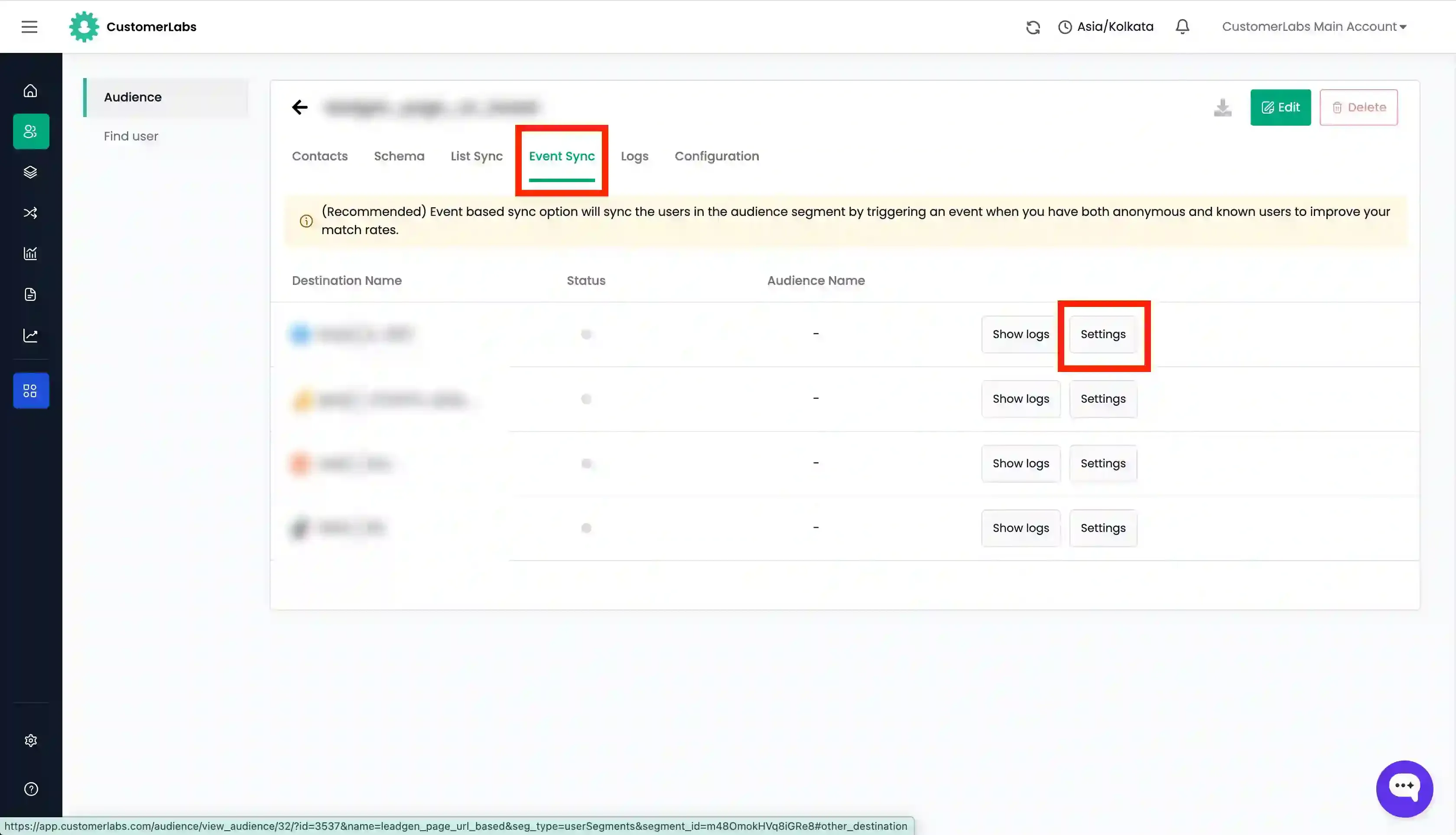
- Go to “Event Sync” tab of the audience you want to sync.
- Click “Settings” for the destination you want.
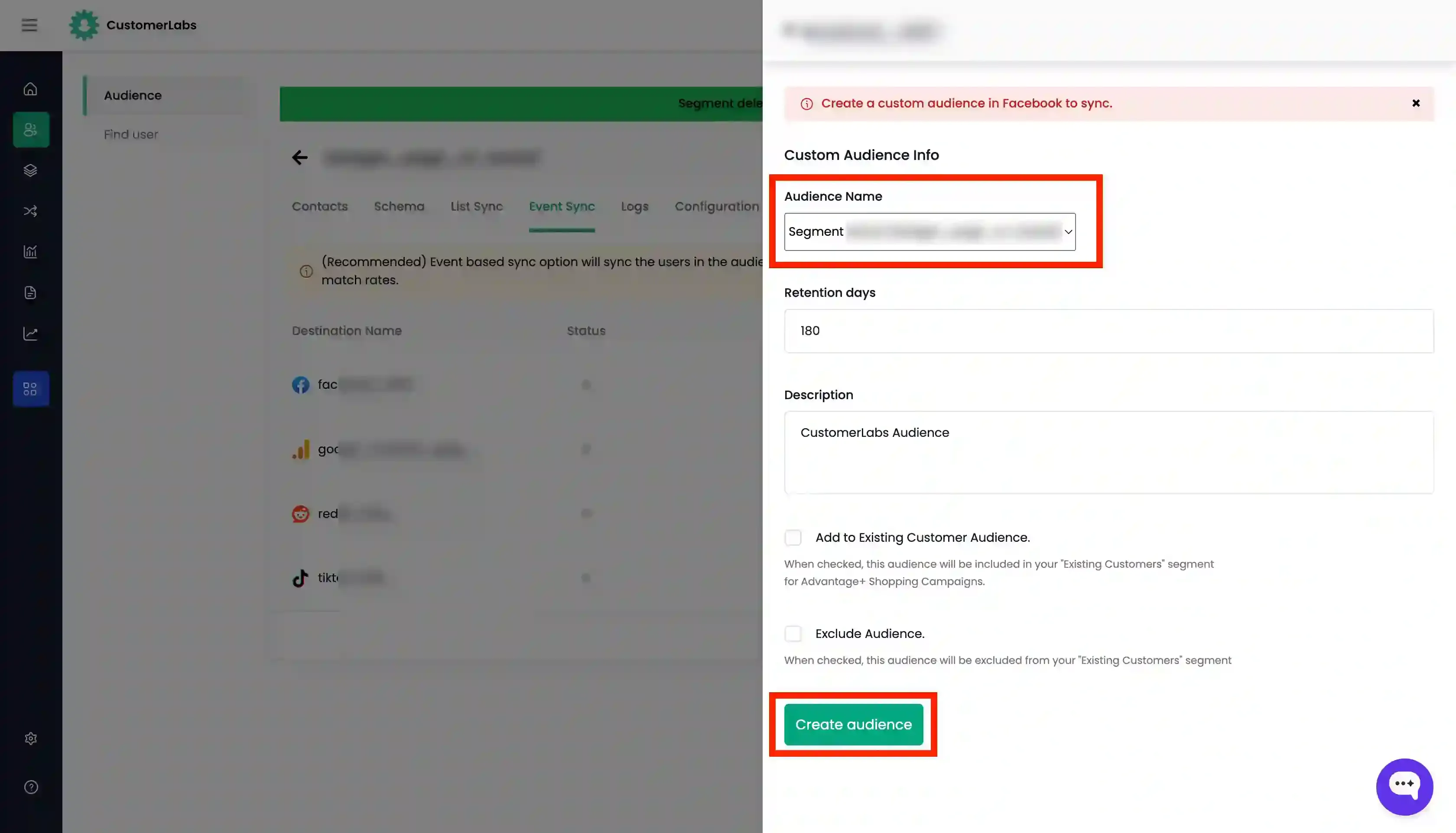
- Modify the audience details as you want and click on “Create audience”.
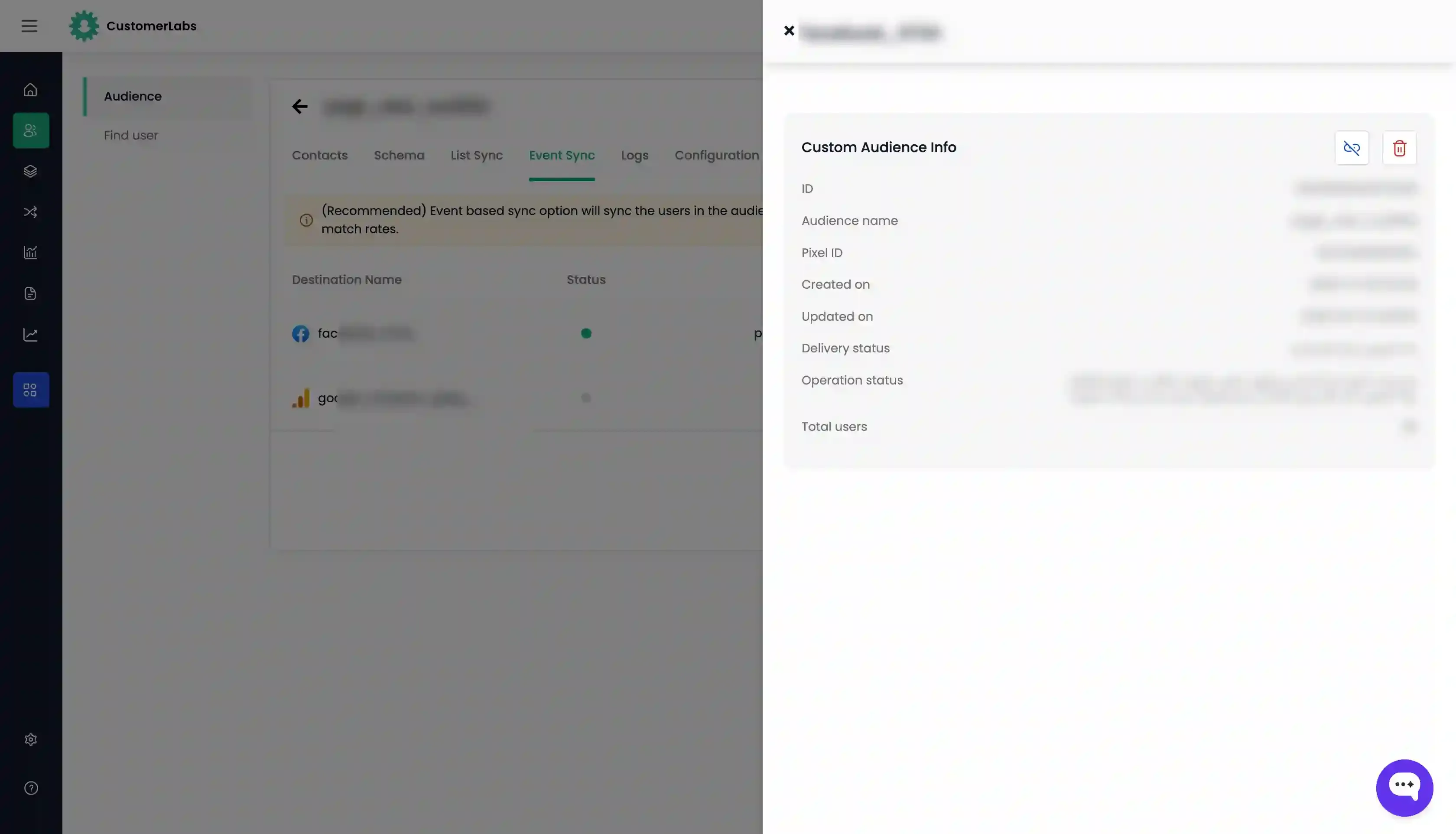
- You can check the log for the audience from the “Logs” tab and also the log for each destination by going to “Event Sync” tab → “Logs” for the destination that you want.
- Go to “Configuration” tab and set the “Refresh interval” as required.