
CustomerLabs Events Manager Dashboard
Events Manager provides real-time visibility into your event data flow from ingestion to processing and delivery across connected destinations. It helps you monitor, validate, and troubleshoot event tracking across your setup.
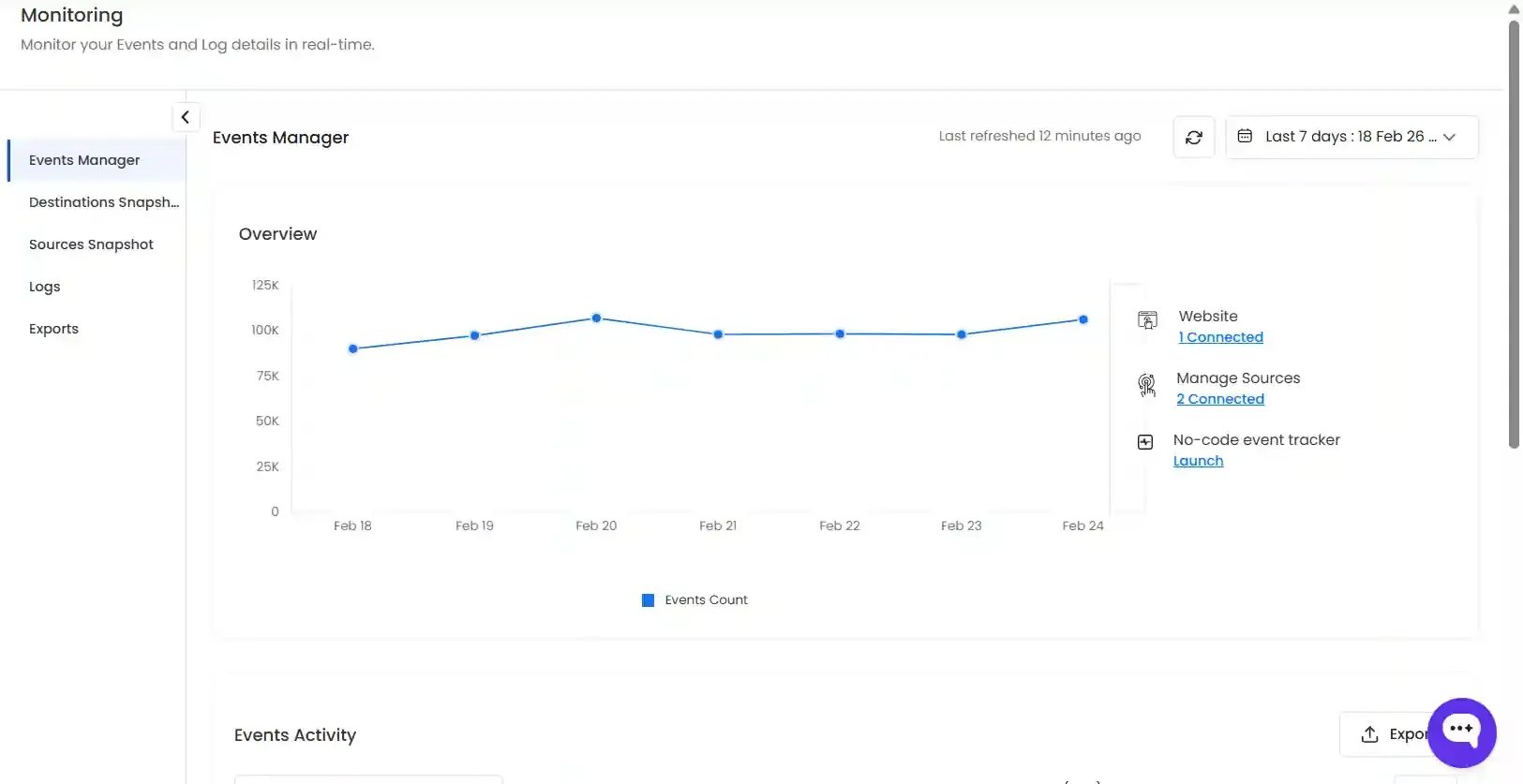
You can:
- Select a time range using the Date Picker
- Refresh data to view the latest updates
- Check the Last Refresh timestamp for recency
This section includes:
- Total events processed
- Connected data sources
- Authorized domains
- Quick access to event configuration
You can also use the No-Code Event Tracker to create or modify events directly from this section.
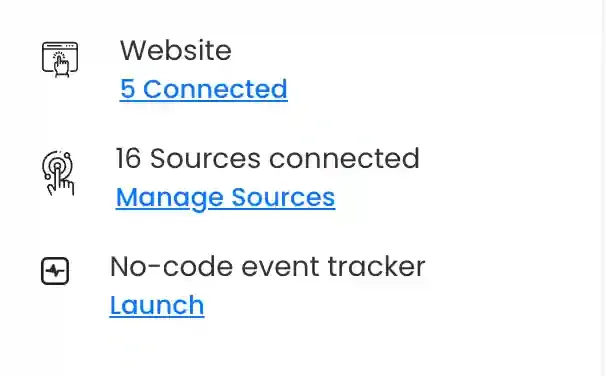
Website
Section titled “Website”The Websites section allows you to manage domains used for event tracking.
- Add Domain: Enter the website URL and click Save & Allow
- Edit: The domain added can be modified.
- Launch: The added domain can be launched in a new tab to ensure the
- Delete: The added domain can be deleted.
Sources
Section titled “Sources”The Sources section displays all data sources connected to your account.
You can:
- Click Manage Sources to view connected sources
- Click Connect Source to add a new source
No-Code Event Tracker
Section titled “No-Code Event Tracker”The No-Code Event Tracker enables you to track events for the connected domains. Click on the domain in which you wish to track the events. Know more about No-Code Event Tracker.
Events Activity Section
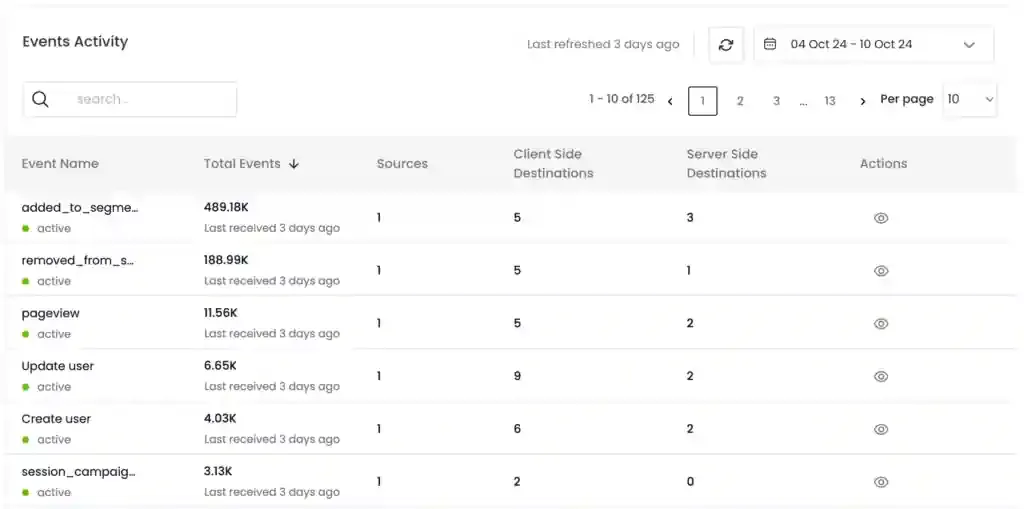
Section titled “Events Activity Section”The Events Activity section provides a detailed view of events within the selected time range.
It includes:
- Latest received event
- Total number of events processed
- Data source
- Destination(s) (server-side and client-side)
Actions:
- Sort data by clicking column headers
- Click View or a row to open event details
Events Overview
Section titled “Events Overview”The Event Overview section provides a graphical and tabular view of a selected event.
It shows:
- Event trend over time
- Event status (Active / Inactive)
- Last received timestamp
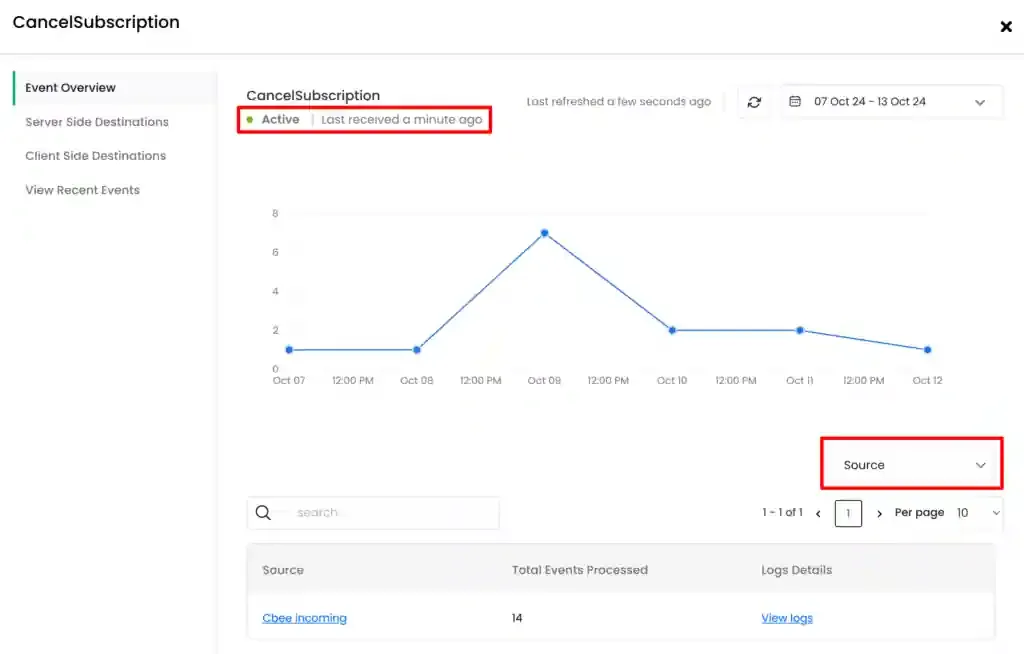
Additionally, the tabular view gives details about the selected event, including the total number of events processed from each source, and the sources from which these events originated.
Click on the specific Source to view Source Configuration, and click on View Logs to view the JSON data processed. Alternatively, you can also select Workflow from the dropdown as shown in the image above.
Server Side Destinations
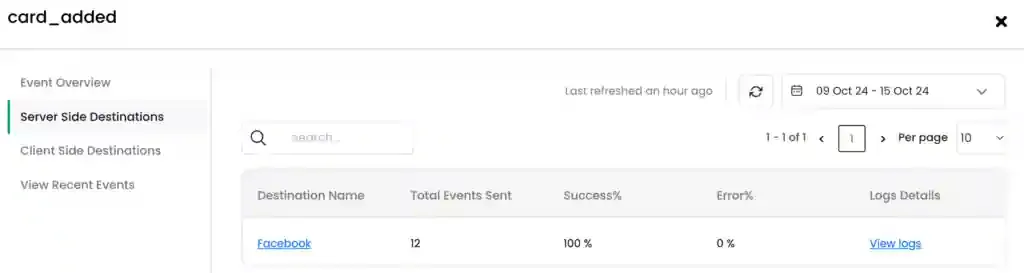
Section titled “Server Side Destinations”Server Side Destinations gives an overview of the selected event sent across different destinations as server-side events for a selected time range.
This tabular overview details the total number of selected events sent to the destination, the success and failure percentage of events sent to the destination.
Click on the specific destination to view/modify the Destinations Configurations, and click on the View Logs link to view the logs.
Client Side Destinations
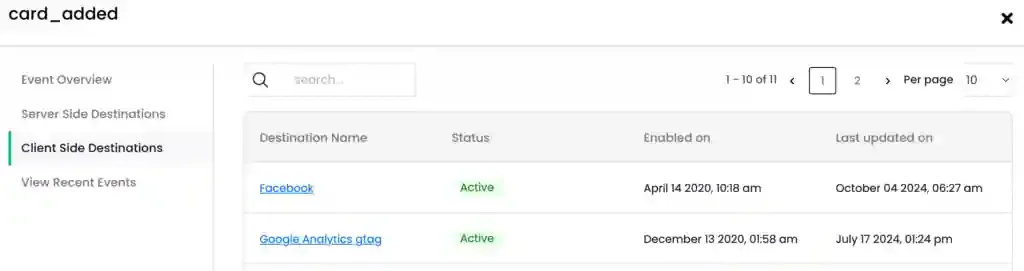
Section titled “Client Side Destinations”Client Side Destinations gives an overview of the selected event sent across different destinations as client-side events for a selected time range.
This tabular overview details when the event was first synced in the destination and when it was last updated in the destination. It also displays the status whether it is active, inactive, or subscribed.
Click on the specific destination to view/modify the Destinations Configurations.
View Recent Events
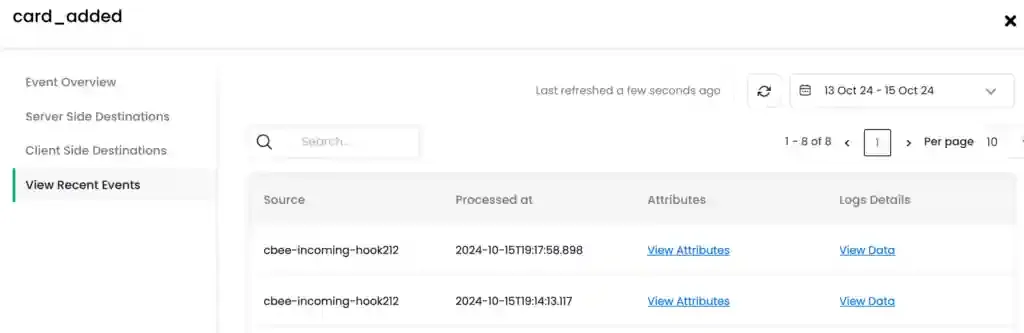
Section titled “View Recent Events”View Recent Events details about the source the selected event originated from, the timestamp the event was processed, the event attributes, and the log details for a selected time range.
Event Parameters Coverage
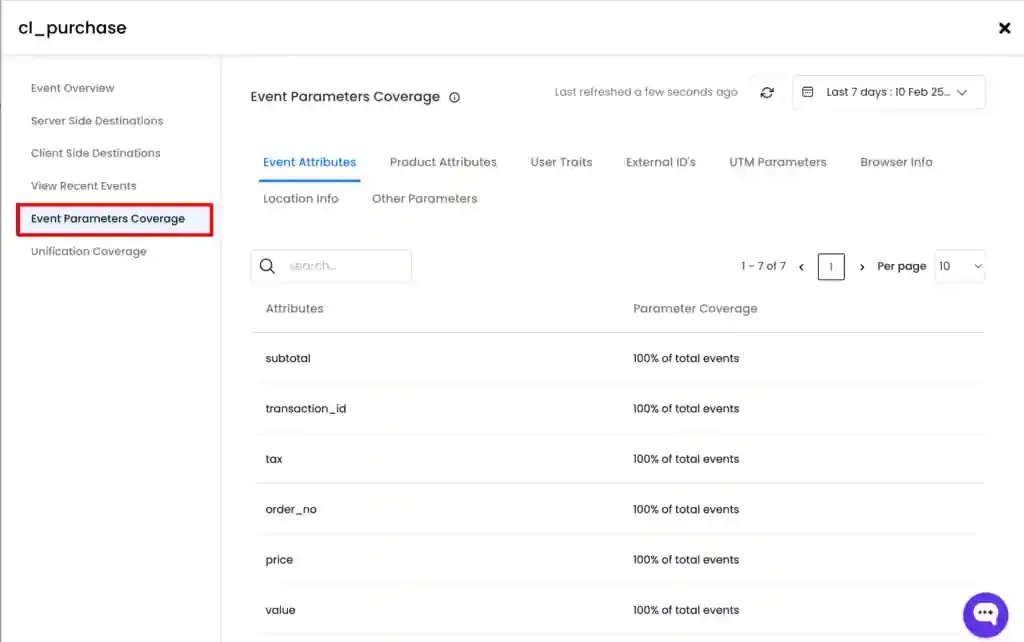
Section titled “Event Parameters Coverage”Event Parameters Coverage provides a tabular view of the parameters obtained from a particular event. We have categorised the parameters as shown below.
You can click on each tab to view the parameters collected for a specific event.
Unification Coverage
Section titled “Unification Coverage”Unification is the process of matching the server-side event with associated browser-side events. These browser-side events carry the advertiser click_ids and browser cookies. Server-side events are reliable and provide accurate event counts. However, they do not carry any click_ids and browser cookies.
When server-side events do not unify with browser-side events, these click_ids and browser cookies do not get associated with the server-side events. Since these non-unified profiles do not carry any click_ids and browser cookies, the ad platforms will not be able to associate these non-unified profiles to the campaigns. Therefore, it is essential to maintain high unification rate to ensure accurate attribution.
This tab displays the count and percentage of unified and non-unified event for a selected time range.