
Error Logs Automation – Daily Account Health Monitoring
Your account health is continuously monitored through an automated daily workflow. This integration checks every active client account for data delivery issues, logs performance metrics, and sends a daily destination error log report via email — highlighting critical errors for quick resolution and uninterrupted service.
Overview
Section titled “Overview”The Error Logs Automation is a daily monitoring system designed to keep track of how well data is being delivered to your connected destinations (such as Meta Ads, Google Ads, and other platforms).
Each day, the system automatically:
- Pulls all active client account data from the CRM
- Cross-references it with internal records for accuracy
- Calculates success, error, and warning percentages for each destination
- Logs the results for historical tracking
- Sends a daily destination error log report via email with the full metrics breakdown
- Flags accounts with a 100% error rate as critical for priority attention
This ensures your team has daily visibility into data delivery performance and can act quickly when critical issues arise.
What Problem Does This Solve?
Section titled “What Problem Does This Solve?”When data is sent from your platform to advertising or analytics destinations, delivery failures can occur due to configuration issues, API changes, or expired credentials. Without proactive monitoring:
- Failed data deliveries go unnoticed — leading to gaps in ad targeting, attribution, and reporting.
- Revenue impact grows over time — the longer errors persist, the more data is lost.
- Manual monitoring is time-consuming — teams would need to check each account individually every day.
This automation eliminates those risks by providing daily destination error log reports and flagging critical failures for immediate attention.
How It Works
Section titled “How It Works”The automation follows a simple daily cycle:
1. Scheduled Daily Run
Section titled “1. Scheduled Daily Run”The system runs automatically every day at a fixed time. No manual action is needed to trigger it.
2. Account Data Collection
Section titled “2. Account Data Collection”All active client accounts are pulled from the CRM. Only accounts with a Won status are included, ensuring the process focuses on live, paying clients.
3. Metrics Calculation
Section titled “3. Metrics Calculation”For each account and each connected destination, the system calculates:
| Metric | Description |
|---|---|
| Success % | Percentage of events delivered successfully to the destination |
| Error % | Percentage of events that failed to deliver |
| Warning % | Percentage of events flagged with warnings |
4. Historical Logging
Section titled “4. Historical Logging”All metrics are recorded in a centralized log with the following details:
| Field | Example Value |
|---|---|
| Destination | facebook_2234 |
| Success % | 91.72 |
| Error % | 8.28 |
| Warning % | 0.0 |
| Account Name | PlatinumLED Therapy Lights |
| Account ID | cl5216h4b76bf3 |
| Timestamp | 12/24/2025, 15:15 |
This log is maintained for reporting and audit purposes, giving you full visibility into historical performance.
5. Daily Destination Error Log Report & Critical Alerts
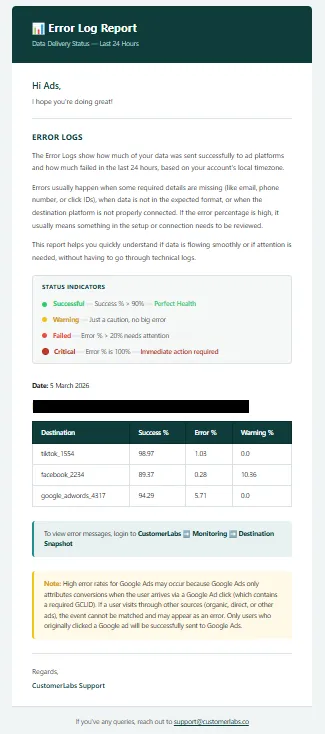
Section titled “5. Daily Destination Error Log Report & Critical Alerts”Every day, a destination error log report is sent via email to the account’s registered email address. This report includes the full breakdown of success, error, and warning percentages for every connected destination.
If any destination shows a 100% error rate, it is flagged as critical in the report, ensuring it receives priority attention.
What Does the Daily Report Include?
Section titled “What Does the Daily Report Include?”The daily destination error log report email contains:
- Date of the report (previous day’s data)
- Account Name and Account ID
- All connected destinations with their performance metrics
- A breakdown of Success %, Error %, and Warning % for each destination
- Critical flag for any destination with a 100% error rate
This gives stakeholders the context they need to monitor performance and quickly act on critical issues.
Sample Report Format
Section titled “Sample Report Format”Date: March 4, 2026
Account: Example Store (cl1234abc)
Destination Success % Error % Warning % facebook_1234 0.0 100.0 0.0
What to Expect After Implementation
Section titled “What to Expect After Implementation”Once this automation is active for your account:
- ✅ Daily monitoring — your destinations are checked every day, automatically
- ✅ Daily destination error log report — a comprehensive email report is sent every day with success, error, and warning metrics for all destinations
- ✅ Critical error flagging — destinations with a 100% error rate are highlighted as critical for priority action
- ✅ Historical records — all daily metrics are logged, available for review anytime
- ✅ No manual work — the entire process runs without any intervention from your team
- ✅ Faster resolution — issues are detected and reported daily, enabling quick action
Frequently Asked Questions
Section titled “Frequently Asked Questions”When does the monitoring run?
Section titled “When does the monitoring run?”The automation runs once every day at a scheduled time.
Will I only be notified when there is a 100% error?
Section titled “Will I only be notified when there is a 100% error?”No. You will receive a daily destination error log report via email that includes all metrics — success, error, and warning percentages — for every connected destination. Accounts with a 100% error rate are flagged as critical within the report for priority attention.
Where can I view historical metrics?
Section titled “Where can I view historical metrics?”Historical metrics are maintained in a centralized log. Contact your account manager to request access or a report.
How are the reports delivered?
Section titled “How are the reports delivered?”All daily destination error log reports are delivered via email to the registered email address associated with your account.
What should I do when a destination is flagged as critical?
Section titled “What should I do when a destination is flagged as critical?”- Check the destination mentioned in the report
- Verify that API credentials or tokens have not expired
- Ensure the destination platform has not changed its integration requirements
- Contact your account manager or support team if the issue persists
Summary
Section titled “Summary”| Feature | Details |
|---|---|
| Monitoring Frequency | Daily |
| Data Source | CRM (active accounts with Won status) |
| Metrics Tracked | Success %, Error %, Warning % per destination |
| Critical Alert Trigger | 100% error rate on any destination |
| Report Delivery | |
| Historical Logging | Yes — all metrics recorded daily |
| Manual Effort Required | None |