
TikTok Ads Integration
Connect CustomerLabs with TikTok Ads to segment and retarget your website visitors by syncing events and audiences — without writing any code.
Understanding Pixels
Section titled “Understanding Pixels”Before connecting your TikTok Ad account, we recommend setting up two separate pixels in your TikTok Ads account. This keeps your website conversion events separate from your audience sync events, ensuring cleaner data for optimization.
Default Pixel
Section titled “Default Pixel”The Default Pixel is required. All website events will be sent to this pixel.
- If you do not configure a CLabs Pixel, both website events and audience syncs will flow into the Default Pixel. This overlap makes the event data unreliable for conversion tracking or bidding optimization.
- If you do configure a CLabs Pixel, website events go exclusively to the Default Pixel — keeping it clean for conversion tracking.
CLabs Pixel (Optional but Recommended)
Section titled “CLabs Pixel (Optional but Recommended)”The CLabs Pixel is used exclusively for syncing audiences from CustomerLabs to TikTok. When audience segments are synced, custom audiences are created under this pixel.
Configuring the CLabs Pixel is strongly recommended if you plan to run both conversion tracking and audience-based retargeting campaigns.
Step 1: Add TikTok as a Destination
Section titled “Step 1: Add TikTok as a Destination”-
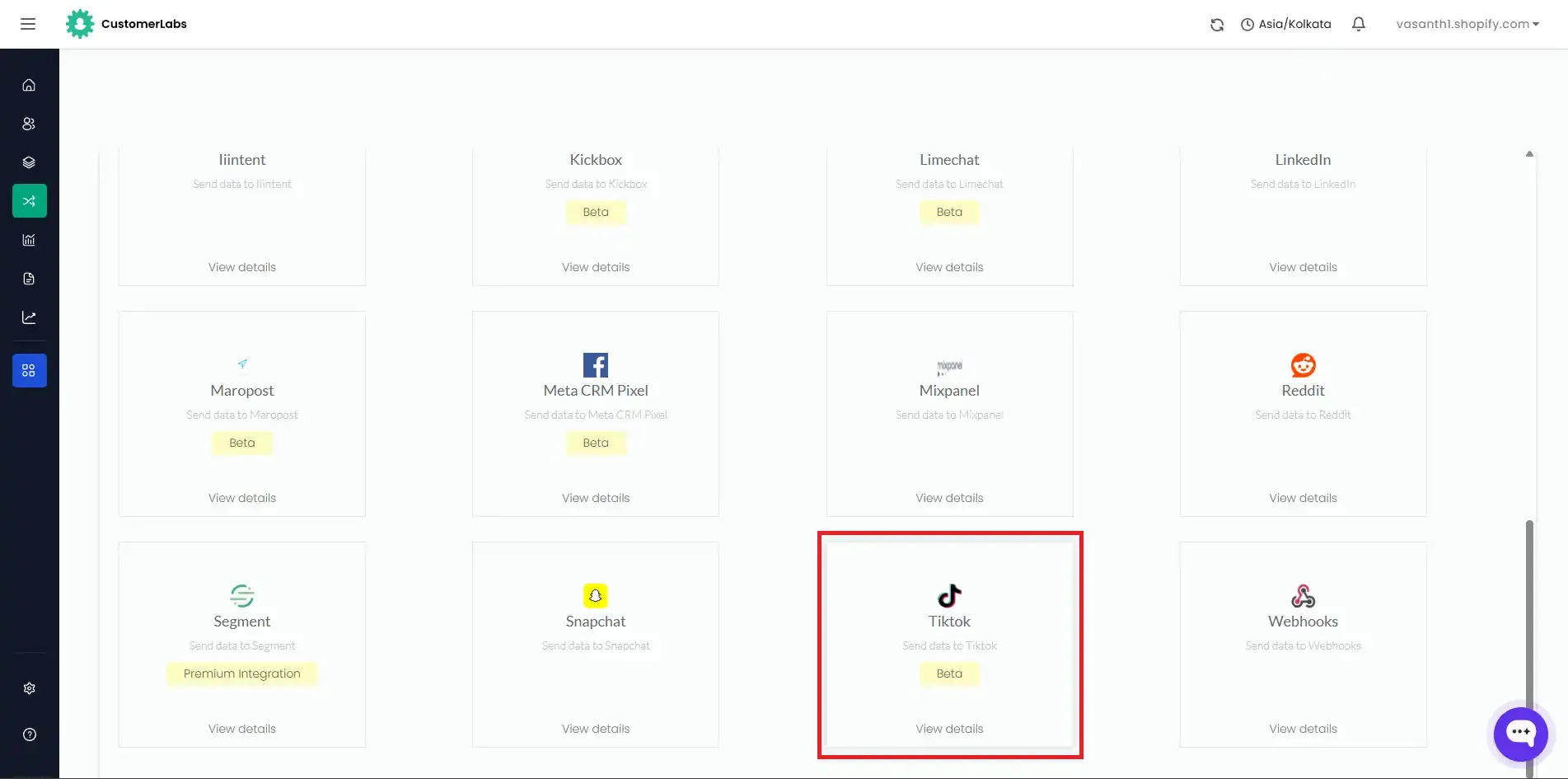
Log in to your CustomerLabs account and navigate to Destinations from the left menu.
-
Search for and select TikTok from the list of destinations.
-
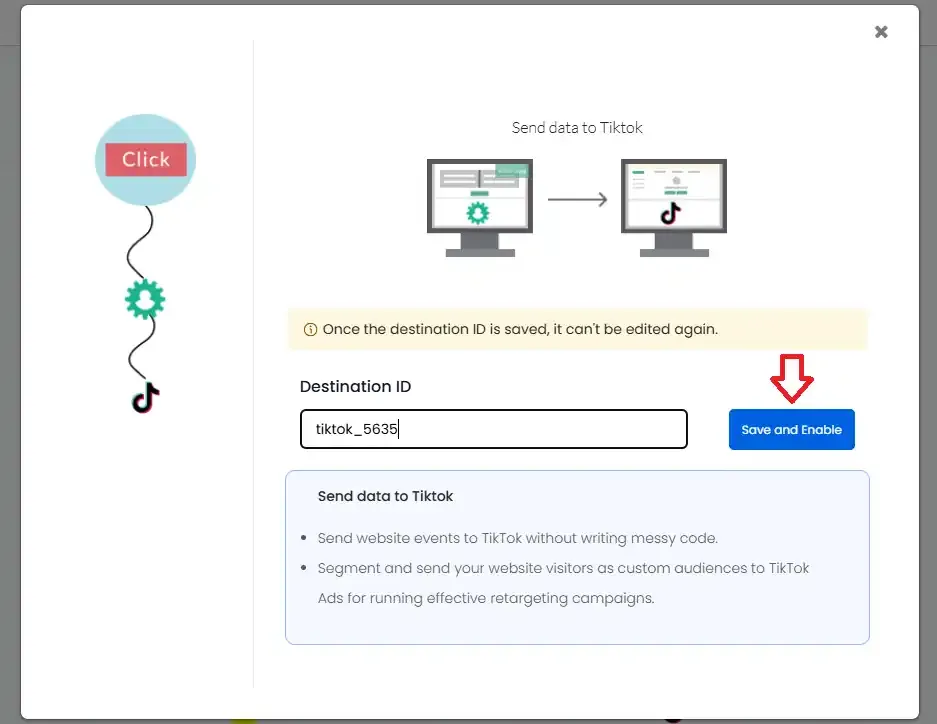
Enter a Destination ID and click Save and Enable.
-
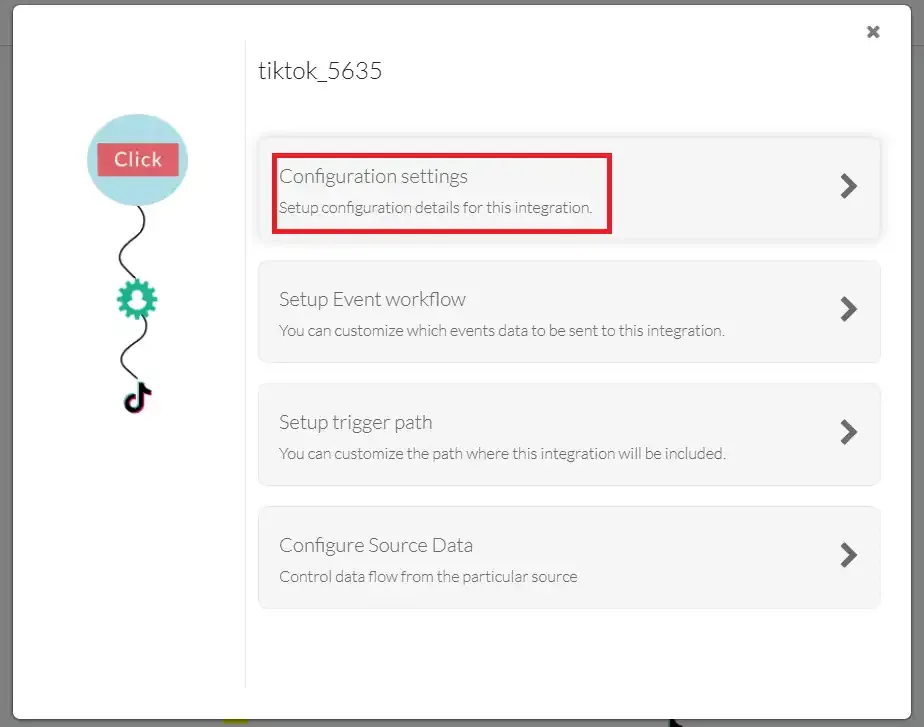
Click on Configuration settings.
Step 2: Authenticate TikTok
Section titled “Step 2: Authenticate TikTok”-
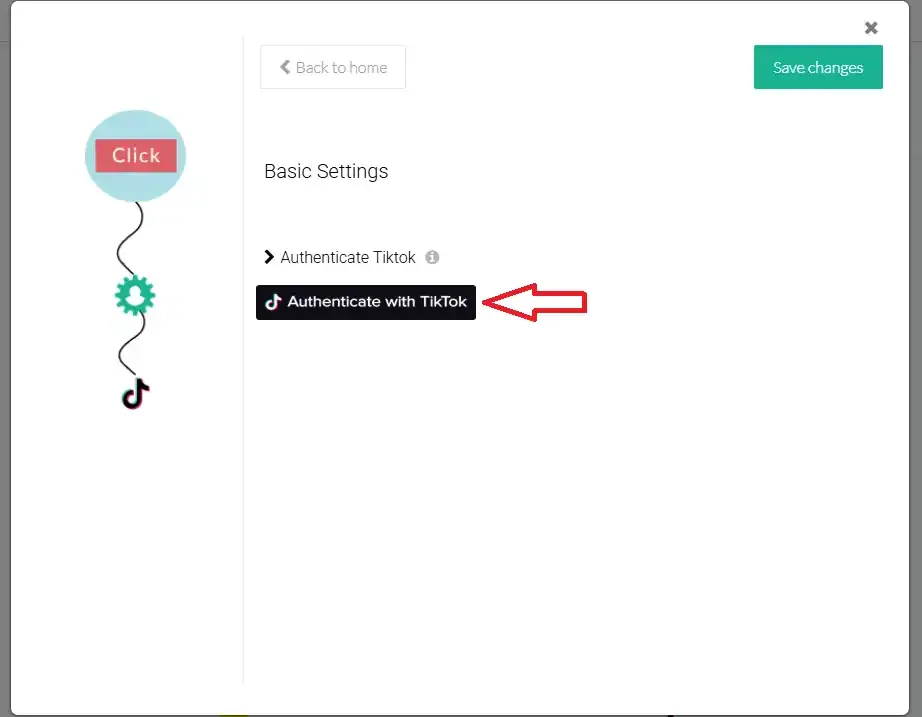
Inside Configuration settings, click Authenticate with TikTok under Basic Settings.
-
You will be redirected to TikTok to log in. Sign in with your TikTok Business account credentials.
-
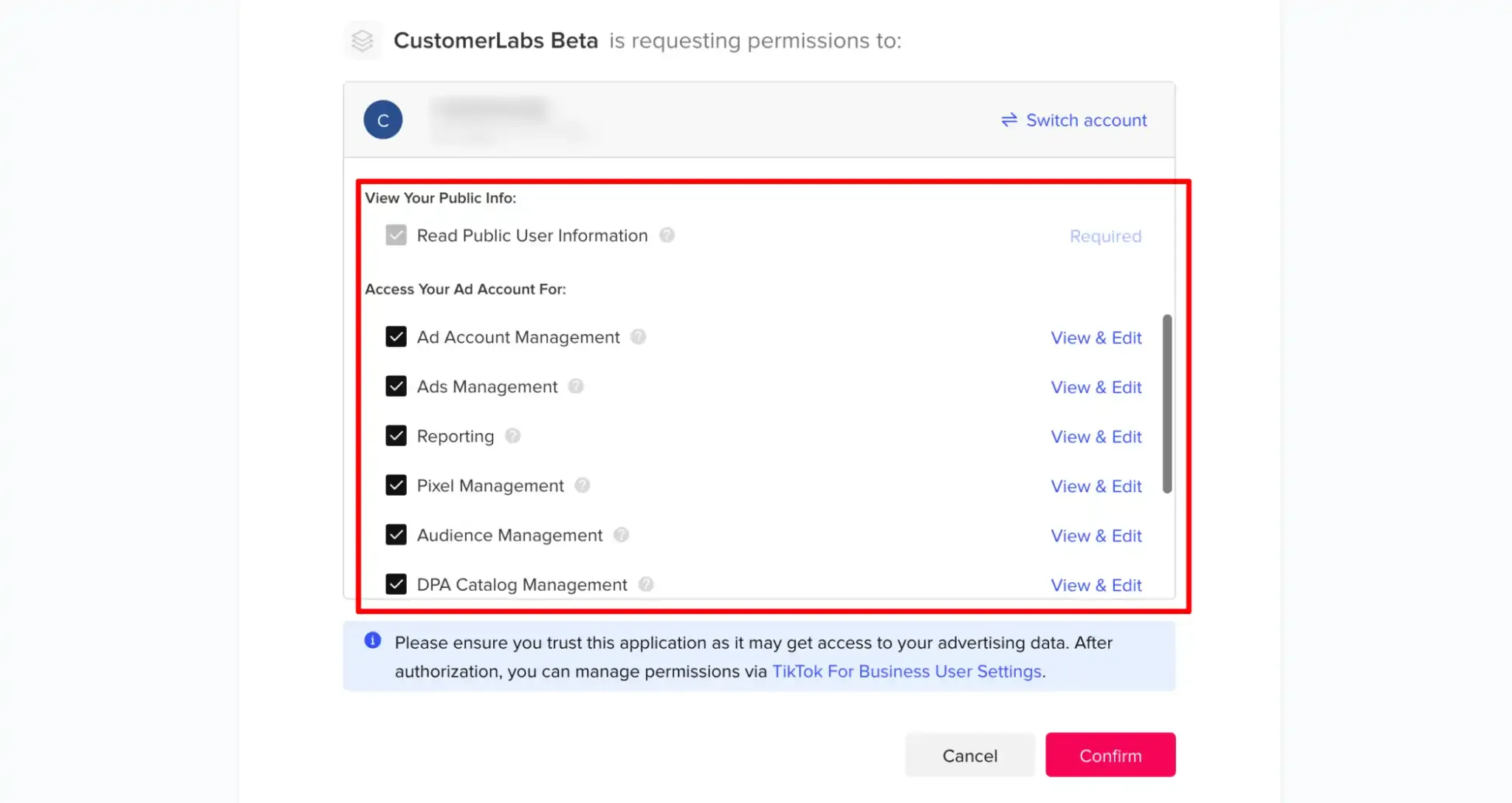
On the permissions screen, ensure all checkboxes are selected and click Confirm.
-
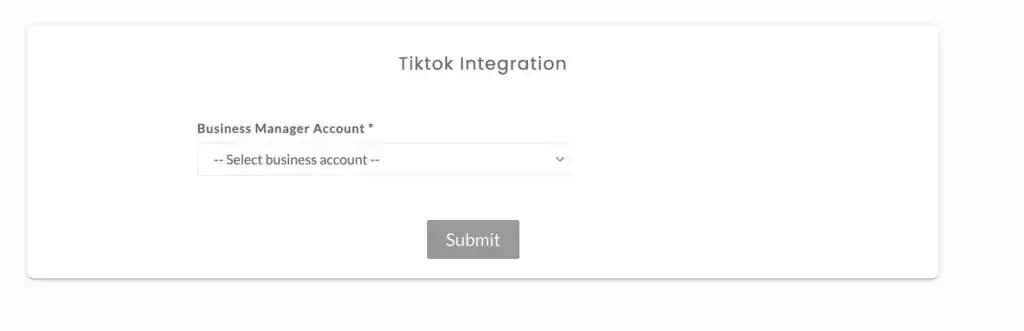
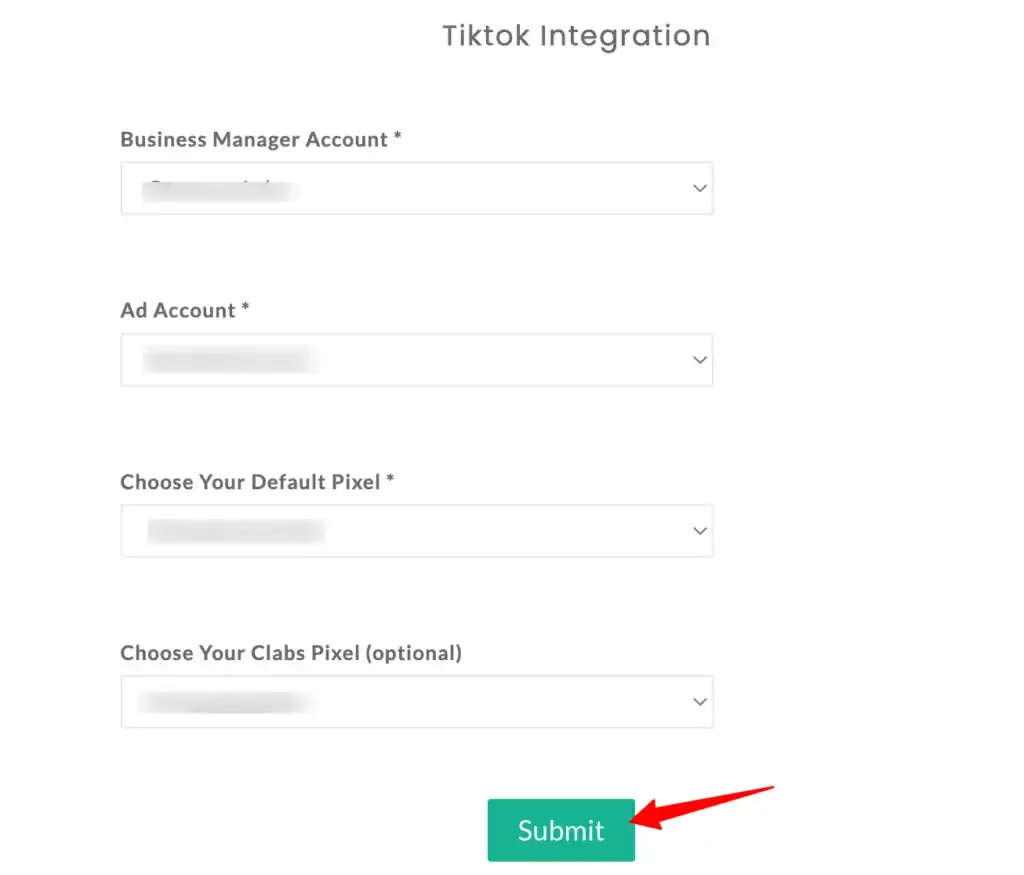
After authorizing, you will be redirected back to CustomerLabs to complete the account setup. Select your Business Manager Account from the dropdown.
-
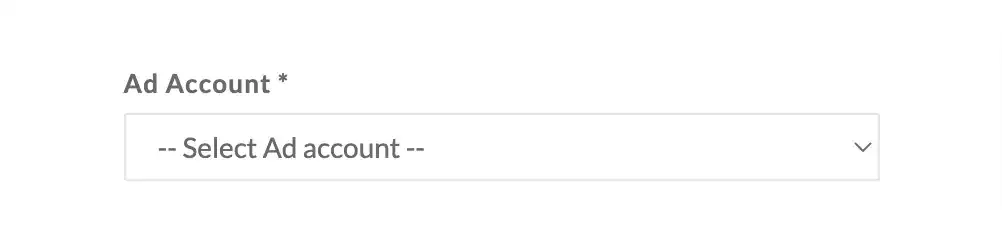
Select your Ad Account.
-
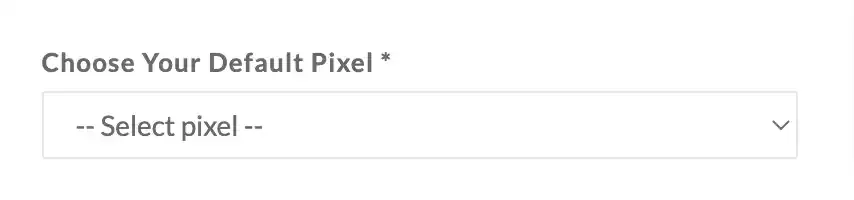
Select your Default Pixel.
-
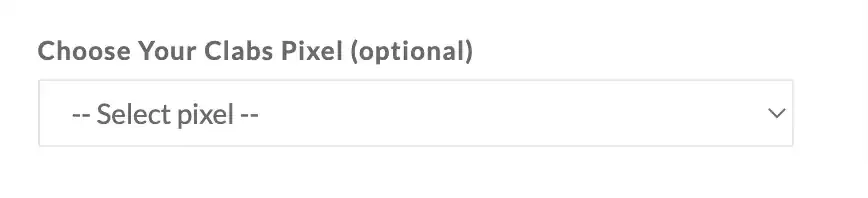
Optionally, select your CLabs Pixel (recommended for audience syncing).
-
Click Submit.
Step 3: Set Up Event Workflow
Section titled “Step 3: Set Up Event Workflow”After authentication, configure which events you want to send to TikTok.
-
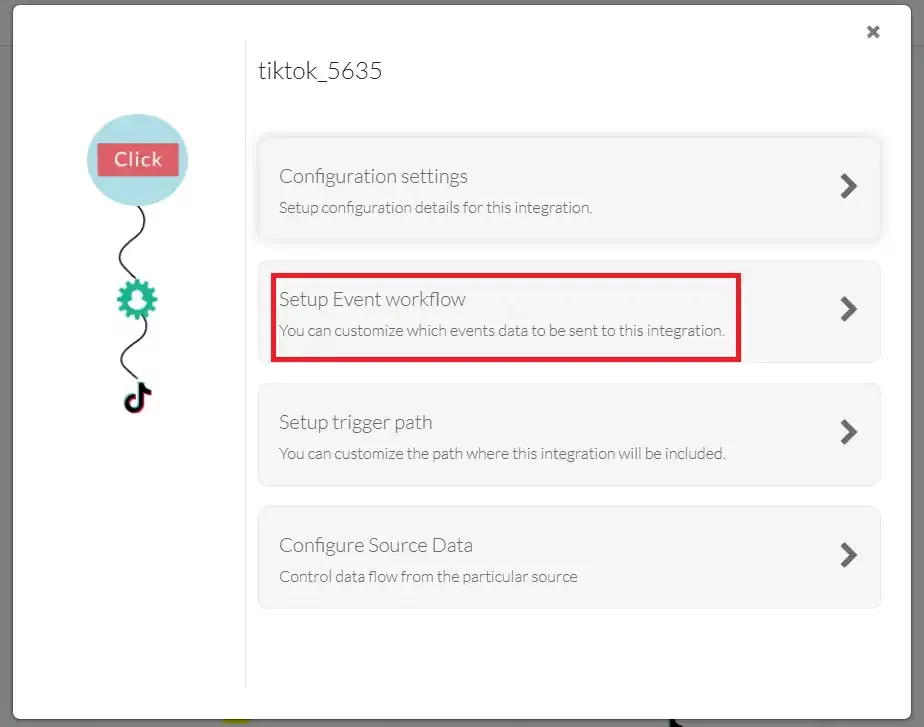
From the TikTok destination screen, click Setup Event Workflow.
-
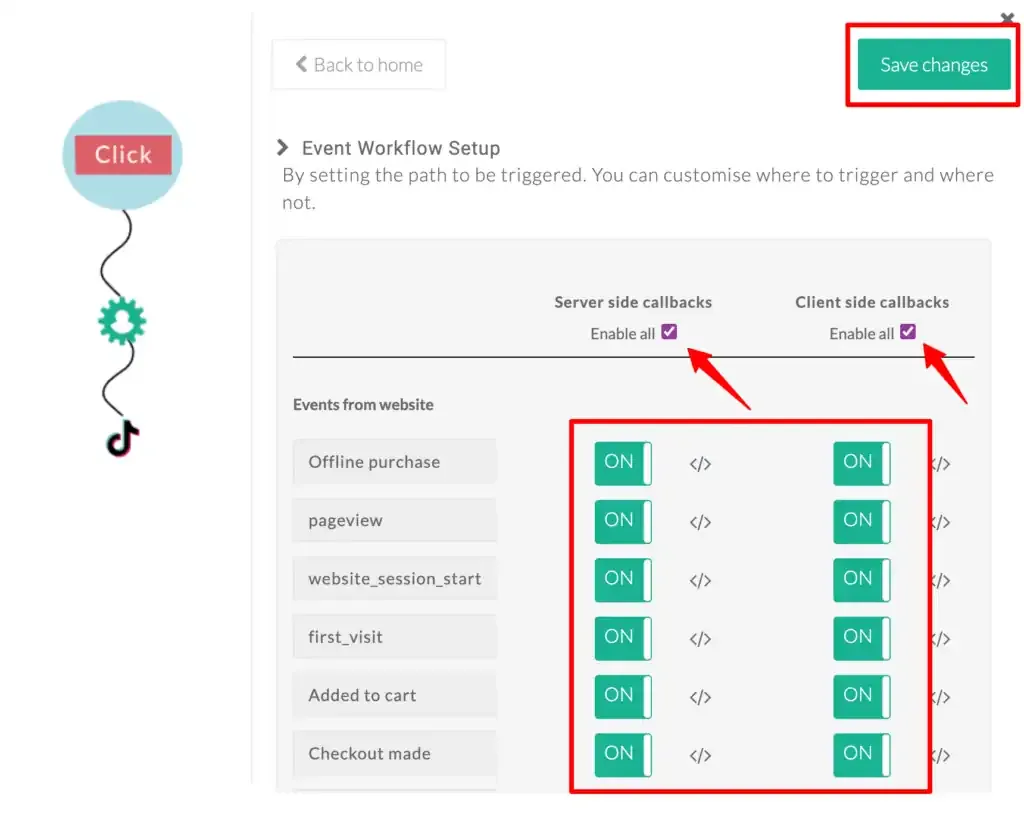
You will see a list of website events with separate toggles for Server-side callbacks and Client-side callbacks. Enable the events you want to track.
-
Scroll down to Events from other sources. To sync audiences with TikTok, you must toggle ON the
added_to_segmentevent under the server-side column.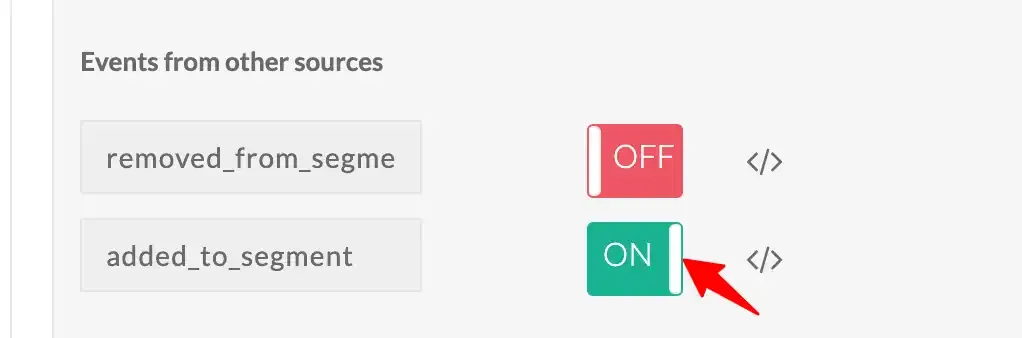
-
Click Save Changes.
Step 4: Sync Audiences
Section titled “Step 4: Sync Audiences”Once the added_to_segment event is enabled, you can create first-party audience segments in CustomerLabs and sync them directly to TikTok Ads for personalized retargeting campaigns.
Refer to the Sync Audience with TikTok documentation for detailed instructions.