
Sync CustomerLabs Audience with TikTok Ads
Audiences created in CustomerLabs can be synced with TikTok in two ways:
- Event Sync (through website custom audience)
- List Sync (as a customer file)
Prerequisites
Section titled “Prerequisites”Before syncing audiences, ensure you have:
- Integrated TikTok with CustomerLabs by authenticating your TikTok account.
- Audience should be created and active.
Event Sync (Website custom audience)
Section titled “Event Sync (Website custom audience)”By syncing the segment created in CustomerLabs with TikTok through the event sync option, a new custom website audience is created, and data is sent to TikTok through an event.
These audiences will be synced under the CLabs pixel if you have chosen it while integrating TikTok (or under the Default pixel chosen while integrating if you haven’t chosen the CLabs pixel).
Steps to sync an audience via Event Sync:
Section titled “Steps to sync an audience via Event Sync:”-
Navigate to the segment created in CustomerLabs that you want to sync.
-
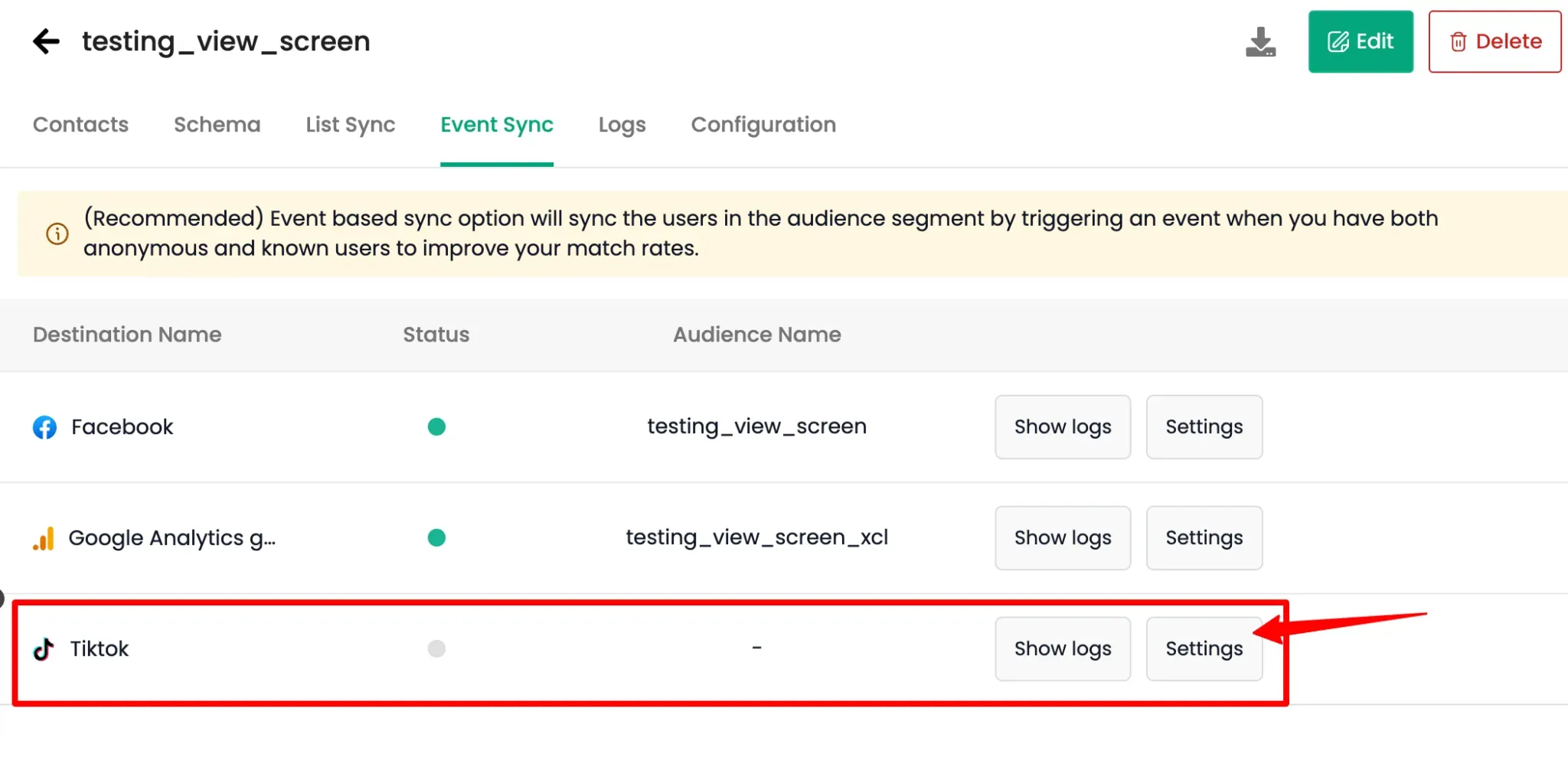
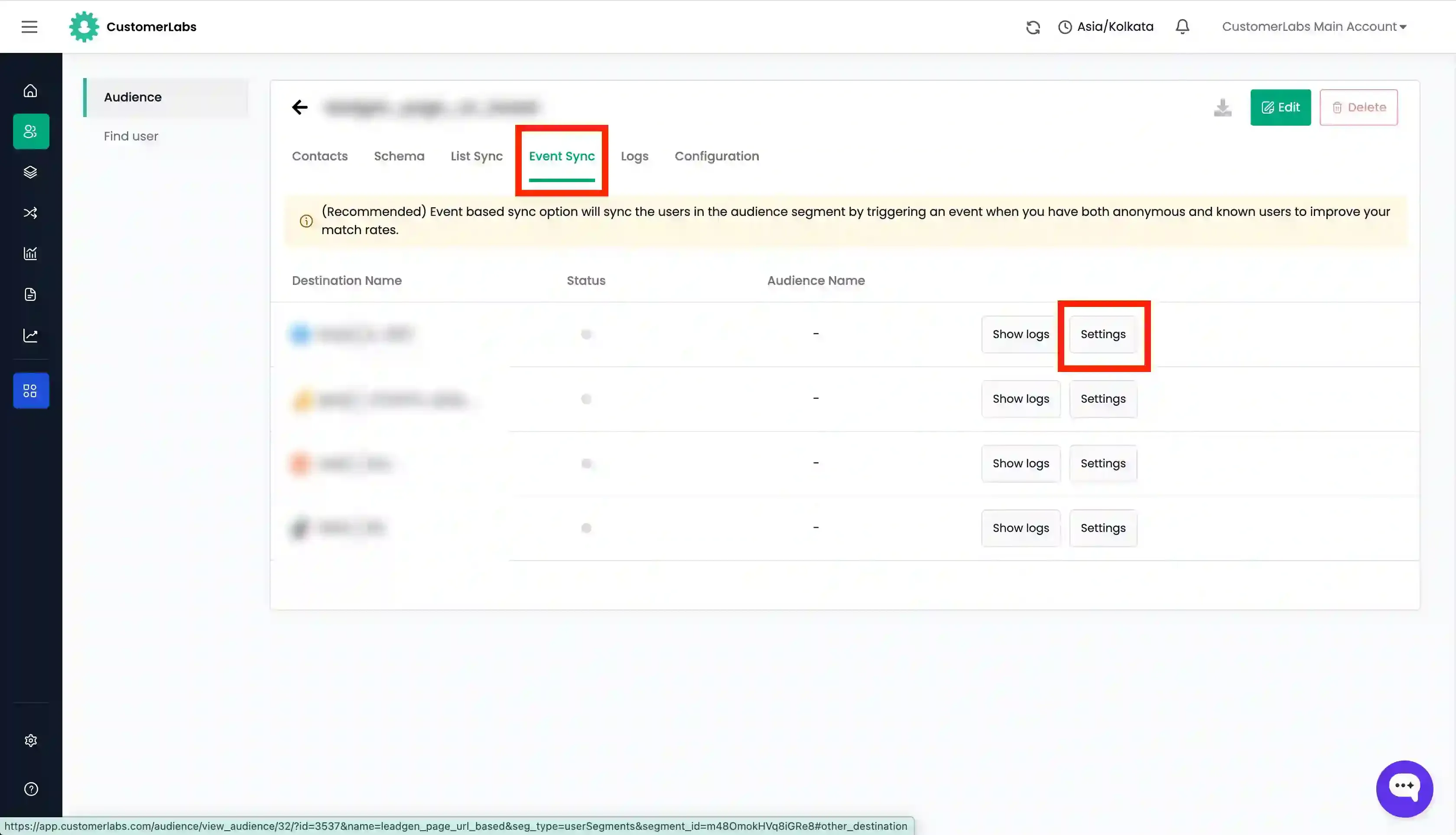
Go to the Event Sync tab.
-
Click on Settings under TikTok.
-
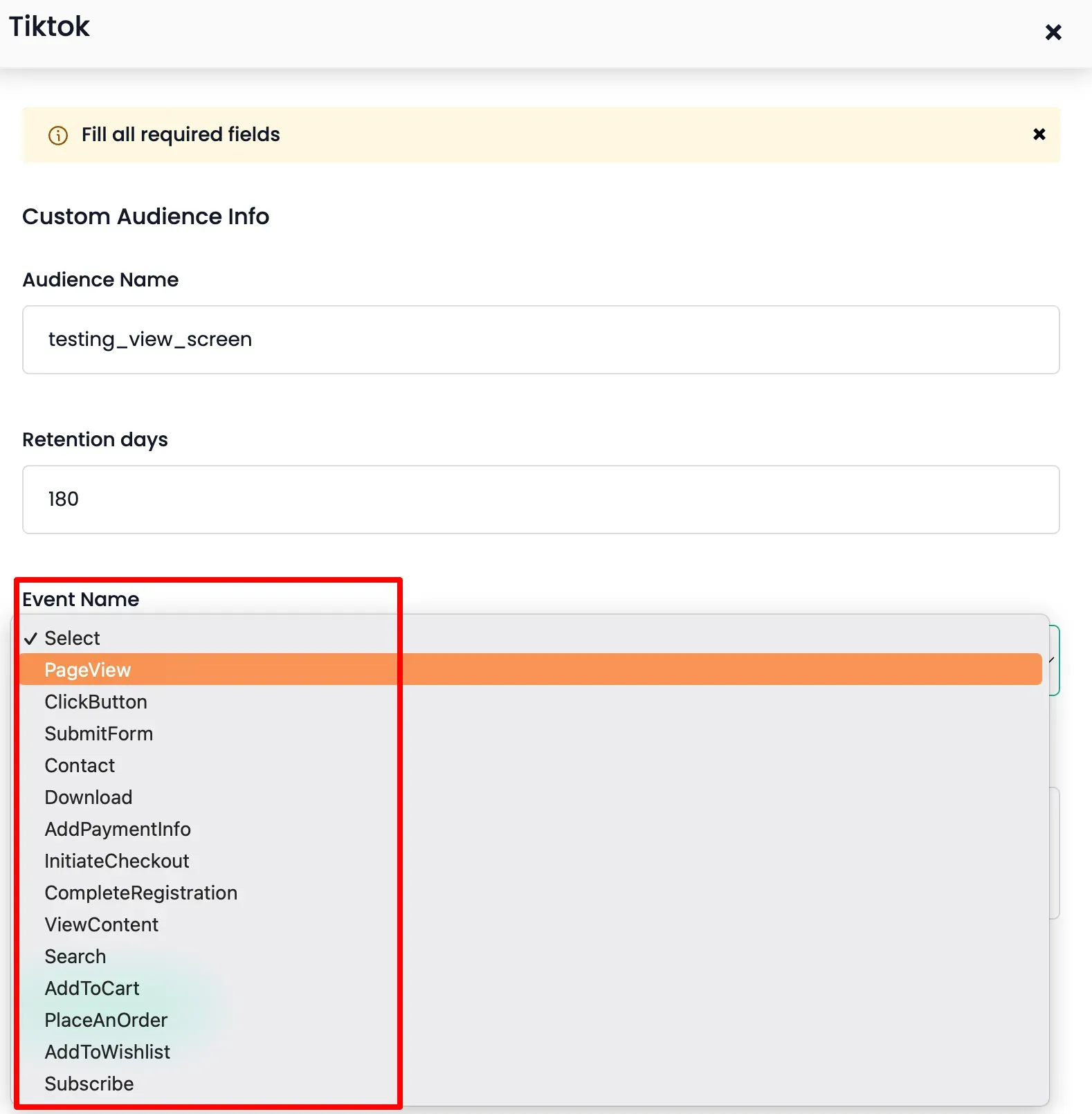
You have to create a custom audience by entering the required details.
- The Event name option is to sync the audience with TikTok under this event name. This will enable frequent refreshing of the audience with TikTok through this event which keeps the audience regularly updated.
-
Choose the event name, enter the description as needed, and click Create audience.
-
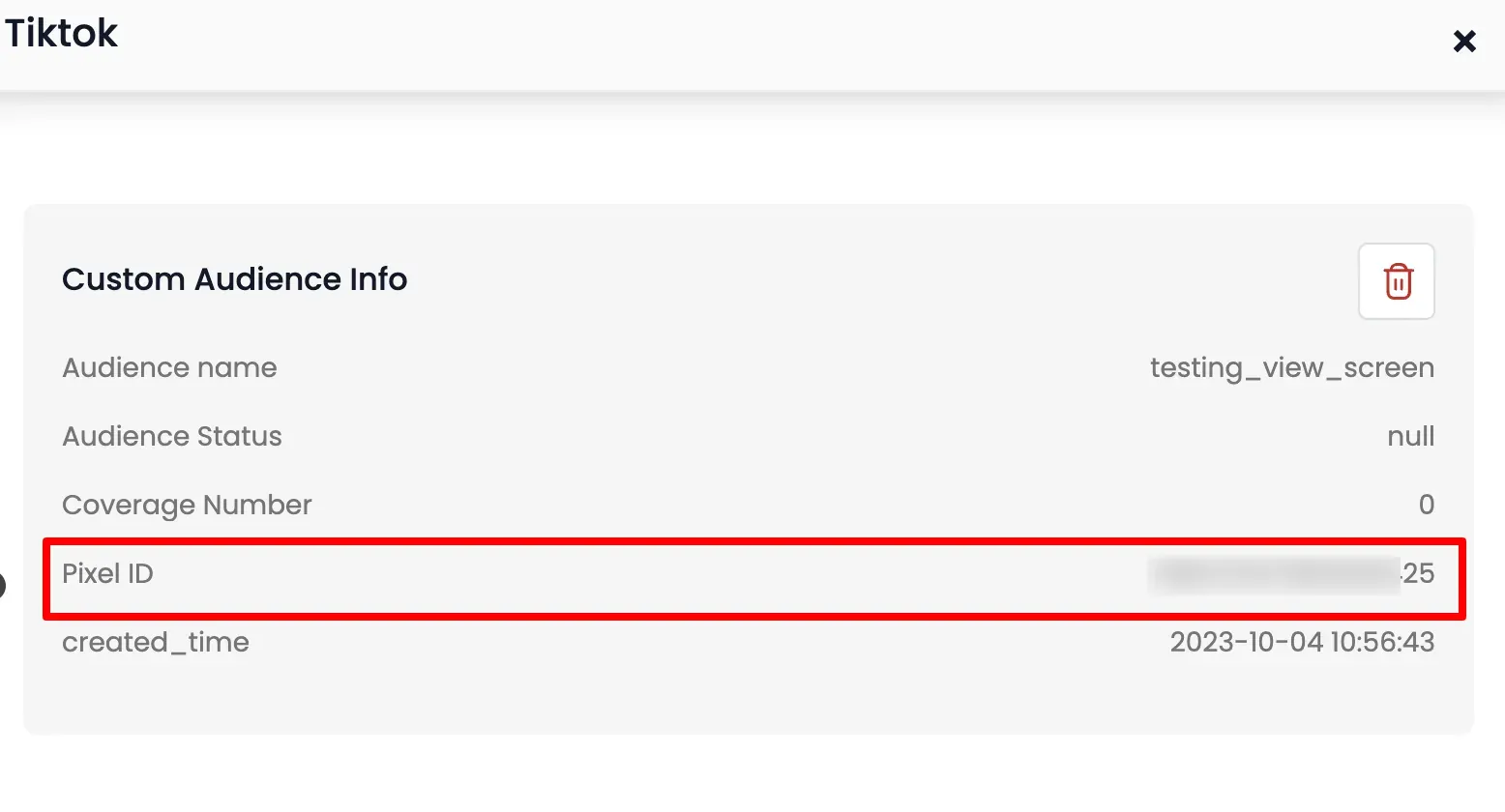
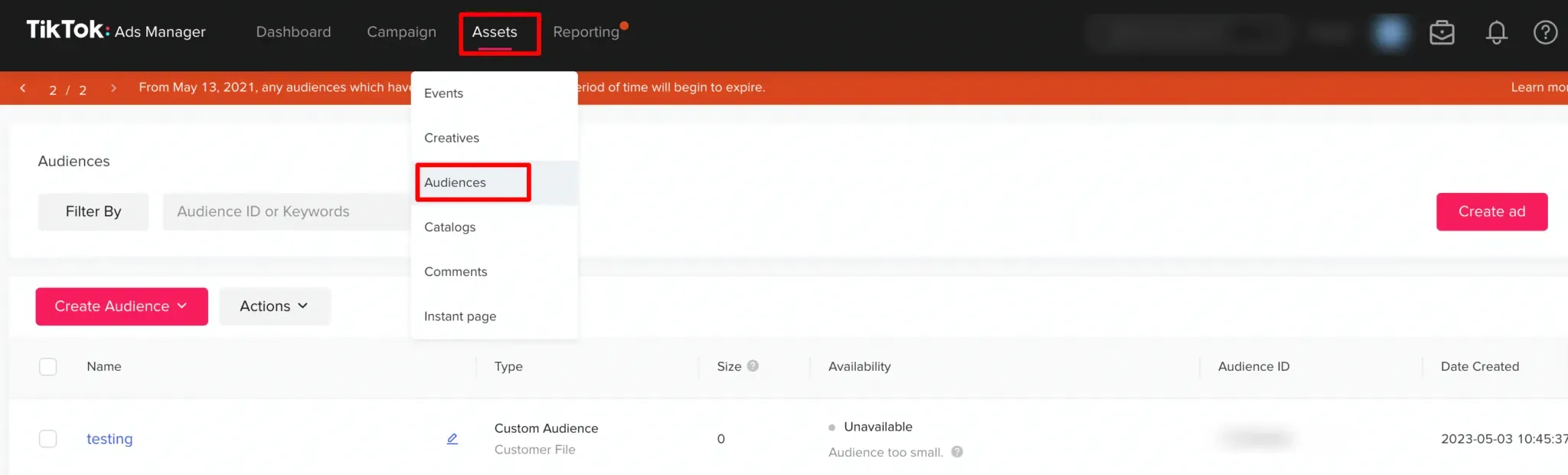
After creating the audience, you can see in which pixel the audience is created in TikTok. The custom website audience will be created in TikTok Ads Manager → Assets → Audiences.
-
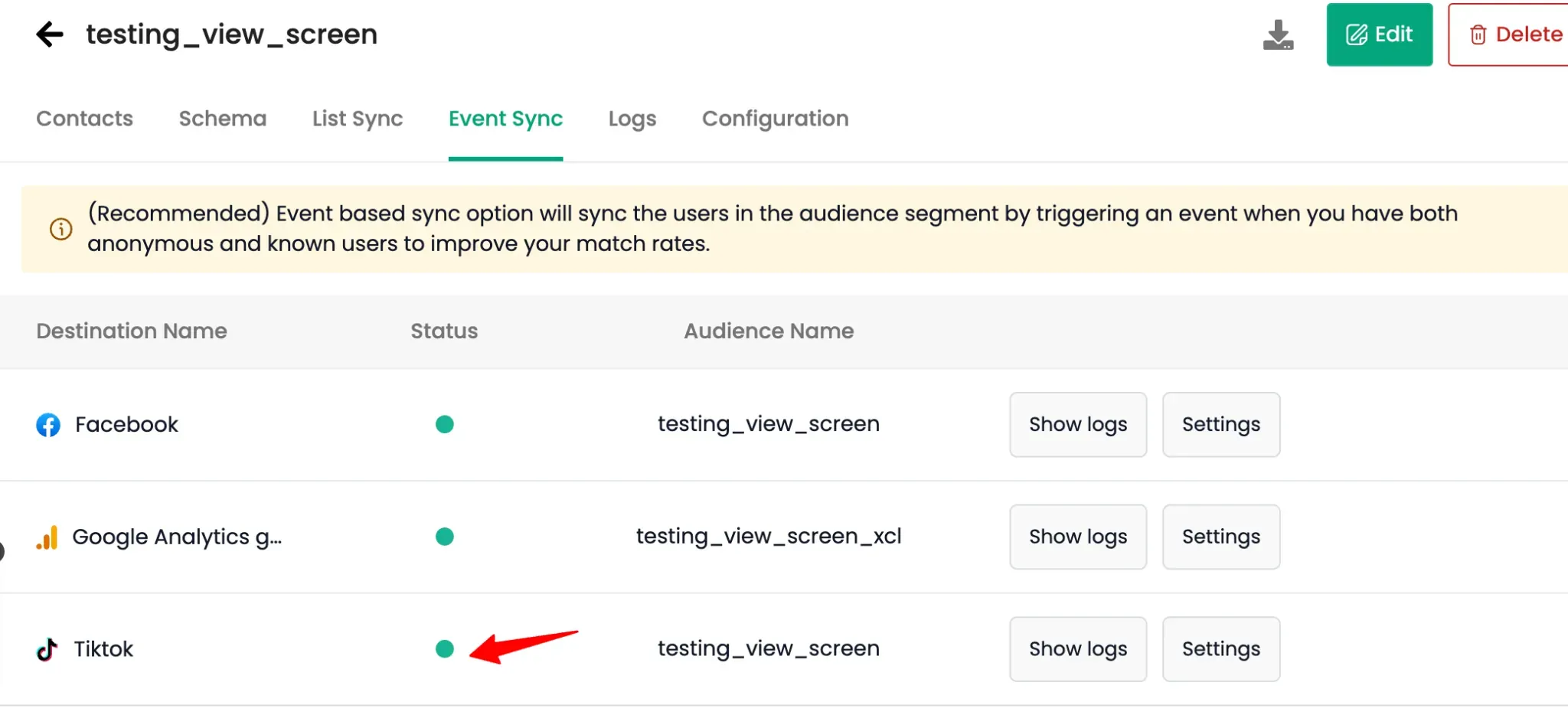
Verify the sync status by looking for the green toggle under the Status column as a confirmation for the sync.
-
You can check the logs for audience creation & deletion for TikTok by going to Event Sync tab → TikTok → Show Logs.
Unlinking or Deleting an Audience
Section titled “Unlinking or Deleting an Audience”You can manage your synced audiences directly from the interface.
Unlink an Audience
Section titled “Unlink an Audience”Unlinking stops the regular refresh from CustomerLabs but keeps the audience on TikTok.
-
Go to the Events Sync tab → Click Settings button across that TikTok Destination name.
-
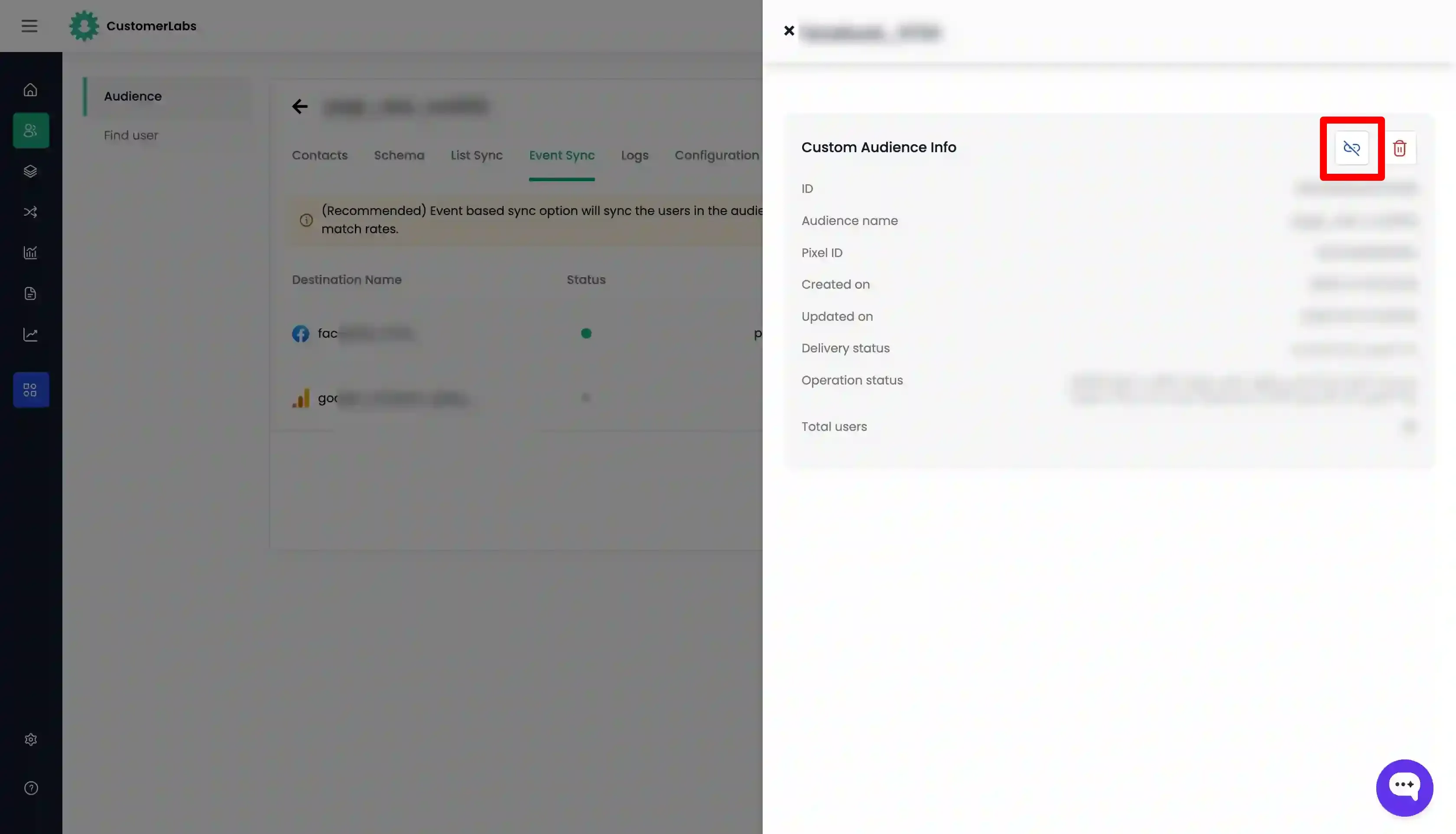
Click the Unlink icon in the top right corner of the custom audience.
-
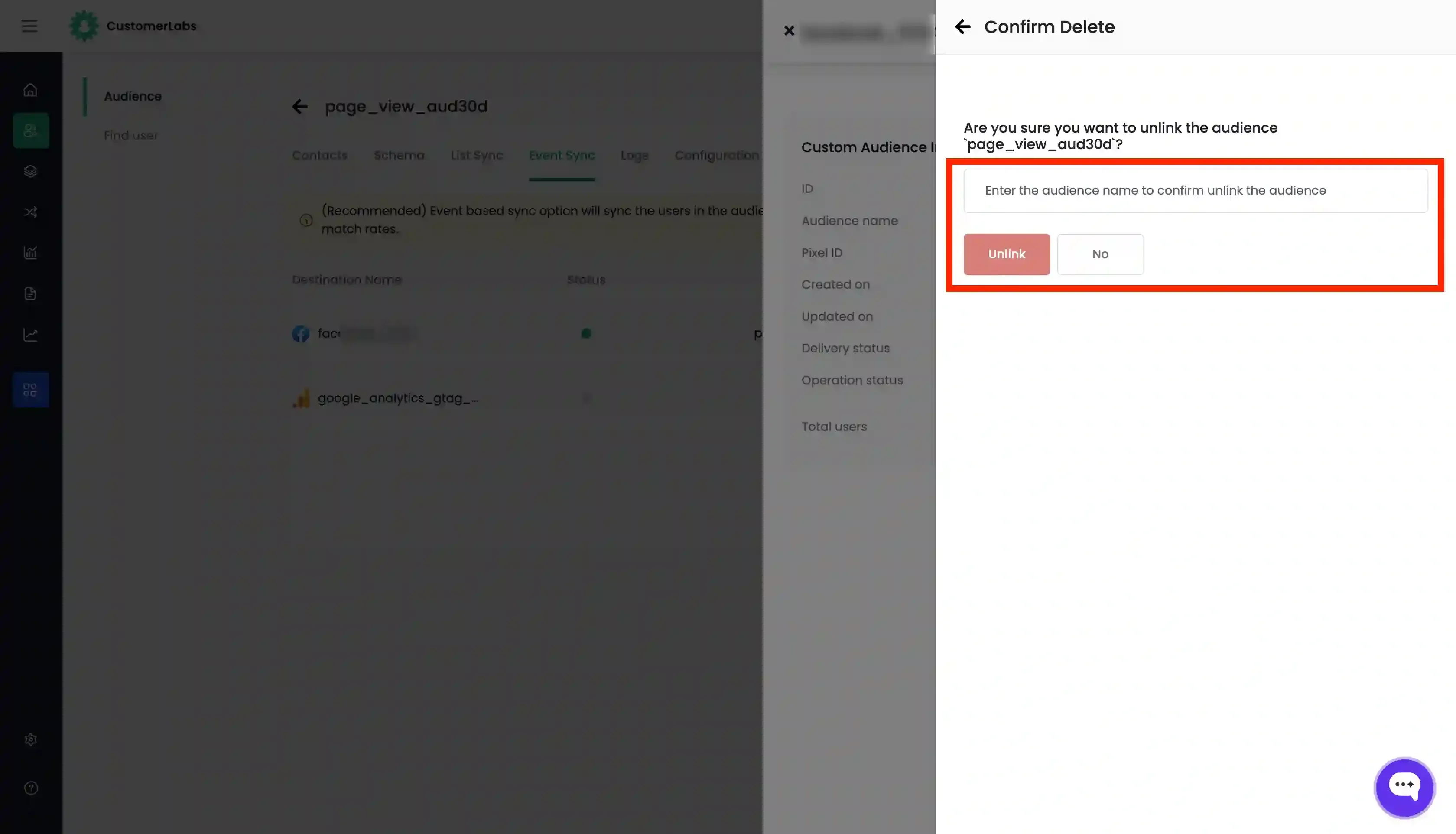
You will be prompted to enter the name of the custom audience for confirmation. Enter the audience name and click Unlink.
Delete an Audience
Section titled “Delete an Audience”Deleting removes the custom audience from TikTok entirely.
- Click the Delete icon in the top right corner of the custom audience.
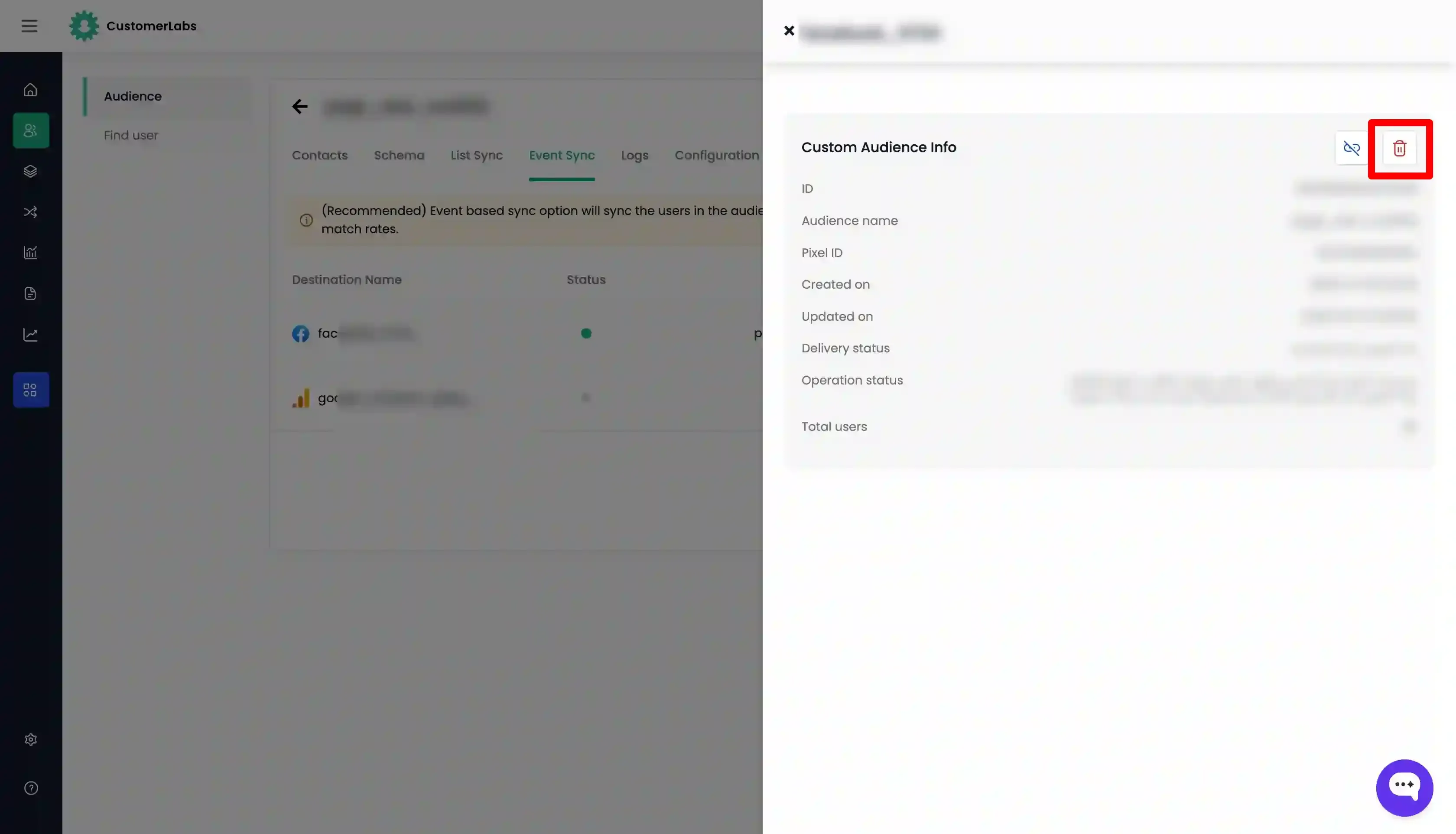
- Enter the name of the custom audience to confirm and Click “Delete”.
List Sync (Customer List)
Section titled “List Sync (Customer List)”It is recommended to sync the audience as a customer file (List sync) with TikTok when you have user details like email id, phone number, etc. By syncing the audience created in CustomerLabs as a list, a new custom audience (Type: Customer file) is created or an existing audience is updated in TikTok Ads Manager based on the criteria given.
-
Navigate to your audience in CustomerLabs and go to the Schema tab.
-
Add the user traits (schema) to be synced. To sync the data with TikTok you need to add
email(identify_by_email) and/orphone(identify_by_phone) schema. -
Click Update schema.
-
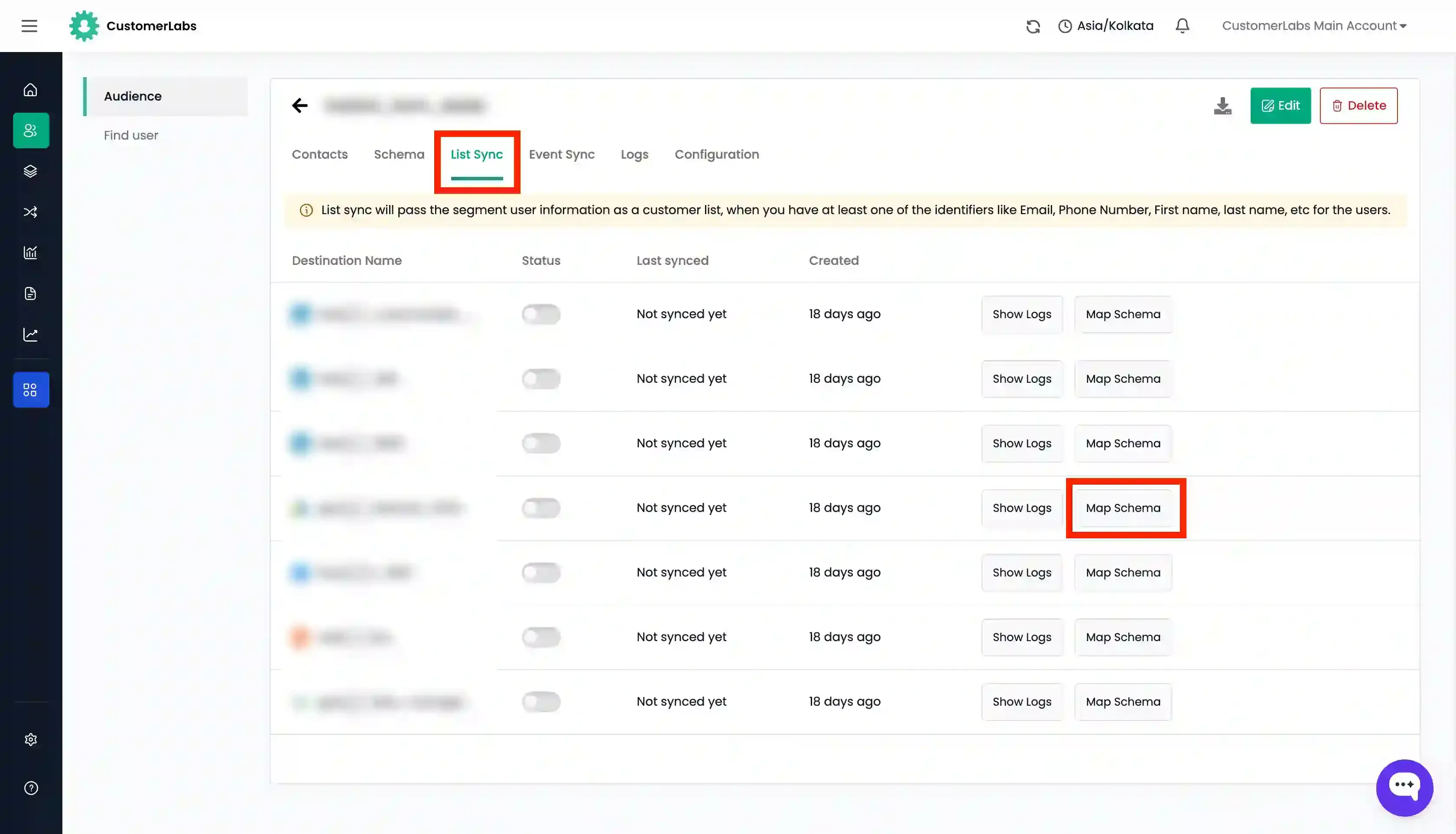
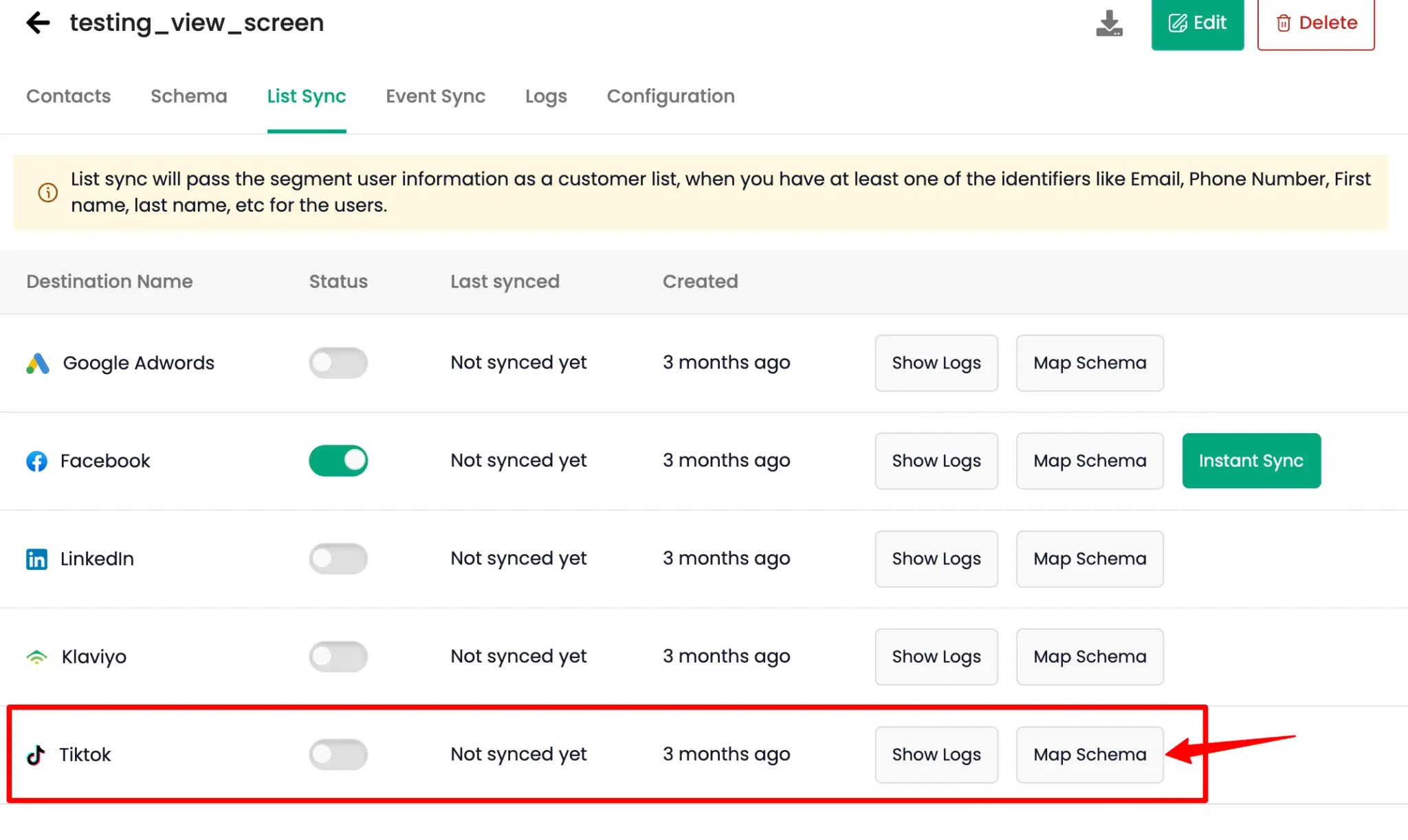
Go to the List Sync tab, locate TikTok, and click Map Schema.
-
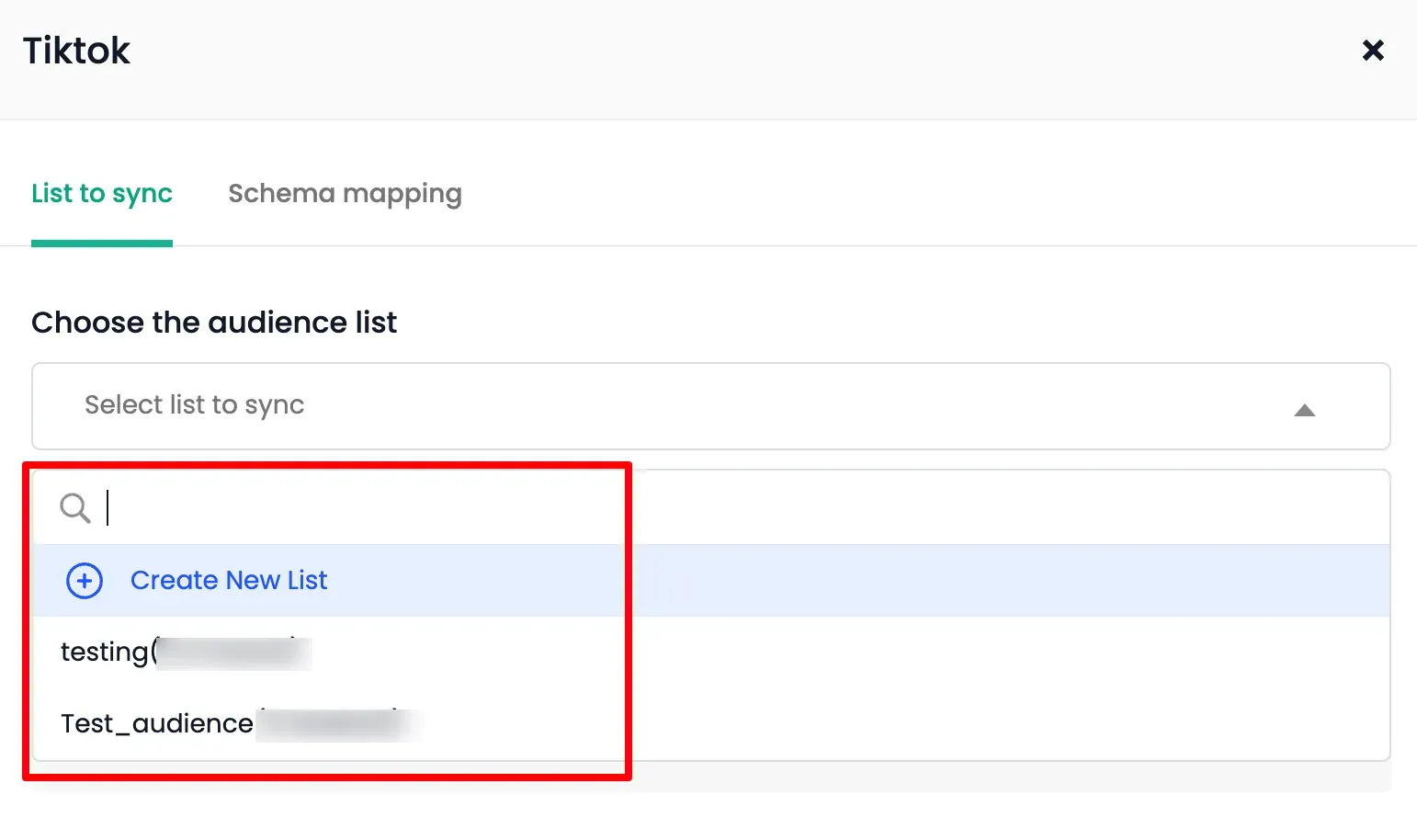
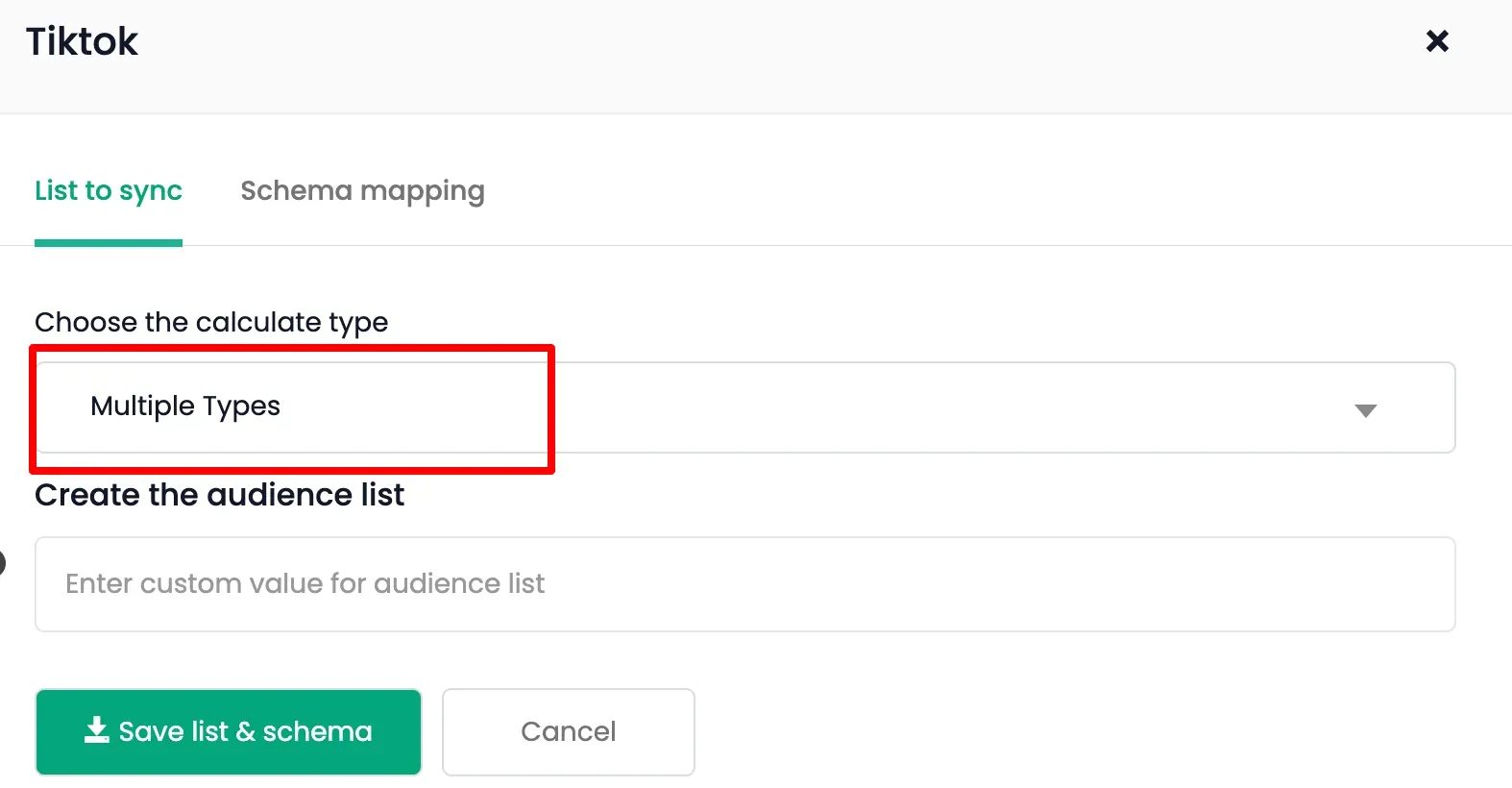
In the List to sync tab:
- Choose an existing audience list, OR
- Select
+Create New List and enter a name.
-
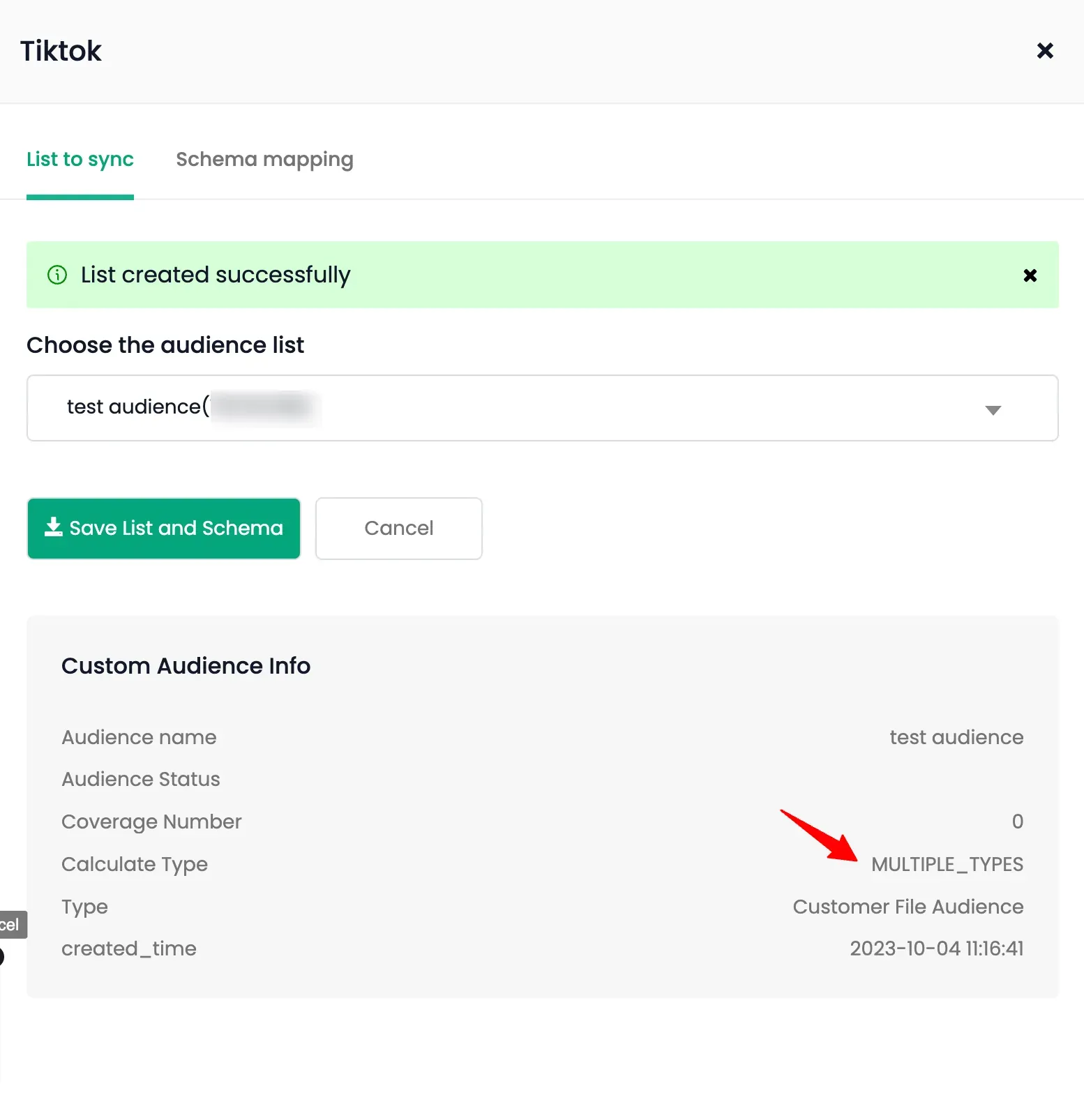
When creating a new list for TikTok, pay attention to the Calculate type.
- Single schema (Calculate type is Email or Phone): TikTok identifies the user’s data using only email and phone. You can map only one of these.
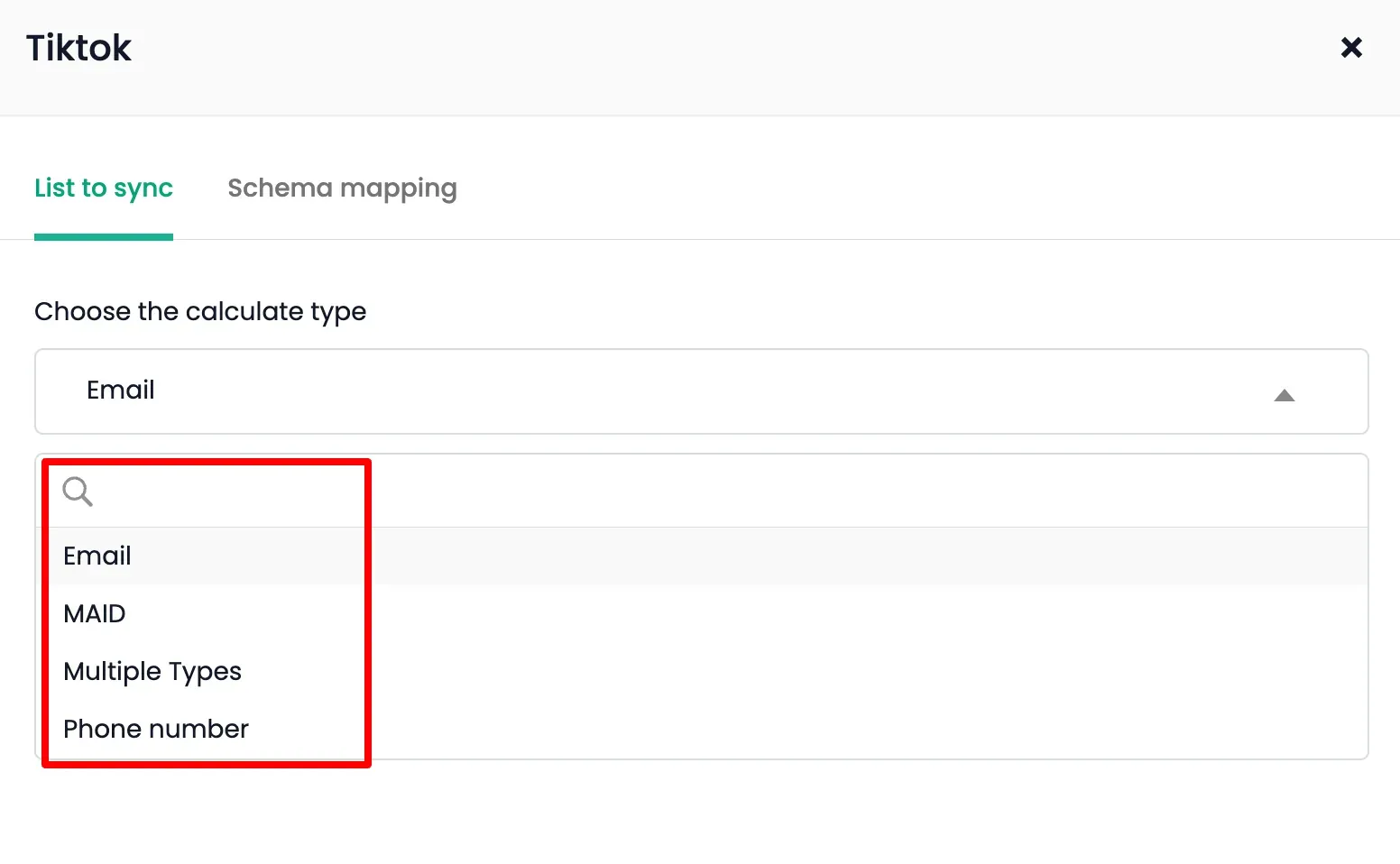
- Multiple types: Select this to map at least two schemas (Email and Phone number). This will help TikTok identify and match a user based on either of the available identifiers. It is recommended to map both phone number and email to match the users better.
- Single schema (Calculate type is Email or Phone): TikTok identifies the user’s data using only email and phone. You can map only one of these.
-
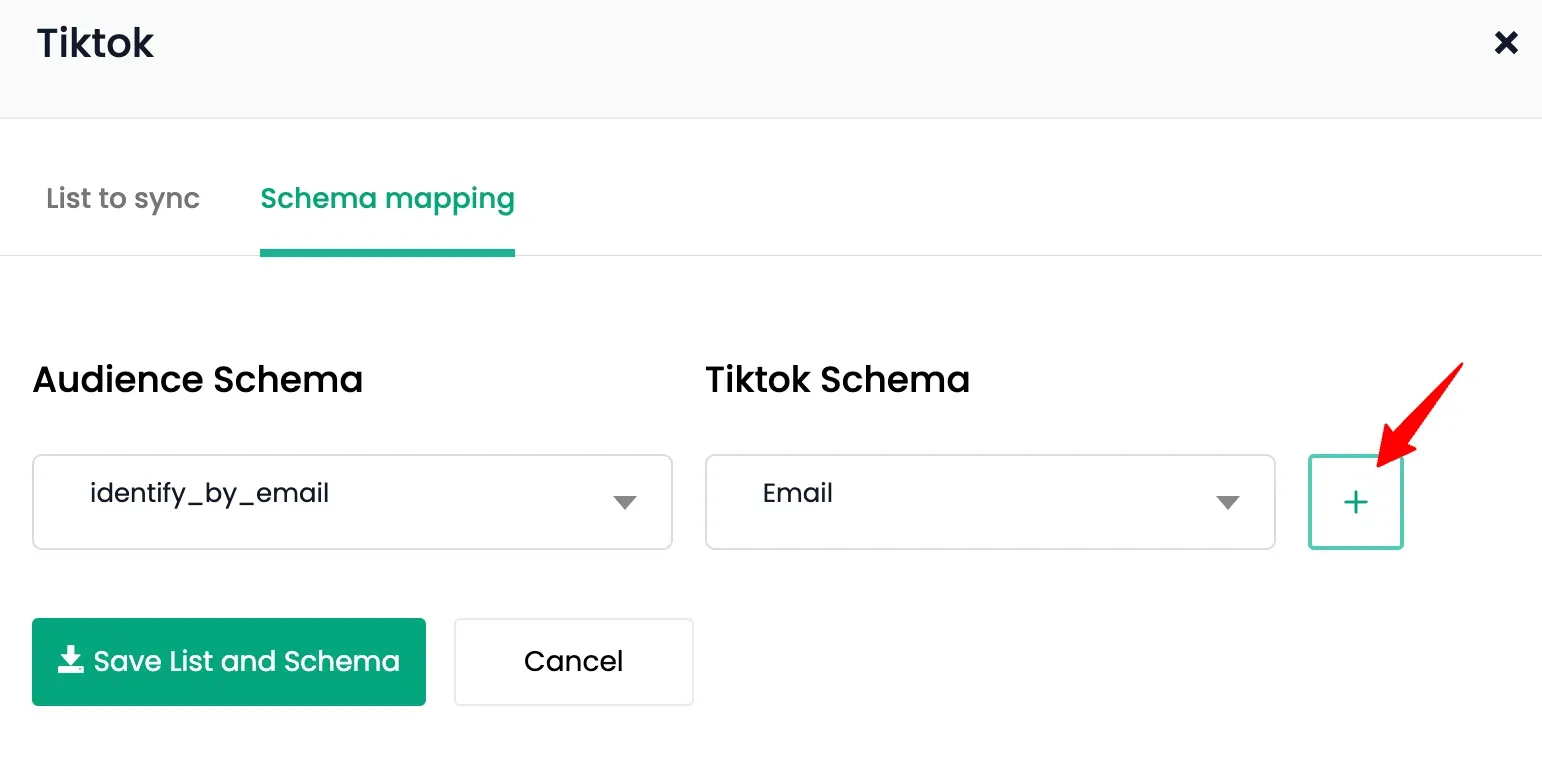
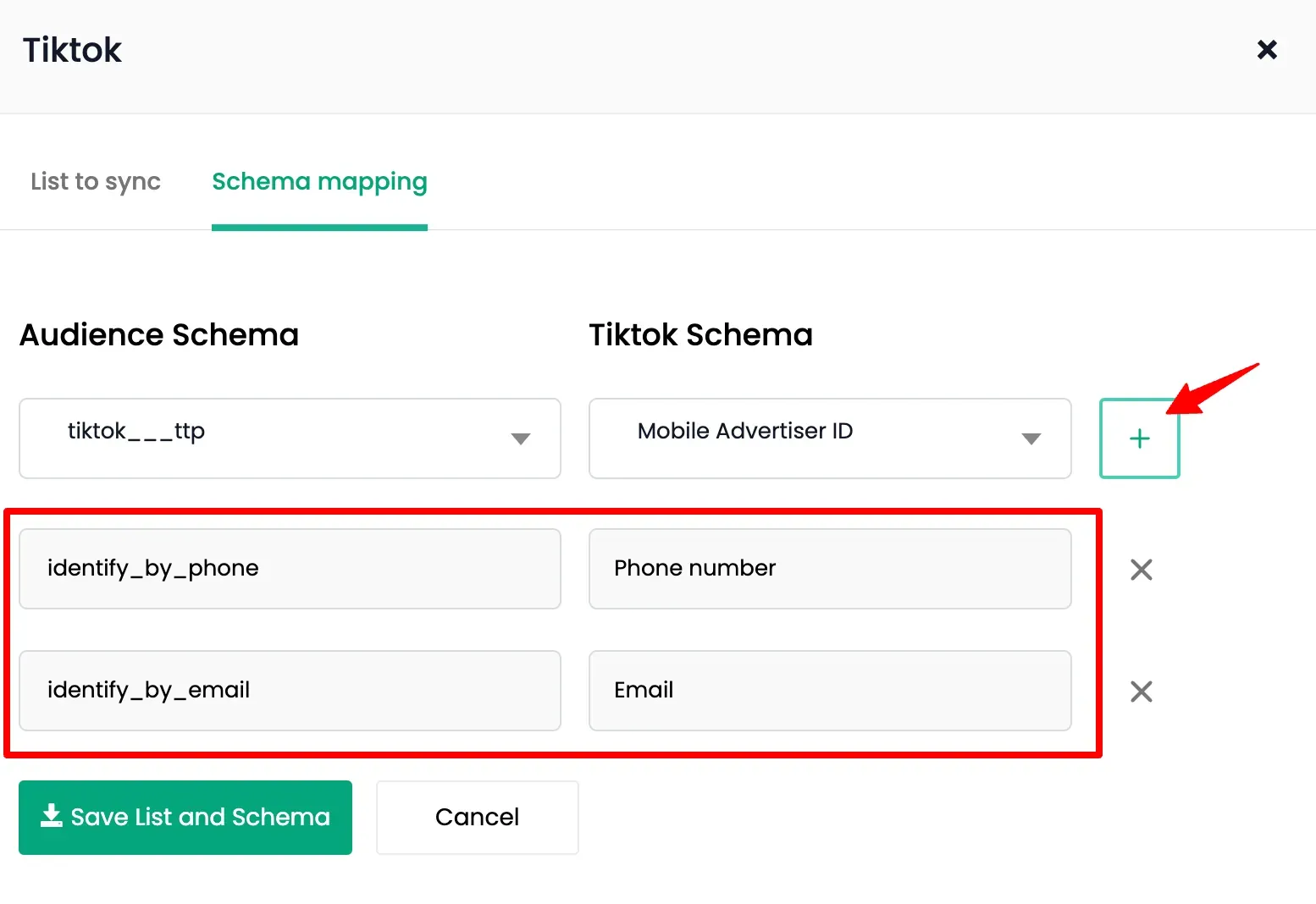
Go to the Schema Mapping tab and map your CustomerLabs schema to the TikTok schema using the + icon.
- For Single Schema: Only one schema should be mapped.
- For Multiple Schema: Any number of schema can be mapped.
- For Single Schema: Only one schema should be mapped.
-
Click Save List and Schema in Schema Mapping and List to sync tabs.
-
Turn on the Status toggle for TikTok.
-
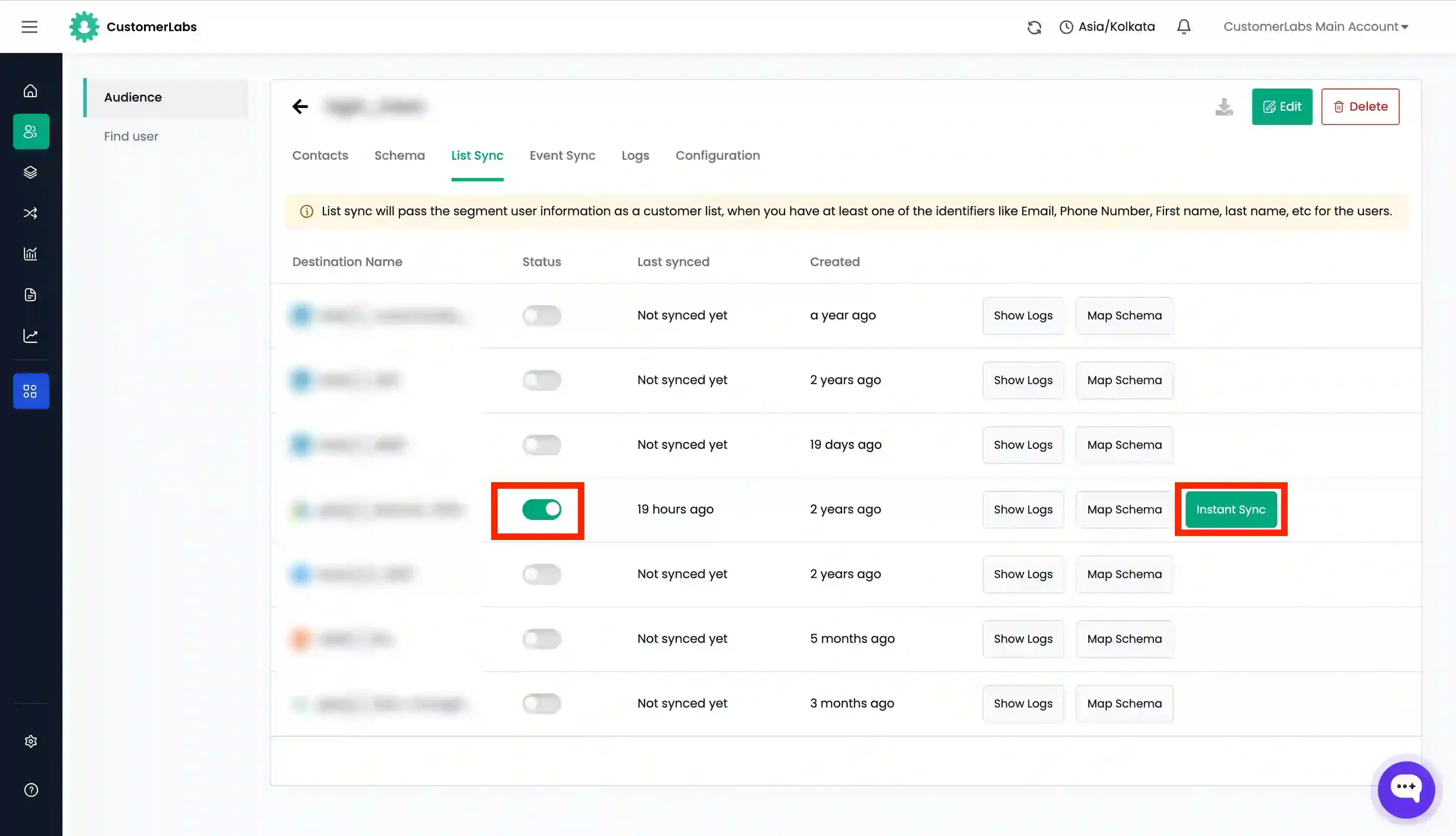
Click Instant Sync to sync immediately, or wait for the refresh interval. (Note: Once you sync, you have to wait for 30 minutes to use Instant Sync again).
-
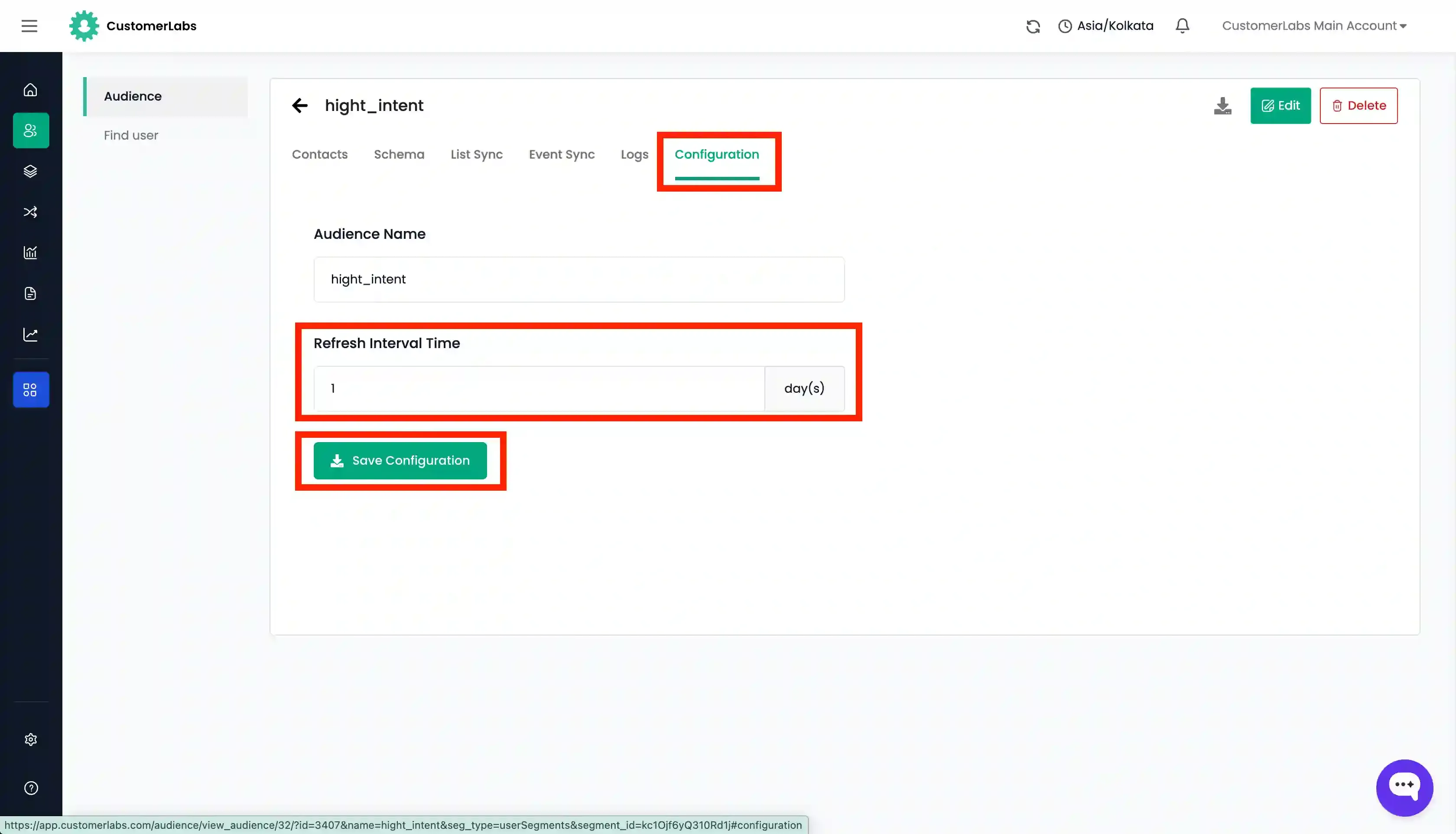
Configure the Refresh interval in the Configuration tab, if required.
Check if the audience has been created/synced
Section titled “Check if the audience has been created/synced”You can check whether the list has been synced correctly with TikTok after 10-15 minutes if you have enabled “Instant Sync” or based on the refresh interval days set for the segment.
Go to TikTok Ads Manager → Assets → Audiences → Check if the audience has been created under the same name as given in CustomerLabs or if the existing list has been updated.