
CustomerLabs + Snapchat Ads Integration
Snapchat offers marketers a high-engagement platform with diverse audiences across video and social content. With the CustomerLabs + Snapchat integration, you can sync first-party audience segments and send server-side conversion events to Snapchat via the Conversions API — enabling more accurate attribution and personalized retargeting campaigns.
Prerequisites
Section titled “Prerequisites”- An active CustomerLabs account
- A Snapchat Business Manager account with an active Ad Account
- A Snap Pixel created within your Snapchat Ad Account
- A Conversions API (CAPI) token generated from your Snapchat Business Dashboard
Authentication
Section titled “Authentication”Step 1: Enable Snapchat as a Destination
Section titled “Step 1: Enable Snapchat as a Destination”-
Log in to your CustomerLabs account.
-
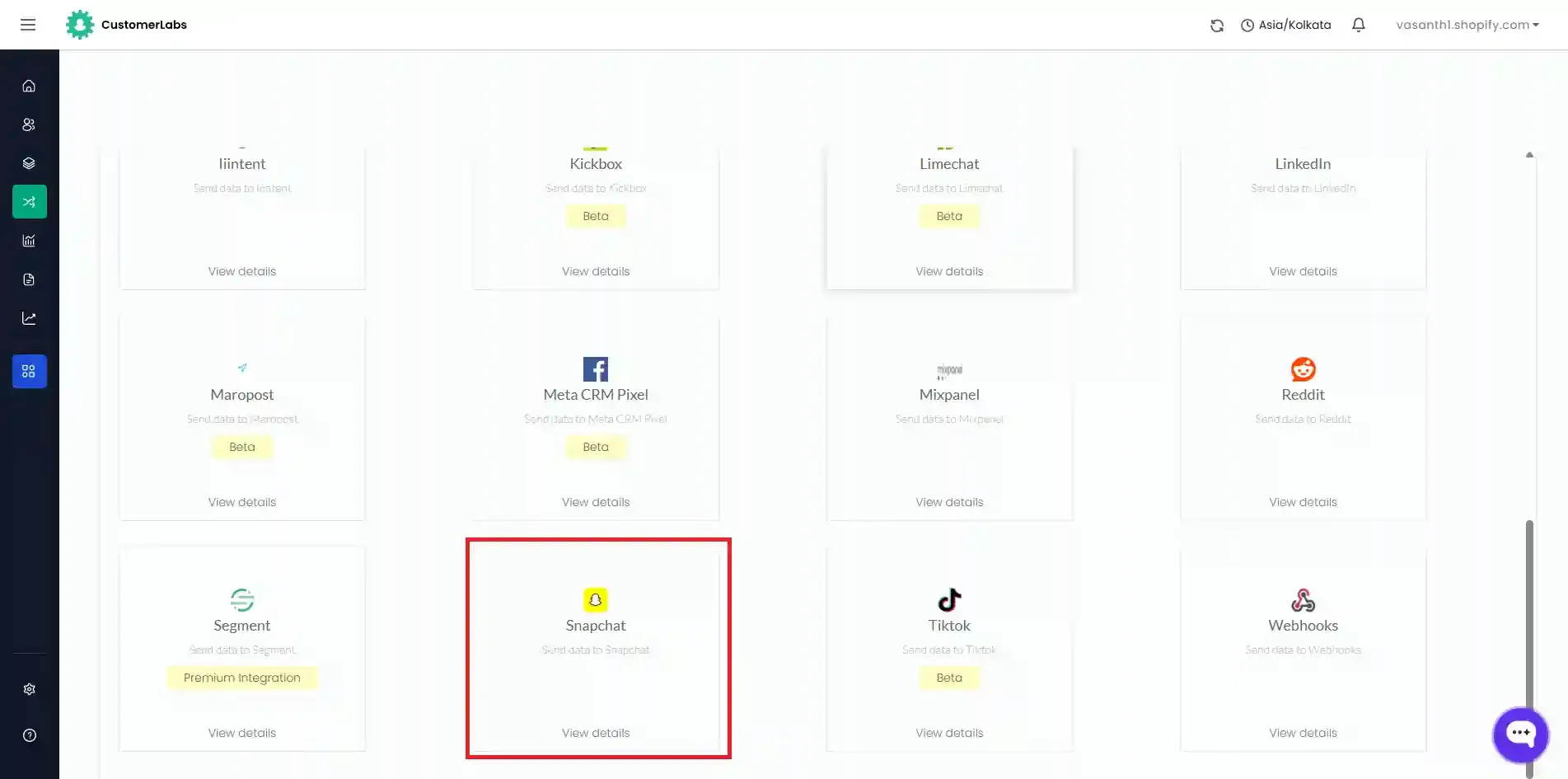
Navigate to Destinations → All Destinations → Snapchat.
-
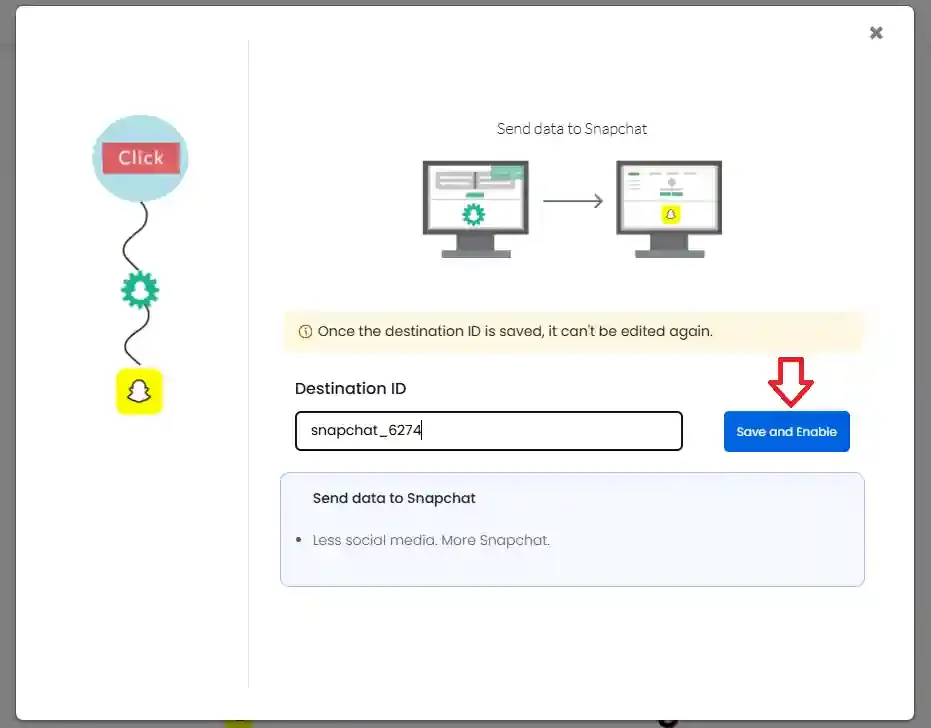
Rename the destination if required, then click Save and Enable.
Step 2: Authenticate Your Snapchat Account
Section titled “Step 2: Authenticate Your Snapchat Account”-
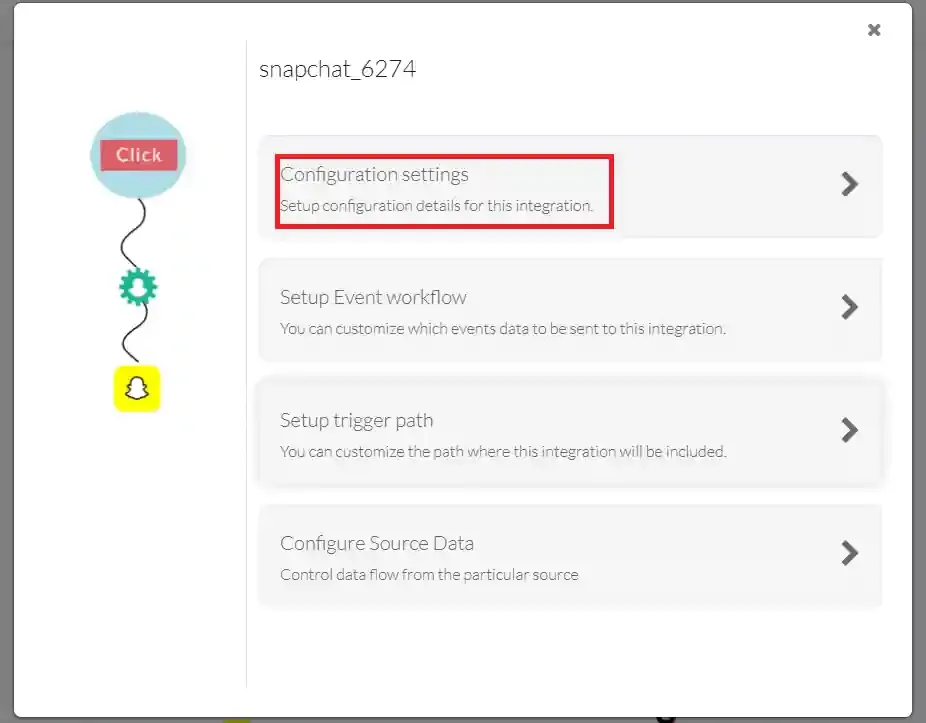
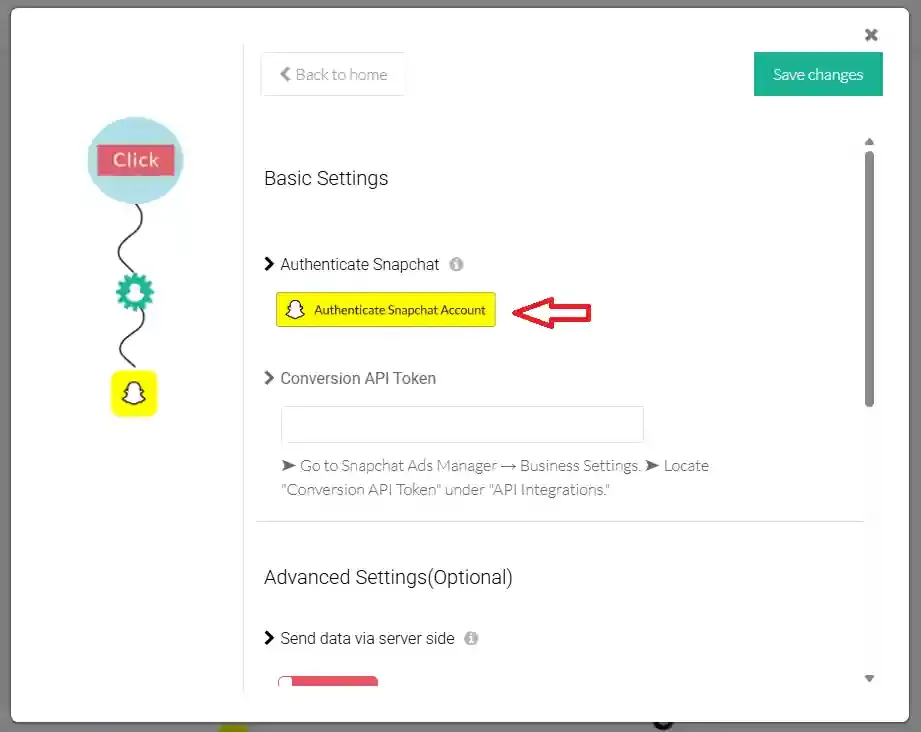
Go to Configuration Settings and click Authenticate Snapchat.
-
You will be redirected to the Snapchat login page. Enter your credentials and click Continue.
-
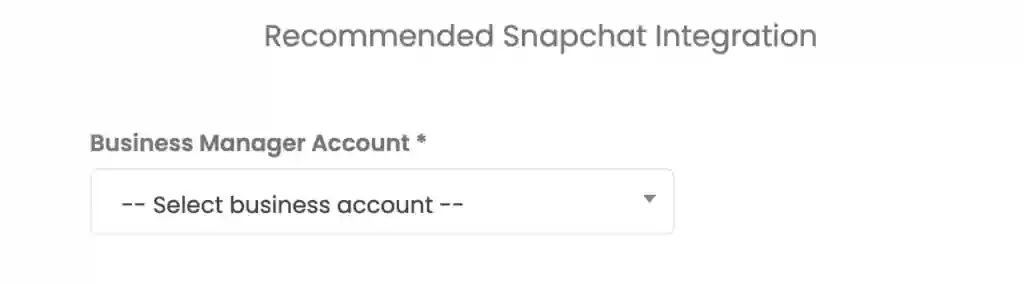
Select the Business Manager account you want to connect.
-
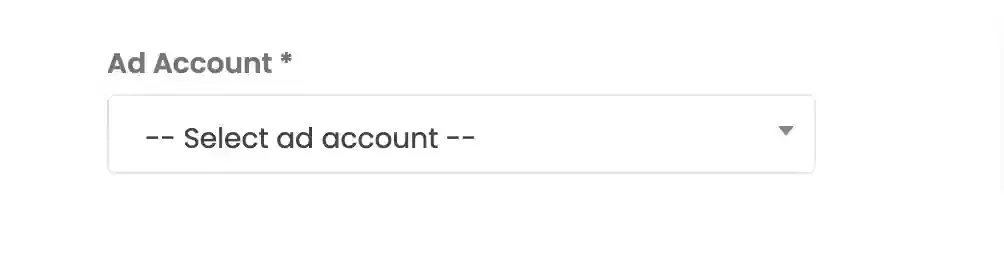
Select the Ad Account from the dropdown.
-
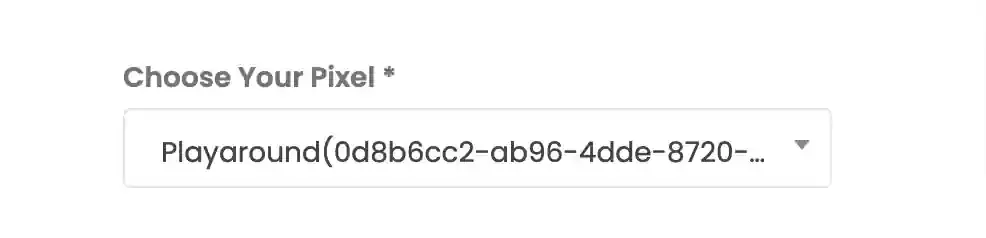
Choose the Snap Pixel you want to associate with this integration.
-
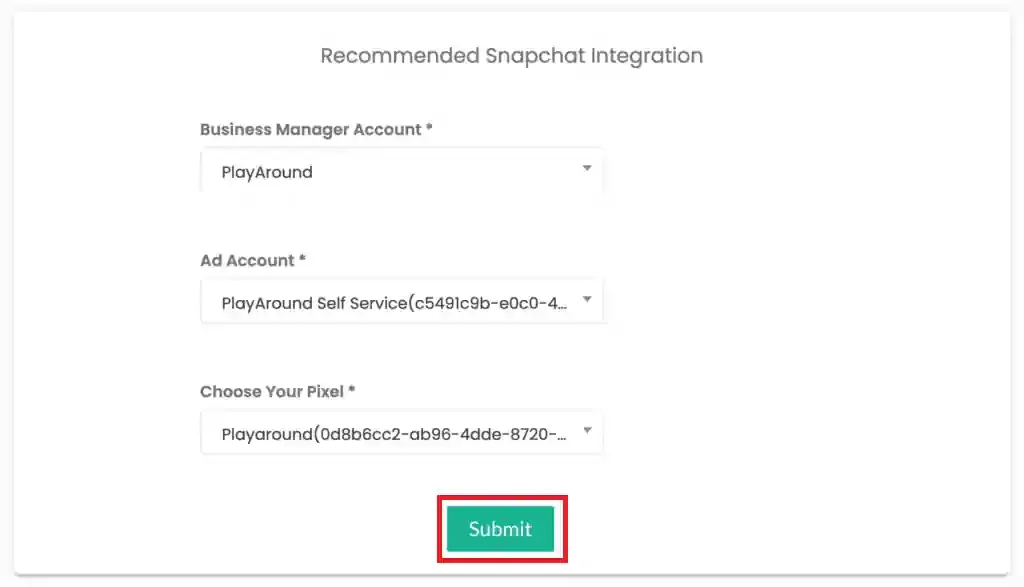
Click Submit.
Configuring the Conversions API Token
Section titled “Configuring the Conversions API Token”To enable server-side event tracking, generate a Conversions API (CAPI) token from Snapchat and add it to CustomerLabs.
Step 1: Generate the CAPI Token in Snapchat
Section titled “Step 1: Generate the CAPI Token in Snapchat”-
Log in to your Snapchat account.
-
Click the Business dropdown in the top-left corner and select Business Dashboard.
-
Scroll down to the Conversion API Tokens section and click Generate CAPI Token.
-
Copy the generated token.
Step 2: Add the Token in CustomerLabs
Section titled “Step 2: Add the Token in CustomerLabs”-
In CustomerLabs, go to Destinations → Snapchat → Configuration Settings.
-
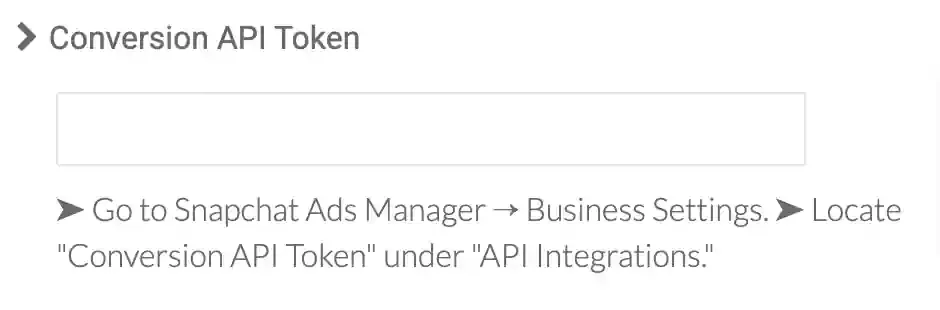
Paste the CAPI token in the Conversion API Token field.
-
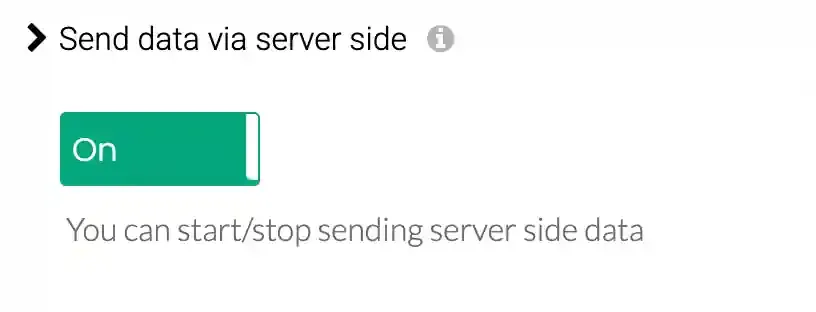
Toggle on Send data via Server-side.
-
Click Save Changes.
Setup Event Workflow
Section titled “Setup Event Workflow”After authentication and CAPI configuration, set up the event workflow to send conversion events and sync audiences to Snapchat.
-
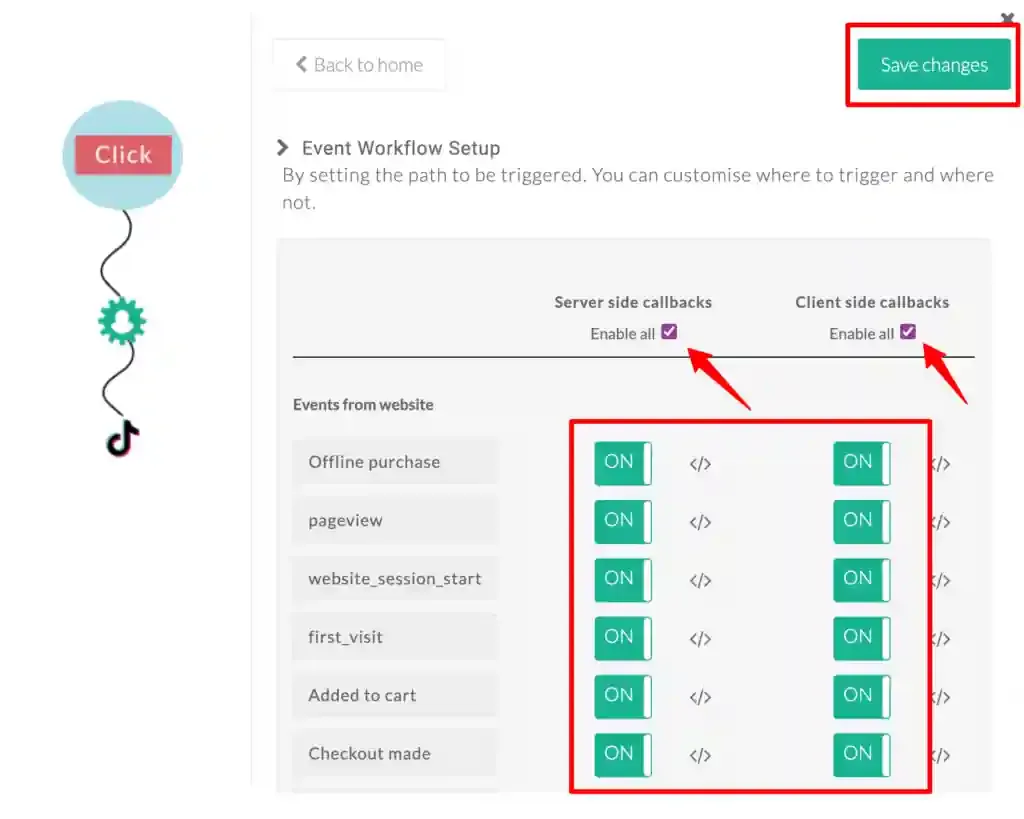
Go to Destinations → Snapchat → Setup Event Workflow.
-
You will see a list of events with Server-side and Client-side toggles. Enable the relevant toggles based on your tracking requirements.
Delivery Method Description Server-side Events sent from the CustomerLabs server to Snapchat via the Conversions API Client-side Events sent from the user’s browser via the Snap Pixel -
To sync audience segments to Snapchat, ensure the
added_to_segmentevent is enabled.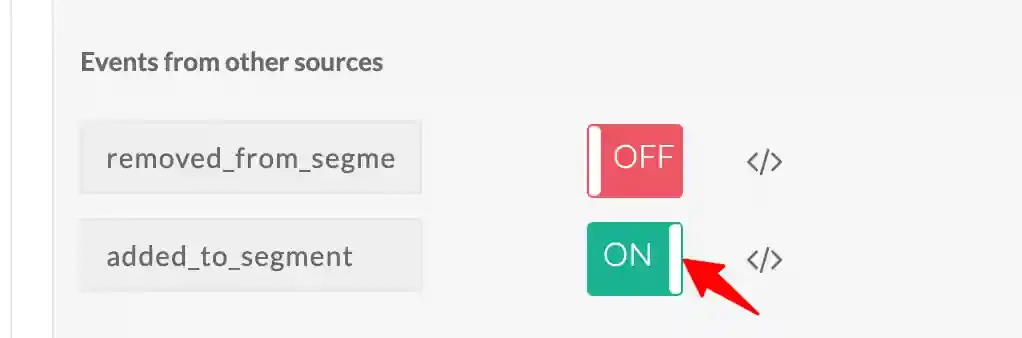
-
Click Save Changes.
Syncing Audiences
Section titled “Syncing Audiences”Once the added_to_segment event is enabled in the event workflow, audience segments created in CustomerLabs will automatically sync to your Snapchat Ads Manager for use in retargeting campaigns.
To set up audience segments in CustomerLabs, refer to the Creating an Audience guide.
Verifying Events in Snapchat
Section titled “Verifying Events in Snapchat”To confirm that events are being received in Snapchat:
- Log in to your Snapchat Ads Manager.
- Navigate to Assets → Events Manager.
- Check for incoming events associated with your Snap Pixel.