
Deleting a User Profile
CustomerLabs supports permanent deletion of user profiles to comply with GDPR right-to-erasure requests and similar privacy regulations. Deletion can be initiated via the CustomerLabs dashboard or through the API.
Users can be identified for deletion using any of the following:
- CustomerLabs User ID
- Email address
- Phone number
- Facebook
fbp - Google Analytics Client ID
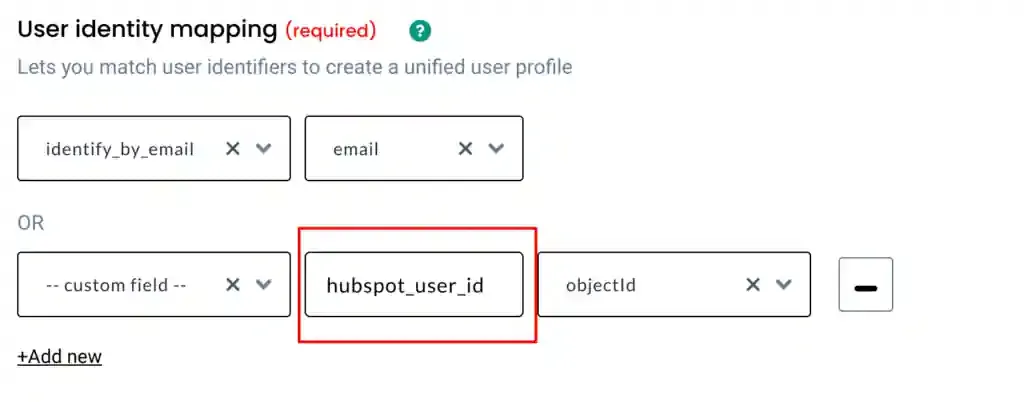
- Any external ID configured in your source (e.g., HubSpot ID, Intercom Visitor ID)
Method 1 — Delete via CustomerLabs Dashboard
Section titled “Method 1 — Delete via CustomerLabs Dashboard”Find the User
Section titled “Find the User”-
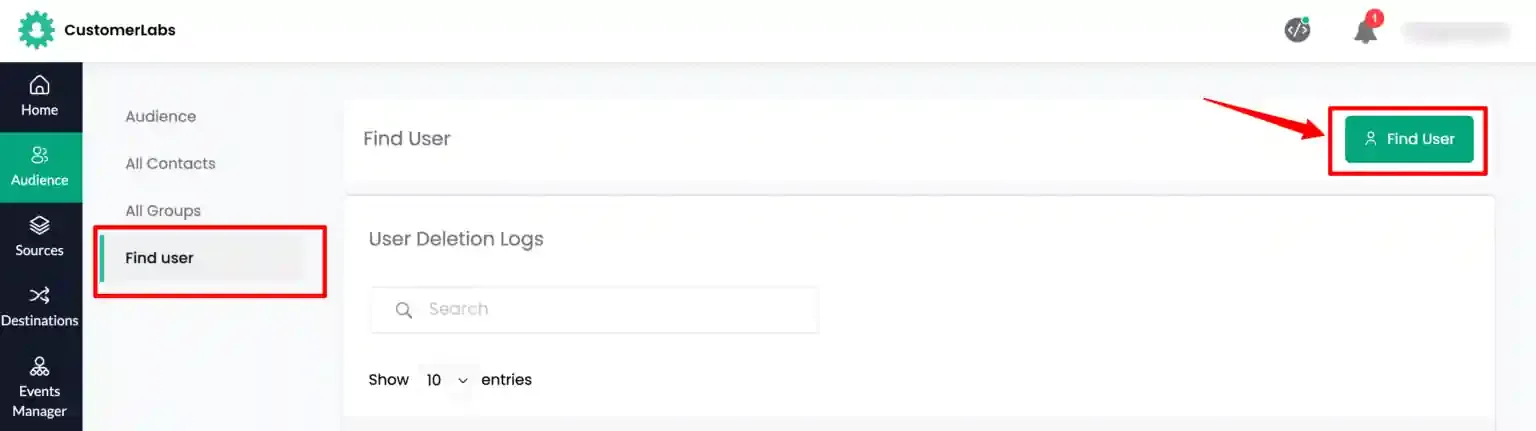
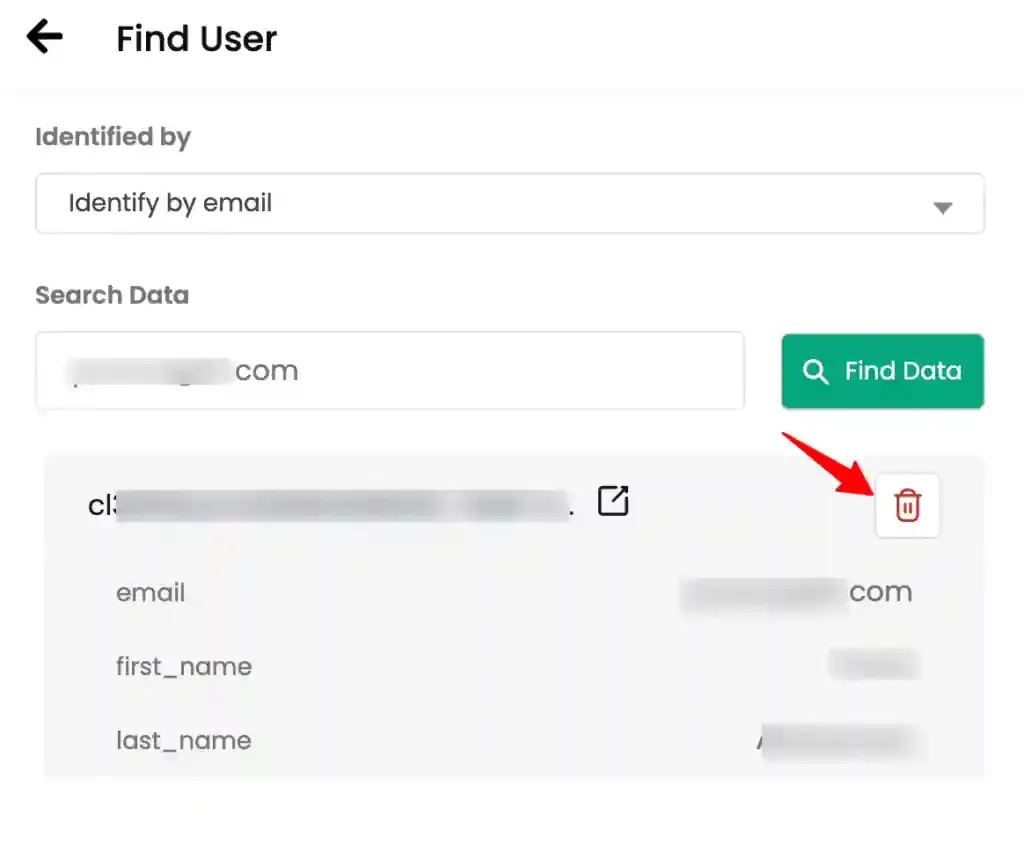
Navigate to Audience → Find User and click Find User.
-
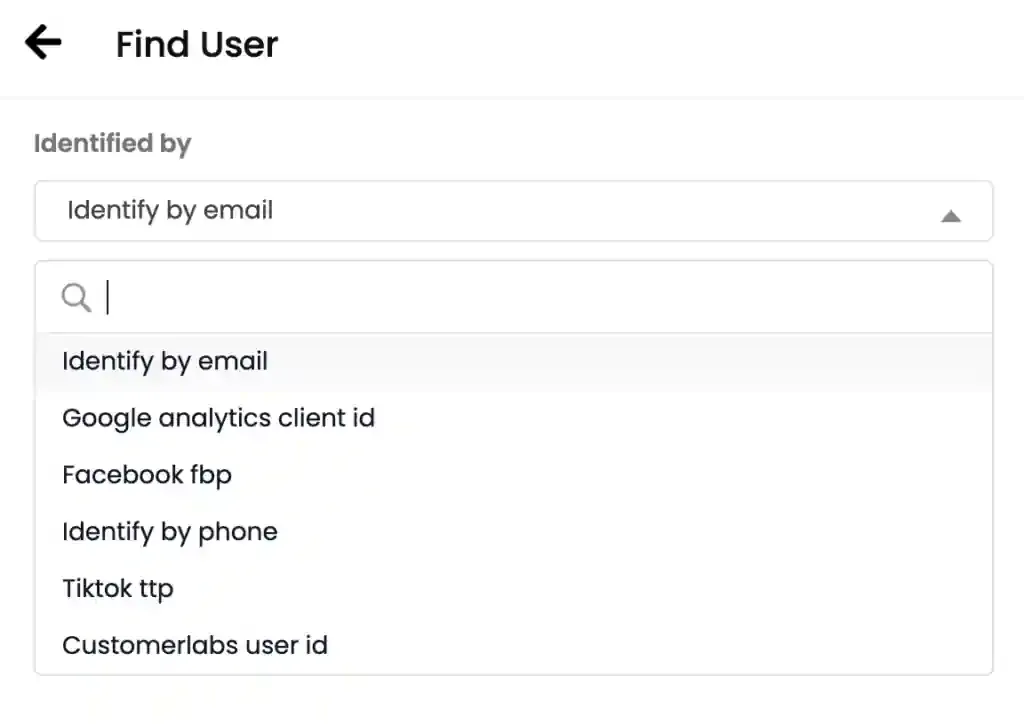
Select the identifying key from the dropdown (e.g., email, phone, CustomerLabs User ID).
-
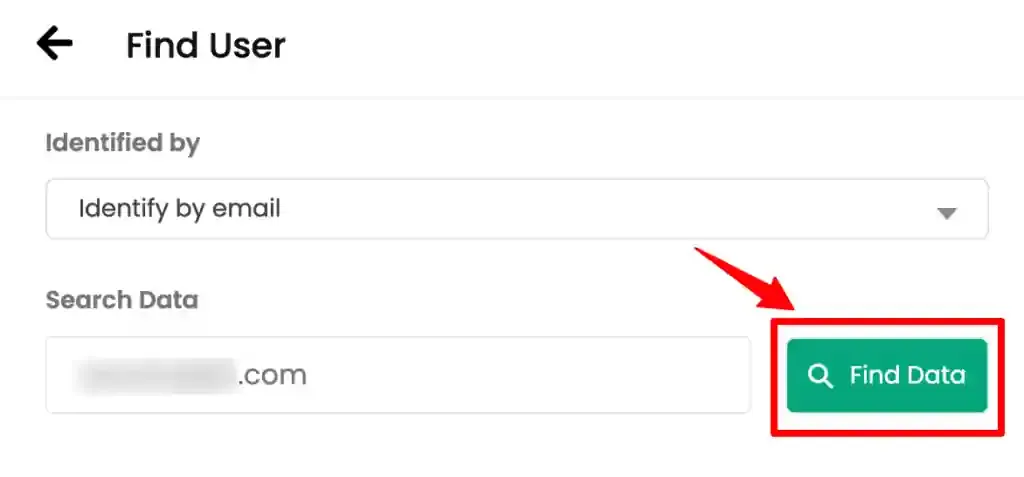
Enter the corresponding value and click Find Data.
Initiate Deletion
Section titled “Initiate Deletion”-
Once the user profile is returned, click the delete icon on the profile.
-
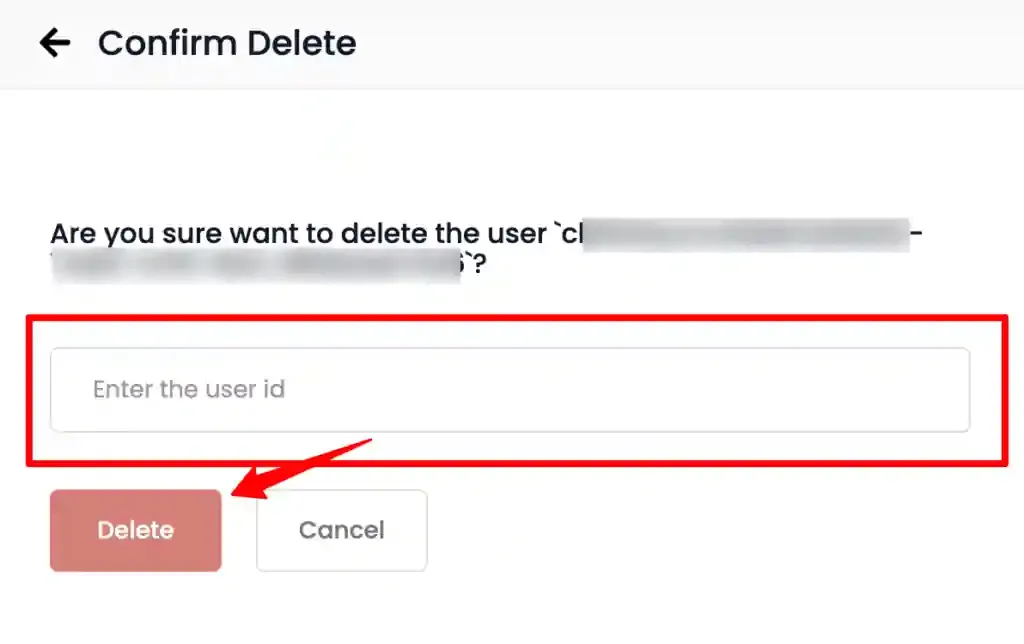
Copy the displayed User ID, paste it into the confirmation field, and confirm the deletion request.
Monitor Deletion Status
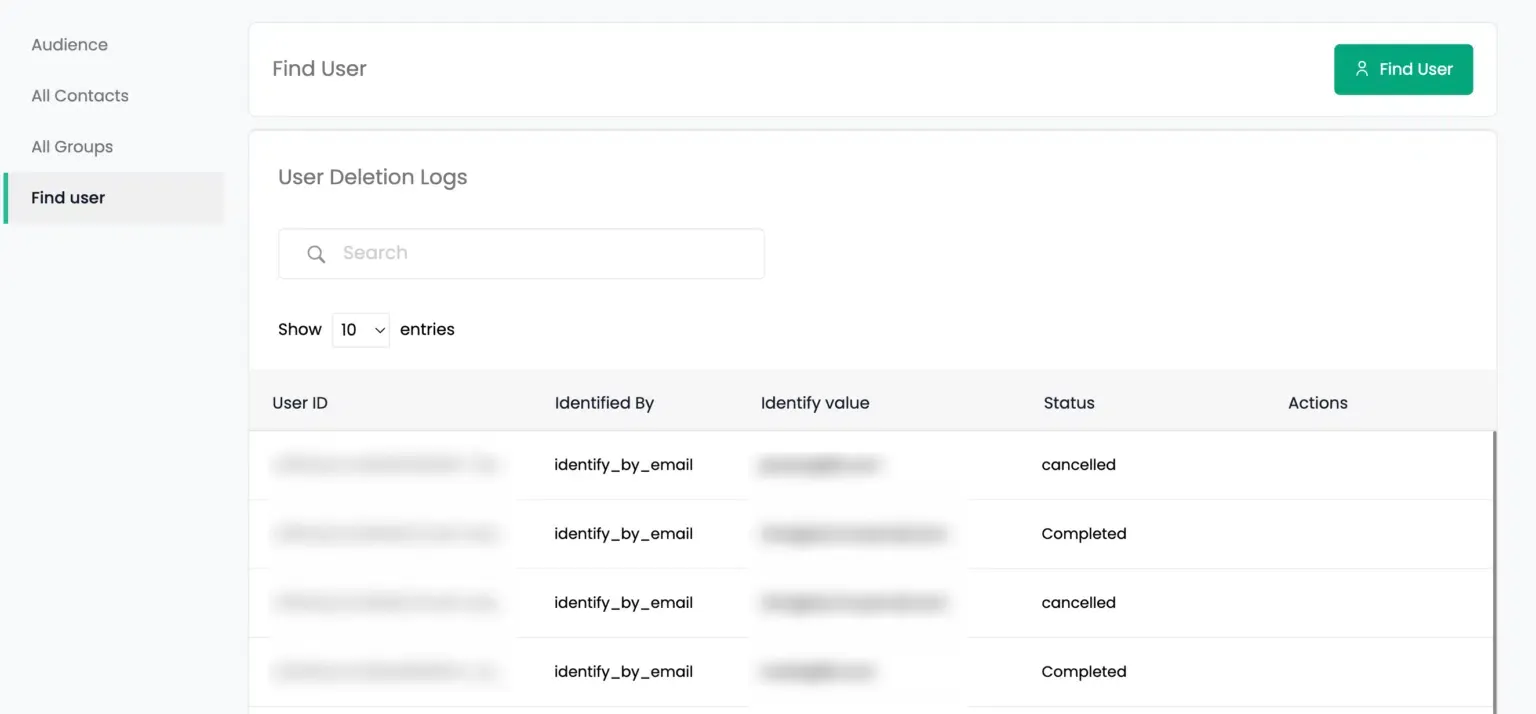
Section titled “Monitor Deletion Status”Track the status of deletion requests under Audience → Find User → User Deletion Logs.
Cancel a Deletion Request
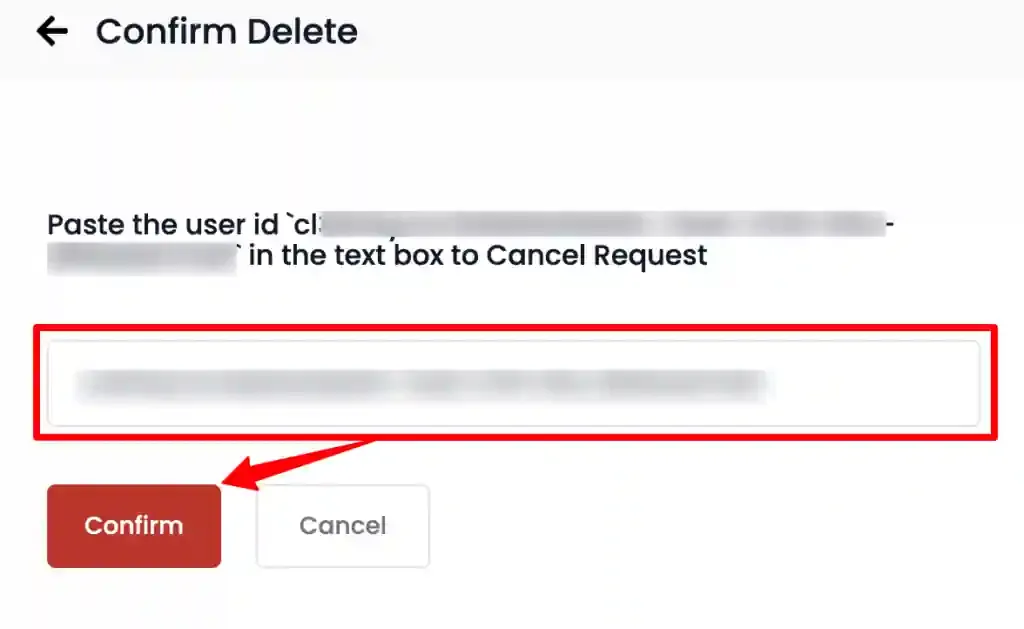
Section titled “Cancel a Deletion Request”Deletion requests can be cancelled within 24 hours of submission. Navigate to Audience → Delete User, locate the relevant entry, and click Cancel Request. Paste the User ID into the confirmation field and confirm.
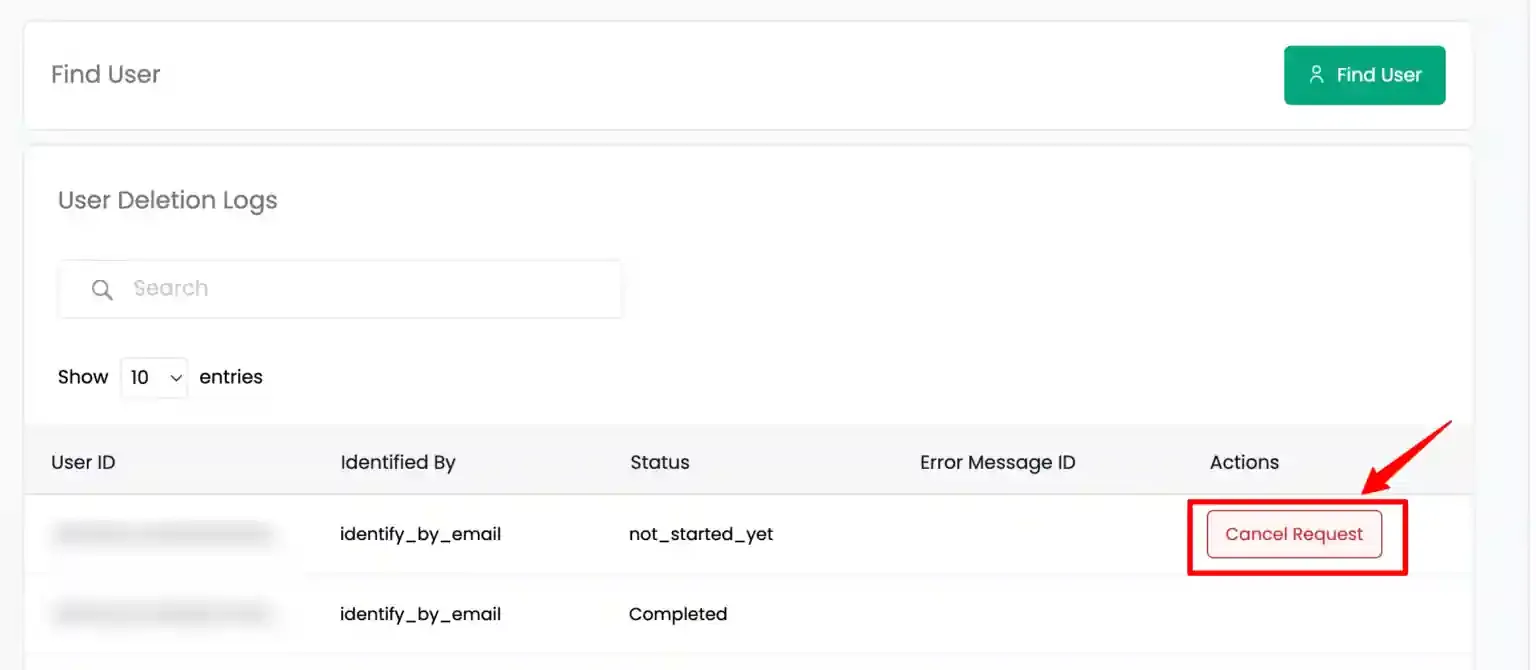
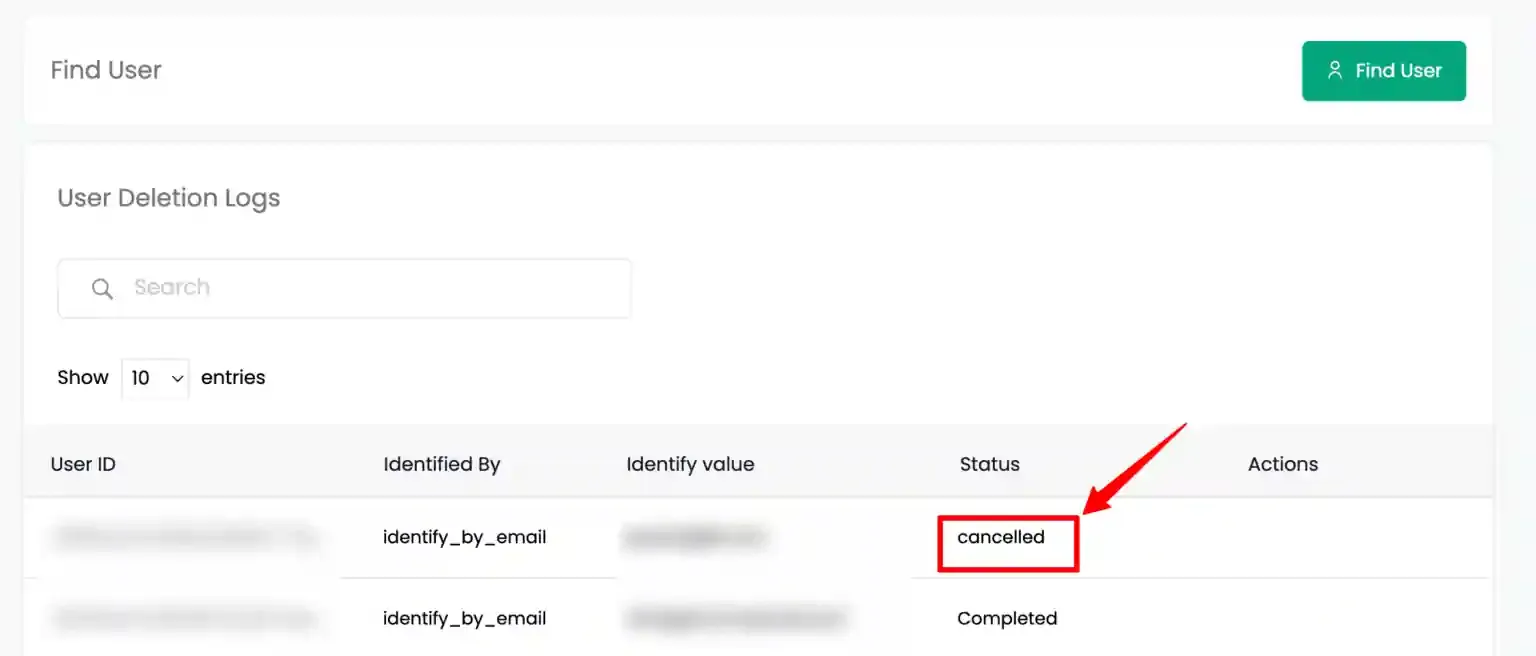
The status will update to Cancelled in the deletion logs.
Method 2 — Delete via API
Section titled “Method 2 — Delete via API”Generate an API Key
Section titled “Generate an API Key”-
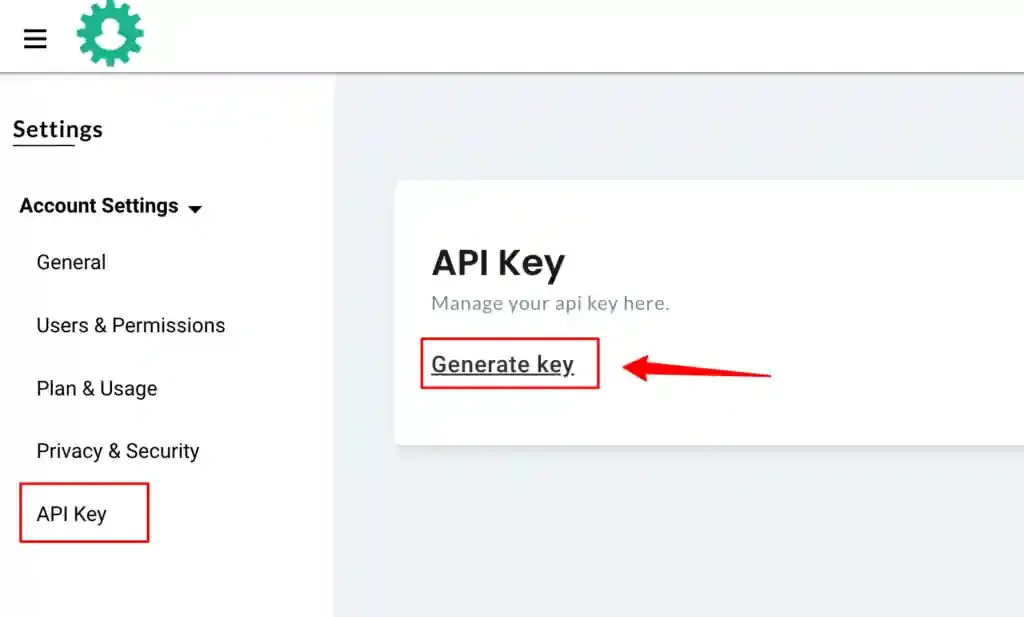
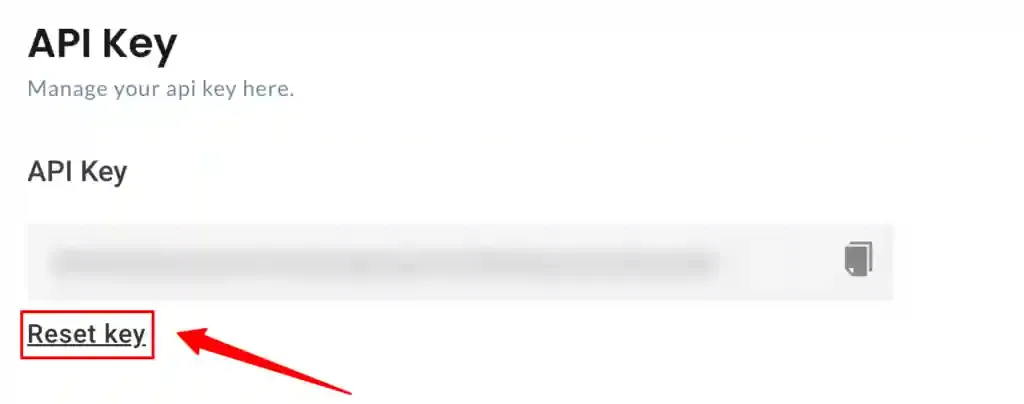
Navigate to Settings → API Key and click Generate Key.
-
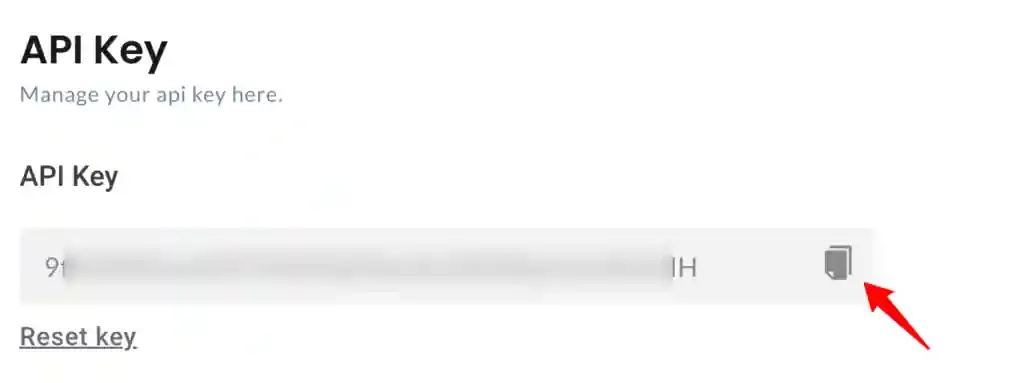
Copy and securely store the generated API key.
Delete a User
Section titled “Delete a User”Send a POST request to the deletion endpoint with the user’s identifying key and value.
Endpoint: https://api.customerlabs.co/user-deletion/
curl --location 'https://api.customerlabs.co/user-deletion/' \--header 'X-API-Key: YOUR_API_KEY' \--header 'Content-Type: application/json' \--data '{ "identify_by_key": "email", "identify_by_value": "user@example.com"}'Success response:
{ "success": true, "message": "User Deletion has been added to queue"}Cancel a Deletion Request
Section titled “Cancel a Deletion Request”Send a POST request to the cancel endpoint within 24 hours of the original deletion request.
Endpoint: https://api.customerlabs.co/user-deletion/cancel-request/
curl --location 'https://api.customerlabs.co/user-deletion/cancel-request/' \--header 'X-API-Key: YOUR_API_KEY' \--header 'Content-Type: application/json' \--data '{ "identify_by_key": "email", "identify_by_value": "user@example.com"}'Success response:
{ "success": true, "message": "User deletion request has been cancelled"}Error Responses
Section titled “Error Responses”| HTTP Status | Response | Cause |
|---|---|---|
403 | {"message": "Forbidden"} | Invalid or missing API key |
200 | {"success": false, "message": "No delete record found for this query"} | No matching user found for the given identifier |