
Jotform + Customerlabs 1PD Ops Integration
Jotform is a form builder used for lead capture on websites. When Jotform submissions are forwarded to ad platforms such as Meta, low event match quality — typically below a score of 4 or 5 — degrades campaign attribution accuracy.
This integration resolves that by injecting the CustomerLabs UID (cluid) as a hidden field in the Jotform submission payload. The cluid links the server-side form submission back to the originating browser session, enabling accurate event unification within Customerlabs 1PD Ops.
Prerequisites
Section titled “Prerequisites”- Jotform Admin Access
- Active CustomerLabs Account
Jotform Configuration
Section titled “Jotform Configuration”Access the Target Form
Section titled “Access the Target Form”Log in to Jotform with an account that has admin access to publish forms. Open the live form that requires browser-side event tracking.
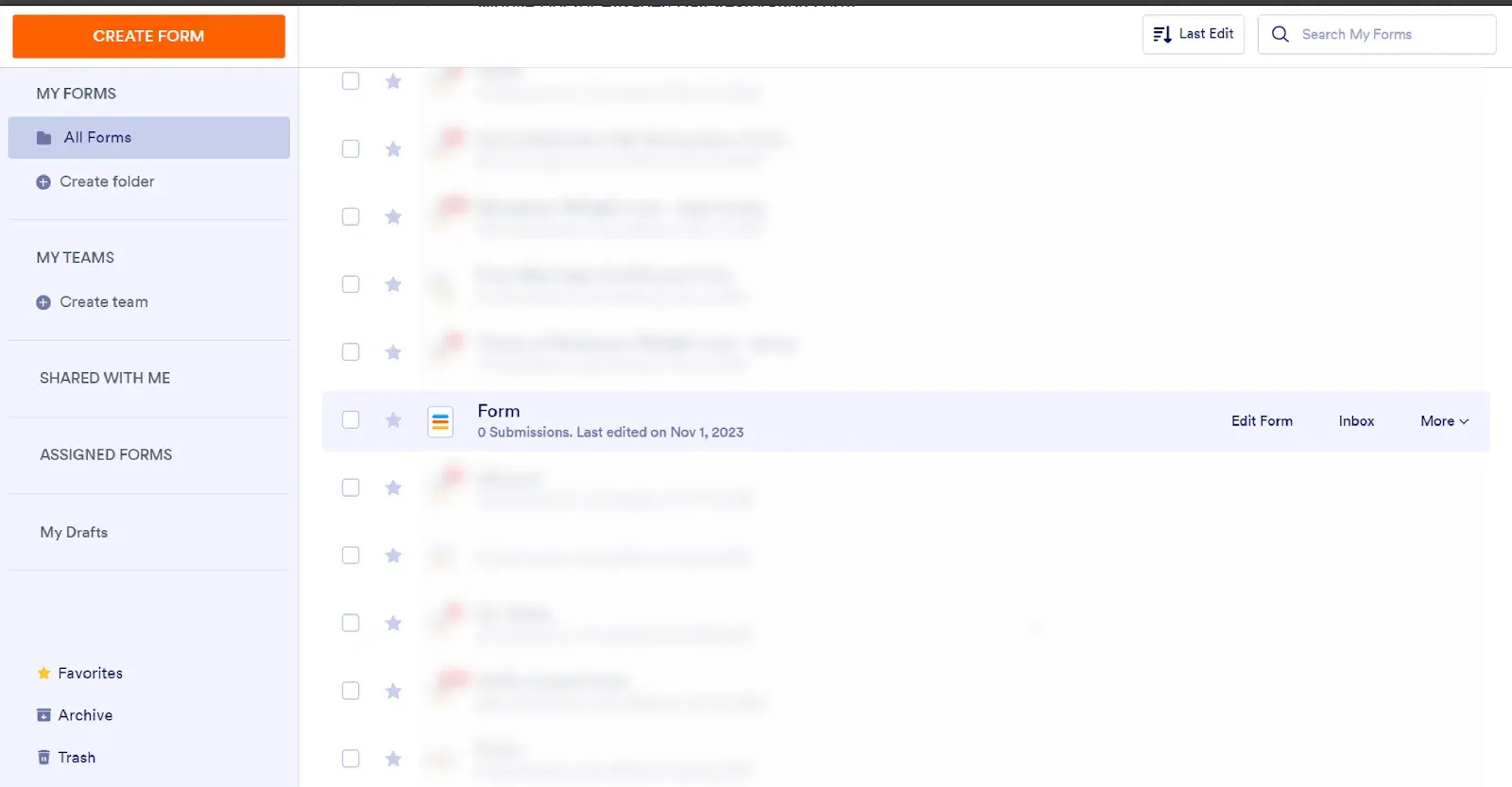
Add a Form Element
Section titled “Add a Form Element”In the form editor, click Add Form Elements to open the element panel.
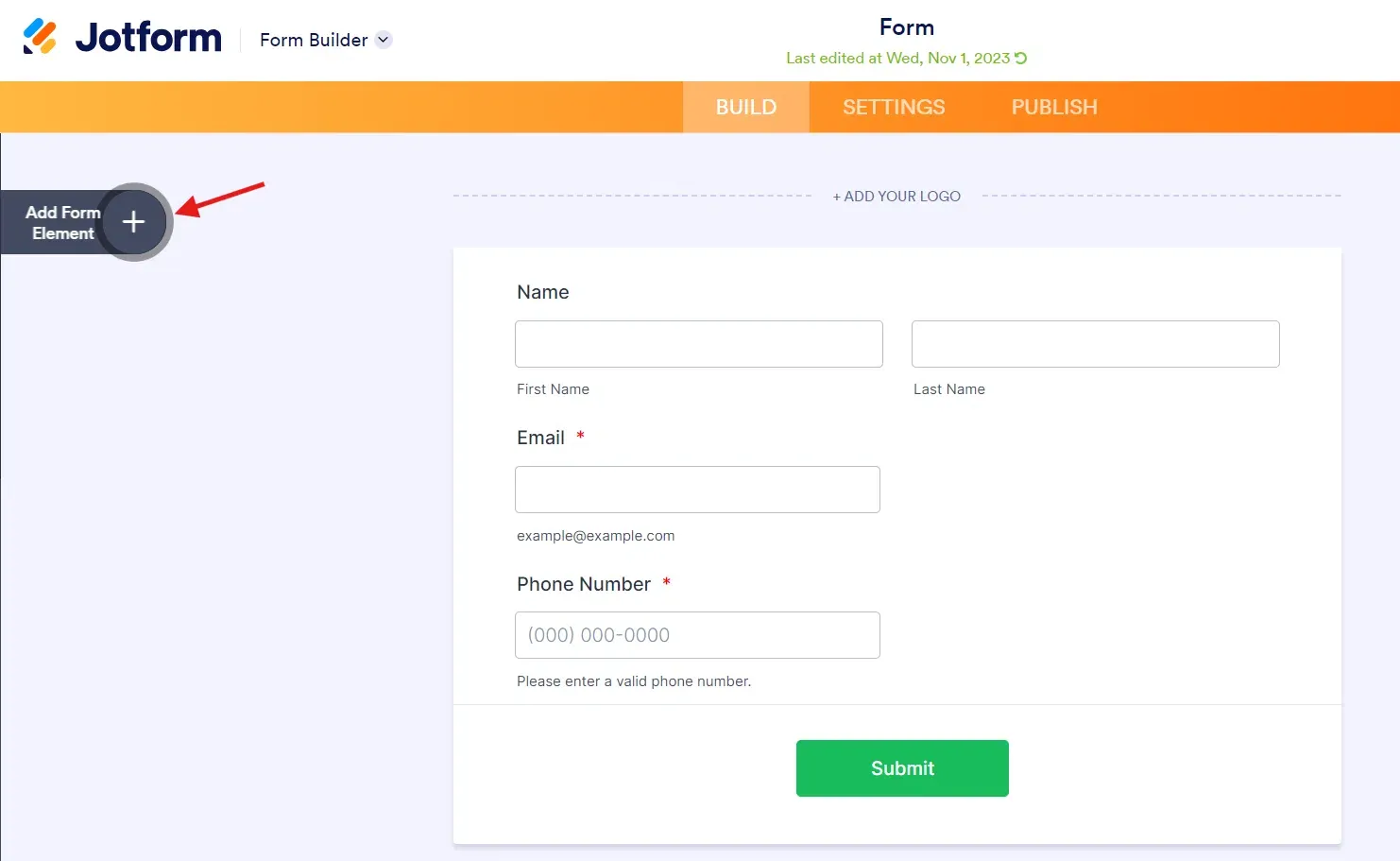
Select the Short Text Element
Section titled “Select the Short Text Element”From the list of basic elements, select Short Text to add a new text input field to the form.
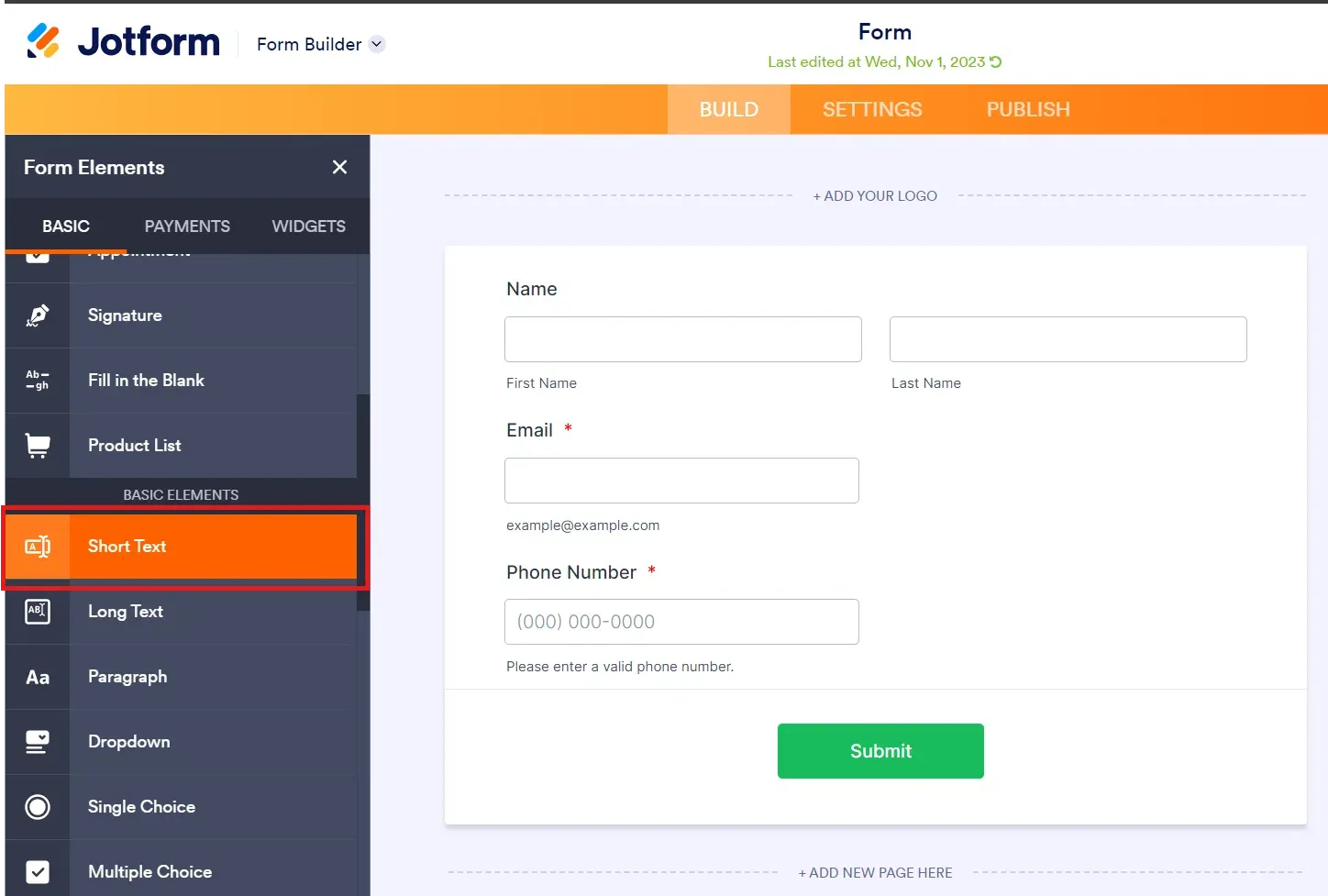
Insert the Short Text Field
Section titled “Insert the Short Text Field”Clicking the Short Text element adds an empty input field to the form.
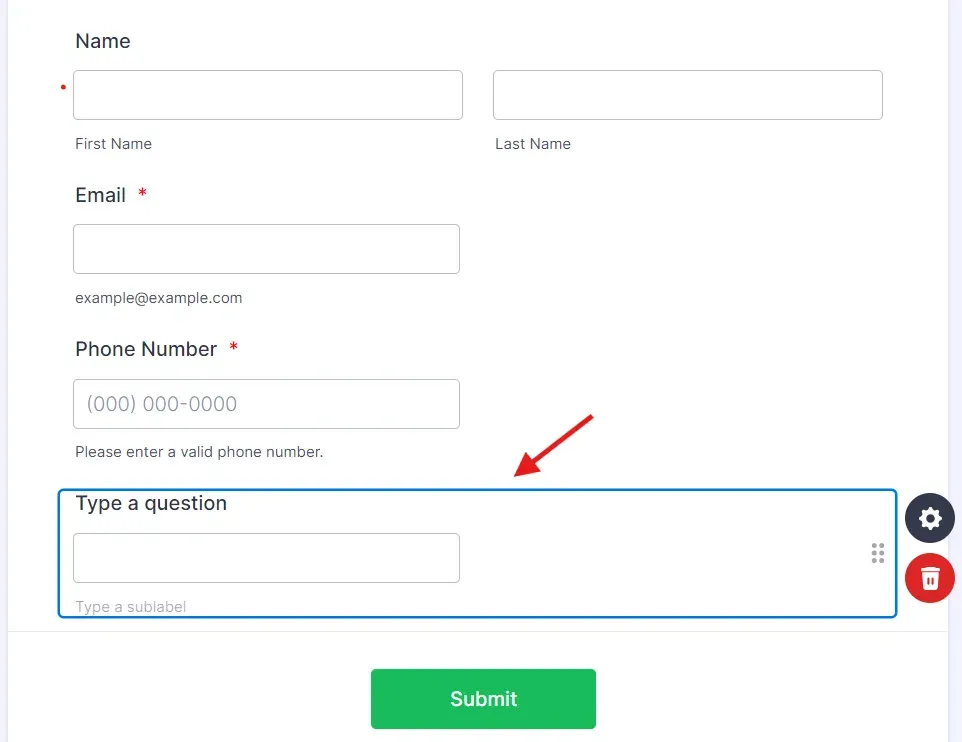
Configure the Field Label
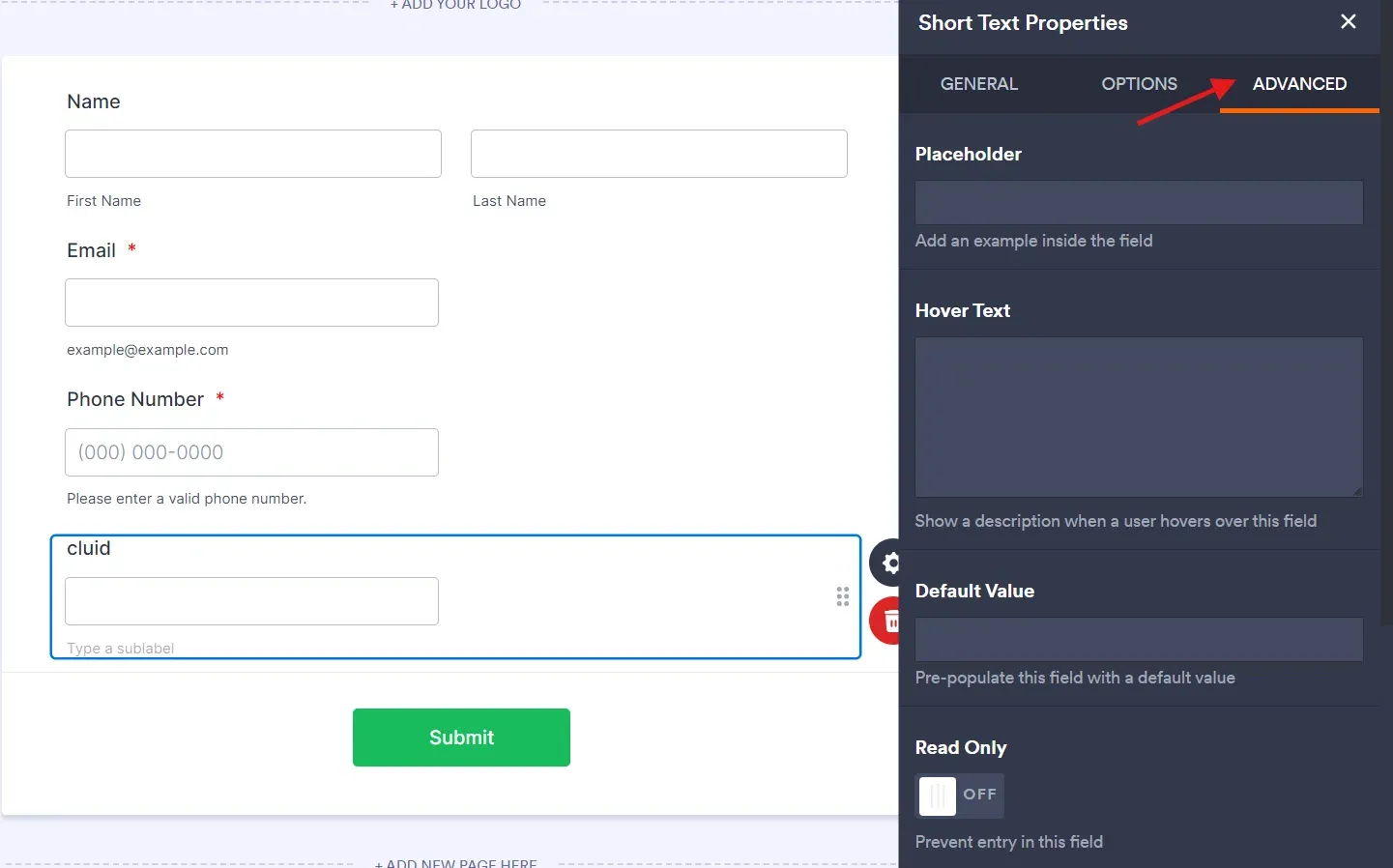
Section titled “Configure the Field Label”In the Type your question field, enter cluid as the field label. Click the gear icon on the left to open the field properties panel.
Set the Field Visibility to Hidden
Section titled “Set the Field Visibility to Hidden”Navigate to the Advanced tab in the field properties panel and set the field visibility to Hidden. This ensures the cluid value is captured in the form submission without being visible to the end user.
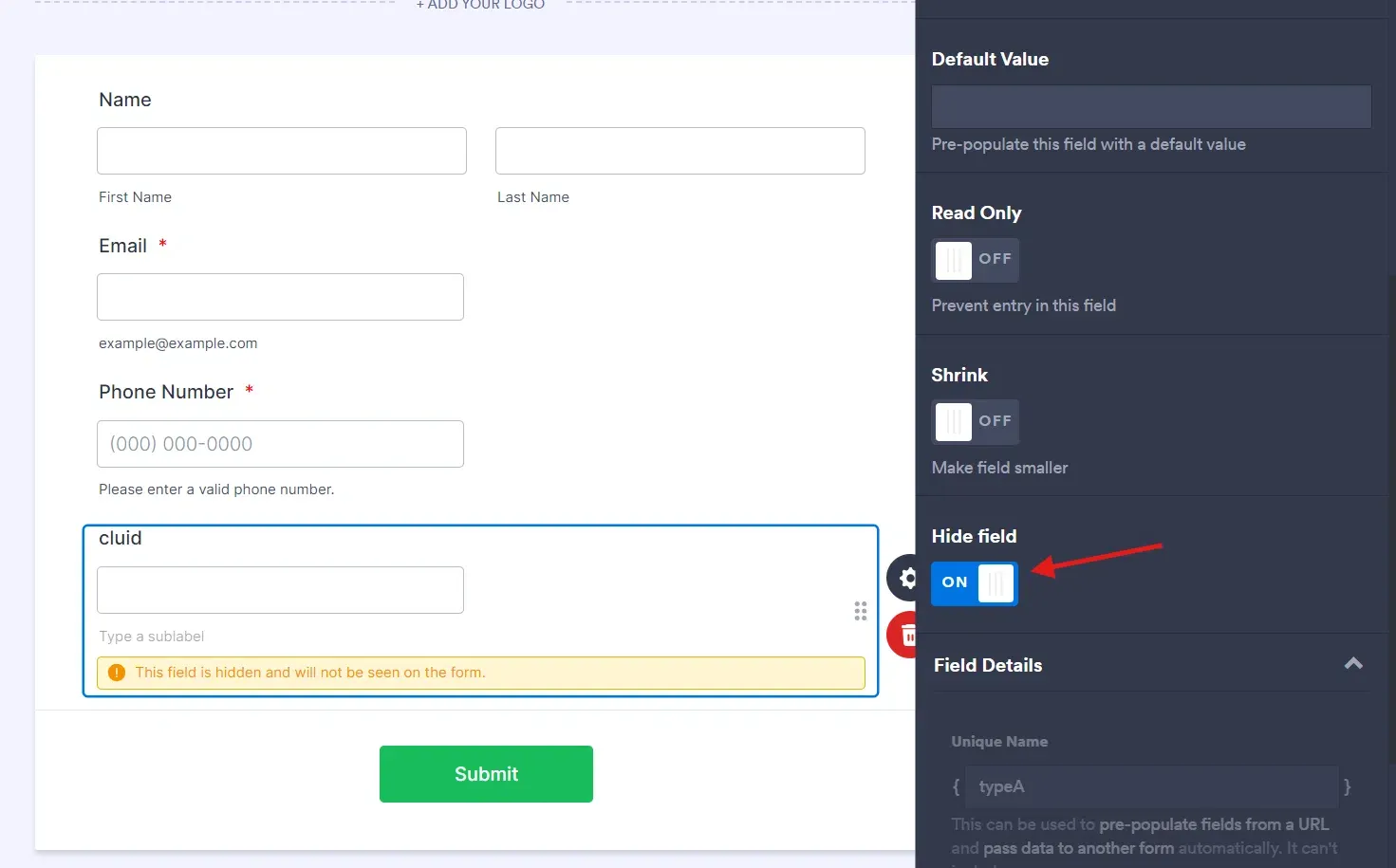
The hidden field is now active on the live form and ready to receive the cluid value at submission time.
CustomerLabs Custom Destination Configuration
Section titled “CustomerLabs Custom Destination Configuration”Create a Custom Destination
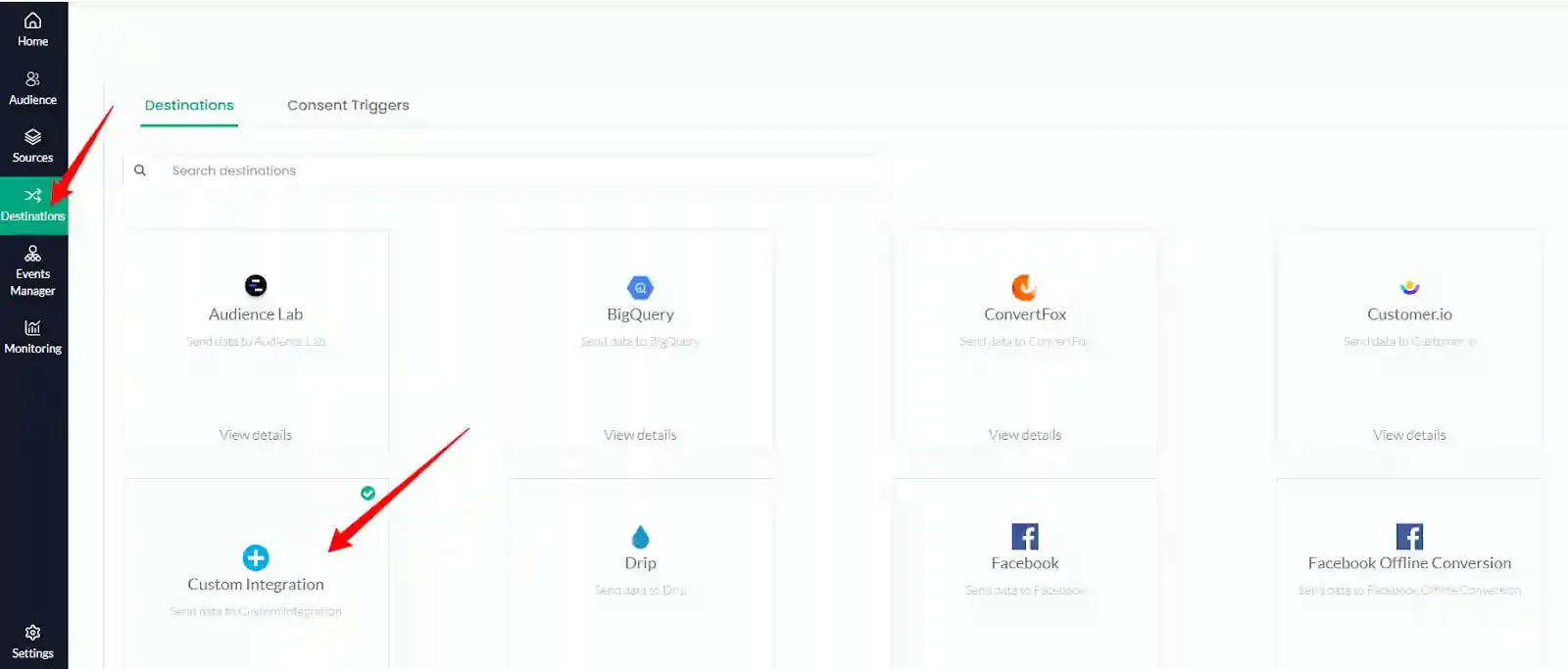
Section titled “Create a Custom Destination”In CustomerLabs, navigate to Destinations, search for Custom Integration, and click View Details.
Name the Integration and Add the Script
Section titled “Name the Integration and Add the Script”Provide a name for the integration and paste the following script into the code editor.
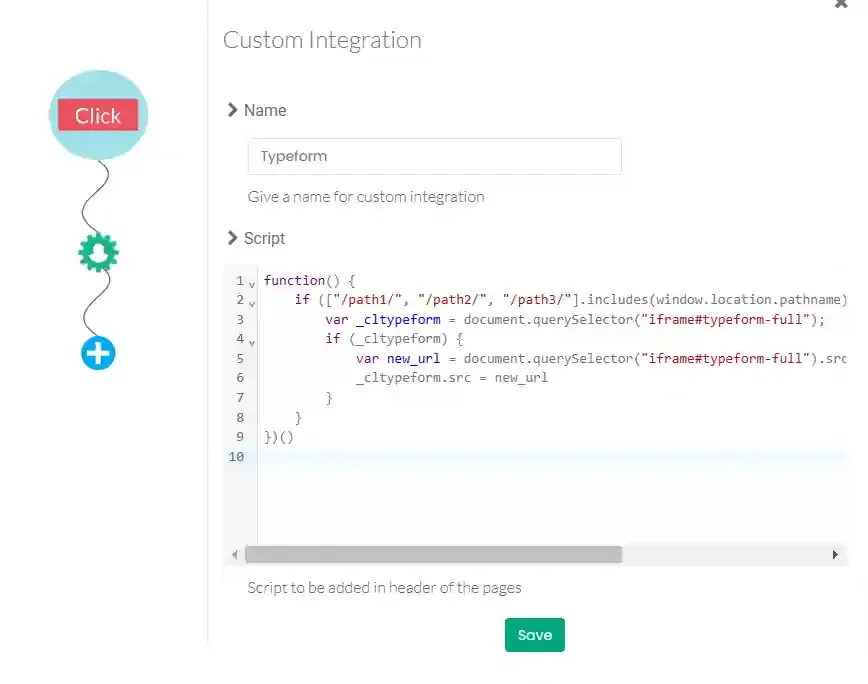
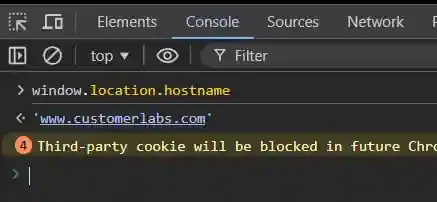
(function() { if (["/", "/industry/ecommerce"].includes(window.location.pathname) && window.location.host == "customerlabs.com") { var cluid = window.CLabsgbVar.generalProps.uid; var queryParams = new URLSearchParams(window.location.search); if (!queryParams.has('cluid')) { queryParams.append('cluid', cluid); window.location.search = queryParams.toString(); } }})()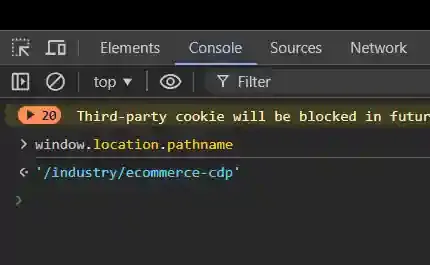
Verifying the Integration
Section titled “Verifying the Integration”Submit a test entry through the live form. Open the Jotform Contacts panel and confirm that the cluid value has been captured in the hidden field.
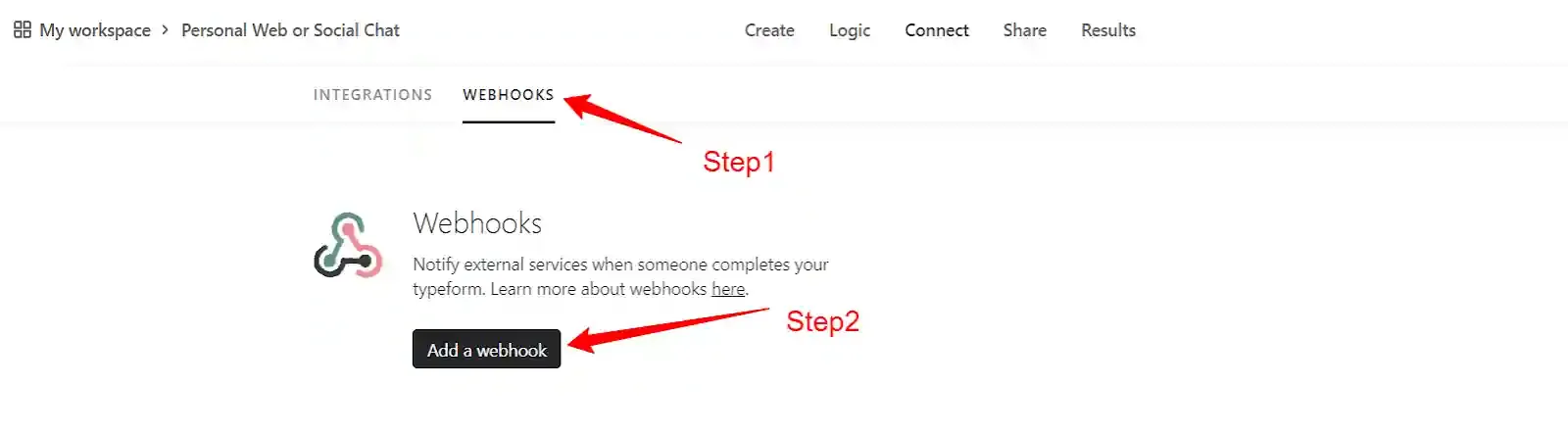
Once the cluid is confirmed in the contact record, the Jotform-side configuration is complete. Proceed to configure the webhook source in Customerlabs 1PD Ops.
Configuring a Custom Source in Customerlabs 1PD Ops
Section titled “Configuring a Custom Source in Customerlabs 1PD Ops”What is a Source?
Section titled “What is a Source?”A Source in Customerlabs 1PD Ops is a connected platform that forwards event data via webhooks. Connecting Jotform as a source enables CustomerLabs to receive form submission payloads, enrich existing user profiles, and construct a unified customer record.
Customerlabs 1PD Ops supports server-side and cloud app sources.
Accessing Sources
Section titled “Accessing Sources”Navigate to the Sources section from the Customerlabs 1PD Ops home screen. The Sources dashboard displays all connected sources, their status, and configuration access.
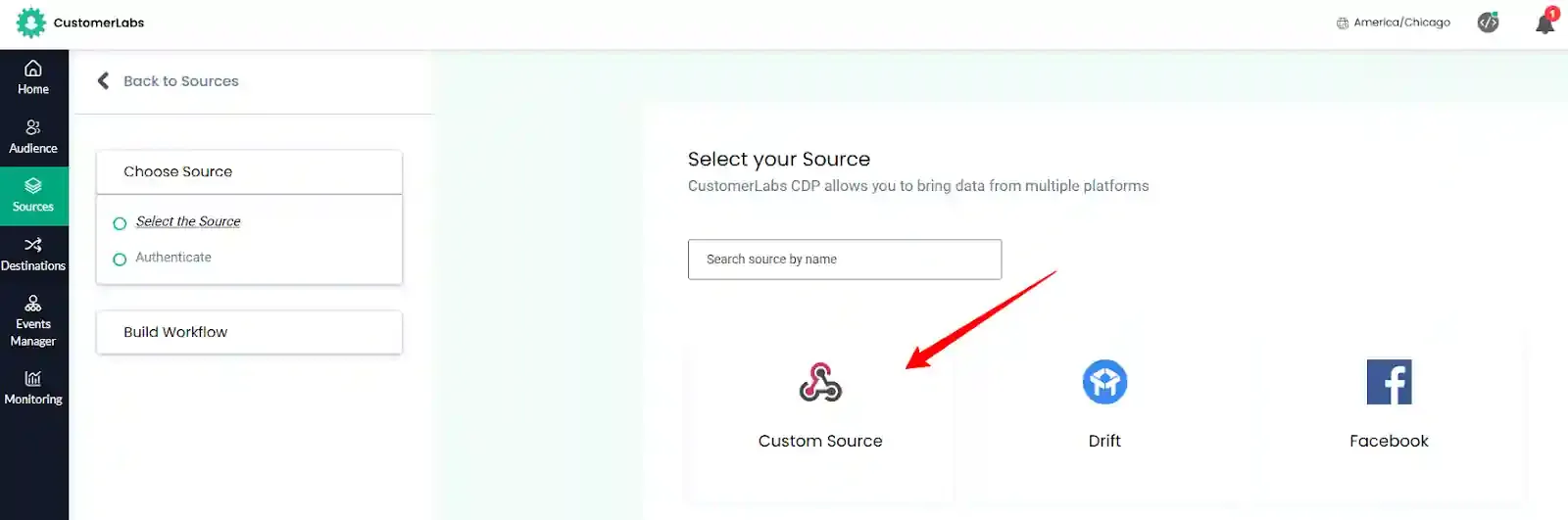
To add a new source, click Connect Source in the top-right corner to view the available source integrations.
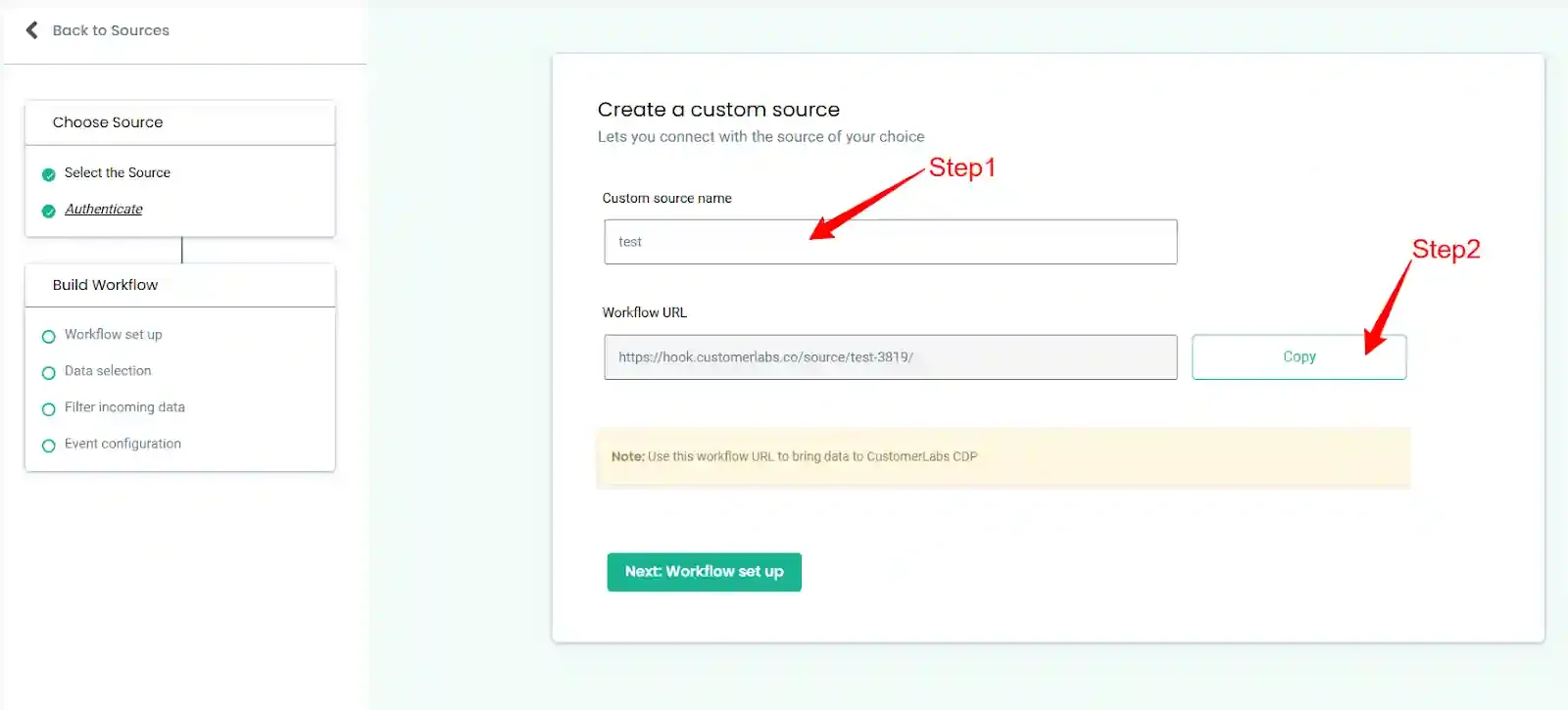
Select the Source
Section titled “Select the Source”Select the appropriate source type from the list. Once the source is connected, workflows can be configured to route and transform the incoming data.
Configuring a Workflow
Section titled “Configuring a Workflow”A Workflow processes the raw data received from a source and transforms it into structured event data. Workflows apply field mappings, filters, and event configurations. Multiple workflows can be created per source. Each workflow runs continuously, updating user profiles in real time.
Workflow Setup
Section titled “Workflow Setup”Naming the Workflow
Section titled “Naming the Workflow”Assign a descriptive name to the workflow for identification purposes. Use a name that reflects the data being processed.
Example: A workflow receiving lead stage updates from a CRM can be named
lead_updatedorlead_created.
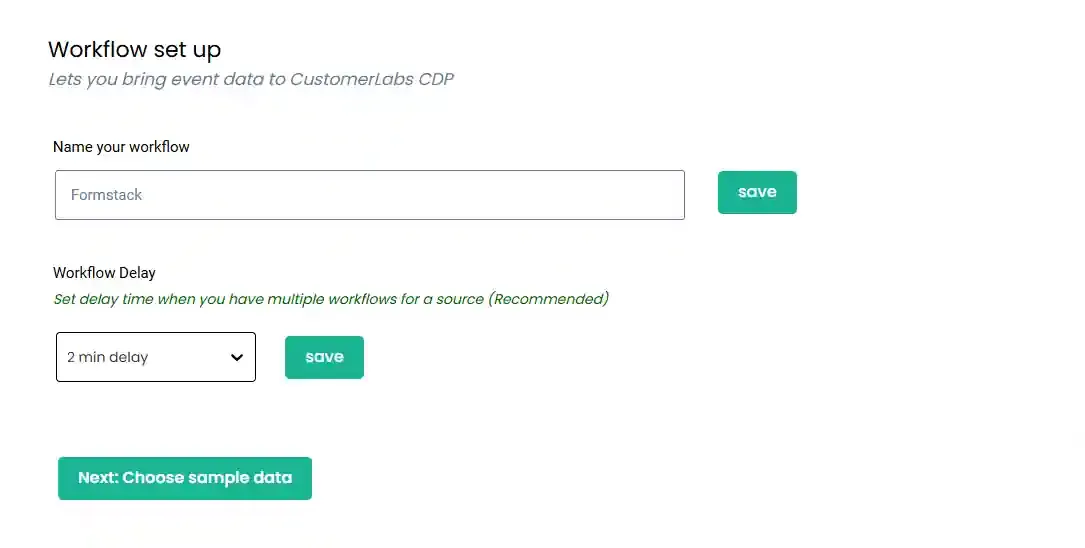
Workflow Delay
Section titled “Workflow Delay”Configure a workflow delay when multiple workflows are attached to the same source. Without a delay, all workflows receive the incoming payload simultaneously. This concurrent execution can result in duplicate user ID assignment for new profiles — Customerlabs 1PD Ops may create separate user records across workflows before the first workflow has committed the new user to the database.
Setting a delay ensures that the user identity is resolved by the first workflow before subsequent workflows process the same event.
Selecting Sample Data
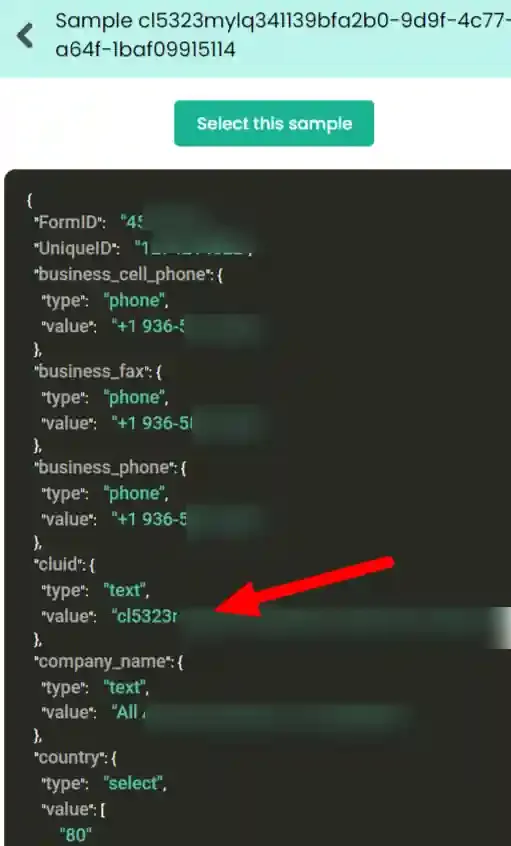
Section titled “Selecting Sample Data”To configure event mappings, a sample payload must be available. Trigger a test event in the source platform to populate the sample data panel. Up to five samples can be fetched at a time. Sample retrieval may take additional time depending on the source.
Event Configuration
Section titled “Event Configuration”Event Name
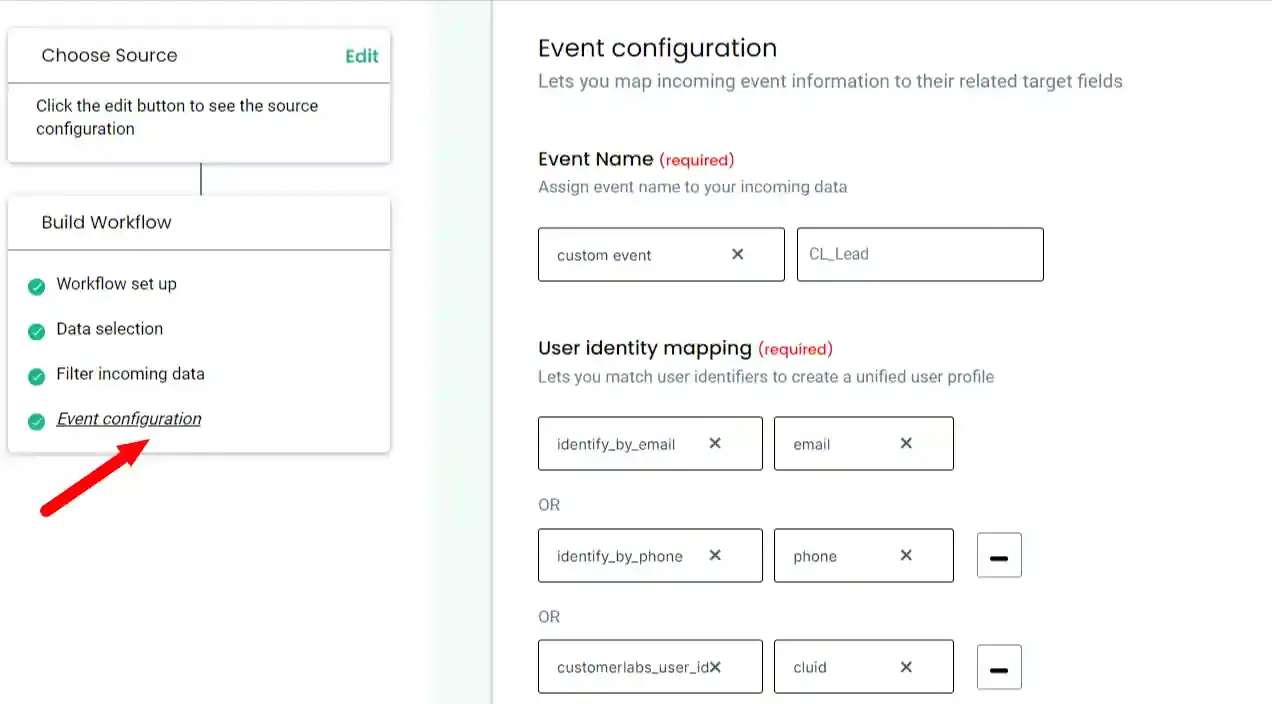
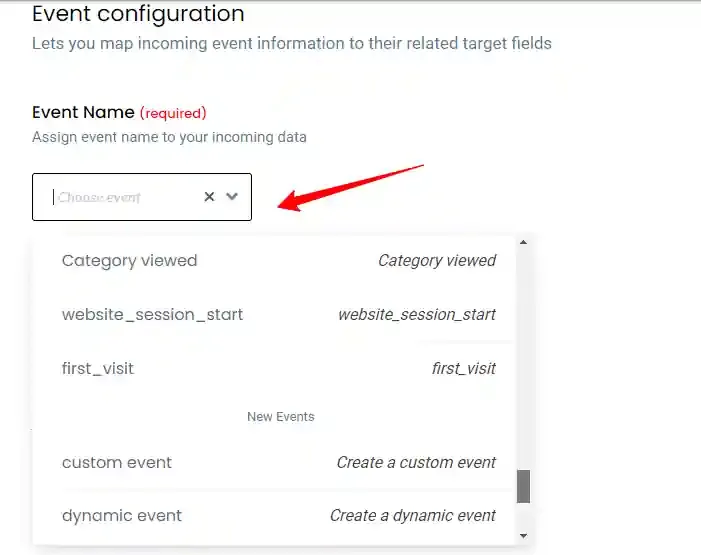
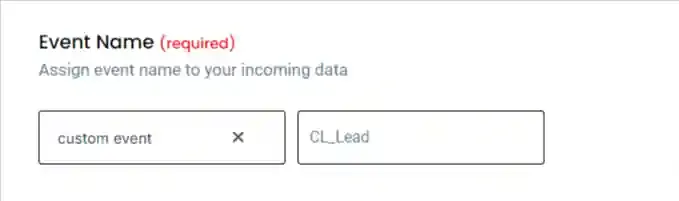
Section titled “Event Name”Select the event name from the dropdown. For Jotform lead submissions, use a custom event name such as cl_leads or cl_registration.
User Identity Mapping
Section titled “User Identity Mapping”Map the cluid hidden field as the primary user identifier. The cluid links the server-side form submission to the originating browser session, enabling unification of browser and server-side events.
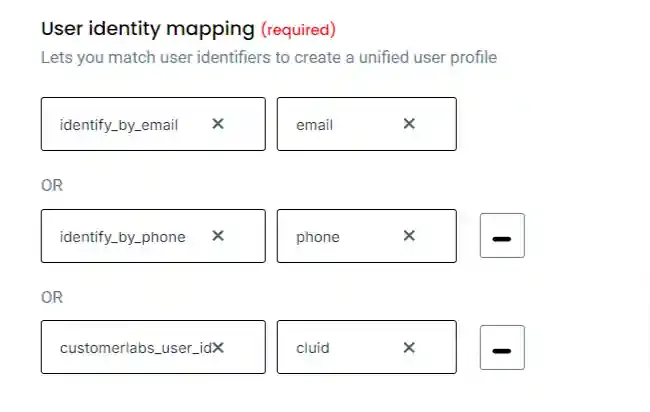
Up to three user identifiers can be configured per workflow, including external IDs. Customerlabs 1PD Ops stores these identifiers to build an enriched, unified user profile.
User Traits
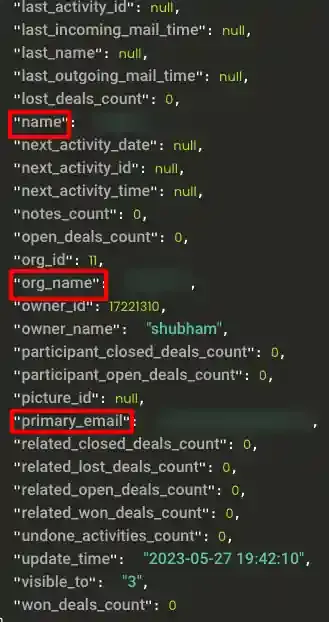
Section titled “User Traits”Map all user-level attributes from the form submission under User Traits. These traits are forwarded to connected destinations and are required for accurate audience targeting and personalization.
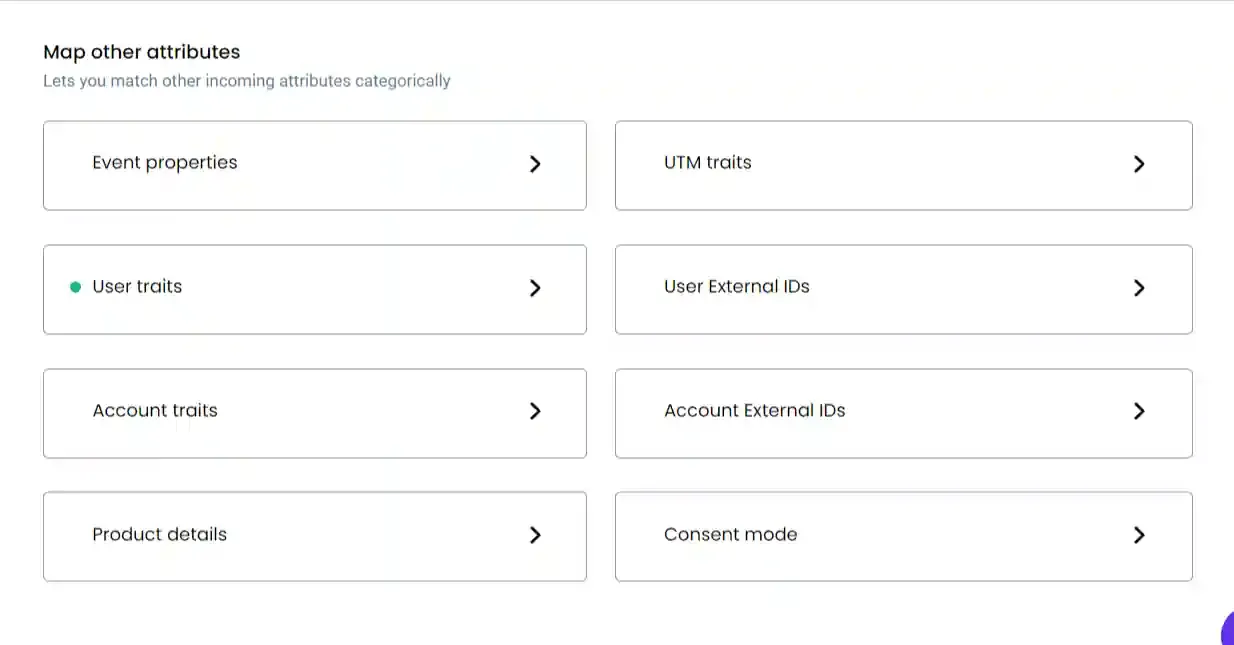
Common traits to map from Jotform submissions include first_name, last_name, email, phone, company, and address. For destination-specific requirements — such as passing an email address to an email marketing platform — the relevant trait must be explicitly mapped in this section.
Source Logs
Section titled “Source Logs”Source Logs record all payloads received by the source webhook prior to workflow processing. Logs may have a display latency of up to 10 minutes. Access logs by navigating to the source and clicking Logs.
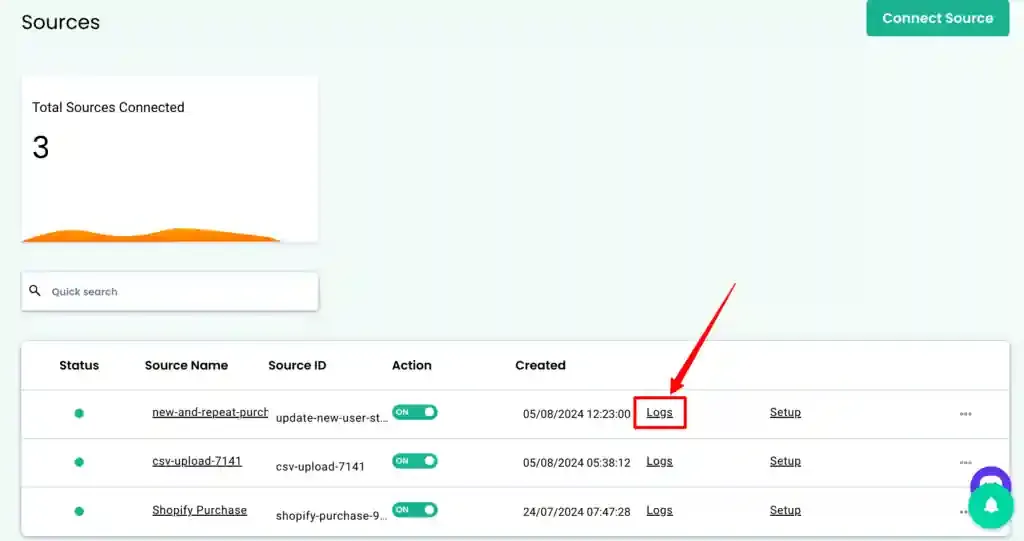
Each inbound message is assigned a unique message ID for traceability across workflows and the event manager.
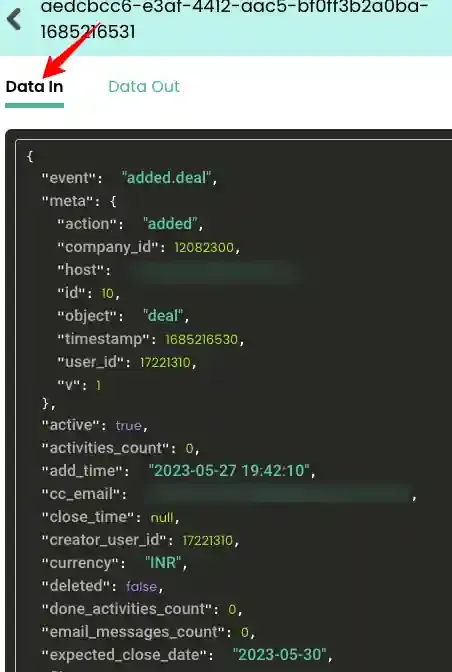
Data In Log
Section titled “Data In Log”Displays the raw payload received from the source in JSON format.
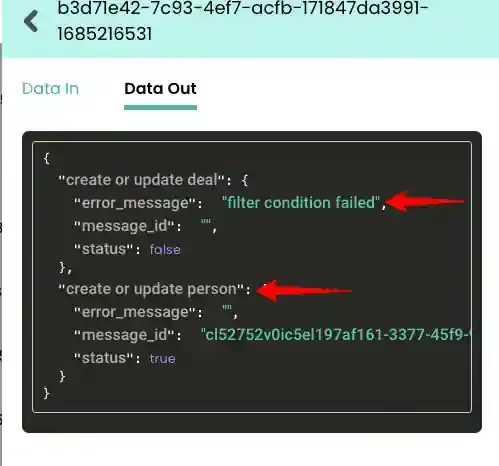
Data Out Log
Section titled “Data Out Log”Displays the processed payload forwarded to the configured workflows, along with the generated message ID.
Workflow Logs
Section titled “Workflow Logs”Each workflow maintains its own log, showing how incoming events are transformed — including user traits, event attributes, group traits, external IDs, and group identities.
Workflow Status Messages
Section titled “Workflow Status Messages”The following status messages may appear in the Data Out log:
| Status | Description |
|---|---|
| Mapping not found | The workflow is in draft mode and has not been published. |
| Filter condition failed | The incoming event did not satisfy the configured filter criteria and was not processed. |
| User ID missing / Account ID missing | The payload does not contain a required user or account identity field. The event will not be processed further. |
| Data not found | The event is still being processed. Under high load, processing may take up to 10 minutes. |
Destinations
Section titled “Destinations”Once events are processed through workflows, the resulting data can be forwarded to connected third-party destinations to support advertising, analytics, and marketing automation use cases.