Debug mode (Deprecated)
Debug mode in the No-Code Event Tracker lets you check that a tracked event is working correctly. While debug mode is on, data does not go to the server — you can test the event in the console first, and only send events to the server once everything looks right.
Testing events in debug mode
Section titled “Testing events in debug mode”-
Log in to your CustomerLabs account.
-
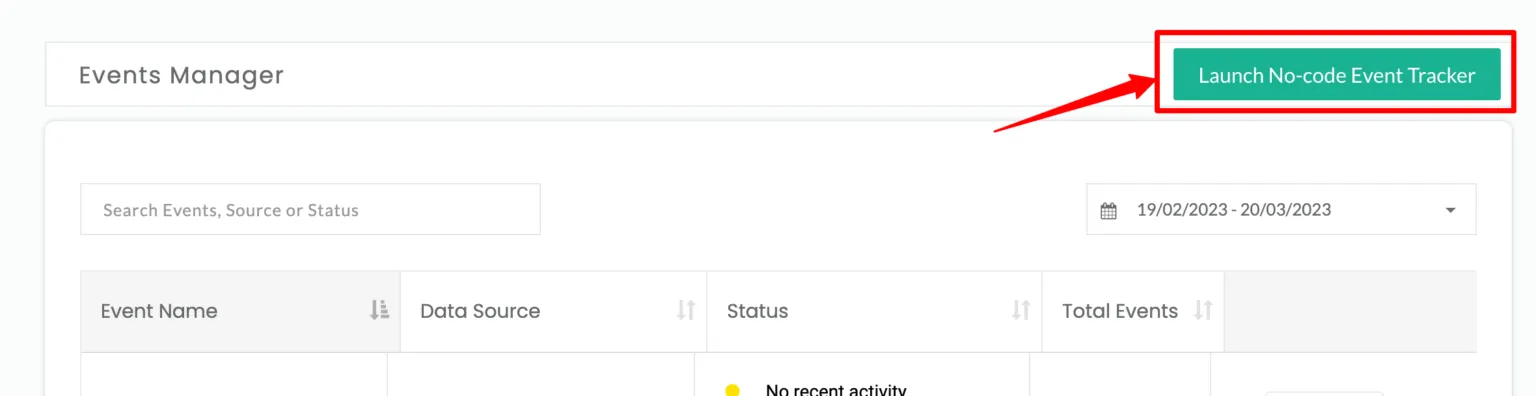
Launch the No-Code Event Tracker by clicking the icon.
-
You’ll be redirected to your website and the No-Code Tracker panel opens.
-
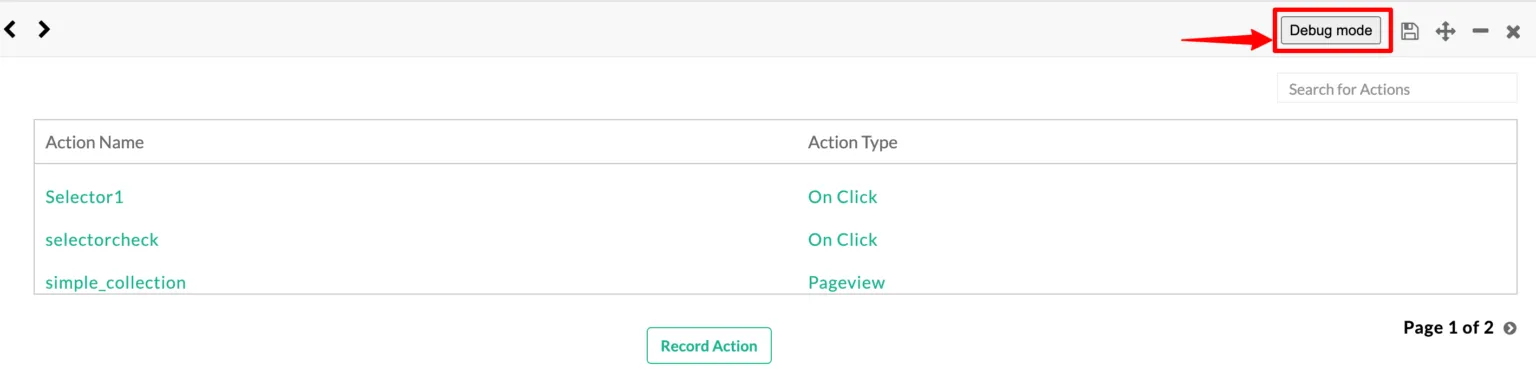
Track any event you want using the No-Code Tracker. After saving the event, the list of events is displayed. Click Debug mode to check that the event and its attributes are tracked correctly.
-
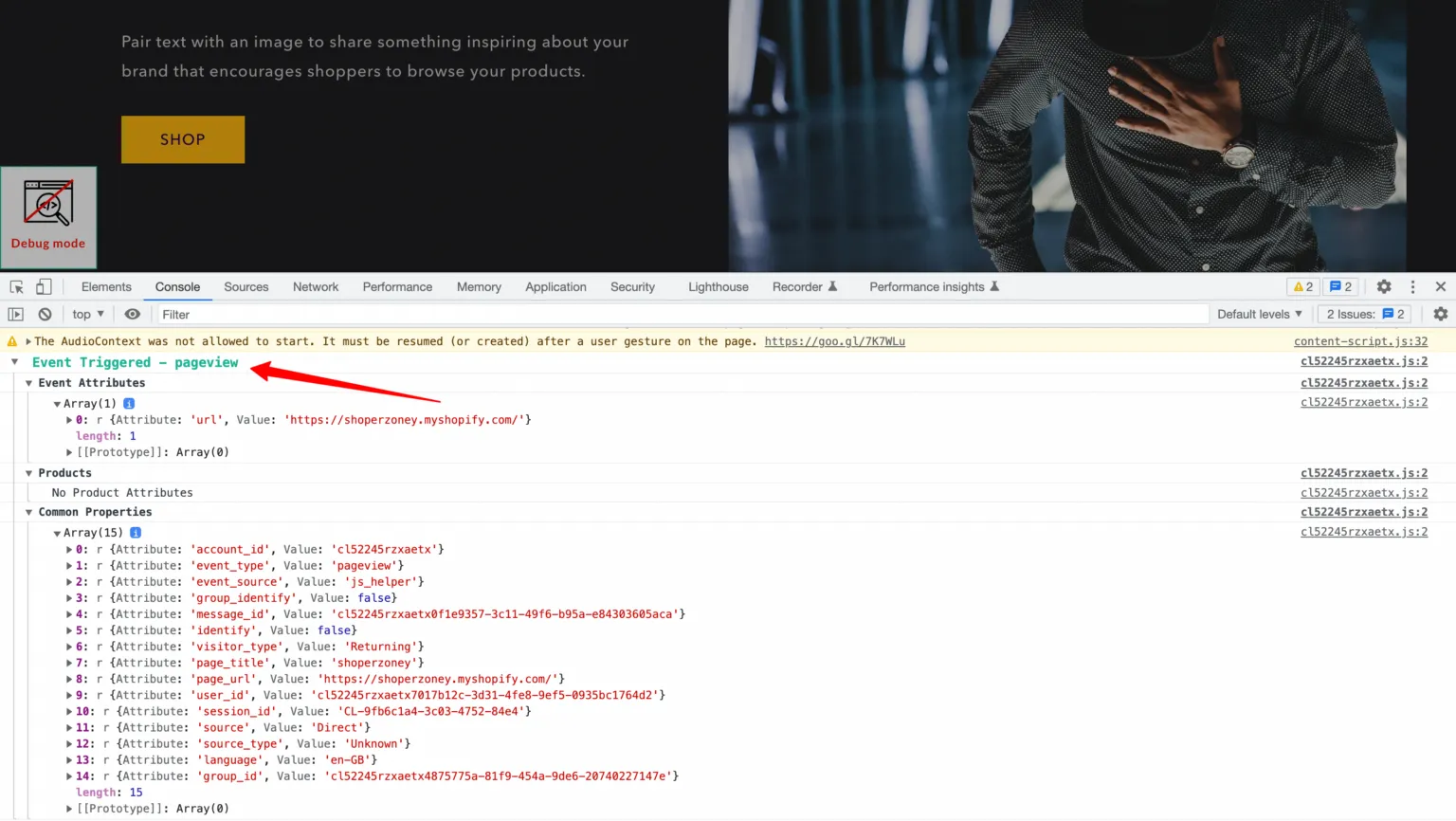
During debug mode, no events go to the server. You can see all events in the browser console and check that the configuration is correct.
-
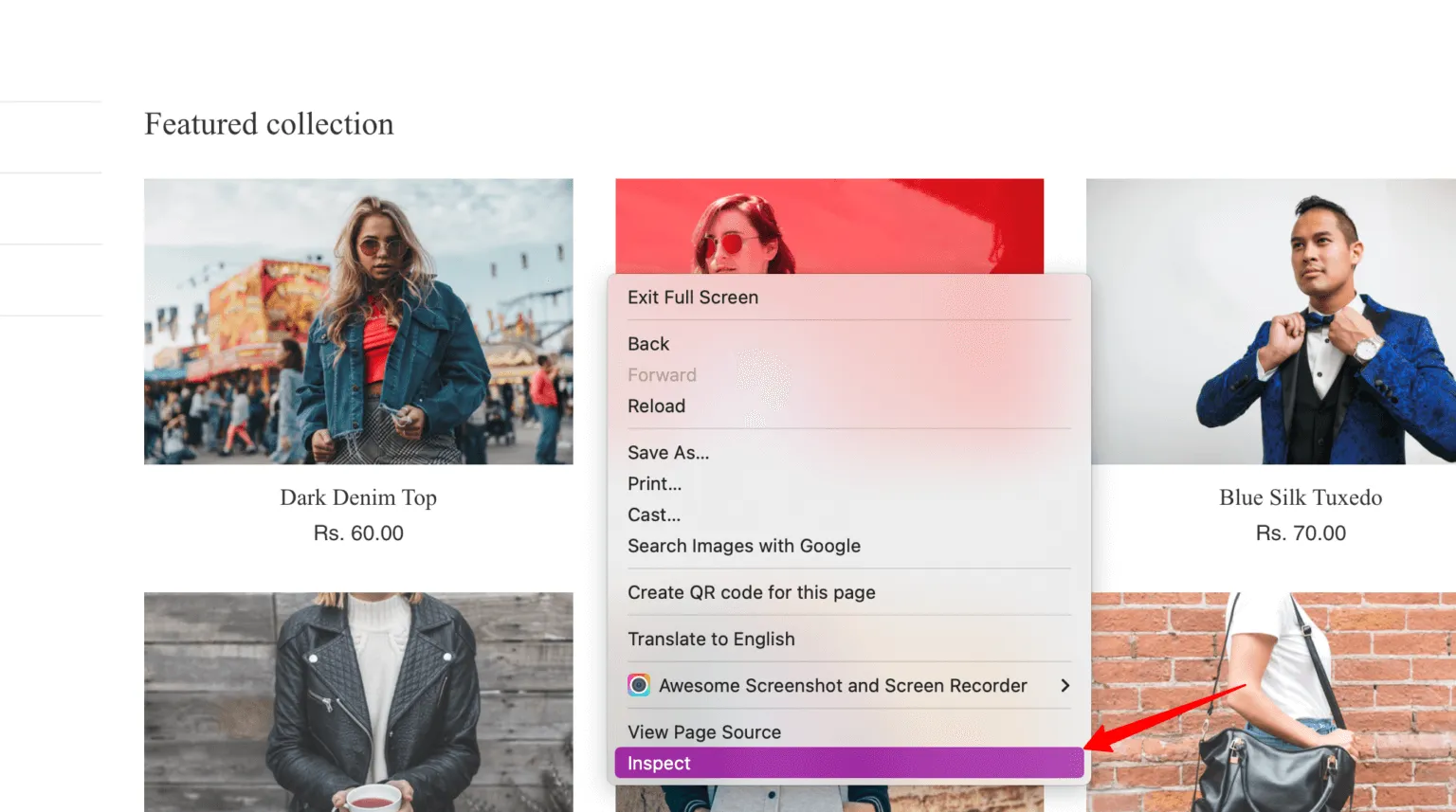
To open the console, right-click on your webpage and click Inspect.
-
Go to the Console tab.
-
Check the event properties and attributes to confirm they are tracked properly.
-
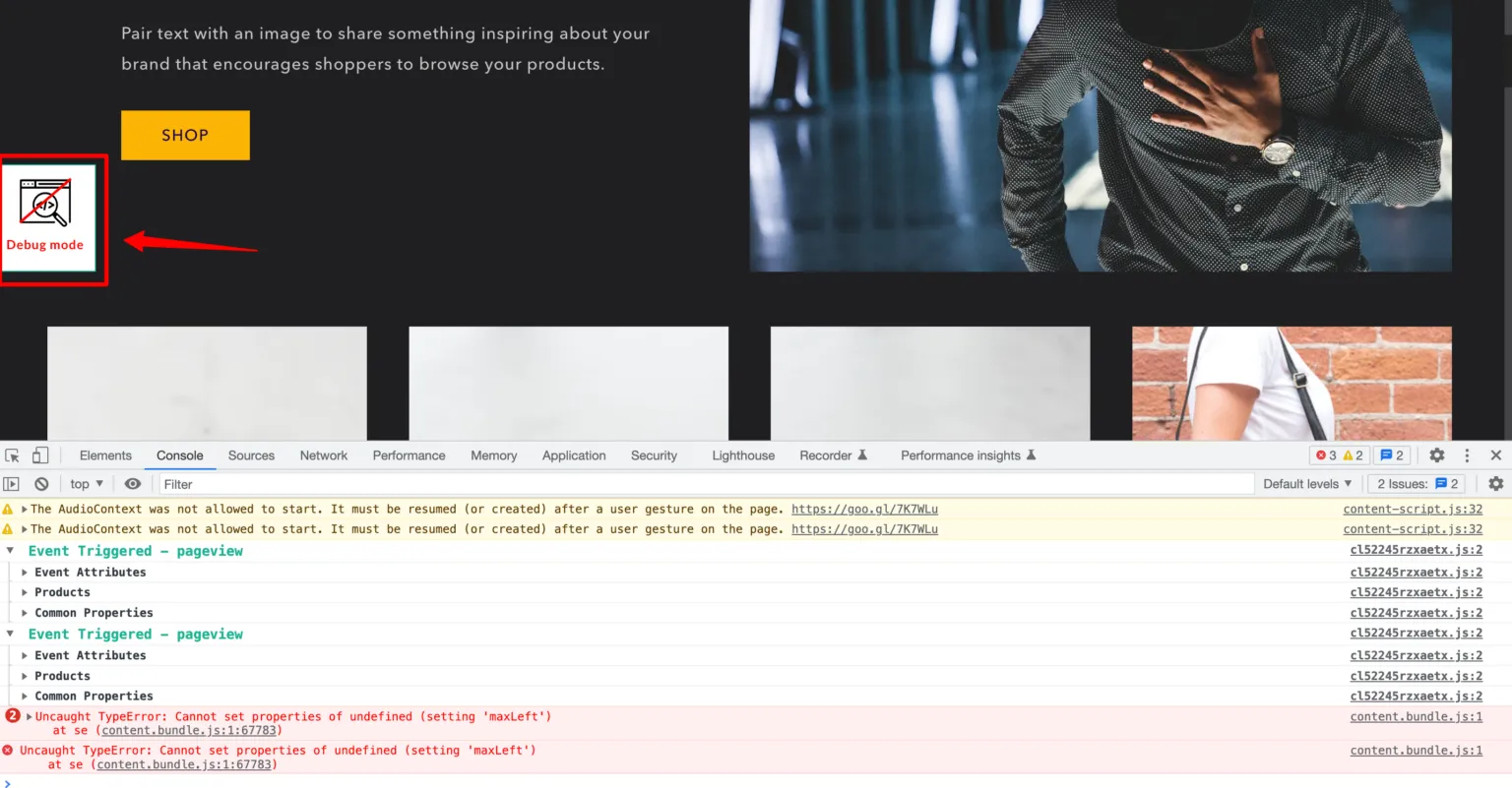
Once you’ve verified the event, turn off Debug mode by clicking the Debug icon again.
-
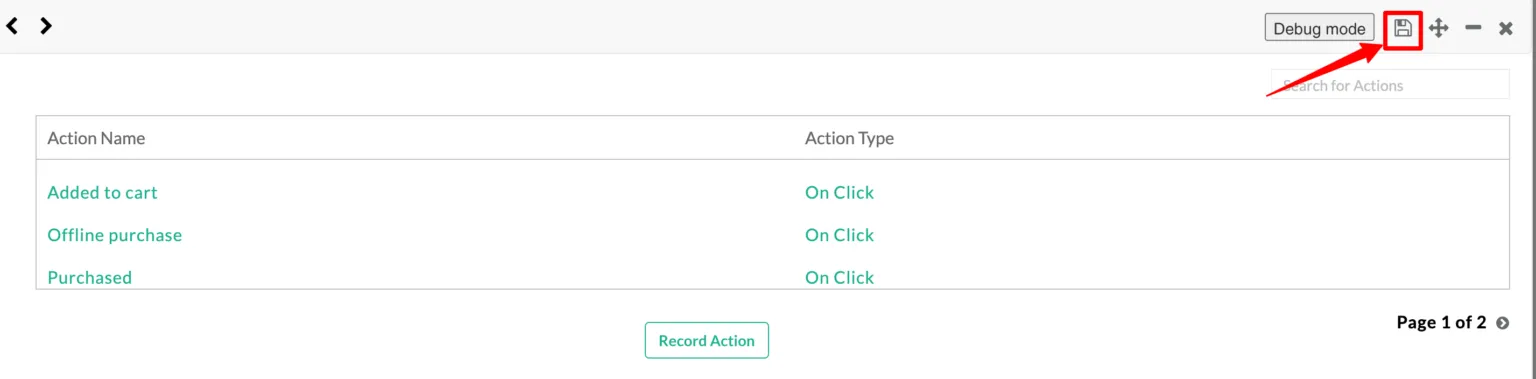
After turning off Debug mode, click Save & Close to save the tracked event.
Next steps
Section titled “Next steps”- Tracking event & user properties — fix or refine the properties you saw in the console.
- Modifying the selector — narrow the selector if debug mode shows the event firing on the wrong elements.