View & Download your First-party Audiences
We earlier saw how to save the segment after creation. But you can also just view the audience and download the data.
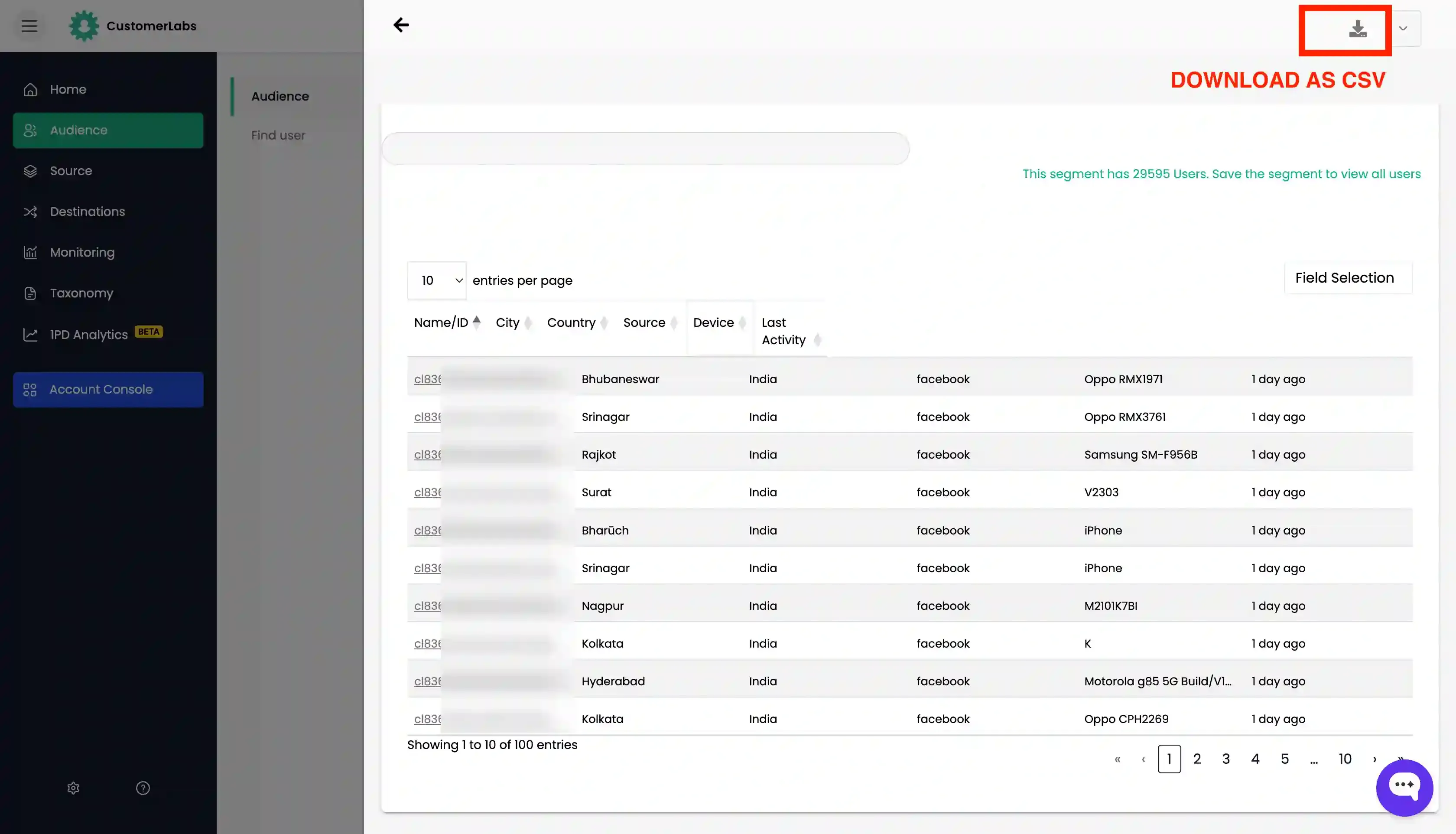
After specifying the criteria for segmenting, click on “Run Query” to view the list of users. You can view and export the data in CSV format.
View the audience
Section titled “View the audience”For Newly Created Audience
- Create the audience as mentioned in Creating an audience.
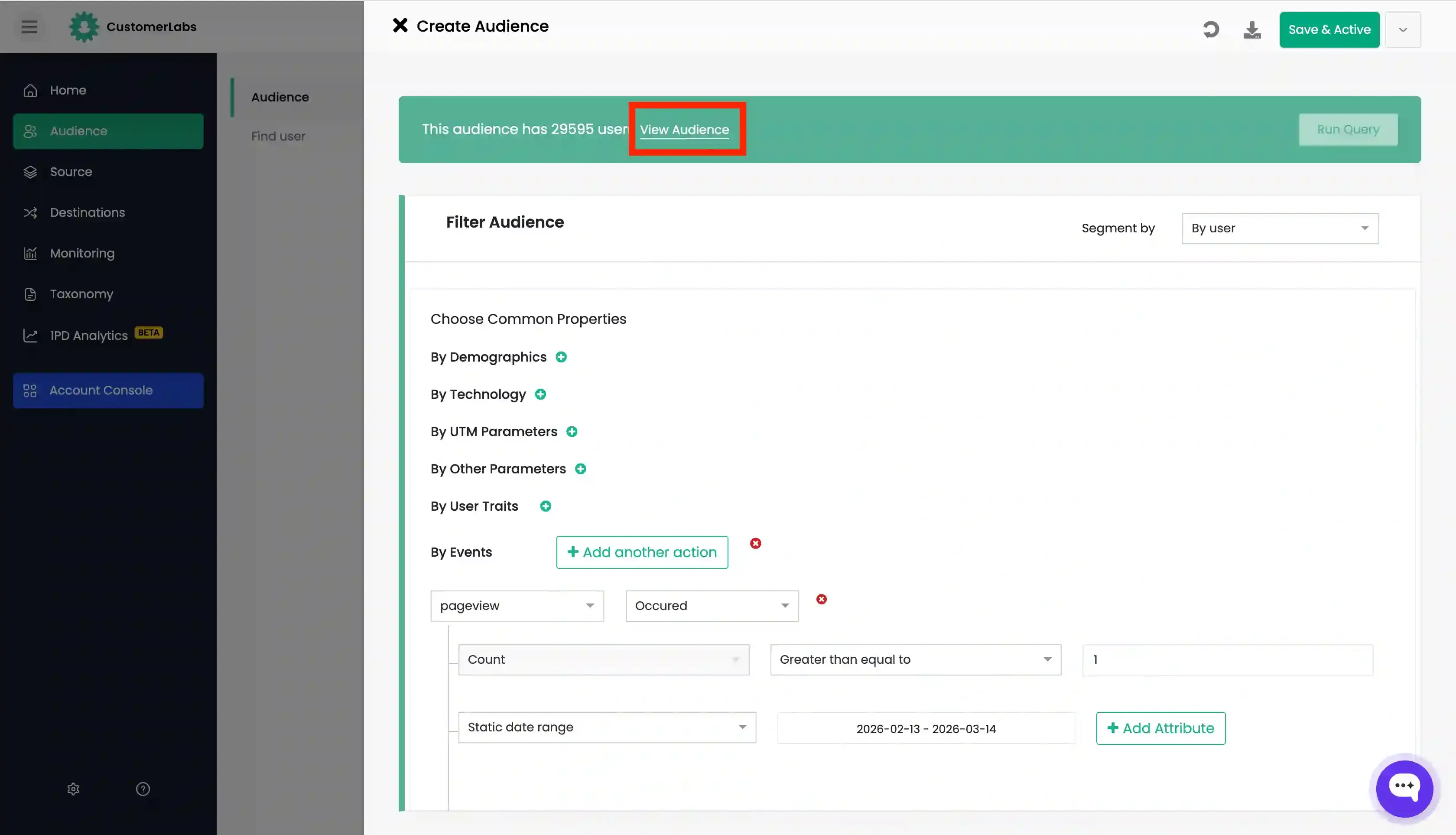
- Click on “Run Query” to view the count.
- Click on “View Audience” button next to the count that is generated.
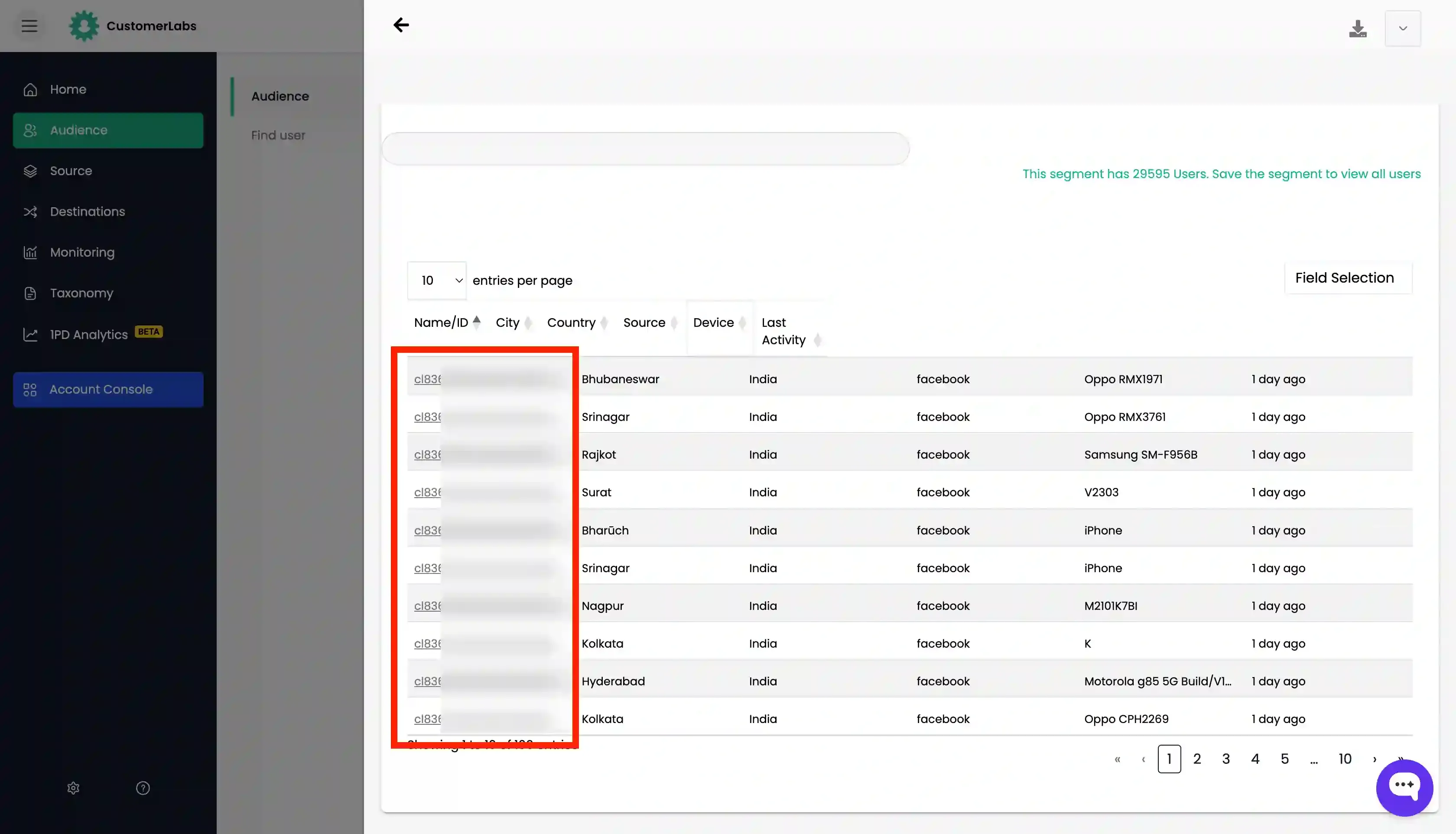
- This opens up the list of links to users 360-degree profiles.
- By clicking the user ids, you can view each audience profile.
For Existing Audience
-
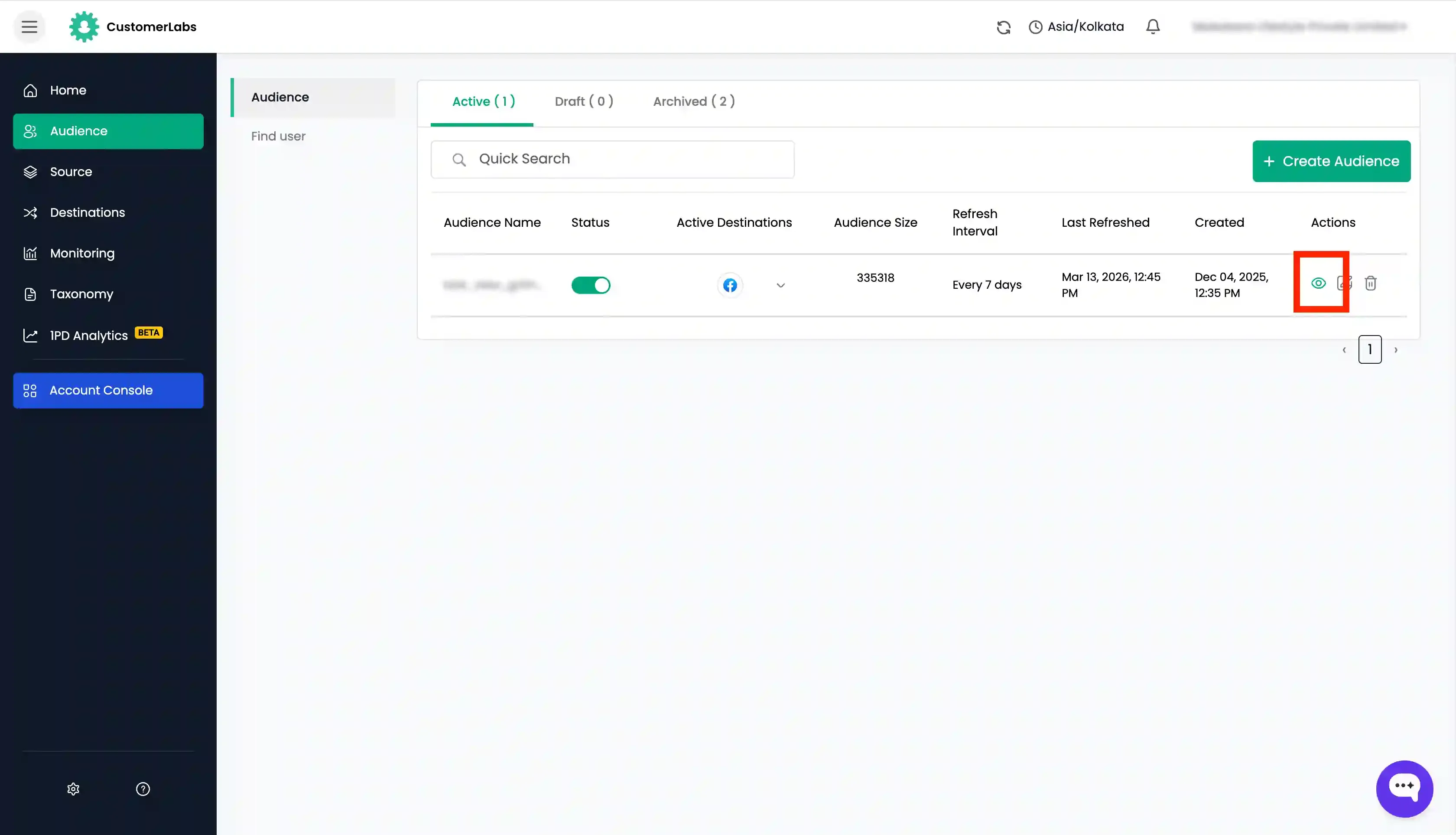
In the audience dashboard, click on the view icon (eye icon) next to the audience name to open the audience.
-
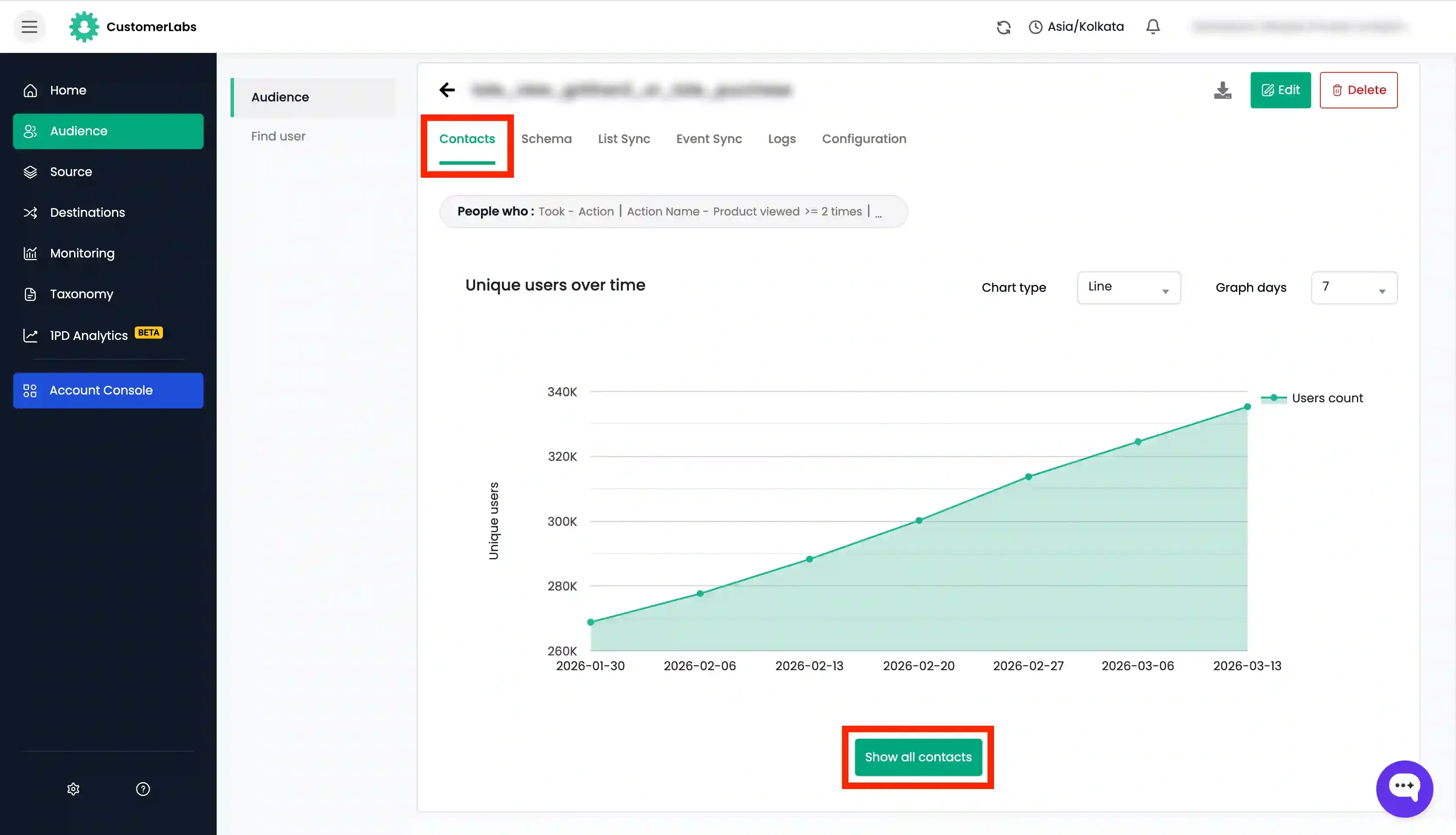
Under “Contacts” tab,Click “View All Contacts” button at the bottom.
-
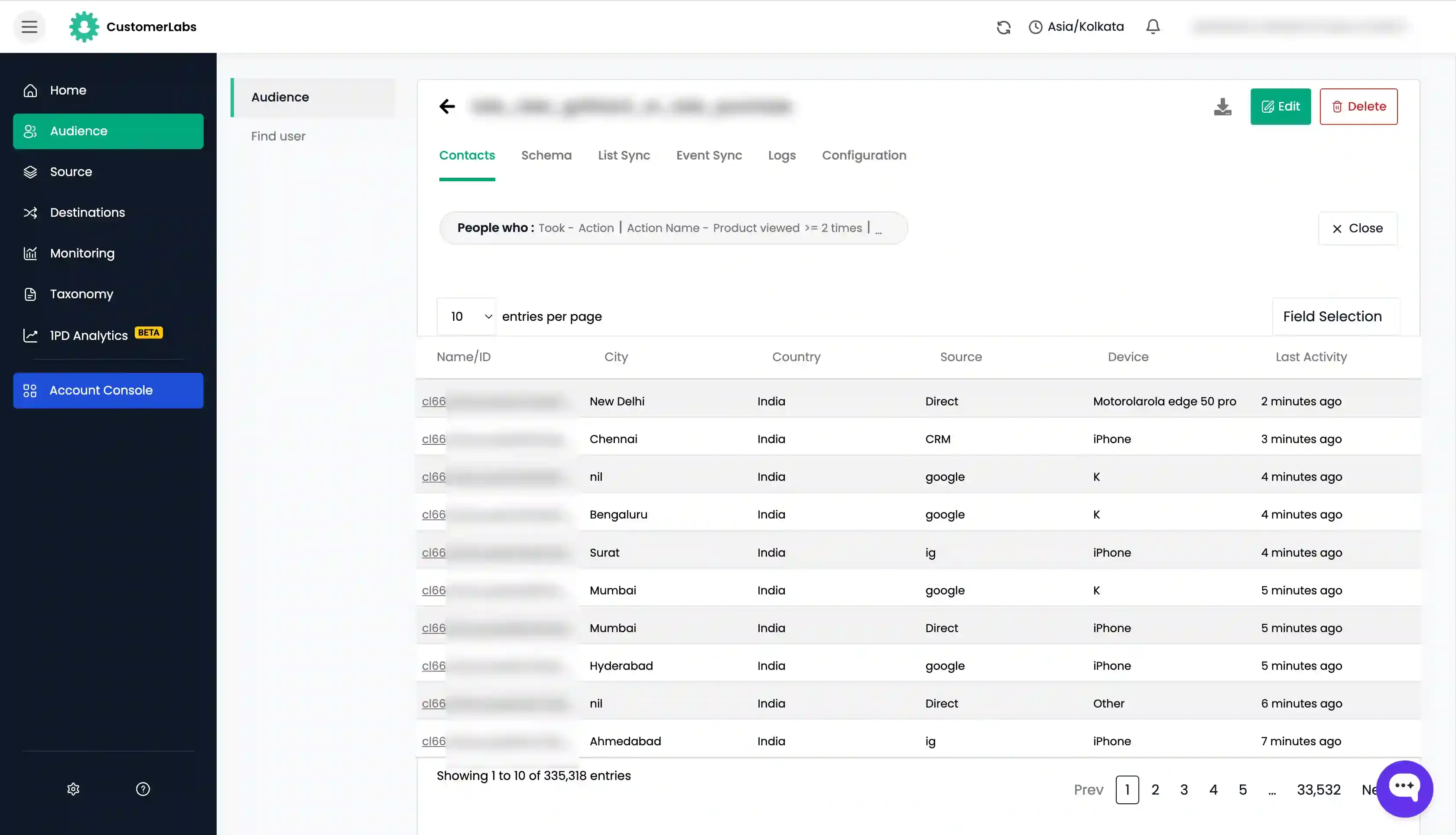
This opens up the list of links to users 360-degree profiles.
-
By clicking the user ids, you can view each audience profile.
-
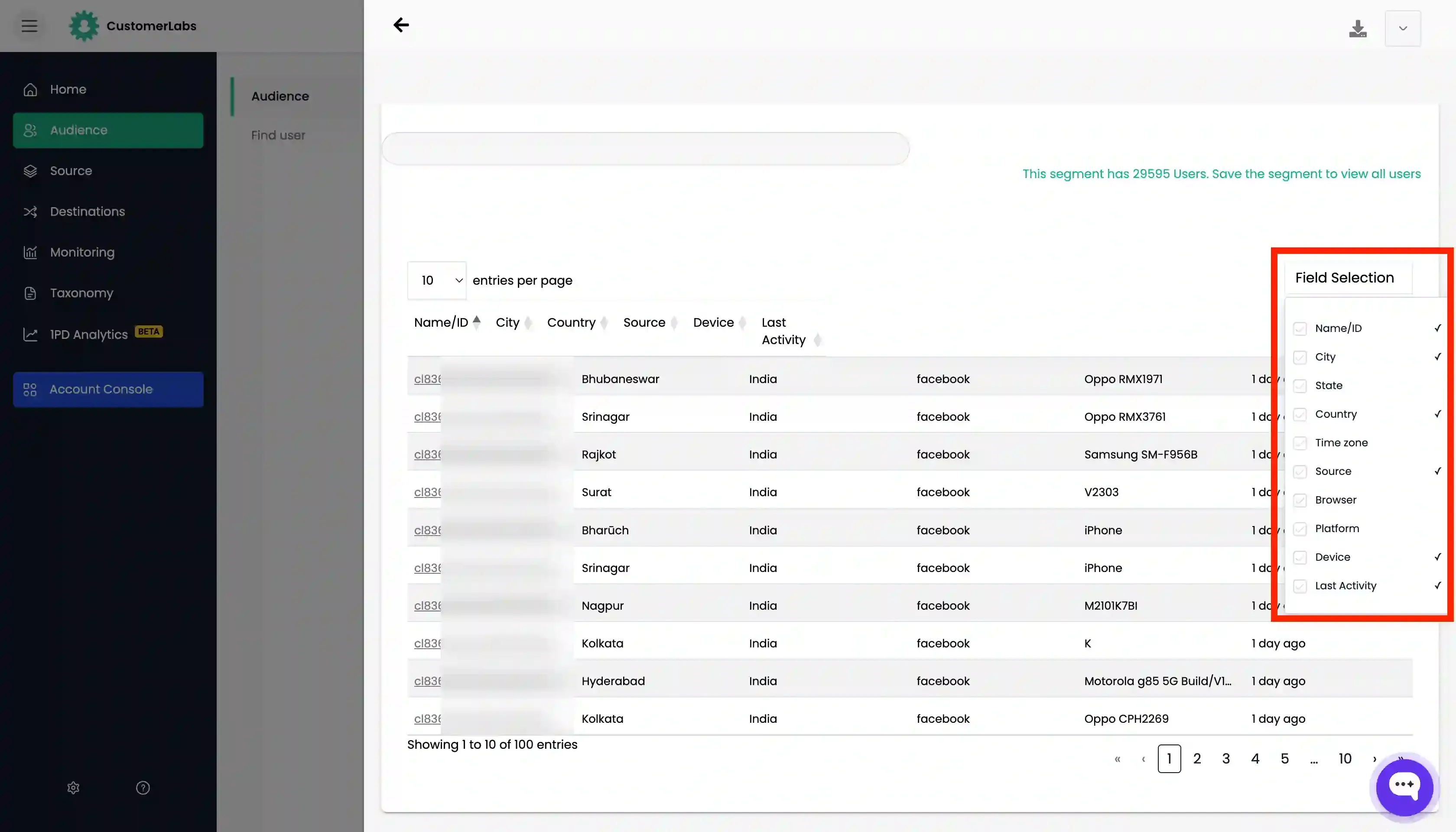
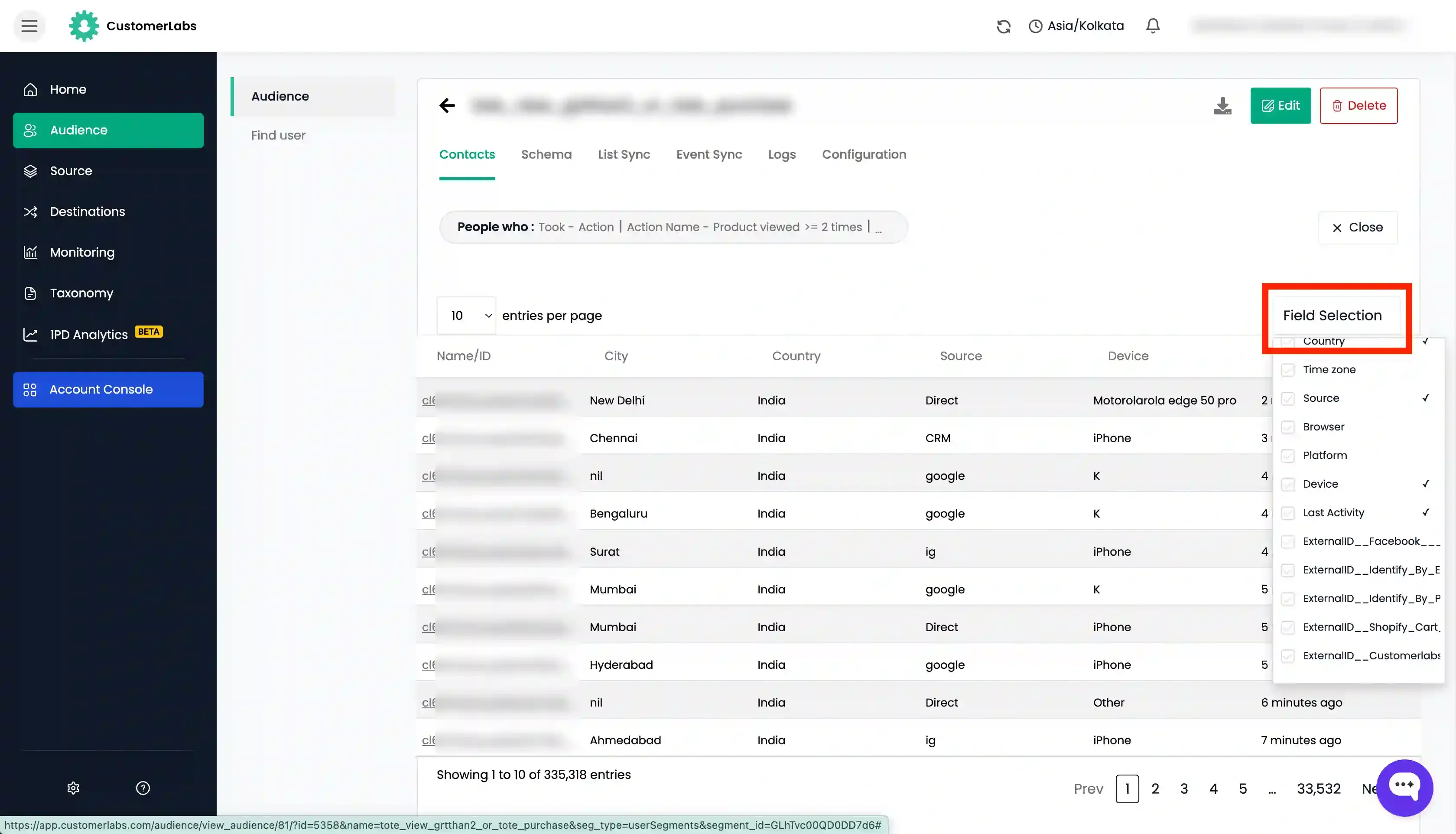
If you would like to add columns to the list, click on “Field Selection” button and select the fields that you want to add.
-
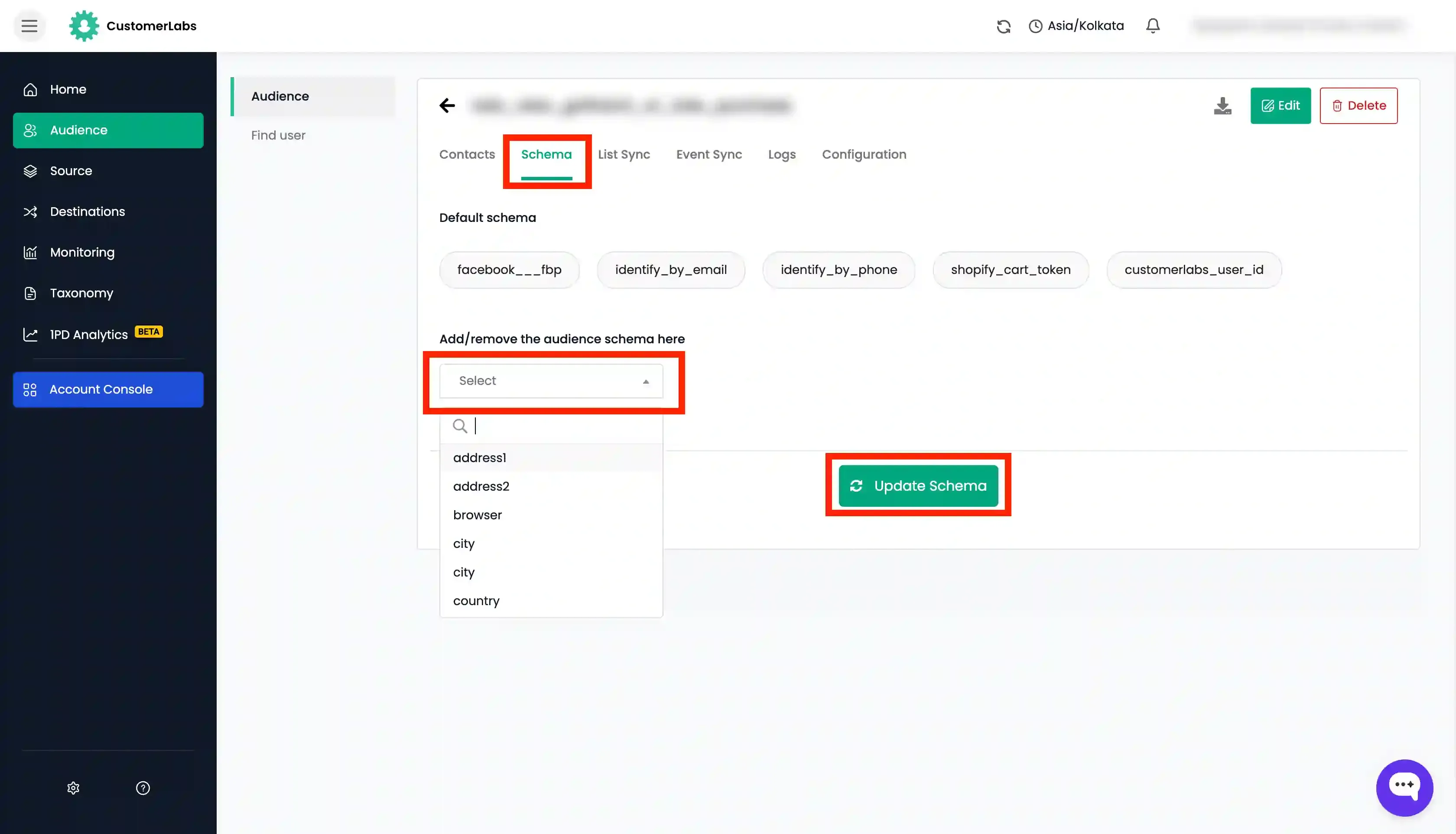
If you want to add custom fields to the field selection, add the trait or external id to the schema under “Schema” tab and click “Update Schema”.
Download the audience as CSV
Section titled “Download the audience as CSV”For Newly Created Audience
- Create the audience as mentioned in Creating an audience.
- Click on “Run Query” to view the count.
- Click on “View Audience” button next to the count that is generated.
- This opens up the list of links to users 360-degree profiles.
- Select the fields that you want to view and click “Download icon on the top”.