
Import Leads from Google Ads
The Customerlabs 1PD Ops with Google Ads integration as a Source helps marketers bring data from lead ads running on Google Ads, unify them with existing customer information across the martech stack to create 360° customer profiles, and sync that data to any destination platform without having to depend on developers.
Prerequisites
Section titled “Prerequisites”-
Active Google Ads Account with Lead Form Assets.
-
Active Customerlabs 1PD Ops account.
-
Should know to setup a Workflow in CustomerLabs.
Getting Started
Section titled “Getting Started”Codelessly connect your Google Ads account with Customerlabs 1PD Ops by following the steps below.
-
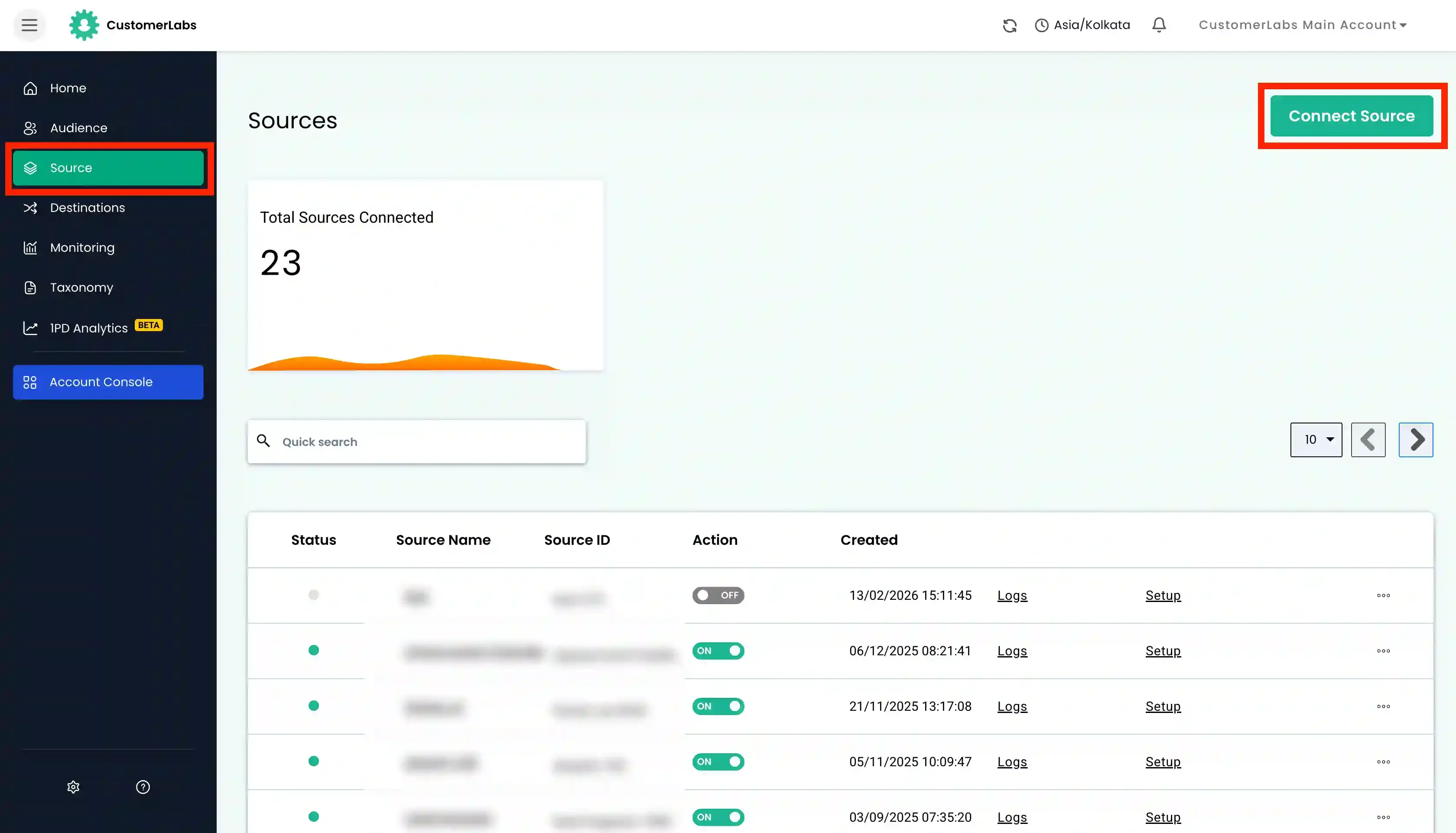
Login to Customerlabs 1PD Ops and navigate to the Sources page from the left menu.
-
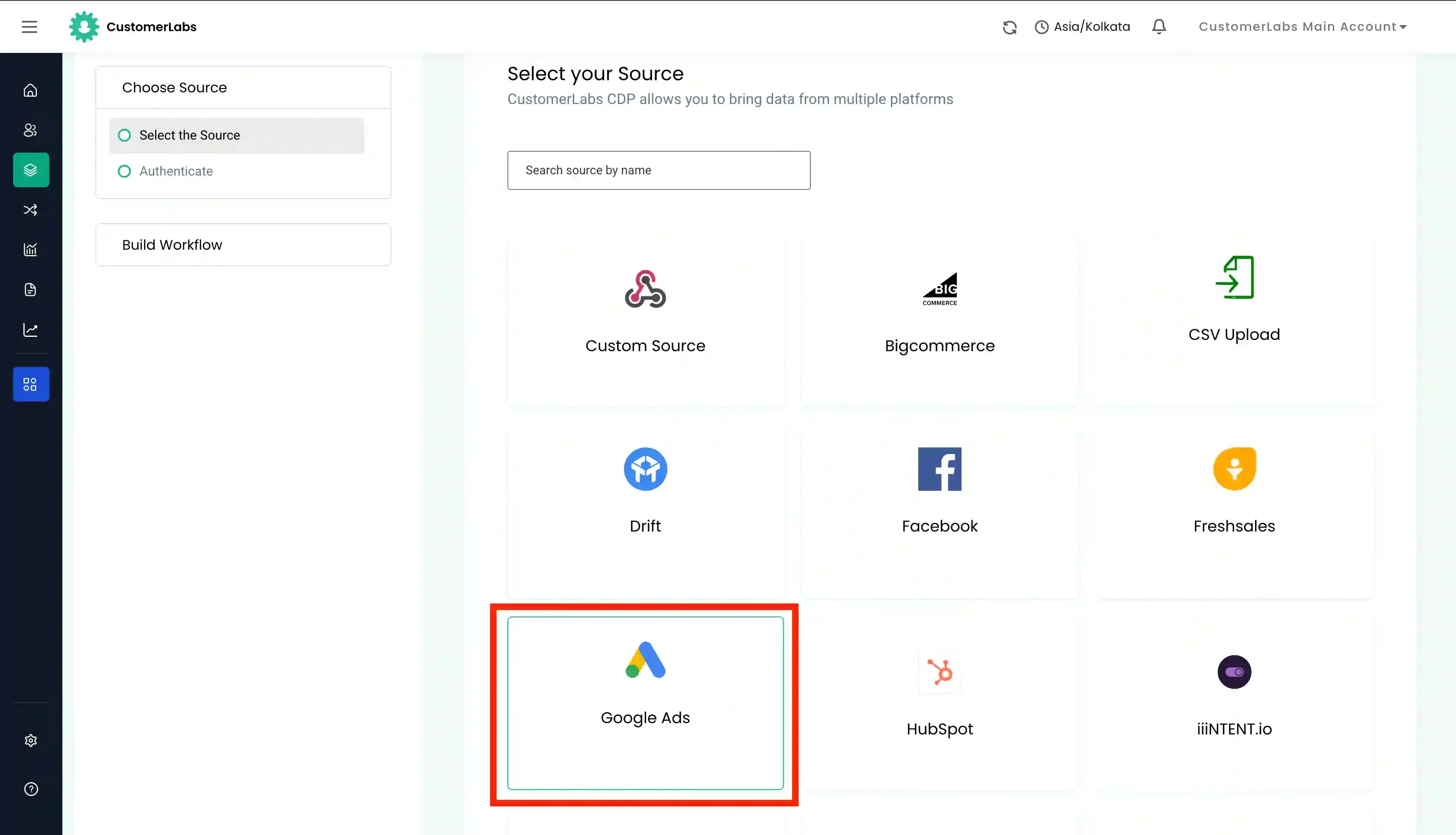
Select Google Ads from the list of Sources.
-
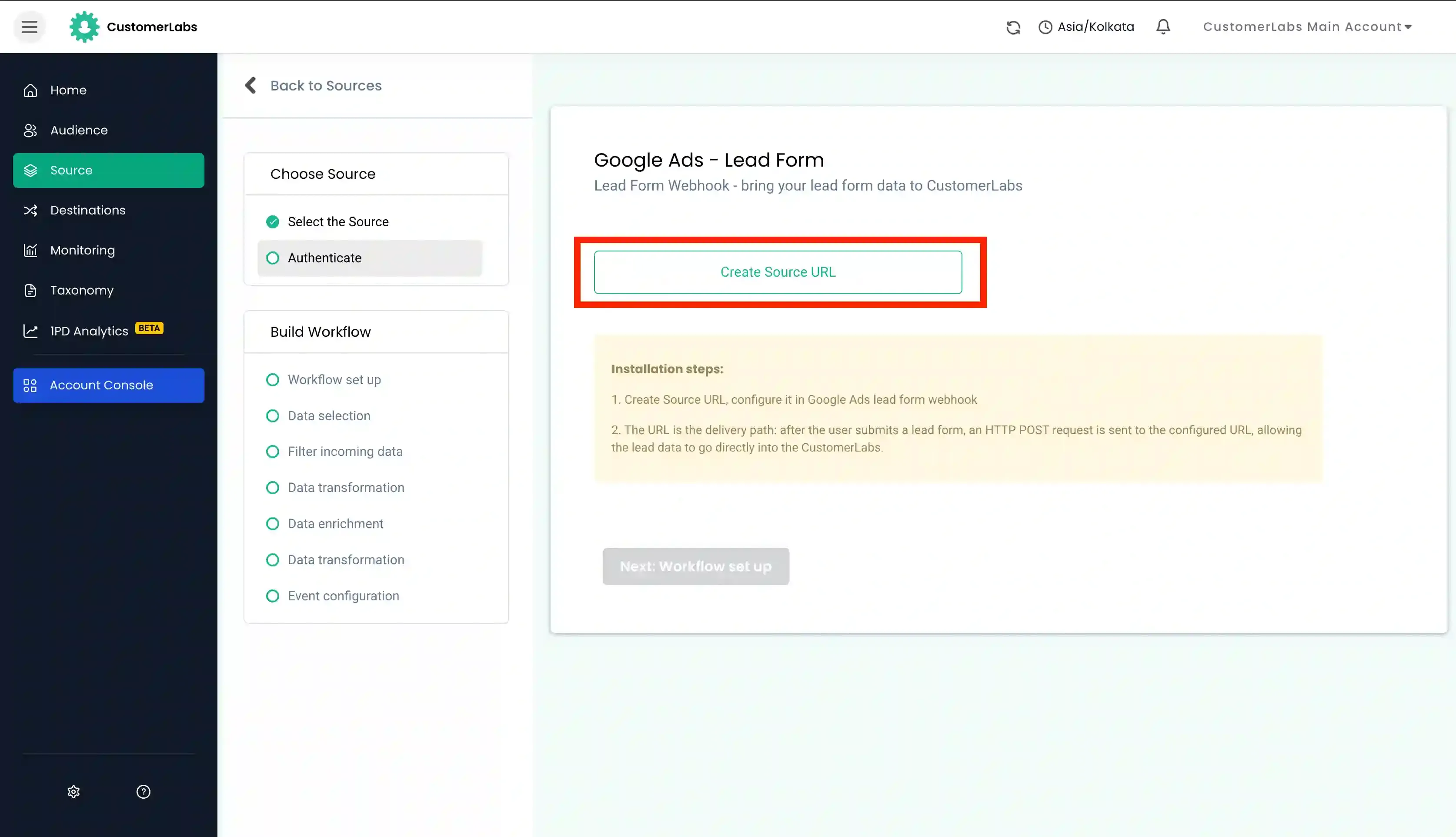
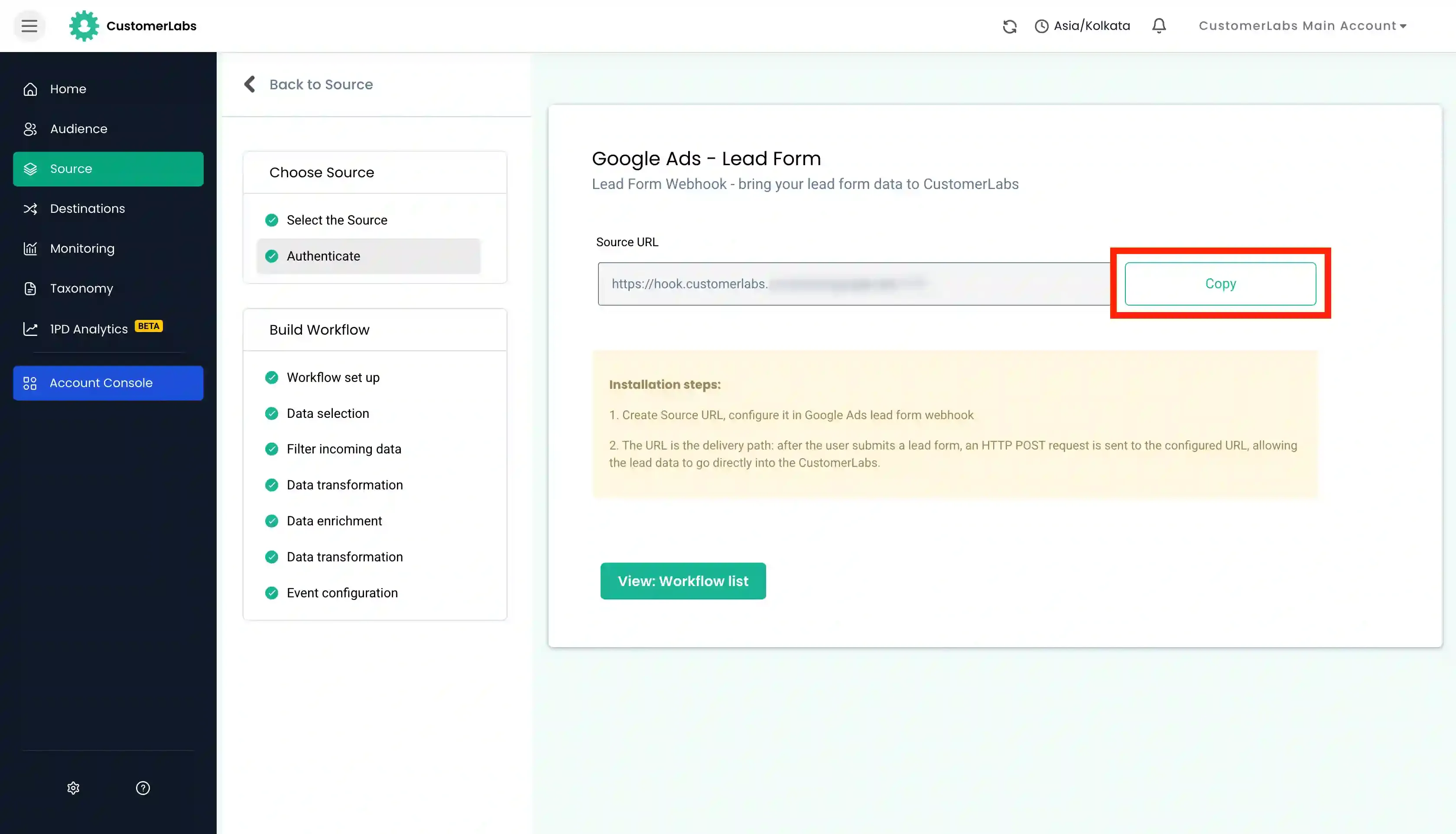
Click on Create Source URL and copy it. You will need it in a later step.
-
Log in to your Google Ad account. click on Campaigns → Assets → Assets → Lead form → Click on the
+icon to create or edit a lead form.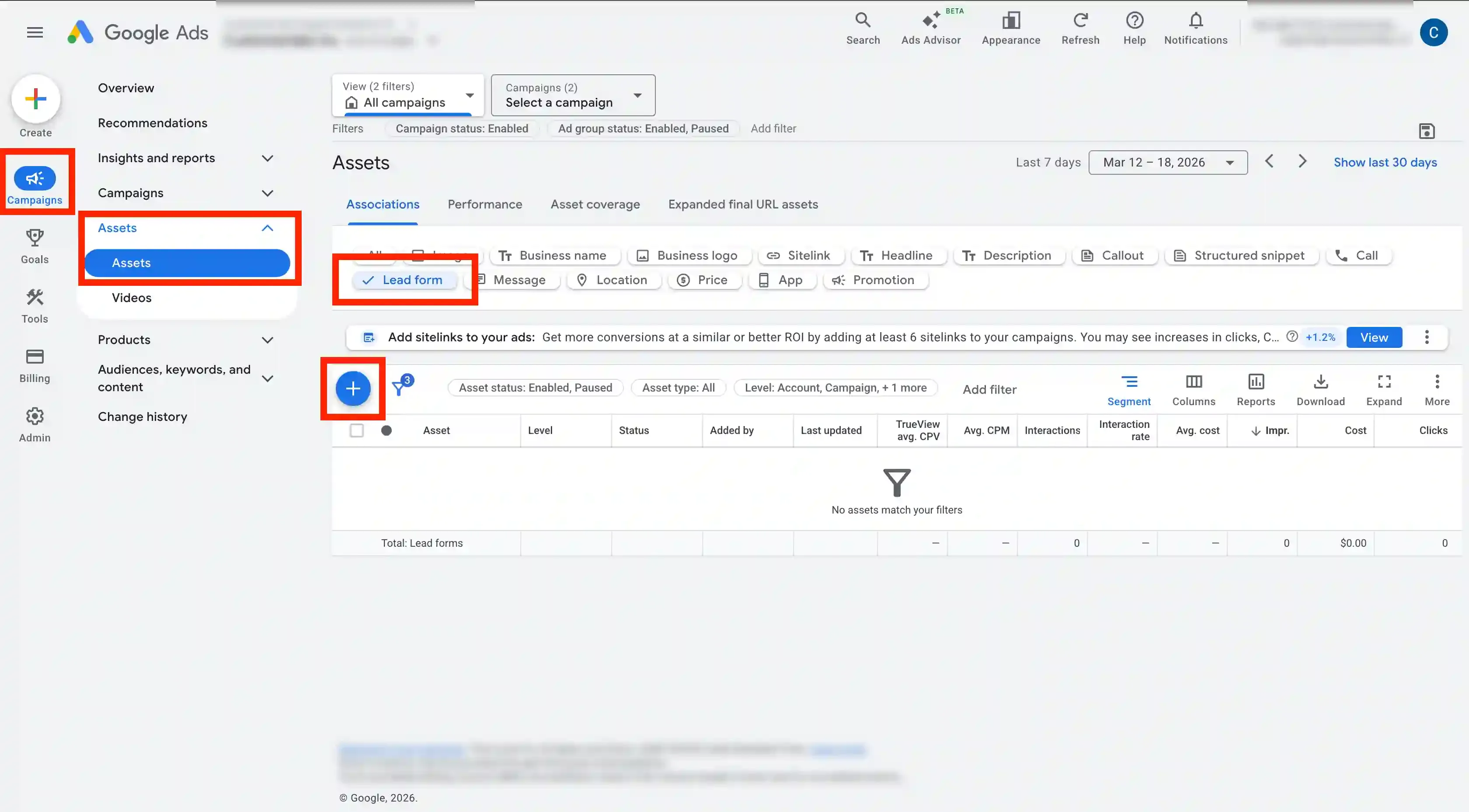
-
Click to expand Export leads from Google Ads, then click to expand Other data integration options.
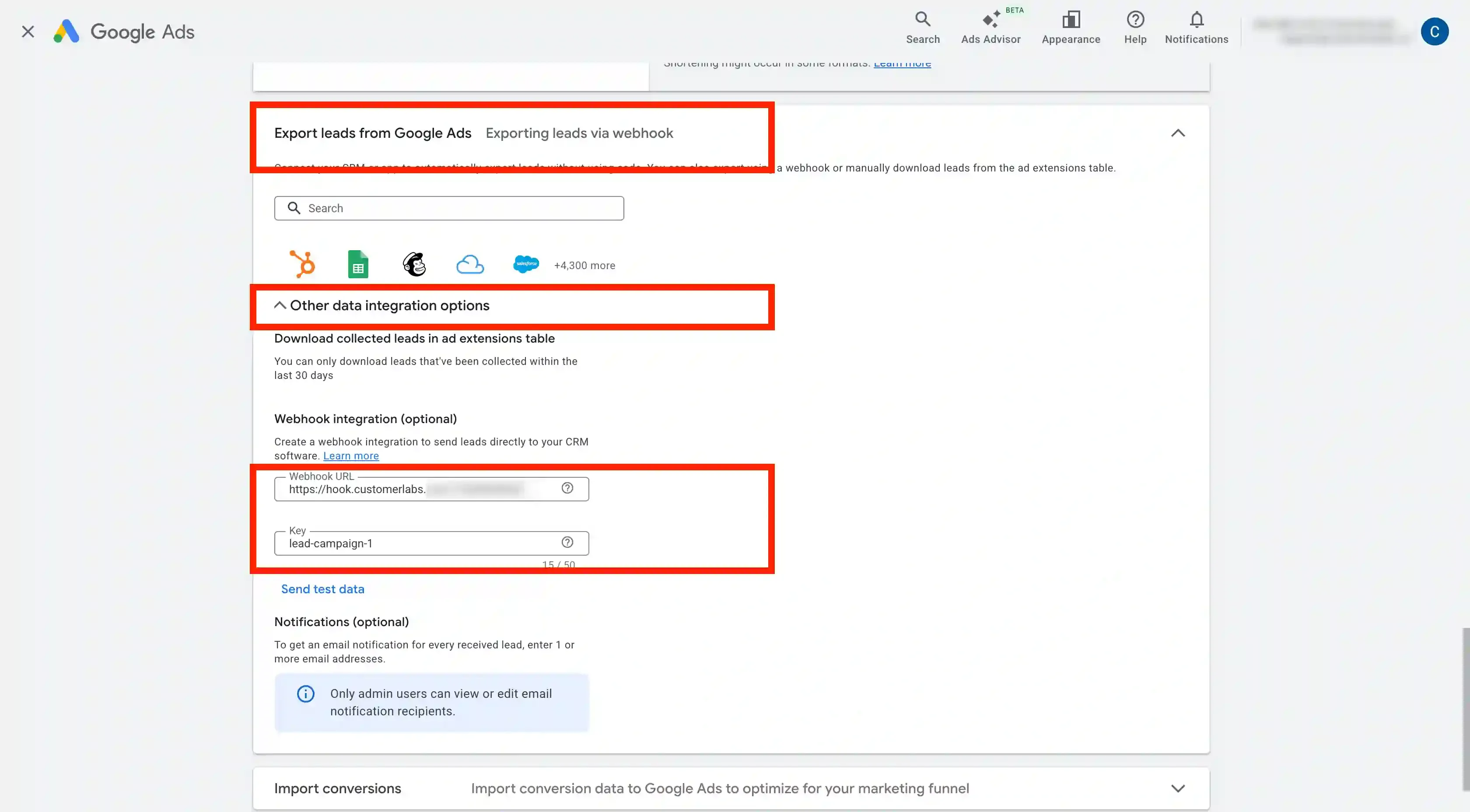
-
Under Webhook integration, paste the Source URL copied from CustomerLabs in the ‘Webhook URL’ box and provide a key name.
-
Click on “Send test data” to ensure data is pushing to CustomerLabs as expected.
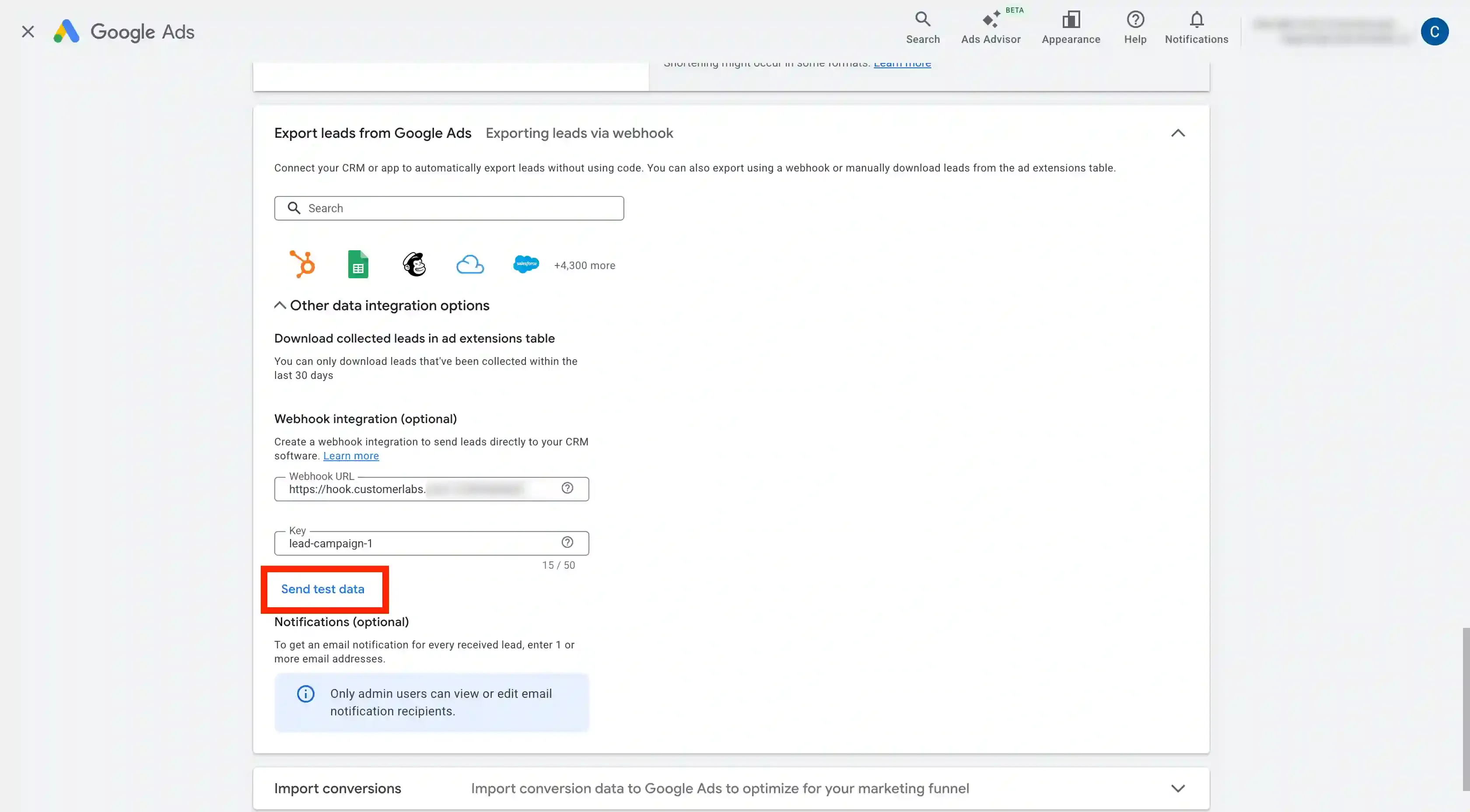
-
Click on Save to save the configuration in Google Ads.
-
Now go back to your CustomerLabs account to complete the configuration.
Building a Workflow to Receive Lead Data
Section titled “Building a Workflow to Receive Lead Data”Workflow helps you turn the raw data you receive from the source into specific event data based on the workflow configuration, which includes filtering and modifying the parameters. A workflow is a one-time setup that constantly receives customer data & updates user profiles in Customerlabs 1PD Ops in real-time.
-
To set up the workflow, go back to the Google Ads Source in CustomerLabs and Click on “Next: Workflow Setup”. Enter a Workflow name. (e.g.,
Google_Ads_leads).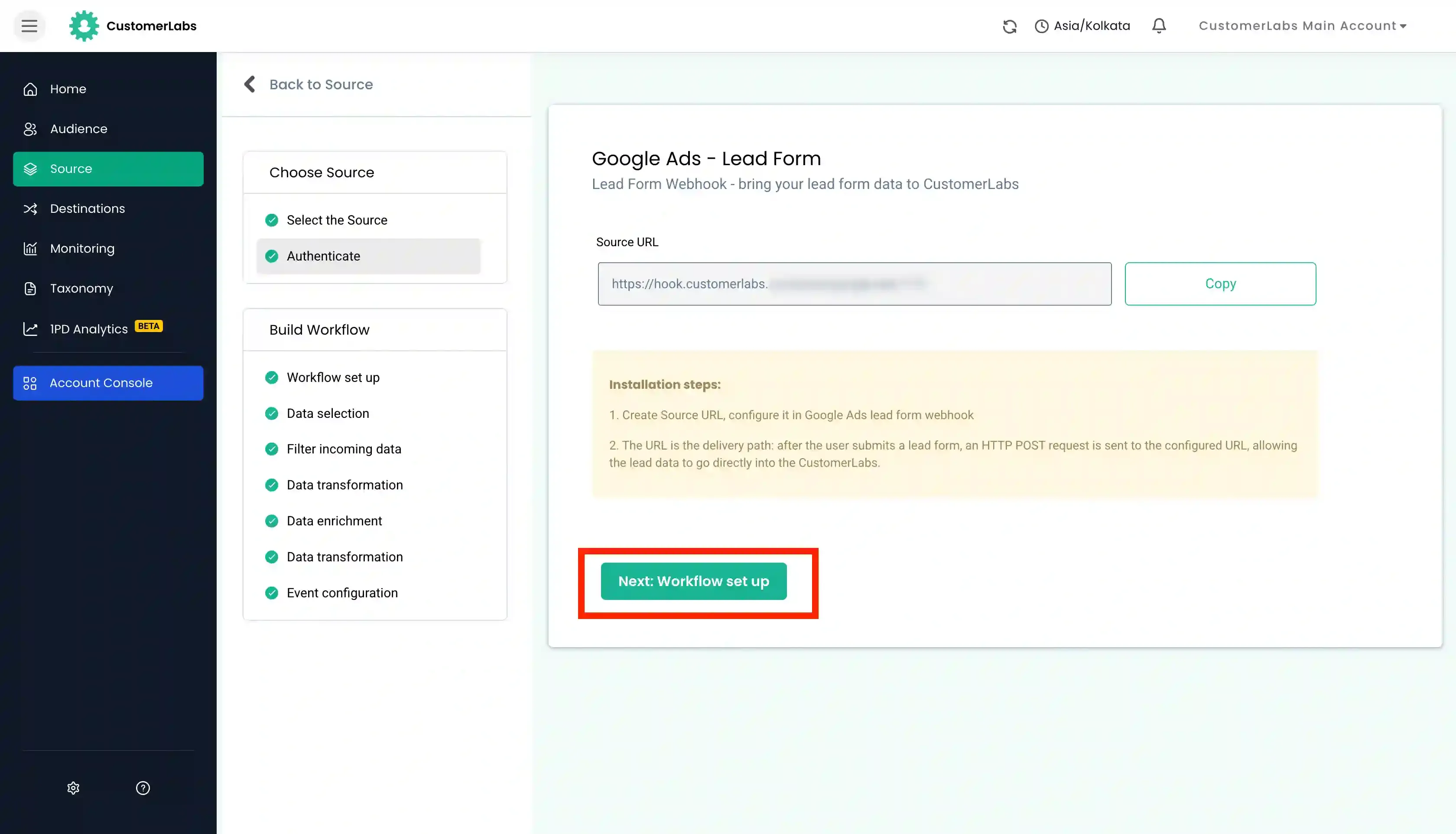
-
If you have already sent the test data from Google Ads, click on Choose sample data to receive data samples.
-
Choose the sample data by clicking on Fetch new data.
-
Click on View details to view the incoming data and choose the relevant sample.
-
Choose the sample that suits your use case by clicking on Select this sample.
-
Filter incoming data: This step helps in filtering out irrelevant data and allows only the information you need to enter the workflow in the future. This is an optional step in the workflow.
-
Event Configuration: Choose the event name from the drop-down. For example, you can choose
custom eventand give a name to configure the workflow based on your incoming data. -
Identity Mapping: Customerlabs 1PD Ops supports a wide range of user identifiers. For example, you can select the email id as the unique user identifier. In this case, you choose
identify_by_emailas the field to map the incoming email ID from Google. -
Post user identity mapping, you can categorically map other incoming attributes under two major fields – User traits and User External IDs.
-
User traits: These refer to specific characteristics or attributes associated with an individual user. The user traits include
first name,last name,city,state,company,zip code, & other similar information. To send users’ details to ad platforms, you must map them as user traits under Event Configuration. -
User External IDs: Unique Google Ads user IDs such as
lead_idcan be mapped under User External IDs. -
Click on Save Workflow to save the workflow configuration.
-
Verify if the workflow is active by navigating to Sources > Click on Google Ads > Check the ‘Workflow Status’ column.
You will start receiving the lead details from Google Ads natively, and you can check the same in the Logs as well as in the Events Manager screen.