
CustomerLabs + Maropost Integration
Maropost is a multi-channel marketing automation platform that supports email, SMS, and customer journey orchestration. Integrating CustomerLabs with Maropost enables enriched first-party customer data — including behavioral events, user traits, and unified profiles — to be forwarded to Maropost for audience segmentation and targeted campaign delivery.
This integration requires three sets of credentials from Maropost: an Account ID, an API Token, and SFTP credentials for advanced audience sync.
Prerequisites
Section titled “Prerequisites”- An active CustomerLabs account
- An active Maropost account with admin access to Settings and API Keys
Part 1 — Basic Configuration
Section titled “Part 1 — Basic Configuration”Enable the Maropost Destination
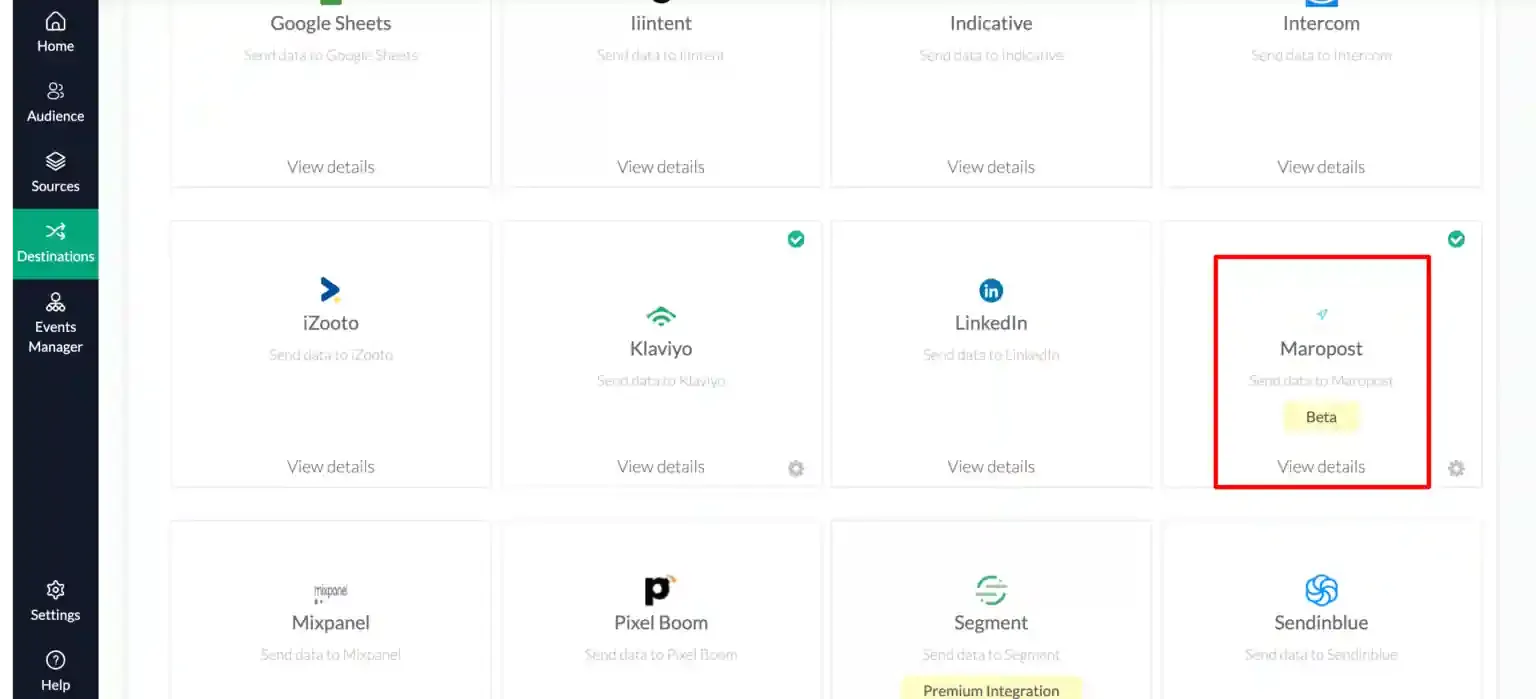
Section titled “Enable the Maropost Destination”In CustomerLabs, navigate to Destinations → All Destinations, search for Maropost, and click Enable.
Retrieve the Account ID
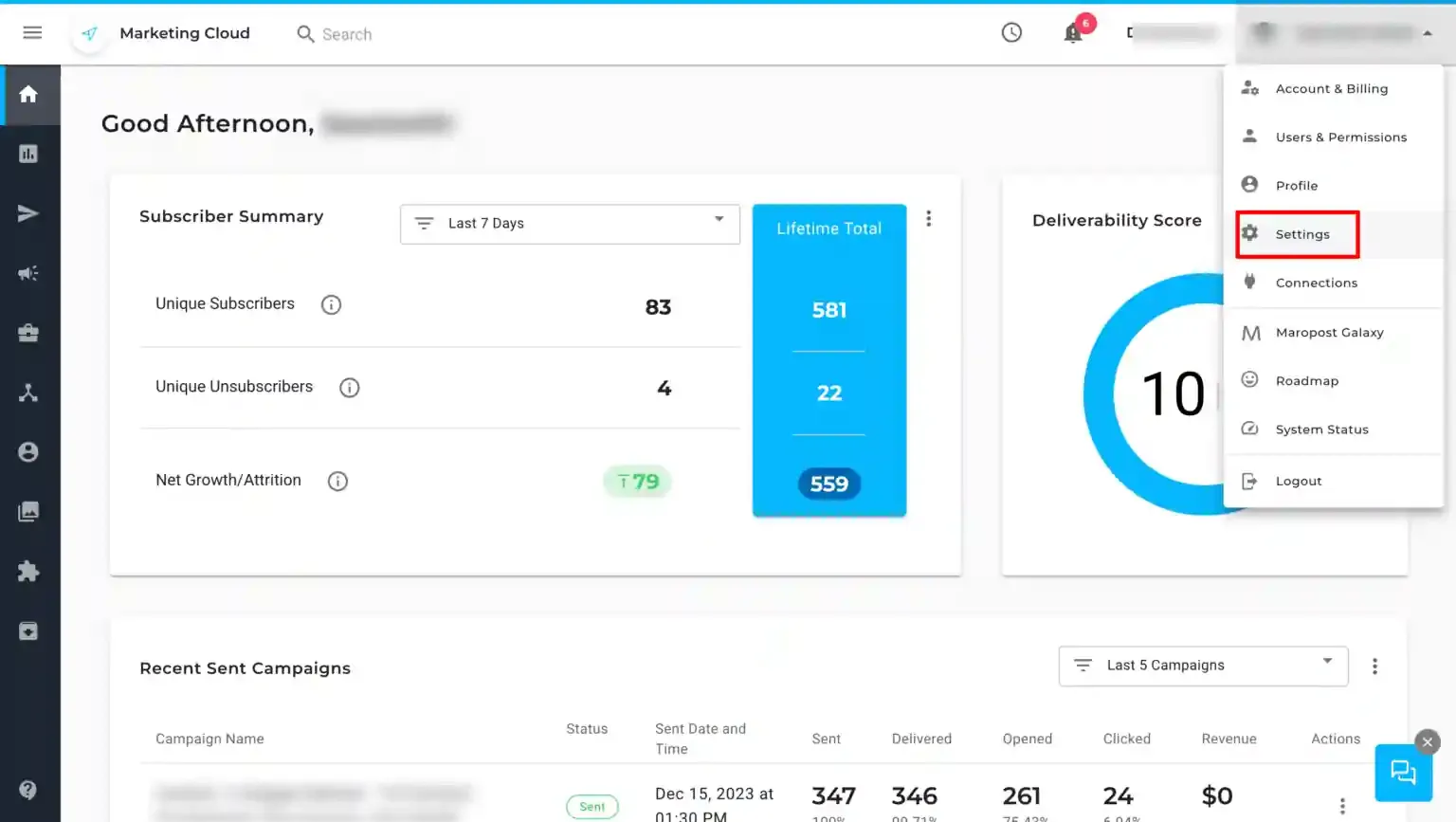
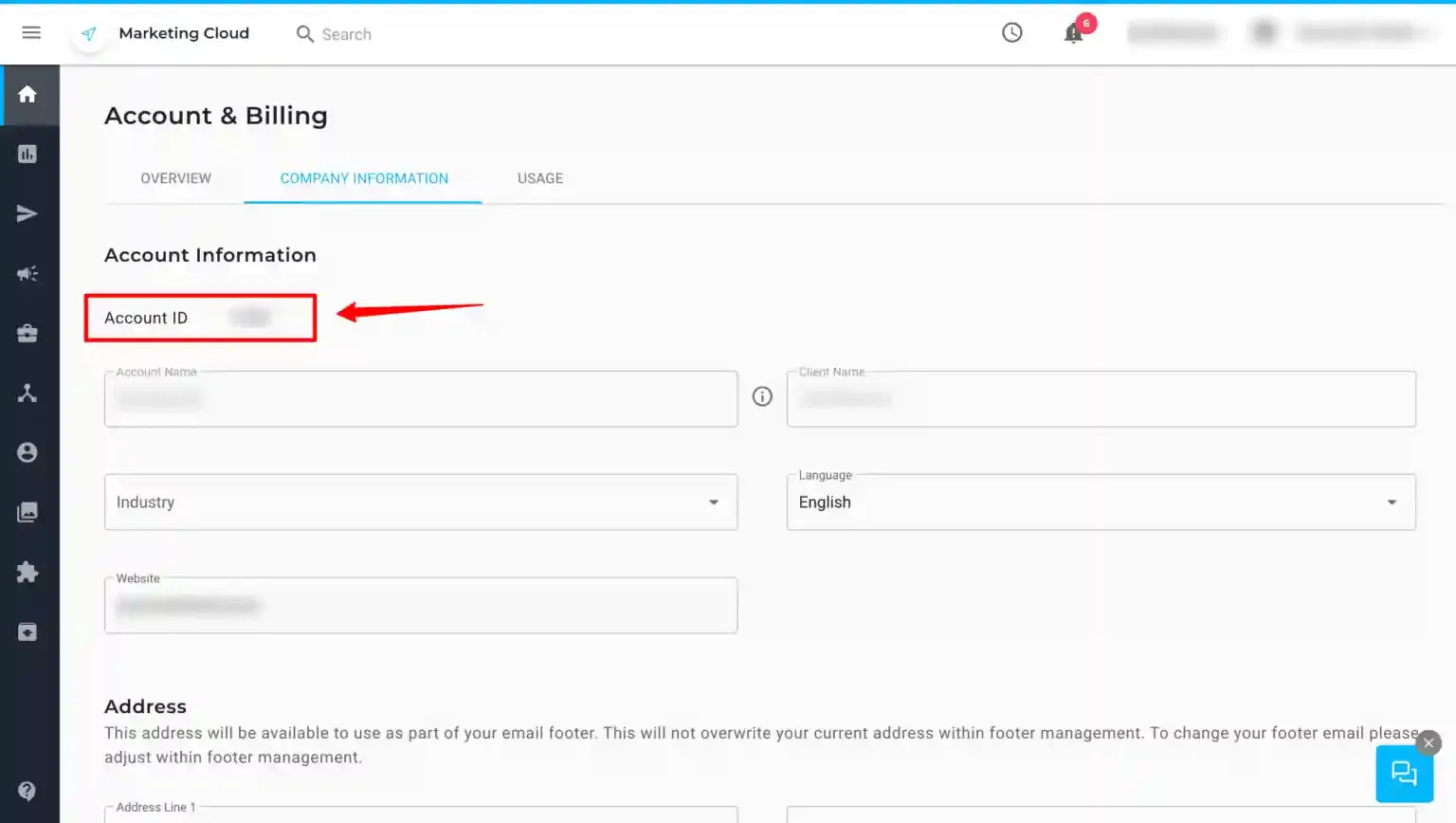
Section titled “Retrieve the Account ID”In Maropost, navigate to Settings → Account & Billing → Company Information and copy the Account ID.
Enter the Account ID in CustomerLabs
Section titled “Enter the Account ID in CustomerLabs”-
Navigate to Destinations → Maropost → Configuration Settings.
-
Paste the Account ID into the designated field.
-
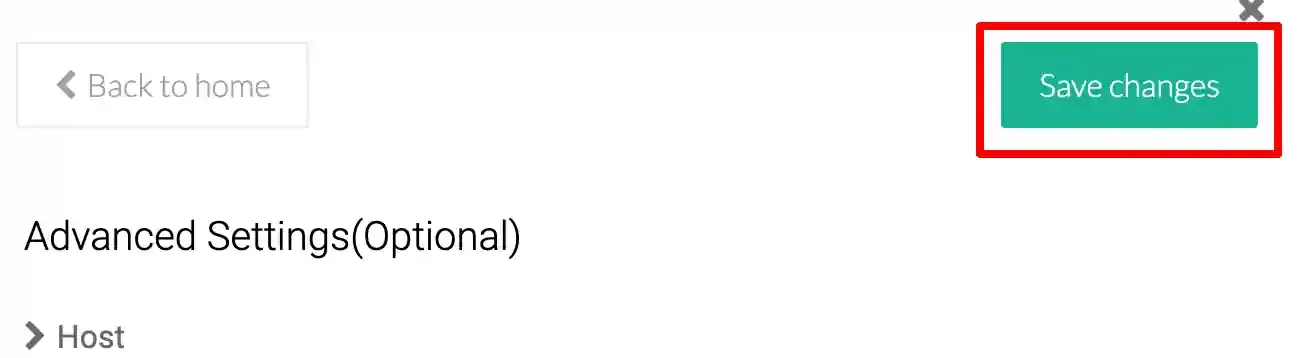
Click Save Changes.
Generate an API Key in Maropost
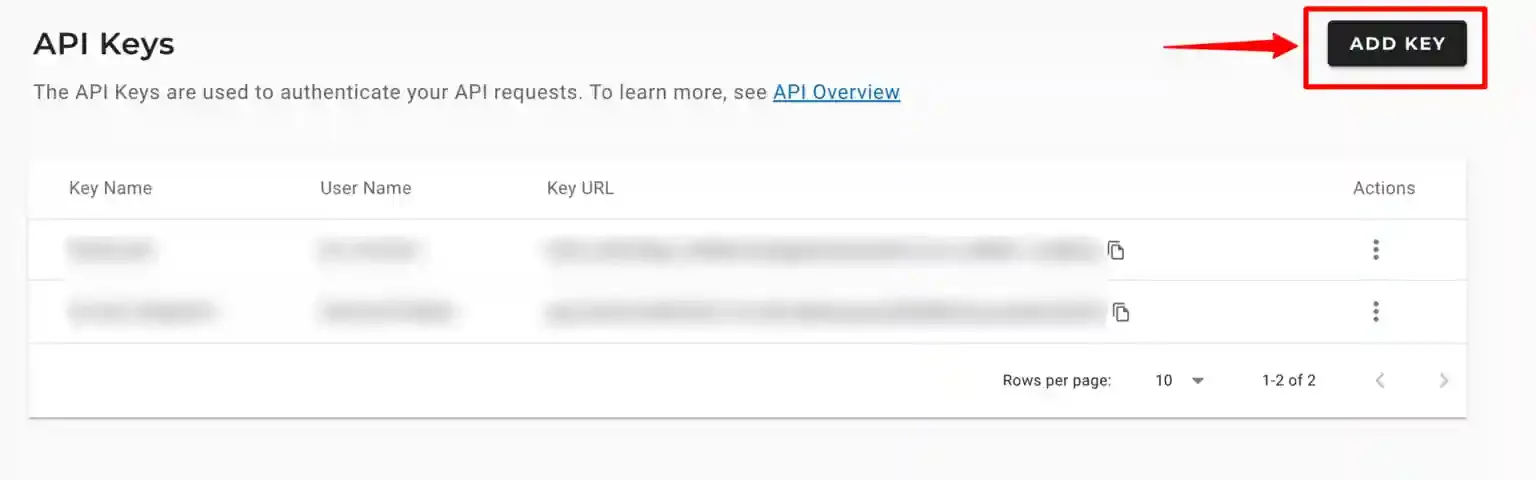
Section titled “Generate an API Key in Maropost”Navigate to Settings → API Keys and click Add Key.
Set API Key Permissions
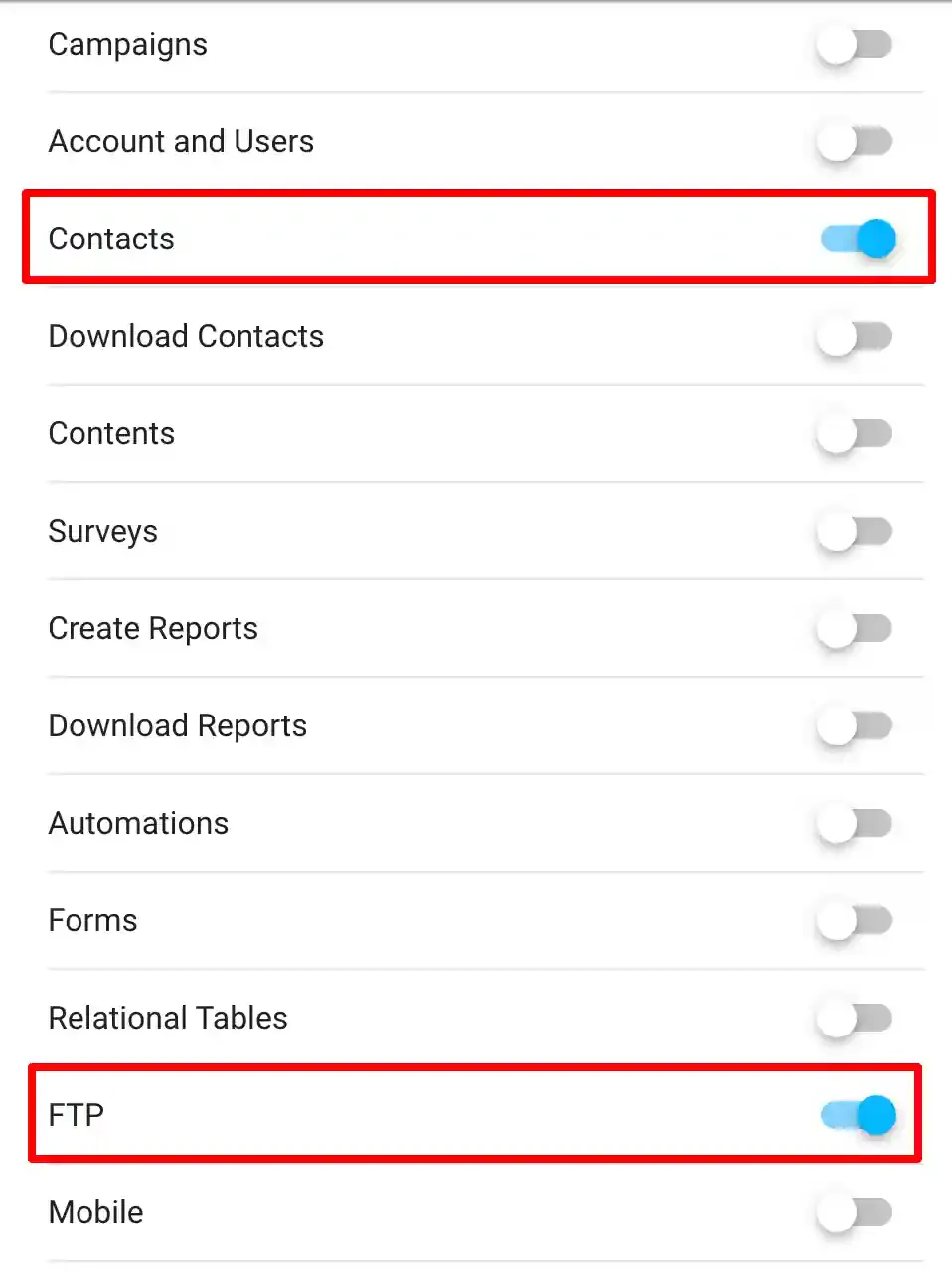
Section titled “Set API Key Permissions”Enable the following permissions for the key:
- Contacts
- FTP
Click Save to generate the key.
Enter the API Token in CustomerLabs
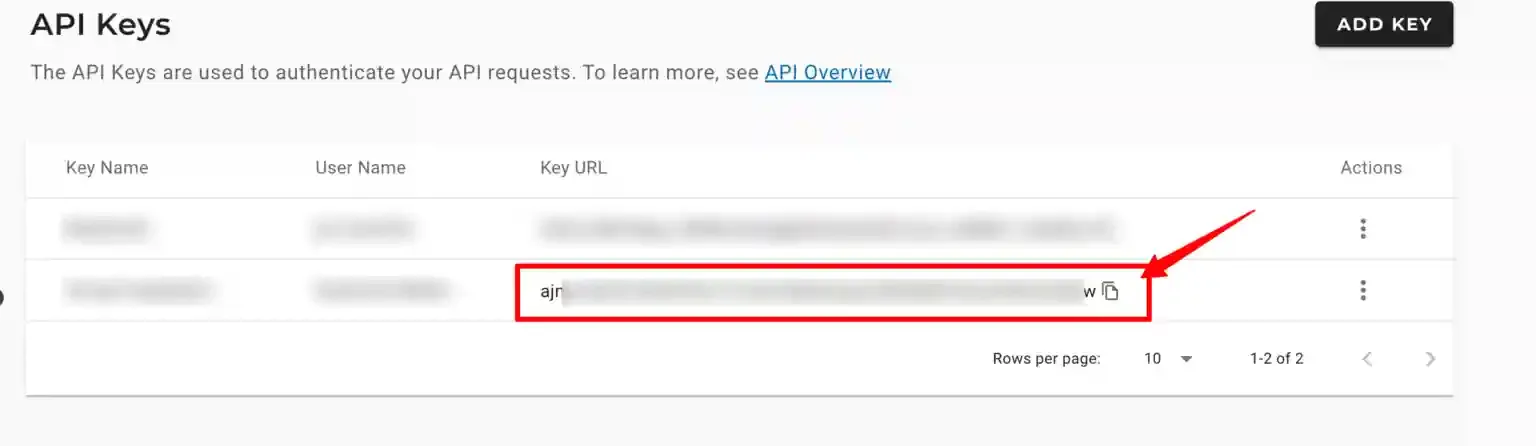
Section titled “Enter the API Token in CustomerLabs”Copy the Key URL (API Token) generated in the previous step. Then:
-
Navigate to Destinations → Maropost → Configuration Settings.
-
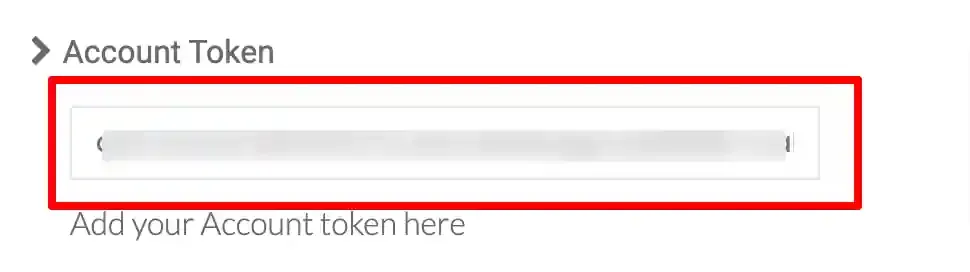
Paste the token under Account Token.
-
Click Save Changes.
Part 2 — Advanced Configuration (SFTP)
Section titled “Part 2 — Advanced Configuration (SFTP)”SFTP access enables CustomerLabs to sync audience lists directly to Maropost’s file transfer endpoint. This is required for bulk audience uploads.
Retrieve SFTP Credentials
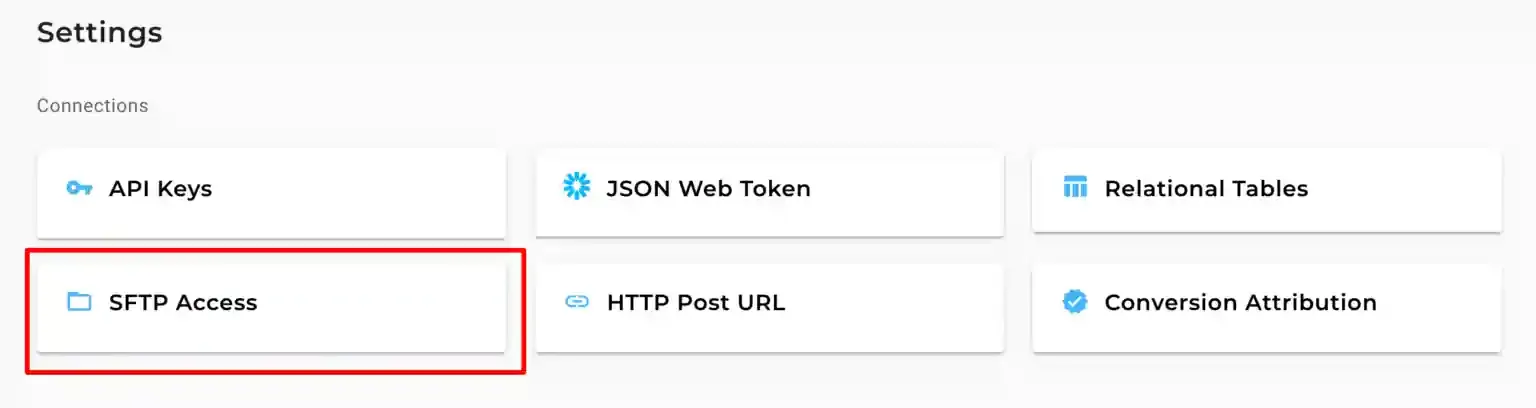
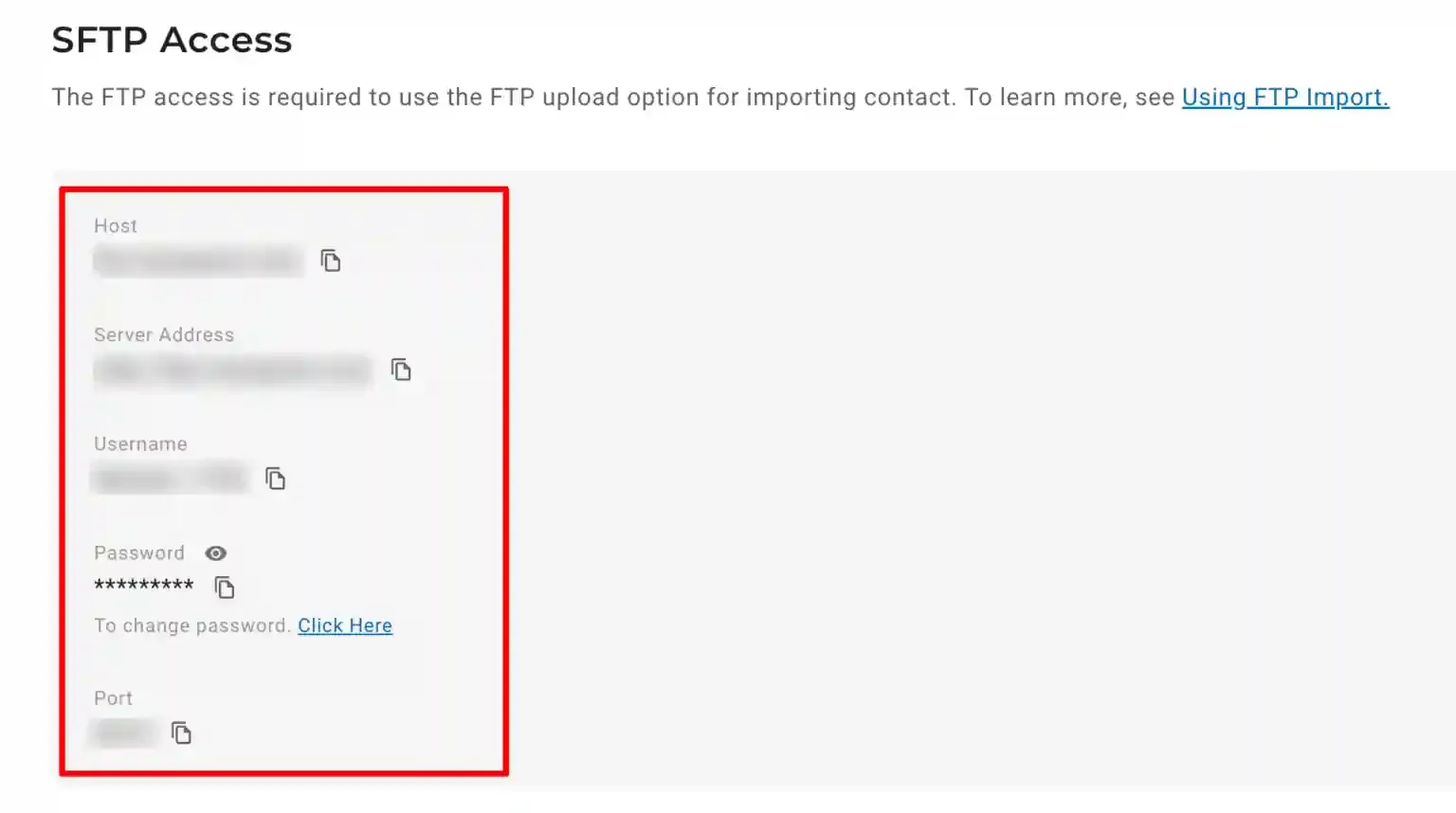
Section titled “Retrieve SFTP Credentials”In Maropost, navigate to Settings → SFTP Access. Note the following values:
| Field | Description |
|---|---|
| Host | SFTP server hostname |
| Username | SFTP login username |
| Password | SFTP login password |
| Port | SFTP connection port |
Configure SFTP in CustomerLabs
Section titled “Configure SFTP in CustomerLabs”-
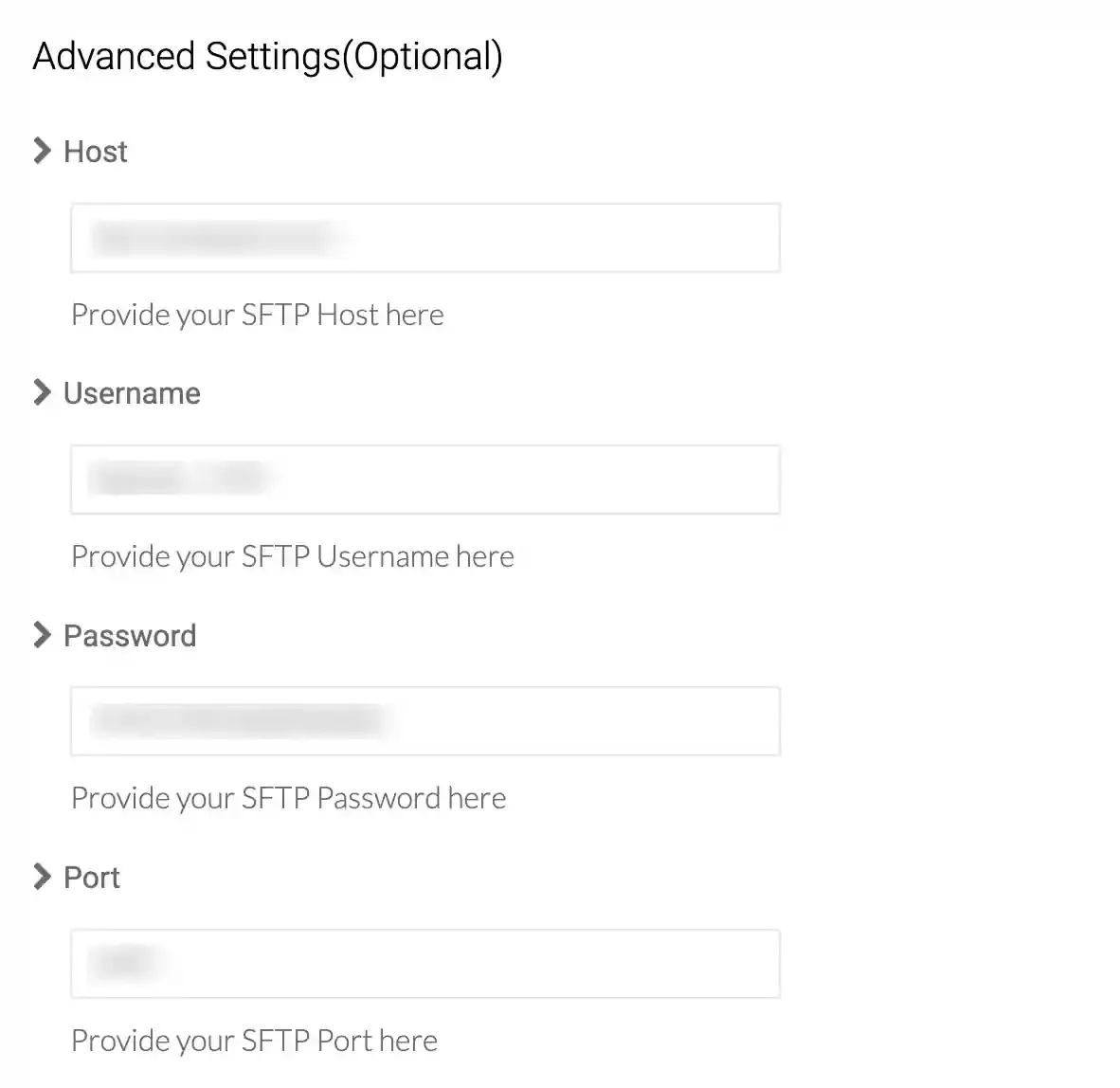
Navigate to Destinations → Maropost → Advanced Settings.
-
Paste the SFTP credentials into the respective fields.
-
Click Save Changes.
Sync Audience Lists
Section titled “Sync Audience Lists”With SFTP configured, audience lists from CustomerLabs can be synced to Maropost for use in campaigns and journeys.
The Maropost integration is now active. CustomerLabs will forward customer data and audience lists to Maropost, where they can be used for targeted email, SMS, and multi-channel campaign delivery.
Quick Reference
Section titled “Quick Reference”| Setting | Value |
|---|---|
| Account ID Location | Maropost → Settings → Account & Billing → Company Information |
| API Token Location | Maropost → Settings → API Keys → Key URL |
| API Permissions Required | Contacts, FTP |
| SFTP Location | Maropost → Settings → SFTP Access |
| Where to Enter | CustomerLabs → Destinations → Maropost → Configuration Settings / Advanced Settings |