
Funnelish + Customerlabs 1PD Ops Integration
Funnelish is a powerful sales funnel and checkout optimization platform, but many users encounter challenges with event tracking and data integration with ad platforms like Meta.
With the help of the 1PD platform events can be tracked more efficiently in a streamlined process for tracking leads in the click funnel, an event with its limitation, by leveraging first-party tracking methods, businesses can overcome ClickFunnels’ native restrictions and ensure accurate event data is sent to ad platforms like Meta and Google Ads.
Now let’s follow the step-by-step instructions to configure the same
The Step-by-Step Guide to Configuring Events in Funnelish
Section titled “The Step-by-Step Guide to Configuring Events in Funnelish”Step 1: Sign In to CustomerLabs
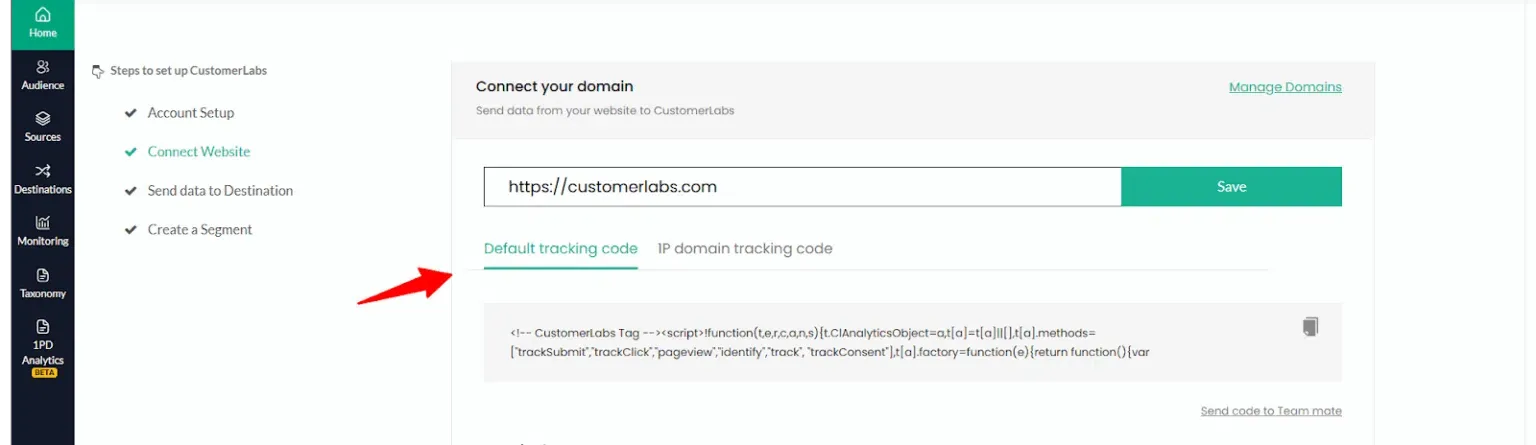
Section titled “Step 1: Sign In to CustomerLabs”Log in to CustomerLabs
Copy the tracking code from the homepage.
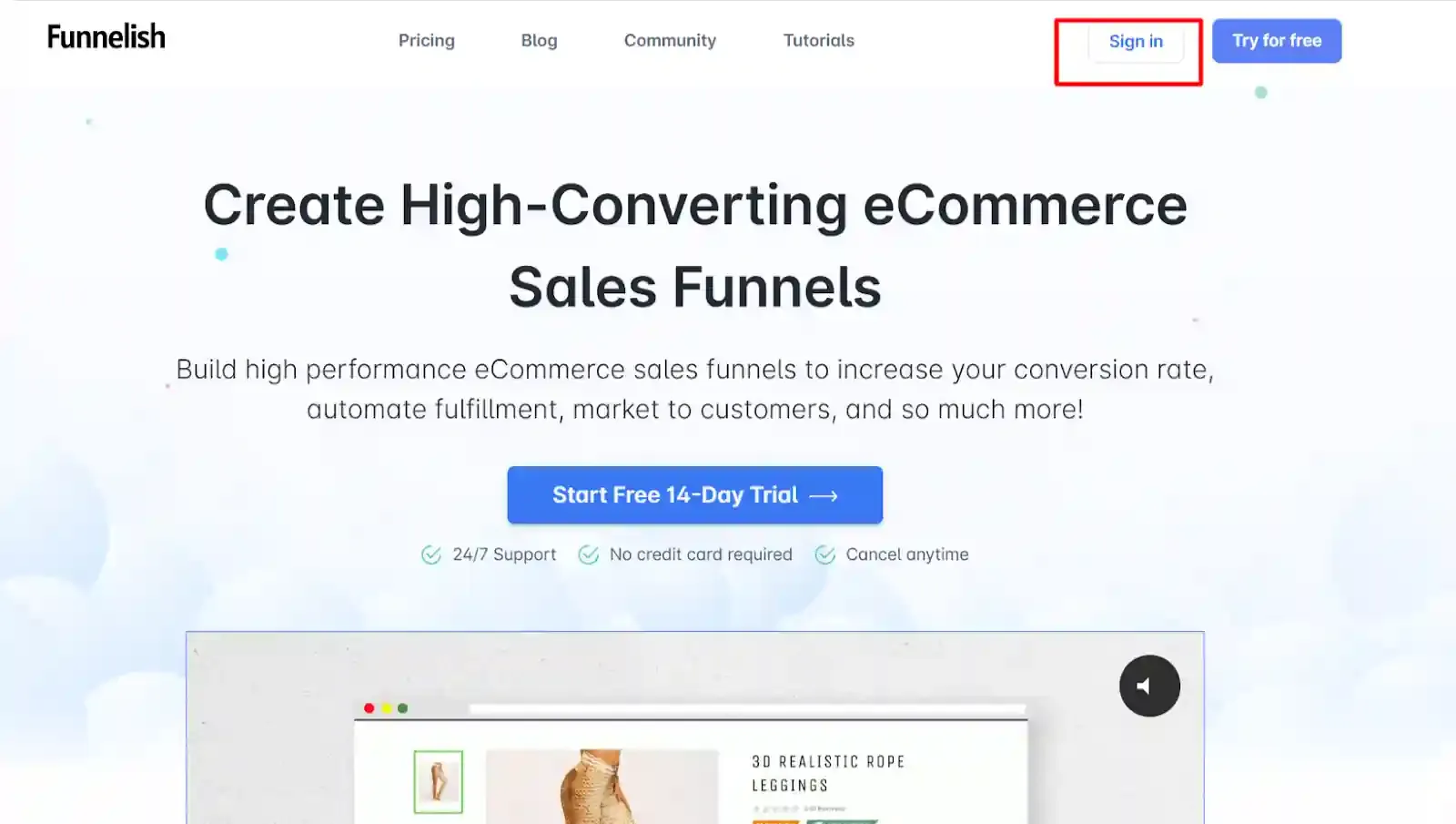
Step 2: Sign In to Funnelish
Section titled “Step 2: Sign In to Funnelish”Log in to your funnelish account

Step 3: Navigate to the Funnel Setup
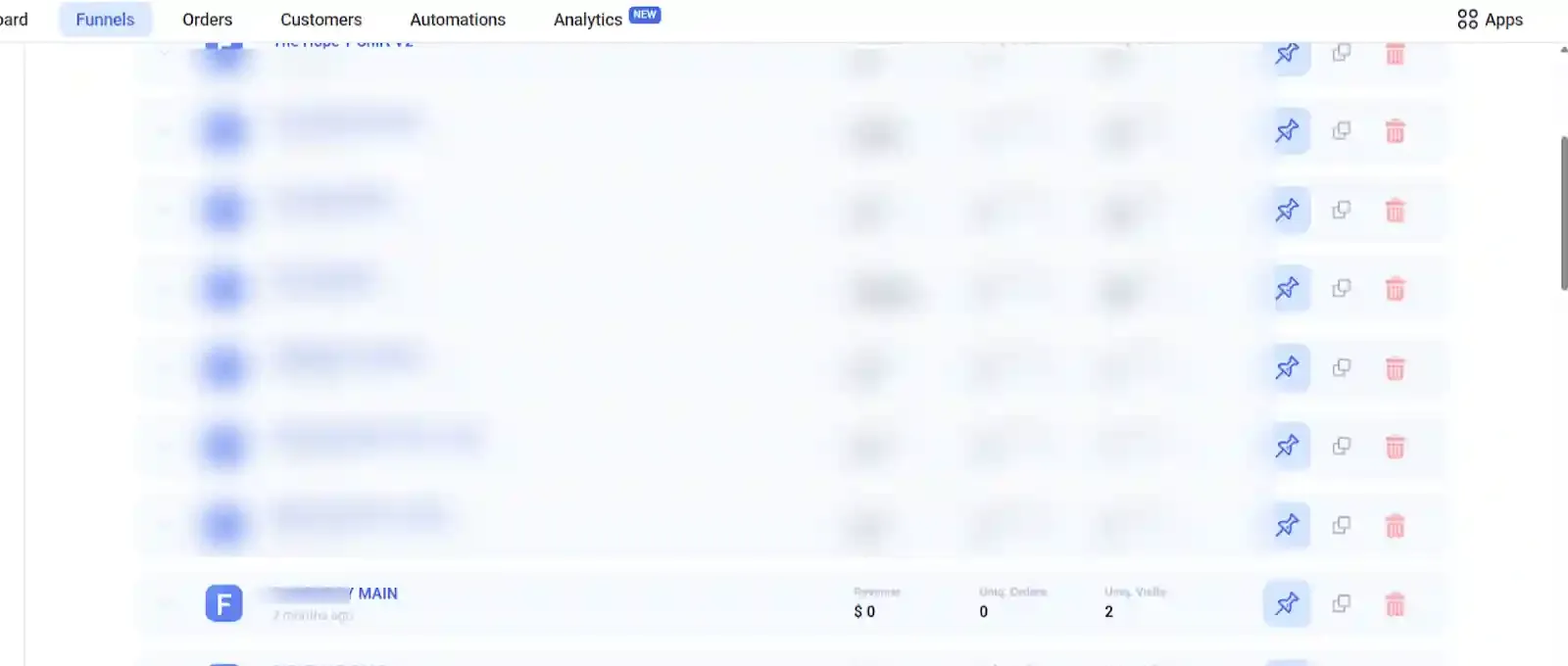
Section titled “Step 3: Navigate to the Funnel Setup”Click on the funnels menu.
Select Funnels to access your funnel setup.
Step 4: Choose the Funnel Setup
Section titled “Step 4: Choose the Funnel Setup”Select the funnel where you want to track events.
For this guide, have chosen the Webinar Registration Main Funnel as an example.
Step 5: Adding the Tracking Code:
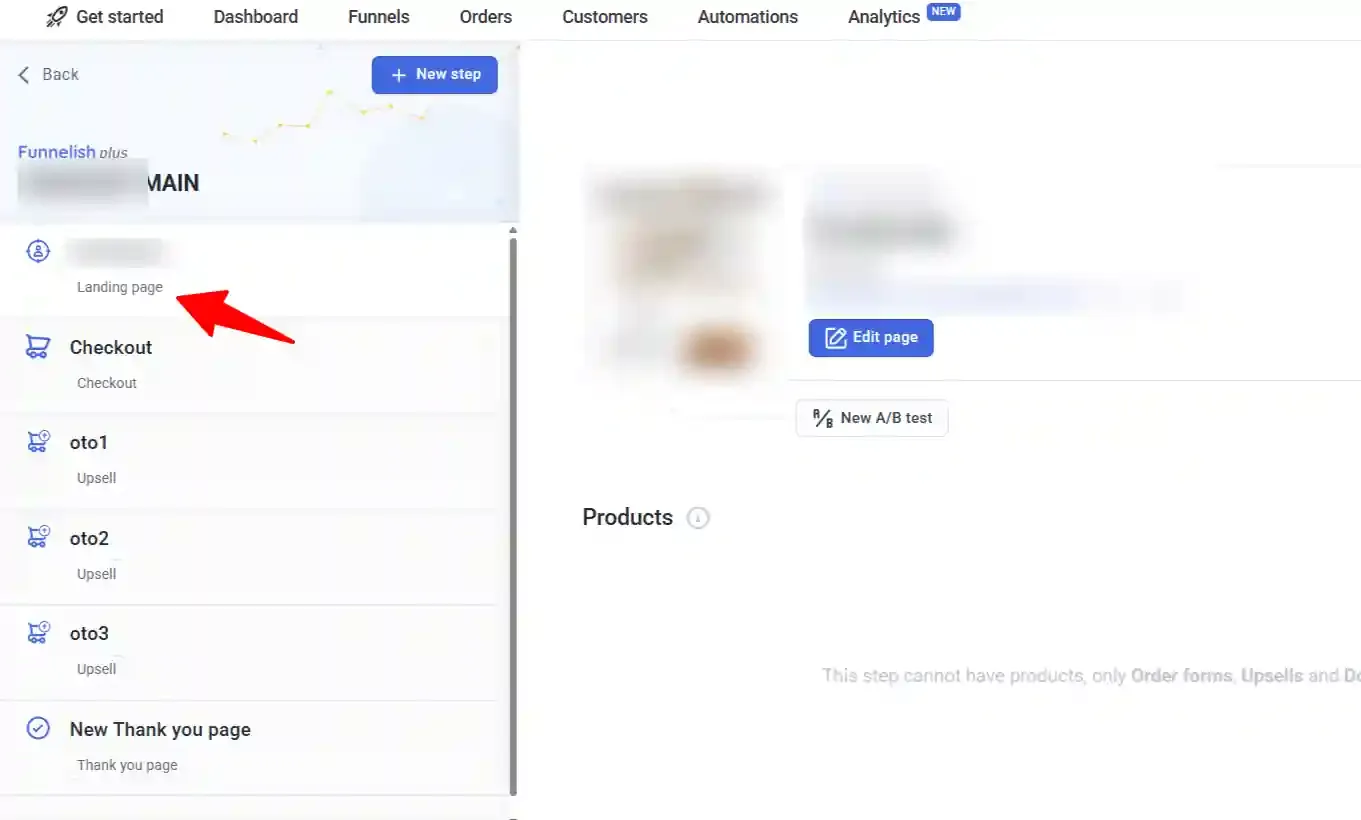
Section titled “Step 5: Adding the Tracking Code:”Go to the selected funnel and access the Funnel Steps page.
Copy the tracking code from CustomerLabs.
Navigate to the landing page and click on the edit page
You will be redirected to a new page. Click on the ⋮ (three dots) at the top and select Custom Code.
Paste the tracking code on the head HTML section for all the funnel steps
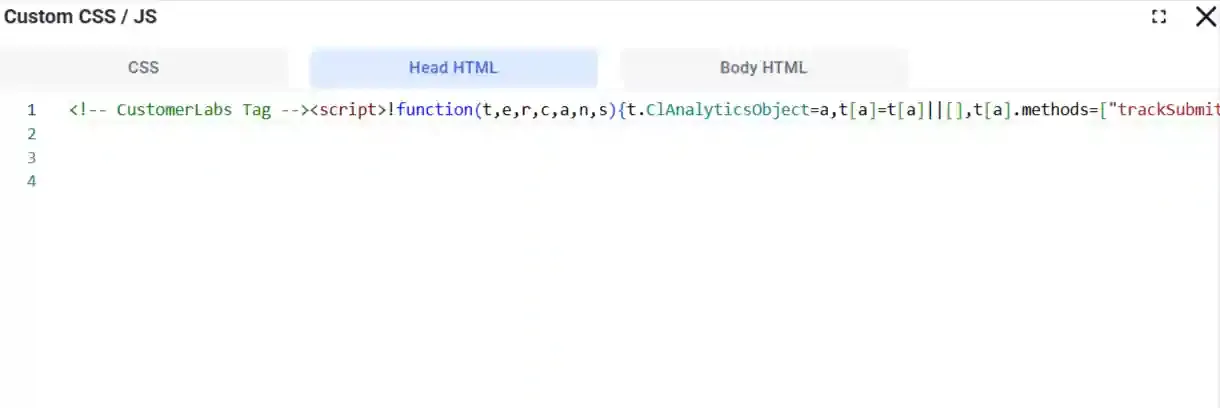
Step 6: Event Configuration:
Section titled “Step 6: Event Configuration:”In this example, I am selecting the checkout form from the funnel steps to track events such as Checkout The corresponding tracking code is provided below.
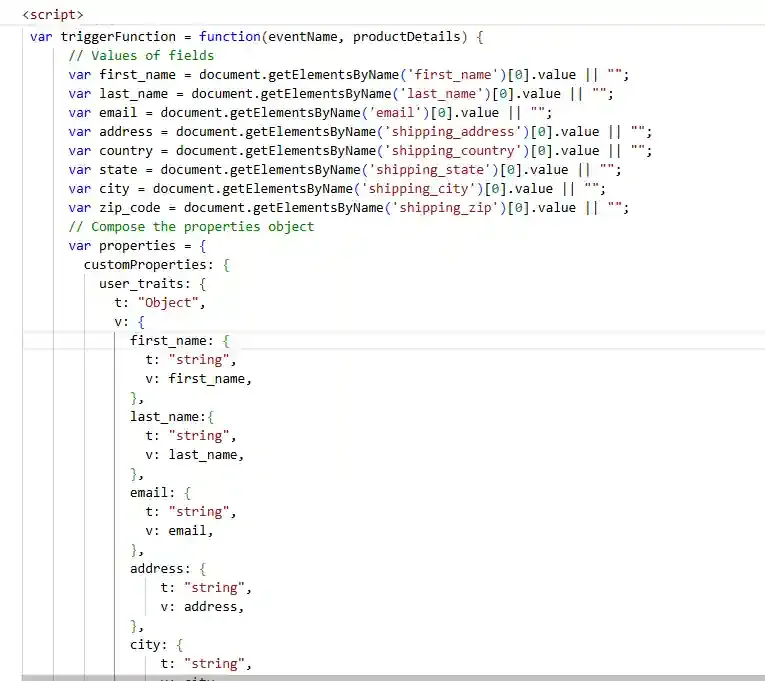
Based on your funnel setup, you will need to update the code accordingly, reference code for tracking events like Page View, Product View, Add to Cart, Checkout, and Purchase has been included in the CustomerLabs JavaScript API Documentation.
You can capture the user information and product details using JavaScript DOM methods and update them as per the CustomerLabs JS API requirements.
To update the tracking code for each funnel step (in this case, checkout funnel stage)
Select the relevant funnel step→Click on Edit Page→. Click on the ⋮ (three dots) at the top and select Custom Code→Update the event tracking code—>Save the changes
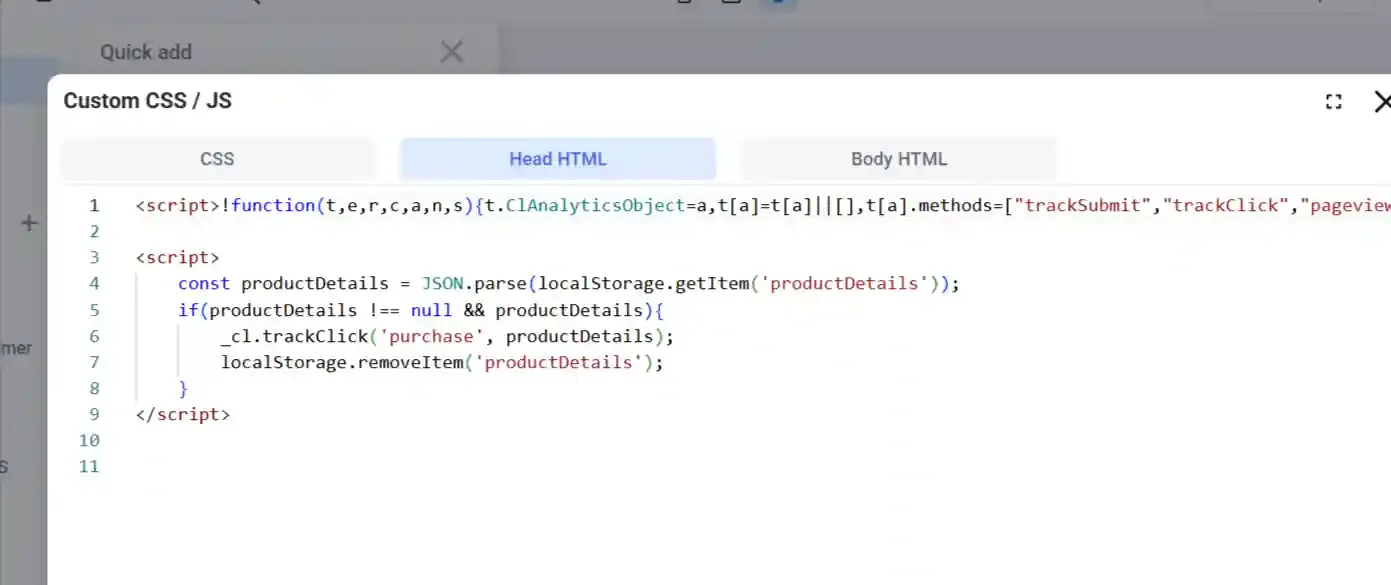
Step 7: Testing the Events
Section titled “Step 7: Testing the Events”To start with the audit events, as a first step ensure that your website is connected to
CustomerLabs and to track down the actions on your website, follow the steps below
7.1 Right-click on the browser.
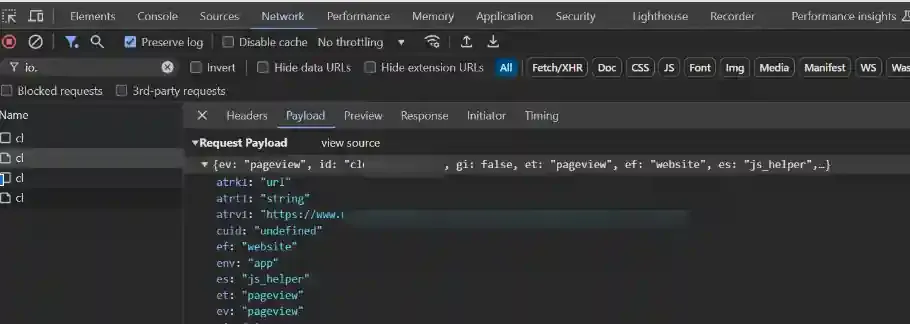
7.2 Inspect the element & go to the network section.
7.3 Enter “io.”/ “cl” and perform some actions on the website/funnel.
7.4 You will notice the events are triggering in the network section.
7.5 Refer to the screenshot below for your website audit reference.
In summary, with CustomerLabs, you can easily track and send form submissions from Funnelish to Meta and Google Ads while overcoming common tracking challenges. The step-by-step guide provided ensures that your event data is accurately captured for better optimization and campaign results. If you run into any difficulties or need further help, feel free to contact our support team at [email protected] for personalized assistance.