
Import Leads from Zoho CRM to CustomerLabs
Zoho CRM is a cloud-based customer relationship management platform that helps businesses manage interactions with existing and potential customers. Key features include one-click calling, sales lead tracking, sales management, event tracking, and more.
The CustomerLabs 1PD Ops + Zoho CRM integration enables marketers to bring their Accounts, Leads, Contacts, Deals, and all related data from Zoho CRM into CustomerLabs 1PD Ops.
Marketing teams can use incoming Zoho CRM data to:
- Enrich existing user profiles
- Create targeted audience segments
- Sync segments with other marketing tools to personalize engagement
Prerequisites
Section titled “Prerequisites”- Admin access to a Zoho CRM account
- Admin access to an active CustomerLabs account
Connect Zoho CRM with CustomerLabs
Section titled “Connect Zoho CRM with CustomerLabs”You can transfer data from Zoho CRM to CustomerLabs using a webhook — a mechanism that automatically sends data from one application to another when a specific event occurs. Setting up a webhook in Zoho CRM will push data to CustomerLabs in real time.
Generate a Webhook URL in CustomerLabs
Section titled “Generate a Webhook URL in CustomerLabs”-
Sign in to your CustomerLabs account.
-
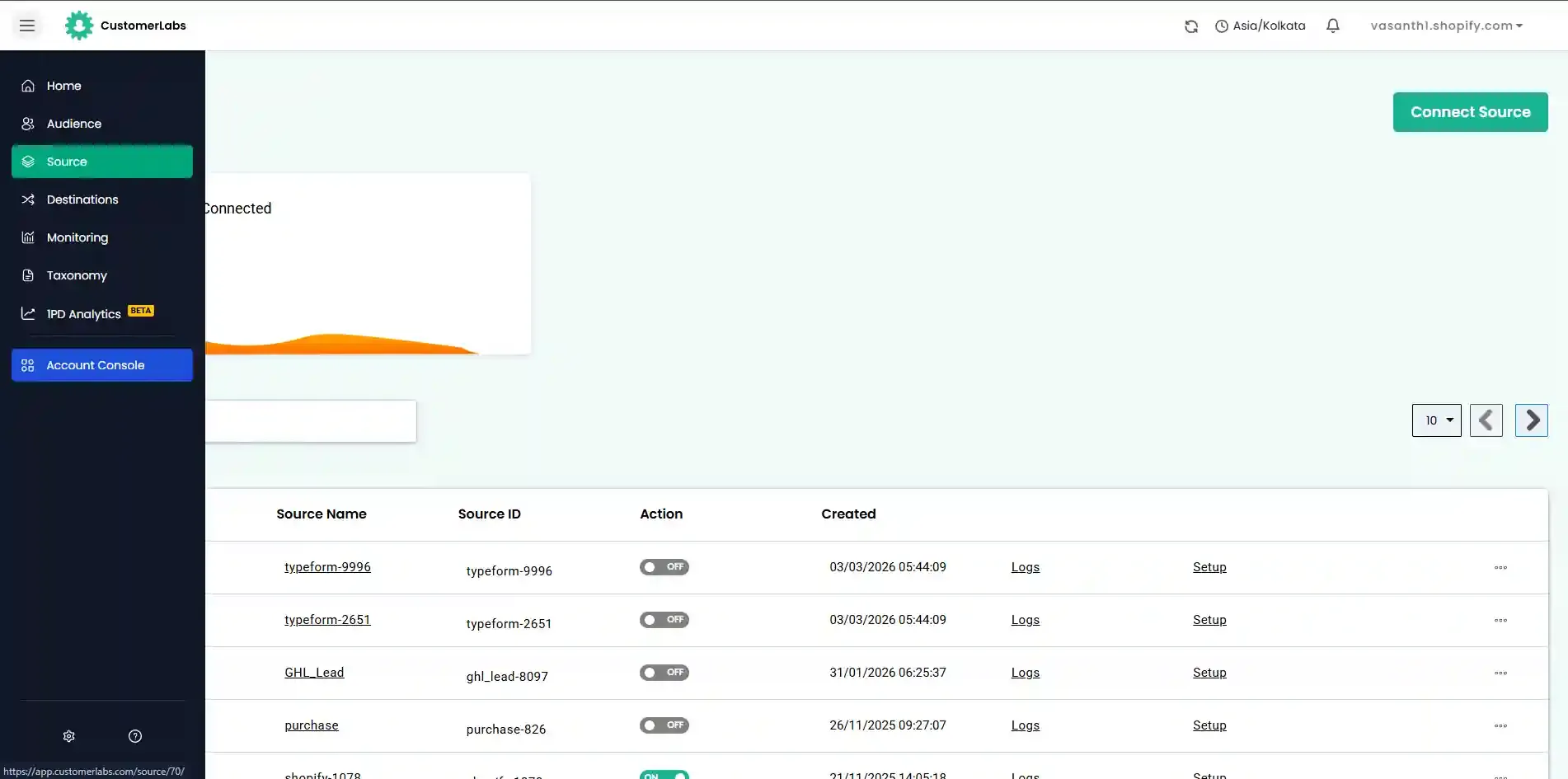
Navigate to Sources from the left-hand menu and click Connect Source.
-
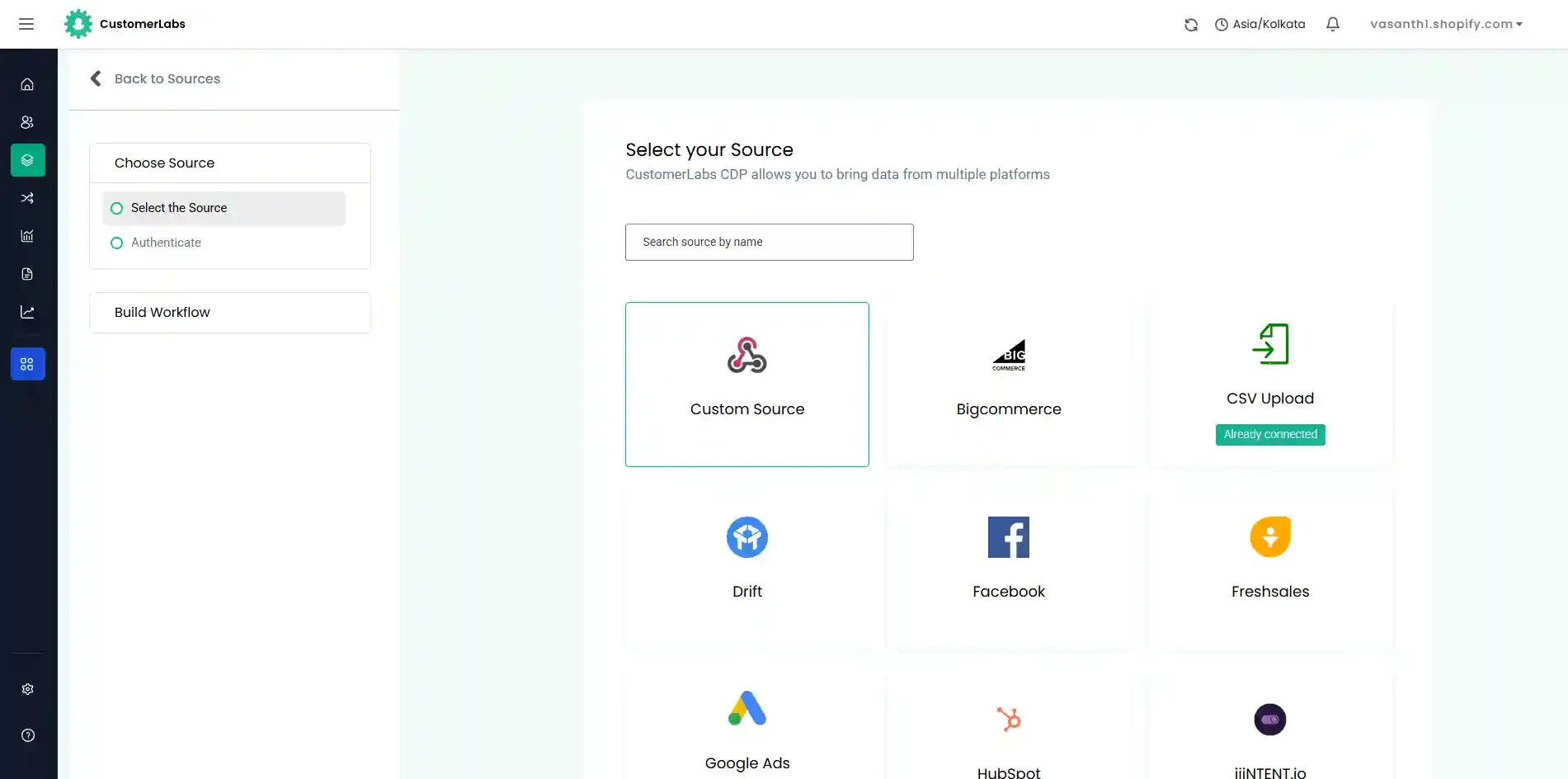
Choose Custom Source and enter the name Zoho CRM.
-
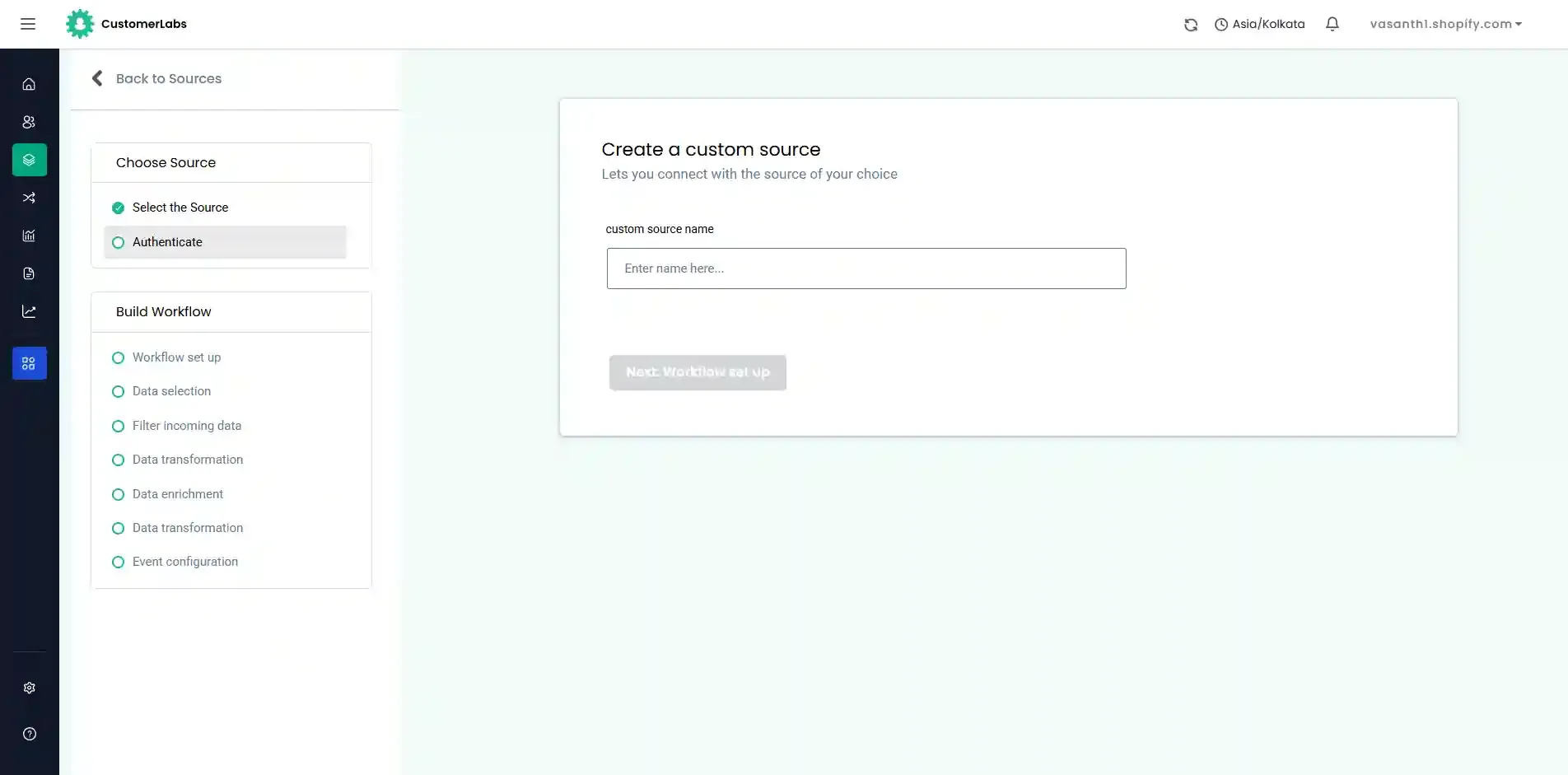
Click Save. A Webhook URL will be generated.
-
Copy the generated webhook URL — you will paste this into Zoho CRM in the next step.
Sign In to Zoho CRM
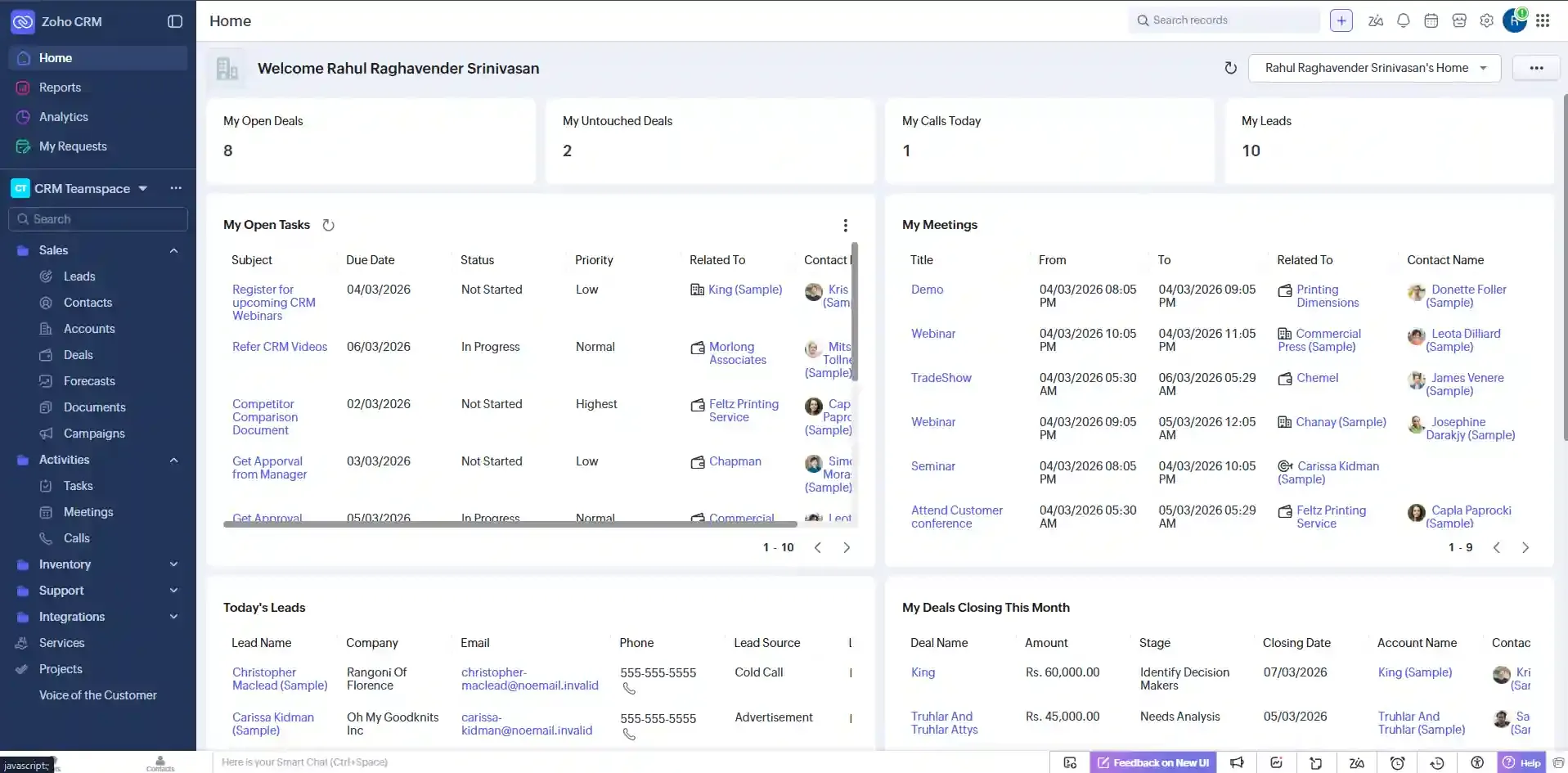
Section titled “Sign In to Zoho CRM”Sign in to your Zoho CRM account.
Create and Configure a Webhook in Zoho CRM
Section titled “Create and Configure a Webhook in Zoho CRM”-
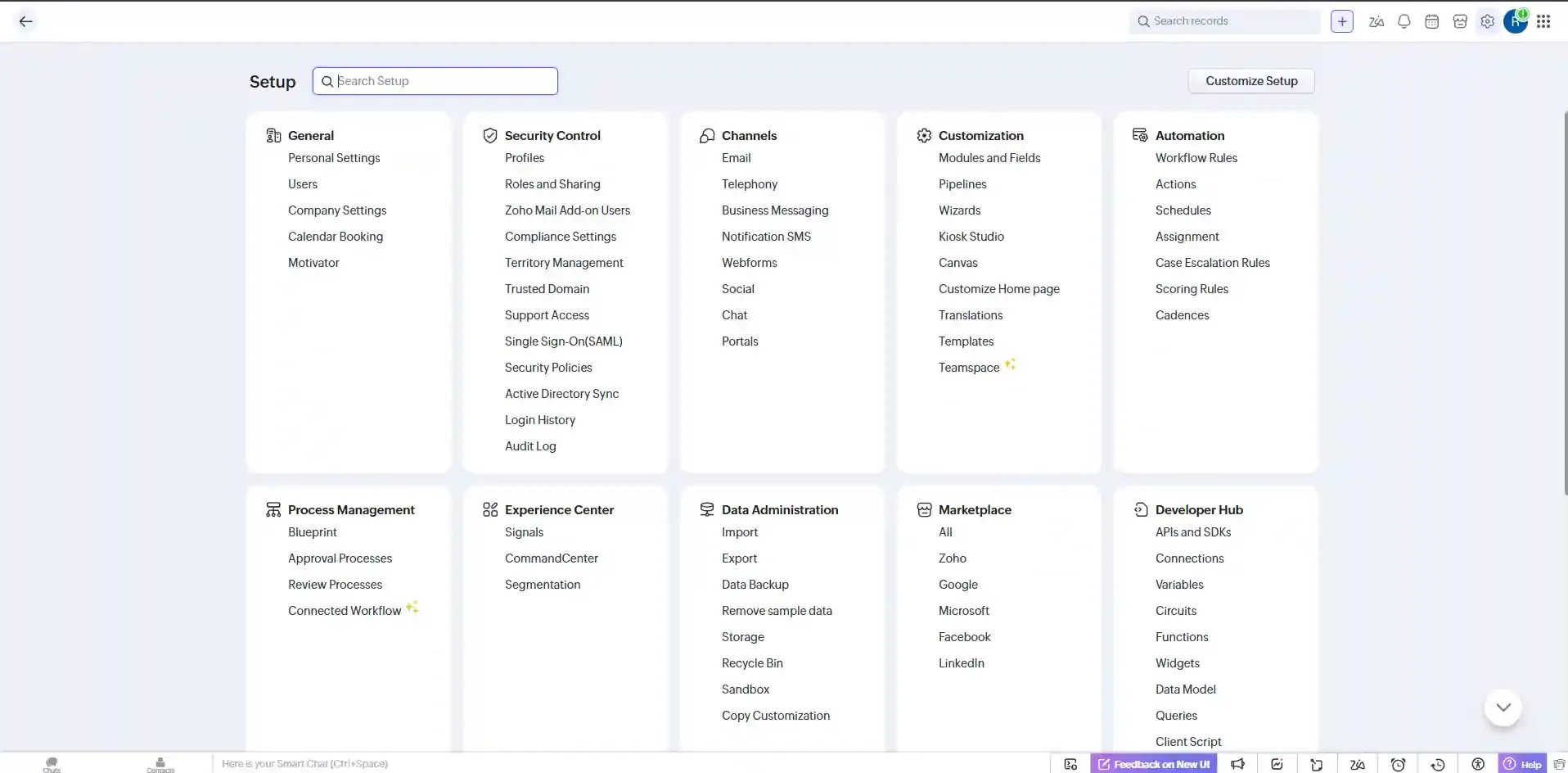
Click the gear icon in the top-right corner to open Settings.
-
Under the Automation section, click Actions — or search for Webhooks in the search box.
-
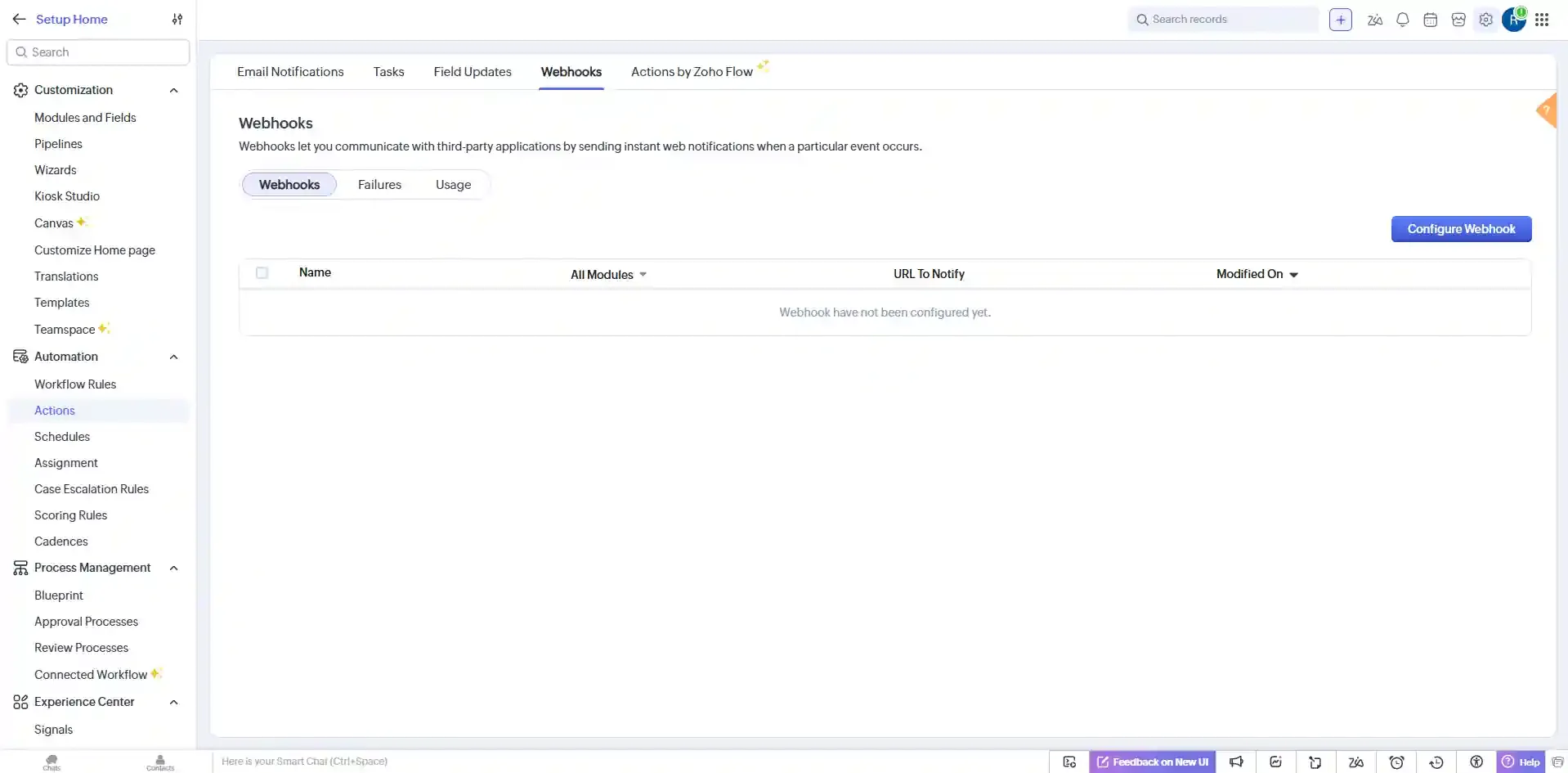
On the Webhooks page, click Configure Webhook.
-
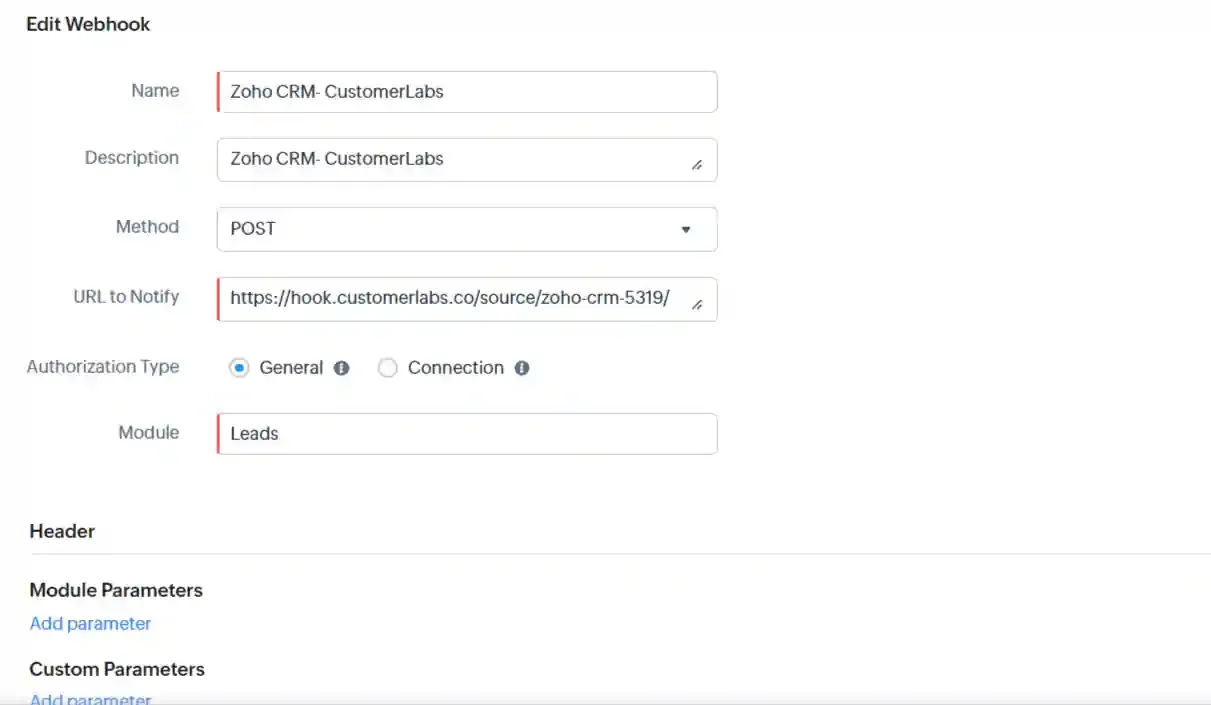
Fill in the webhook configuration form and paste the CustomerLabs webhook URL into the URL to Notify field.
-
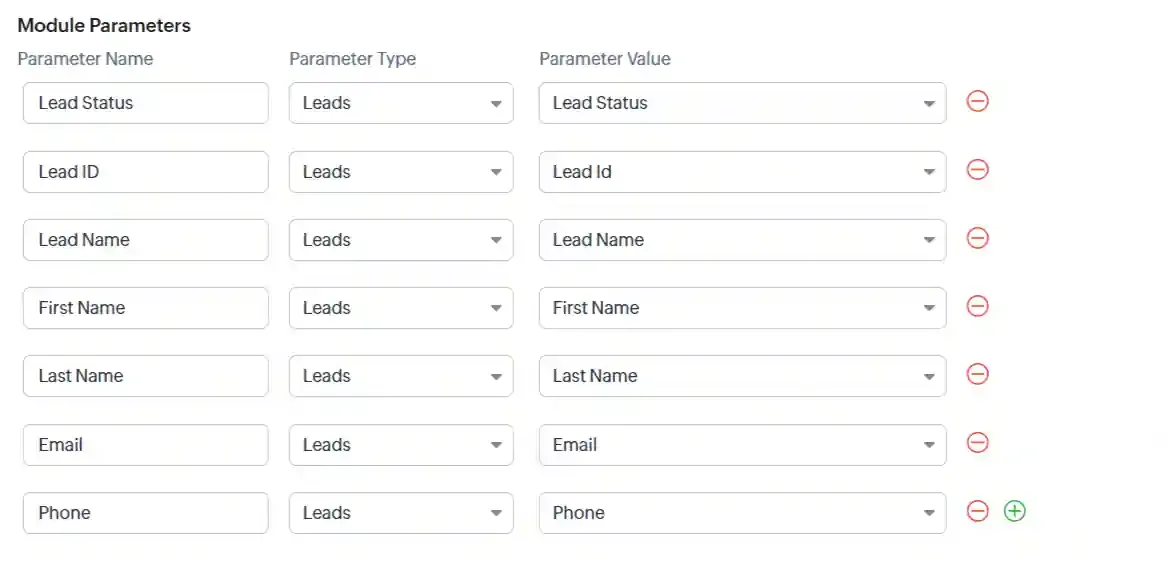
Refer to the Zoho CRM webhook documentation and add the required module parameters and custom parameters as per your requirements.
-
Click Save to complete the webhook setup.
What Is a Workflow?
Section titled “What Is a Workflow?”A Workflow in CustomerLabs allows you to transform raw data received from a source into structured event data. This transformation is based on workflow configurations, which include filtering and modifying parameters.
Key points about Workflows:
- You can create multiple workflows within a single Source.
- A workflow is a one-time setup that continuously receives customer data and updates user profiles in CustomerLabs 1PD Ops in real time.
- Once a Source is authenticated, users can build workflows without writing a single line of code.
Build a Workflow
Section titled “Build a Workflow”Set Up the Workflow
Section titled “Set Up the Workflow”Name Your Workflow
Section titled “Name Your Workflow”Assign a descriptive name to your workflow for easy identification. This name is for internal reference only.
Example: If you want to receive data about users whose stage changed to “Lead” in your CRM, you could name the workflow lead_updated or lead_created.
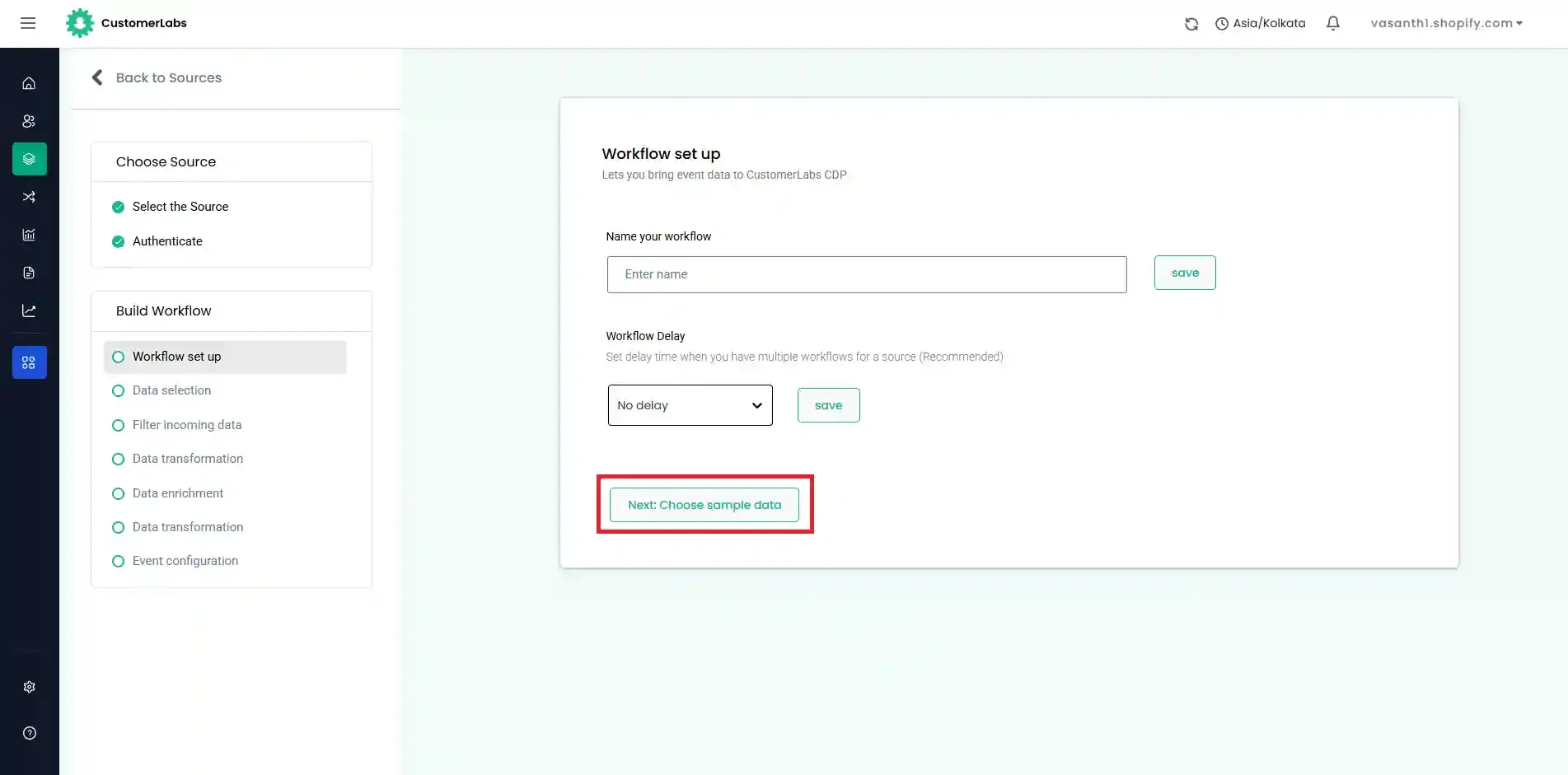
Workflow Delay
Section titled “Workflow Delay”Workflow delay is recommended when you have multiple workflows within a single source.
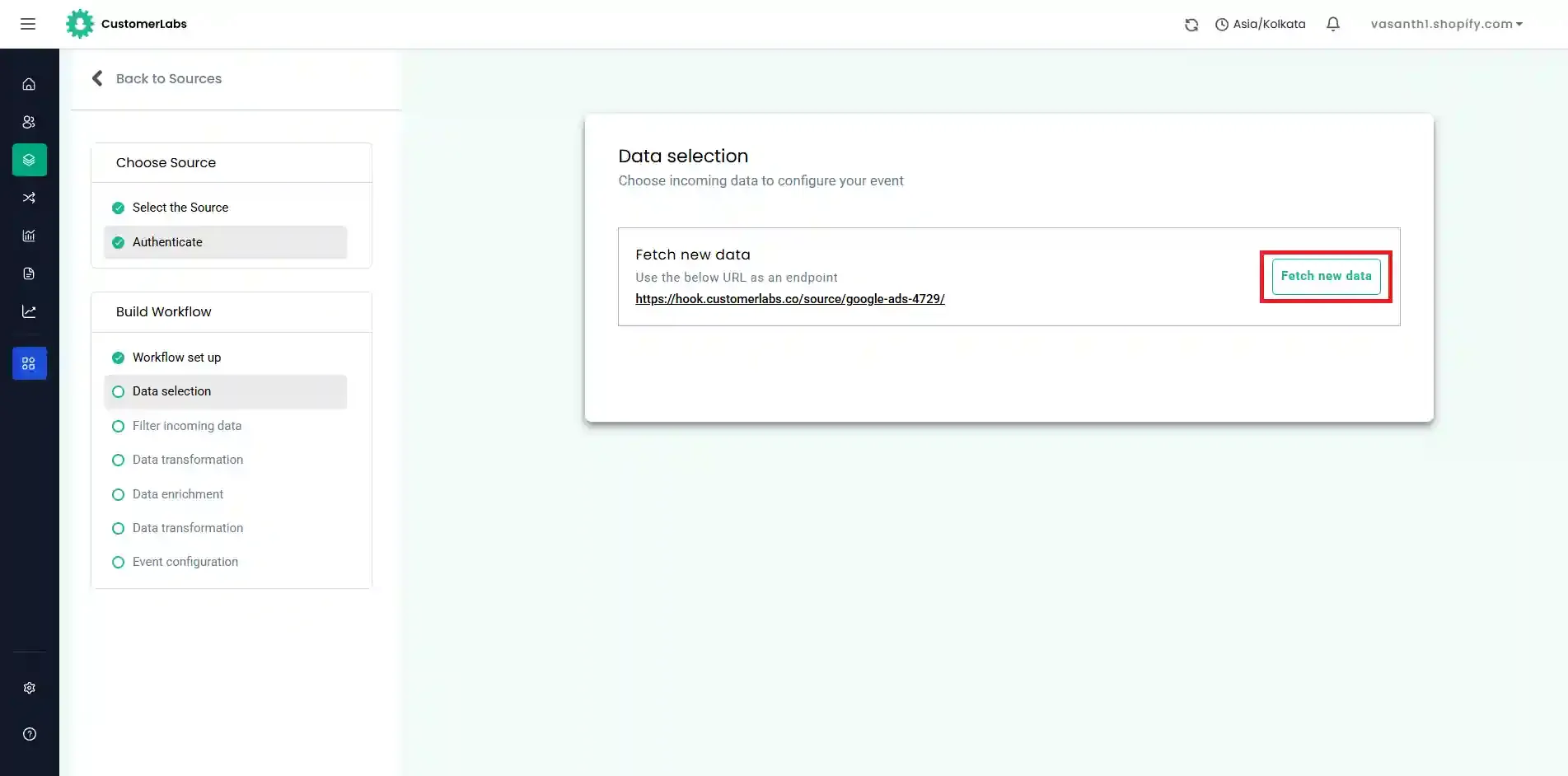
Choose Sample Data
Section titled “Choose Sample Data”To receive event samples, trigger an event in the connected source. For example, if you are setting up a workflow to receive contact information when it is updated in your CRM, update a test contact in Zoho CRM. Then click Fetch New Data to retrieve samples.
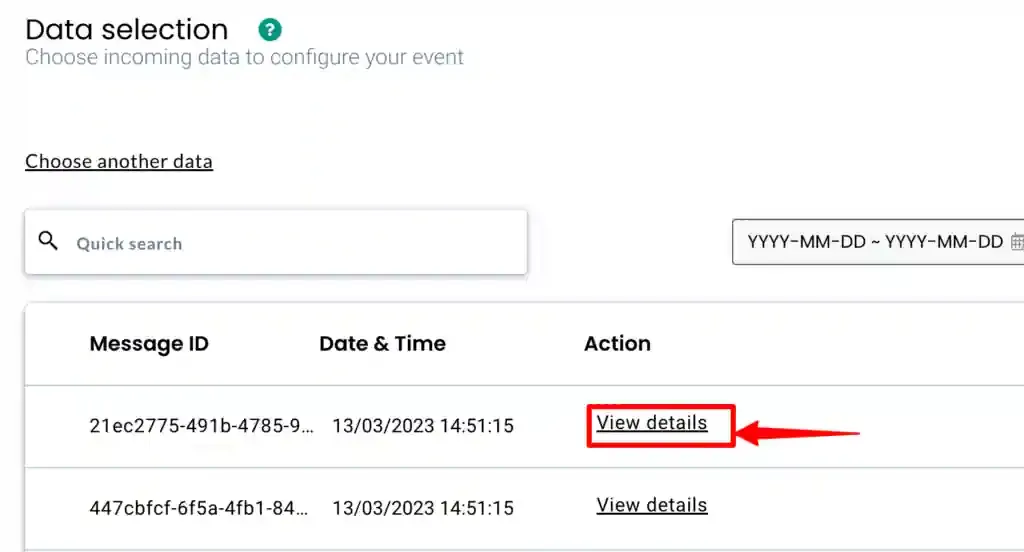
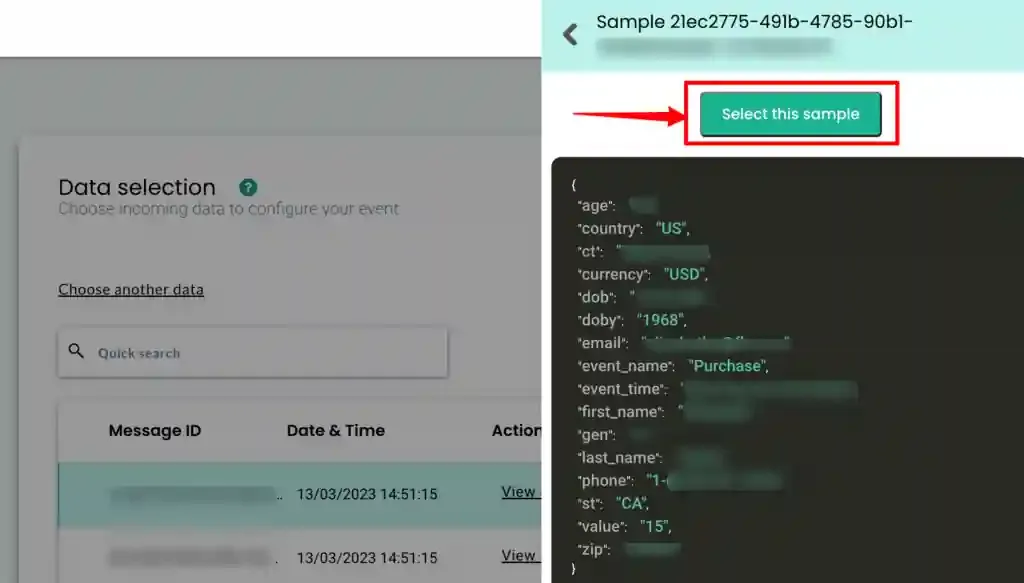
Select the sample that best suits your use case.
Event Configuration
Section titled “Event Configuration”Event configuration is the final and most important step of the workflow setup.
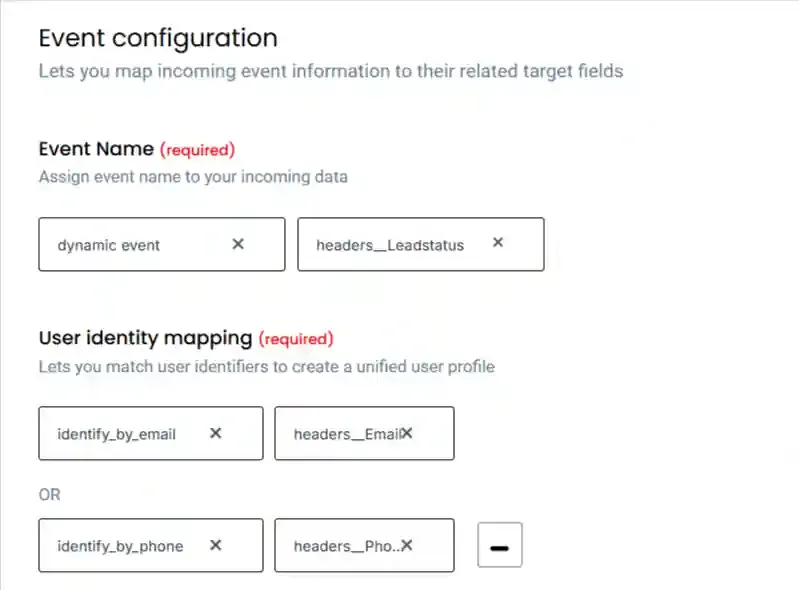
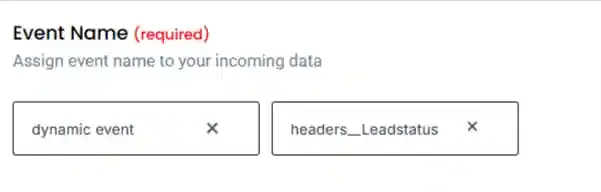
Event Name
Section titled “Event Name”Assign an event name by selecting from the dropdown menu. Choose Dynamic Event and name the event based on the lead status or relevant criteria.
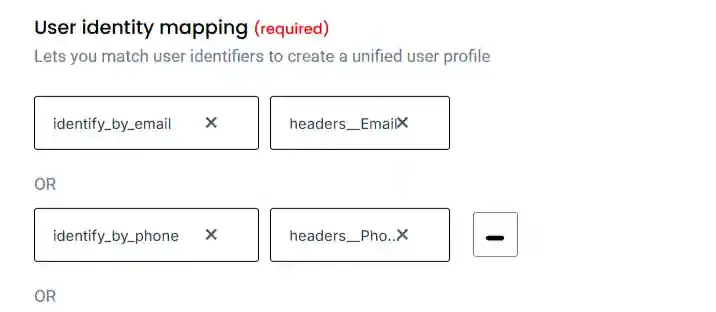
User Identity Mapping
Section titled “User Identity Mapping”You can choose up to 3 different identifiers, including external IDs, to map user information. These external IDs are stored by CustomerLabs 1PD Ops to create an enriched user profile — a unified view of a user built from multiple data sources.
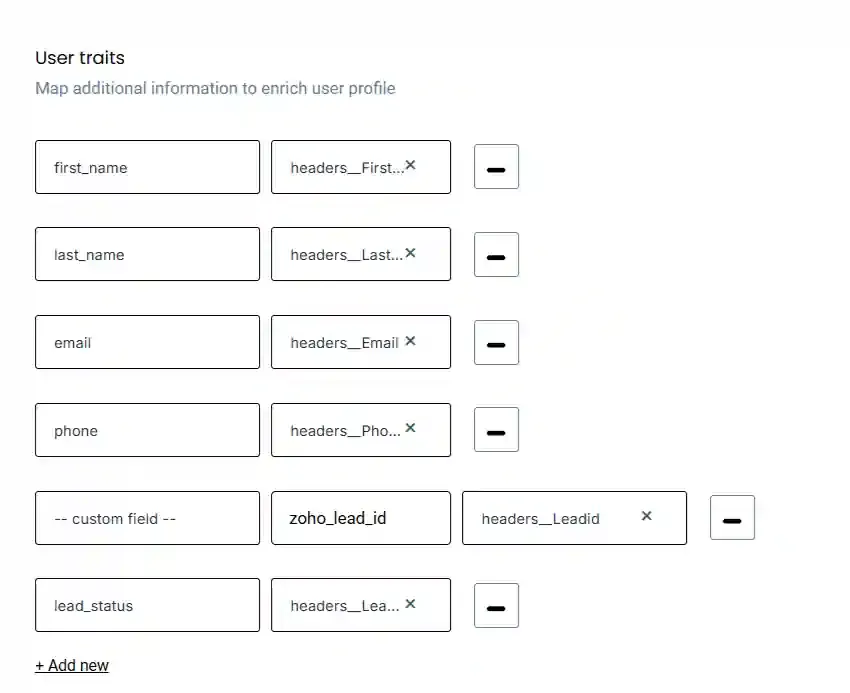
User Traits
Section titled “User Traits”All user, contact, or individual-related information can be added under User Traits. User traits are attributes such as name, email, phone number, company, and other custom properties associated with a user profile.
Source Logs
Section titled “Source Logs”Source Logs display a list of events received by the source webhook before they are sent to the workflows for processing.
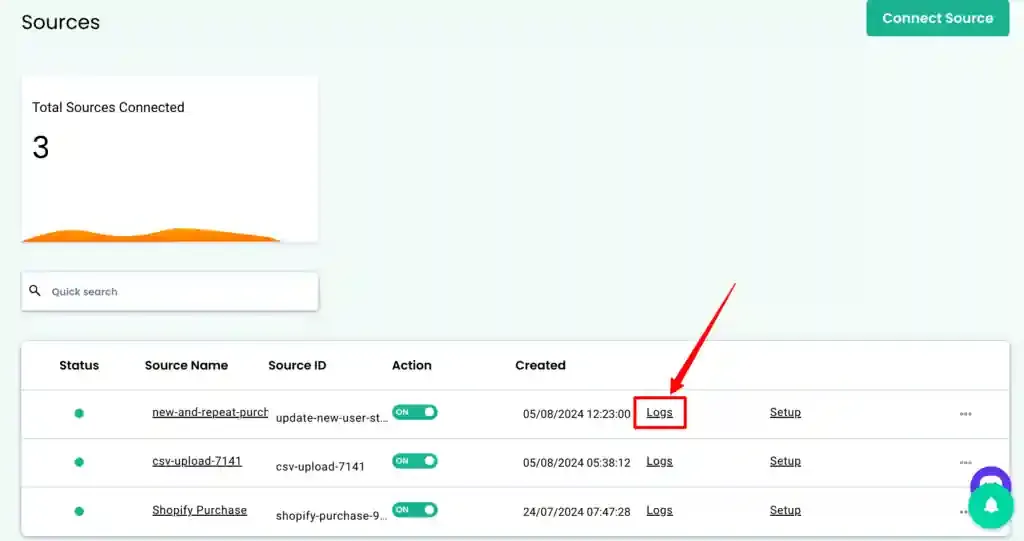
You can access the logs by clicking Logs on the relevant source page. Every message received by CustomerLabs 1PD Ops is assigned a unique message ID so you can trace how each message is processed across workflows before it appears in the Event Manager.
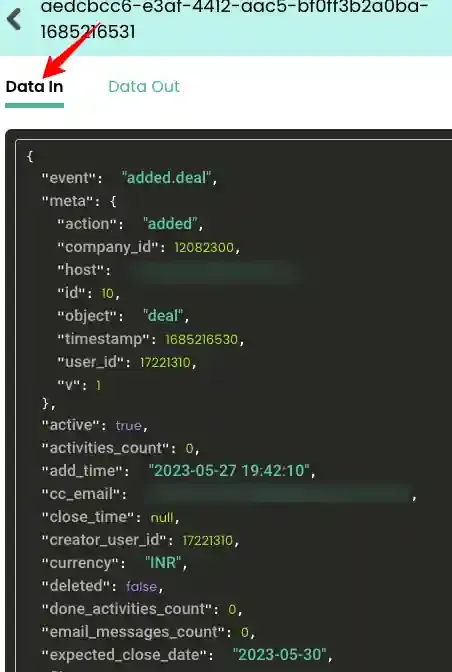
Source “Data In” Log
Section titled “Source “Data In” Log”The Data In log shows the raw data received from the source, including all data variables in JSON format.
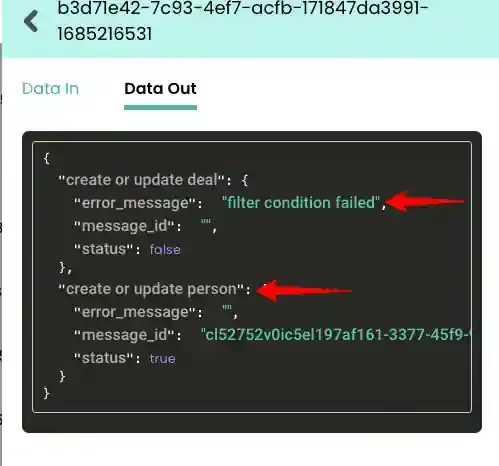
Source “Data Out” Log
Section titled “Source “Data Out” Log”The Data Out log shows the processed data sent to the respective workflows, along with a new message ID assigned for downstream tracking.
Workflow Logs
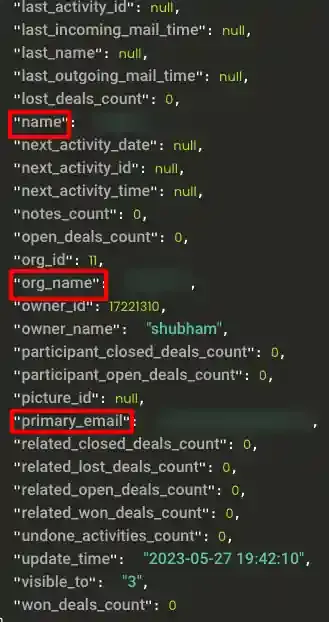
Section titled “Workflow Logs”Individual workflows have their own logs. Use these to review how events are transformed, including:
- User traits
- Event attributes
- Group (account) traits
- External IDs
- Group (account) identities
- Other attributes
Workflow Status Messages
Section titled “Workflow Status Messages”The table below lists common status messages you may encounter in the Data Out section of workflow logs, along with their meanings:
| Status Message | Description |
|---|---|
| Mapping not found | The workflow is in draft mode. Publish the workflow to resolve this issue. |
| Filter condition failed | The incoming data did not meet the filter conditions defined in the workflow configuration. |
| User ID missing / Account ID missing | Every event requires a User Identity or Account Identity field. If this data is missing, an error is thrown and the event is not processed further. |
| Data not found | The data is still being processed. During periods of high request volume, the system may take up to 10 minutes to process the data. |
Destinations
Section titled “Destinations”Once your data flows into CustomerLabs, you can send it to third-party apps and marketing platforms to boost marketing effectiveness. Learn more about the supported destination integrations.