
WooCommerce Integration
Integrate WooCommerce with CustomerLabs to track user behavior, capture ecommerce events, and unify customer profiles for better marketing performance across your martech stack.
How the Integration Works
Section titled “How the Integration Works”The WooCommerce integration consists of two components:
1. Plugin-Based Tracking (Browser Events)
Section titled “1. Plugin-Based Tracking (Browser Events)”The CustomerLabs WordPress plugin automatically tracks:
- Product Viewed
- Category Viewed
- Add to Cart
- Remove from Cart
- Checkout Initiated
- Purchase Completed
2. Webhook-Based Tracking (Server Events)
Section titled “2. Webhook-Based Tracking (Server Events)”When an order is created in WooCommerce:
- A webhook sends enriched order data
- CustomerLabs processes the payload
- Customer profiles are updated automatically
1. Prerequisites
Section titled “1. Prerequisites”- Ensure you have admin access to your WooCommerce (WordPress) store and an active CustomerLabs account.
- The WooCommerce REST API must be enabled to send purchase data via webhooks.
2. Install CustomerLabs Plugin
Section titled “2. Install CustomerLabs Plugin”Step 2.1: Install the Plugin
Section titled “Step 2.1: Install the Plugin”-
Log in to your WordPress Admin panel
-
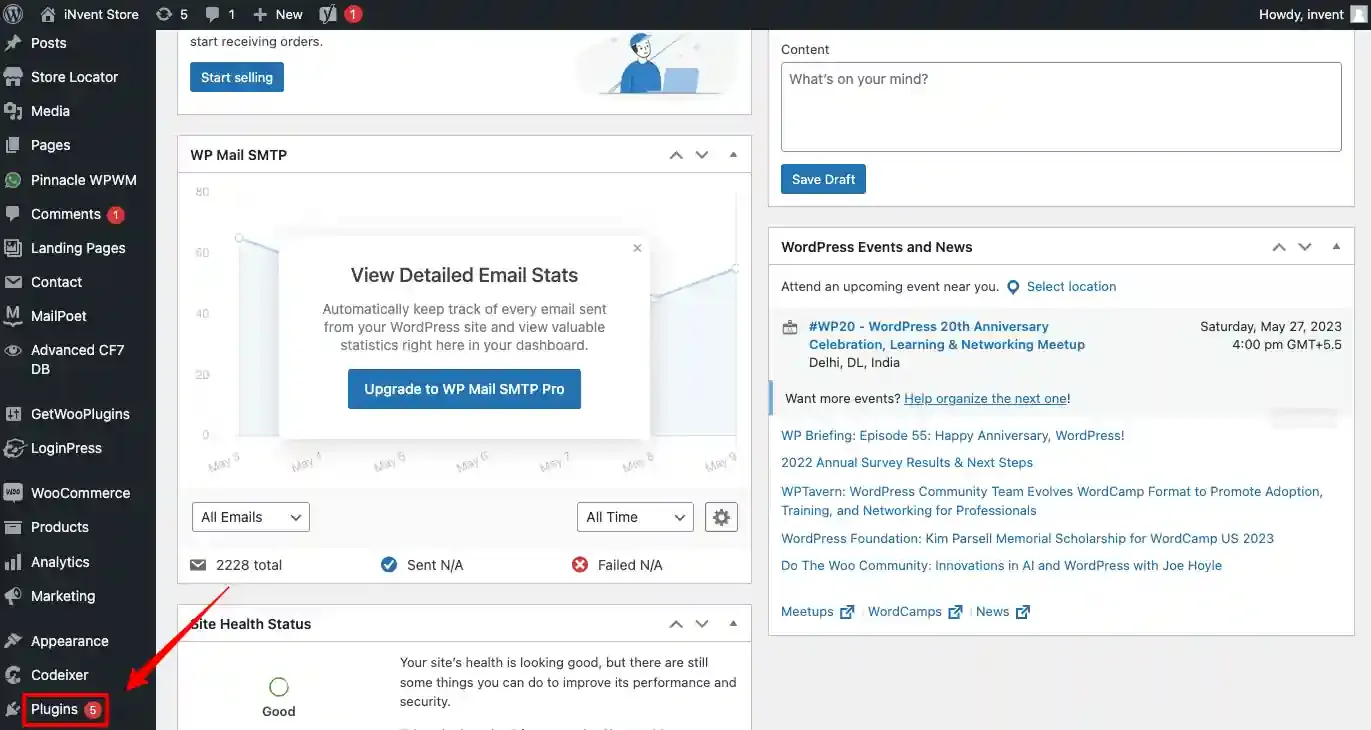
Navigate to: Plugins → Add New
-
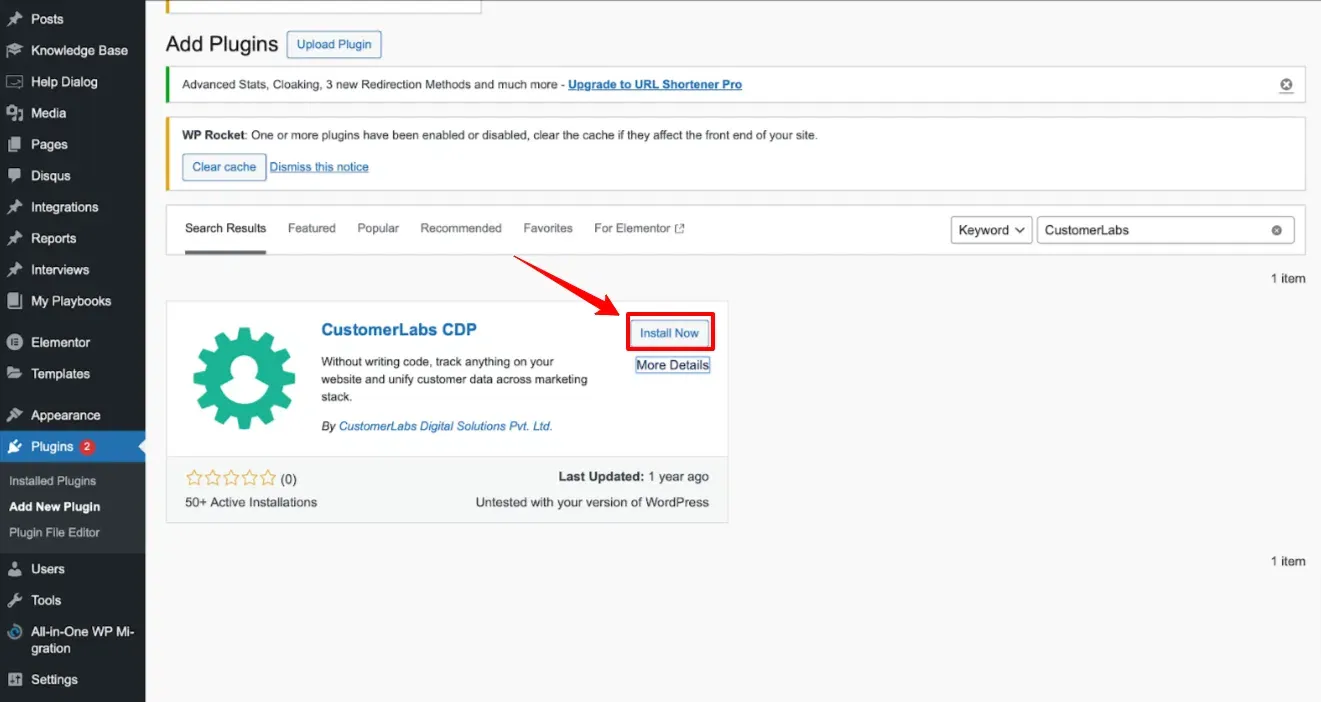
Search for CustomerLabs
-
Click Install Now
-
Click Activate
Step 2.2: Configure Plugin Settings
Section titled “Step 2.2: Configure Plugin Settings”-
Log in to CustomerLabs
-
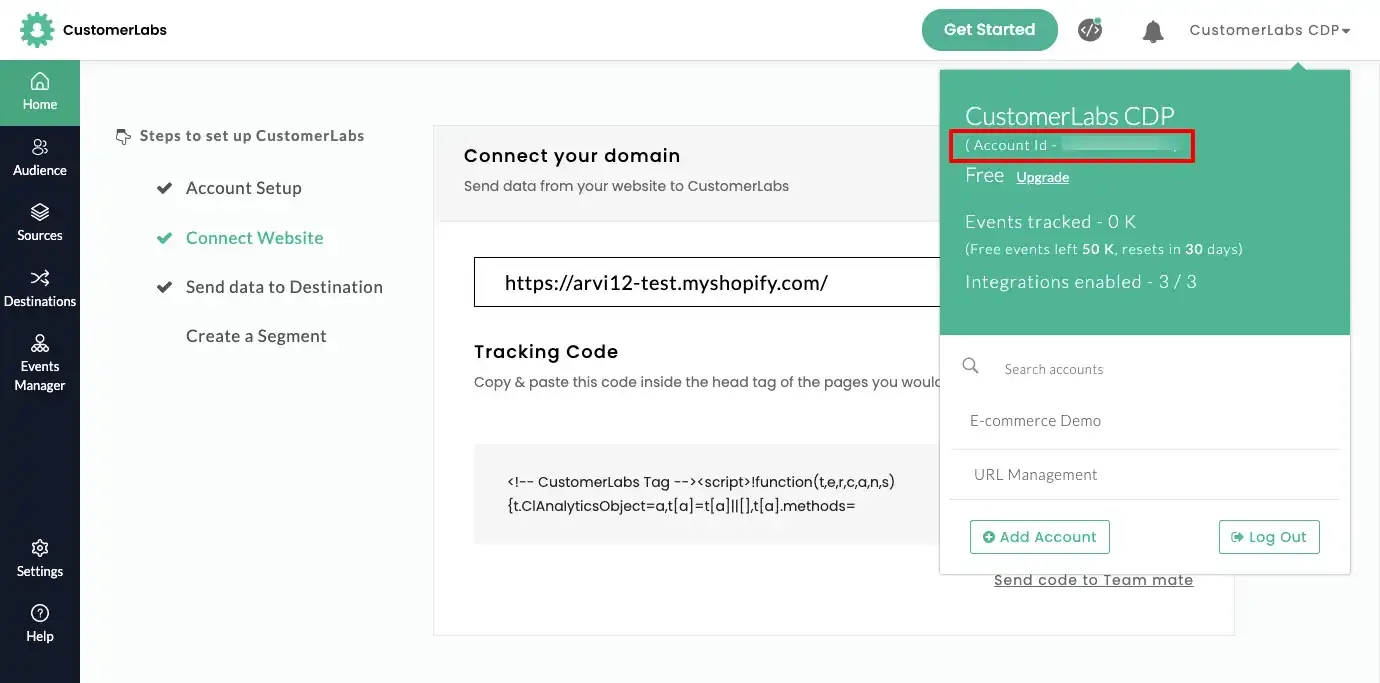
Copy your Account ID from the dashboard
-
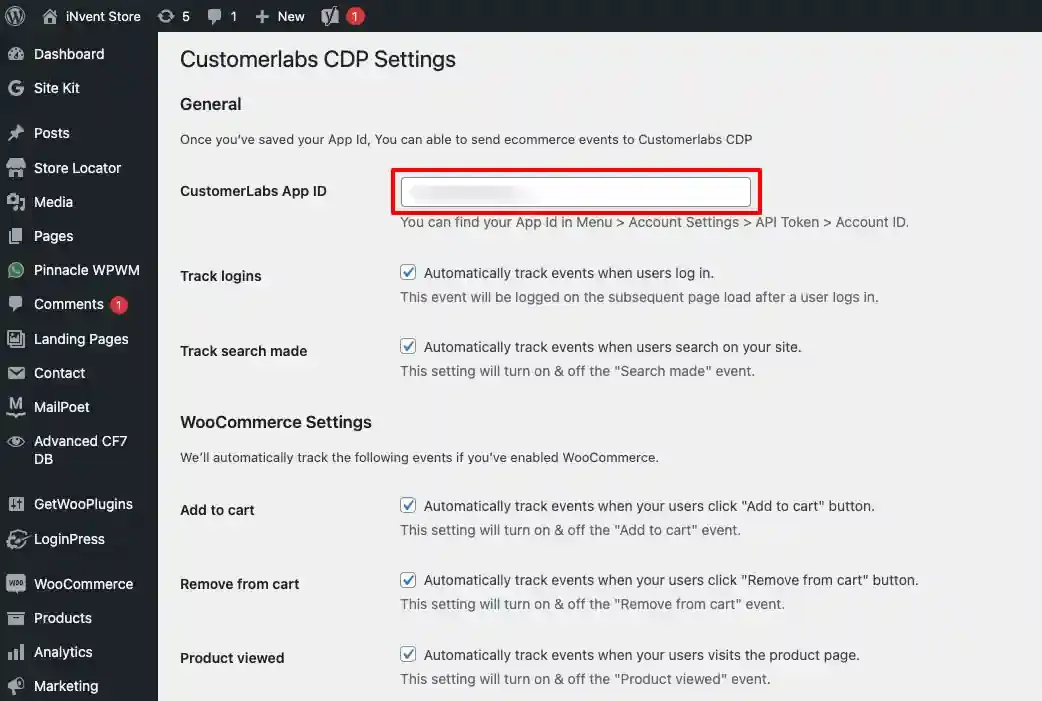
Go to: WordPress → Plugins → CustomerLabs → Settings
-
Paste the Account ID into the CustomerLabs App ID field
-
Click Save
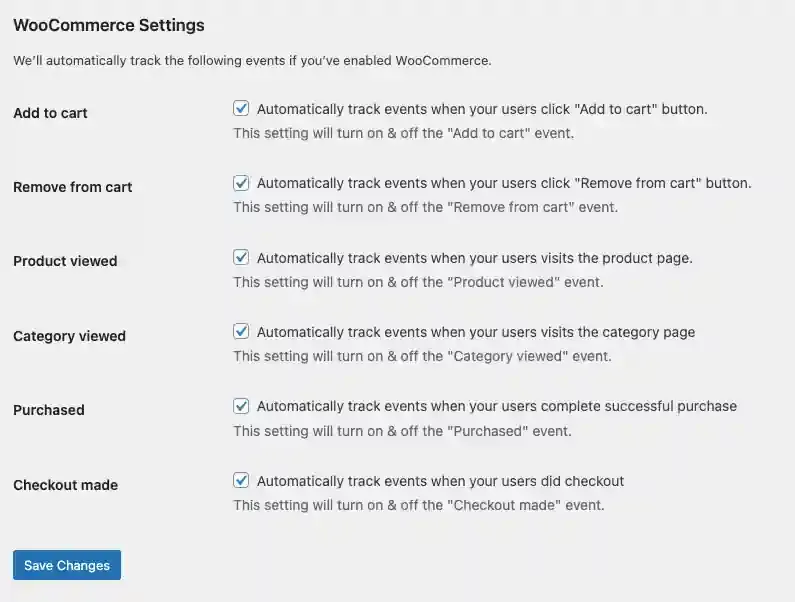
Step 2.3: Enable Event Tracking
Section titled “Step 2.3: Enable Event Tracking”In the plugin settings, enable the following events:
- Product Viewed
- Category Viewed
- Add to Cart
- Remove from Cart
- Checkout Initiated
- Purchase
Click Save Settings.
3. Create WooCommerce Source in CustomerLabs
Section titled “3. Create WooCommerce Source in CustomerLabs”Step 3.1: Generate REST API Keys
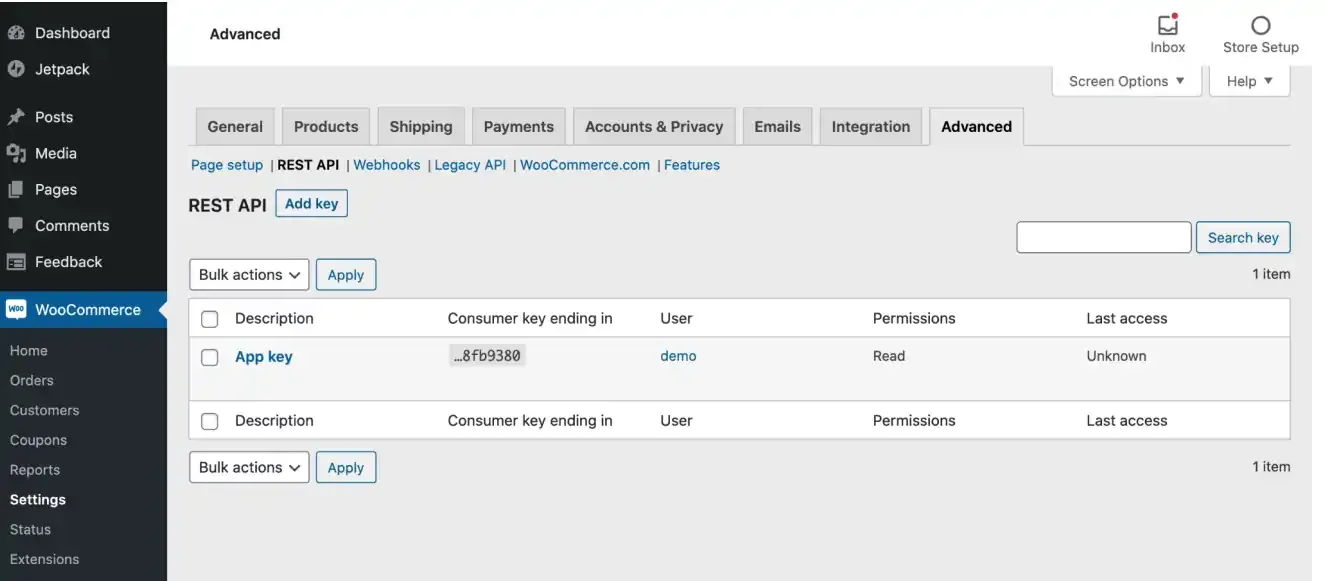
Section titled “Step 3.1: Generate REST API Keys”CustomerLabs requires API access to receive enriched order data.
-
Navigate to: WooCommerce → Settings → Advanced → REST API
-
Click Add Key
-
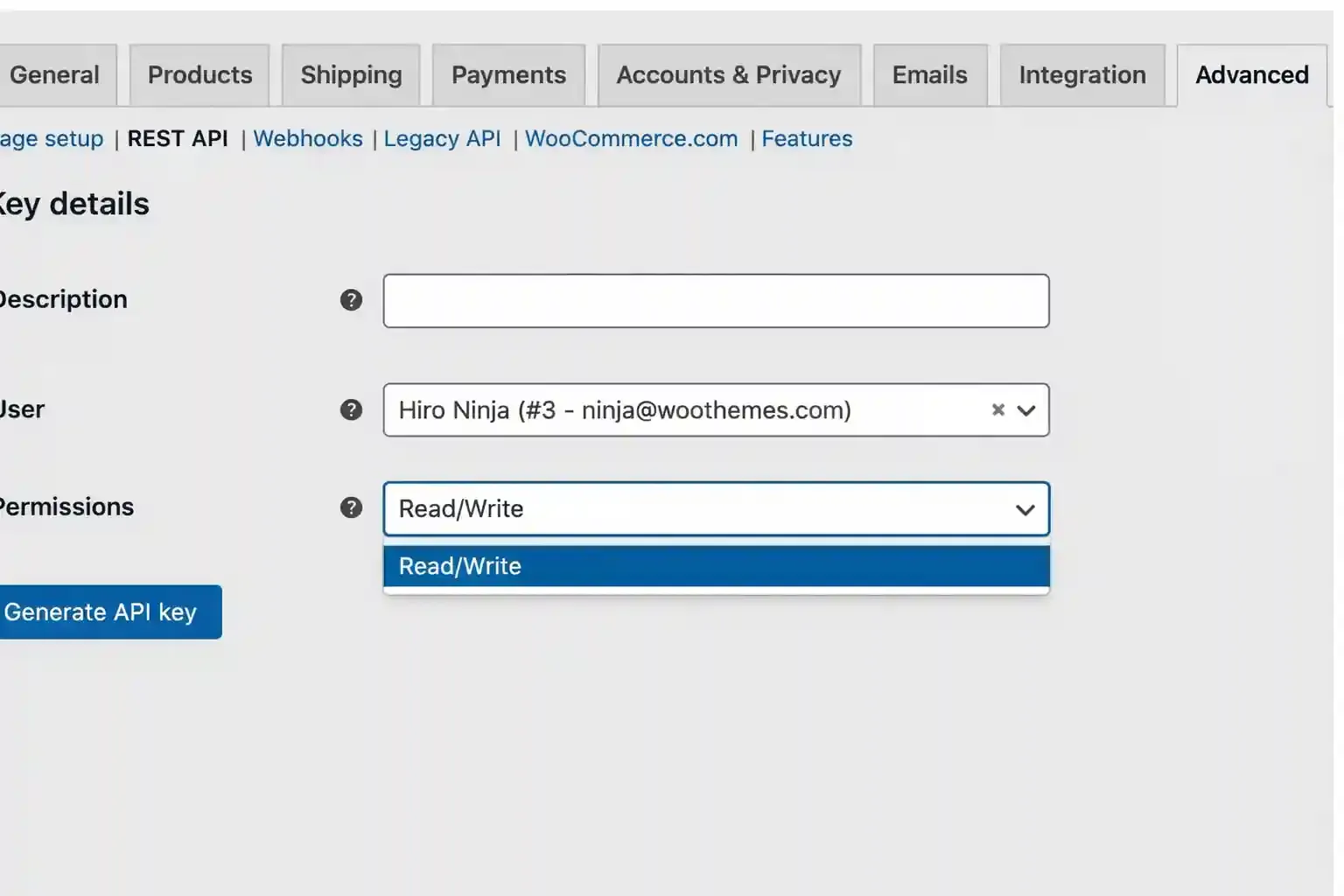
Enter the following details:
Field Value Description CustomerLabs Integration User Admin Permissions Read/Write -
Click Generate API Key
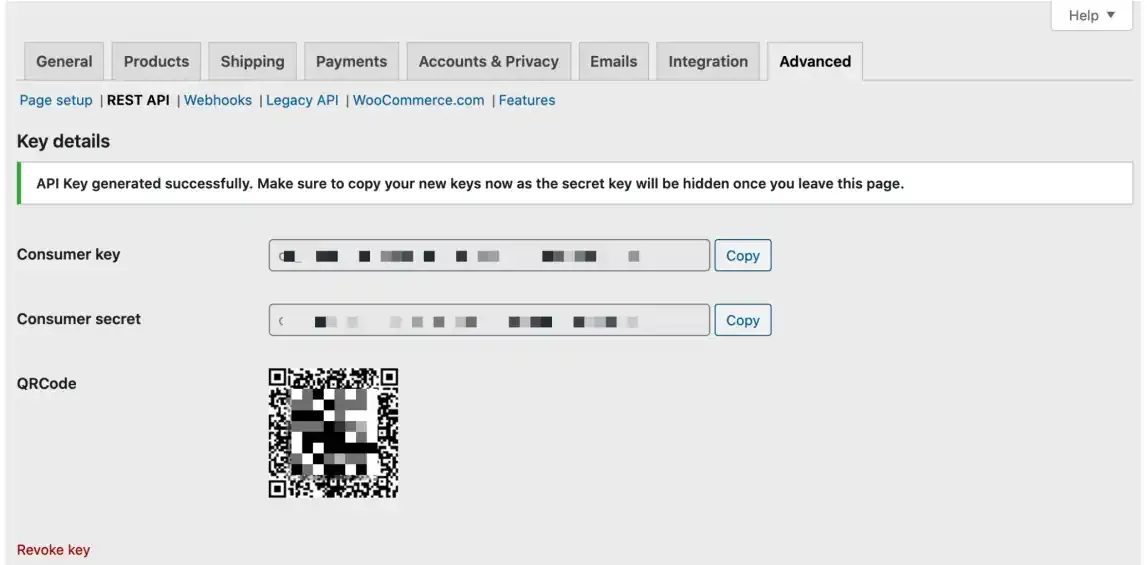
You will receive a Consumer Key (ck_...) & Consumer Secret (cs_...).
Save these securely.
Step 3.2: Configure Source in CustomerLabs
Section titled “Step 3.2: Configure Source in CustomerLabs”-
Log in to CustomerLabs
-
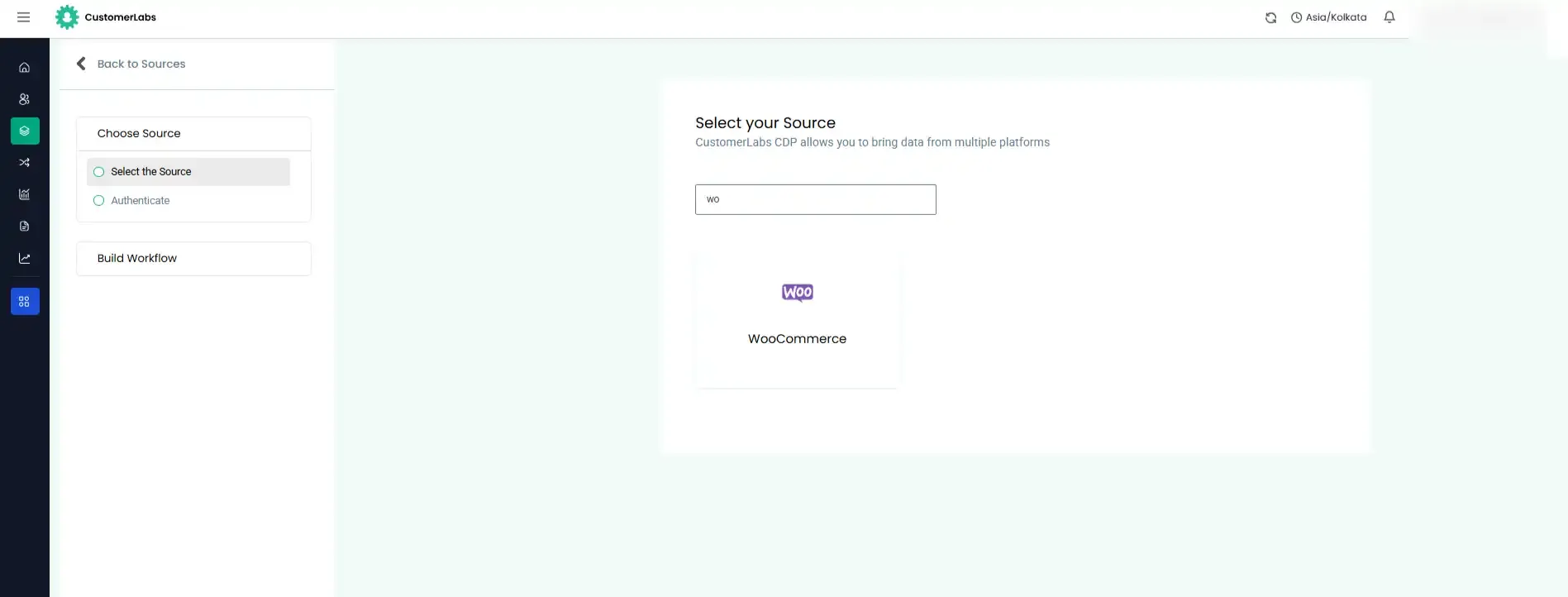
Navigate to Sources
-
Select WooCommerce
-
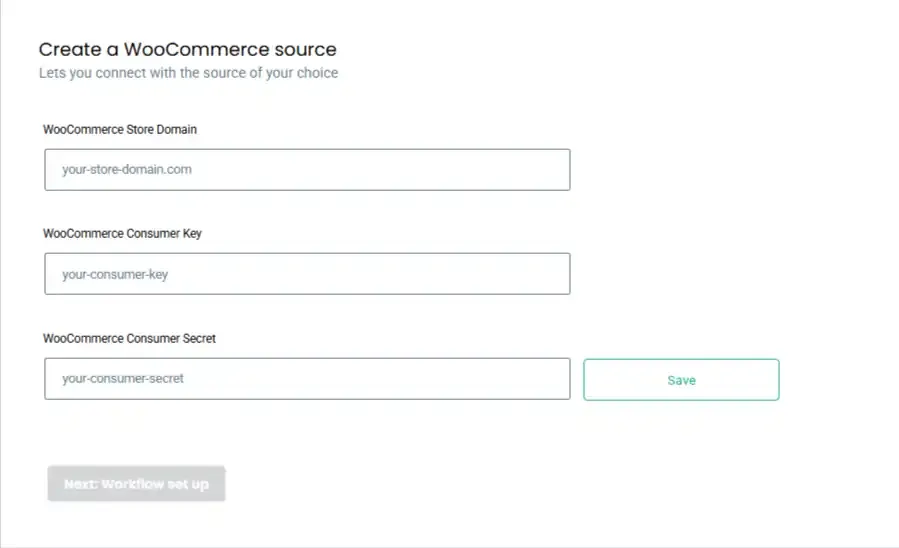
Enter the following:
Field Value Store Domain yourdomain.com Consumer Key ck_xxxxx Consumer Secret cs_xxxxx -
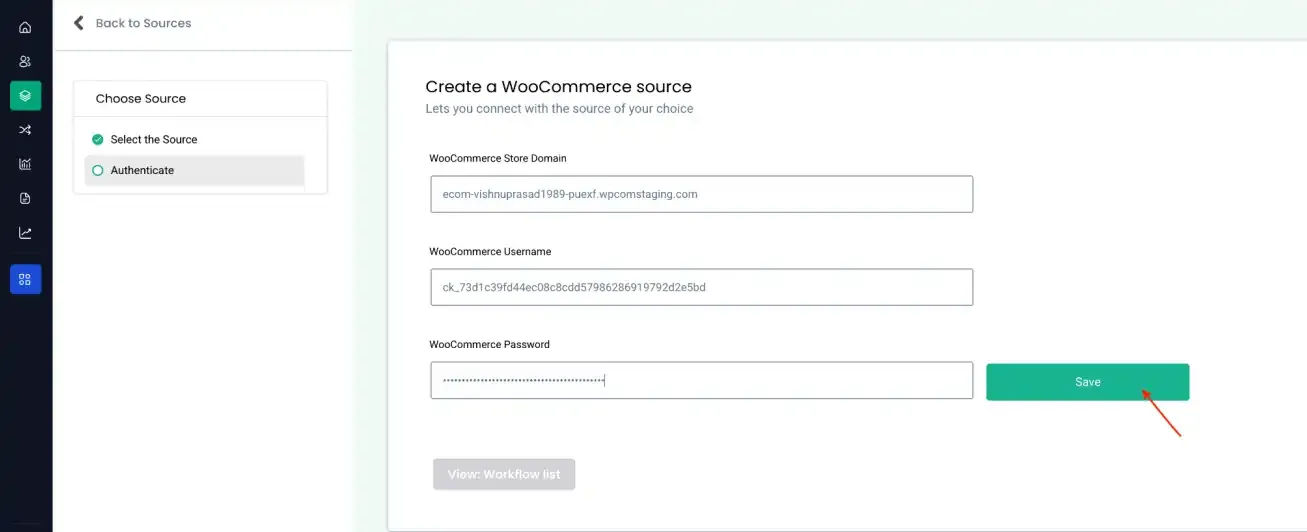
Click Save
After saving:
-
A unique Workflow URL will be generated
-
Webhook configuration will be automatically enabled
4. Webhook Configuration & Verification
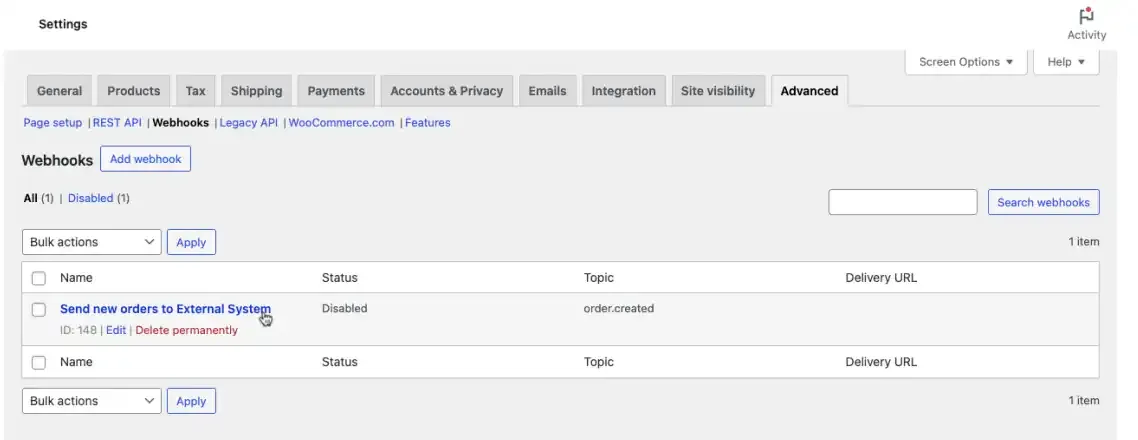
Section titled “4. Webhook Configuration & Verification”Webhooks are created automatically during setup.
To Verify:
-
Go to: WooCommerce → Settings → Advanced → Webhooks
-
Confirm the following:
Field Expected Value Name CustomerLabs Integration Status Active Topic Order Created Delivery URL Workflow URL from CustomerLabs Secret Empty API Version Default
5. Workflow Templates Available
Section titled “5. Workflow Templates Available”After source creation, you can use pre-built templates:
- CL_All_Purchasers: Captures all WooCommerce orders.
- WooCommerce Repeat Users: Triggers when a returning customer places an order.
- WooCommerce New Users: Triggers for first-time customers.