Tracking Send in Blue
Sendinblue is an all-in-one solution for marketing automation, email marketing, SMS marketing, chat, Facebook Ads, CRM and sending transactional messages via email and SMS. Integrate Sendinblue with CustomerLabs 1PD Ops to personalize your engagement across various channels.
Configuration Setup
Section titled “Configuration Setup”Step 1: Enable Sendinblue in CustomerLabs
Section titled “Step 1: Enable Sendinblue in CustomerLabs”- Log in to CustomerLabs
- Navigate to Destinations
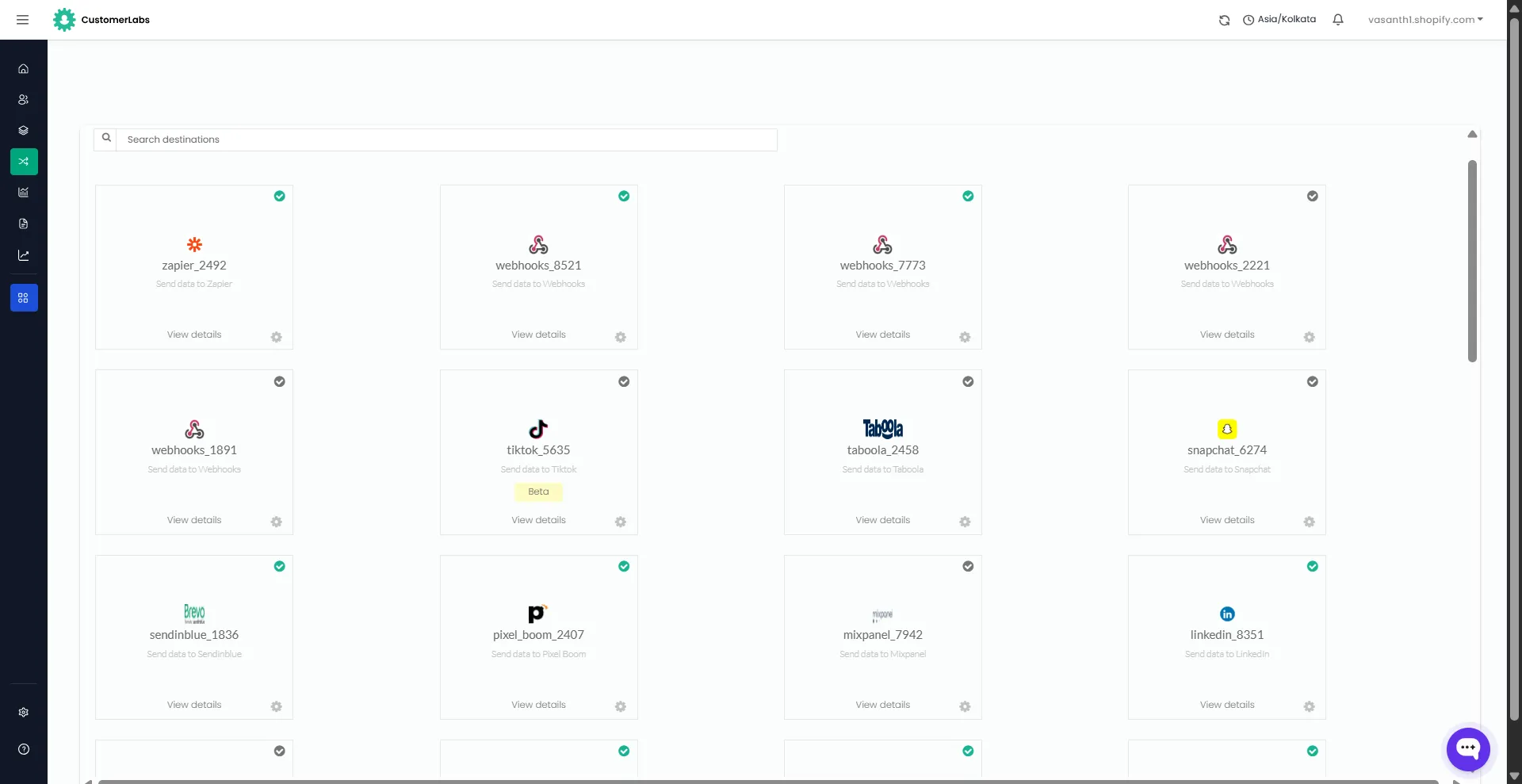
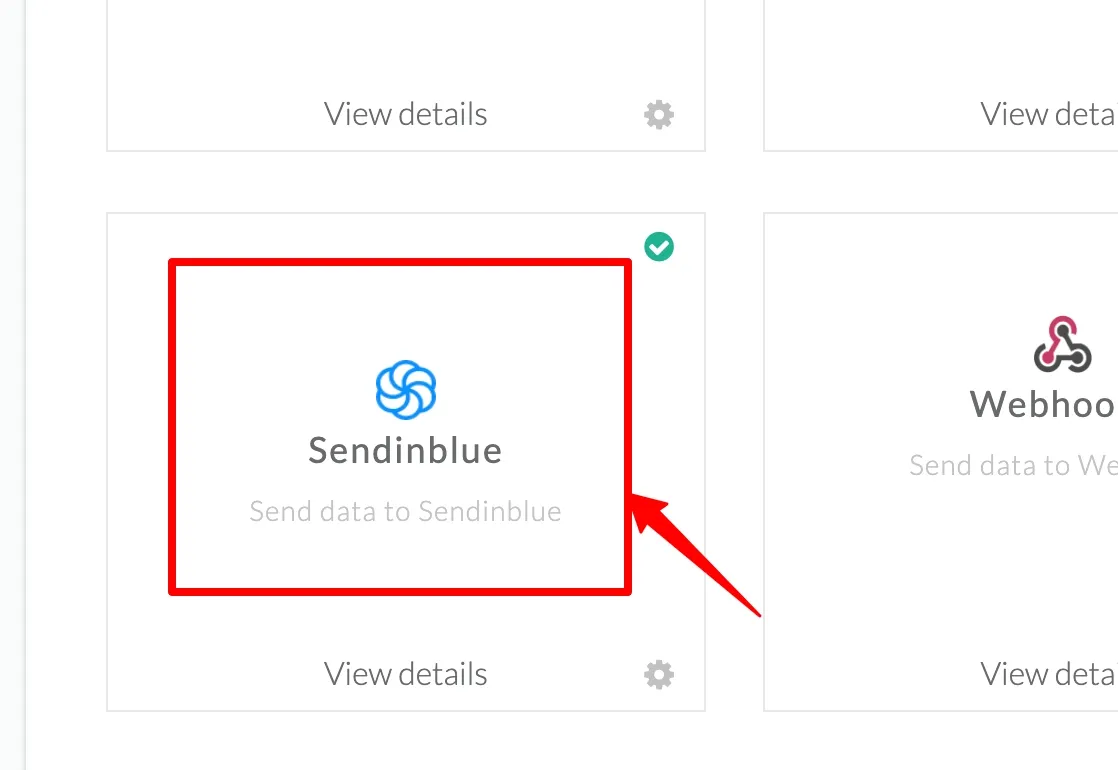
- Select Sendinblue
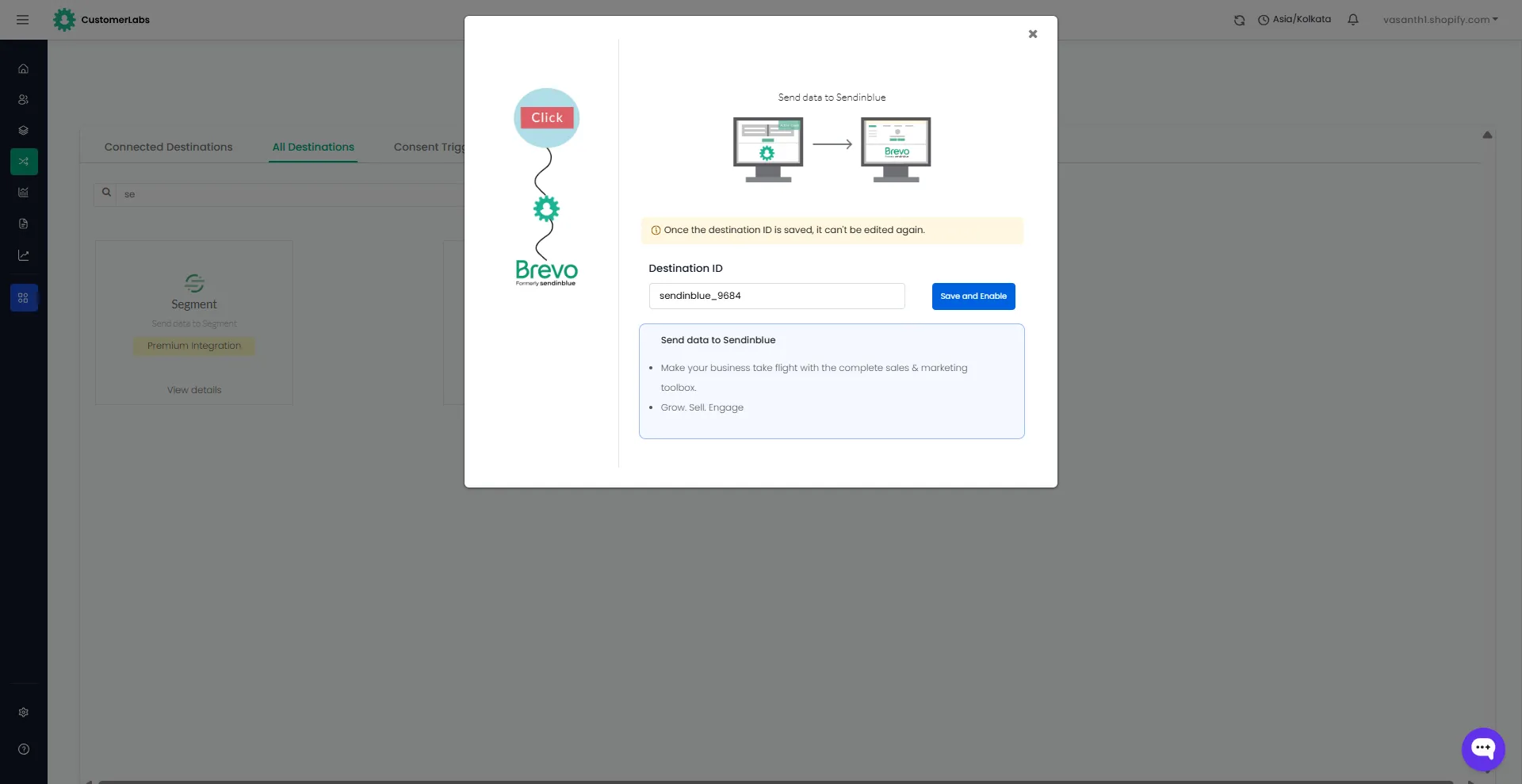
- Click Enable
Step 2: Get Tracking Client Key from Sendinblue
Section titled “Step 2: Get Tracking Client Key from Sendinblue”- Log in to your Sendinblue account
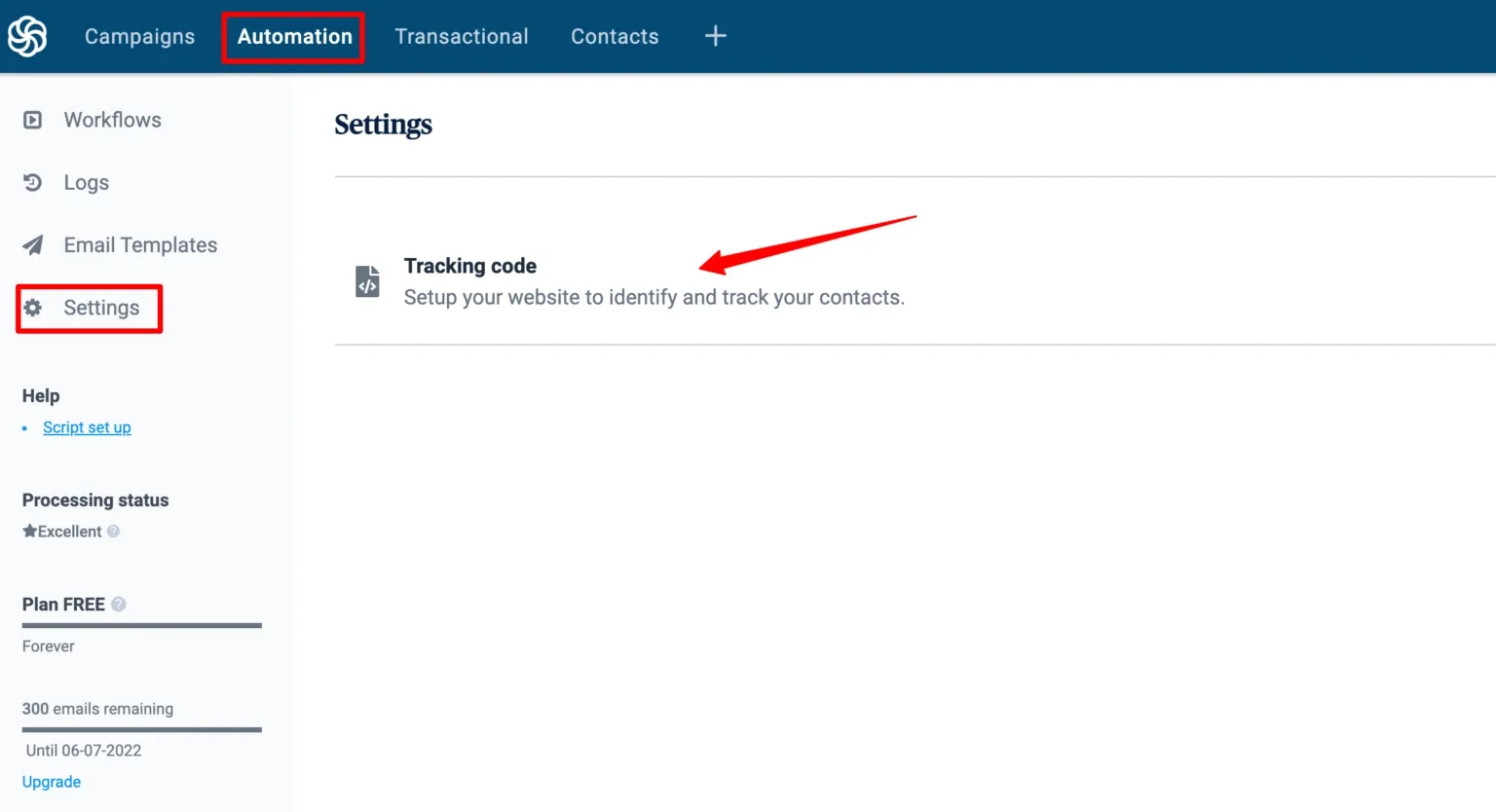
- Navigate to: Automation → Settings → Tracking Code
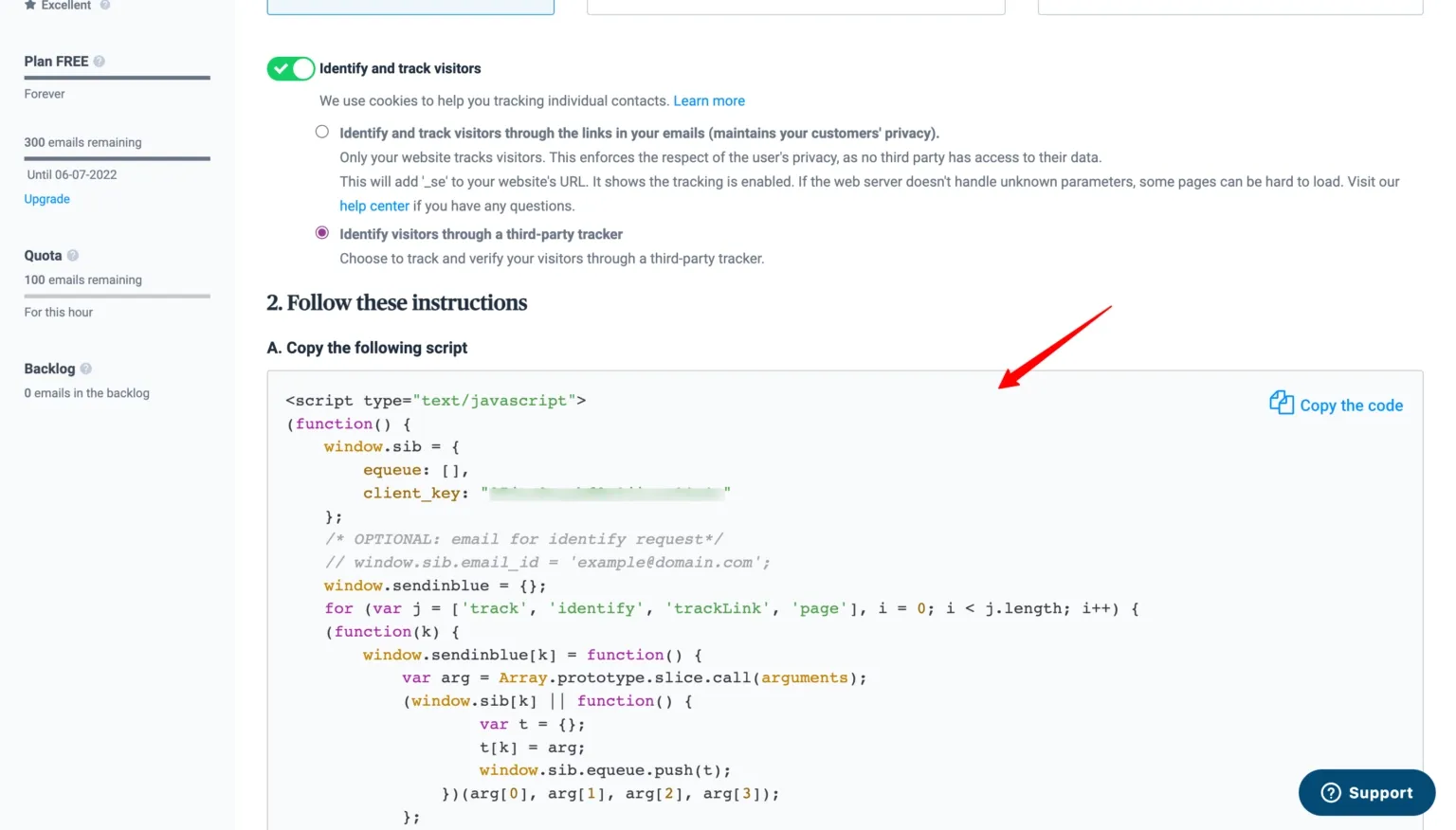
- Locate the tracking script
- Copy only the
client_keyfrom the code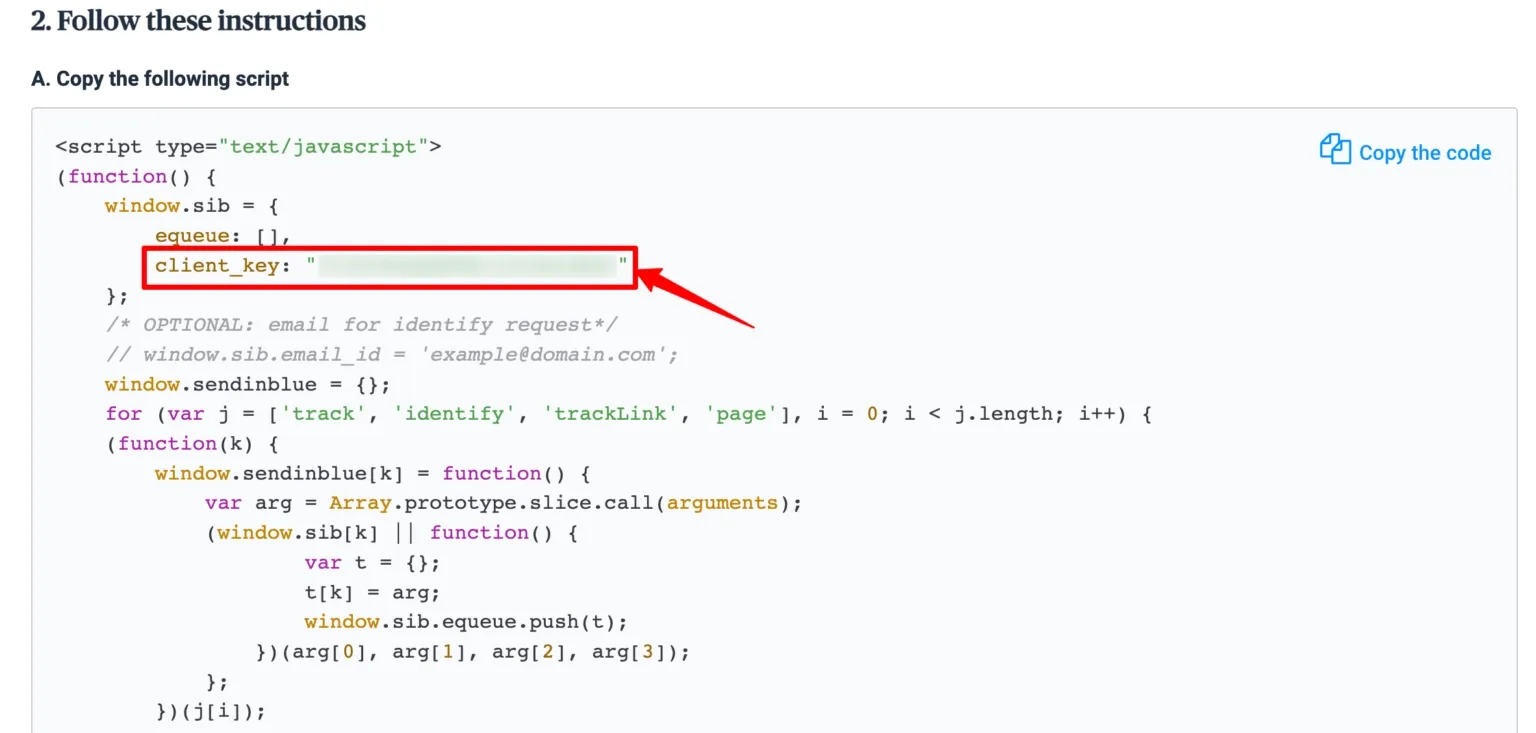
Step 3: Configure Sendinblue in CustomerLabs
Section titled “Step 3: Configure Sendinblue in CustomerLabs”- Go to: CustomerLabs → Destinations → Sendinblue → Configuration
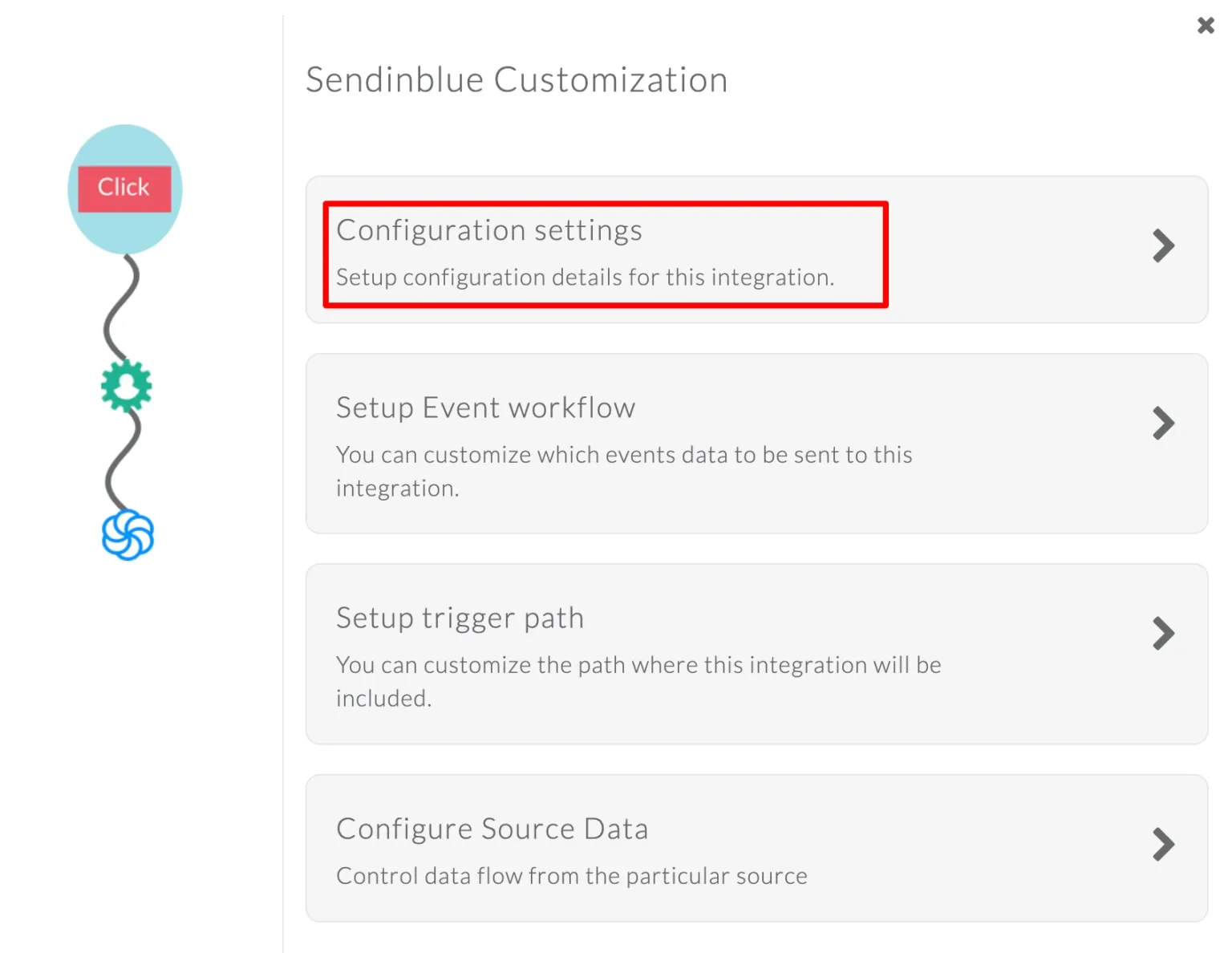
- Paste the copied
client_key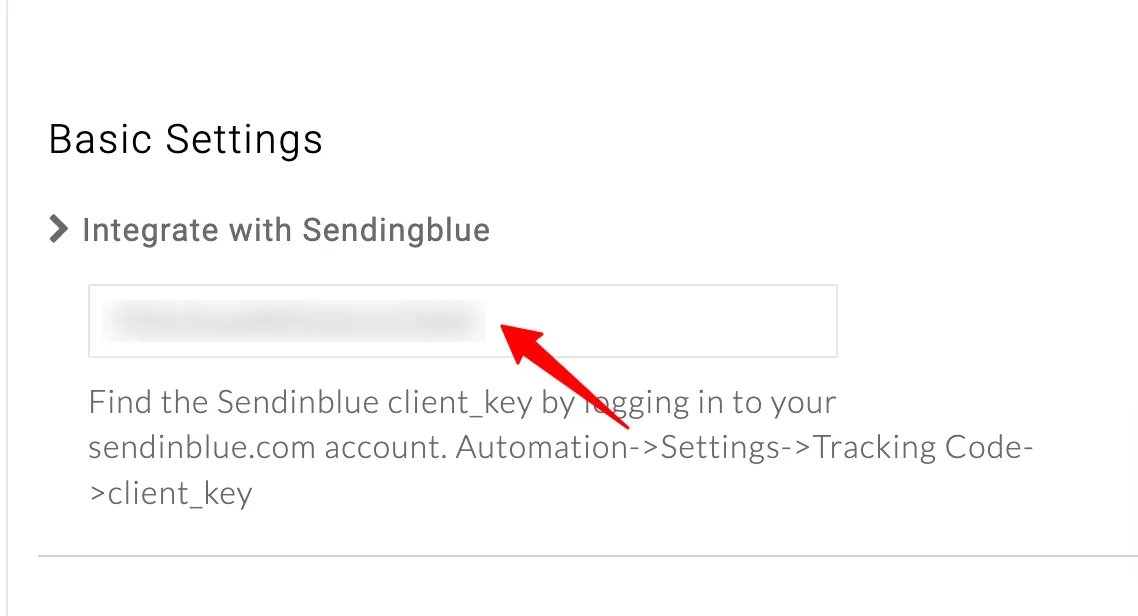
- Under Advanced Settings → User Identify ID, select:
identify_by_email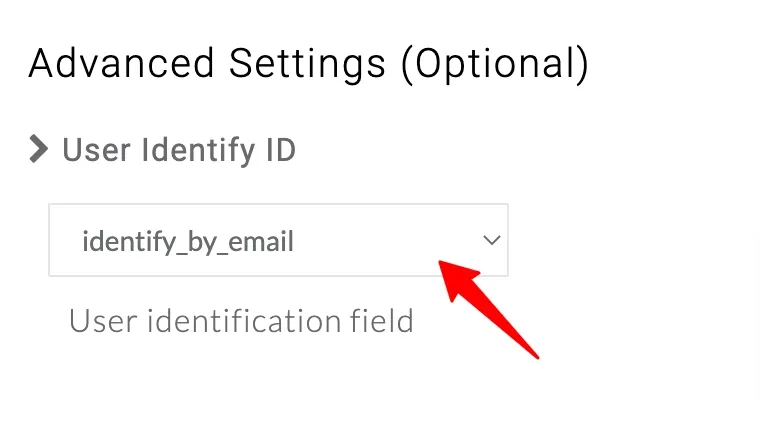
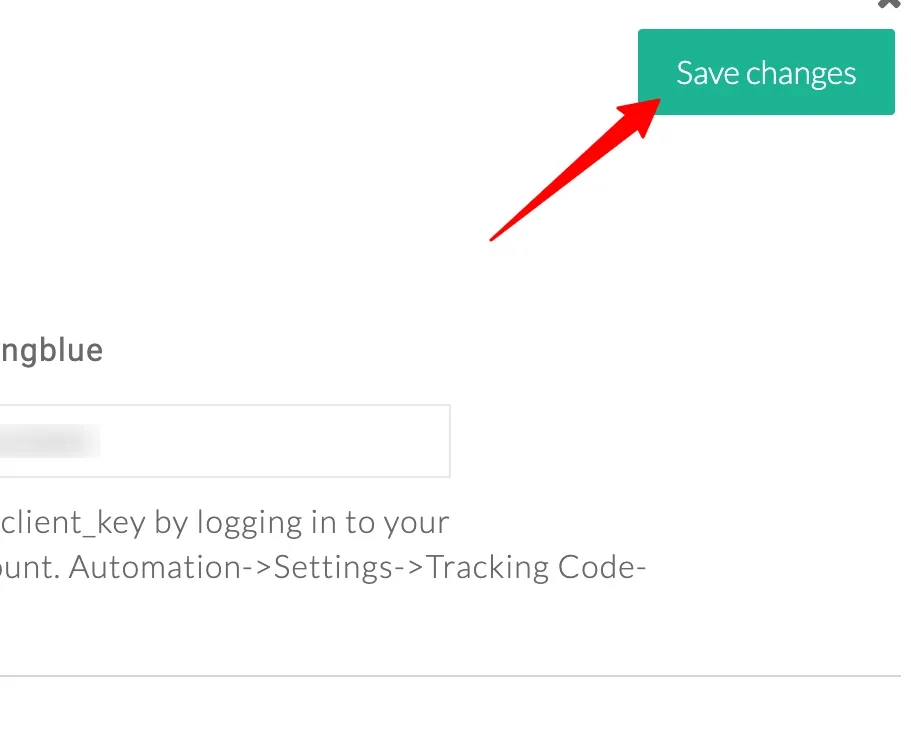
- Click Save Changes
Step 4: Configure Event Sync
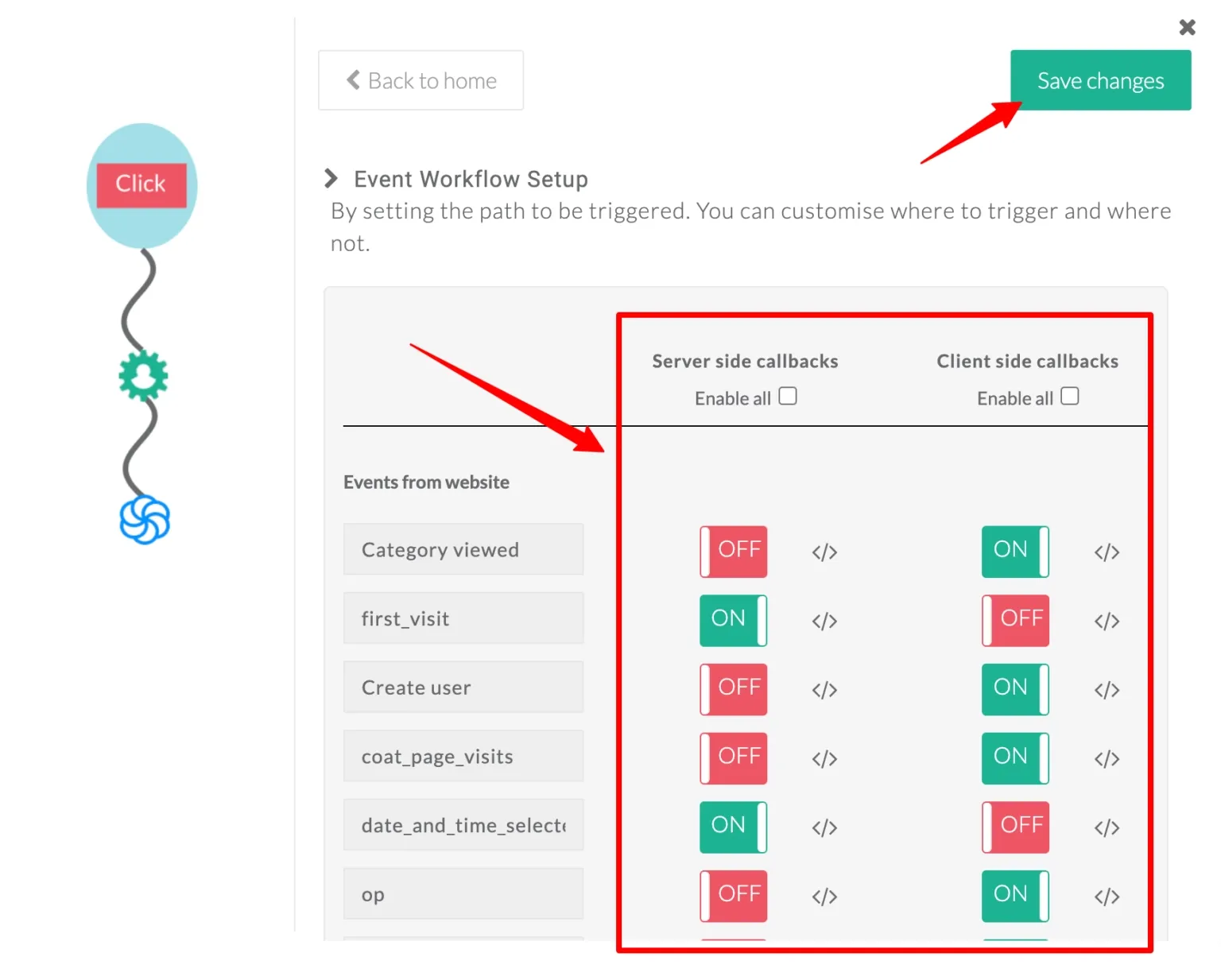
Section titled “Step 4: Configure Event Sync”- Go to Event Workflow Setup in CustomerLabs
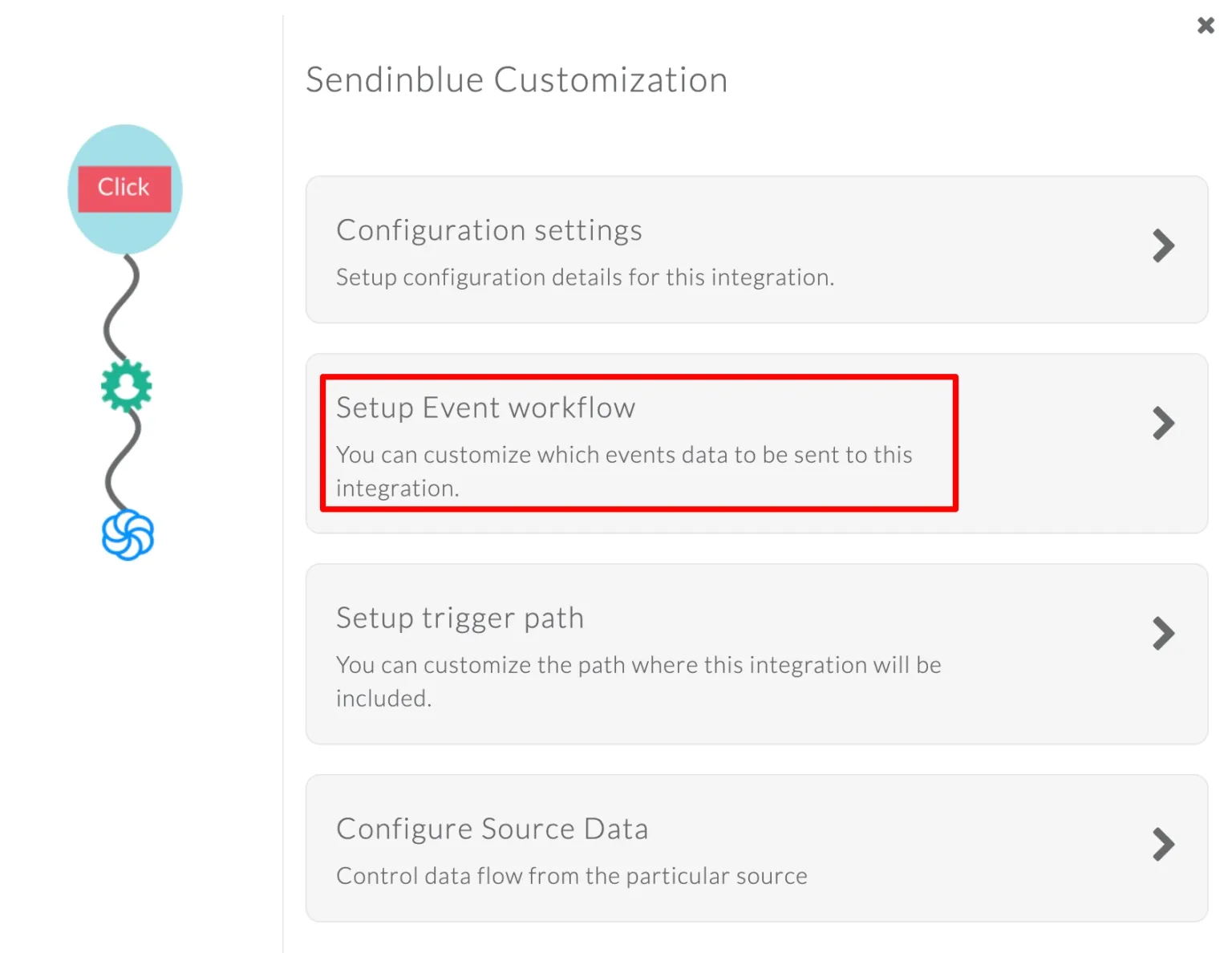
- Enable the toggle for the events you want to send
- You can choose:
- Client-side events (browser-based)
- Server-side events (/webhook-based)
- Click Save Changes
Step 5: Check Events in Sendinblue
Section titled “Step 5: Check Events in Sendinblue”-
Log in to Sendinblue
-
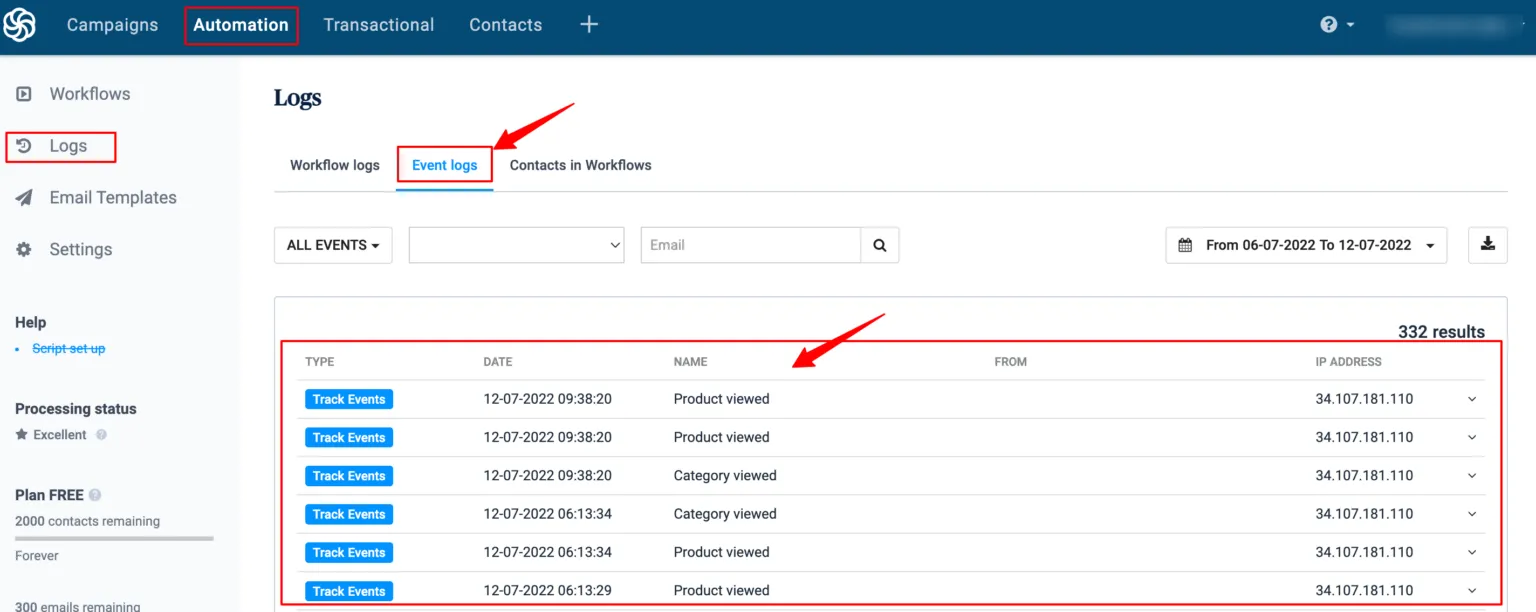
Navigate to: Automation → Logs → Event Logs
-
Confirm:
- Events are being received
- Event names match expected actions
- Customer data is populated correctly