
CustomerLabs + Customer.io Integration
Customer.io is a marketing automation platform for sending behavior-based messages across web and mobile products. It supports automated product messaging, newsletters, transactional messages, and behavioral campaigns from a single interface. Integrating CustomerLabs with Customer.io forwards unified user traits and behavioral events into Customer.io, enabling real-time audience segmentation and triggered messaging based on first-party data.
Authentication requires a Site ID and an API Key from Customer.io, along with a configured user identity field.
Prerequisites
Section titled “Prerequisites”- An active CustomerLabs account
- An active Customer.io account with access to API credentials
Retrieving Customer.io Credentials
Section titled “Retrieving Customer.io Credentials”Access API Credentials
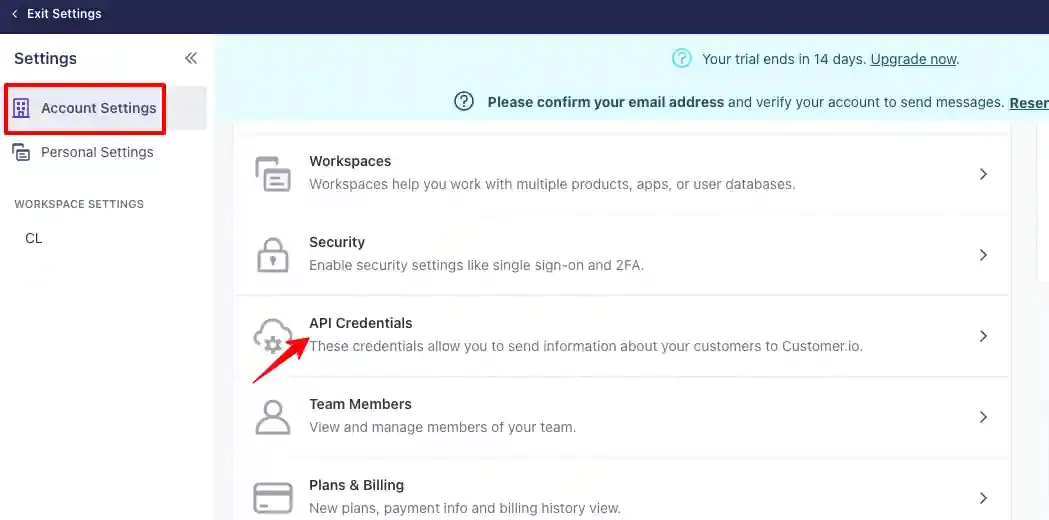
Section titled “Access API Credentials”In Customer.io, navigate to Settings → Account Settings → API Credentials.
Copy the Site ID and API Key
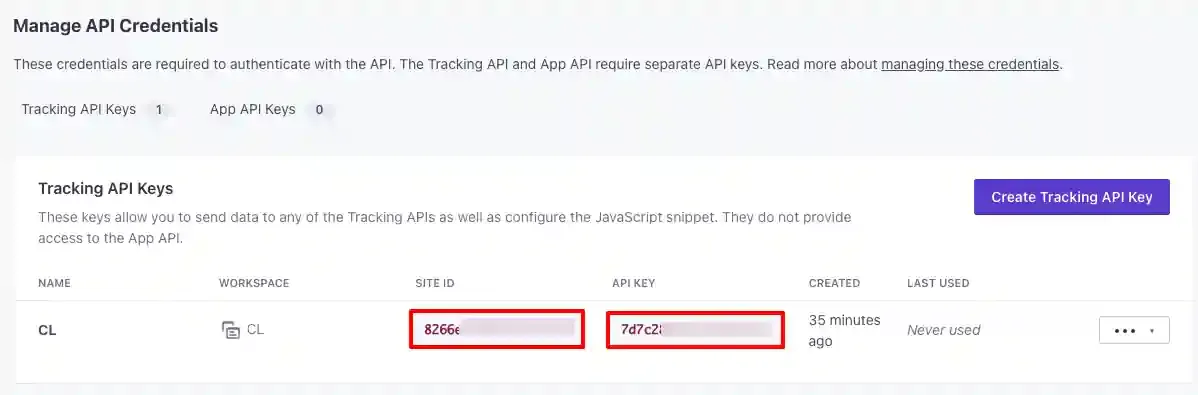
Section titled “Copy the Site ID and API Key”Click Site ID & API Key to reveal both values and copy them — they will be required during destination configuration in CustomerLabs.
Configuring the Customer.io Destination in CustomerLabs
Section titled “Configuring the Customer.io Destination in CustomerLabs”Select the Destination
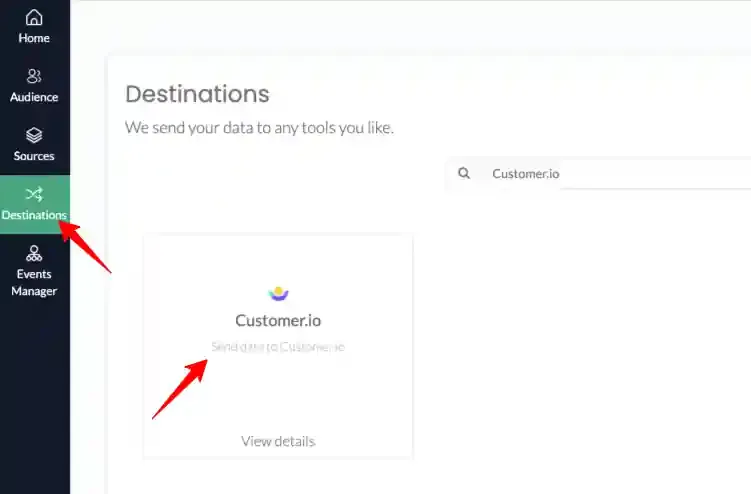
Section titled “Select the Destination”In CustomerLabs, navigate to Destinations from the home screen, search for Customer.io, and select it from the list.
Enable the Destination
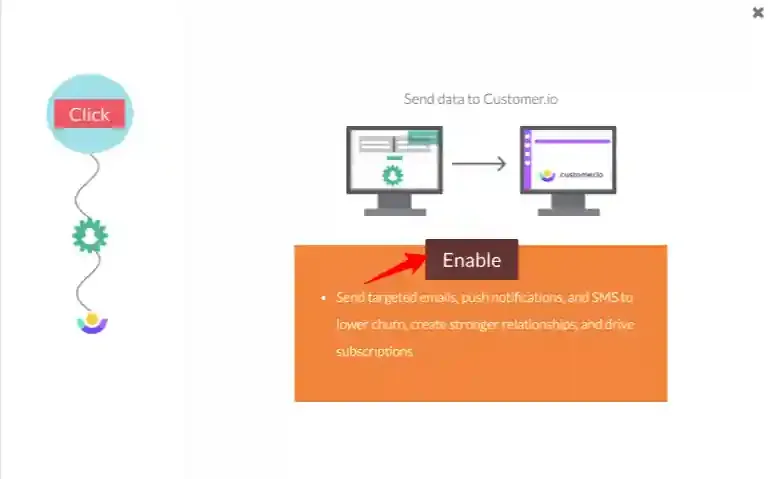
Section titled “Enable the Destination”In the pop-up screen, click Enable to activate Customer.io, then click Configuration Settings.
Enter the Site ID
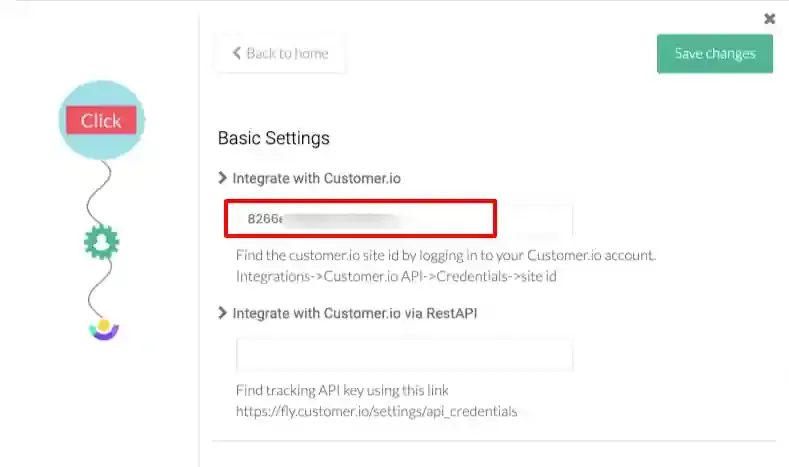
Section titled “Enter the Site ID”In Configuration Settings, paste the Site ID into the Integrate with Customer.io field.
Enter the API Key
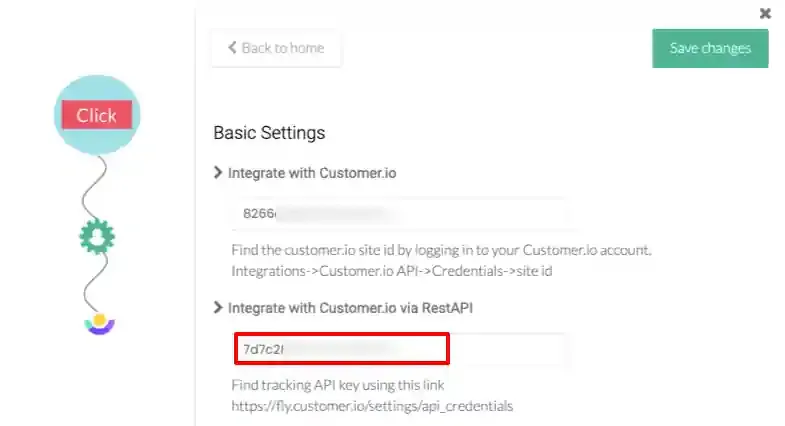
Section titled “Enter the API Key”Paste the API Key into the Integrate with Customer.io via REST API field.
Configure the User Identity Field
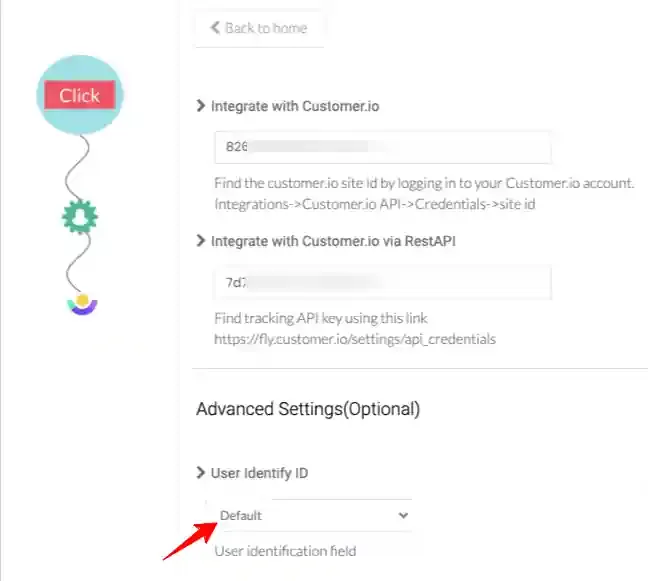
Section titled “Configure the User Identity Field”In the User Identify ID dropdown, select the field used to identify users in Customer.io.
| Option | Behaviour |
|---|---|
| identify_by_email | Users are identified by their email address — the most common configuration. |
| Other field | Users are identified by the selected custom field. Use when a different canonical identifier is enforced. |
Click Save Changes once the Site ID, API Key, and User Identify ID are configured.
Configuring the Action Workflow
Section titled “Configuring the Action Workflow”The Action Workflow controls which events are forwarded to Customer.io and how they are processed before transmission.
Open the Action Workflow
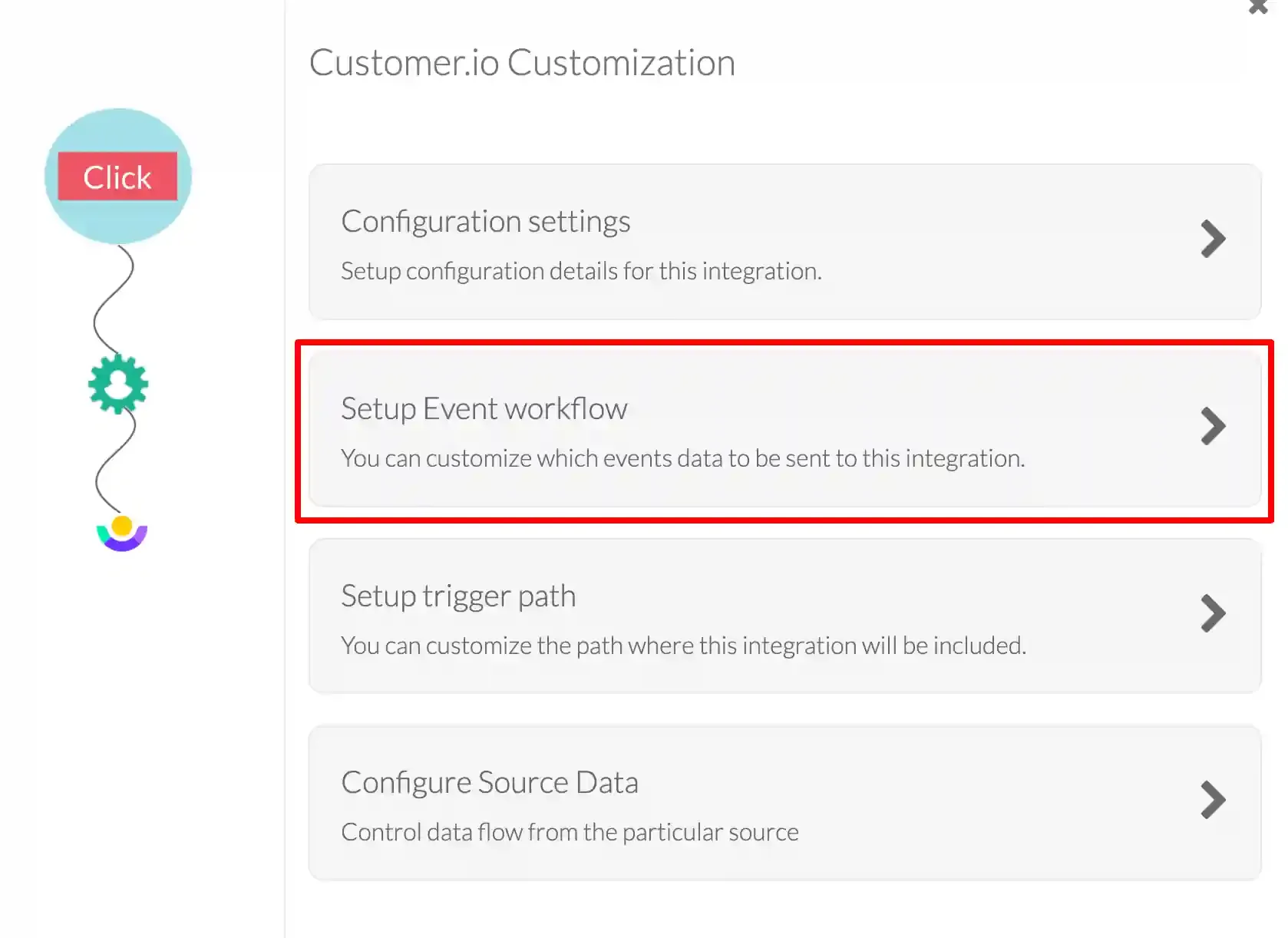
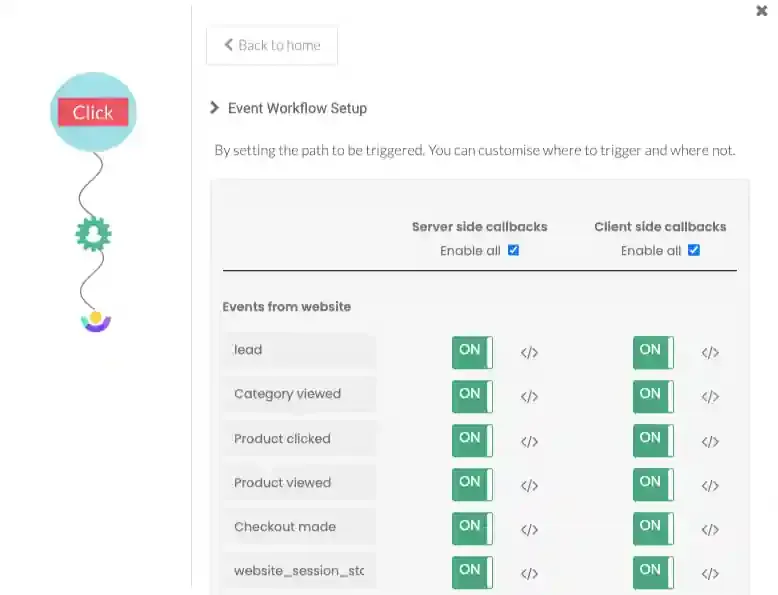
Section titled “Open the Action Workflow”From the Customer.io destination screen, click Setup Action Workflow. The workflow displays all events tracked from your website and connected sources.
Enable Events
Section titled “Enable Events”Use the On/Off toggle on each event to select which events should be forwarded to Customer.io. Click Save Changes after configuring the toggles.
Server-Side and Client-Side Callbacks
Section titled “Server-Side and Client-Side Callbacks”Each event supports two callback modes:
| Callback Type | Description |
|---|---|
| Server-side | Modifies and forwards event data from the CustomerLabs server to Customer.io. Suitable for reliable, unblockable delivery. |
| Client-side | Collects user event data from the browser via the CustomerLabs No-Code Event Tracker before forwarding. Suitable for real-time browser interactions. |
Configuring Trigger Paths
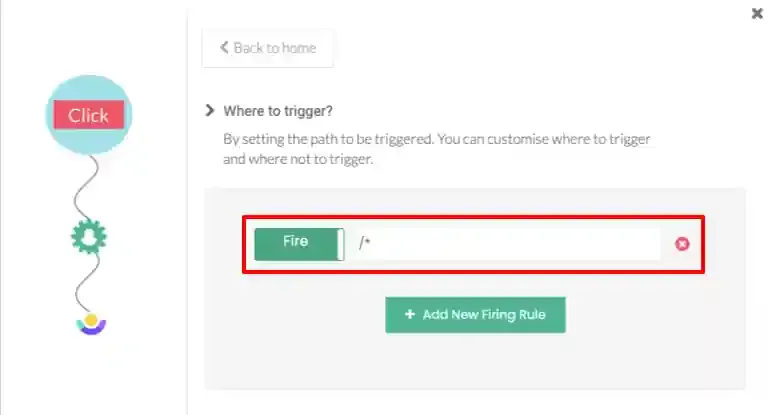
Section titled “Configuring Trigger Paths”Trigger paths define the URL conditions under which tracking for a given event fires.
Define URL Rules
Section titled “Define URL Rules”Click Setup Trigger Path on the relevant event row. Then:
- Enter the URL or URL pattern for the page on which the event should fire.
- Use the Fire / Don’t Fire toggle to set whether the event should trigger or be suppressed on the specified path.
- Click Save Changes.
Verifying the Integration
Section titled “Verifying the Integration”To confirm that events are being received, navigate to Activity Logs in Customer.io. Incoming events forwarded from CustomerLabs will appear in the log.
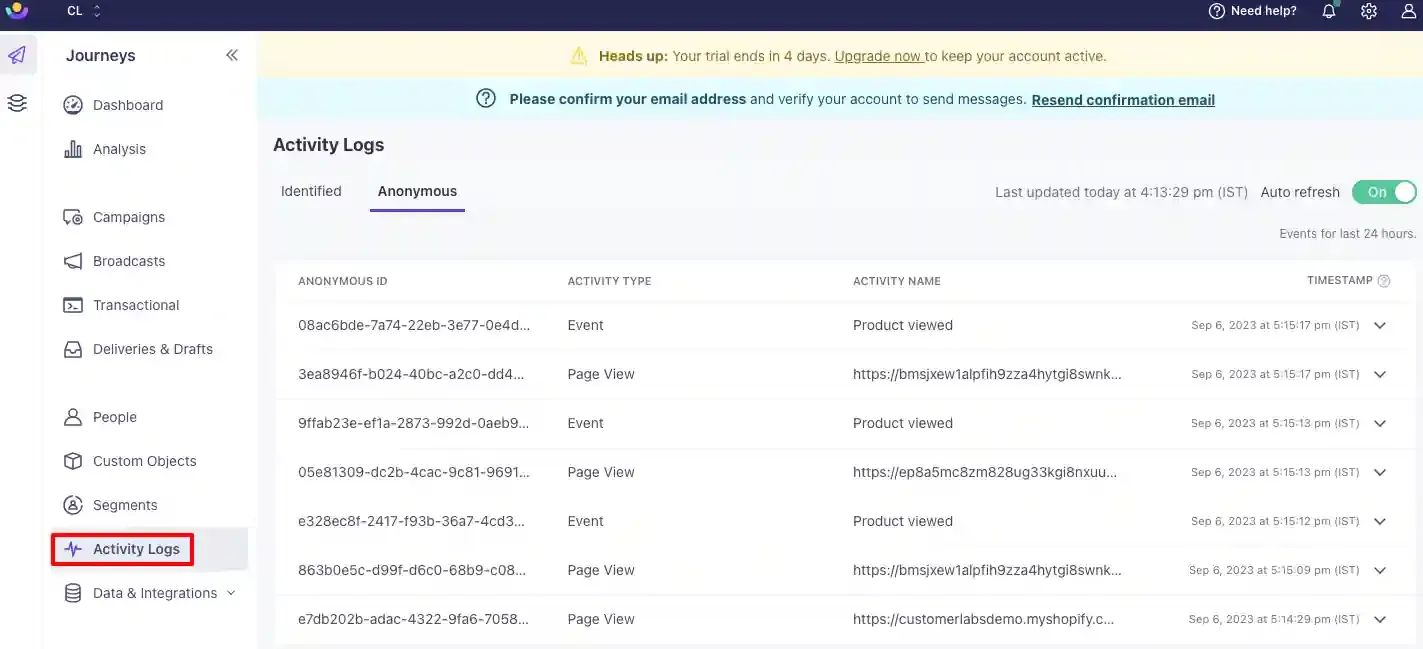
The Customer.io destination is now active. CustomerLabs will forward the enabled events to Customer.io based on the configured trigger paths, where they will be available for behavioral segmentation, automated messaging, and campaign triggers.
Quick Reference
Section titled “Quick Reference”| Setting | Value |
|---|---|
| Auth Type | Site ID + API Key |
| Site ID Location | Customer.io → Settings → Account Settings → API Credentials |
| API Key Location | Customer.io → Settings → Account Settings → API Credentials |
| Where to Enter | CustomerLabs → Destinations → Customer.io → Configuration Settings |
| User Identify ID | identify_by_email (recommended) or a custom field |