
CustomerLabs + Bing Ads (Microsoft Advertising) Integration
Bing Ads (Microsoft Advertising) enables marketers to reach and engage customers across Bing, Yahoo, and MSN through advanced campaign tracking, retargeting, and cross-device advertising.
With CustomerLabs, you can unify all your customer data — including user traits and behavioral events — with Bing Ads, streamlining conversion tracking and enabling dynamic audience targeting.
CustomerLabs supports seamless event mapping to Bing Ads, including page views, product views, cart additions, purchases, and custom conversions — helping businesses optimize ad spend and measure campaign performance accurately.
Prerequisites
Section titled “Prerequisites”- An active Microsoft Advertising (Bing Ads) account
- Administrative access to Bing Ads Account
- An active CustomerLabs account
Setting Up Goals in Bing Ads
Section titled “Setting Up Goals in Bing Ads”Step 1: Access Conversion Goals
Section titled “Step 1: Access Conversion Goals”-
Log in to your Microsoft Advertising account.
-
Navigate to Tools > Conversion Tracking > Conversion Goals.
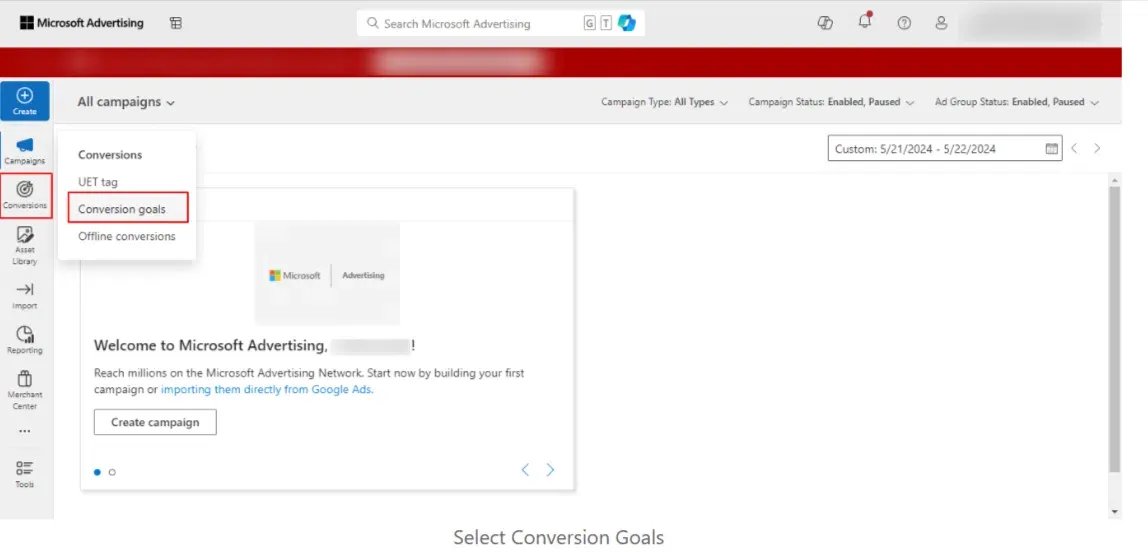
Step 2: Create a New Conversion Goal
Section titled “Step 2: Create a New Conversion Goal”-
On the Conversion Goals page, click the Create button.
-
Choose Website or Offline Source as the conversion source.
-
Click Next.
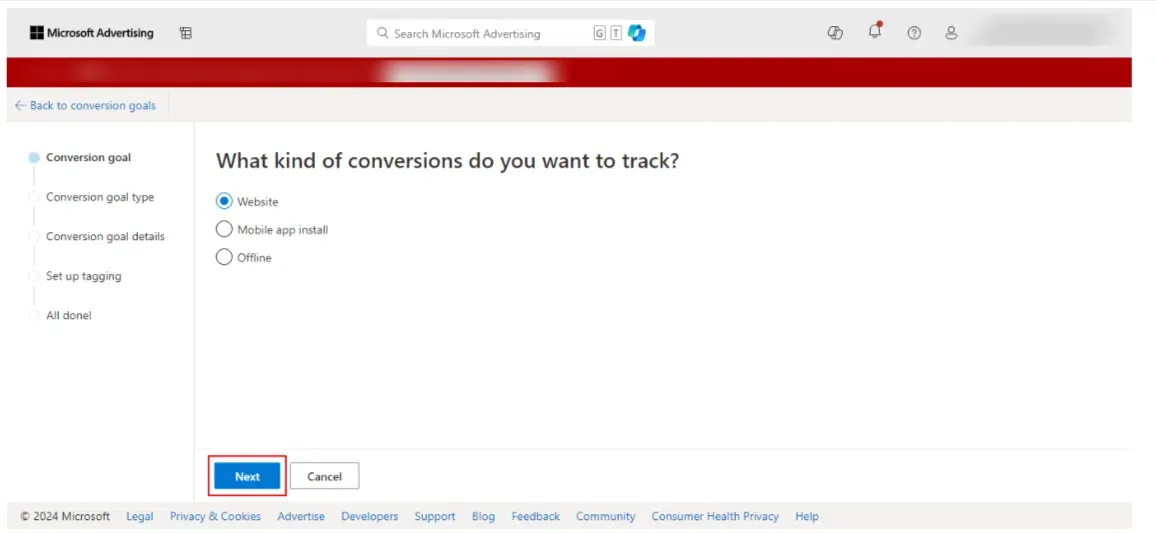
Step 3: Configure Your Goal
Section titled “Step 3: Configure Your Goal”-
Goal Category — Select the category that best fits your goal (e.g., Purchase, Lead, Sign-up).
-
Goal Type — Choose the appropriate type (usually based on event or URL).
-
Click Next to continue.
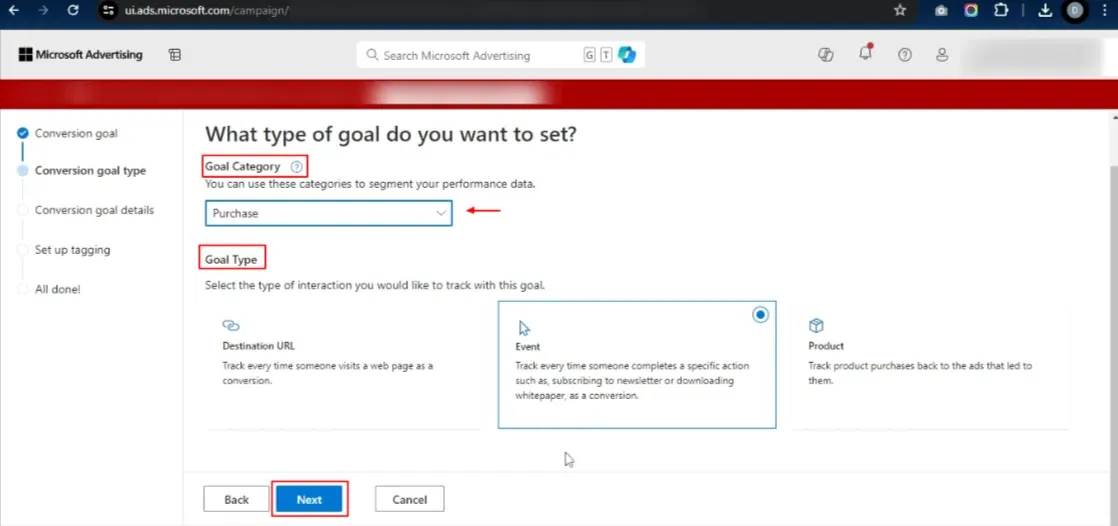
Step 4: Set Goal Details
Section titled “Step 4: Set Goal Details”-
Enter a Goal Name (e.g.,
CustomerLabs Conversion). -
Define a Goal Value or Revenue, if applicable.
-
Configure the following additional settings based on your business requirements:
Setting Description Scope Specifies which account or campaigns your conversion goal applies to. Ensures conversions are attributed to the correct entity for reporting. Count Determines whether all conversions per ad click are counted (All) or just the first (One). Helps tailor conversion logic to your business model (e.g., sales vs. leads). Conversion Window Sets the maximum number of days after an ad click that a conversion can be attributed. Allows tracking of delayed actions like purchases or signups. View-through Conversion Window Defines how long after seeing (but not clicking) an ad a conversion can be recorded. Measures the effect of ad impressions on conversions. Include in “Conversions” Specifies if this goal’s data appears in your core conversion metrics and bidding optimization. Useful for focusing strategy on key business outcomes. Conversion Attribution Model Chooses how to assign conversion credit to different ad interactions (e.g., last-click, first-click). Impacts reporting and optimization based on the user journey. -
Click Next to proceed.
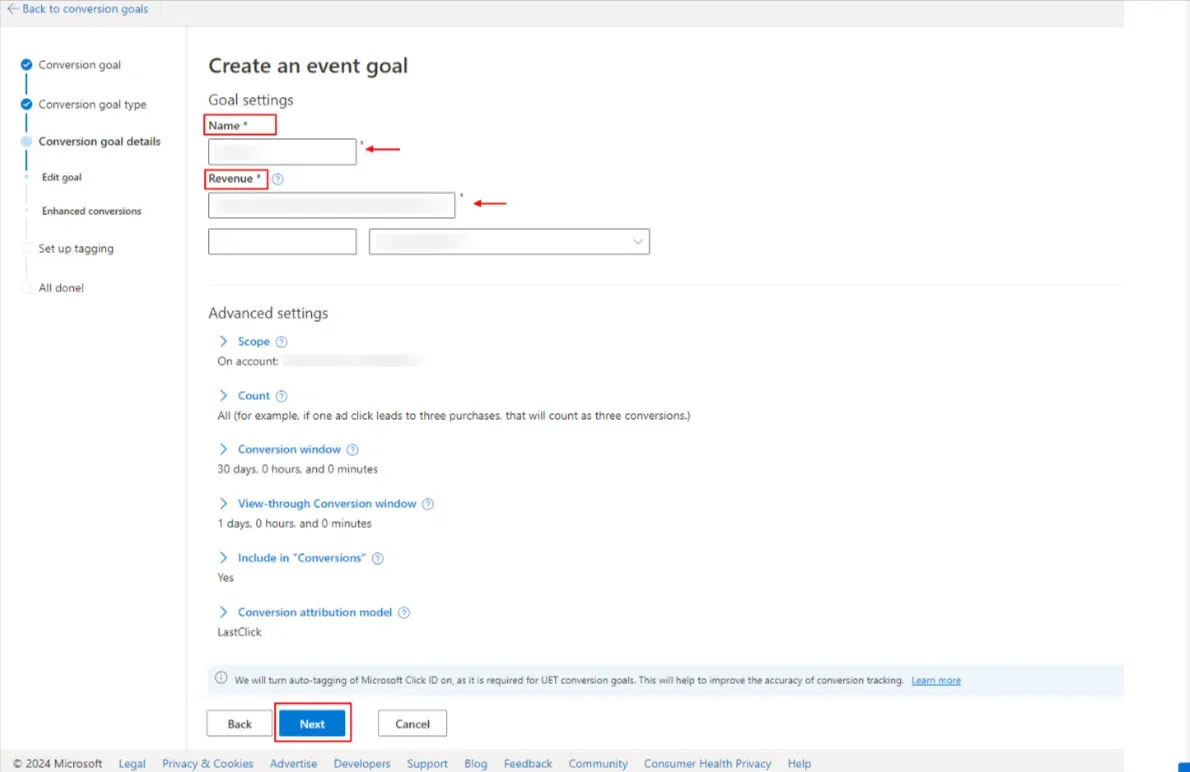
Step 5: Enable Enhanced Conversions
Section titled “Step 5: Enable Enhanced Conversions”-
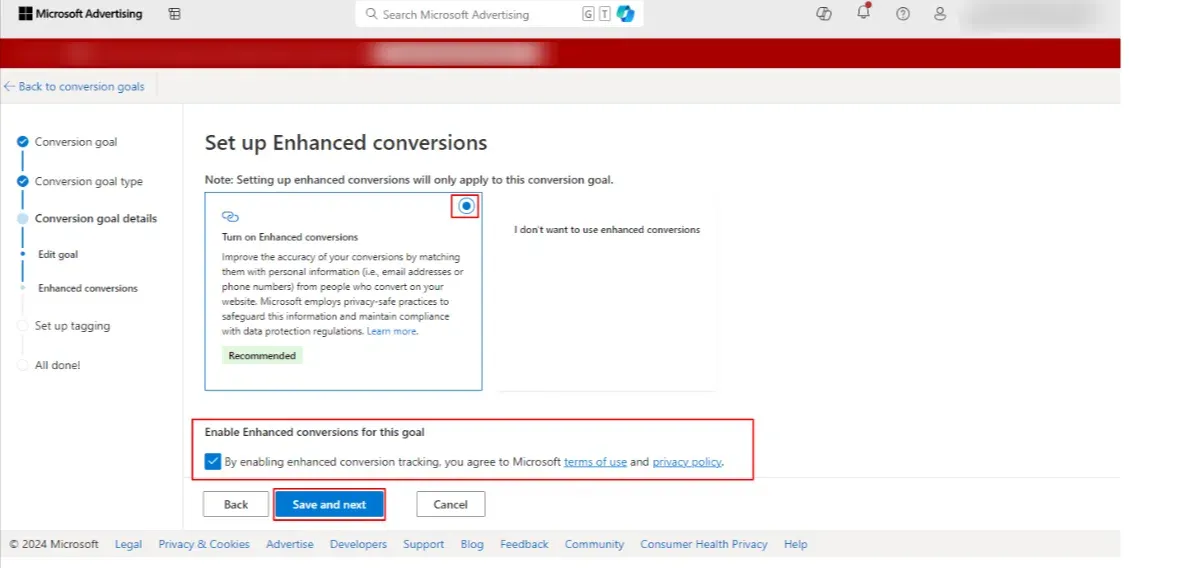
On the goal setup page, scroll to the Enhanced Conversions section.
-
Check the box for Enable enhanced conversions for this goal.
-
Click Save to complete the setup.
Configuring CustomerLabs to send data to Bing Ads
Section titled “Configuring CustomerLabs to send data to Bing Ads”Once you have enabled enhanced conversions in Microsoft Advertising, follow the steps below to complete the setup from the CustomerLabs side.
Step 1: Enable Bing Ads as a Destination
Section titled “Step 1: Enable Bing Ads as a Destination”-
Log in to your CustomerLabs account.
-
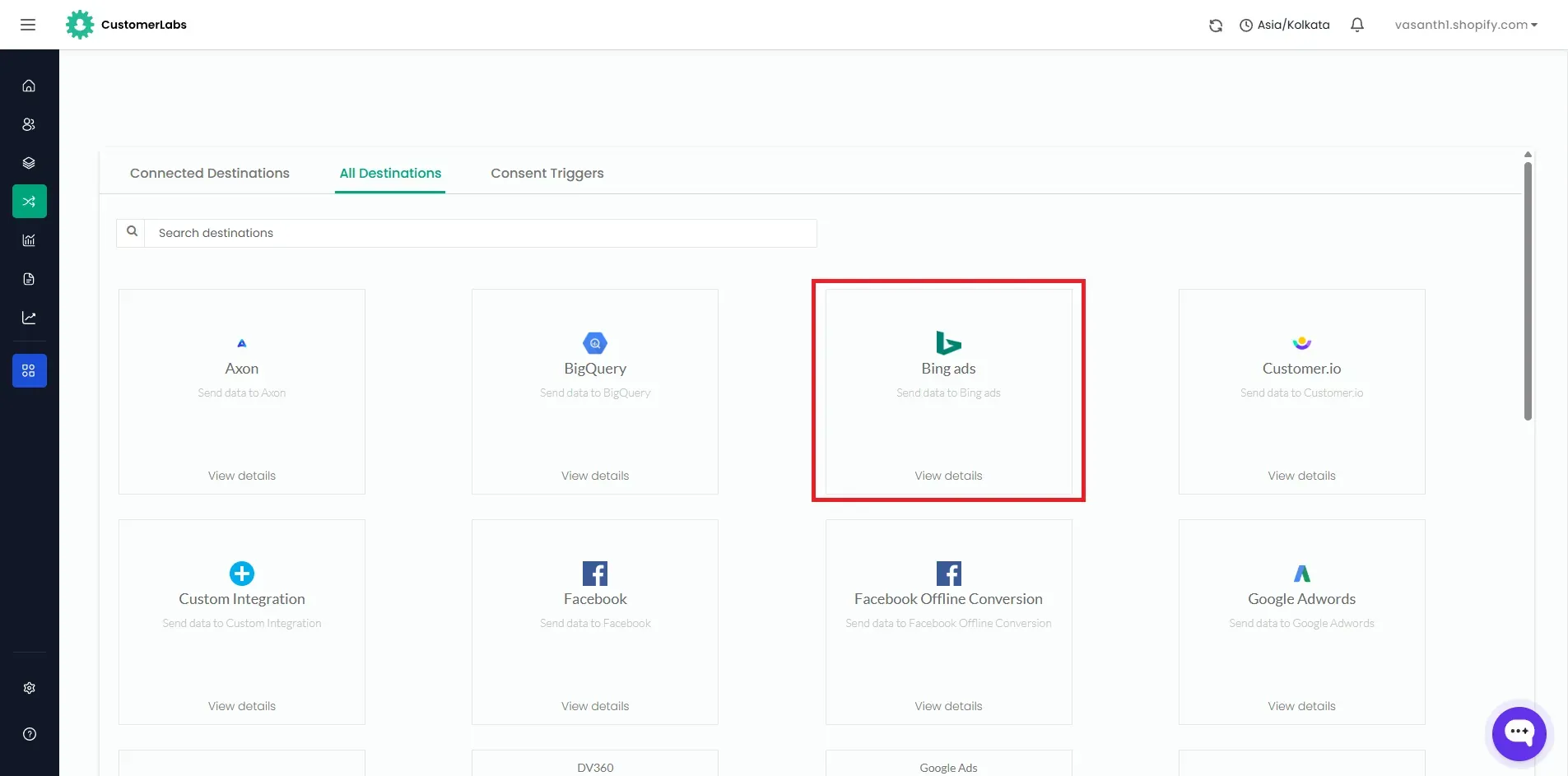
Navigate to Destinations.
-
Find and select Bing Ads from the list.
-
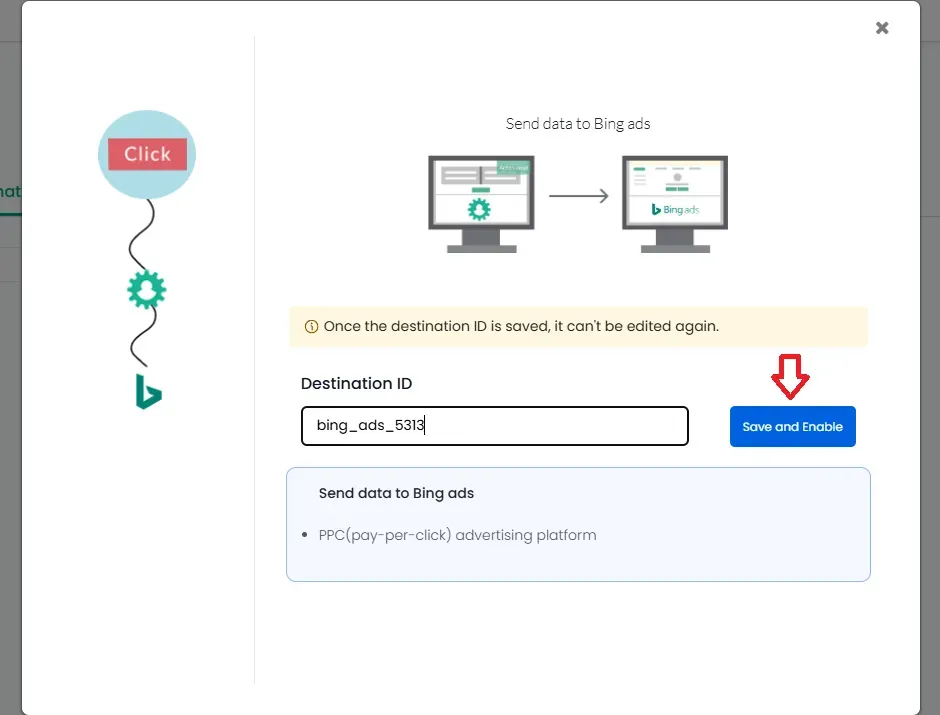
Click Enable and go to Configuration Settings.
Step 2: Authenticate and Enable Enhanced Conversion Tracking
Section titled “Step 2: Authenticate and Enable Enhanced Conversion Tracking”-
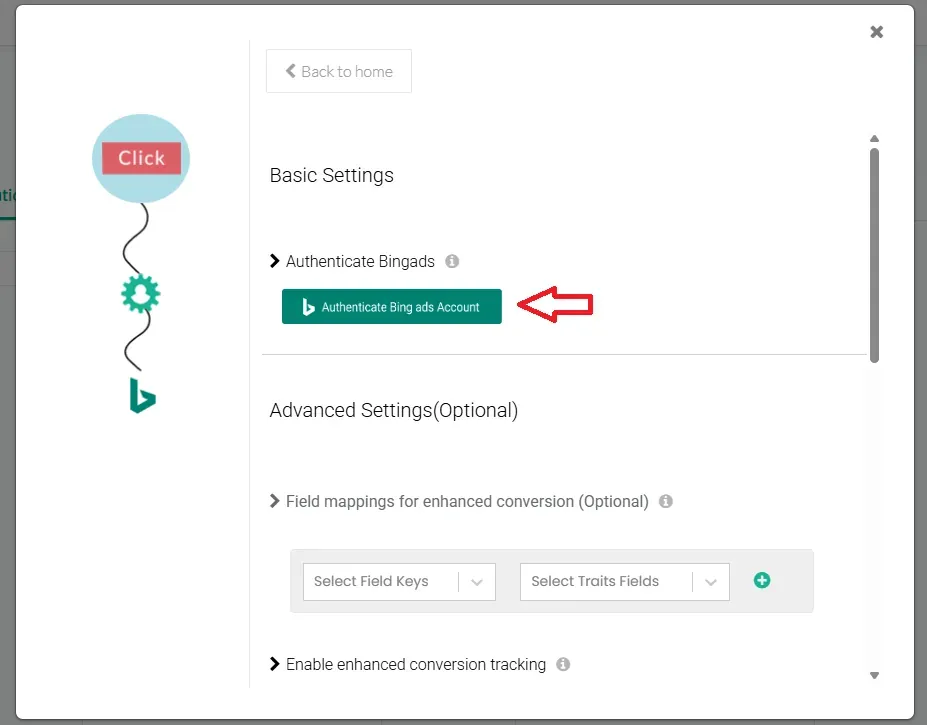
Authenticate your Bing Ads account.
-
In the Advanced Settings, toggle on Enable Enhanced Conversion Tracking.
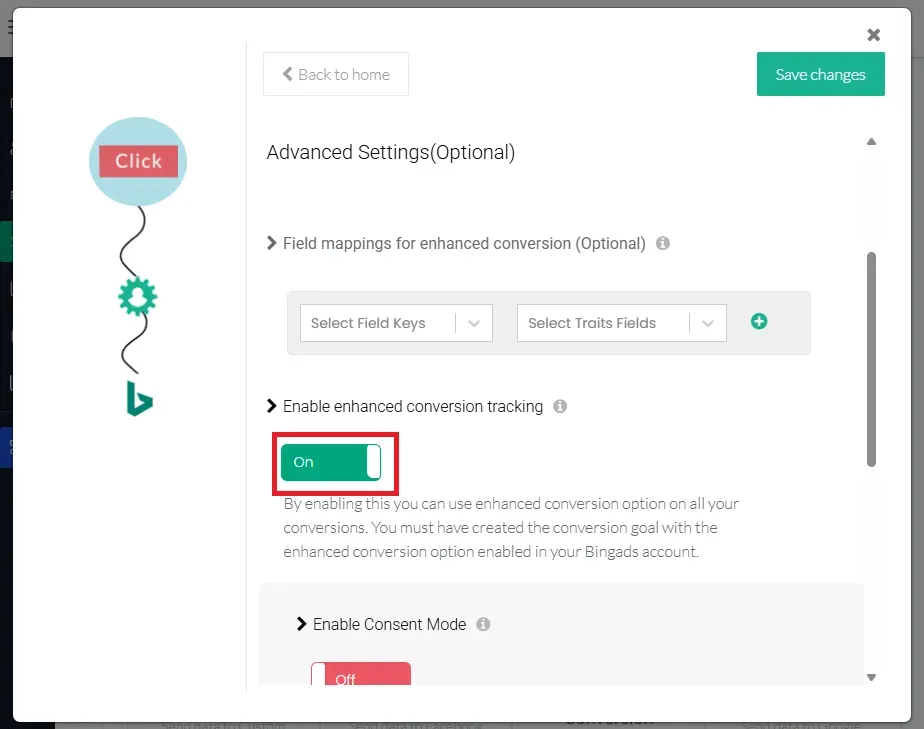
Step 3: Map Events to Enhanced Conversion Goals
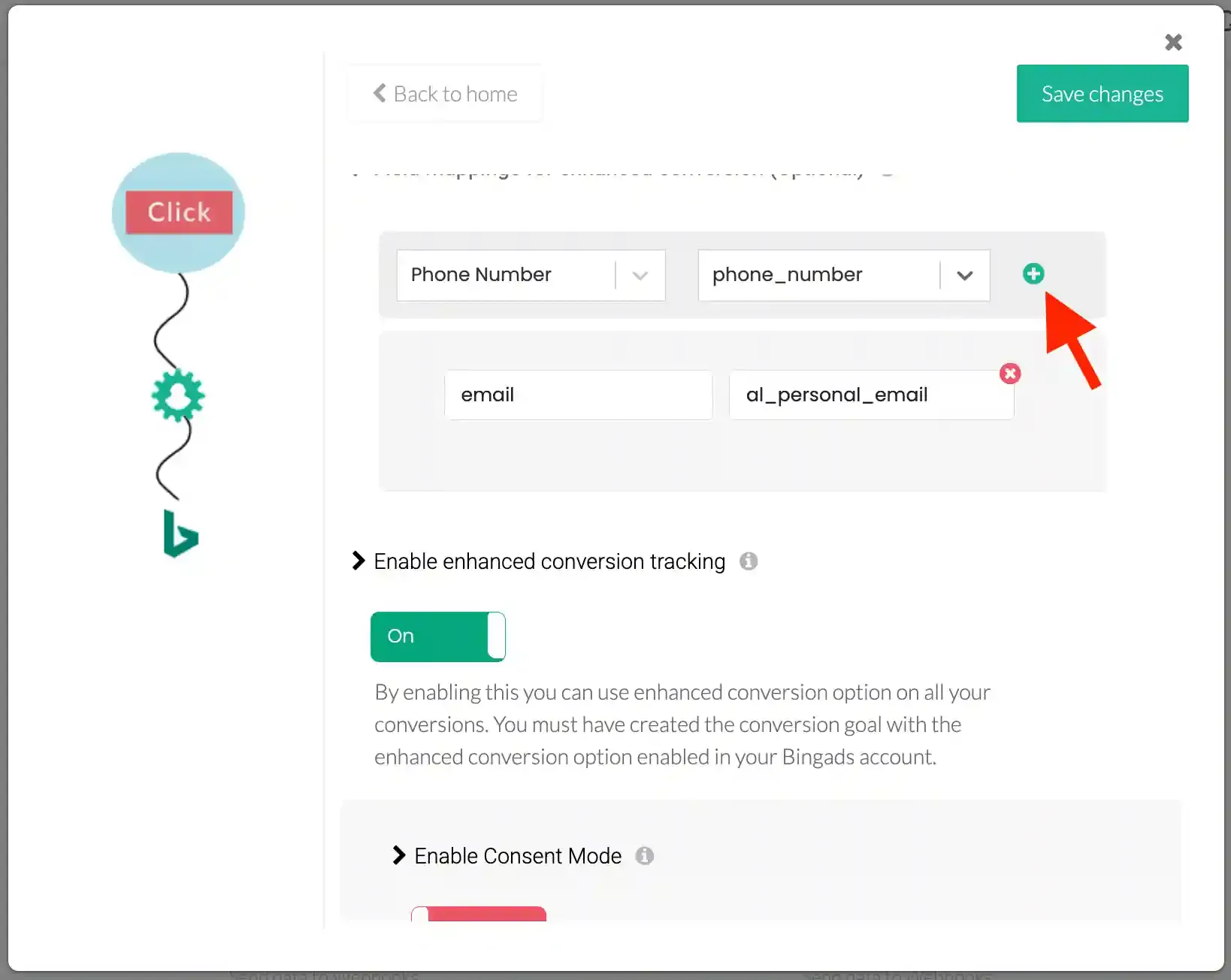
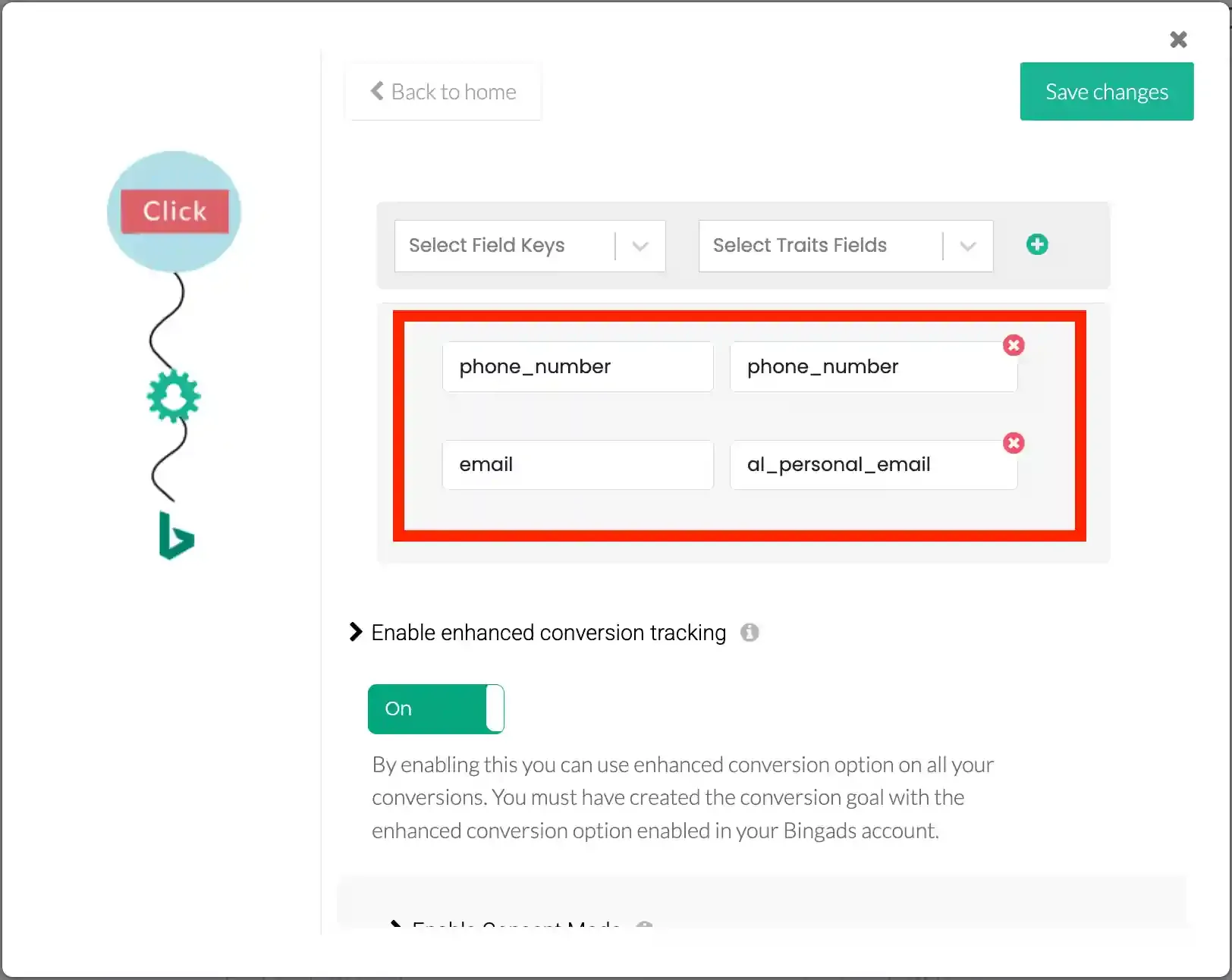
Section titled “Step 3: Map Events to Enhanced Conversion Goals”- Under the Advanced Settings section, map the appropriate CustomerLabs events (e.g.,
Purchase,Lead) to your Bing Ads conversion goals. - Click the plus (+) symbol after mapping each conversion to confirm the mapping.
Step 4: Set Up the Event Workflow
Section titled “Step 4: Set Up the Event Workflow”- Go to Setup Event Workflows in CustomerLabs.
- Toggle on the events you want to send to Bing Ads (e.g.,
cl_purchase,Added to cart,Complete registration). - Click Save to apply the workflow.
Step 5: Monitor Events
Section titled “Step 5: Monitor Events”-
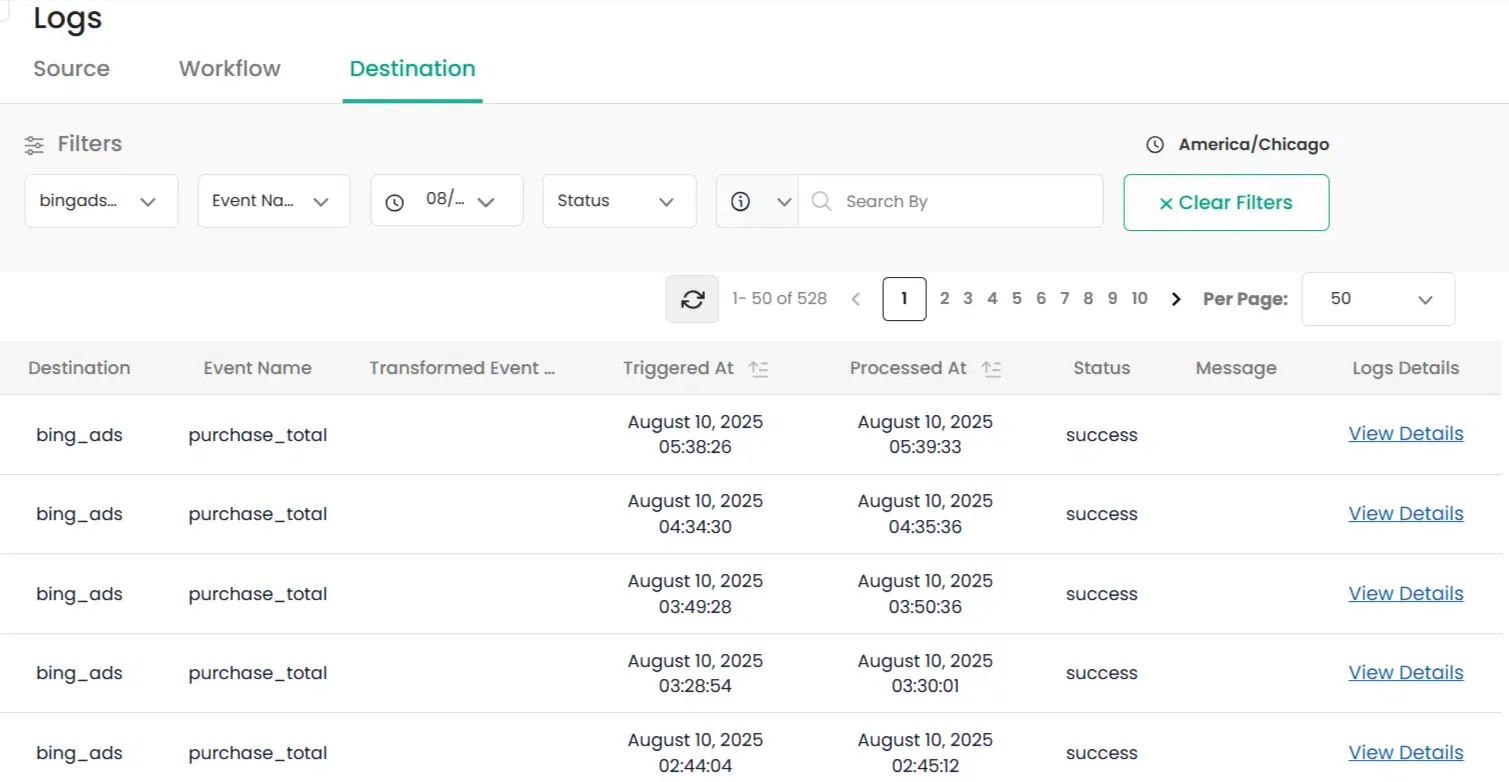
Go to the Monitoring → Logs → Destination tab in CustomerLabs dashboard.
-
Choose the Bing Ads destination and select the time range. Click Apply.
-
You will be able to see the status of events being sent to Bing Ads via server-side integration.
Summary
Section titled “Summary”With enhanced conversions enabled and CustomerLabs integrated, your Bing Ads campaigns will benefit from:
- Accurate conversion tracking — Enriched customer data for precise attribution.
- Improved optimization — Leverage first-party data for better bidding strategies.
- Higher campaign performance — Maximize ad spend efficiency with reliable conversion signals.