Customerlabs CDP Documentation
CustomerLabs + Google Sheets Integration
With Google Sheets, you can create, edit and collaborate, wherever you are. Free of charge. CustomerLabs Action Recorder can export your event data to Google Sheets with a single click without writing a single line of code.
1. Login to your CustomerLabs account
2. Navigate to the “Destinations” section on the home page. You will be taken to “Destinations” page
3. Search and select Google Sheets from the list

5. You will see a pop up screen
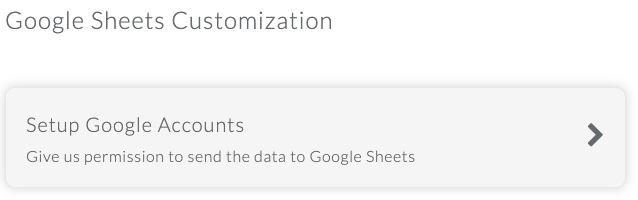
6. Click on “Subscribe” and then click on “Setup Google Accounts”
7. Click on “Add an account”
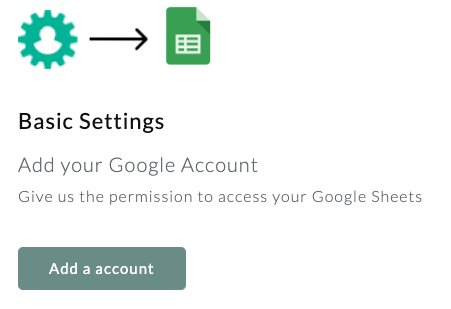
8. Choose your Google account, that you would like to link with CustomerLabs.
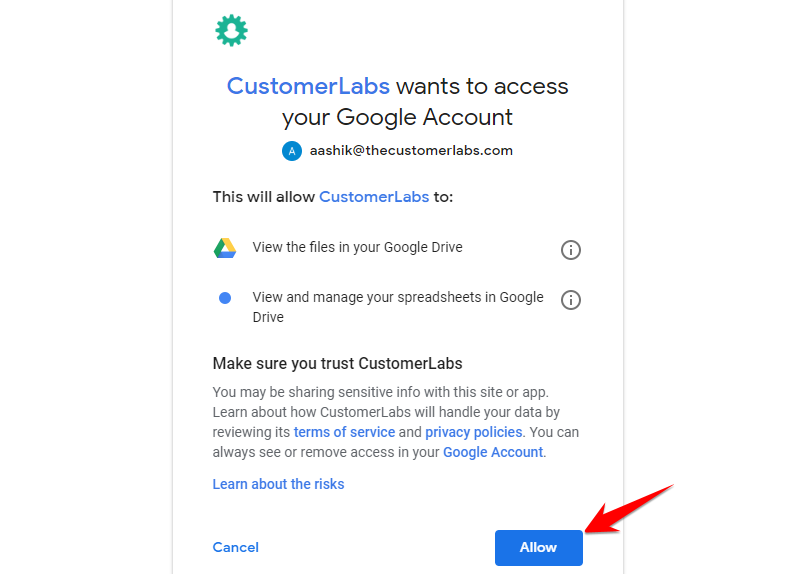
9. The next step is where the CustomerLabs asks for permission to access your Google Account.
10. Click “Allow”.
11. On allowing the permission, your chosen Google Account will appear under the Authorised Google Accounts section
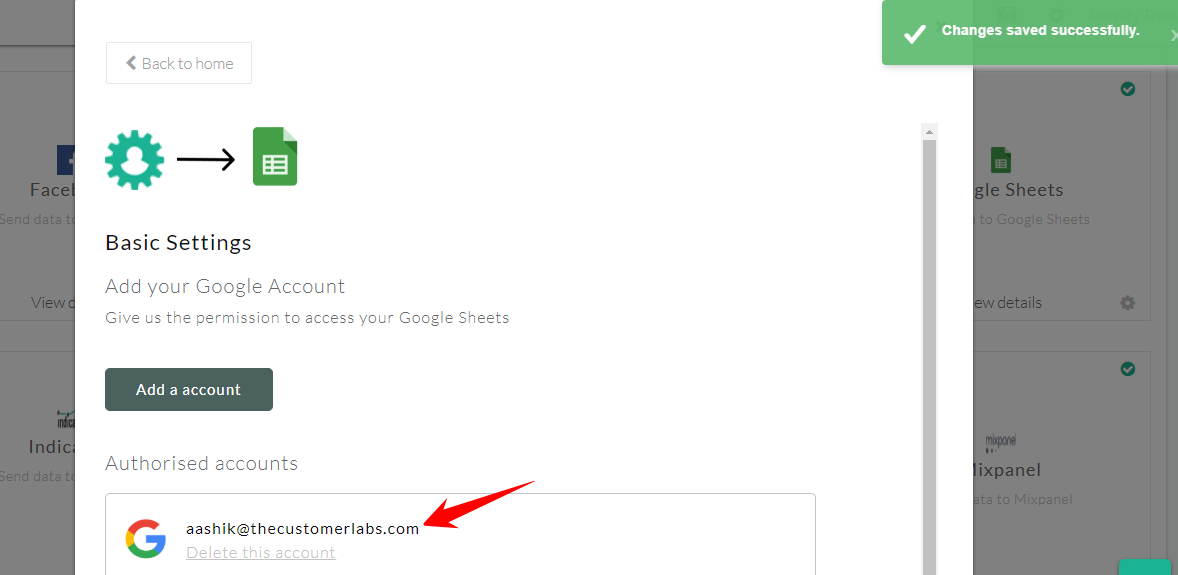
12. You have now successfully integrated Google Sheets with CustomerLabs.
13. Now to the next part – Configure event headers and adding your events to Sheets
Configure Event Headers and Add your Events to Sheets
After setting up your Google Account with CustomerLabs (for Google Sheets). You need to Configure Events and Headers to map it’s properties associated with the headers.
Important Limitations:
Due to Google Sheets limitations, you can choose to send events which are limited to 1500/Hour.
Best Practices:
Avoid sending the events like page views, product views.
Part 1 – Choose an event to sync with the Sheets
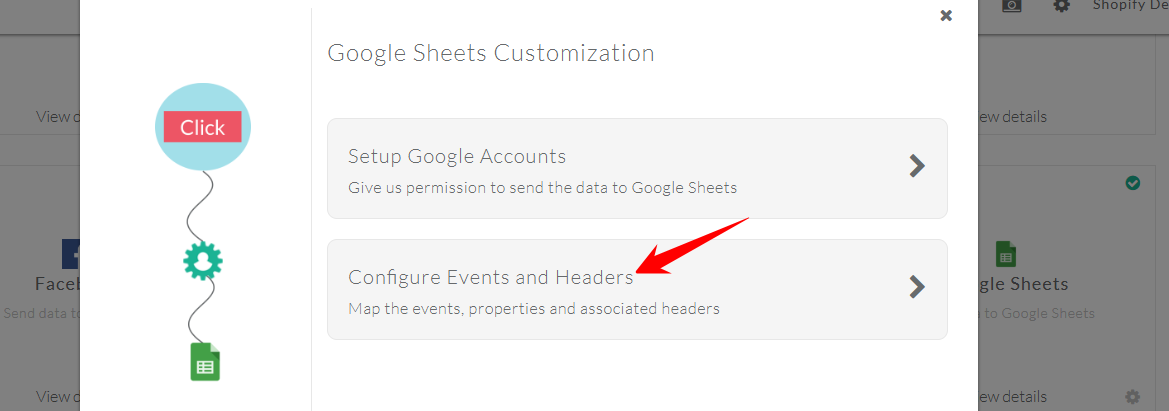
1.1. Click on Configure Events and Headers from Google Sheets Customization Screen.
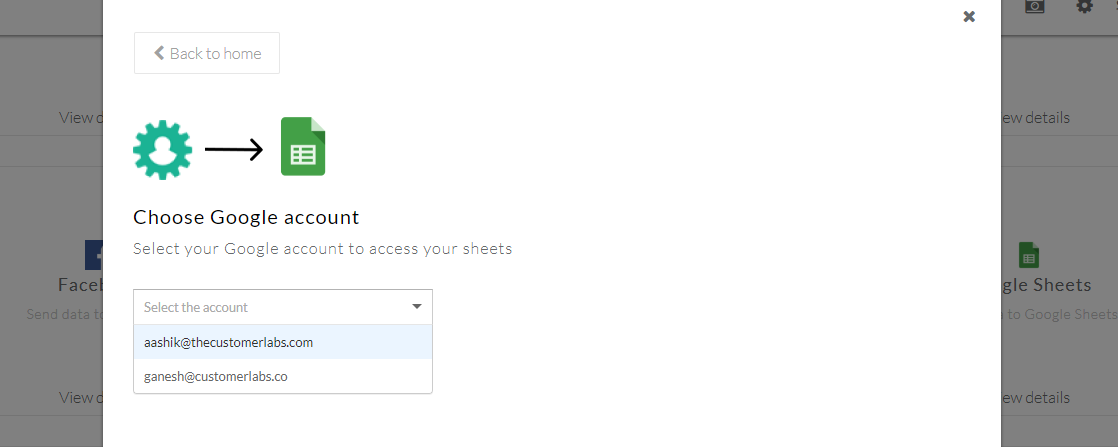
1.2. Select your preferred Google account to access your sheets.
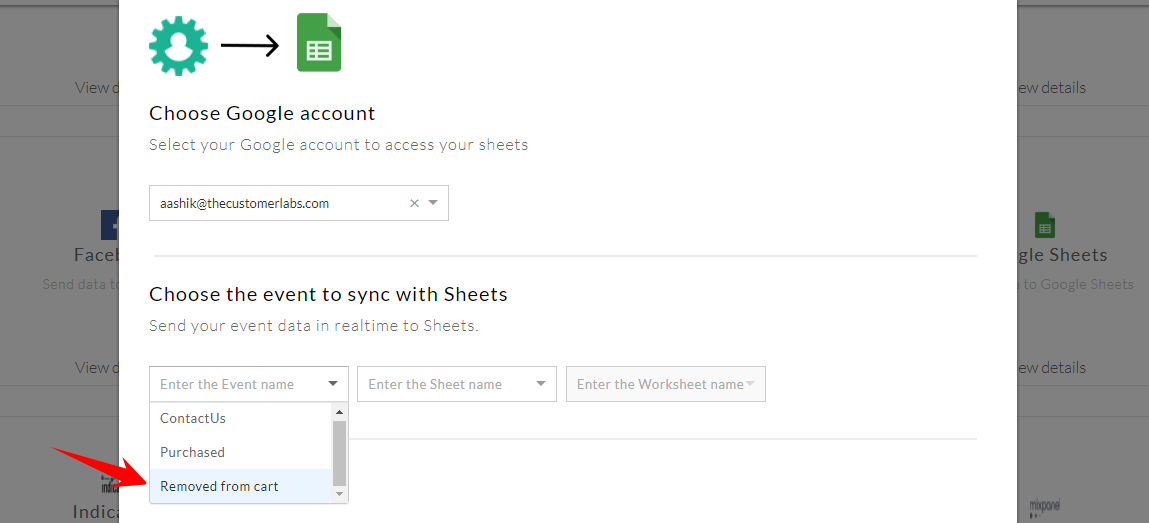
1.3. Firstly, you need to choose an event which you would want to sync it with Sheets.
1.4. For the following example, I would like to choose “Removed from Cart” event
1.5 Choose a Google sheet where you’d like to send the event data.
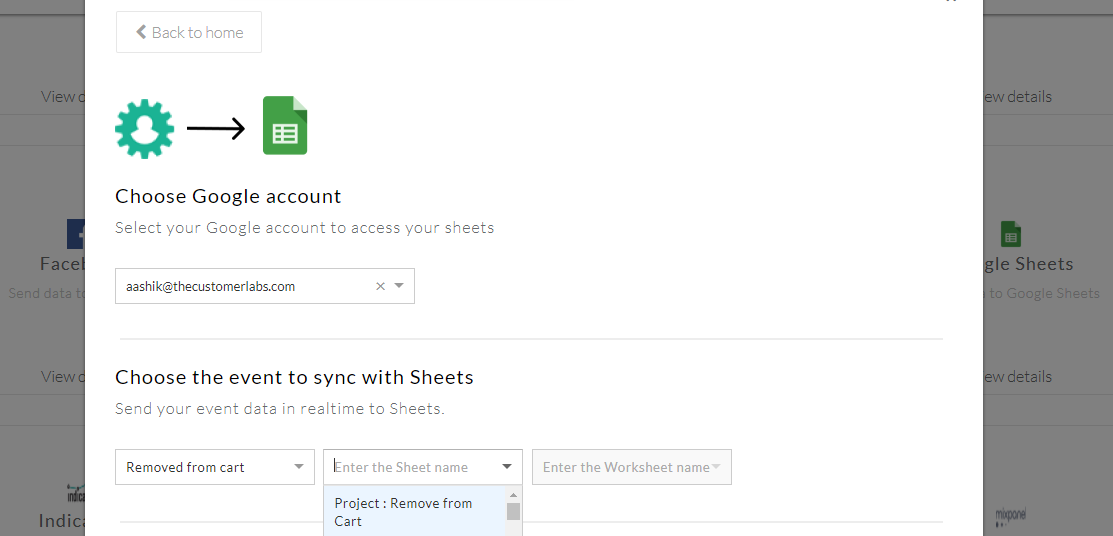
1.6 Choose a worksheet name along with it (eg: Sheet 1).
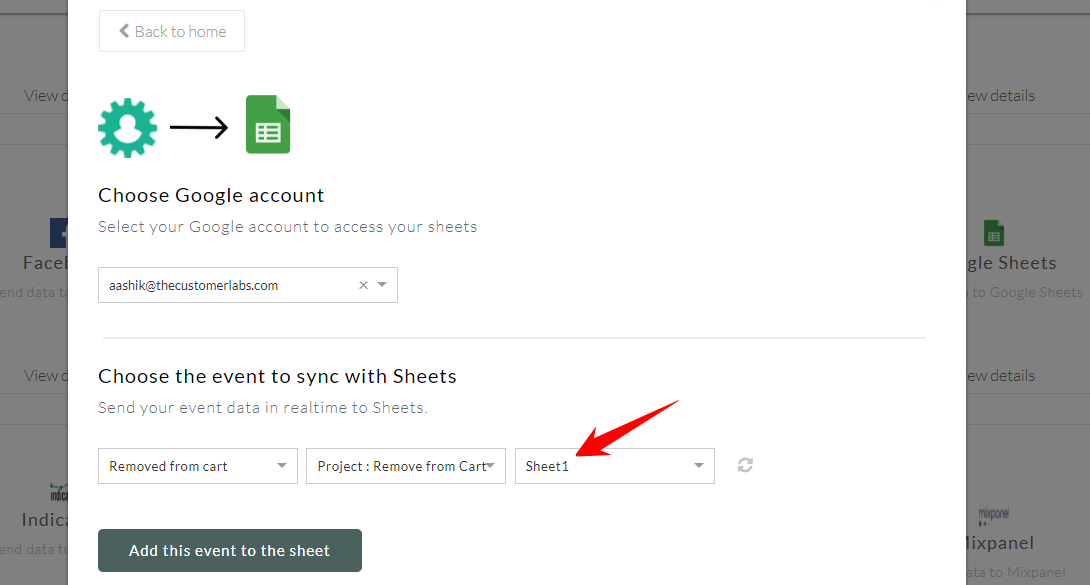
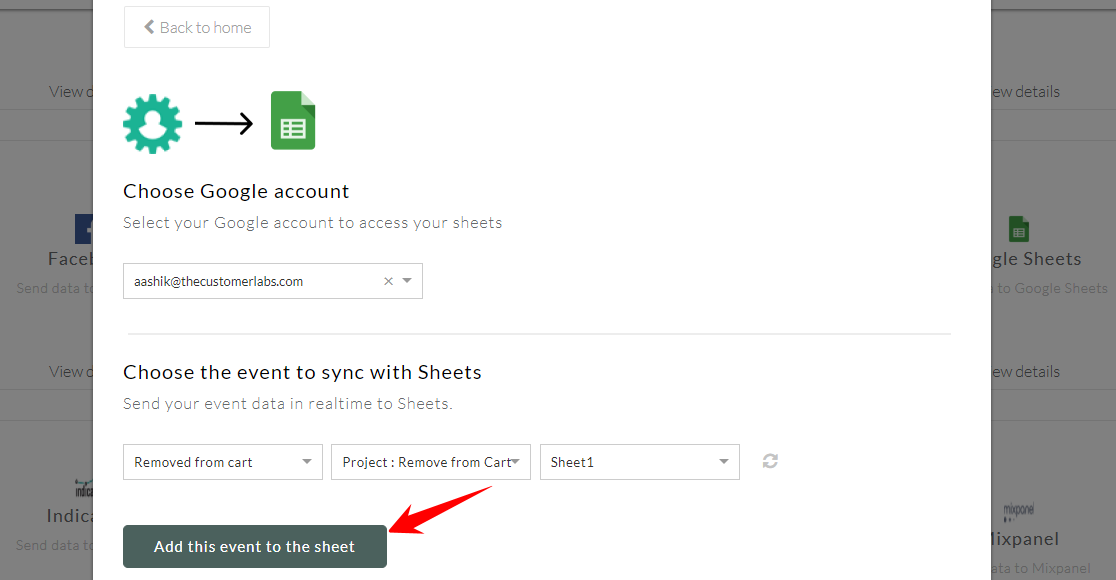
1.7 Once you are done with it click on “Add this event to the sheet”
Part 2 – Map event properties with the sheet headers
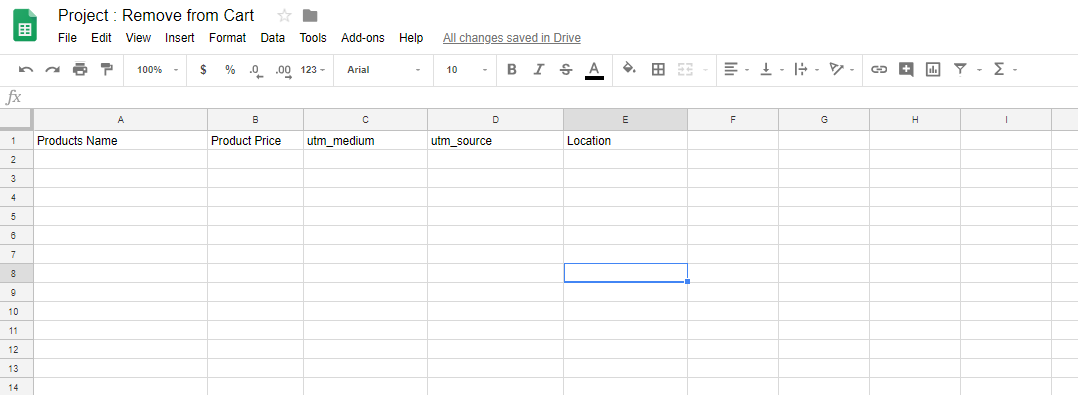
2.1. Add Headers on the Google Sheet for easier reference. (eg: Product Name, Price & Location)
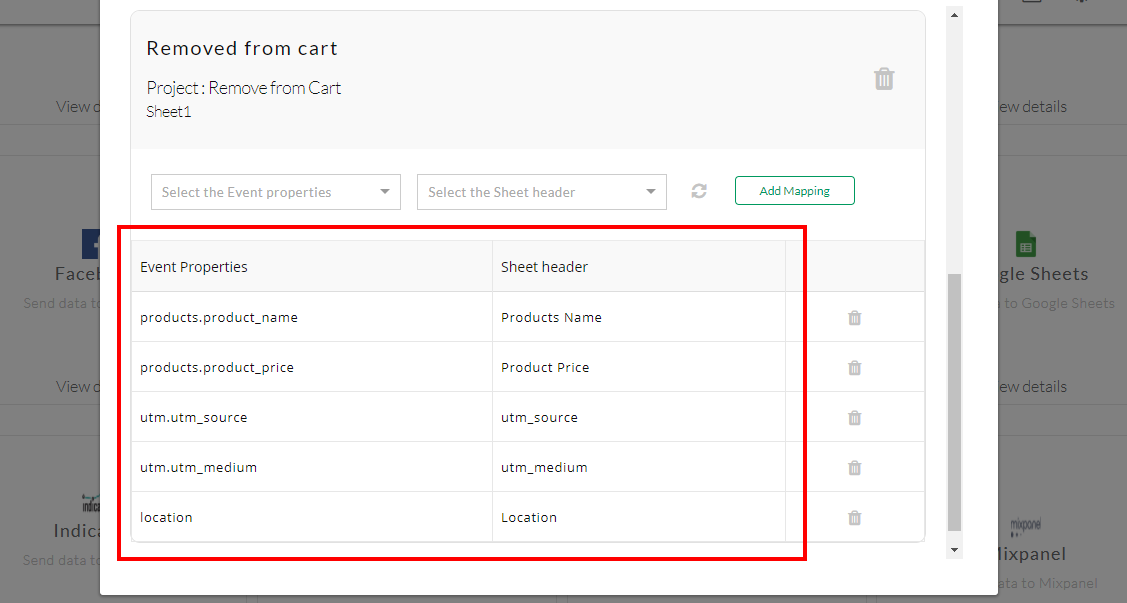
2.2 Return to CustomerLabs Action Recorder customization screen and select event properties along with the associated sheet headers.
2.3 Click on Add mapping, once you are done with it.
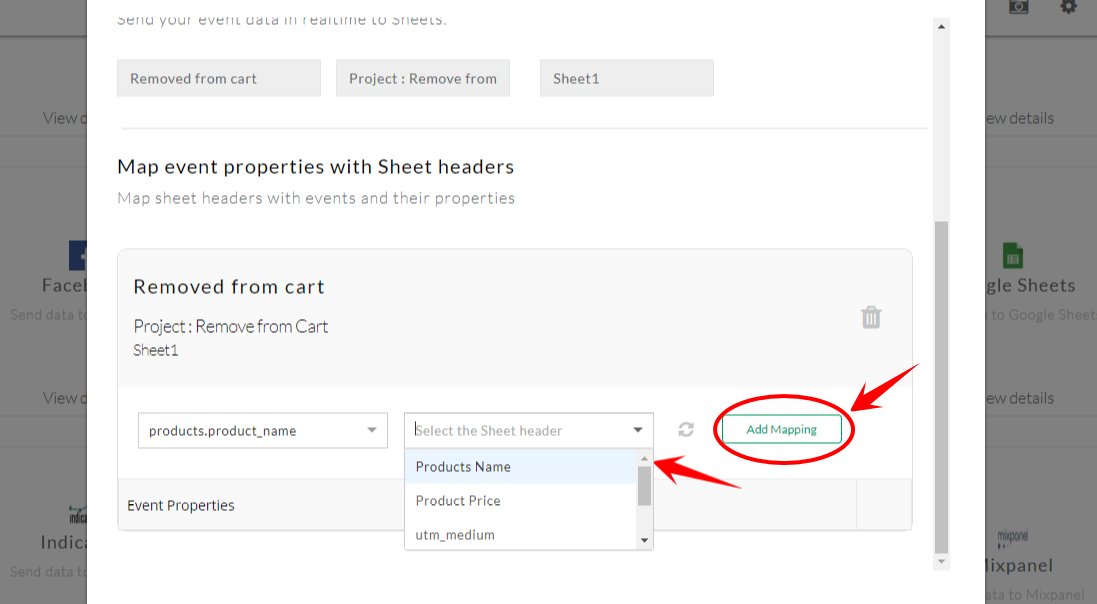
2.4 Similarly, map all the event properties which you would want to appear on the sheet.
Part 3 – Test your Event data on Sheets
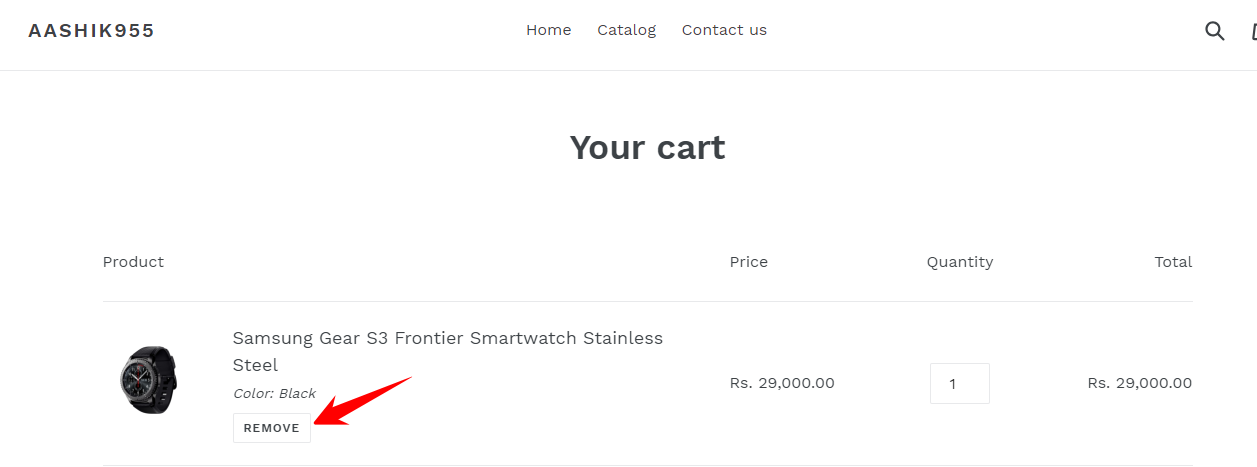
3.1. Open your website and click on the following event you have configured (eg: Removed from the cart).
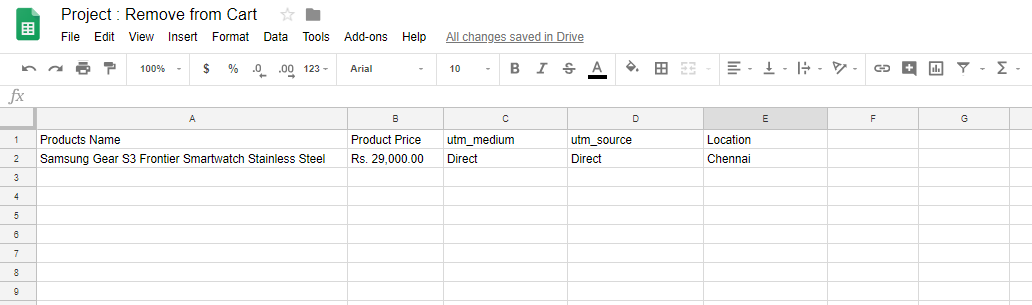
3.2. Return back to Google sheets to check it.
3.3 The event data of the performed event on your website should appear on the sheets.
3.4 You have now successfully integrated Google Sheets with CustomerLabs. Now send your preferred event data to Google Sheets with CustomerLabs!
3.5 If you’re still facing facing issues, get in touch with our team by clicking on the chat icon on the lower right corner. We will set up all your events for free 🙂