Customerlabs CDP Documentation
Pick common selector
Simply put, “Pick common selector” helps in replicating the tracking process for all the items in your website. For an ecommerce store, you might want to track all the products and their attributes to trigger events. It does not make sense doing a specific event for all the products in your website individually. A “Pick common selector” helps in replicating this process throughout your website.
You can select or unselect the pick common selector while setting up your events.
Case 1:
- Tracing product clicks (Sample event)
- Pick common selector is selected
1. Login to your CustomerLabs account
2. Launch No-code Event Tracker by clicking the icon
3. You will be redirected to your website and No-code Event Tracker panel will open up
4. You can move the panel up or down by clicking the icon
5. Click on “Record Action” to start recording
6. Select “Product Clicked” for Action Name or create a custom name if you wish

7. Select “On Click” under Action Type

8. Click on “Add details” to proceed
9. Select the attributes you want to track, you can start with product name
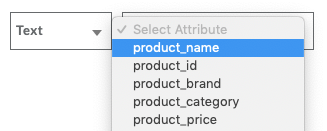
10. Select “Pick common selector”

11. Now click on to go to your website
12. Select any one product name from your website

13. Since the option is selected, you will be able to track clicks on all your products in your website

14. You can replicate the process to track multiple attributes like price, variant and for other events too
Case 2:
- Tracing product clicks (Sample event)
- Pick common selector is selected
1. Login to your CustomerLabs account
2. Launch No-code Event Tracker by clicking the icon
3. You will be redirected to your website and No-code Event Tracker panel will open up
4. You can move the panel up or down by clicking the icon
5. Click on “Record Action” to start recording
6. Select “Product Clicked” for Action Name or create a custom name if you wish
7. Select “On Click” under Action Type
8. Click on “Add details” to proceed
9. Select the attributes you want to track, you can start with product name
10. Now if you don’t select the “Pick common selector” all your attributes will be tracked only for one product.

11. You can continue to set up your events if you want to focus only on one product.
You are good to go!
If you’re still facing facing issues, get in touch with our team by clicking on the chat icon on the lower right corner. We will set up all your events for free 🙂