Customerlabs CDP Documentation
Email Signup Tracking
Tracking users who signed up to your product can be important in analyzing how they had interacted with your website before choosing your product. You can personalize all your follow ups and onboarding content based on your users past behavior. See how you can setup email sign up tracking using Action Recorder by following the steps below.
1. Login to your CustomerLabs account
2. Launch Action Recorder by clicking the icon
3. You will be redirected to your website and Action Recorder panel will open up
4. You can move the panel up or down by clicking the icon
5. Navigate to your product signup page
6. Open Action Recorder widget on the left and click on “Record Action” to start recording
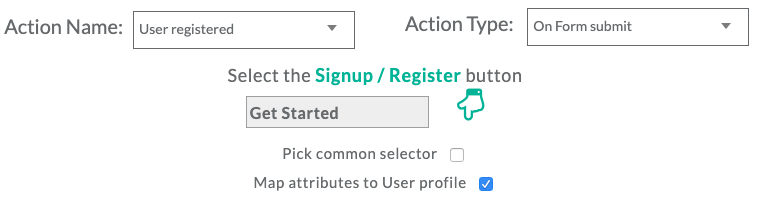
7. Select “User Registered” under Action name or create a custom name if you wish

8. Change the Action Type to “On Form Submit”

9. Now click on to go to your website to select the Signup button you want to track
10. After button selection, you will be redirected back to the Action Recorder panel. Select “Map attributes to User Profile”
11. Now click on “Add Details”
12. Now select an attribute value (the details that you want to track) by clicking on the button

13. A sample email Id field that we are tracking here,
14. Once the field that you want to track is selected, your attribute value will be selected and will appear as follows

15. Now select “Event Attributes” and click on save
16. Repeat steps 12 and 15 if you want to capture some more details like (Name, phone number etc.) but this time all these information should be captured by selecting “User Traits”
17. In this next step, add the link of your success page (the page that comes after a user has submitted all their information) as shown below
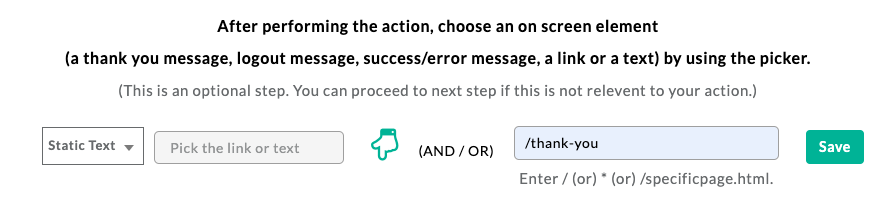
18. Once the link is added click on “Save” and then “Next |Tracking Rule”
19. Select the pages that you want to track. In this case it is only the “Current page”

20. Click “Save” and “Save Action”
21. You are good to go!
22. If you’re still facing facing issues, get in touch with our team by clicking on the chat icon on the lower right corner. We will set up all your events for free 🙂