Adding your conversion tracking code ensures every sale is properly attributed, whether it came from Google Ads, Meta remarketing, or any other paid channel. Without it, you’ll face blind spots, poor optimization, and wasted ad spend.
This guide shows you the fastest ways to add tracking code to the WooCommerce Thank You page using functions.php, a code snippet plugin, or a dedicated tracking plugin. You’ll also learn how to dynamically pass order details like amount, currency, and order ID for better ROAS optimization.
Implement this once, and your campaigns will run on clean, reliable data that drives smarter decisions and stronger results.
Where to Add Conversion Tracking Code?
You can add it using any of these three methods:
- functions.php
- CustomerLabs plugin
- Code snippet plugins
The method you choose depends on your comfort level, whether you prefer editing theme files or handling code through plugins.
I’d recommend you go for the CustomerLabs plugin, not just because it is our brand. But because it comes with a lot of added benefits, which I have listed below.
Option #1: Using the functions.php File in a Child Theme
If you don’t mind editing theme files, adding the tracking code directly to your child theme’s functions.php is a reliable approach. This ensures your conversion code loads on every WooCommerce Thank You page with involvement of handling code (You’ll definitely need a developer).
Step 1: Open the functions.php File
- Go to Appearance → Theme Editor in your WordPress dashboard and select your child theme’s functions.php file.
- If you’re not using a child theme, create one first; otherwise, your changes will be lost during theme updates.
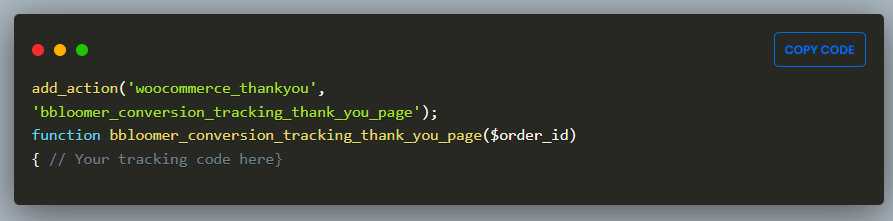
Step 2: Add the Code Using the woocommerce_thankyou Hook
- Use the add_action() function to hook into woocommerce_thankyou and insert your tracking code so it runs right after a successful purchase.
For example:
#Option 2: Using CustomerLabs Plugin
- You are not a techy person, and want an easy way to track your thank page, without the need for a developer; then this is for you.
- CustomerLabs plugin is a far easier and more powerful alternative. Using this plugin eliminates the need to edit theme files, protects you from losing code during updates, and unlocks advanced features like automatic event tracking, data unification, and seamless platform integrations, all without touching a single line of PHP.
Here’s how to get started:
Step 1: Install and Activate the CustomerLabs Plugin
- Head to Plugins > Add New in your WordPress dashboard, search for “CustomerLabs ActionRecorder,” and install it, or click here to install the WooCommerce conversion tracking plugin by CustomerLabs.
- Once activated, it automatically integrates with WooCommerce, making setup a breeze.
Step 2: Add Conversion Tracking Code
- The plugin allows you to add conversion tracking code to the Thank You page using a simple interface, without needing to manually edit any files.
- It ensures your tracking code fires at the right time, giving you accurate conversion data with zero hassle.
Apart from conversion tracking, the CustomerLabs plugin offers more value:
- Track events beyond purchases, including product views and cart actions.
- First-party data collection, helping you unify customer data from multiple platforms.
- Audience segmentation to improve retargeting efforts.
- Choosing CustomerLabs not only simplifies conversion tracking but also enhances your ability to gather and leverage customer insights, all with minimal setup.
#Option 3: Using a Code Snippet Plugin
If editing theme files feels risky or complex, a code snippet plugin like Code Snippets or Insert Headers and Footers simplifies the process. Here’s the process for that:
Step 1: Install and Activate a Plugin
- Go to Plugins > Add New and search for Code Snippets.
- Install and activate it.
Step 2: Add Your Code
- After activation, go to Snippets > Add New and paste the same code using the woocommerce_thankyou hook.
- The plugin will automatically handle the rest, ensuring your code runs only when a user reaches the thank you page.
- Now, you’re all set to add the tracking code to your Thank You page!
Before adding the actual tracking code, it’s important to understand the core element behind it: dynamic order details.
Dynamic Order Details in Tracking Code
These dynamic order values ensure each transaction is tracked accurately by passing key data such as the order total, currency, and order ID. Without these dynamic parameters, your analytics and ad platforms won’t receive precise purchase information, leading to gaps in attribution and reporting.
- Order Total (order->get_total()): Captures the exact value of the purchase, helping track revenue and ROAS accurately.
- Currency (order->get_currency()): Tracks the currency used, vital for campaigns targeting multiple regions.
- Order ID (order_id): Ties each transaction to a unique order, ensuring clean data for remarketing and attribution.
- Customer Email (order->get_billing_email()): Adds the buyer’s email for precise customer segmentation and follow-up marketing.
So, now you’re set to add the tracking code to your Thank You page.
Importance of Conversion Tracking on the Thank You Page
The WooCommerce Thank You page is one of the most important points in the customer journey for performance marketers. It’s where you capture the final, most valuable signal: a confirmed purchase.
Adding conversion tracking here gives you clean, complete data that powers smarter decisions and better campaign performance.
How the Thank You Page Tracking Helps You Achieve
Full-Funnel Visibility: Track users from first click to final purchase and identify which channels truly drive conversions.
Accurate Revenue Attribution: Tie every sale to the right campaign so your ROAS and CPA reflect real performance.
Sharper Retargeting: Build high-quality retargeting audiences using confirmed purchase data for better conversion rates.
Smarter Budget Allocation: Spot winning campaigns and shift spend away from low performers to reduce wasted budget.
Cross-Platform Optimization: Send purchase signals to Google Ads, Meta Ads, and other platforms to strengthen their machine learning and bidding accuracy.
Dynamic Data Tracking: Capture order total, currency, and product details for granular insights and deeper customer understanding.
Key Integrations You Can Power
CRM & Email Workflows: Sync purchase data to your CRM or trigger post-purchase automation instantly.
Ad Platform Retargeting: Use Thank You page data to deliver personalized ads to actual buyers across Meta and Google.
Advanced Server-Side Tracking: With tools like CAPI, server-side, and first-party domain tracking, capture conversion data reliably even with ad blockers or cookie restrictions. For WooCommerce stores, CustomerLabs makes this process seamless by automatically tracking and sending high-quality purchase events where they matter.
Add Tracking Code to WooCommerce Thank You Page
To implement conversion tracking on the WooCommerce thank you page, you’ll need to use specific WordPress hooks and functions. These methods allow you to insert tracking scripts that fire once a purchase is completed.
You will appreciate the flexibility and control this gives, as you can fully customize how and where the code is added.
add_action Hook: woocommerce_thankyou
The woocommerce_thankyou hook is a built-in WooCommerce hook that triggers after a successful order is placed. By hooking into this action, you can easily add conversion tracking code to the thank you page without modifying core WooCommerce files. This method ensures the tracking fires after every completed purchase.

Custom Function Example:
bloomer_conversion_tracking_thank_you_page
You can create a custom function, such as bloomer_conversion_tracking_thank_you_page, to insert your conversion tracking code dynamically. This lets you pass key order details like the order total, currency, and more, ensuring precise and reliable tracking for your campaigns.
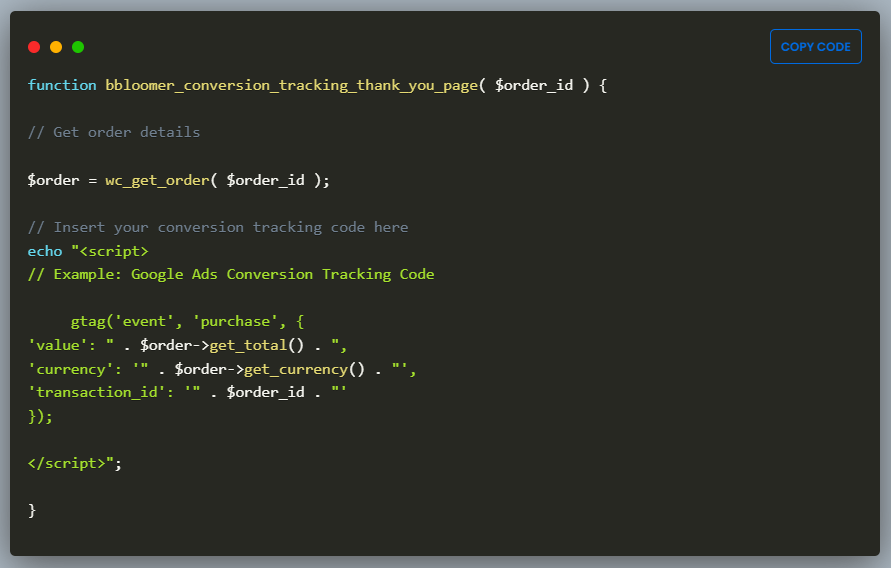
Script Tag Usage
To add your tracking script, simply place a standard <script> tag inside your custom function. You can then pull dynamic values like the order total using $order->get_total() to send accurate purchase data to platforms such as Google Ads or the Facebook Pixel.
This method ensures your WooCommerce Thank You page reliably fires the conversion code and captures all essential purchase metrics for precise tracking and optimization.
Troubleshooting Conversion Tracking Code
When your conversion tracking code fails to fire, your campaign data becomes unreliable and your optimizations. So effective troubleshooting focuses on isolating the root cause quickly.
Quick Troubleshooting Steps
Switch to the Storefront Theme
- Temporarily activate the default Storefront theme.
- If the tracking code fires correctly, your custom theme is causing the conflict.
Disable All Plugins Except WooCommerce
- Deactivate all plugins except WooCommerce.
- If the code works, reactivate each plugin one by one to identify the conflicting one.
Clear All Caches
- Clear both website cache (from cache plugins/server) and browser cache.
- Outdated cached files often block updated tracking code from firing.
Test with a Sample Order
- Place a test order and verify if the tracking code fires using browser developer tools or extensions like Google Tag Assistant.
Check for JavaScript Errors
- Open your browser console and look for JS errors.
- Any script error can stop your tracking code from executing.
Real-World Code Snippets
When adding conversion tracking code to the thank you page, it’s important to use real-world snippets that work with your specific platform and tracking requirements.
Performance marketers often deal with JavaScript and iframe codes to ensure that conversions are properly tracked and dynamic variables like order ID, total amount, and currency are passed to analytics platforms.
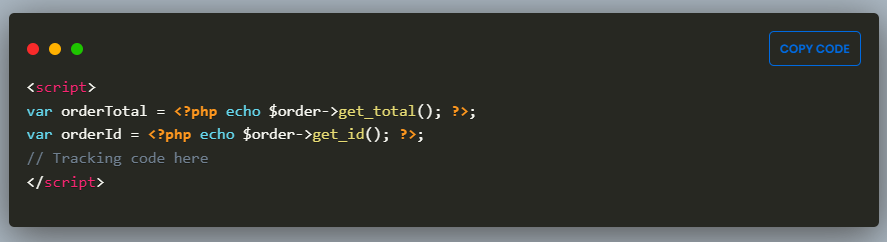
Basic JavaScript Snippet
You can use a simple JavaScript snippet to fire a conversion event when the thank-you page loads. This snippet should include key details like the order total and order ID.
For example:
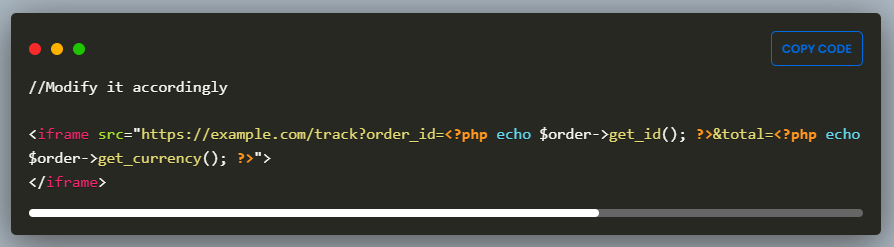
Iframe Code with Dynamic Variables
Another approach is using an iframe to load a tracking URL that contains dynamic variables like order total, order ID, and currency. Example:
Note: To eliminate all this coding part, simply sign up for CustomerLabs first-party data Ops.

CustomerLabs Benefits for WooCommerce Conversion Tracking
Choosing CustomerLabs doesn’t just simplify conversion tracking; it transforms how your WooCommerce store collects, unifies, and activates first-party data. Here’s what makes CustomerLabs the smarter choice compared to manual coding or basic tracking plugins:
Zero-Code Conversion Tracking Setup
- Forget editing functions.php or handling fragile scripts.
- CustomerLabs lets you add conversion tracking to the Thank You page with a simple, guided interface, no developers, no risk of breaking your theme.
Reliable First-Party Data Collection
- Unlike traditional plugins that rely entirely on client-side tracking, CustomerLabs captures purchase events using first-party data.
- This ensures accurate tracking even when cookies break, browsers block scripts, or users opt out of third-party tracking.
Automatic Event Tracking Across WooCommerce
CustomerLabs automatically tracks key events such as:
- Product Viewed
- Product Added to Cart
- Checkout Started
- Purchase Completed
This gives you a complete view of your funnel without writing custom code.
Unified Customer Profiles (360° View)
- All tracked events flow into a single customer timeline, giving you a centralized view of each shopper’s interactions, from first visit to final purchase.
- This unified profile powers powerful segmentation and personalization.
Seamless Integrations With Google Ads, Meta Ads & More
CustomerLabs syncs your conversion events and audiences directly to:
- Google Ads
- Meta Ads
- Bing Ads
- TikTok Ads
- GA4
- CRM tools and more
This means your ad platforms receive clean, deduplicated, and complete event data fueling better optimization and higher ROAS.
Create High-Intent Audiences Without Cookies
Using your first-party data, CustomerLabs helps you build laser-focused segments like:
- High-value cart abandoners
- Frequent visitors
- Repeat purchasers
- Category-specific buyers
These lists sync automatically to ad platforms to supercharge your retargeting.
Server-Side Tracking Without GTM
- Enjoy advanced server-side capabilities, CAPI, enhanced conversions, and deduplication without needing Google Tag Manager (GTM) or engineering involvement.
Future-Proof Tracking Against Cookie Loss
- As Google phases out third-party cookies, CustomerLabs ensures your WooCommerce store continues to track conversions accurately through its first-party domain tracking and server-side event delivery.
Lightweight & Performance Friendly
- Unlike bulky tracking plugins, CustomerLabs doesn’t slow down your WooCommerce site.
- It loads minimal scripts and handles heavy processing server-side.
Built for Performance Marketers
- CustomerLabs is designed to fix the exact problems performance marketers face: poor attribution, broken pixels, low match rates, messy data, and difficulty tracking real customer actions.
If you want, I can also write a feature comparison table between CustomerLabs vs traditional methods (functions.php, other plugins, GTM).
Conclusion
Adding conversion tracking to your WooCommerce Thank You page is essential for accurate attribution, stronger optimizations, and better ROAS. Whether you use the functions.php method, a code snippet plugin, or the more streamlined CustomerLabs plugin, the goal is the same: send clean, dynamic purchase data to your ad platforms.
While manual coding works, it can be tedious and risky to maintain. If you want a faster and more reliable setup, CustomerLabs First-Party Data Ops helps you implement WooCommerce conversion tracking effortlessly with no PHP edits required.
Set it up once, and empower your campaigns with accurate, actionable data. No worries if you are still stuck, book a demo with us and avail a 14-day free trial.