Still searching how to do WooCommerce Conversion tracking…?
If you still haven’t started tracking your customer data (first-party data), then you are in serious trouble. Big brands are already making money out of it.
With your own data and advanced conversion tracking, you can accurately track and multiply your conversions by 7X without any data loss.
In this blog, we’ll cover what the causes for broken conversions, what are setups’ll run your conversion tracking efficiently, and how Meta and Google will understand your audience and convert them into conversions.
Let’s dig in. So, basically,
What is WooCommerce Conversion Tracking?
Conversion tracking is the process of measuring what actions people take on your website, like Add to Cart, Sign Up, View Product, or Purchase. It helps you understand how users move through your store and which marketing efforts actually lead to sales.
Imagine…
A user clicks on one of your Google Ads and visits your WooCommerce store. They browse a few products, add one to their cart, and finally make a purchase. With conversion tracking enabled, you can see exactly which ad brought that customer in, what product they bought, and how much revenue that click generated. This helps you understand which campaigns are performing well and where to invest more
Most businesses don’t get a complete or accurate picture from their tracking. Even when conversions happen, a large part of user activity never gets captured properly. That’s why conversion tracking plays a crucial role.
What is the crucial role of conversion tracking?
In the competitive world of e-commerce, conversion tracking is not just a tool; it’s a necessity.
Here’s why conversion tracking is important:
Understanding the Customer Journey
Conversion tracking offers a window into the complete user journey on your WooCommerce store.
By analyzing this conversion data, you can pinpoint exactly where customers drop off or what aspects of your store they most appreciate.
This understanding allows you to tailor your marketing strategy to better meet customer needs and preferences, ultimately leading to improved customer satisfaction and higher conversion rates.
Measuring the Effectiveness of Ad Campaigns
One of the key benefits of conversion tracking is its ability to sync conversion data back to ad platforms like Meta Ads and Google Ads.
This synchronization allows you to accurately attribute conversions to specific ad campaigns, providing a clear picture of which campaigns are performing well and which are not.
With this information, you can allocate your marketing budget more effectively, focusing on high-performing campaigns to maximize your ROI.
Identifying High-Performing Traffic Sources
Not all sources bring in equal traffic to your WooCommerce store. Conversion tracking helps you identify which sources, be it Meta Ads, Google Ads, social media marketing, email marketing, organic search, or specific campaigns, are driving the most valuable visitors to your store.
These are the visitors who are most likely to make a purchase.
By focusing on these high-performing channels, you can optimize your traffic acquisition strategies and drive higher conversion rates.
Optimizing the Sales Funnel
In addition to understanding the customer journey, conversion tracking provides insights into how customers move through your sales funnel from their initial visit to making a purchase. This data helps you identify and eliminate bottlenecks in the funnel.
By making data-driven adjustments in the funnel, you can improve the user experience, reduce drop-off rates, and increase the chances of converting visitors into paying customers.
Taking the first step of conversion tracking
Conversion tracking for your WooCommerce store has never been easier, thanks to the variety of plugins available. These plugins simplify the process of tracking conversions, allowing you to focus on optimizing your WooCommerce store and boosting sales.
Note: Here’s a blog for you to choose the right plugin for your WooCommerce store.
Most of these plugins track standard events by default, including:
- Page viewed
- Product viewed
- Added to cart
- Search made
- Checkout made
- Add payment info
- Purchased
These standard events are crucial for understanding user behavior on your site. While some plugins require complex coding in Google Tag Manager (GTM) or creating a data layer to track these events, CustomerLabs 1PD Ops offers a no-code solution without GTM, which simplifies the process for marketers.
Let’s figure out how a performance marketer can break the limitations of the standard Conversion tracking and fly high with advanced conversion tracking.
What are the limitations of the Standard Conversion Tracking Setup
While the plugins for WooCommerce make it easy to track standard events, they come with certain limitations.
One major drawback is their reliance on standard purchase events, which can restrict your ability to optimize for high-value conversions or specific product categories. This limitation can hinder the effectiveness of your ad campaigns, as the ad algorithm is unable to optimize beyond standard purchase events.
Moreover, these standard plugins often lack the flexibility for advanced tracking and audience segmentation. Creating synthetic events or custom audiences for retargeting purposes is usually not supported by most of these plugins. This means that if you want to track more specific user interactions or tailor your marketing campaigns to niche audience segments, you might not be able to do that with standard plugins.
Additionally, setting up custom events typically requires technical expertise. Non-tech marketers might need to seek help from tech teams to configure these events via Google Tag Manager (GTM). This reliance on technical assistance can be a hassle if you have limited coding knowledge.
How to do WooCommerce Conversion Tracking – The Right Way
Instead of relying on fragile browser-side pixels and manual code setups, modern businesses are moving to automated, server-side conversion tracking through a unified platform.
This approach:
- captures conversions reliably
- reduces signal loss
- works across platforms
- stays resilient to privacy changes
And most importantly, it restores confidence in your data, so you can scale what actually works.
To get this level of clarity and confidence, tracking needs to move beyond basic pixels and scattered setups. What businesses truly need is a system that captures clean signals, withstands privacy changes, and operates seamlessly across platforms.
That’s exactly how CustomerLabs approaches WooCommerce conversion tracking.
How to Set Up WooCommerce Conversion Tracking
The setup process is intentionally streamlined:
Step 1: Install and Activate
Navigate to Plugins
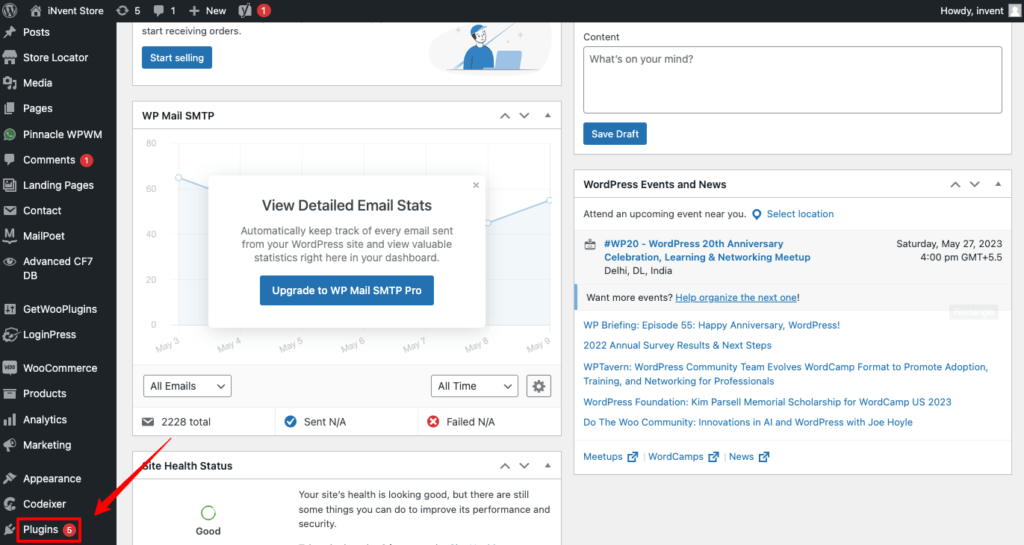
Add New in your WordPress dashboard, search for “CustomerLabs,” and install the plugin.
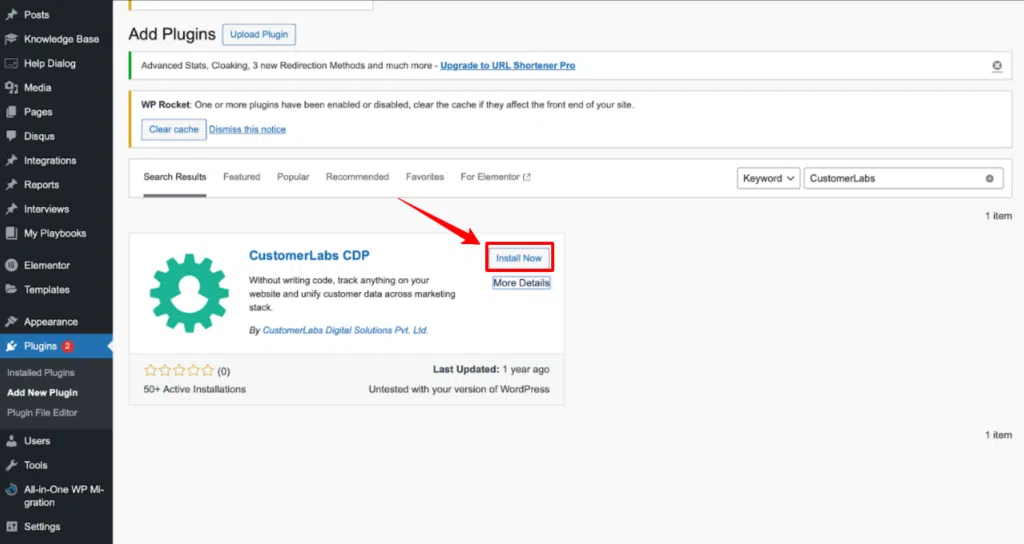
Once activated, the plugin integrates automatically with WooCommerce, requiring no configuration for basic event tracking.
Step 2: Connect Your Ad Platforms
Log in to your CustomerLabs dashboard and connect your advertising platforms, Google Ads, Meta, TikTok, and LinkedIn.

Step 3: Enable Events for Destination Platforms
In the CustomerLabs dashboard, toggle on the conversion events you want to send to each platform.
For Meta Ads, you might enable Purchase, Add to Cart, and Checkout Initiated. For Google Ads, you’d select Conversions and View Items.

Different platforms accept different event types, and CustomerLabs handles the mapping automatically.
Step 4: Start Collecting Data
Conversions flow automatically to all connected platforms. CustomerLabs deduplicates events, prevents double-counting, and ensures clean data reaches your advertising platforms.
Just don’t stop here. Go ahead and integrate with the ad platforms with Meta and Google.
Before integrating, let’s get clarity on Meta Ads.
Sending Conversion Data to Ad Platforms
How to set up WooCommerce Meta CAPI conversion tracking
CustomerLabs connects your WooCommerce store to Meta Ads through Conversions API, allowing you to send both standard and custom conversion events with server-side accuracy.
Simply authenticate your Meta account, select your pixel, and toggle on the events you want to track.
It’ll take under 10 minutes: connect your Meta account, toggle on conversion events, and data flows automatically to Meta.
For the Meta CAPI setup,
- In CustomerLabs, go to Destinations and select Facebook Offline Conversion.
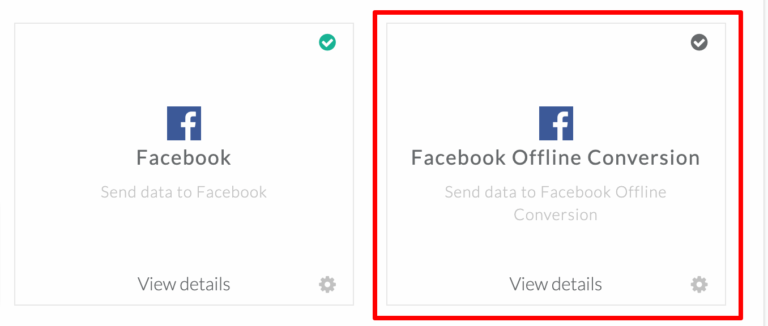
- Click Connect with Facebook to authenticate.
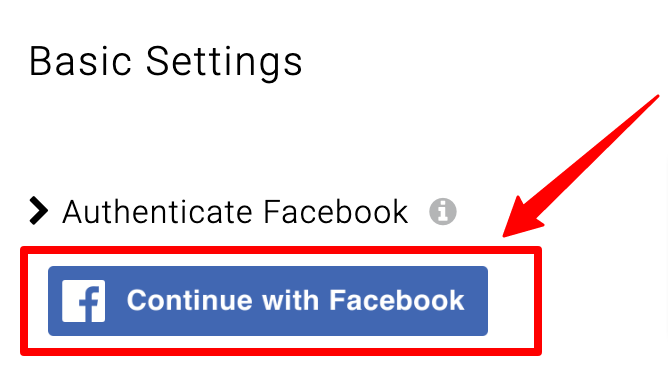
- Choose the Business Manager account.
- Choose the Business Asset Group.

- Choose the ad account you want to connect.
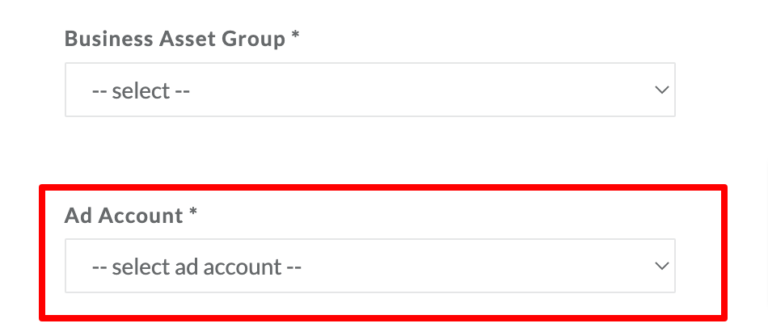
- Choose pixel
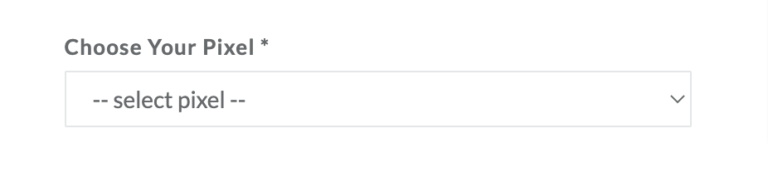
For the complete Meta CAPI setup, check out our document for the Meta CAPI setup, and check out the standalone setup blog for WooCommerce event tracking, Facebook pixel
Dwelling down the blog, now you know how to set up Meta CAPI, as well as set up the other platforms, GA4, and Google Ads conversion tracking setup.
How to Set Up WooCommerce Google Ads Conversion Tracking?
CustomerLabs makes Google Ads conversion tracking effortless by letting you sync all WooCommerce events with a simple toggle. After authenticating your Google Ads account and creating your conversion actions, just map them to CustomerLabs events and enable syncing.
All conversions flow to Google Ads securely and in full compliance with privacy standards.
How to Integrate WooCommerce with Google Ads
For Google Ads setup, CustomerLabs can send conversion value data directly, improving bid optimization and ROAS calculation.
- Sign in to CustomerLabs.
- Go to Destinations in the menu.
- Find and select Google Analytics gtag.
- Sign in to CustomerLabs.
- Go to Destinations in the menu.
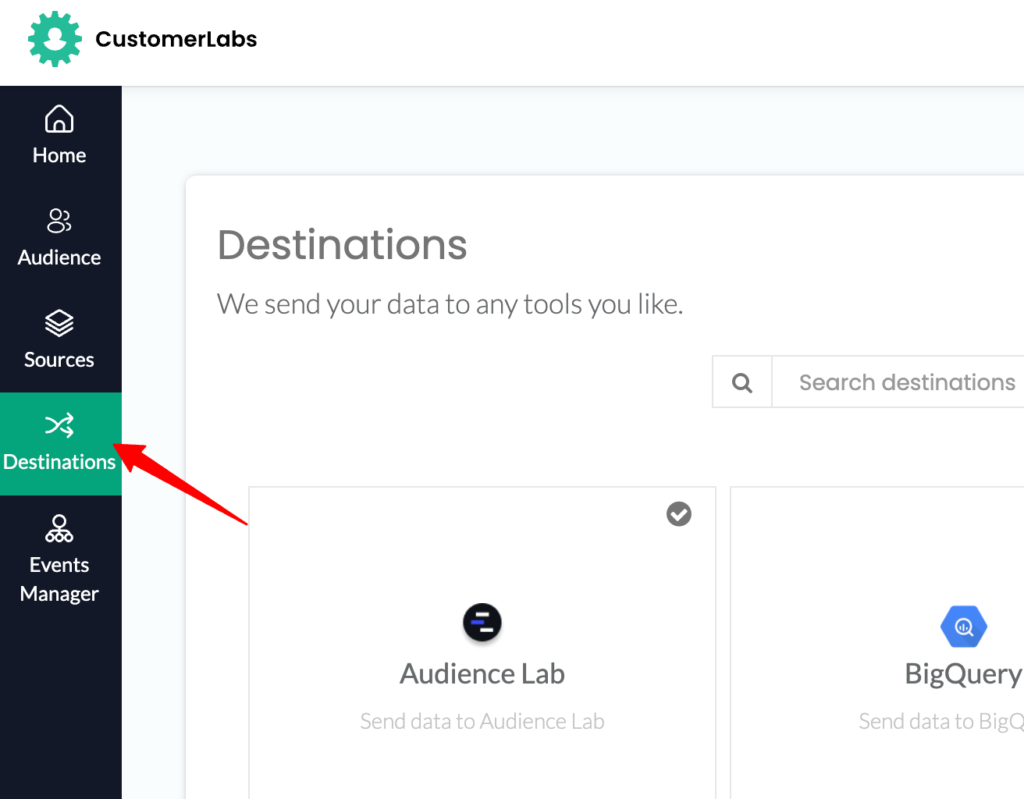
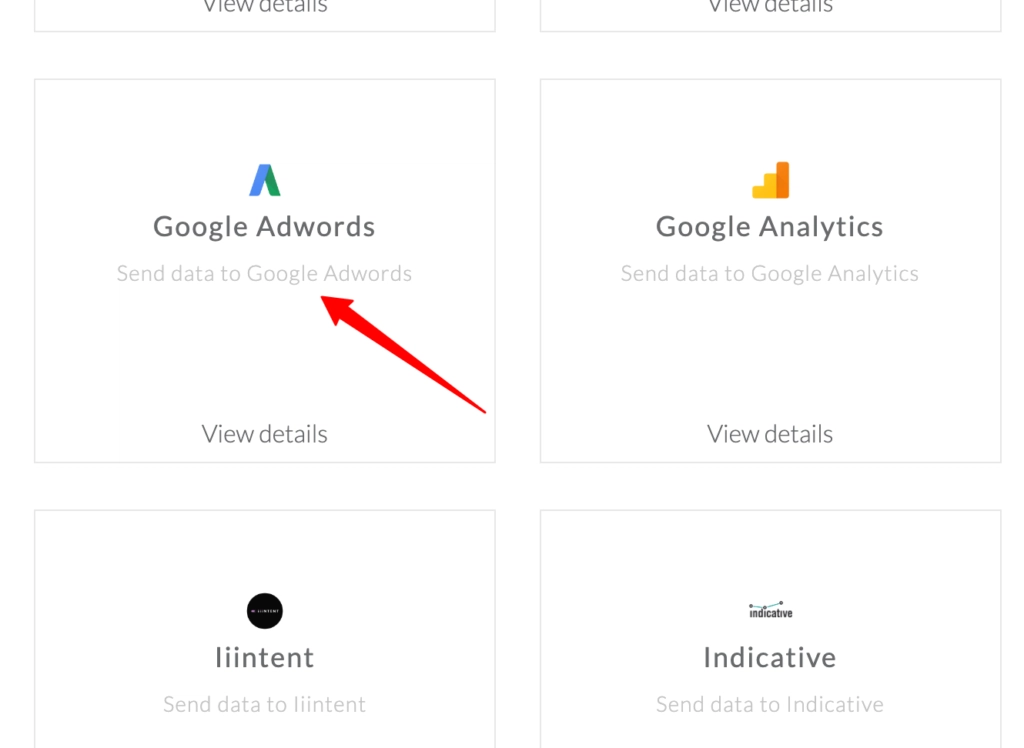
- Find and choose Google AdWords from the destination list.
- Go to “Configuration settings.”
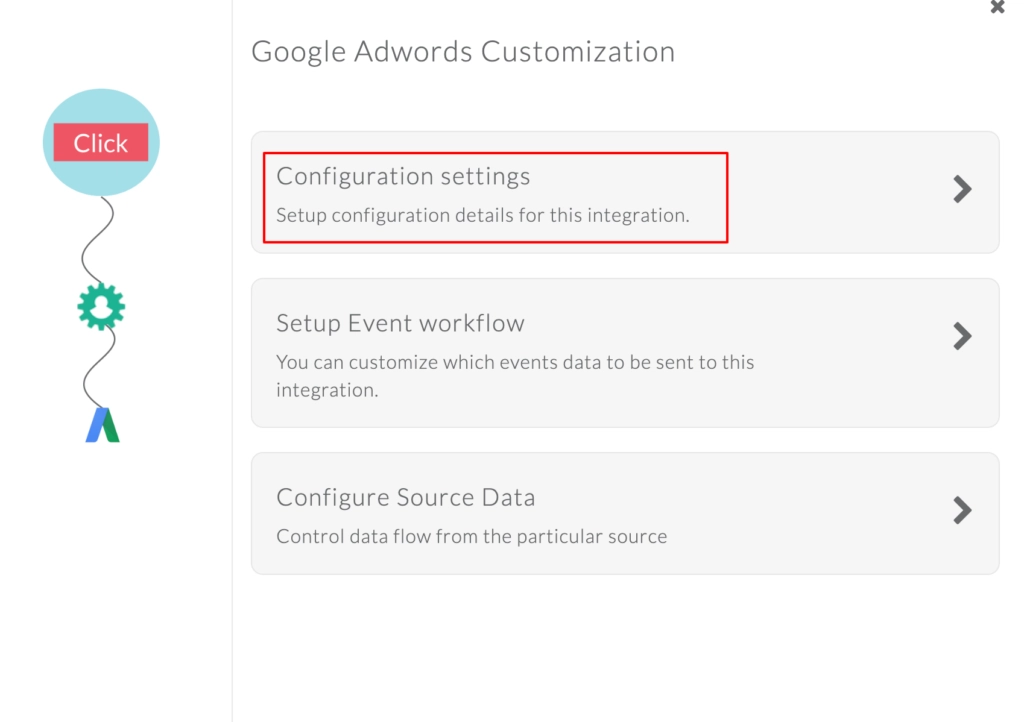
- Click Authenticate AdWords to connect your Google Ads account.

and Google Adwords setup, check out our documentation, so that you won’t miss out on anything.
This ensures consented conversions reach Google Ads while respecting user preferences.
How to Set Up WooCommerce GA4 Conversion Tracking?
CustomerLabs integrates with Google Ads Enhanced Conversions and GA4 through Google’s Measurement Protocol, offering similar server-side advantages.
How to Integrate WooCommerce with GA4
For GA4 setup, events stream automatically to your property through Google’s measurement protocol, giving you complete ecommerce funnel visibility without GTM complexity.
- Sign in to Google Analytics.
- Choose the account you want to connect.
- Go to Admin and create a new Property.
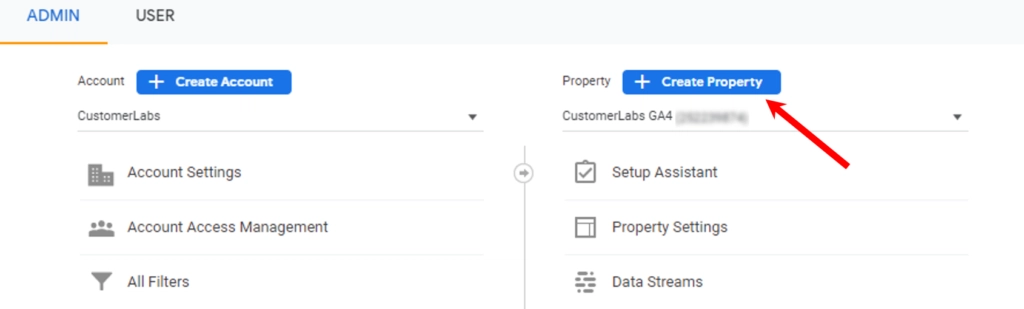
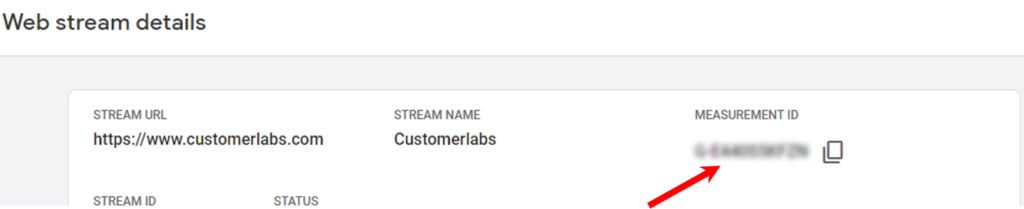
- Once the Property is created, open Data Streams.
- Click Add Stream and select Web.
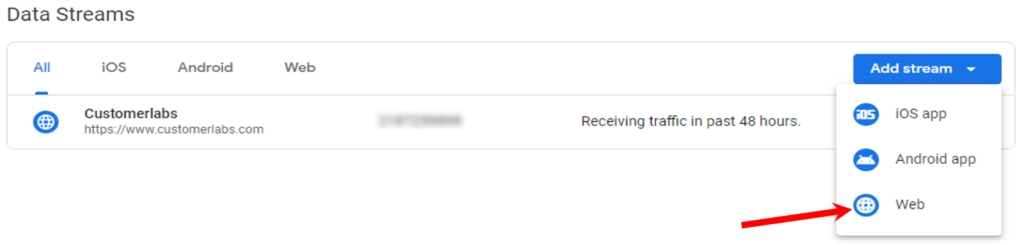
- Open the recently added Data stream & copy the “Measurement ID.”
To fully set up GA4 tracking for your WooCommerce store, follow the steps below to ensure every key event flows seamlessly into your analytics.
With GA4 now receiving clean, server-side events through CustomerLabs, the next step is to ensure your ad spend also benefits from accurate conversion data.
That’s where the Google Ads setup comes in, allowing CustomerLabs to send precise conversion values that boost bidding efficiency and ROAS.
Added Advantages of Using WooCommerce Conversions Tracking – More to Consider
Offline Conversion Events: You can track offline conversion events if you also have an offline store. This data can be synced effortlessly with Google Ads and Meta Ads to enhance your conversion tracking.
Enhanced Conversion Tracking: Toggle on enhanced conversion tracking to send all first-party data to Google Ads, improving conversion rates and overall ad campaign performance.
Consent Mode: Enable consent mode v2 setup within CustomerLabs. This ensures all consent mode parameters are synced with Google Ads, enhancing data credibility and leading to better results in conversion rates.
To set up Google consent mode v2 in a few clicks, click here – Google consent mode V2 setup
Let’s look at how our clients got an impact after implementing the conversion tracking setups.
Impacts after implementing the Conversion Tracking in the RIGHT WAY!
(Pss..pss.. Let me tell you a secret: here’s what our customers achieved.
- Saw a 28% conversion uplift, as all the conversions are attributed to the ad campaigns effectively
- Could track and measure the micro conversions for each stage of the funnel
- Got a 37% increase in conversion rate
- Able to optimize for bottom-funnel events
- Increased EMQ
Not only by the setup they get a result, but they also handle the best practices for the full benefits.
Best practices to leverage the full benefits of conversion tracking
1. Server-side 1P domain tracking
Implementing server-side 1P domain tracking allows you to create first-party cookies on the server, ensuring robust data collection without signal loss. This provides a comprehensive view of customer journeys across different website sessions.
2. Go beyond standard event tracking
Instead of limiting yourself to default standard event tracking, explore synthetic events such as high AOV (Average Order Value) purchases or specific product category optimizations. This approach helps to optimize ad campaigns effectively and align your ad campaigns more closely with your marketing goals.
3. Test your conversion tracking in practice
Once you set up conversion tracking, you might leave it as it is. But never do that. Conduct test conversions to verify that events are properly flowing into ad platforms like Google Ads and Meta Ads.
4. Regularly monitor event data flow into ad platforms
Don’t stop at testing the event flow once. Regularly monitor the flow of event data into your ad platforms to ensure the tracking accuracy of all the events. This ensures a clear understanding of your users’ behavior and whether the conversion tracking is working properly.
5. Create audience segments for hyper-personalization
Segment your audience based on specific behavior, or other factors (like demography, age group, preferences, etc.) to create hyper-personalized ad experiences. For instance, target users who viewed a product but didn’t purchase within the last 180 days with tailored ads on platforms like Meta Ads or Google Ads.
Creating audience segments will allow you to hyper-personalize ads for each audience segment, thereby boosting the chances of conversion.
6. Multi-channel advertising with conversion tracking
Enable conversion tracking across multiple platforms, such as Google Ads and Meta Ads, to facilitate cohesive multi-channel advertising for your WooCommerce store.
Imagine this scenario: you’re targeting users who viewed a specific product within the last 180 days but didn’t purchase. When a user converts through Google Ads, they should immediately be excluded from retargeting efforts on Meta Ads to avoid redundant messaging.
This ensures efficient ad spend allocation, and you can precisely target and exclude audiences, optimizing your ad campaigns effectively.
7. Use conversion data for enhanced customer experience
Analyze your conversion data thoroughly to enhance your website and elevate the customer experience. And then, make sure to address any issues identified during the user journey analysis for effective optimization.
For example, you can reduce cart abandonment by streamlining checkout processes or offering incentives like free shipping.
When these best practices are implemented correctly, conversion tracking stops being just a measurement tool and starts becoming growth-driven. The real value shows up in how confidently you can optimise campaigns, personalise experiences, and allocate budgets.
That’s exactly where the benefits of WooCommerce conversion tracking become clear.
What are the Benefits of WooCommerce conversion tracking?
1. Revenue-driven campaign optimization
Identify which campaigns are generating the most revenue by accurately tracking conversions. Allocate more budget to successful campaigns and adjust or optimize underperforming ones based on data-driven insights.
2. Retargeting high-intent audiences
Create audience segments of high-intent users, such as cart abandoners or frequent product viewers. Retarget these audiences with tailored marketing strategies to improve conversion rates and campaign performance.
3. Reducing cart abandonment
Address the challenge of cart abandonment by retargeting users who have added products to their cart but haven’t completed the purchase. If the problem persists, then analyze reasons for abandonment and optimize checkout processes or offer incentives to encourage conversions.
4. Upselling and cross-selling using a data-driven strategy
Utilize conversion data to identify opportunities and strategize for upselling and cross-selling. The process involves segmenting customers based on their purchase behavior through conversion tracking and either upselling or cross-selling to them.
For instance, users who bought a black shirt could be targeted with complementary items like a blazer or colored pants.
5. Optimizing for revenue growth
Implement both standard and synthetic event optimizations across ad platforms to meet specific business goals. Whether aiming for high AOV purchases or increasing overall conversions, leverage conversion tracking insights to drive revenue growth effectively.
Look into the benefits that’ll supercharge with CustomerLabs 1PD Ops.
Added Benefits if You Use CustomerLabs for WooCommerce conversion tracking
1. Effortless integration: Online and offline conversion tracking
Easily track conversions from both online and offline sources if you have a physical store alongside your WooCommerce store. CustomerLabs simplifies offline conversion tracking with intuitive toggles, making it seamless to integrate both types of sales data.
2. Code-free simplified conversion tracking
CustomerLabs is designed to be user-friendly and requires no coding knowledge, making it ideal for marketers to set up and manage conversion tracking effortlessly. You can focus on strategy and execution rather than technical implementation.
3. Boost ROI and scale your business
CustomerLabs allows you to track a wide range of conversion events at a granular level. This capability empowers you to optimize any desired conversion event effectively.
Moreover, CustomerLabs helps you in scaling the mid-funnel audience across various advertising platforms, thereby scaling your revenue and business.
4. Consent mode V2 integration and enhanced data privacy compliance
CustomerLabs prioritizes data privacy by implementing consent mode V2. You can send both your online and offline conversion data, along with consent parameters, to ad platforms through CustomerLabs.
5. Audience segmentation
You can also create audience segments within CustomerLabs for retargeting and lookalike audiences. This audience segmentation allows for hyper-personalization for the specific audience categories, enabling you to get more conversions.
Let’s conclude…
To sum it all up…
WooCommerce conversion tracking isn’t just about tracking conversions; it’s about keeping track of your customer journey after they click the ad. Once a user clicks on an ad, you will then start tracking their first-party data and their journey throughout your website and a physical store if you have one.
By setting up conversion tracking for your WooCommerce store using CustomerLabs, you gain access to the complete first-party data of your known as well as anonymous visitors. Through this first-party data, you can not only optimize your ad campaigns, but you can also get a better understanding of your users. This better understanding helps you to enhance your website for an improved user experience, which ultimately drives significant growth for your WooCommerce store.
As for a marketer like you, implementing conversion tracking doesn’t have to be a daunting task, particularly with CustomerLabs 1PD Ops. With CustomerLabs, you can transcend traditional methods and track conversions without writing a single line of code. This means you can direct your focus towards your core business objectives, with the confidence that your conversion tracking is in expert hands.
To know how this exactly works, sign up for a 14-day free trial, and if you have any queries, do connect with our expert for consultation