A dependable WooCommerce conversion-tracking setup uses browser events for shopping behavior and server order events for purchase truth. The hard part is not installing another pixel. It is deciding exactly when an order becomes a conversion, carrying the same order ID and value through every platform, and correcting revenue when an order fails, is cancelled, or is refunded.
CustomerLabs combines a WordPress plugin for browser behavior with a WooCommerce source for enriched order events. You can review the WooCommerce integration and the commercial CustomerLabs Conversions API capability before implementing this guide.
The setup you are building
Use two inputs and one controlled routing layer:
WooCommerce storefront -> WordPress / CustomerLabs plugin -> product view, add to cart, checkout \ -> CustomerLabs -> Meta / Google Ads / GA4 /WooCommerce order system -> REST API + webhook / order workflow -> order ID, status, value, currency, items, customer dataThe browser path explains what a shopper did before buying. The server path confirms what WooCommerce recorded. Neither path is automatically correct: browser events can be blocked or duplicated, while an order-created webhook can represent an unpaid order.
Your implementation is complete only when the two paths reconcile by order ID and every destination receives the intended business event once.
Choose an implementation method
| Method | Best fit | What your team owns |
|---|---|---|
| CustomerLabs plugin plus WooCommerce source | Marketers need a managed multi-destination setup | Event mapping, consent policy, validation, and business rules |
| Destination-specific WooCommerce extensions | Only one destination is needed | Separate configuration and diagnostics for each extension |
| Browser tags through GTM or a pixel plugin | You only need storefront behavior or a temporary baseline | Thank-you-page reliability, plugin conflicts, and duplicate tags |
| Custom hooks and webhooks | You need a controlled order-state or custom-checkout workflow | Code, security, idempotency, retries, logs, and API maintenance |
Do not run several purchase plugins “for coverage” without a deduplication design. Multiple plugins, a hard-coded theme pixel, and a GTM tag can all fire on the same thank-you page.
Define the conversion rule first
WooCommerce order creation is not the same as successful payment. Core statuses include Pending payment, On hold, Processing, Completed, Failed, Cancelled, and Refunded.
A practical rule set is:
- Card or instant-payment orders: send Purchase after WooCommerce records successful payment, commonly when the order moves to Processing or Completed.
- Virtual or downloadable orders: these may move directly to Completed after payment.
- Bank transfer or delayed confirmation: do not send Purchase while the order is merely On hold unless that status is your documented qualified outcome.
- Cash on delivery: use a separate confirmed-order or delivered-order rule. An order record alone does not prove collected revenue.
- Failed or cancelled orders: suppress the Purchase if it has not been sent; otherwise retract or adjust it where supported.
- Refunds: reduce or retract the original conversion using the original order ID.
For a custom integration, WooCommerce exposes the woocommerce_payment_complete hook when payment completes. If you use a generic order webhook instead, ingest all order updates but filter the advertising Purchase on the correct status and payment rule.
Create the event and parameter contract
Use a written map before configuring destinations:
| Store action | CustomerLabs event | Meta | GA4 | Required audit fields |
|---|---|---|---|---|
| Product page viewed | product_viewed | ViewContent | view_item | item ID, name, price, currency |
| Product added | added_to_cart | AddToCart | add_to_cart | item ID, quantity, value, currency |
| Checkout begins | checkout_started | InitiateCheckout | begin_checkout | items, value, currency, session/customer ID |
| Payment/business rule passes | purchase | Purchase | purchase | order ID, transaction ID, value, currency, items, event ID |
| Full or partial refund | adjustment event | Destination-specific adjustment | refund | original transaction ID, refunded value and items |
At minimum, the purchase payload should contain:
- a stable WooCommerce order ID;
- the payment transaction ID when available;
- conversion time from the order lifecycle;
- order value under one documented rule;
- the three-letter currency;
- item or variation IDs, prices, and quantities;
- coupon, tax, and shipping fields if your reporting uses them;
- available click IDs and browser IDs collected with the required consent;
- permitted customer fields normalized and hashed as the destination requires;
- a stable Meta event ID when Pixel and Conversions API both send the purchase.
Do not label gross order total, net sales, and collected revenue as the same metric. Choose one value for the advertising conversion and document how discounts, tax, shipping, partial refunds, and chargebacks change it.
Install CustomerLabs on WooCommerce
Use the maintained CustomerLabs WooCommerce setup document beside these steps. The document contains the current screens and credentials flow.
Step 1: Install the WordPress plugin
In WordPress admin, go to Plugins → Add New, search for CustomerLabs, install the plugin, and activate it.
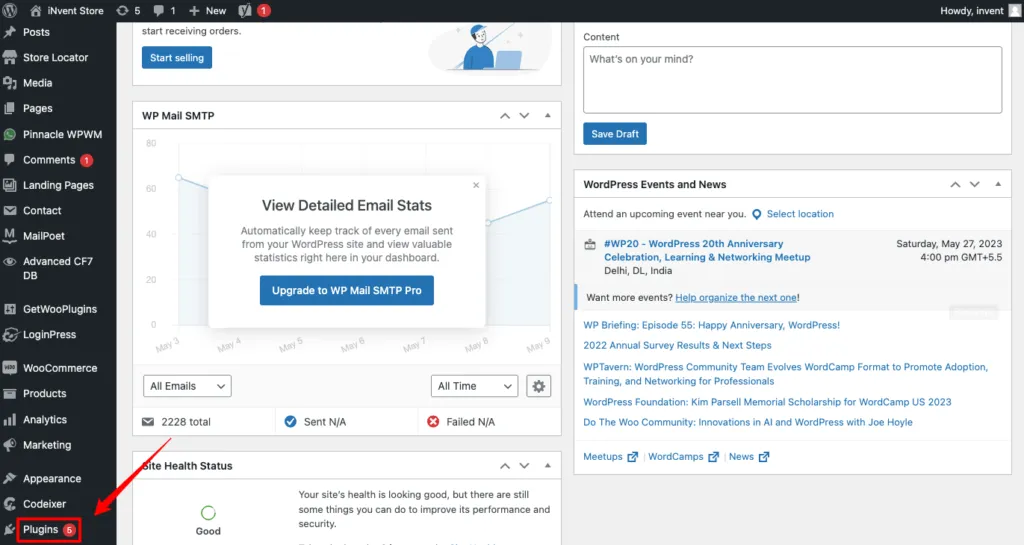
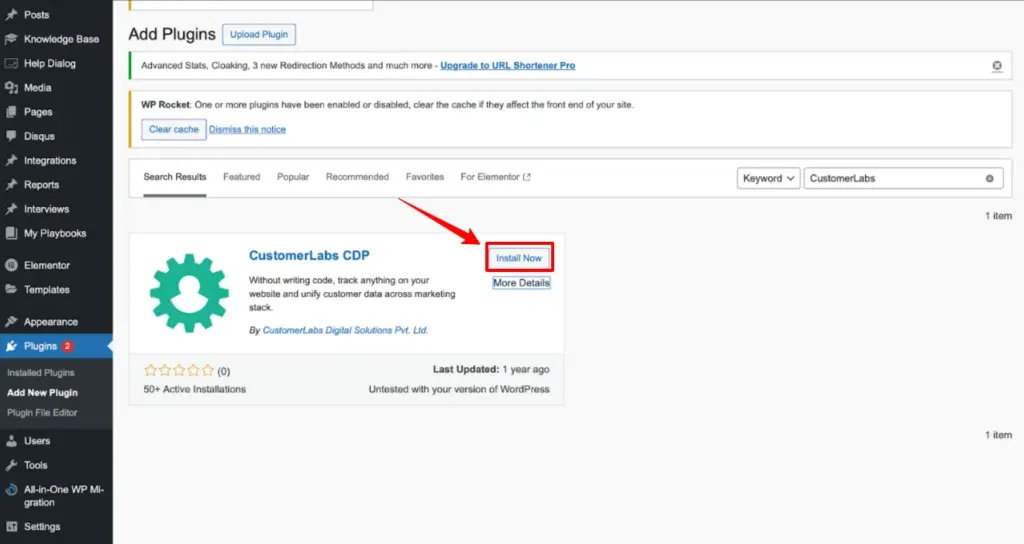
Copy the CustomerLabs Account ID from the correct account. In the plugin settings, add that ID and enable the storefront events you need. A typical ecommerce baseline includes Product Viewed, Category Viewed, Add to Cart, Remove from Cart, Checkout Initiated, and Purchase.
Enable only events you can inspect and map. “All events enabled” is not proof that the payloads are usable.
Step 2: Create the WooCommerce source
In WooCommerce, go to Settings → Advanced → REST API and generate credentials for the integration. Store the consumer key and secret in a password manager, not a shared content brief or screenshot.
In CustomerLabs, open Sources, choose WooCommerce, and enter the store domain and generated credentials. Confirm the source is attached to the correct CustomerLabs account.
Review the access level requested by the current setup document. Rotate the credentials when an administrator leaves or if the secret is exposed.
Step 3: Verify the webhook
The CustomerLabs setup creates the WooCommerce webhook used by the source. In WooCommerce, open Settings → Advanced → Webhooks and confirm:
- the CustomerLabs webhook is Active;
- the delivery URL matches the workflow URL;
- a test order creates a delivery;
- the delivery receives a successful response;
- WooCommerce webhook logs show no repeated failures.
WooCommerce automatically disables a webhook after repeated delivery failures. Check WooCommerce → Status → Logs and filter for webhook deliveries when events stop unexpectedly.
For a custom webhook, sign and verify deliveries, return a success response only after safely accepting the event, and make the handler idempotent. Retrying the same order must not create another conversion.
Step 4: Qualify the server purchase
The source may receive an Order Created event so CustomerLabs can build the order profile. That does not mean the event should immediately become the primary advertising Purchase.
In the workflow, confirm the rule that qualifies a conversion. Test at least:
- a successful prepaid order;
- a failed payment;
- an on-hold bank-transfer order;
- a cancelled order;
- a full refund;
- a partial refund;
- a Cash on Delivery order if the store supports COD.
If the store uses custom order statuses, subscription renewals, pre-orders, or authorize-then-capture payments, define a separate rule for each. Do not assume the default status flow covers them.
Configure Meta Pixel and Conversions API
Use the CustomerLabs Meta Ads destination guide to authenticate the correct Business Manager, ad account, and pixel or dataset. Then map the WooCommerce events you intend to send.
When Meta receives one purchase from the browser Pixel and one from the server Conversions API, both copies need:
- the same event name, normally
Purchase; - the same
event_id; - compatible event time, value, currency, and item IDs;
- the page URL and action source expected for the event;
- all available permitted matching fields in Meta’s required format.
Use a stable event-ID scheme based on the order, such as a fixed prefix plus WooCommerce order ID. Do not add a request timestamp or random value that differs between browser and server.
In Meta Events Manager, place a test order and confirm the browser and server events are deduplicated. Also check Diagnostics and Event Match Quality, but do not optimize for the score alone. Correct event values, identity fields, deduplication, and consent matter more than a single headline number.
Configure Google Ads conversion tracking
Follow the CustomerLabs Google Ads integration guide to authenticate the account, create or fetch the intended conversion action, map the WooCommerce event, and enable its workflow.
For an ecommerce Purchase action:
- use a different value for each conversion;
- send the order currency;
- set the counting rule appropriate for purchases;
- include a stable order or transaction ID;
- keep the new action Secondary while testing if another Purchase action is already Primary;
- verify the action in Google Ads before moving bidding to it.
If enhanced conversions are enabled, confirm the consented first-party fields are normalized, hashed, and visible in the enhanced-conversion diagnostics. Google combined the web and leads enhanced-conversion settings in 2026, so use the current Google Ads screens rather than an old screenshot that asks you to choose between the two modes.
For cancelled or returned orders, Google Ads supports conversion adjustments. Use the original order ID and conversion-action name to retract a conversion or restate its value. Do not send a second negative “purchase” and assume reporting will fix itself.
Configure GA4 ecommerce events
Follow the CustomerLabs GA4 setup to connect the web stream. If Measurement Protocol is enabled, keep the browser Google tag or GTM collection in place. Google documents Measurement Protocol as a supplement to automatic tagging, not a replacement.
Map WooCommerce events to GA4’s recommended ecommerce names. For purchase, send:
transaction_id;value;currency;items, withitem_idoritem_name, price, and quantity.
Google requires currency when value is present. For a refund, send refund with the original transaction_id; include item IDs and quantities for item-level refund reporting.
Use DebugView or Realtime for the immediate test, then verify the processed ecommerce report. A Realtime event proves receipt, not accurate attribution or revenue reporting.
Consent, privacy, and data minimization
Server delivery does not make a payload automatically compliant. Your team still needs to decide what may be collected, stored, and sent for each region and purpose.
Audit these controls:
- The consent banner records analytics and advertising choices.
- Browser tags do not run before the required consent.
- The relevant consent state reaches CustomerLabs and the destination.
- Only required fields are sent; sensitive or restricted values are removed.
- Email and phone are normalized and hashed only where the destination requires it.
- Retention and deletion rules cover browser data and server order data.
- WordPress and WooCommerce privacy disclosures list the tracking service.
CustomerLabs supports consent-mode parameters and destination controls. That support helps implement your policy; it is not a legal guarantee.
Test the full path with an order ledger
Create a small test ledger. Each row should represent one WooCommerce order and include:
| Field | Example |
|---|---|
| WooCommerce order ID | 8421 |
| Payment transaction ID | Gateway value, if available |
| Order status path | Pending → Processing → Completed |
| Expected conversion rule | Send when payment completes |
| Meta event ID | Stable ID derived from order 8421 |
| Google Ads action | Exact conversion-action name |
| GA4 transaction ID | 8421 or the documented stable format |
| Expected value/currency | Value rule plus ISO currency |
| Refund/cancellation result | None, partial adjustment, or retraction |
For each test order:
- Trigger product view, add to cart, and checkout.
- Complete the selected payment path.
- Confirm the browser events in CustomerLabs.
- Confirm the WooCommerce webhook delivery and server event.
- Confirm Meta deduplication.
- Confirm the Google Ads conversion action and diagnostics.
- Confirm GA4 parameters in DebugView and the processed report.
- Change the order to the relevant refund or cancellation state and verify the adjustment.
Repeat the test with consent denied for the relevant advertising purpose. Document what is intentionally suppressed or limited.
Common failure modes
| Symptom | Likely cause | Audit |
|---|---|---|
| Revenue exceeds WooCommerce | Multiple plugins or Pixel+CAPI are double-counting | Tag inventory, Meta event ID, Google conversion actions, GA4 transaction ID |
| Pending orders count as sales | Purchase fires on order creation | Status/payment filter and gateway flow |
| Paid orders are missing | Webhook disabled, gateway uses a different status, or checkout plugin bypasses the trigger | WooCommerce logs, order notes, custom statuses, delivery responses |
| Values differ by platform | Tax, shipping, discounts, or refunds use different rules | Written value contract and destination payloads |
| Meta shows server events but poor matching | Available permitted identifiers are missing or malformed | Email/phone normalization, browser IDs, click ID, event source |
| Google Ads is inactive | Wrong action mapping, missing tag/click data, or no successful test | Conversion summary, Tag Assistant, destination logs |
| GA4 purchase exists without item revenue | Missing items, value, currency, or stable transaction ID | GA4 ecommerce payload and DebugView |
| Refunds do not change ad revenue | No adjustment workflow | Original order ID, refund amount, destination adjustment status |
| Events fail after plugin updates | Plugin conflict, cache/minification issue, or webhook disabled | Browser console, plugin versions, WooCommerce logs |
Go-live checklist
- One owner has documented the order-to-conversion rule for every payment type.
- Product, cart, checkout, purchase, cancellation, and refund paths have tests.
- Browser tags and WordPress plugins have been inventoried; duplicate purchase tags are removed.
- WooCommerce webhook delivery is active and monitored.
- Repeated webhook delivery produces one server event, not two.
- Meta browser and server purchases deduplicate.
- Google Ads has one intended Primary Purchase action.
- GA4 uses the recommended purchase/refund schema.
- Values reconcile to WooCommerce under the written value rule.
- Consent-granted and consent-denied journeys behave as designed.
- Custom checkout, COD, subscriptions, and custom statuses have separate acceptance tests where applicable.
To implement this with the managed WooCommerce source and destination connectors, start a CustomerLabs trial. If you use COD, subscriptions, custom statuses, or several purchase tags, book a conversion-tracking review before changing the signals used for bidding.