If you run paid search campaigns for B2B or high-ticket lead generation, you know this exact Monday morning routine.
You open Google Ads and the dashboard is glowing green. Cost per Lead (CPL) is down 30%, conversion rates are peaking, and your Smart Bidding strategy looks like an absolute genius.
Then you jump into your weekly pipeline sync with the sales team. Within five minutes, the mood in the room evaporates:
“The lead volume is great, but half of these are spam, two are fake phone numbers, and none of them fit our ideal customer profile.”
Sound familiar? You aren’t alone.
It’s the classic lead-gen trap. Google’s Smart Bidding algorithms are fast, aggressive, and entirely blind to what happens after a form button is clicked.
Why the Forums & Reddit couldn’t Answer for Marketers?
If you browse r/PPC or ad-ops forums on any given day, you will see hundreds of media buyers venting about this exact friction. Media teams face four recurring nightmares when trying to scale paid lead generation:
- The Lead Quality Trap: Google Ads reports 100 conversions, but Sales reports zero pipeline value because campaign traffic is dominated by bots, job seekers, and low-intent form submitters.
- The “Vanishing GCLID” Wall: Up to 30 - 40% of web leads arrive in CRMs with blank Click IDs (gclid) due to Safari’s Intelligent Tracking Prevention (ITP), iOS privacy updates, and browser extensions stripping URL parameters.
- Cryptic Import Errors: Teams attempting manual uploads hit endless formatting rejections, corrupted ID strings, date/time syntax errors, or offset mismatches that discard entire spreadsheets.
- Smart Bidding Collapses: Media buyers try switching campaigns to value-based bidding, but because deal volume is sparse (2 - 3 closed sales a month), the algorithm starves for data and campaign spend collapses.
Why Standard Setups Break
Why does this disconnect happen between Google Ads and your sales pipeline?
1. Smart Bidding Optimizes in the Dark
Google’s Smart Bidding algorithms are fast, aggressive, and entirely blind to what happens after a form button is clicked. If you set “Form Submit” as your main Primary conversion action, machine learning optimizes strictly for people who love filling out forms. It has no way of knowing whether a form fill turned into a million-dollar contract or a spam submission.
2. Parameter Stripping & Cookie Wipes
When a user clicks an ad, Google appends a unique click parameter (?gclid=123456) to your landing page URL. If your website form relies purely on URL parameter reading without persistent local storage, multi-page visitors or privacy-focused browsers wipe the parameter before the form is submitted.
3. Strict Syntax & Backend Warm-Up Rules
Google Ads requires strict ISO formatting for timestamps (e.g., YYYY-MM-DD HH:MM:SS+Offset). Additionally, Google’s backend requires a 4 to 6-hour warm-up period after creating any new offline conversion action before it can accept upload records. Attempting an instant test results in immediate batch rejection.
The good news? You don’t need a complex engineering setup or a $1000/month software subscription to fix it.
You just need Offline Conversion Tracking to report when a prospect actually becomes a Qualified Lead (MQL), an Opportunity (SQL), or a Closed-Won Deal. You can build this using Google Sheets as your central data hub, or connect it through a First-Party Data platform like CustomerLabs when scaling up.
Shall we dig deeper into the step-by-step blueprint to set up a no-code offline conversion pipeline that turns your ad account into a revenue engine.
How to build your no-code pipeline: Step-by-Step Integration Blueprint
Phase 1: Capture Click IDs on Your Website Forms
For Google to connect a real-world deal back to a keyword click, it needs a tracking anchor. That anchor is the GCLID (Google Click ID) or its iOS privacy counterpart (GBRAID/WBRAID).
1. Enable Auto-Tagging
First, ensure Google Ads Auto-Tagging is enabled, so Google Ads is generating these IDs:
- Open your Google Ads account.
- Navigate to Admin > Account Settings.
- Expand the Auto-tagging section and check the box that says “Tag the URL that people click through from my ad.”
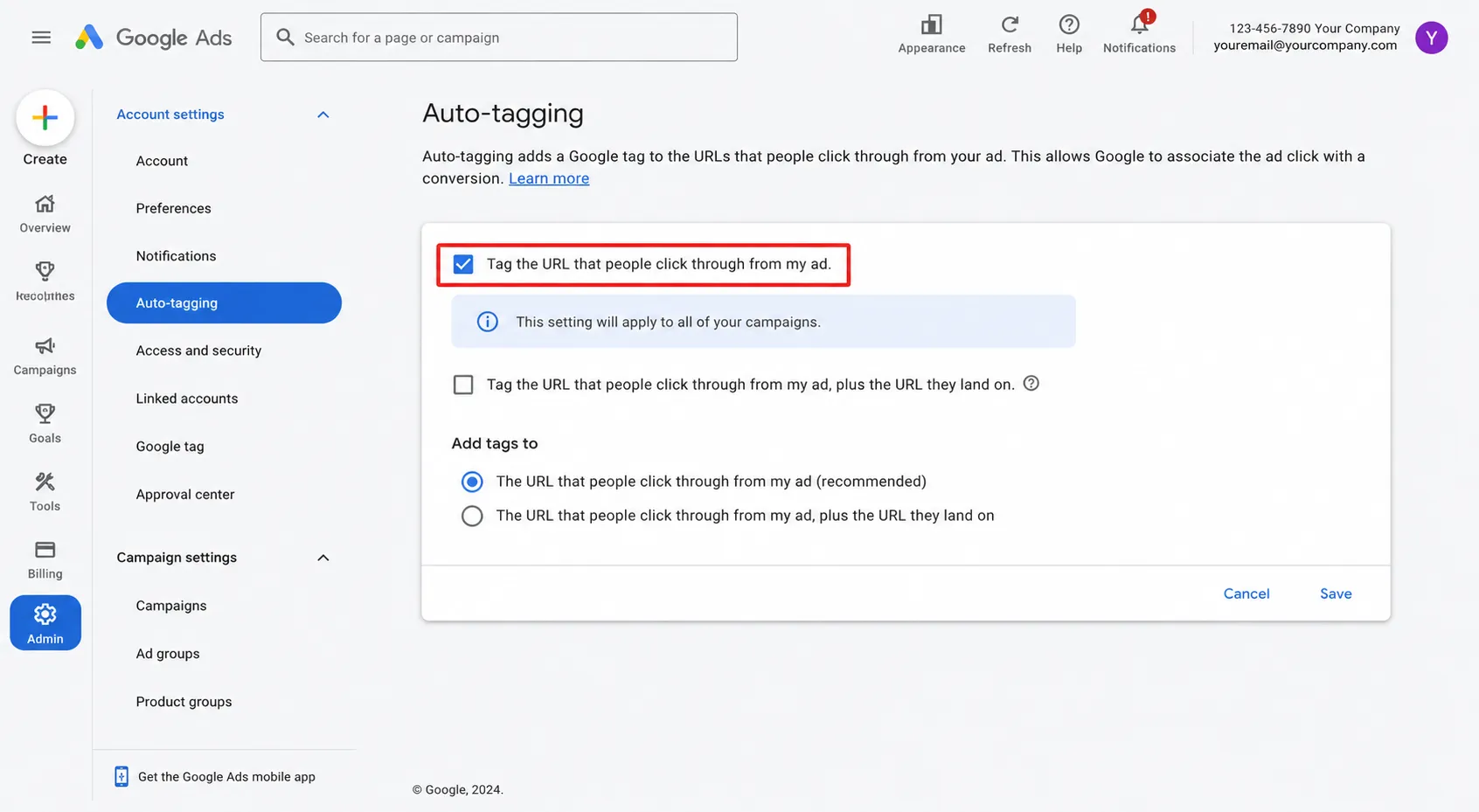
- Click Save.
2. Capture Click IDs on Your Website Forms
When someone clicks your ad, Google appends a parameter like ?gclid=123456 to your landing page URL. You need to grab that parameter and save it alongside the user’s submission in your CRM or form database.
- The Quick Setup: Add a hidden field named gclid to your website forms.
- The Web Logic: Use a simple JavaScript snippet (or standard GTM tag) that reads the URL parameters when a visitor lands on your site, stores the value in a browser cookie, and auto-populates your form’s hidden fields when they submit.
💡 Pro Tip: Make sure your script uses local browser storage or cookies so that if a user clicks an ad, browses three different pages, and then fills out the form, you don’t lose their click ID!
Phase 2: Build Your Google Sheets Master Template
Now, let’s create the central database Google Ads will read.
Create a clean, dedicated Google Sheet. Google Ads requires specific header names to process your import correctly. If your headers don’t match, the file will be rejected.
| Column | Header Name | Example Value | Notes |
|---|---|---|---|
| A | Google Click ID | EAIaIQobChMI… | The raw GCLID captured from your form |
| B | Conversion Name | Qualified Lead | Must match the name in Google Ads exactly |
| C | Conversion Time | 2026-07-27 14:30:00+0000 | Date, time, and timezone offset |
| D | Conversion Value | 150 | Optional, but essential for Target ROAS |
| E | Conversion Currency | USD | Standard ISO currency code |
If you want to read directly from your Google Drive without plugins, review Google’s official guide on linking Google Sheets as a data source.
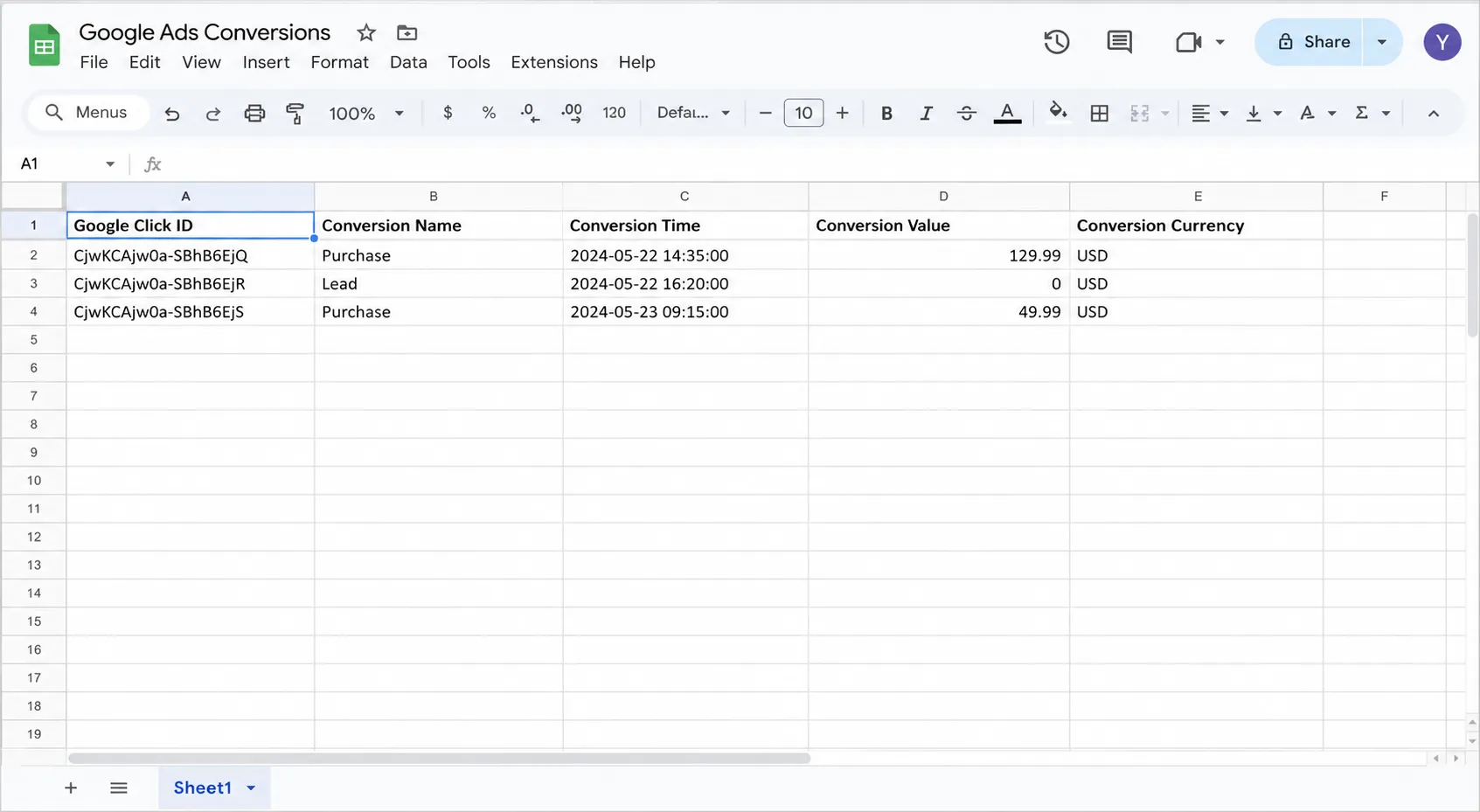
While you can use a 3rd-party Google Ads add-on for Google Sheets integration to push raw data back and forth, using Google Ads’ native scheduled import feature is completely free and requires zero plugin maintenance.
Phase 3: Create the Offline Conversion Action in Google Ads
Before feeding data into Google Ads, you must create an Offline conversion shell to hold it.
- In Google Ads, go to Goals > Conversions > Summary.
- Click + New conversion action > Select Import.
- Choose CRMs, files, or other data sources and select Track conversions from clicks.
- Select Connect data source later.
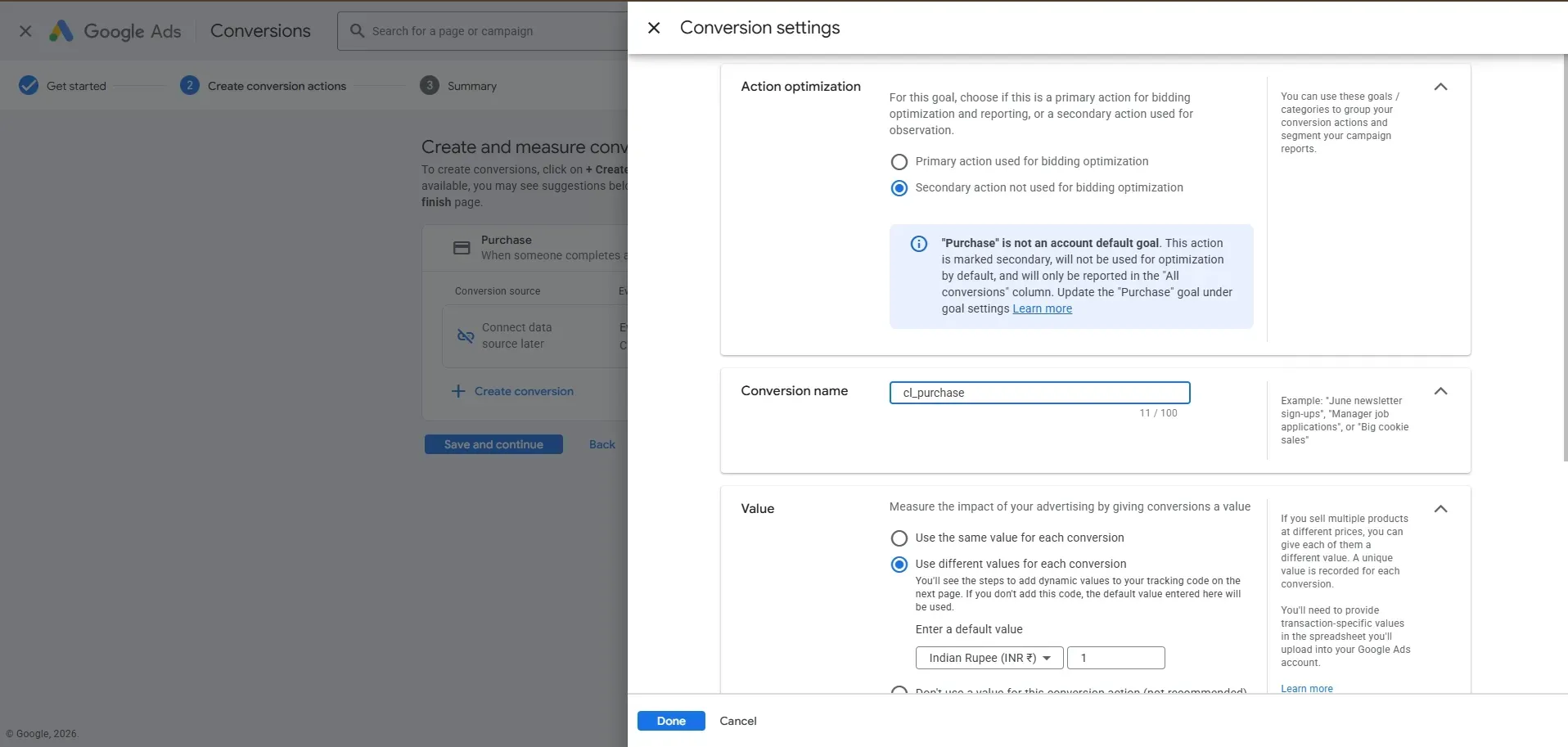
- Set your conversion settings:
- Goal Category: Select Qualified Lead, Converted Lead, or Opportunity.
- Conversion Name: Type an explicit name like Qualified Lead (remember: this must match Column B in your Google Sheet or your CustomerLabs event name word-for-word).
- Action Optimization: Set as Secondary while testing, then switch to Primary once verified.
- Value: Assign a static estimated value (e.g., $100 per MQL) or choose “Use different values for each conversion”.
- Click Done and then Save and Continue.
⚠️ CRITICAL STEP - The 6-Hour Rule:
Do NOT attempt to run your first sheet upload immediately after creating the conversion shell. Google Ads needs 4 to 6 hours to register new conversion actions on their backend. If you test immediately, Google will throw a Conversion action not found error.
Phase 4: Connecting the Pipeline (Native Sheets vs. CustomerLabs Engine)
When choosing how to build your Google Ads Google Sheets integration, you have two options depending on whether you want a direct upload or an automated data platform.
Here is how to connect Google Ads to Google Sheets using native scheduled uploads…
Option A: Native Google Ads Scheduled Uploads (Direct & Free)
If you just want Google Ads to read your Google Sheet directly on a timer:
- Go to Goals > Conversions > Uploads in Google Ads.
- Select the Schedules tab at the top and click the blue + button.
- Under Source, select Google Sheets.
- Authenticate your account, paste your Master Google Sheet URL, and set the frequency (e.g., Every day at 2:00 AM).
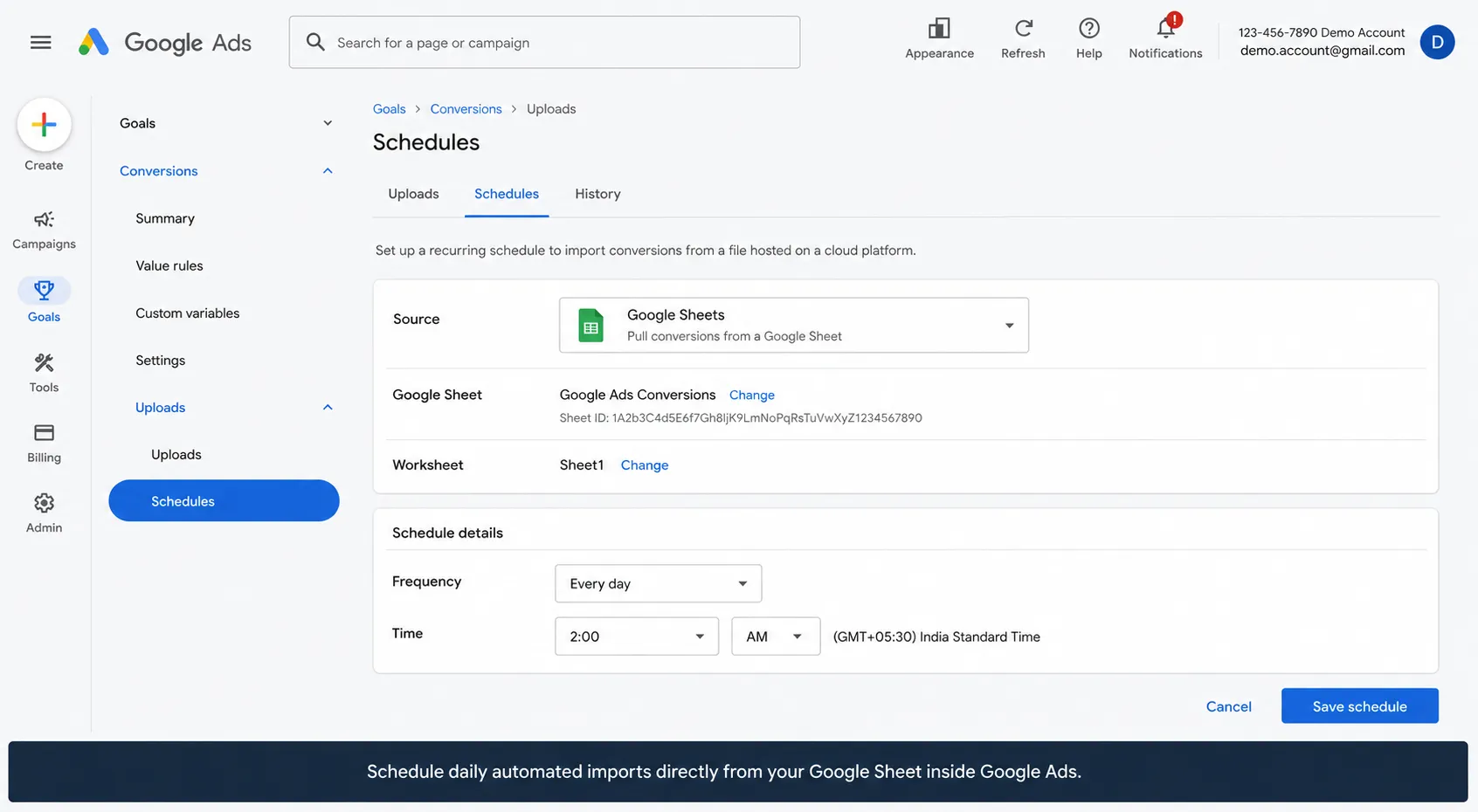
- Click Save & Preview.
Option B: The Automated CustomerLabs Route (For Signal & Enhanced Conversion Optimization)
While native Google Sheets scheduled uploads work fine, they have limitations: if a GCLID is missing, Google drops the conversion entirely.
By passing your Google Sheets data through CustomerLabs, you can automatically combine GCLIDs with Enhanced Conversions for Leads (hashed email/phone) via the Google Ads API:
- Connect Source: Follow the CustomerLabs Google Sheets Setup to connect your sheet.
- Authenticate: Follow the CustomerLabs Google Ads Integration Guide to link your ad account and enable Enhanced Conversions for Leads via the API.
- Map & Enable: Under Configuration Settings, click Fetch Conversion, map your offline event to your Google Ads action, and toggle Enable enhanced conversion.
- Tracking to ON.
💡 Why this wins: If a GCLID is stripped by Safari or an ad blocker, Google uses the hashed user data (Enhanced Conversions) to match the conversion anyway.
Phase 5: Common Errors & Troubleshooting Checklist
Even simple setups run into hiccups. If your upload status returns errors, check these common issues:
- Error: Click ID not found
- Fix: The GCLID might be fake, truncated, or older than 90 days. Google Ads only stores click parameter mapping for a 90-day window. (This is where enabling Enhanced Conversions helps as a fallback).
- Error: Invalid date/time format
- Fix: Check your timezone offset. Make sure your string matches YYYY-MM-DD HH:MM:SS+0000. Ensure there are no stray spaces at the end of the text cell.
- Error: Conversion action not found
- Fix: Verify that the string in your sheet matches the exact casing, spaces, and spelling of the Conversion Name inside Google Ads.
- Error: Conversion occurred before click time
- Fix: Double-check your timezone offsets. If your server logs conversion times in UTC but you set your sheet offset to -0500 (EST), Google thinks the conversion happened 5 hours before the ad click occurred.
Phase 6: Turning On “Revenue Bidding”
Once your sheet syncs daily, update Google Ads to start bidding on true pipeline value:
- Wait 2 - 4 Weeks: Accumulate 30 - 50 offline conversion events so Smart Bidding has enough data to learn.
- Swap Goal Types: In Google Ads (Goals > Conversions > Summary), set your original Submit Lead Form action to Secondary (Observation only) and your imported Qualified Lead action to Primary.
- Shift Strategy: Change campaign bidding from Maximize Conversions (Target CPA) to Maximize Conversion Value (Target ROAS).
Final Thoughts
The days of blind lead generation are over. Running ads on raw form submits is an easy way to burn a budget on low-quality traffic.
Whether you schedule a direct auto-import via Google Sheets or build a resilient pipeline using CustomerLabs’ Google Ads integration, sending offline conversions back to Google Ads ensures your budget gets spent on real revenue, not form-fill bots.