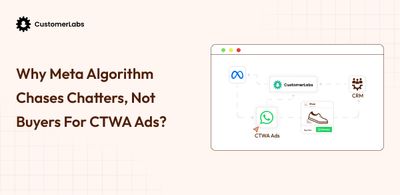
Zapier’s Facebook Lead Ads trigger only handles Instant Form leads, it was never built to catch a CTWA conversation. Nothing in that chain forwards ctwa_clid, so whatever event lands in Meta arrives stripped of the one identifier that ties it back to the ad.
Meta doesn’t see a qualified lead or a dead end at that point. It sees an anonymous conversion with no ad attached, and optimizes on chat volume instead of buyer quality, because volume is the only signal it’s receiving. And Meta’s delivery system learns sequentially: every stage event you send back (qualified → demo → closed) teaches it who to find next. Break the ID at message one and every downstream event is orphaned, so the algorithm never gets past “who replies” to “who buys.”
The billing just makes the failure expensive to notice.
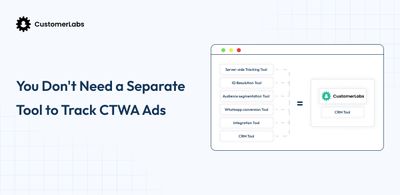
Zapier runs 5–8 billed tasks per lead (~$600/mo on Professional at 100 leads/day), Make’s credit pricing (since Aug 27, 2025) charges more for AI steps, and n8n swaps the task bill for infrastructure you host.
None of them fix the failure mode: any single step that doesn’t explicitly forward ctwa_clid breaks attribution silently, no error, no alert, no way to tell until finance asks why ROAS collapsed.
Native integrations don’t close it either, and the verdict comes down to one missing capability: custom events. BSP-to-CRM sync and CRM WhatsApp add-ons move contacts and threads fine, a lead lands in HubSpot, a conversation shows up in Salesforce, but none of them fire a custom conversion event with action_source=business_messaging and ctwa_clid attached at each CRM stage back to Meta’s CAPI.
HubSpot’s WhatsApp support sits behind a paid Marketing Hub tier and still doesn’t do this; Salesforce runs WhatsApp through Digital Engagement, which handles messaging, not attribution; Zoho, Pipedrive and GoHighLevel push the job back to the BSP or middleware. GoHighLevel’s own community has an open feature request asking the platform to capture ctwa_clid at all.
The real difference isn’t automation, it’s identity. Zapier, Make and n8n move data between apps; they don’t resolve who the person is. Each tool sees a disconnected payload. What’s needed is a layer between WhatsApp, Meta and the CRM that catches ctwa_clid once on the first message, resolves it into a single unified profile, and forwards custom events in both directions — to Meta as business-messaging conversions at every stage, and to the CRM as a contact property that persists through every stage change. That unified ID is what makes sequential learning possible.
That’s the implementation this post walks through, using CustomerLabs’ own connection flows for Meta and your CRM.
How To Integrate WhatsApp, Meta, and Your CRM?
You can do this without any tech support, trust me if I can do it you can do it too.
Three connections make up the pipe: WhatsApp in, Meta out, CRM both ways. Here’s each one.
1. Connect WhatsApp as a source
WhatsApp Business has its own dedicated source connector, this isn’t a webhook you paste in, it’s an OAuth flow straight to Meta Business Manager:
- In CustomerLabs, go to Sources → Connect Source, and select WhatsApp from the list.
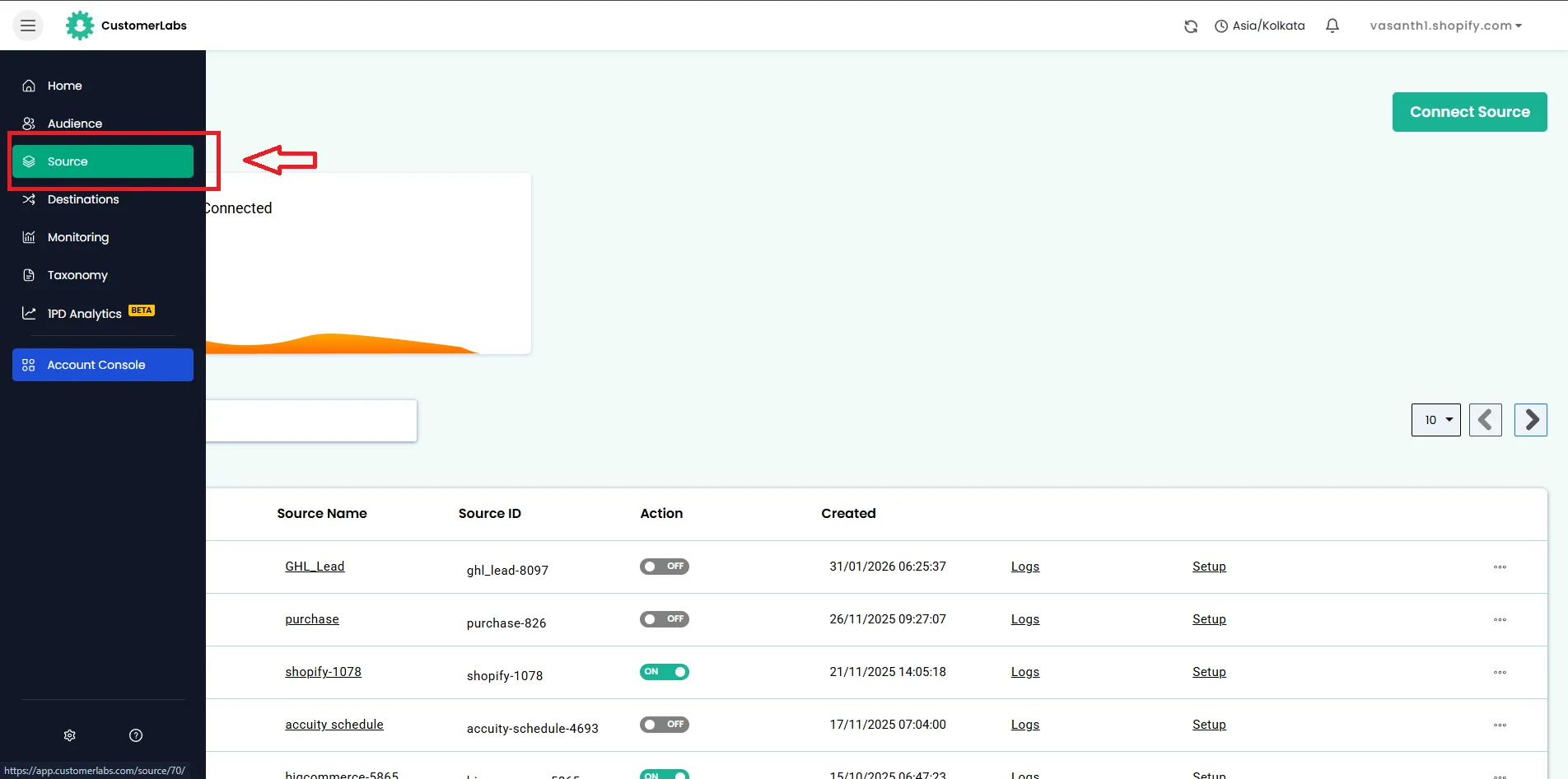
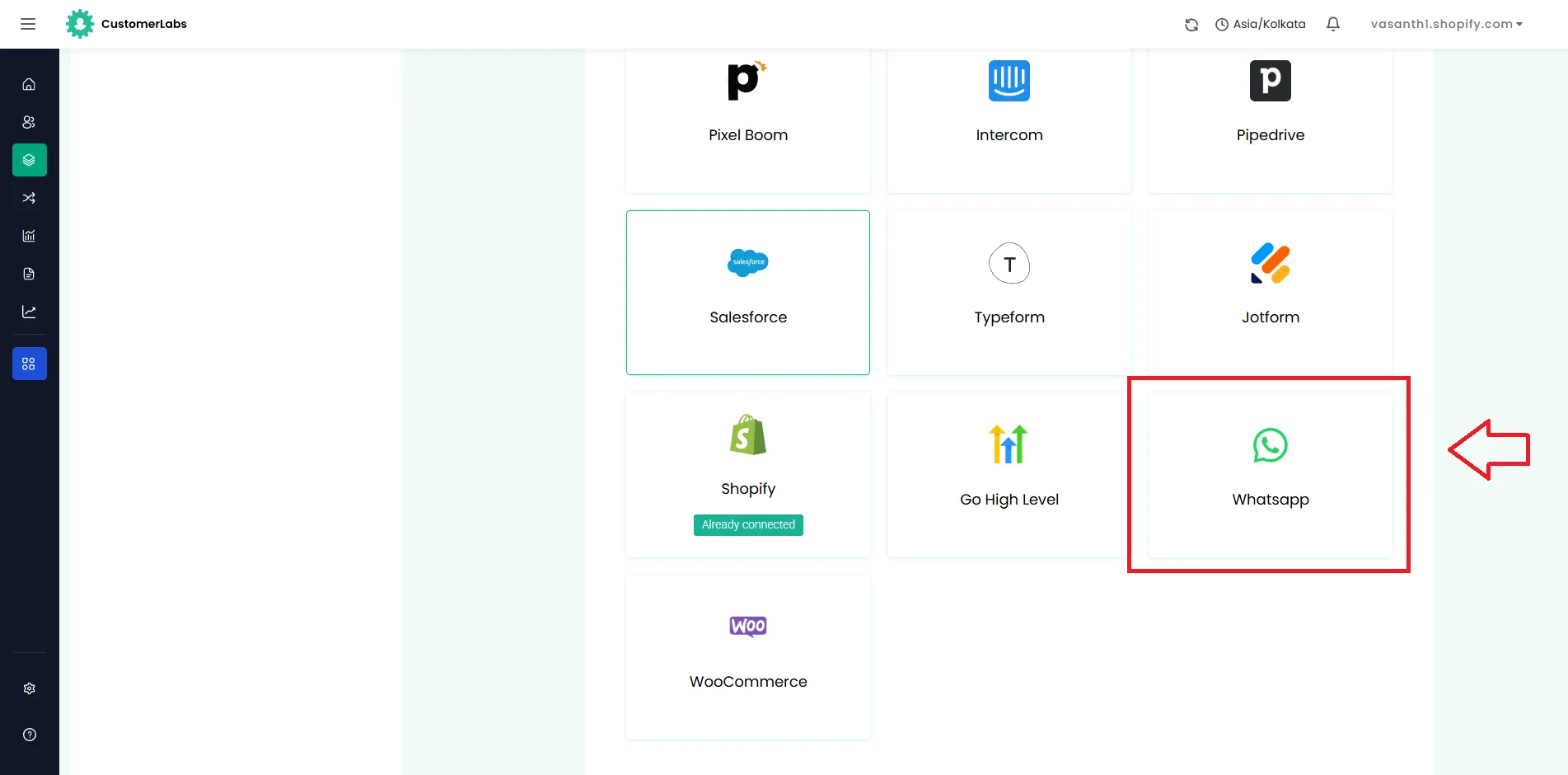
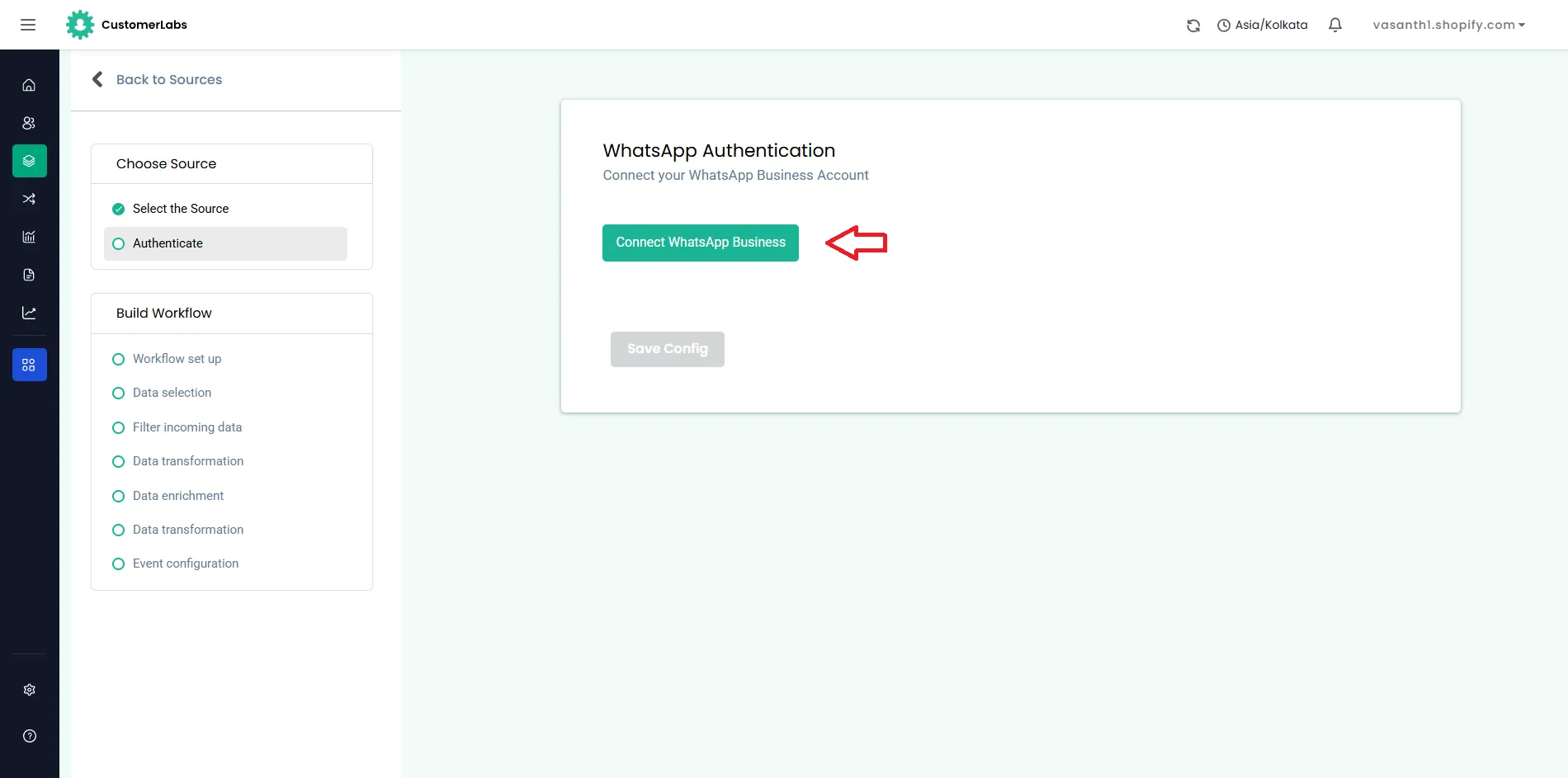
- Click Connect WhatsApp Business, then Continue on the pop-up.
- Authenticate: choose your Business Portfolio, WhatsApp Business Account, Facebook Page, and Ad Account. If you’re creating a new asset, you’ll fill in Name, Category, Country, Website, and Timezone first.
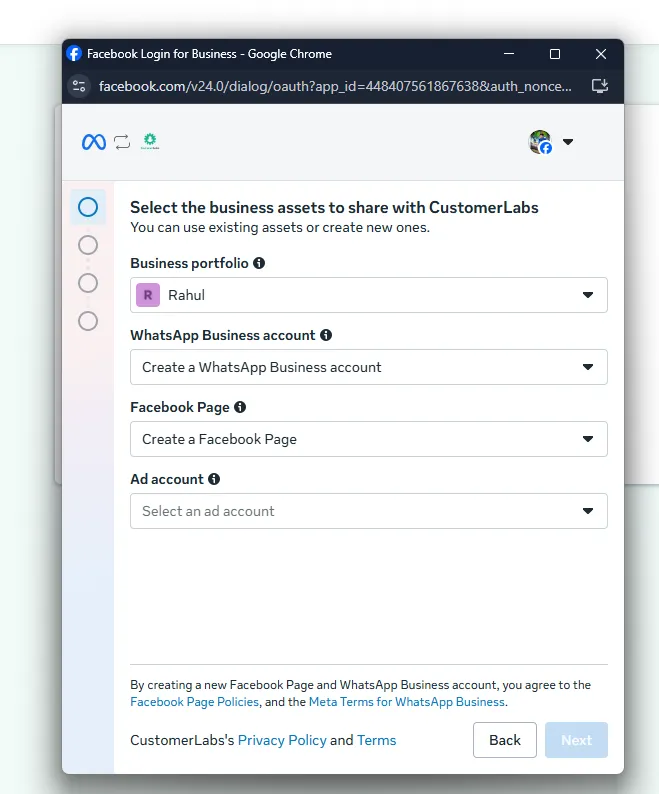
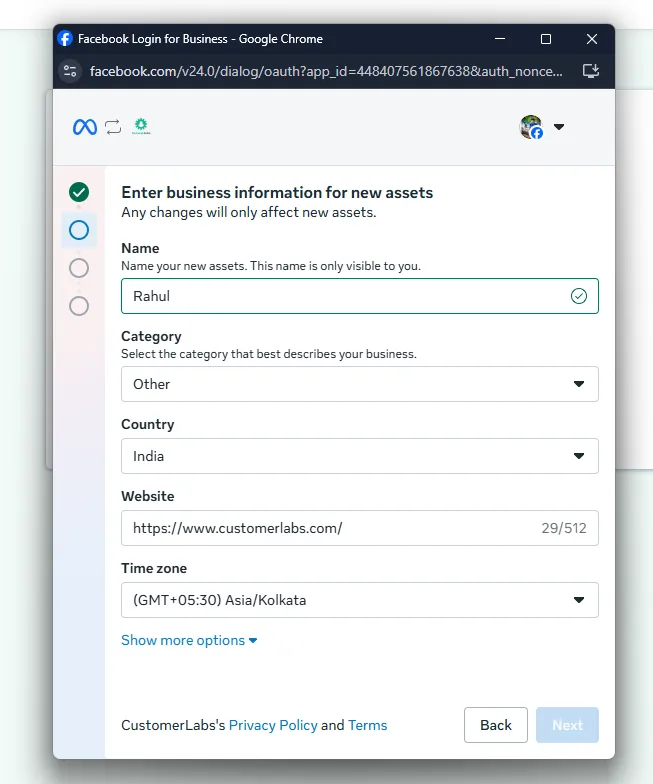
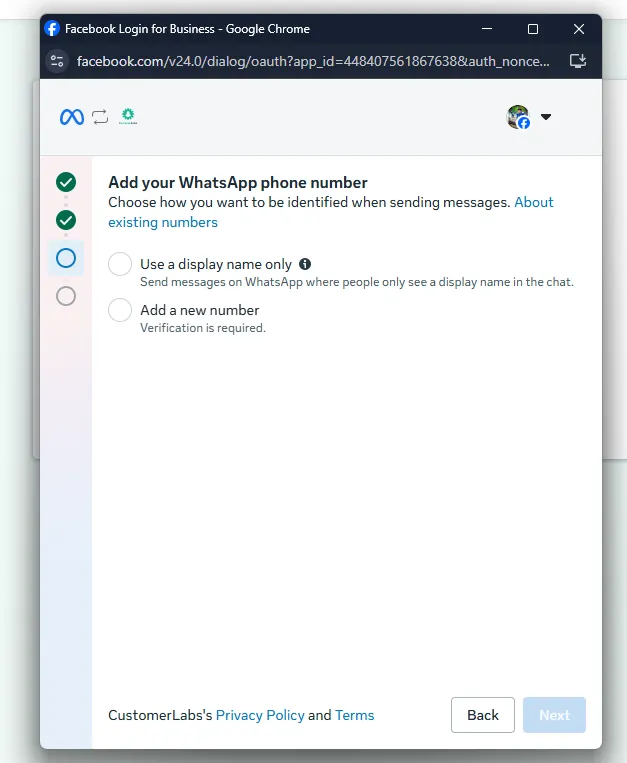
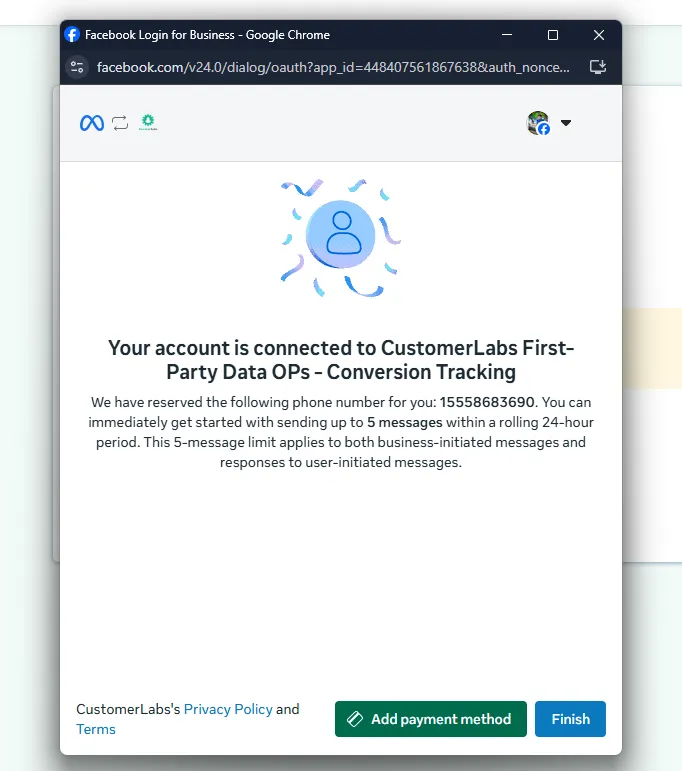
- Review the selected details and click Confirm, then Finish. CustomerLabs displays your Phone Number ID and WhatsApp Business Account ID once authentication succeeds, click Save Configuration.
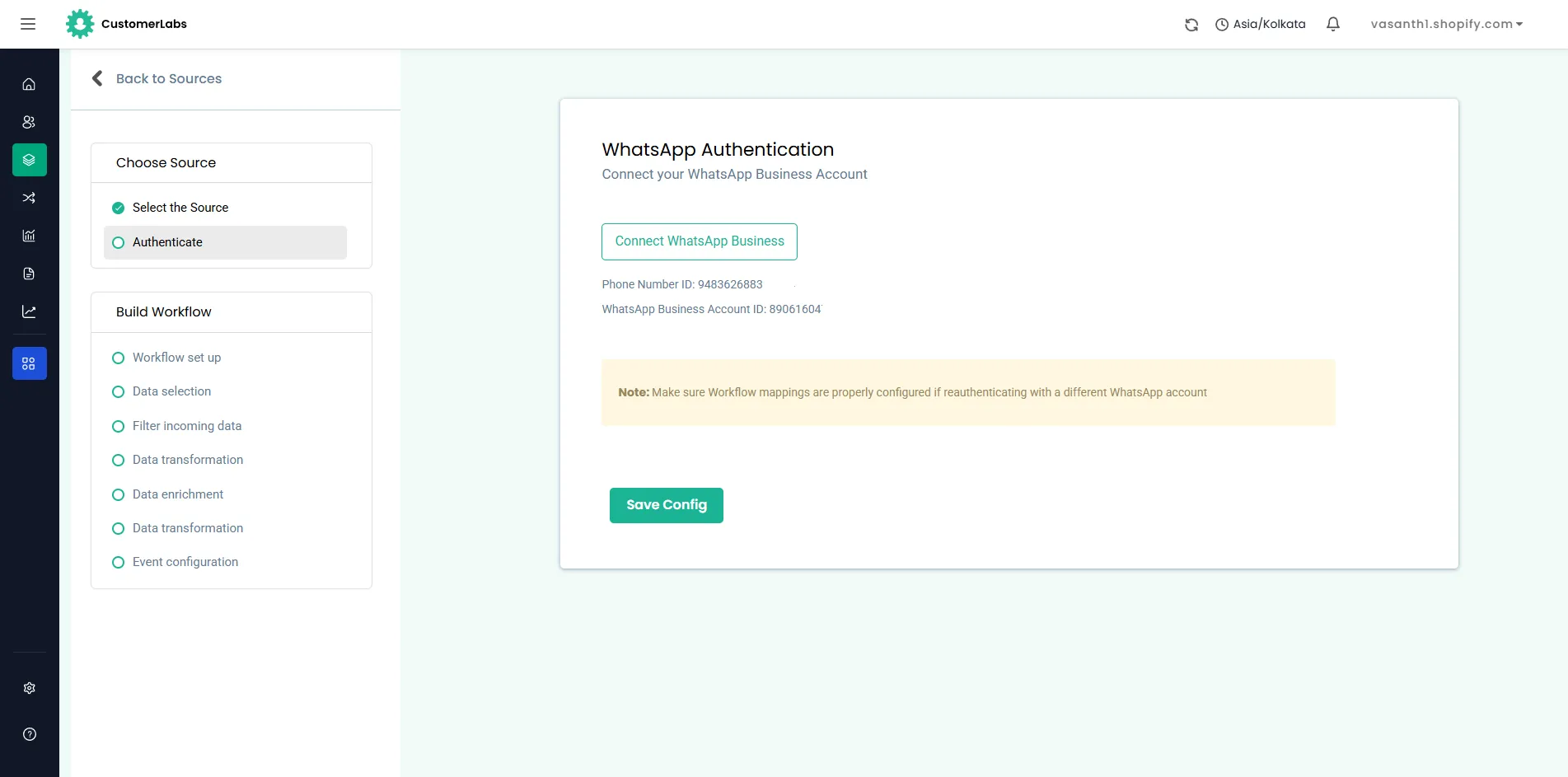
- Under Workflows, create workflows for the events you want to track (Response, Purchase are the built-in options; custom workflows can track lead qualification or purchase confirmation).
- Verify: open Sources → WhatsApp → Events. Under Workflow > Go to Data Selection Section > Click Fetch new data. And confirm incoming events are logged with the expected parameters, including the referral object on a test CTWA message.
For more detailed information, you can read through the official CustomerLabs’ WhatsApp source docs.
Note: If you’re running a BSP in front of WhatsApp instead of the Cloud API directly, Wati, Interakt, AiSensy, Gallabox, MSG91, DoubleTick, BizMagnets, Whatso, those connect the same way as a Custom Source.
If the BSP isn’t a first-class connector, either way, the referral object is what you’re protecting. It only appears on a contact’s first inbound message and carries ctwa_clid, so it needs mapping onto the profile as its own attribute (for example, wa_ctwa_clid) to survive past message #1.
If a BSP’s payload shows no referral block on a test message, it’s stripping it, either switch BSPs or point the Cloud API webhook straight at CustomerLabs.
2. Connect Meta as a destination
The setup runs through Destinations, not through a manually-entered Pixel ID and access token:
- In CustomerLabs, go to Destinations → Facebook, enter the last 4 digits of the pixel you’re sending data to, and click Save and Enable.
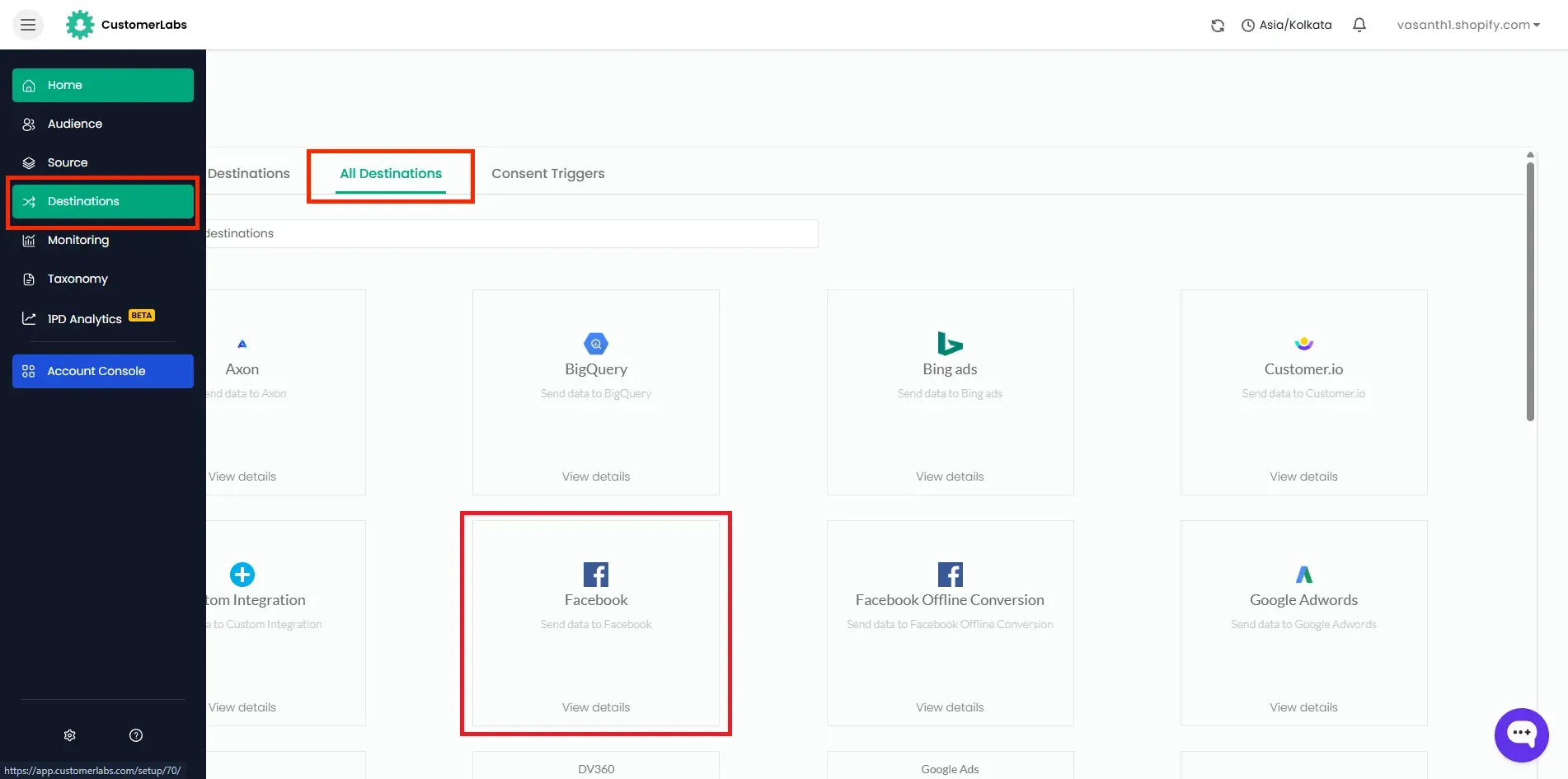
- Open Configuration Settings → Authenticate Facebook account. This uses a system user under your Meta Business Manager account, so ad account or pixel changes on Meta’s side don’t break the connection later, CustomerLabs’ docs flag this as the recommended path over the alternative (page-only) authentication.
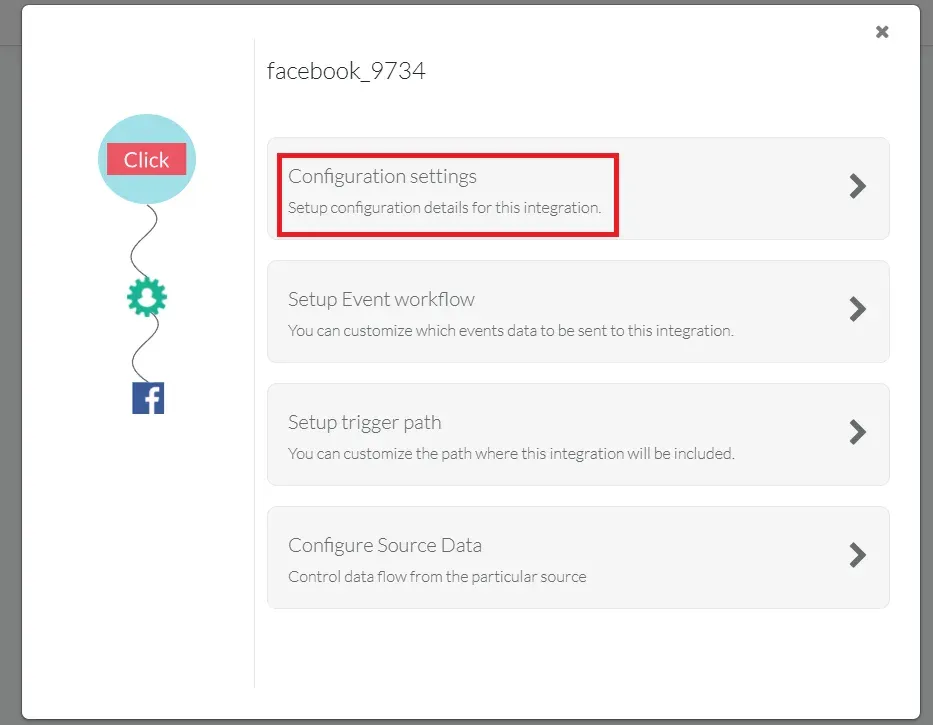
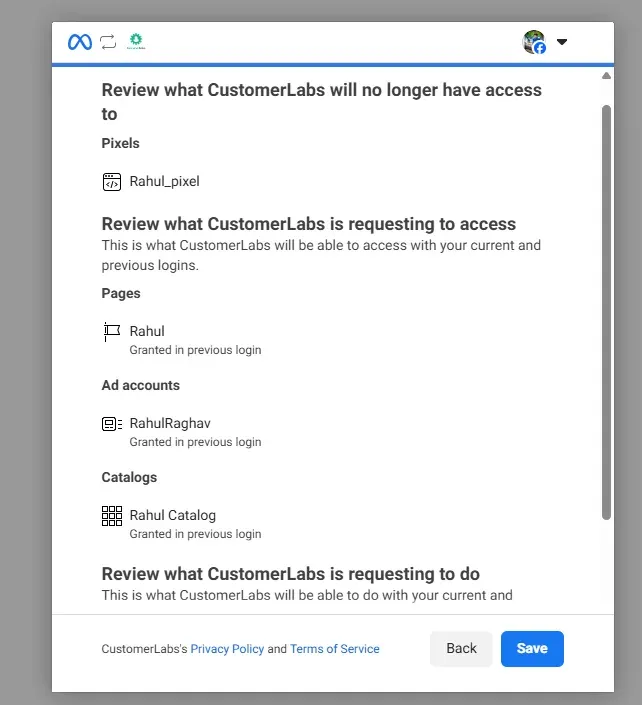
- Select your Business Manager, then your Pixel, then the Ad Account and Catalogue.
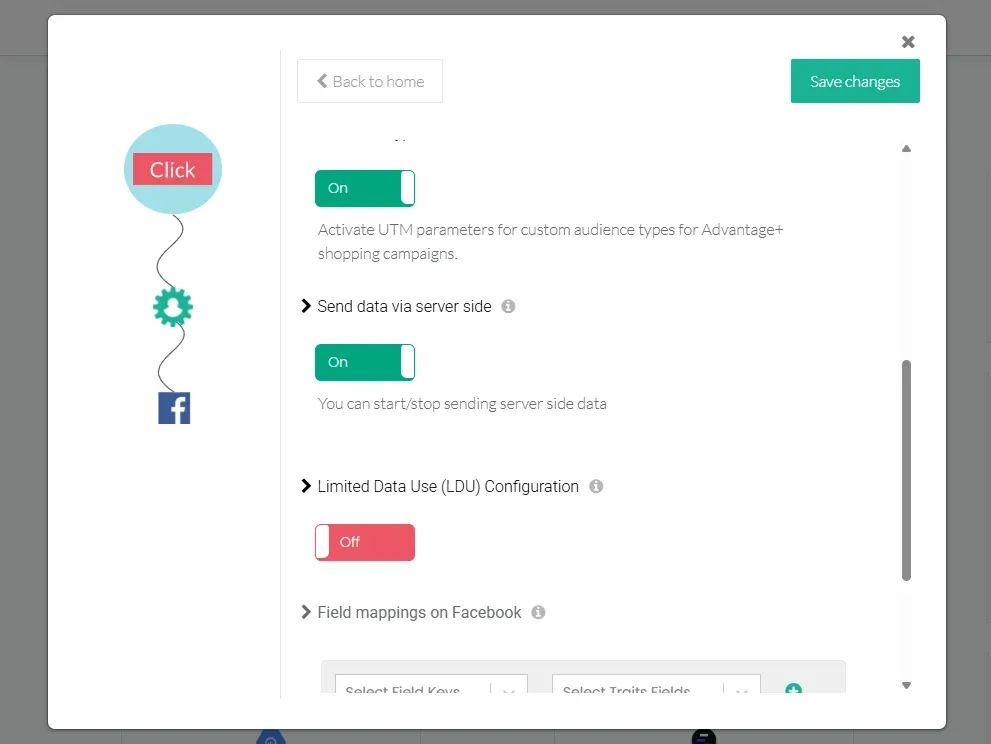
- Turn on Send data via server-side, this is what routes events through Conversions API instead of relying on browser-side Pixel firing, which is the entire point for a channel like WhatsApp that has no browser.
- Under Custom Field Mappings, map your non-standard properties,
wa_ctwa_clidto Meta’sctwa_clidparameter,wa_ad_idto Meta’s ad ID field, and so on. Standard fields (email → em,phone → ph) map automatically; anything outside CustomerLabs’ default schema needs an explicit row here.
The one thing worth being deliberate about here: Meta’s Conversions API for Business Messaging expects action_source set to business_messaging and messaging_channel set to the string "whatsapp" not a nested object with ctwa_clid sitting inside user_data alongside any hashed phone or email you can attach. A correctly-shaped event looks like this:
{ "data": [{ "event_name": "Lead", "event_time": 1755000042, "action_source": "business_messaging", "messaging_channel": "whatsapp", "user_data": { "ctwa_clid": "ARB0aH7...", "ph": ["e8f7...hashed"], "em": ["9c5b...hashed"], "external_id": ["cust_profile_id_abc123"] }, "custom_data": { "ad_id": "23859871234567890", "source_url": "https://fb.me/2Hxxx", "ad_headline": "Get 40% off — chat with us" } }]}Map at minimum these five stages so Meta sees the full funnel, not just “conversation started”:
| CRM / conversation stage | Meta event name | When it fires |
|---|---|---|
| First inbound WhatsApp message with referral present | Lead | Message #1 from a CTWA contact |
| CRM stage → MQL | Lead (or a custom MQL event) | Marketing qualifies the contact |
| CRM stage → SQL | Custom SQL event (or AddToCart as a proxy) | Sales qualifies the contact |
| CRM stage → Opportunity | InitiateCheckout (or a custom Opportunity event) | Deal opened |
| CRM stage → Closed-Won | Purchase (with value and currency) | Deal closed |
Check Meta Events Manager’s Test Events view after the first live message: confirm action_source reads business_messaging, confirm ctwa_clid is present under user_data, and check Event Match Quality.
There’s no single official Meta threshold for EMQ, but a commonly cited working benchmark is 6 out of 10 or higher, the server-side toggle above, plus hashed phone/email in the mapping, is what gets you there.
Give it roughly 48 hours to stabilize before judging performance.
Check the CustomerLabs Meta documentation.
3. Connect your CRM
CustomerLabs treats your CRM as both a Source (pulling stage changes in) and a Destination (pushing the enriched CTWA profile out), and HubSpot, Salesforce, Zoho, Pipedrive, FreshSales, Drift, and Vivenu all have dedicated CRM source connectors. The pattern is consistent across them:
As a Source
Sources → Connect Source → pick your CRM → authenticate → select the CustomerLabs account to link it to.
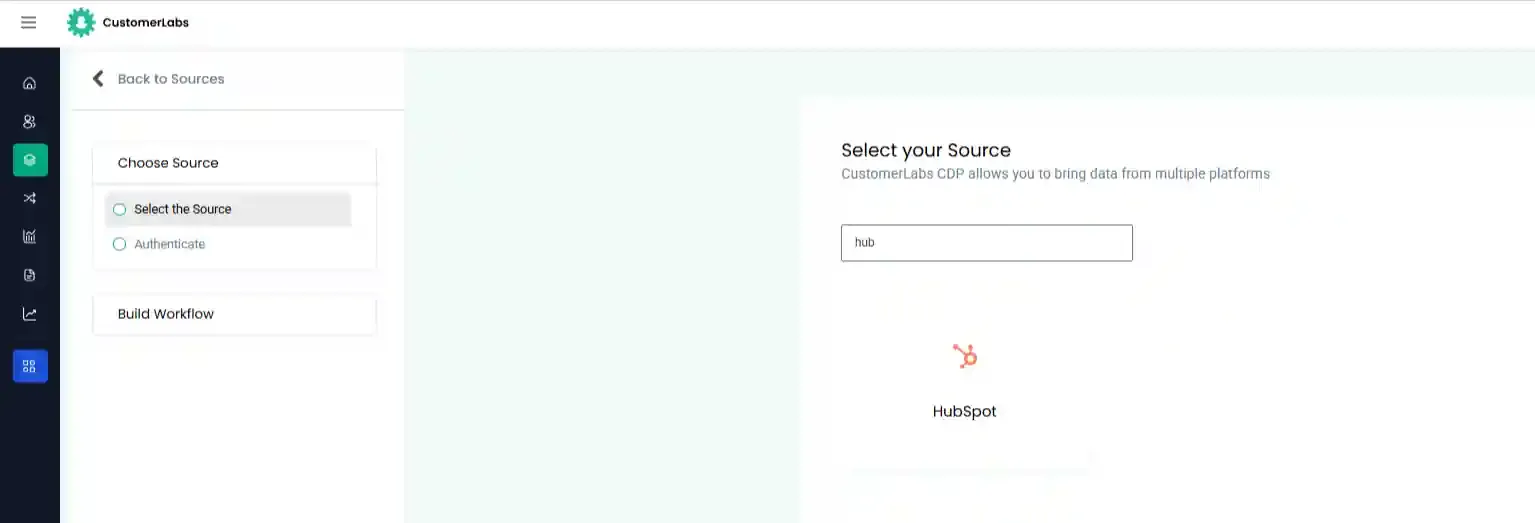
Once connected, the CRM starts sending its default event subscriptions automatically, contact and deal updates for HubSpot arrive as User and Account events, for example.
Add any custom fields you rely on (lifecycle stage, deal stage, disqualification reason) under the Custom Field Configurations section, up to 10 custom fields per module.
As a Destination
The same CRM connection can be added under Destinations to push the enriched CustomerLabs profile, phone, email, wa_ctwa_clid, wa_ad_id, wa_source_url, wa_ad_headline, back out as contact properties, so sales sees the originating ad on the contact card instead of a bare phone number.
For any CRM without a first-class destination connector, the Custom Webhook destination covers the same job.
Create the custom properties on the CRM side before mapping, using types that match what CustomerLabs will actually send:
| Profile attribute | CRM custom property | Type |
|---|---|---|
| phone | phone (standard) | Phone |
| email (standard) | ||
| wa_ctwa_clid | wa_ctwa_clid | Single-line text |
| wa_source_id_ad_id | wa_ad_id | Single-line text |
| wa_source_url | wa_source_url | URL |
| wa_ad_headline | wa_ad_headline | Single-line text |
| campaign_id | wa_campaign_id | Single-line text |
Use phone (or email) as the identity match key so the contact upserts cleanly instead of duplicating.
Once both connections are live, the loop closes in both directions: the first CTWA message writes ctwa_clid onto the profile and fires Lead to Meta; every CRM stage change after that flows back through the same CustomerLabs profile, inheriting ctwa_clid rather than depending on the CRM to send it again, and out to Meta as the next event in the funnel.
It’s also worth routing Disqualified, Junk, and Closed-Lost stages to a Meta suppression audience, so Meta stops retargeting or building lookalikes from dead leads.
Follow the respective docs to connect your CRM: HubSpot, Salesforce, Zoho, Pipedrive, FreshSales, Drift, Vivenu. Didn’t find your CRM in the list, no worries, just connect it as a custom source.
Per-CRM notes
HubSpot. Use “Single-line text” for wa_ctwa_clid and wa_ad_id, not “Number”, these IDs are strings and can contain characters a Number field will reject. A Contact in HubSpot maps to a User in CustomerLabs, and a Company maps to an Account.
Salesforce. Create custom fields on both Lead and Contact if your workflow upserts to Lead and converts to Contact on qualification, and enable Field-Level Security for the CustomerLabs integration user on every wa_* field, otherwise writes fail silently with no error surfaced.
Zoho CRM. Custom fields go under Setup → Customization → Modules → Contacts → Create Custom Field, and the OAuth connection needs the ZohoCRM.modules.contacts.ALL scope or field writes get rejected.
Pipedrive. Create wa_ctwa_clid and wa_ad_id at the Person level, not the Deal level — the CTWA identifier belongs to the human who clicked, not to any one deal they’re part of.
GoHighLevel. Custom-field API names need the contact. prefix when referenced inside workflow triggers (contact.wa_ctwa_clid) — a common gotcha for teams building automations on these fields once native ctwa_clid capture ships.
Pre-flight checklist
- WhatsApp Business Account connected to CustomerLabs as a source (native connector, or Custom Source if routed through a BSP).
- A test CTWA message shows a referral object with
ctwa_clid,source_id, andsource_urlpopulated, mapped onto the contact profile. - Meta destination authenticated via Business Manager; “Send data via server-side” and “Enable all server-side callbacks” both on.
- Custom field mappings for
wa_ctwa_clid → ctwa_clidandwa_ad_idsaved. - Lead event fires with
action_source=business_messagingandctwa_clidpresent underuser_data, with a healthy EMQ. - CRM custom properties created with matching field types before mapping the CRM destination.
- CRM connected as both Source (stage changes in) and Destination (enriched profile out); a test contact shows all mapped fields populated.
- A test contact moved through MQL → SQL → Closed-Won fires three sequential CAPI events, each with the same
ctwa_clid. - Disqualified / Closed-Lost synced to a Meta suppression audience.
- A 48-hour learning period is respected before judging campaign performance.
Connect and Track The Complete Full Funnel
The loop is straightforward once Meta and your CRM are both wired to the same layer: Meta ad → WhatsApp → CustomerLabs (captures ctwa_clid) → CRM and Meta CAPI in parallel, with CRM stage changes flowing back through the same layer as fresh CAPI events. Meta optimizes on real pipeline outcomes, MQL, SQL, revenue, not “conversation started,” and the CRM contact carries the ad ID your sales team can actually use in the first reply.
See how CustomerLabs captures ctwa_clid, syncs enriched CTWA leads to your CRM, and closes the loop to Meta CAPI, with no Zapier in the middle. Book a demo or start a free trial.