I still remember the Monday this happened to me.
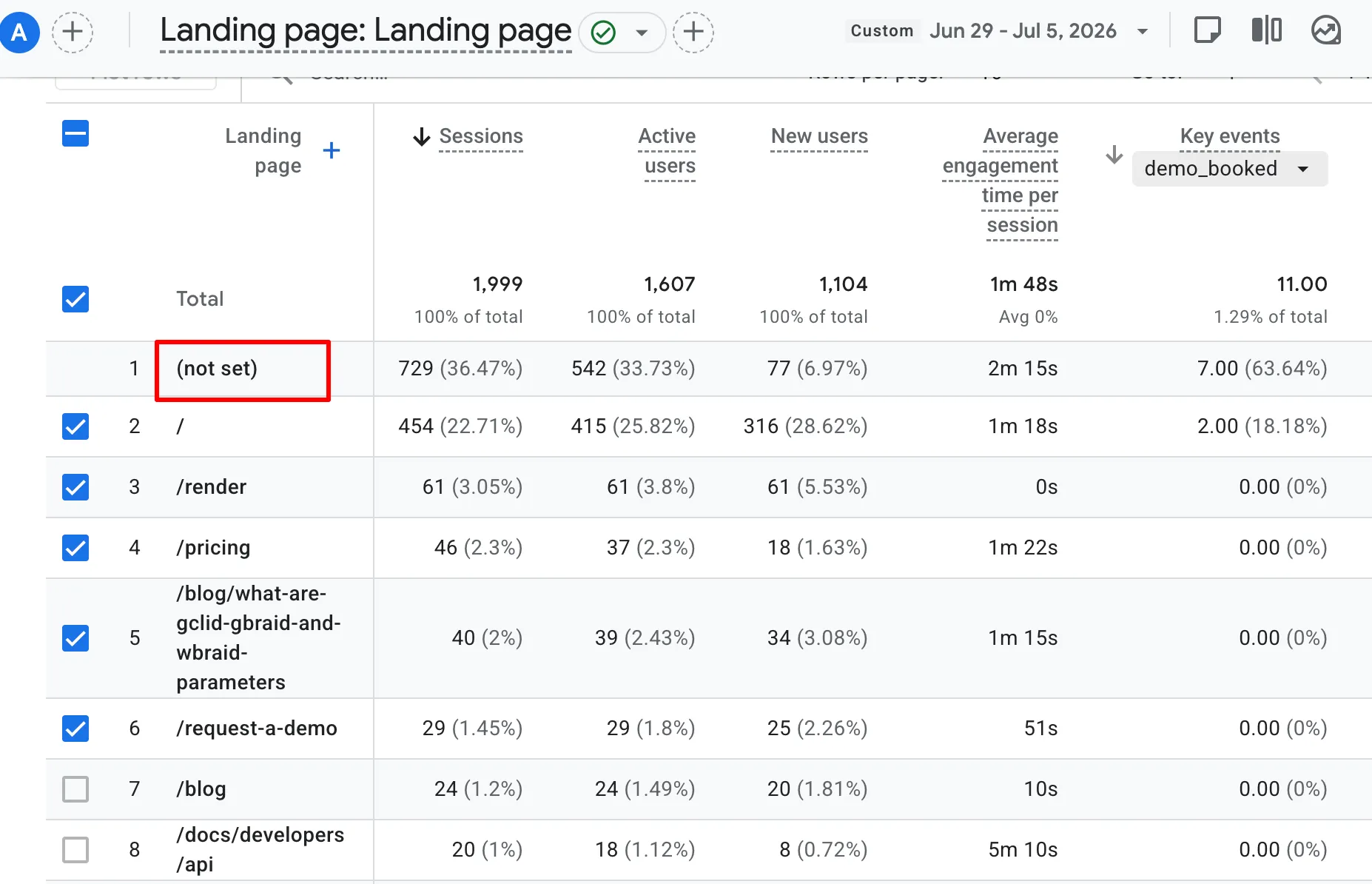
I was putting together our weekly marketing report, feeling pretty good about how the campaigns were tracking. I opened up our top landing pages, pulled up the traffic sources, and stared at the screen. The number one driver of everything, outperforming Google, outperforming our paid ads, outperforming every campaign running was (not set).
It was sitting right at the top of the table like it had earned the spot.
My first reaction was that I’d broken something in Google Tag Manager. I did what any marketer does: I opened up GTM, fired up GA4 DebugView, and went through the funnel myself to test the event.
It worked perfectly and the event fired, every single custom parameter was attached, and it turned that reassuring shade of green in the debug timeline. By every diagnostic test I knew how to run, the tracking was flawless.
Which honestly made it incredibly frustrating. If the event is firing perfectly right in front of my eyes, where is the data going when the report builds?
It took me weeks of digging to realize a fundamental truth about GA4 that trips up almost everyone: tracking is a pipeline, not a standalone trigger.
DebugView only proves that the packet of data left your site correctly. It doesn’t guarantee that a browser didn’t block it mid-transit, a redirect didn’t strip attribution parameters, or GA4’s backend didn’t quietly drop it before rendering your table.

Why GA4 Reports Show “(not set)” Even When Events Fire Correctly
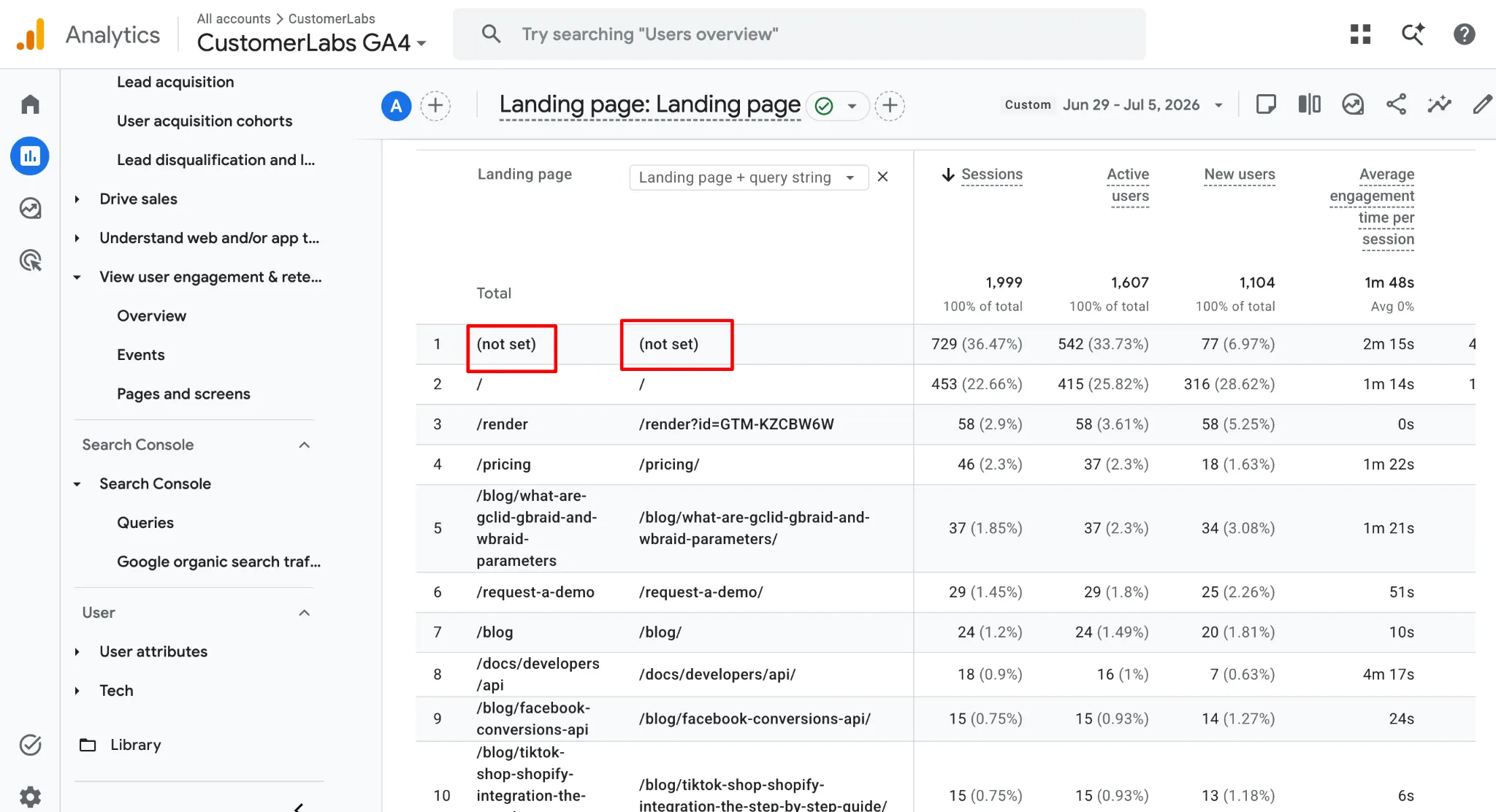
The definition that finally made it click for me is simple: (not set) is just a placeholder. It means GA4 received an event, but it literally had no data to fill into that specific cell. It’s not a bot attack, and it’s not fake traffic. It’s a data gap.
But the mistake I was making was treating every (not set) row as the same issue. It’s a symptom of completely different underlying technical issues depending on where it shows up.
For example, your Session source / medium going blank and your Landing page going blank are two entirely separate infrastructure failures.
It’s also important not to confuse (not set) with Direct traffic:
-
Direct: GA4 tracked the user session successfully but found no referrer data.
-
(not set): GA4 lacked the value for that dimension entirely.
Here’s the cheat sheet I wish I’d had on day one — what (not set) usually means depending on where it shows up:
| Where you see (not set) | What it actually means | The usual cause |
|---|---|---|
| Source / Medium | No referrer or campaign was captured | Consent denial, in-app browsers, UTM stripping, referral exclusions |
| Landing Page | The session had no page_view event | Session timeout or tag firing order |
| Custom Dimension | No registered value for that date range | Registration isn’t retroactive, or the parameter wasn’t sent |
Every one of those causes happens at a specific point between the click and the cell in my report. So I did the only sensible thing left: I followed the data and looked for where it drained out.

Where Your GA4 Data Leaks Before It Reaches Reports
Once I stopped looking at GTM and started looking at the infrastructure, I found five common joints in the data pipeline where information drains out.
1. The Consent Gate
My own consent banner was delaying GA4 from loading until the visitor made a choice. If a user landed on the site and accepted cookies after browsing for a bit, the early parameters, like the initial session_start, first_visit, and the organic referrer header were already gone. GA4 started recording the timeline late, meaning the origin of the session was completely missing.
2. The Safari & iOS Black Hole
This was the primary culprit for our reporting gaps. Safari’s Intelligent Tracking Prevention (ITP) caps client-side JavaScript cookies at 7 days, and cuts them down to just 24 hours if the user arrives via a link with query parameters (like ad clicks). When a Safari visitor came back on day eight, their session history was fragmented. They looked like a brand-new user, but their journey lacked an origin story, producing orphaned events that defaulted straight to (not set).
3. Redirect Parameter Stripping
We were using vanity URLs for specific campaigns and had an old HTTP-to-HTTPS redirect chain live on the site. When I ran an end-to-end link audit, I realized our server configurations were silently dropping the utm_ tags during the redirect hop. The user landed on the correct page smoothly, but the campaign attribution data was wiped out before the GA4 script could read the URL.
4. Cross-Domain and Subdomain Disconnects
Our paid ads pointed to a dedicated landing page hosted on a third-party platform, and users clicked a call-to-action to complete their checkout on our main domain. Because our cross-domain tracking linker wasn’t configured tightly, GA4 viewed that domain hop as a brand-new session. The source and medium died right at the domain border, turning the conversion data into an un-attributable mess.
5. Server-Side and CRM Mismatches
We were pushing offline conversion data from our CRM back into GA4 using the Measurement Protocol. It felt like a great setup until I looked at the raw reports. Because we weren’t passing the exact, original client_id and ga_session_id from the user’s web session, GA4 had no way to stitch those offline events back to the browsing session that caused them. They landed in our reports as completely orphaned hits covered in (not set).
How I Fixed It for Good: I Stopped Reporting Inside GA4
Two things had to change, and only one of them was tracking.
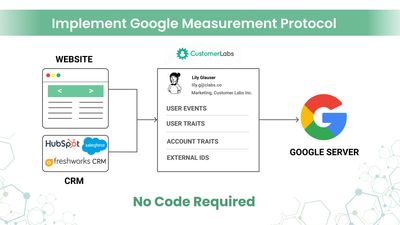
The collection side was the easy half. The browser is the one part of this pipeline I don’t control, so I moved identity and conversion capture off it. That’s what a first-party, server-side setup does: cookies get set from my own domain instead of by third-party JavaScript, which sidesteps Safari’s 7-day ITP cap and keeps a returning visitor tied to their original session. Events get captured server-side, so a delayed consent banner doesn’t take my source, medium, and landing page down with it, and offline conversions carry the right client_id and ga_session_id instead of arriving as orphaned hits. That’s where CustomerLabs earned its place in my stack — not as another analytics platform, but as the layer that keeps the pipeline from leaking.
But here’s the part nobody told me: clean collection doesn’t give you a clean report. Even with a perfect pipeline, GA4’s interface still thresholds low-volume rows, still attributes on a session-scoped cookie, and still put (not set) at the top of my landing page table. The leak was fixed and the report was still broken.
So I stopped asking GA4’s interface for the answer. I built the report myself.
The custom report I built instead
Instead of relying on thresholded GA4 views, I built an automated Google Sheet powered by Apps Script. It joins raw GA4 BigQuery event data with CustomerLabs first-party server-side data to power specific reports I check regularly:
-
Daily Real-Time Activity Tracker
- What it tracks: Active users, immediate conversion events, and incoming traffic spikes updated in real time.
- Why it matters: Unlike GA4’s standard reporting delay, this gives an un-thresholded, immediate snapshot of live site activity without (not set) pollution.
-
CRM Opportunity Pipeline & Revenue Attribution Report
- What it tracks: First-party visitor IDs stitched directly to CRM deal stages (MQLs, SQLs, and Closed-Won deals).
- Why it matters: It connects early web touchpoints directly to actual pipeline revenue, ensuring offline conversions and sales milestones aren’t dropped as un-attributable hits.
-
True Landing Page Performance & Content Assist Dashboard
- What it tracks: Landing page entries, direct conversions, and secondary multi-touch “assisted conversions.”
- Why it matters: Every session is tied to a valid page URL. Even if an idle tab times out or a session spans multiple days, server-side identity resolution prevents the landing page from defaulting to (not set).
-
First-Touch & Multi-Touch UTM Campaign Performance Report
- What it tracks: Source, medium, campaign, and performance across long buying cycles.
- Why it matters: Because first-party cookies survive Safari’s ITP restrictions and server-side tracking prevents UTM parameter stripping on redirects, campaign attribution stays intact from initial click to final conversion.
BigQuery knows who visited what. CustomerLabs knows who converted. The sheet is where those two finally meet.
The front of it is deliberately boring — a date range and a checkbox:
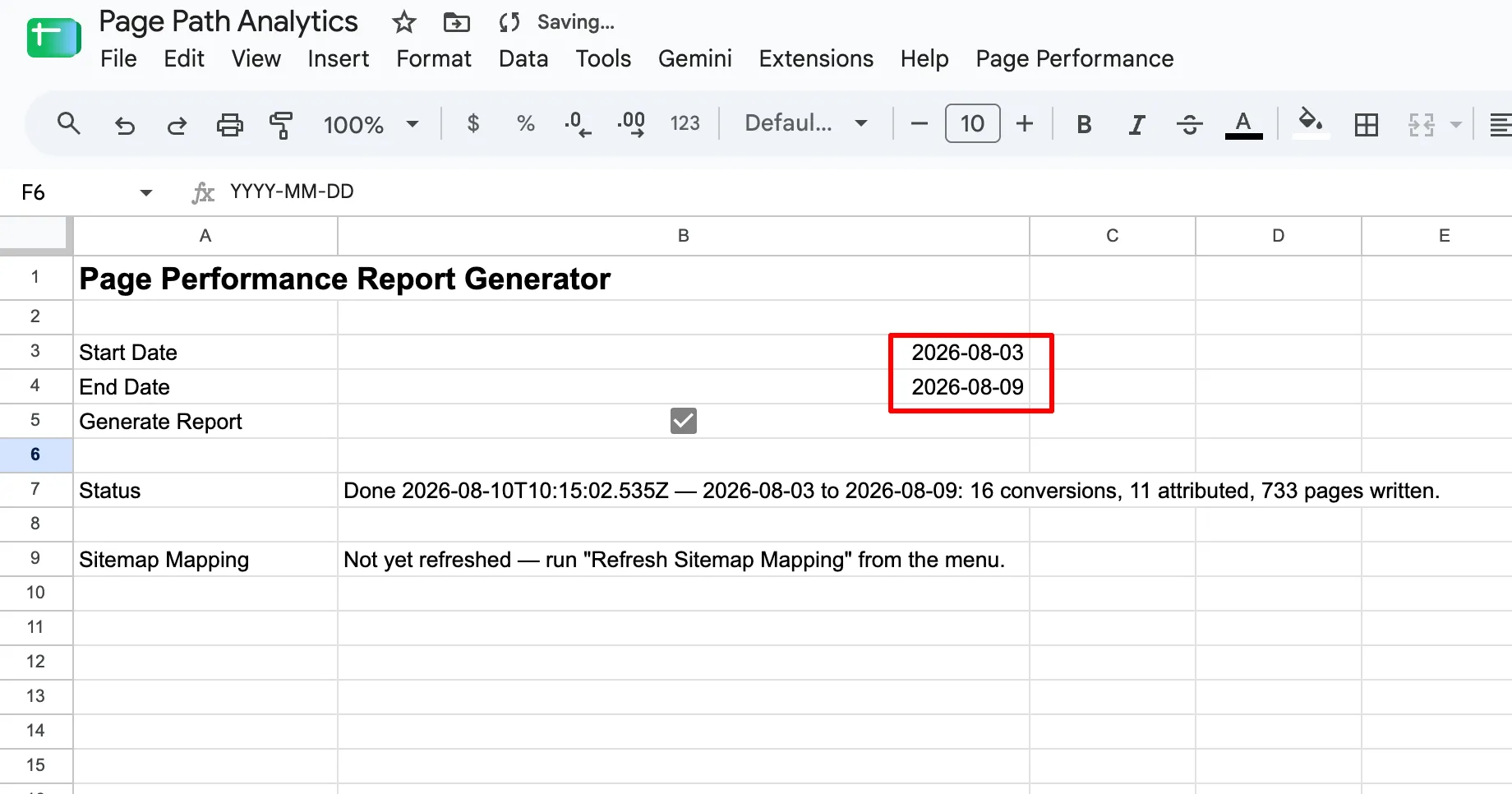
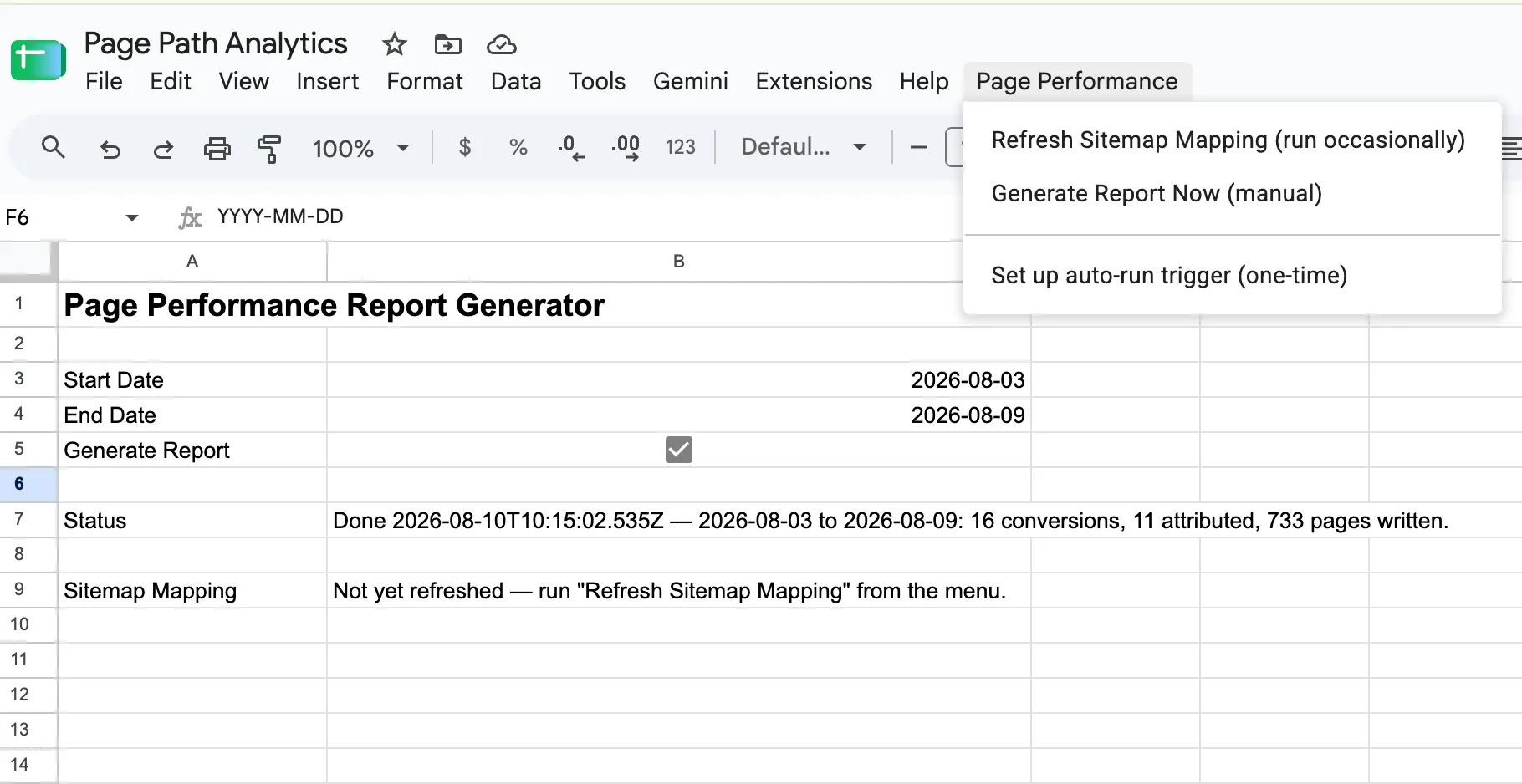
Behind it sits a Page Performance menu with three items: Refresh Sitemap Mapping (run occasionally), Generate Report Now (manual), and Set up auto-run trigger (one-time, so the weekly report builds itself).
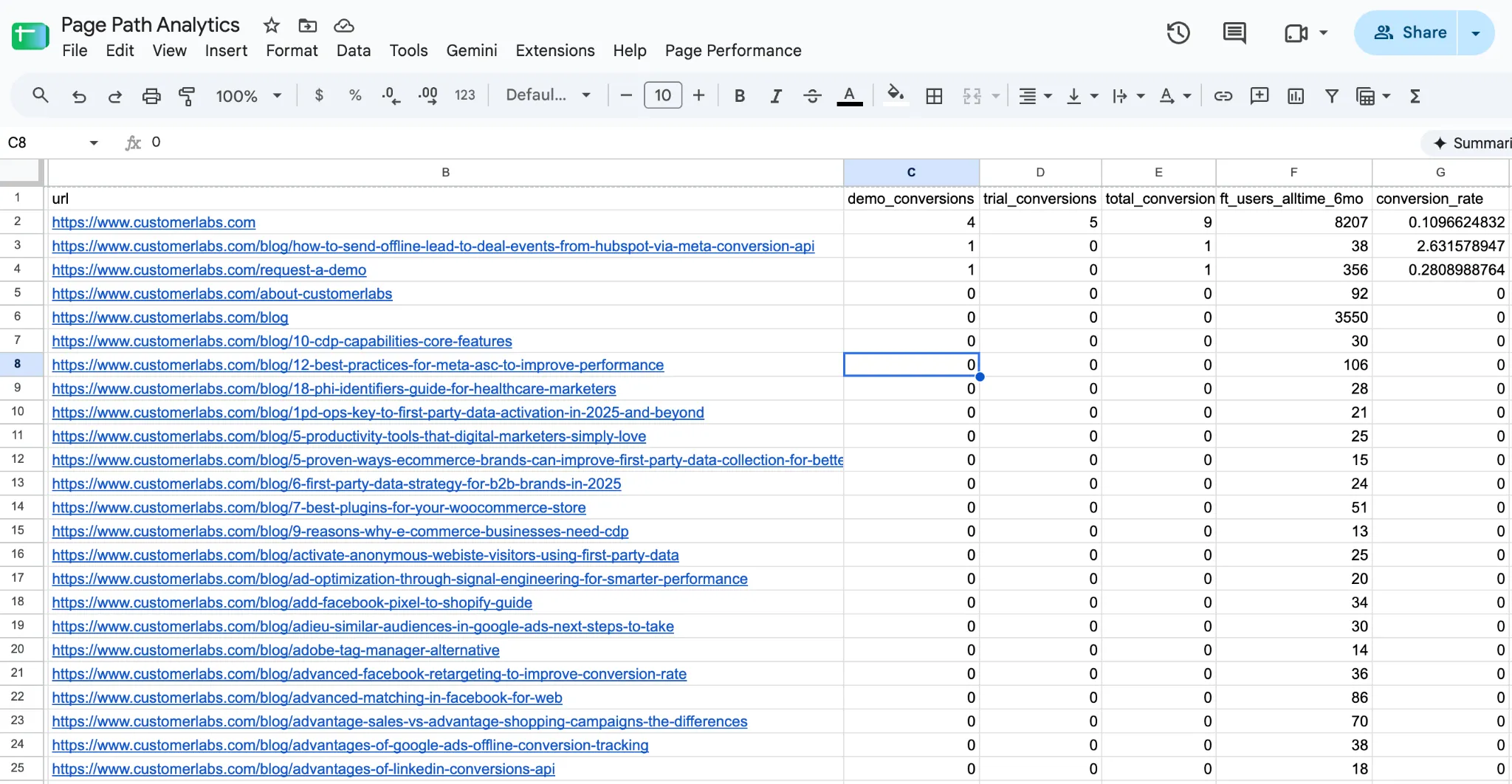
Tick the box, and two tabs get written.
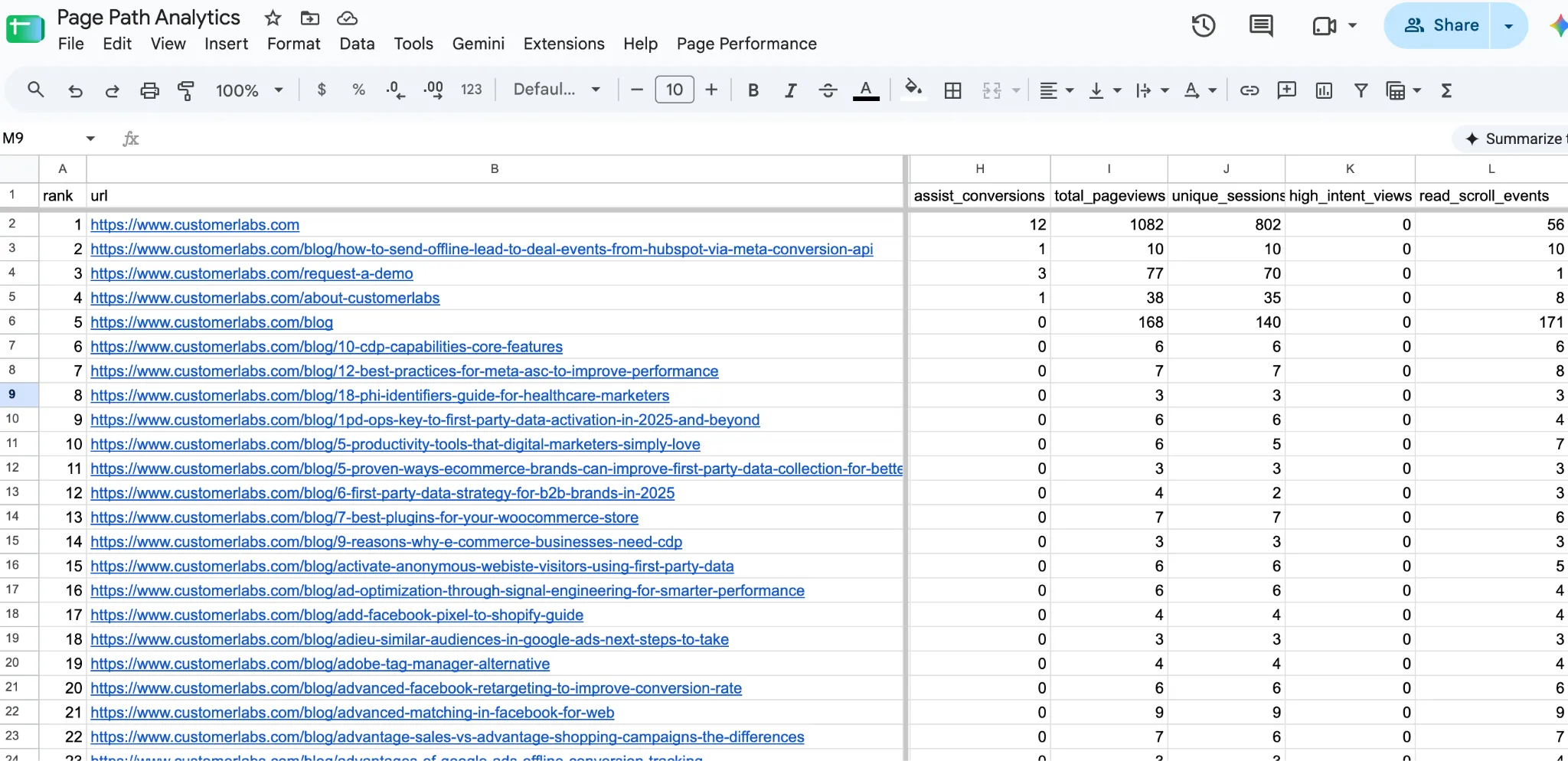
Page performance — one row per URL:
That last column is the one that changed how I think about content. A blog post almost never converts on the spot, so in GA4’s default view it looks like it does nothing. Counting assists is how those pages finally got credit for the demos they actually influenced.
Just with more accurate data that didn’t break every time browsers changed their tracking rules.

What I’d Tell You Now
The event fired and my implementation looked fine. And (not set) showed up anyway, because tracking was never just the event firing. It’s everything that happens between the user’s action and the value landing in the report. Browser restrictions, consent timing, redirect chains, cross-domain breaks, server-side mismatches or GA4 quietly hiding a row to protect privacy — any one of them silently threw away the data that should have filled that cell.
So the one habit that changed everything for me: I stopped celebrating when the event turned green. That’s the halfway mark, not the finish line. Now I verify that every parameter I care about completed the whole journey, from the click to the cell.
Fix the pipeline with proper tracking.